
TrueConf MCU 2.2: New Layout Editor, Improved Cascading, and Security Settings
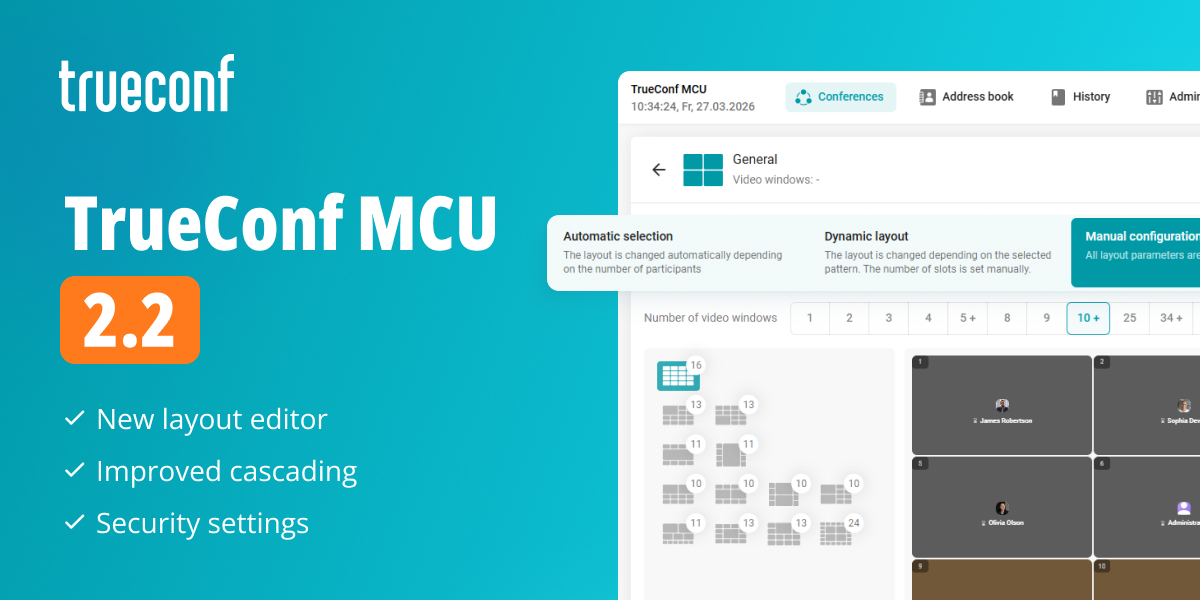
We’re happy to release TrueConf MCU 2.2, a new version of our video conferencing server for legacy SIP/H.323 endpoints. The update features redesigned layout editor, improved cascading mechanism, new security settings and navigation, as well as other performance changes.
List of supported operating systems
- Debian 10
- Debian 11
- Debian 12
New layout editor
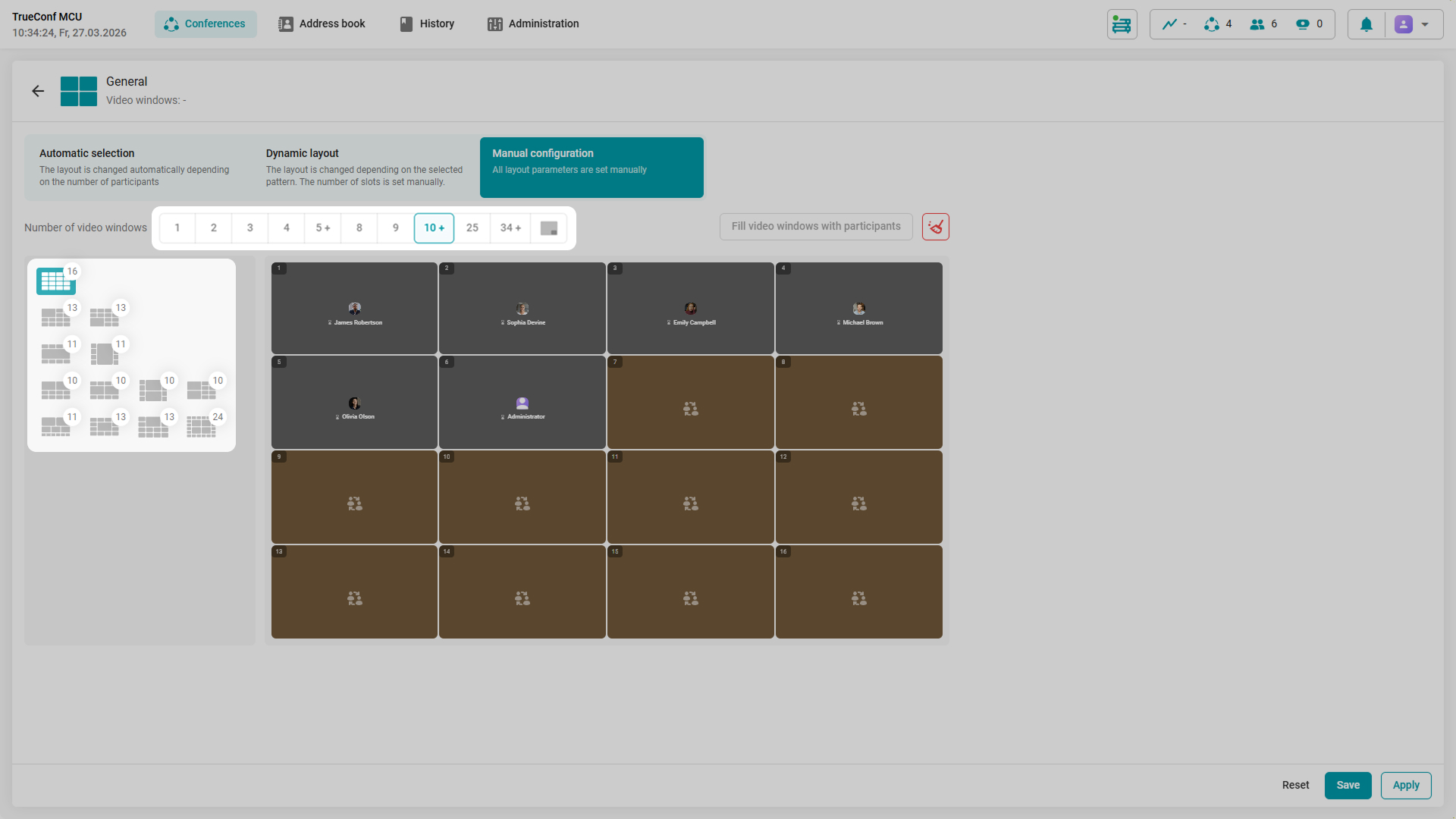
In TrueConf MCU 2.2, we’ve redesigned the layout editor to offer more options for flexibly adjusting the position of video windows. This enables you to combine different schemes, create layouts with overlapping windows, and switch between prepared templates on the fly, adapting the on-screen image to any scenario.
There are three types of layouts:
- Automatic selection — the layout is changed automatically depending on the number of participants.
- Dynamic layout — video window positions change according to one of the selected schemes. For this layout, you can set the maximum number of windows displayed simultaneously.
- Manual configuration — all layout parameters and video window content are set by the administrator or conference operator.
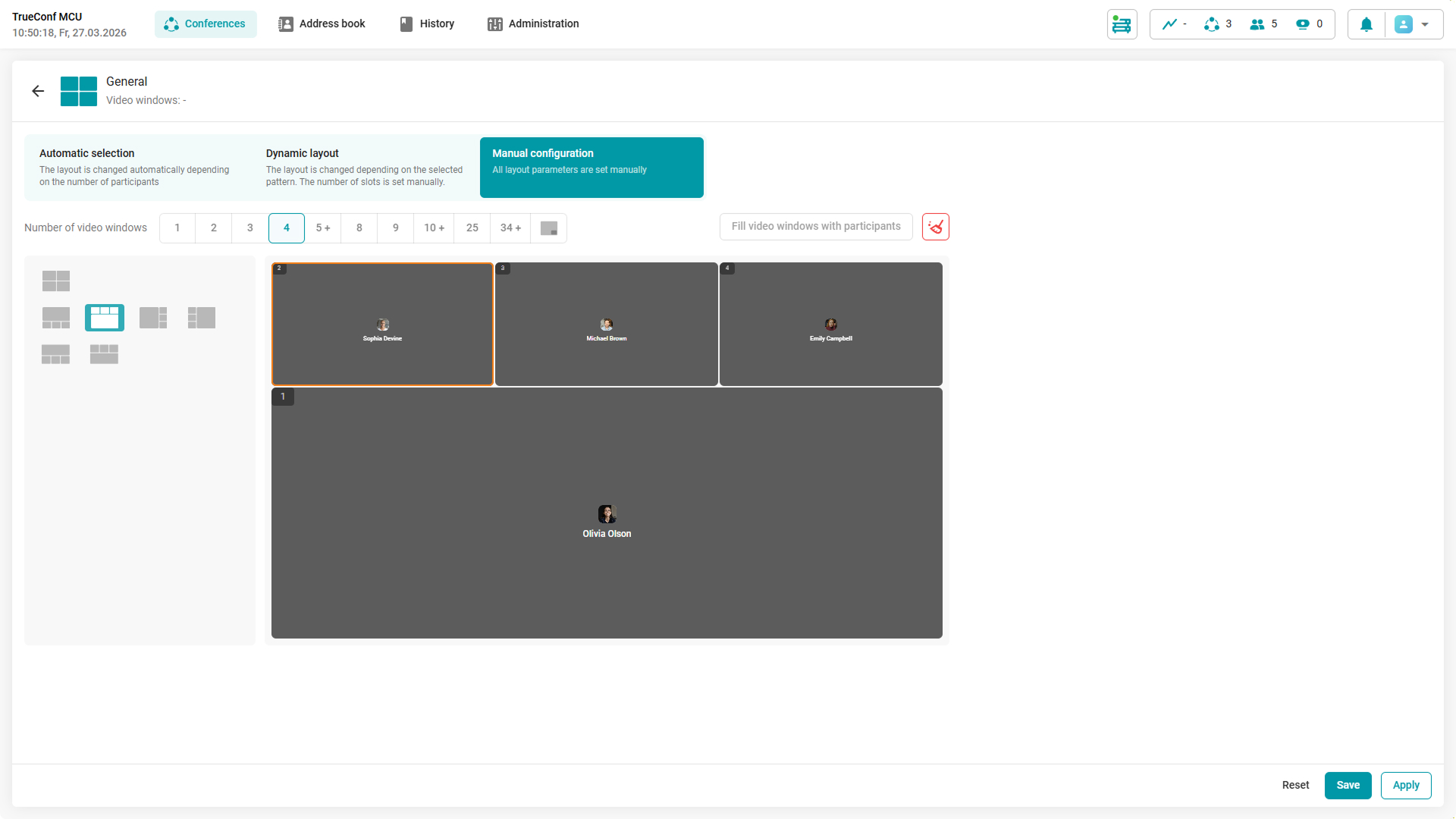
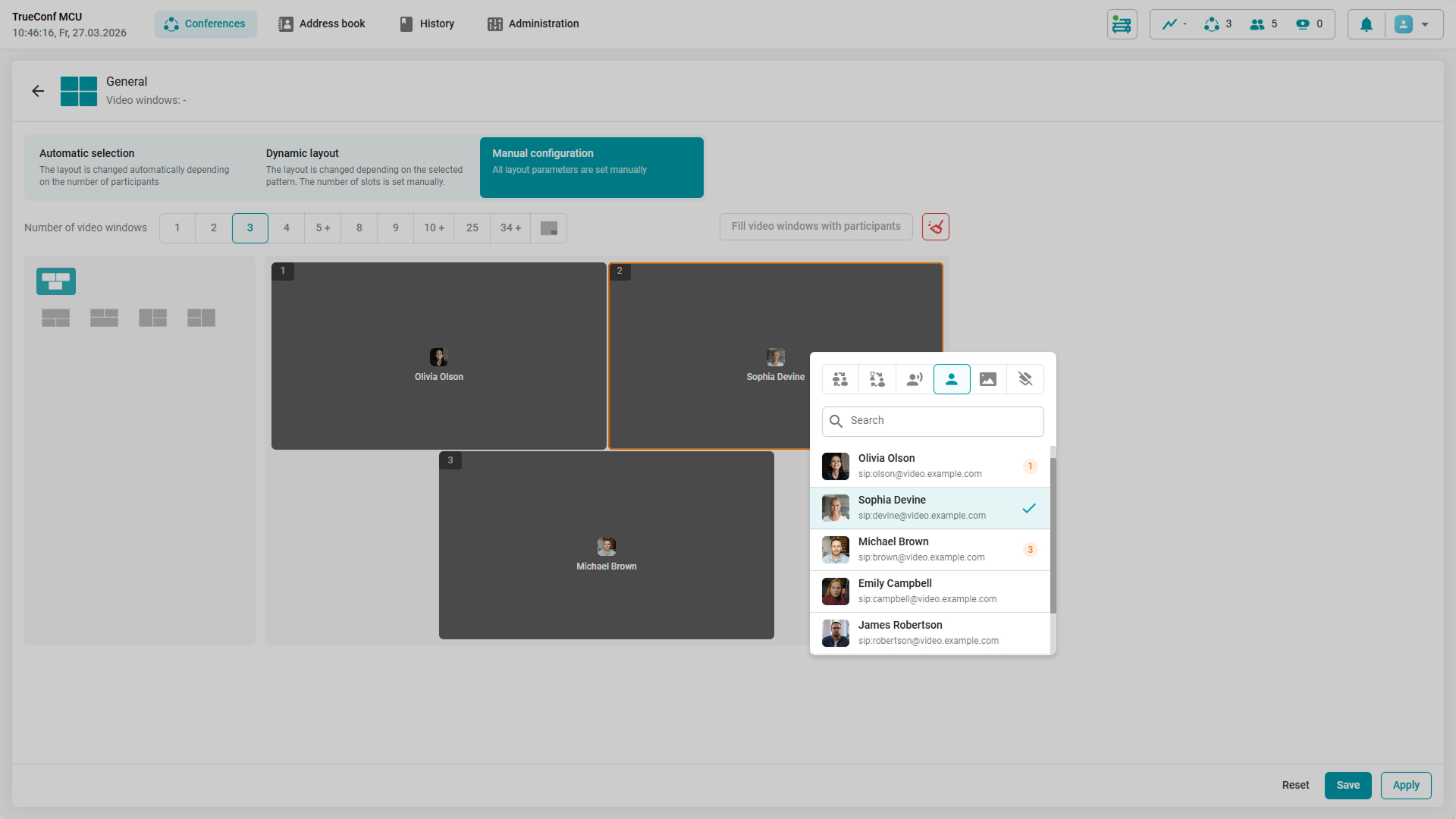
When editing a layout during a running conference, the administrator or operator can also see participants’ positions in video windows in real time. The names of connected users are displayed in the slots, and remain visible when the layout changes.
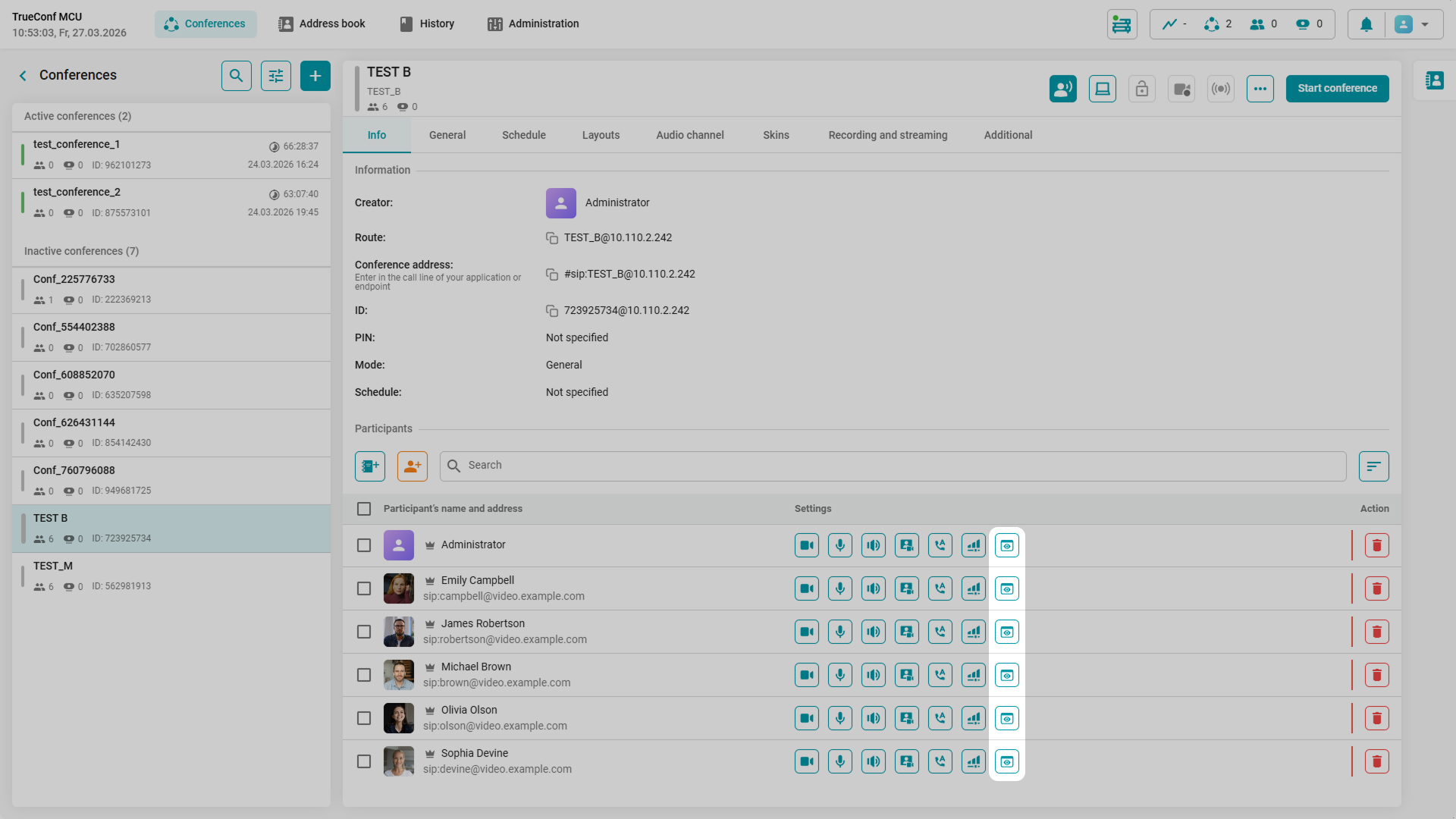
In addition, you can now hide display names for selected users or added media files. To do it, click the  icon next to the selected participant.
Layout templates
The conference operator can create multiple options for the positioning of participants and content on the screen using templates. This enables quick adjustment of the position of displayed video windows and their number within the selected layout right during the meeting, following predefined rules.
All created templates are grayed out and displayed in the manual layout settings window.
How to create a template? Select the Manual configuration of the layout, choose the appropriate scheme and the number of participants on the screen, and then click Save. To switch templates during a conference, just select the desired template and click Apply.
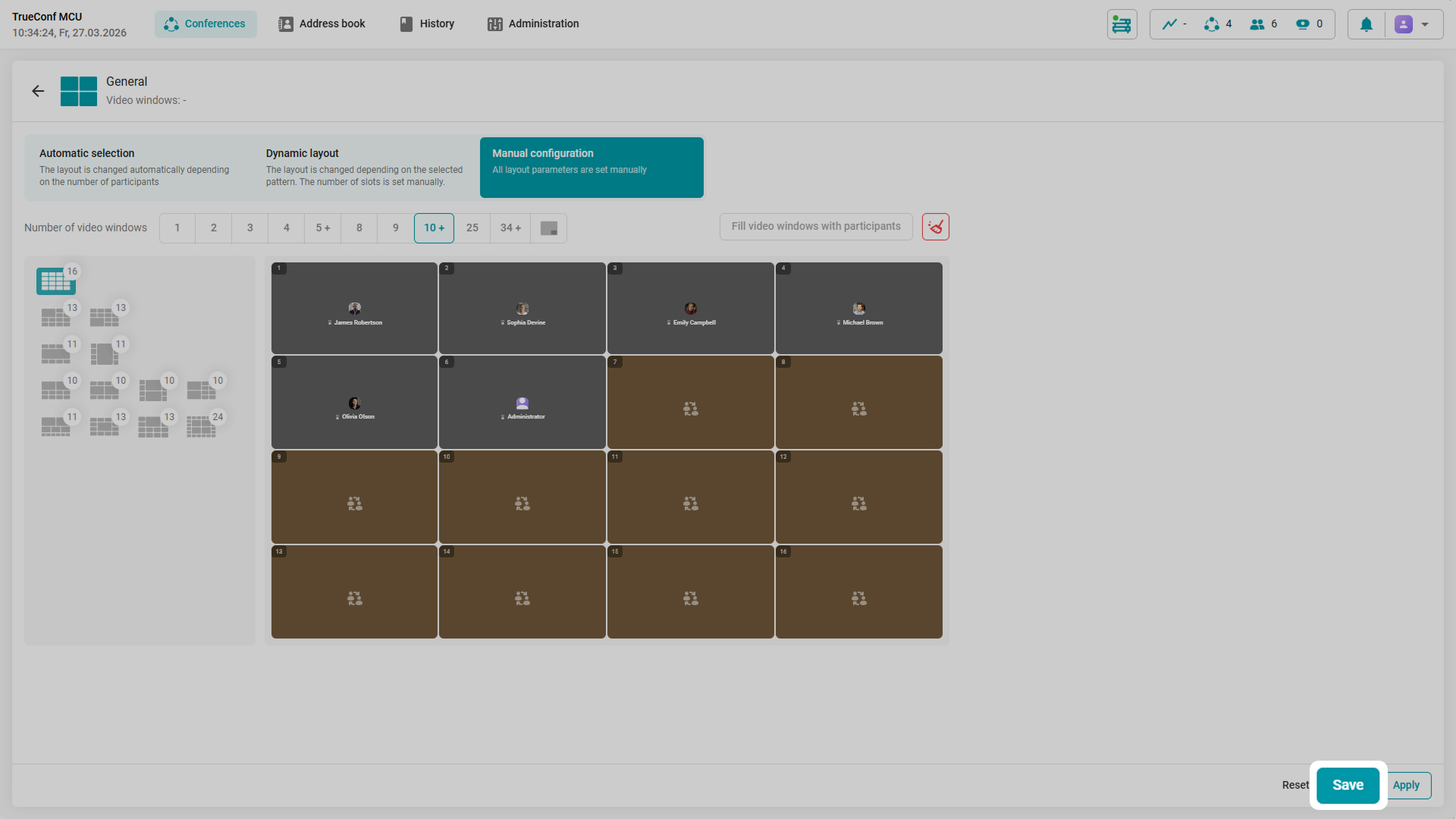
If the layout template was created before a conference starts, they will be saved after it ends. If the conference has started, then all template changes will be valid only until the conference ends.
Cascading
In TrueConf MCU 2.2, we’ve redesigned the cascading mechanism to enable more flexible event scaling by combining multiple conferences into a single session. Cascading allows you to merge multiple conferences hosted on the same TrueConf MCU, as well as add conferences from external video conferencing servers, including those created on TrueConf Server.
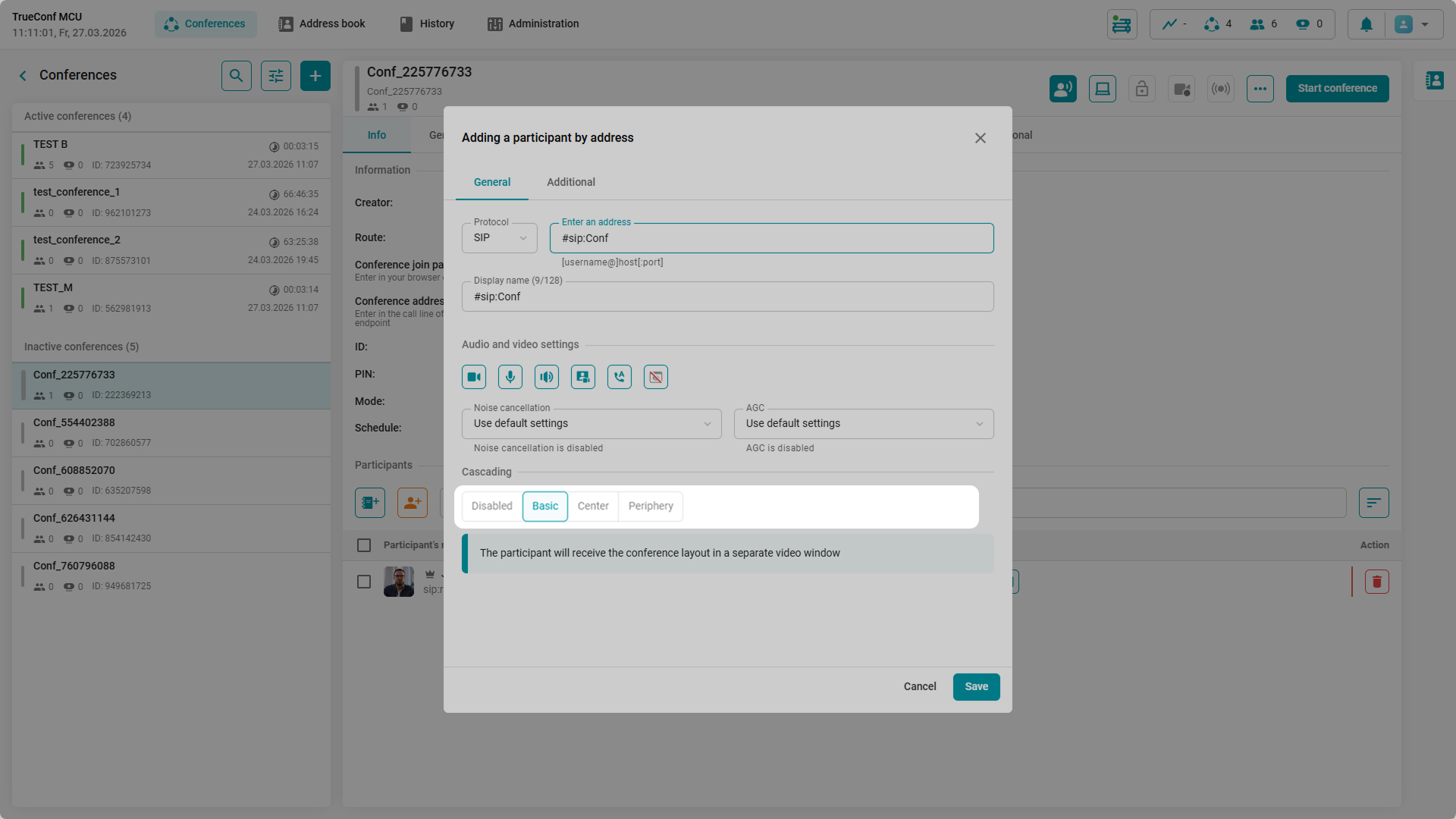
Two types of conference cascading are implemented:
- Basic cascading — the standard option. Your own video is not duplicated in the layout.
- Center-Periphery cascading — in this type, there is a main conference (center) which defines the layout for all connected peripheries.
How to enable it? Click the Adding by address  icon and select the desired cascading mode. This feature is only available for active conferences.
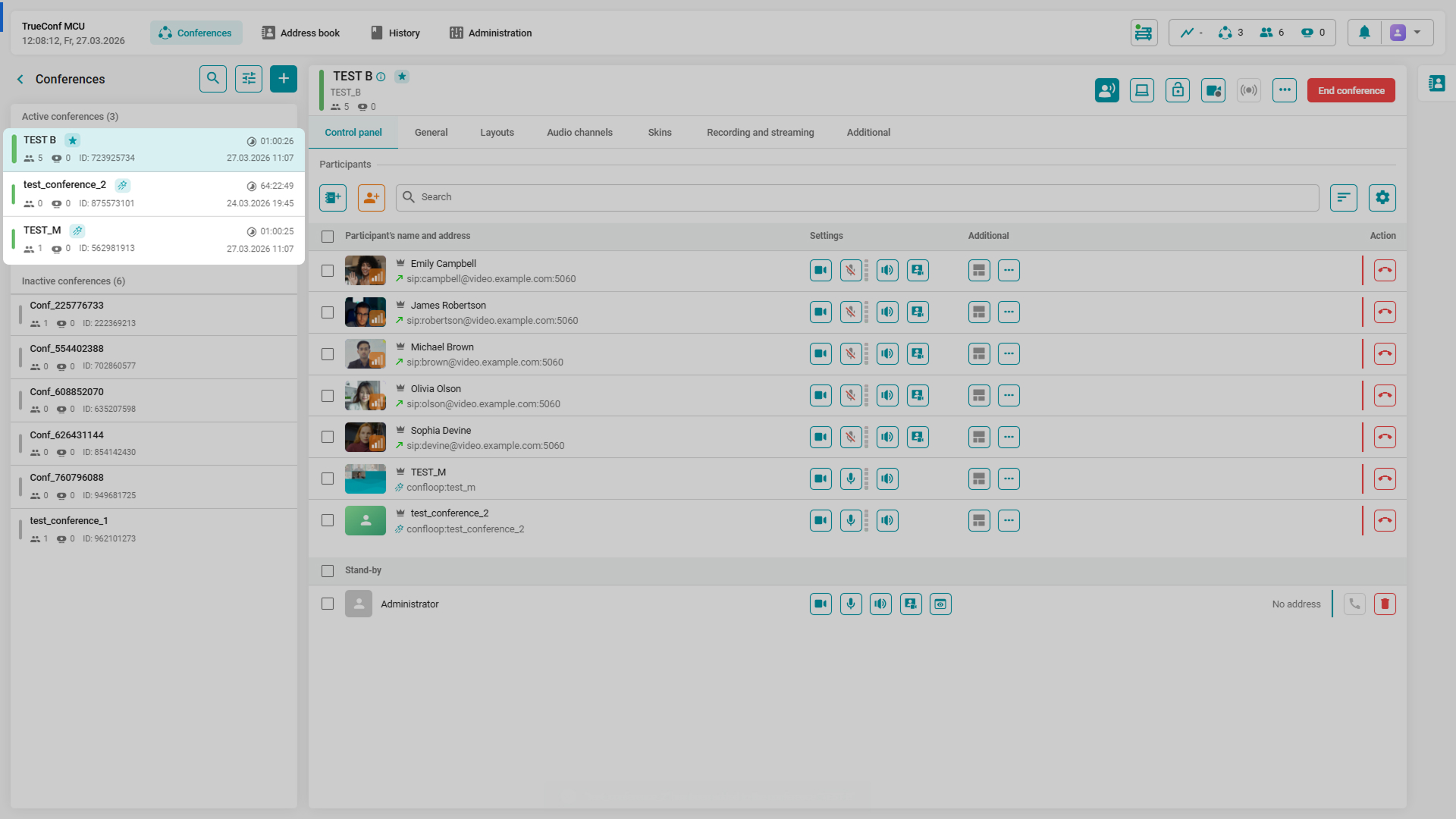
Center and Periphery conferences are marked with special designations, making it possible to identify the main conference and sessions connected to it.
Updated conference history
We’ve updated the History section, which displays a list of conferences hosted on the video conferencing server along with detailed analytics. New parameters have been added for more detailed analysis of the past event, and the participant activity diagram has been redesigned. Color separation simplifies the analysis of the conference participants’ connection, and when you click on the time interval, more detailed information about the user’s session is available.
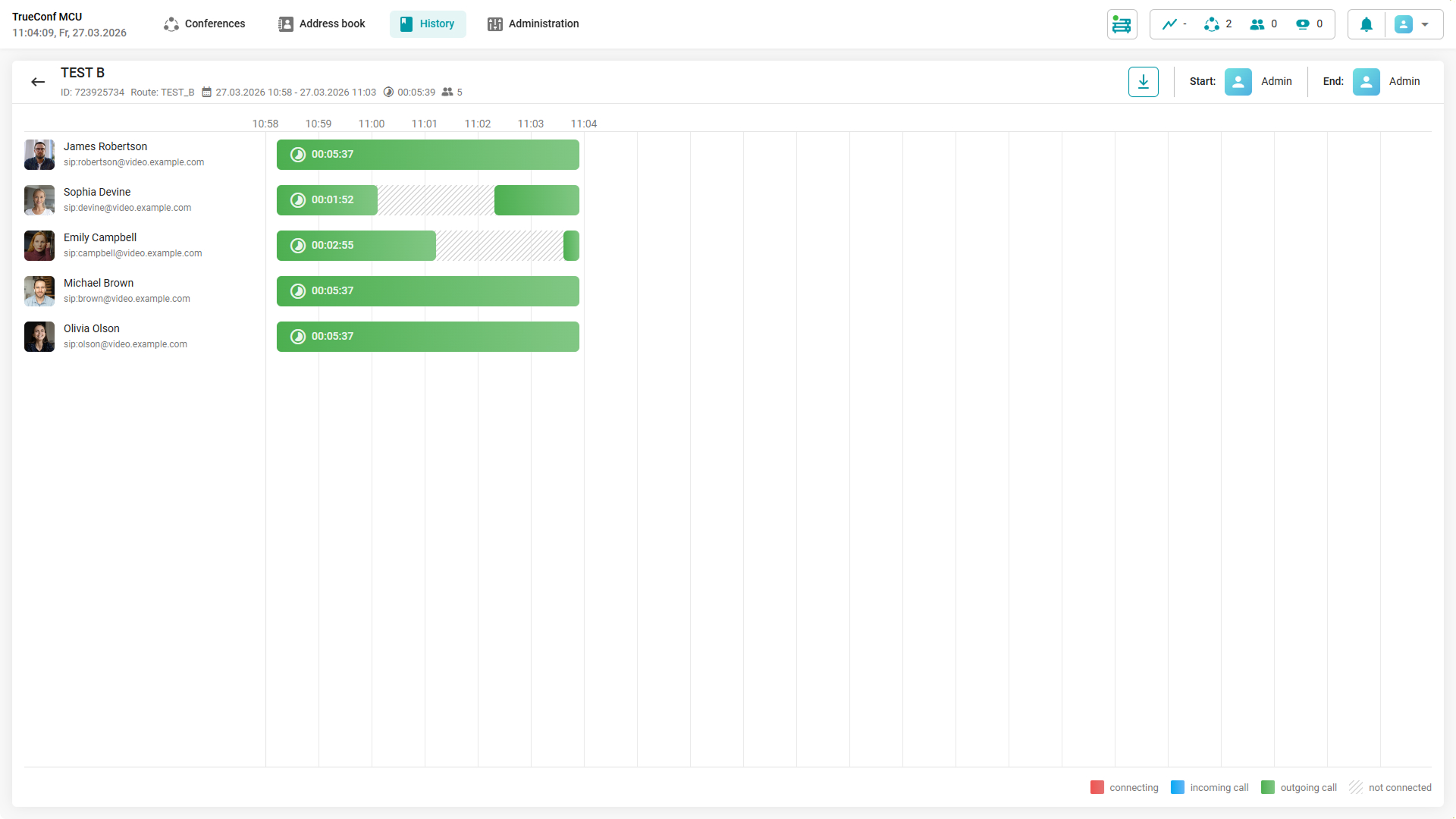
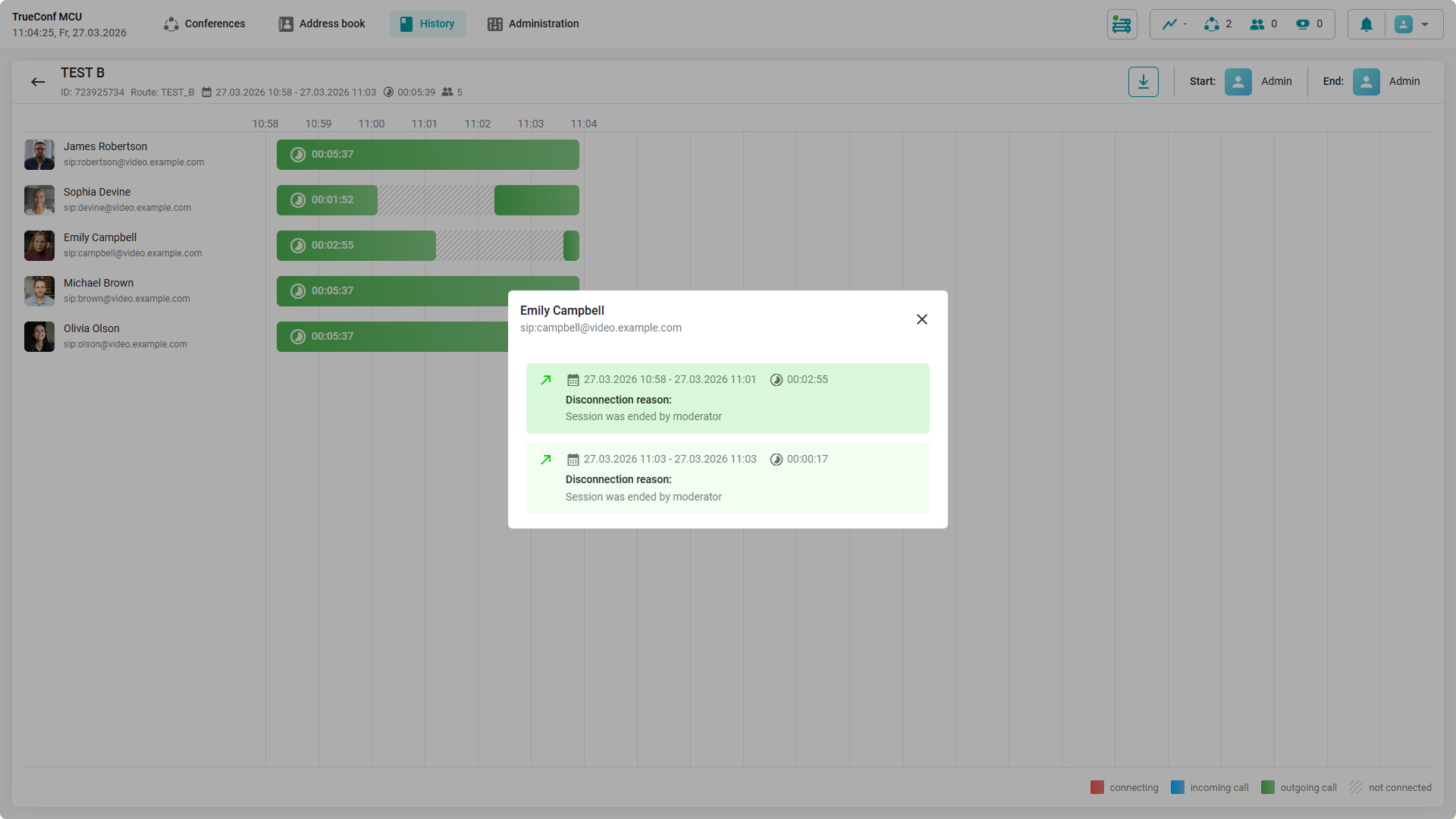
Besides, if necessary, you can export the history of the selected event for further analysis, or the entire conference history at once.
New section: Security
Password policy
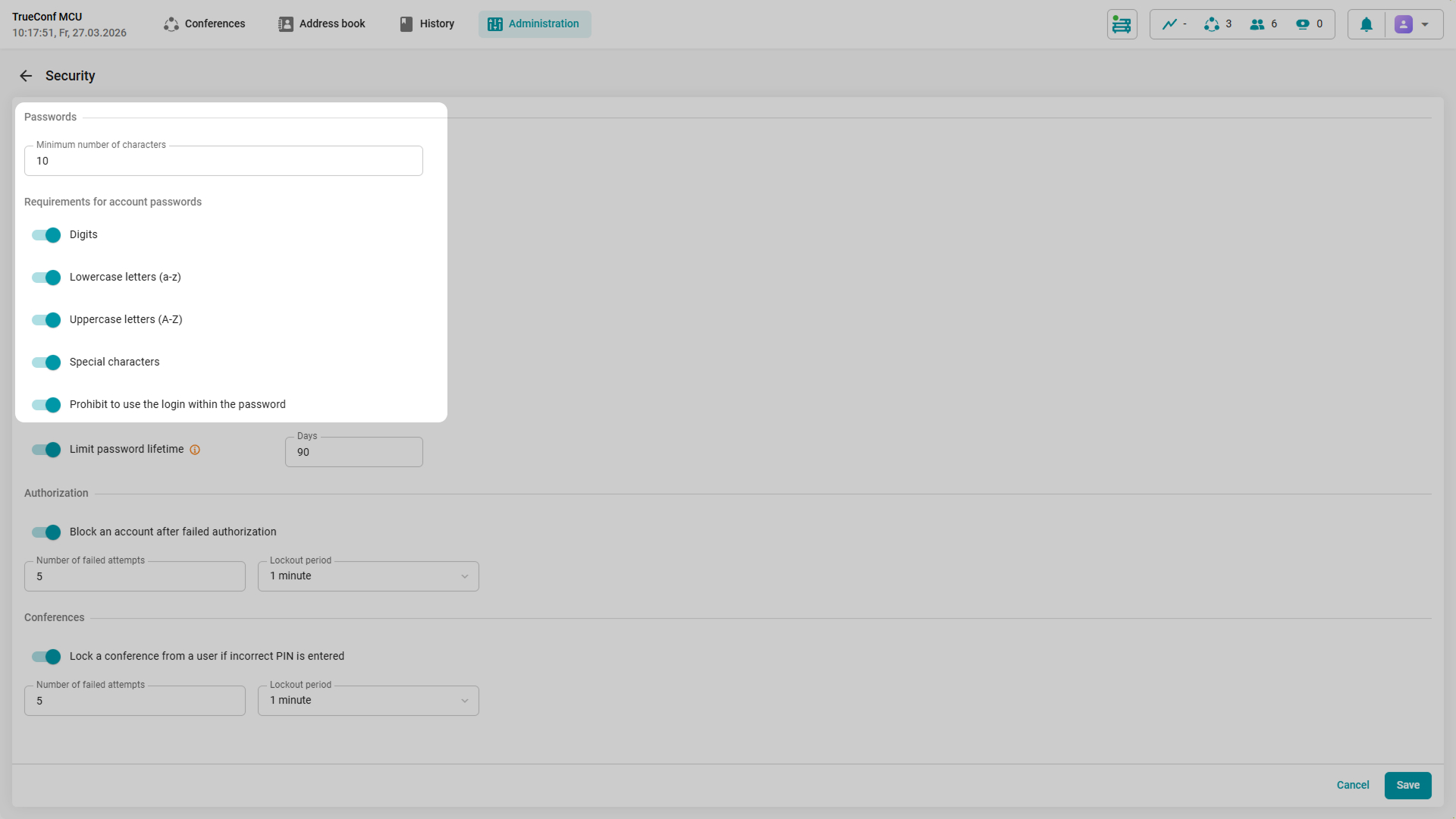
In TrueConf MCU 2.2, it is now possible to configure the password complexity for new accounts. The administrator can set:
- minimum password length (from 6 to 64 characters)
- required presence of digits
- required presence of uppercase and lowercase letters
- required presence of special characters
- prohibition of using login within the password.
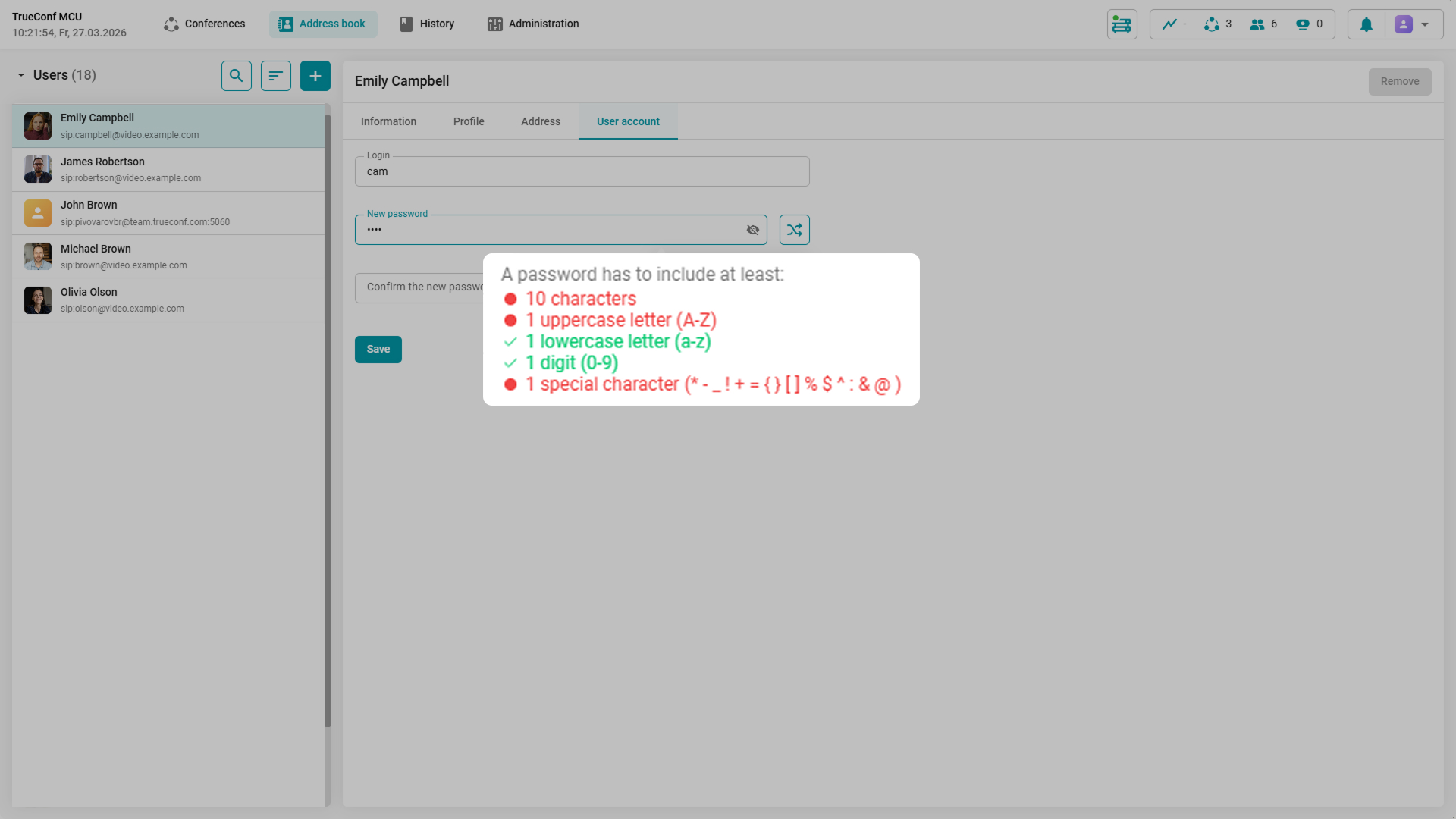
Additionally, when creating or editing an account, automatic password generation is now available in accordance with the specified requirements.
How to do it? Go to Administration → Security and adjust the necessary settings. They will be applied to all new passwords.
After several unsuccessful attempts to connect to the video conferencing server, the user’s IP address will be temporarily blocked. The administrator can determine the threshold for unsuccessful login attempts and the lockout duration.
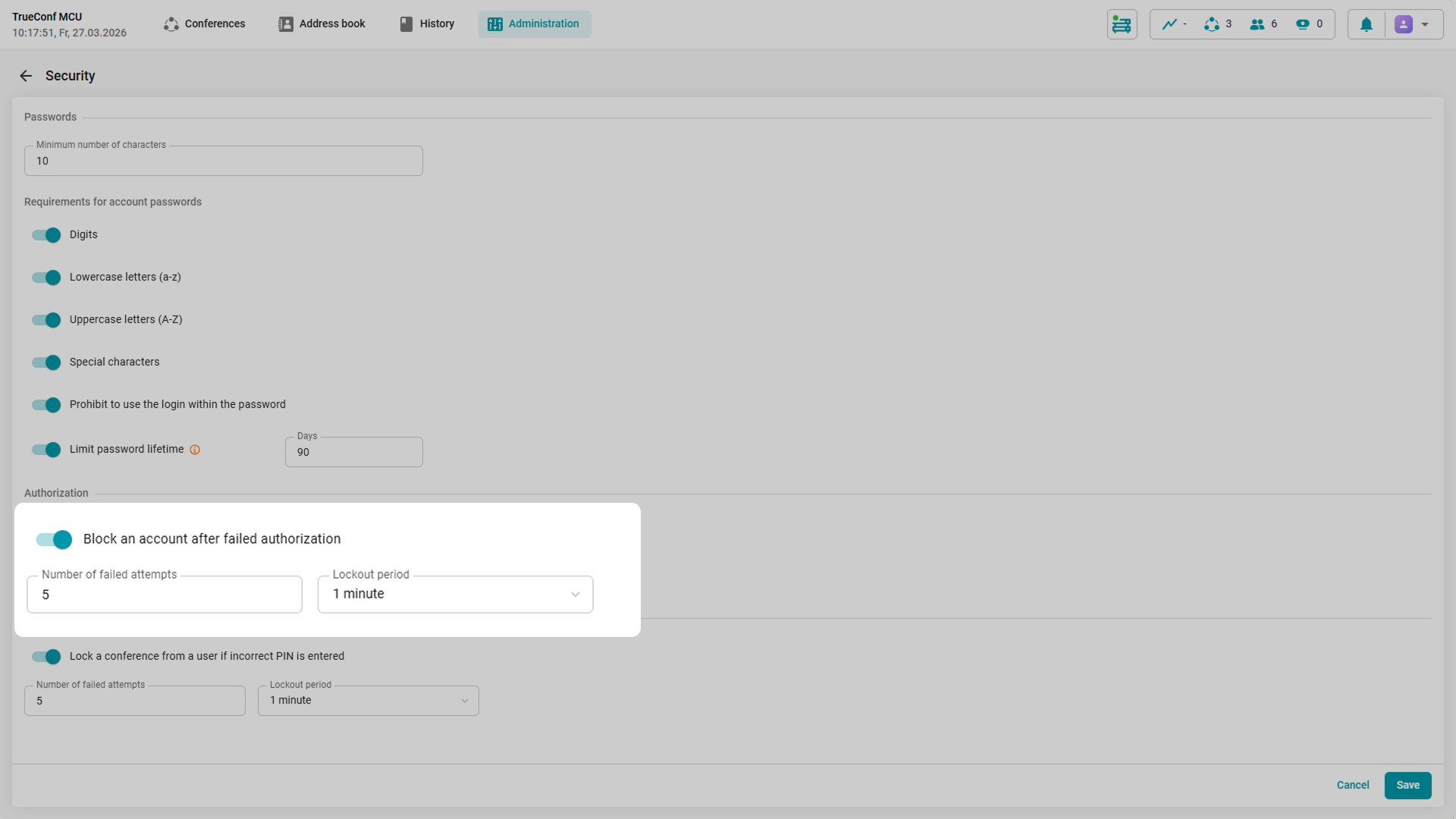
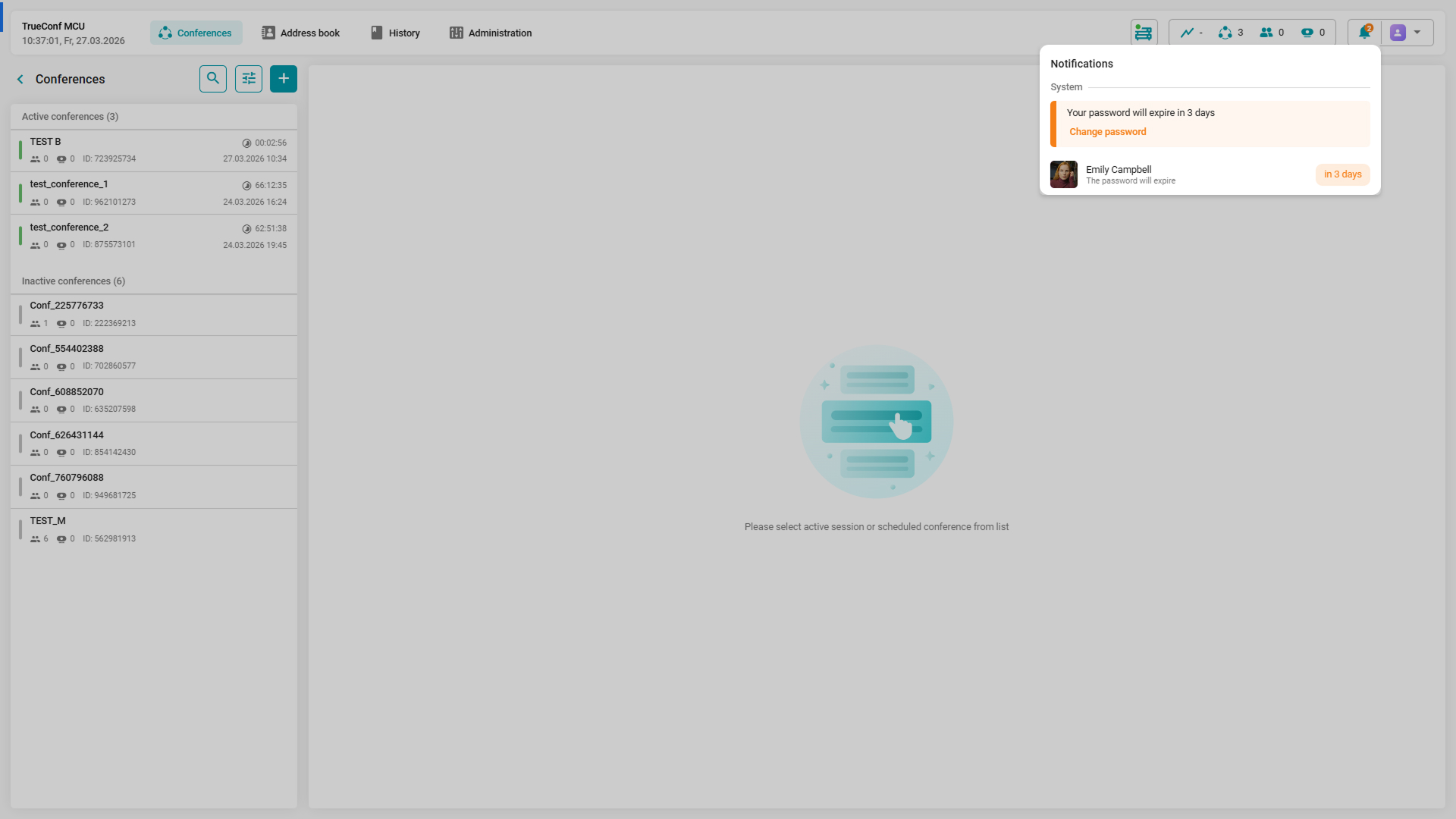
You can also limit the password validity. Users receive a non-dismissible notification a few days before the expiration, prompting them to update their passwords.
Event Log
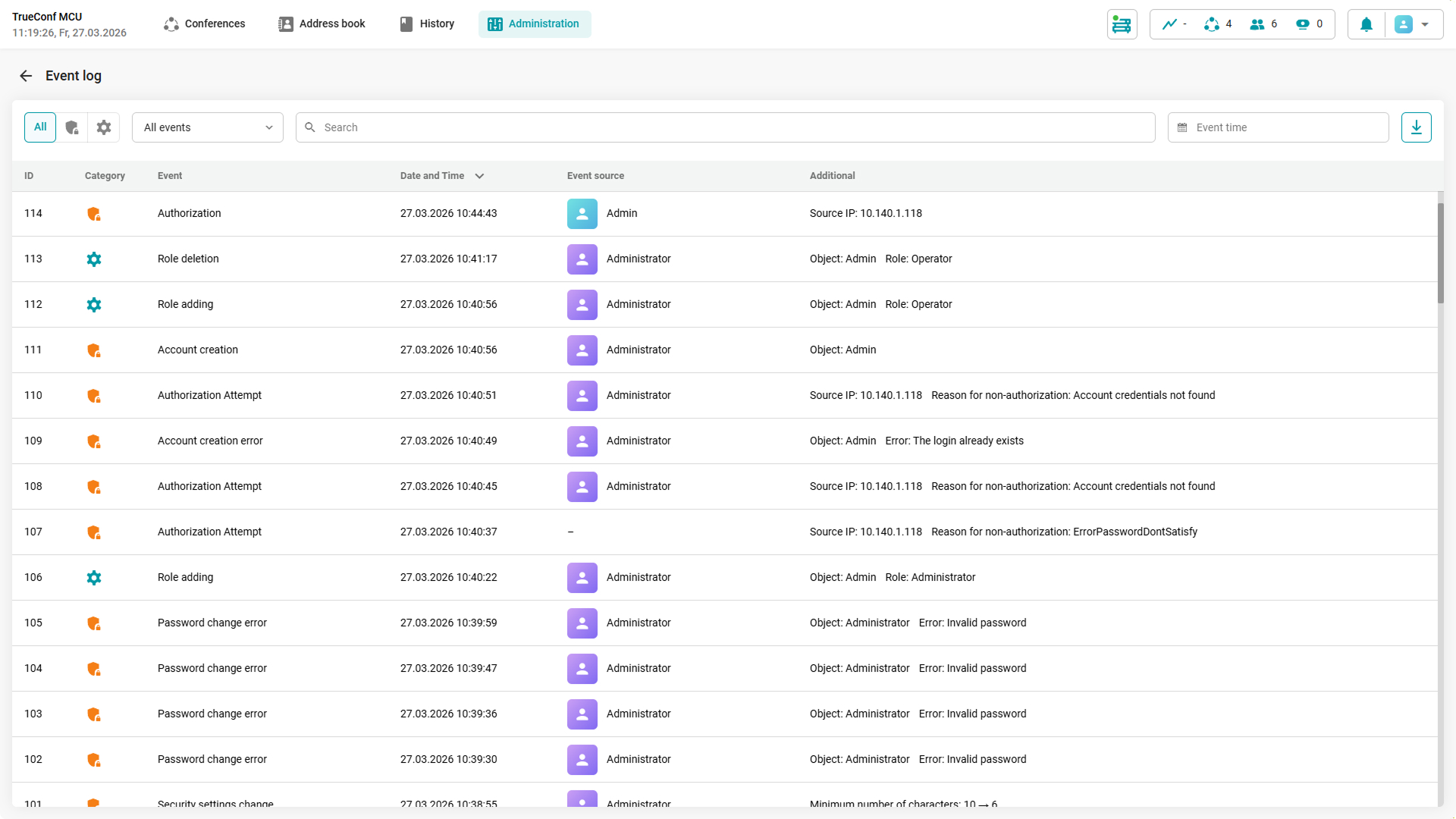
We’ve added the Event log section which contains all changes to the settings of the video conferencing server and its status, as well as attempts to log in or connect to the conference. All events are organized into two categories: Security and System.
To quickly track changes, you can sort events by the section and functionality that the event is associated with
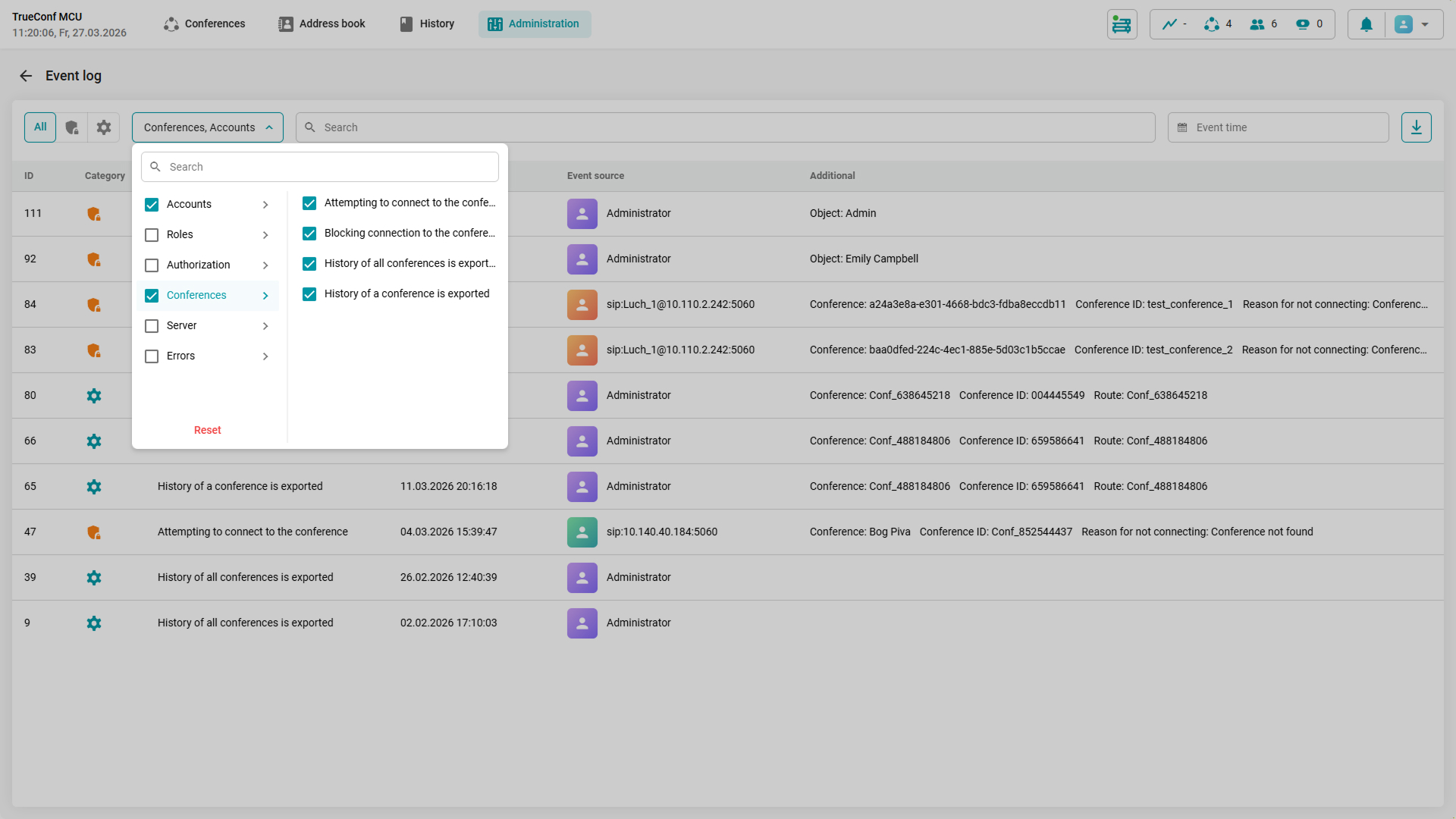
If necessary, the event log can be exported as a table with filters and sorting applied.
Conference participant template
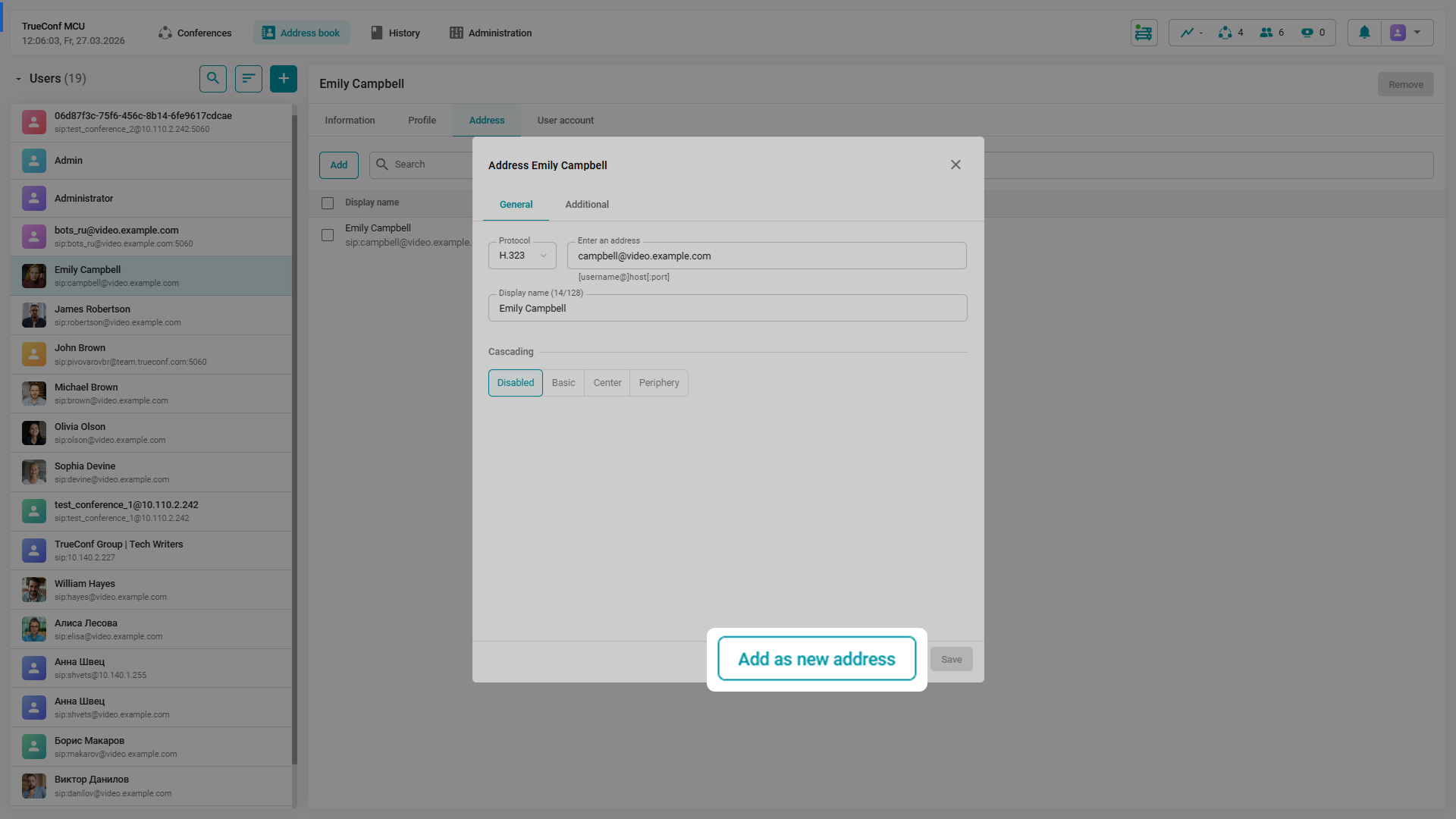
In TrueConf MCU 2.2, you can edit the connection address or the display name of any participant on the fly. All made changes can be saved in the current card and added as a new contact. This enables quick reconnection of the participant who switched the endpoint, or streamlines account creation for users from the same video conferencing server.
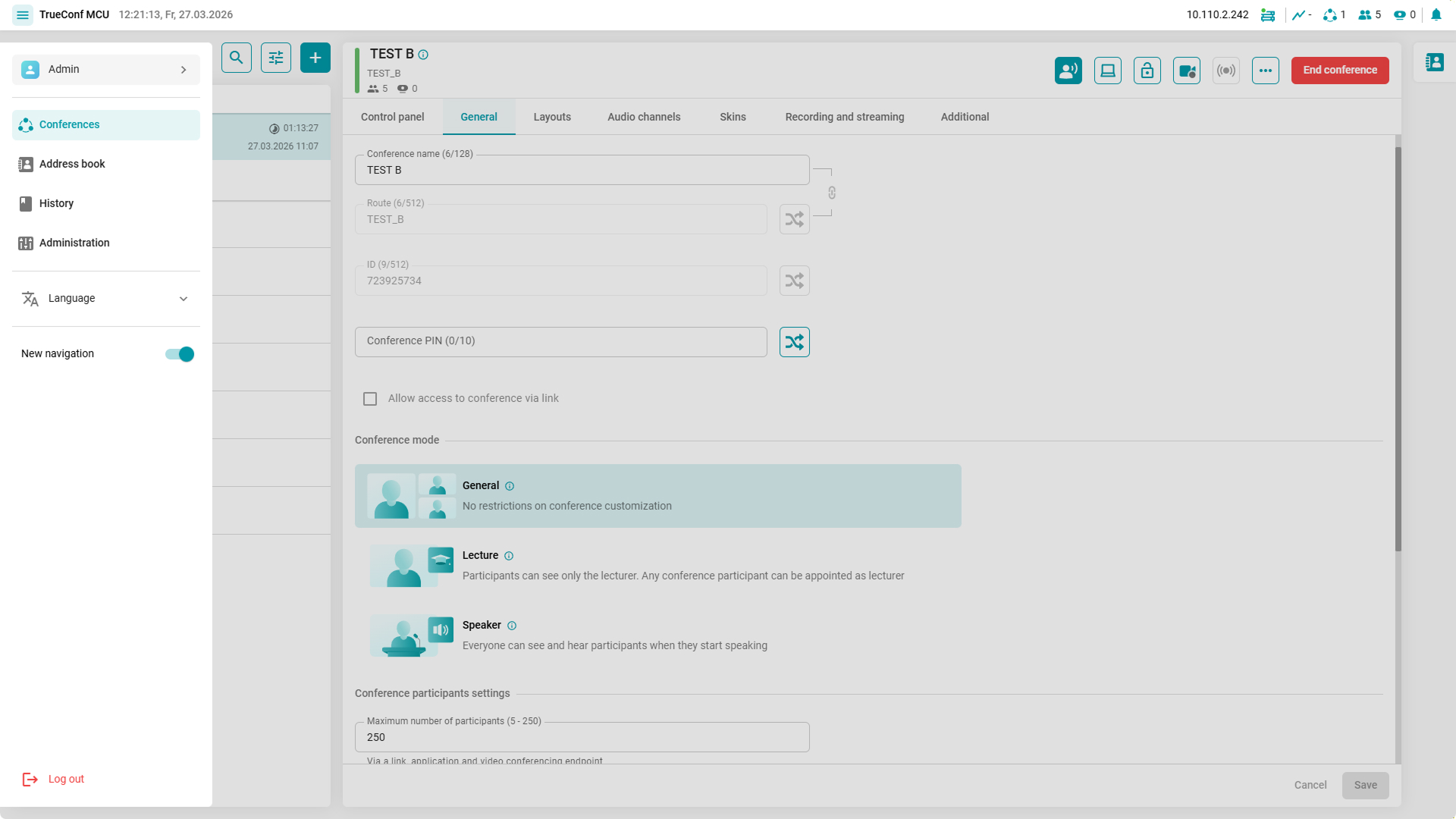
We’ve introduced a new menu layout option: basic information about TrueConf MCU is displayed in the upper-right corner of the screen, while the rest of the navigation elements are minimized to the sidebar, which opens by clicking on the Menu  button.
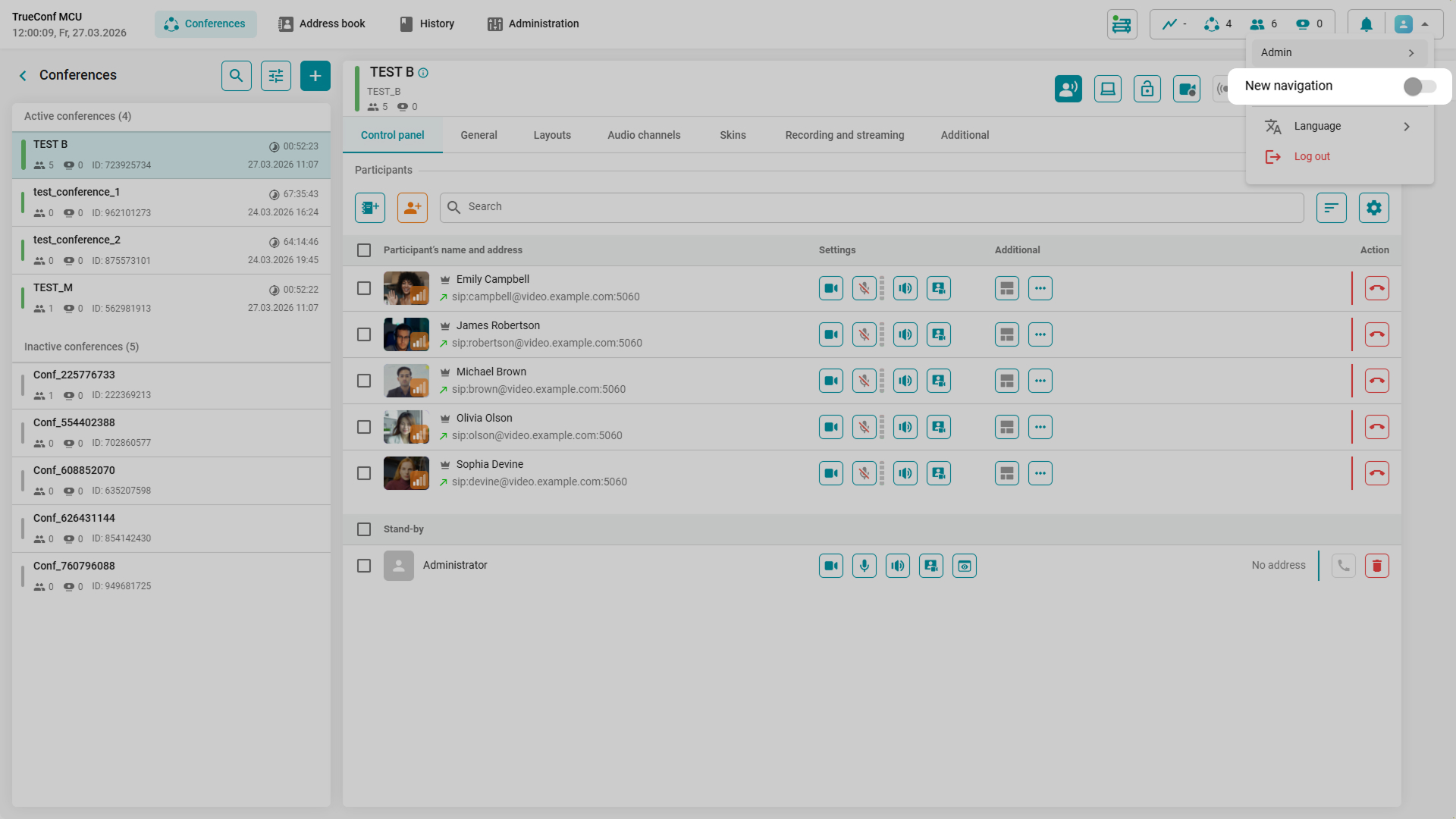
How to do it? Click your avatar and activate the New navigation option. You can revert to the standard display by disabling the corresponding option in the sidebar.
Other changes and improvements
- A Domain address field has been added to the Administration → Calls section which is used in the conference address
- The auto-dialer mechanism has been improved, which will allow you to send an automatic call to participants who have disconnected due to loss of connection until the user returns to the conference
- The recording and streaming settings are placed in a separate Recording and streaming tab when scheduling and editing conference settings
- An indication of the microphone status of a participant connected via H.323 is supported
- The overall stability has been improved.
For a complete list of updates, check our changelog.

Maria Mihalyova
Date published: 31.03.2026
Maria Mihalyova
Date published: 31.03.2026
Follow us on social networks