
TrueConf Room 5.2: Redesigned UI, Tenant Mode, and New Conference Controls


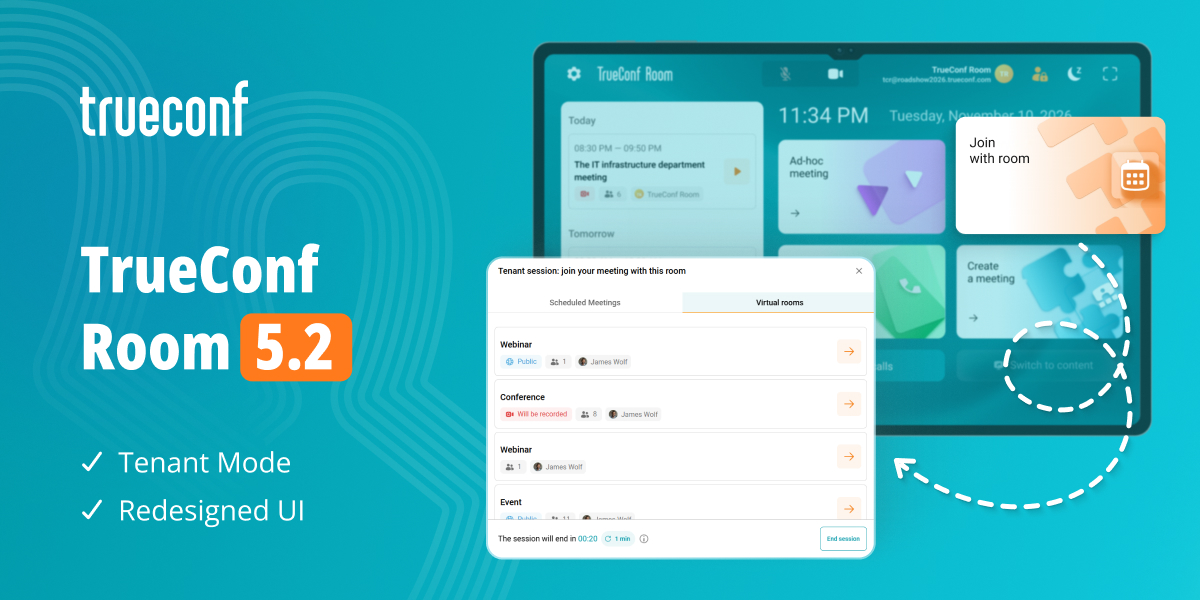
We’re excited to introduce TrueConf Room 5.2, the latest update of our software video conferencing endpoint for PCs and mini PCs! This release brings a redesigned version of the main screen and control panel. Moreover, the update introduces tenant mode which lets users control meeting rooms from their smartphones. Other highlights include reactions, customizable keyboard shortcuts, flexible video layout controls, and the ability to manage server-side conference recording.
Tenant Mode: Control Meeting Rooms from Your Smartphone
TrueConf Room 5.2 introduces tenant mode which allows users to temporarily take control of a meeting room via their TrueConf mobile app. Simply scan a QR code to view scheduled conferences, start upcoming meetings, or transfer an ongoing conference from your smartphone to the room endpoint. While tenant mode is active, the endpoint automatically accepts incoming calls made to the current user.
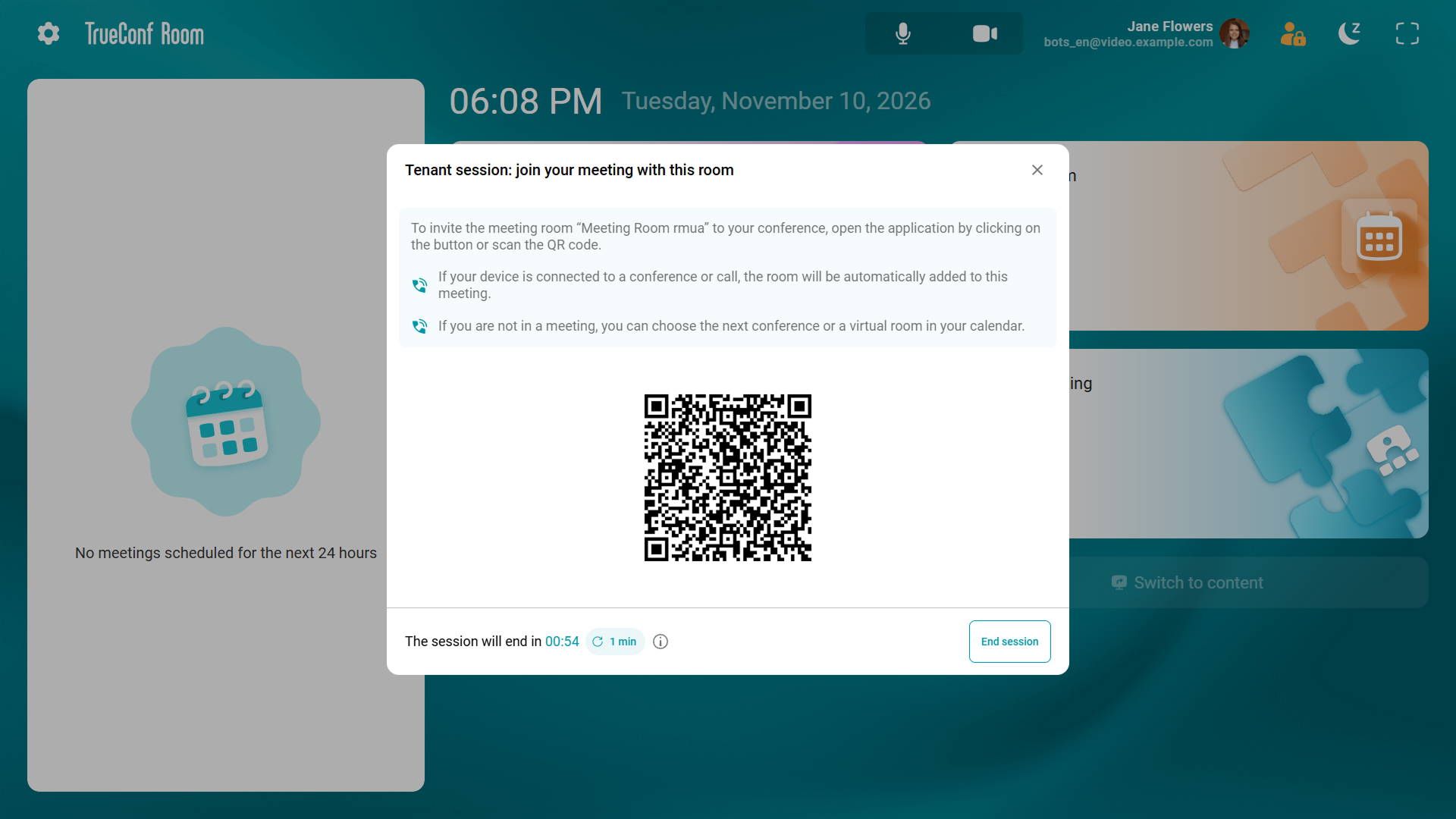
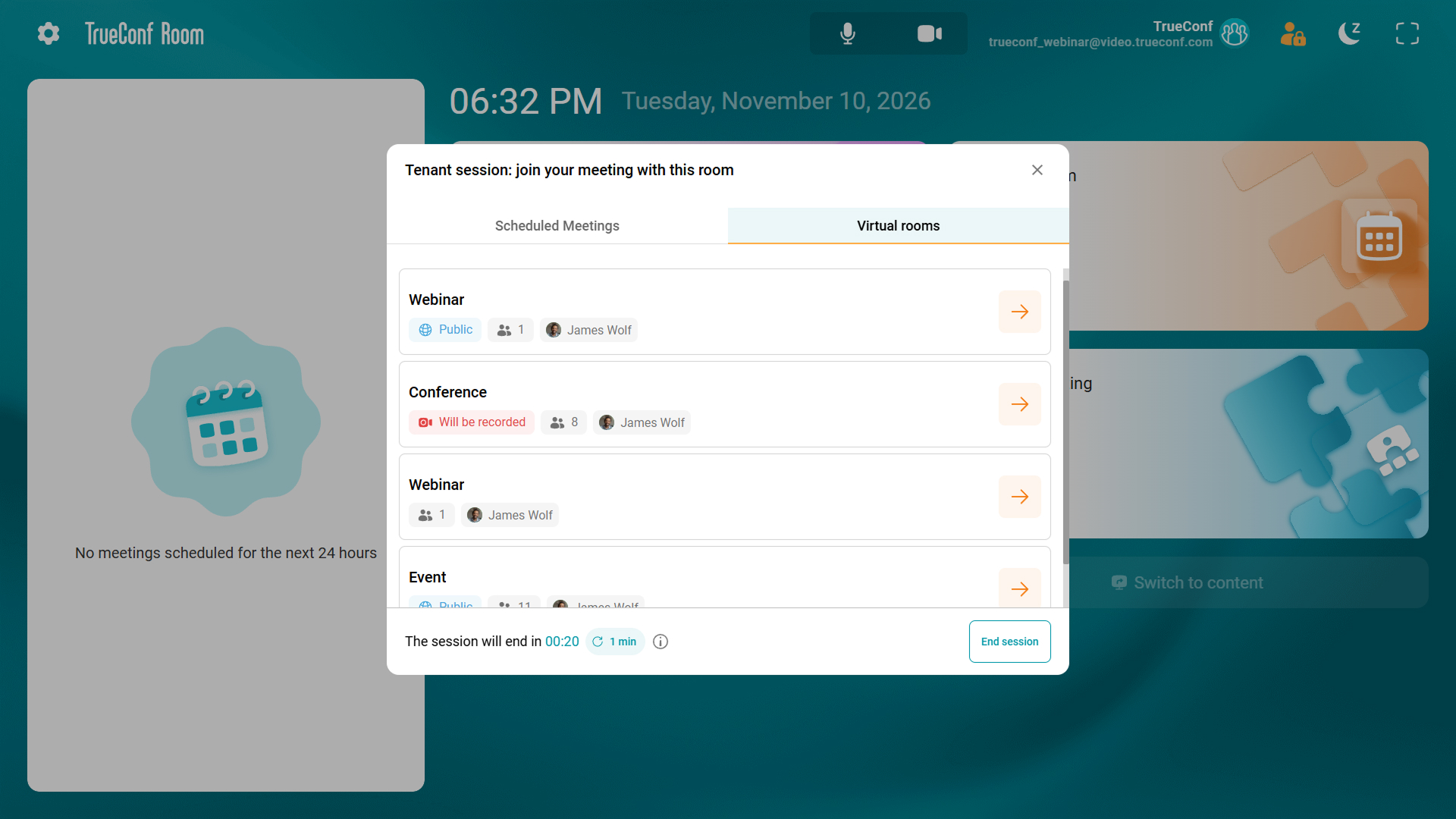
Tenant mode can be activated through the TrueConf Room web-based control panel. The connection QR code, connection status, and the list of available conferences will be displayed in a separate window. You can also extend the duration of a tenant session directly from this window. A notification will be displayed when the window is closed manually or when the session expires.
Redesigned Interface
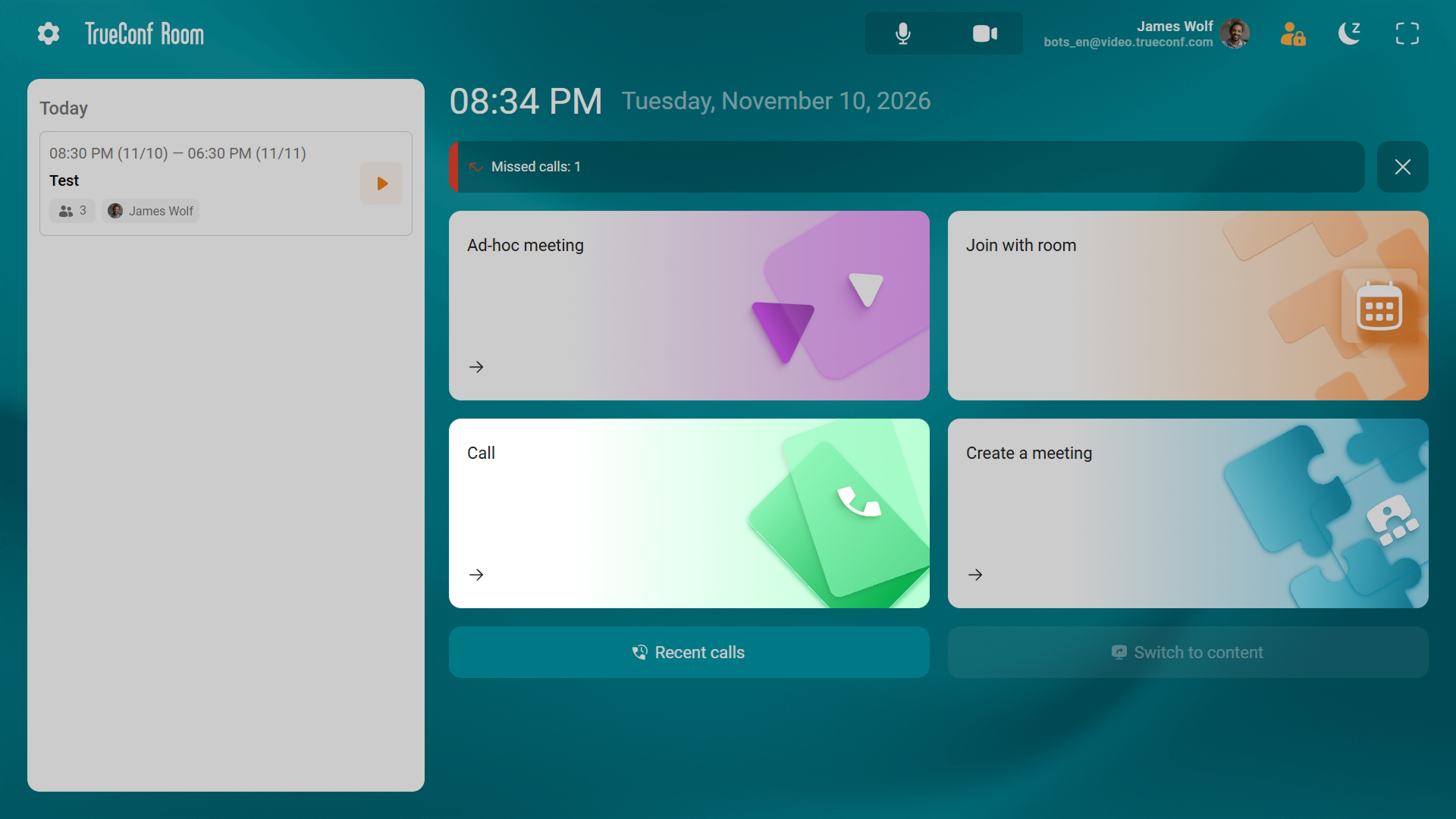
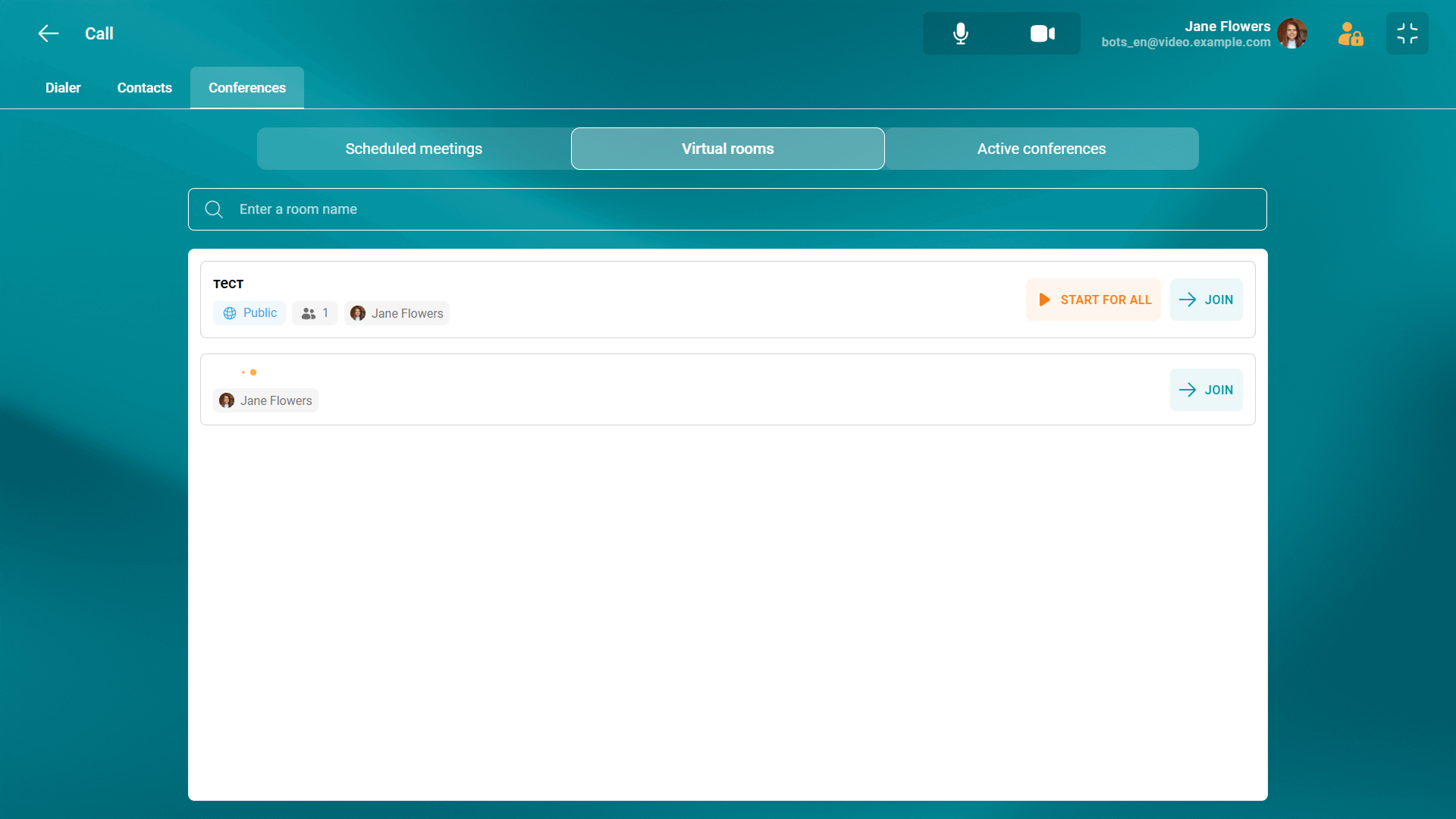
We’ve completely redesigned the TrueConf Room main screen: rearranged some UI elements and changed the appearance of conference cards and virtual room lists. For easier navigation, upcoming meetings are now divided into two groups “Today” and “Tomorrow”. Moreover, the cards of scheduled conferences now display the avatars of conference owners.
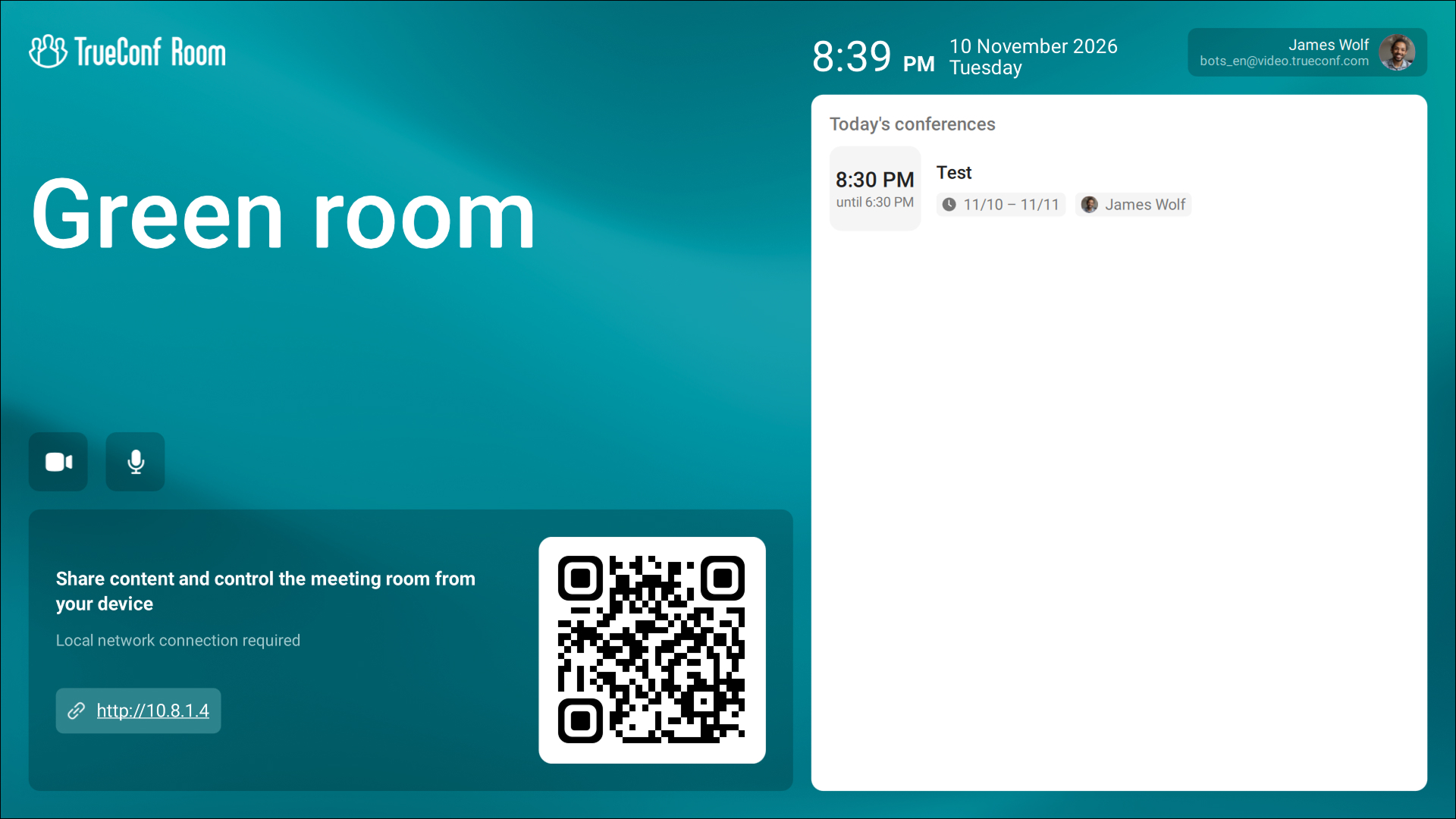
The UI of the web-based control panel has also been made more intuitive, with updated designs for the home page, conference management screen, and other elements.
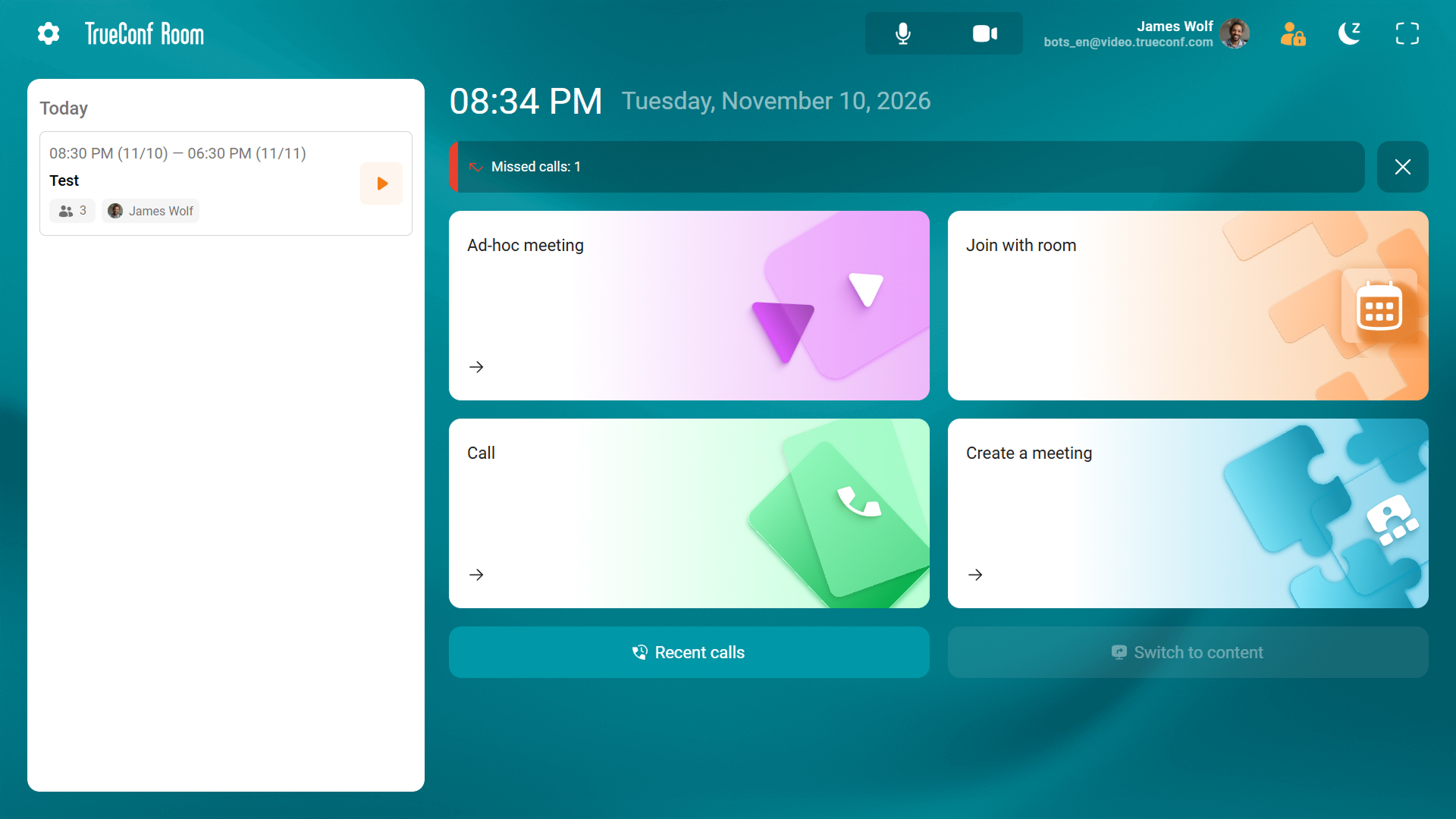
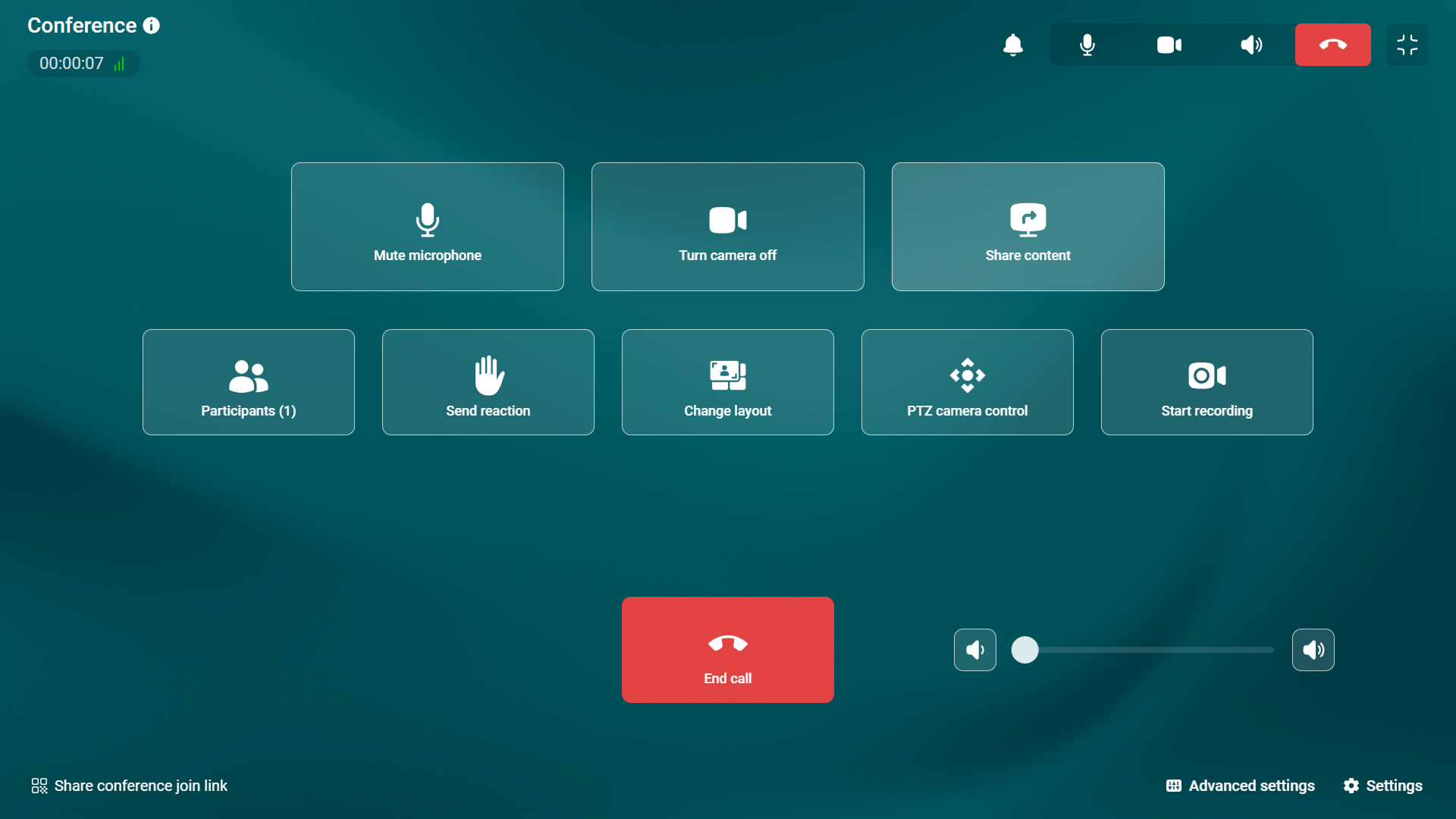
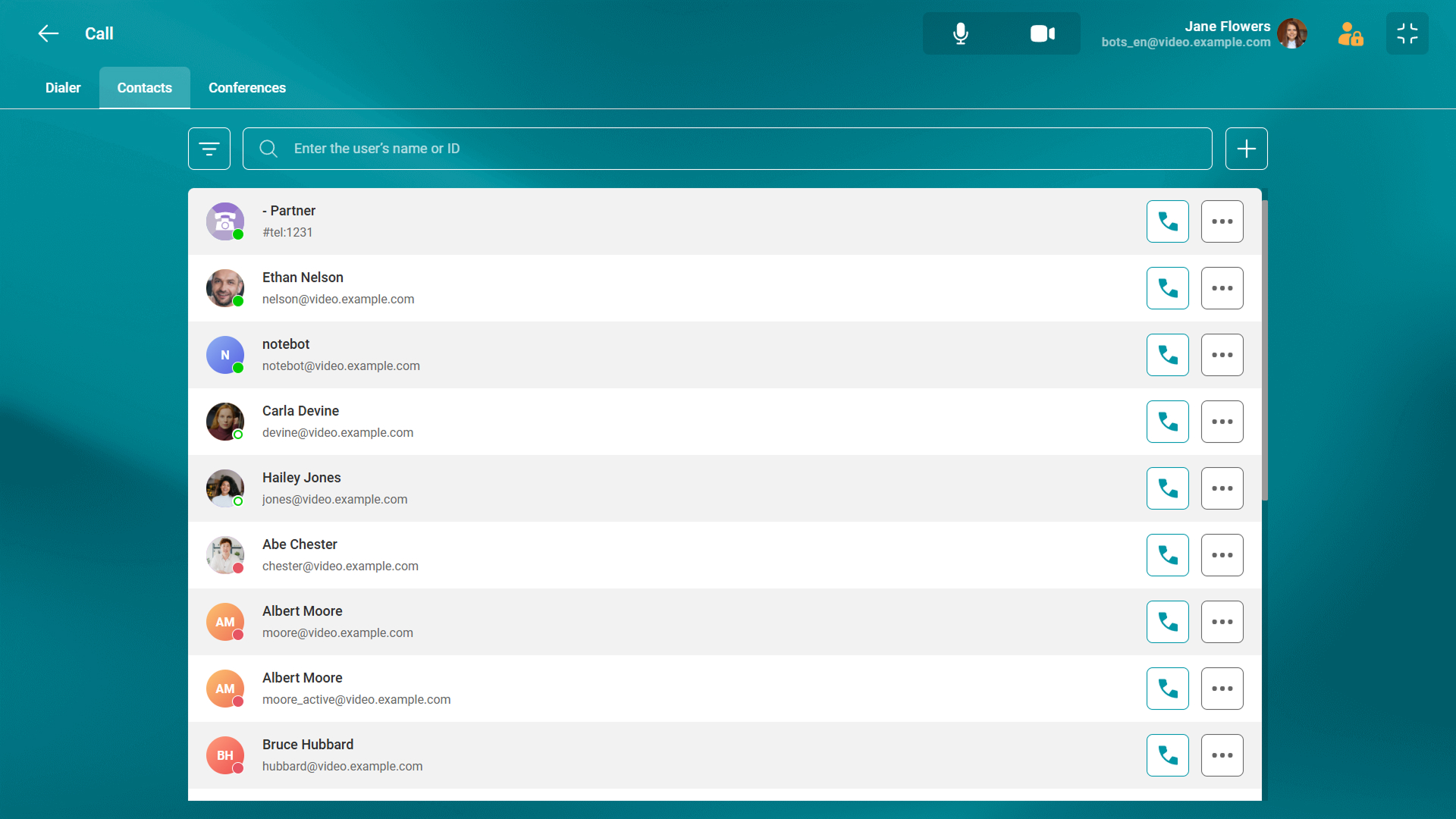
Additionally, the call menu, address book, and scheduled conference pages are now displayed in a single section.
New Conference Controls
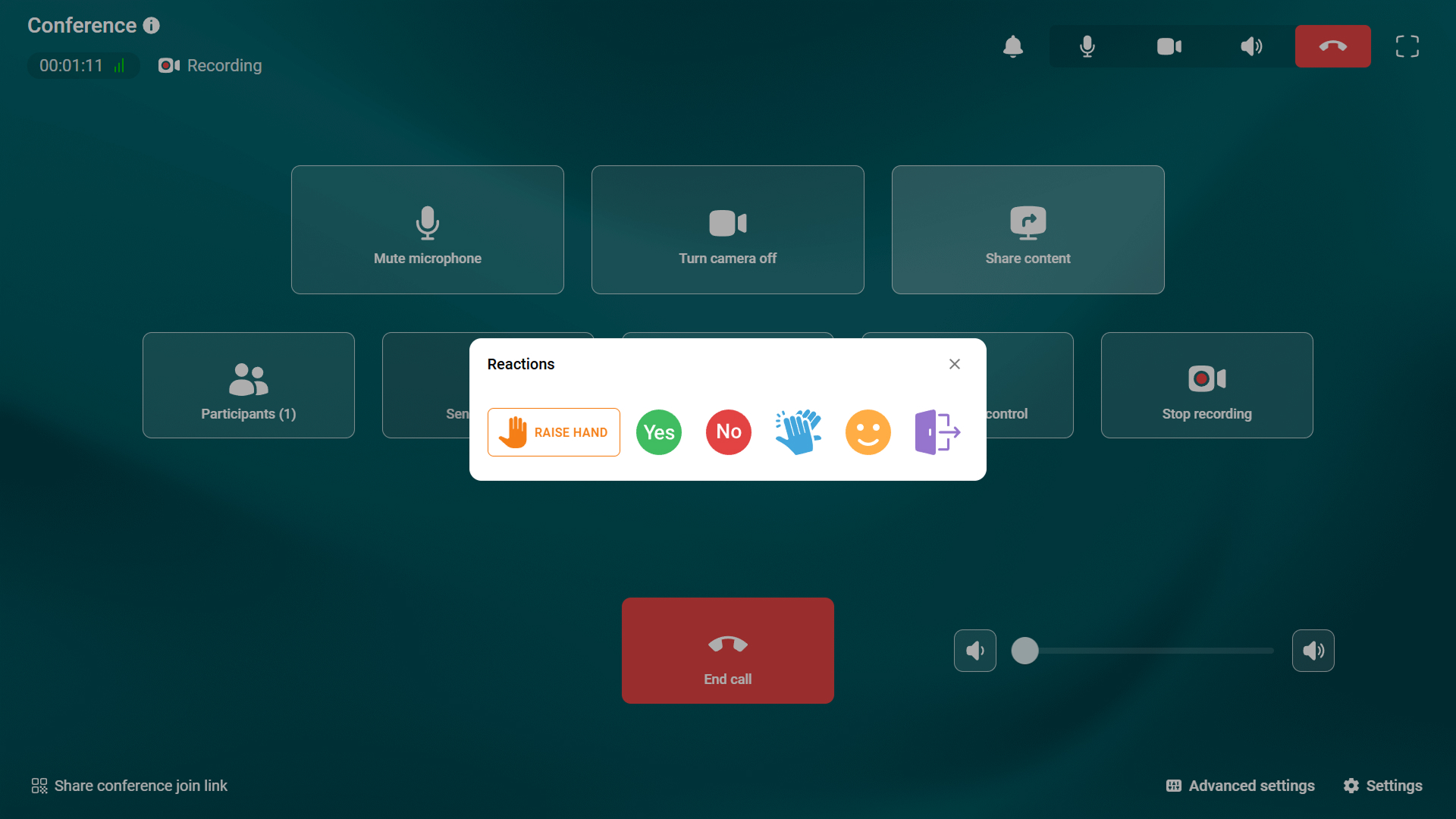
The TrueConf Room control panel now allows users to manage server-side conference recording. You can start and stop recording on TrueConf Server and track the recording status directly in the endpoint UI.
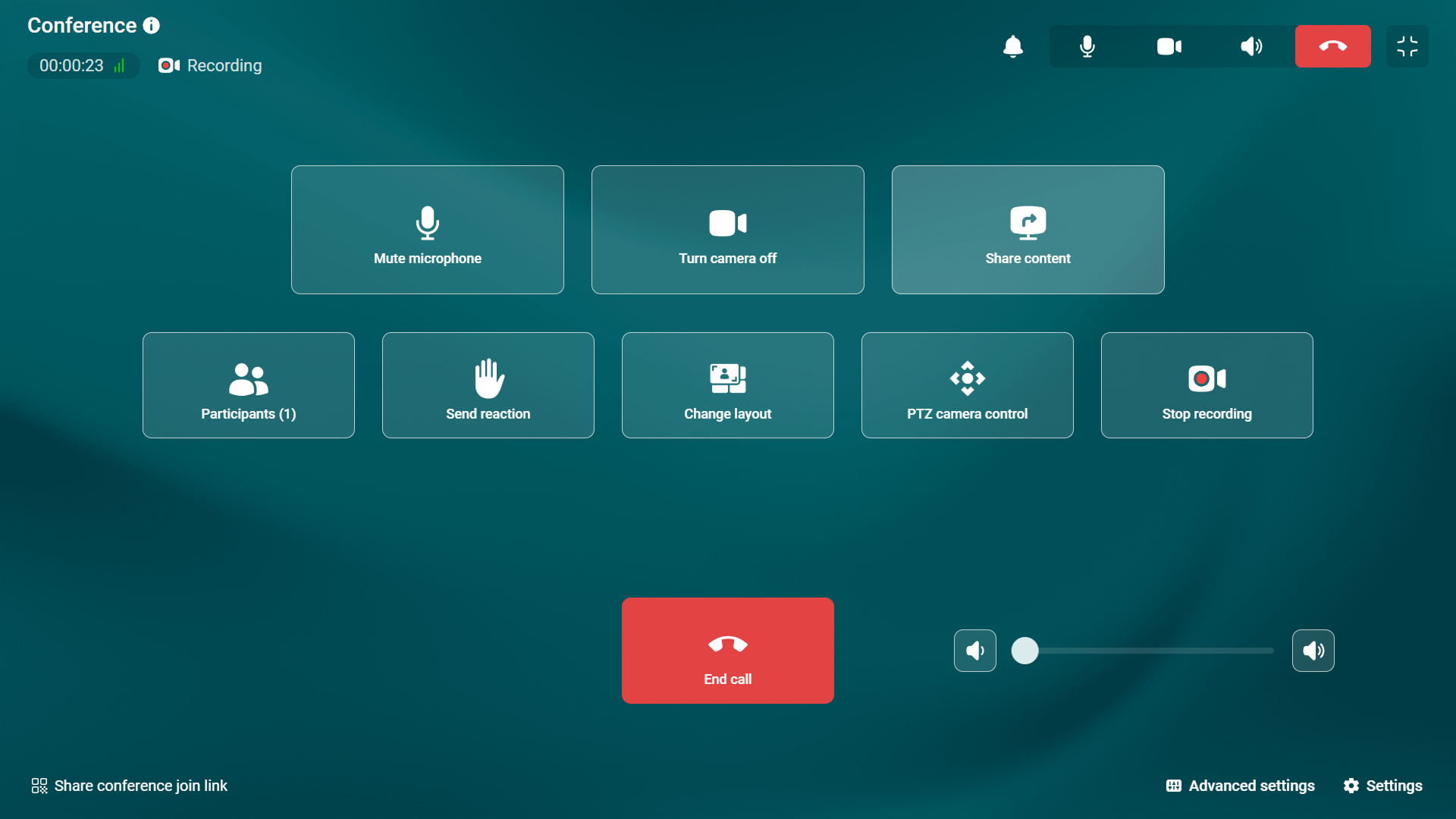
Conference owners and moderators now have access to new meeting controls. They can manage conference transcription, waiting rooms, participant layouts, and other settings. Key conference details are available in a separate window, similar to our desktop applications.
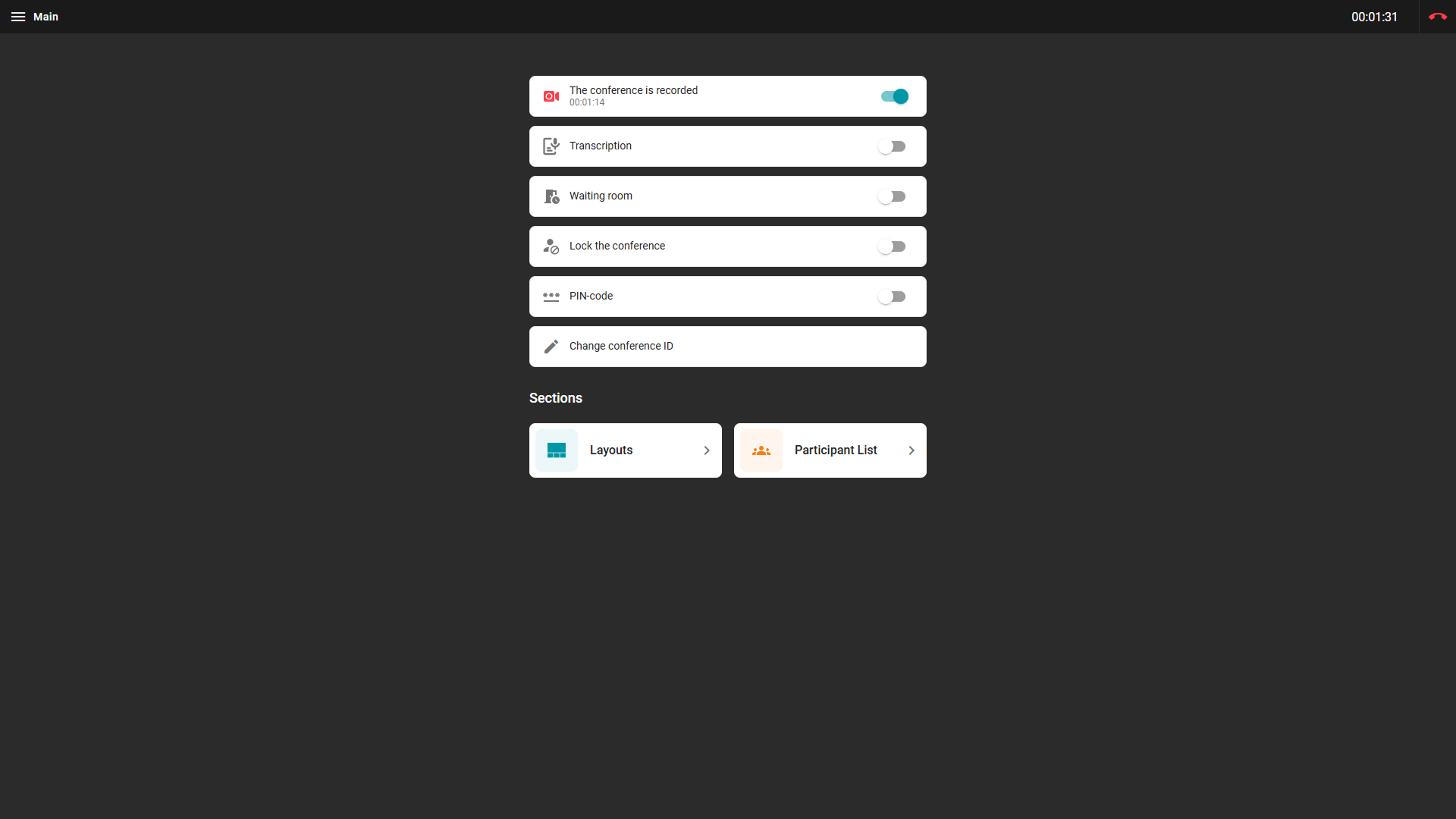
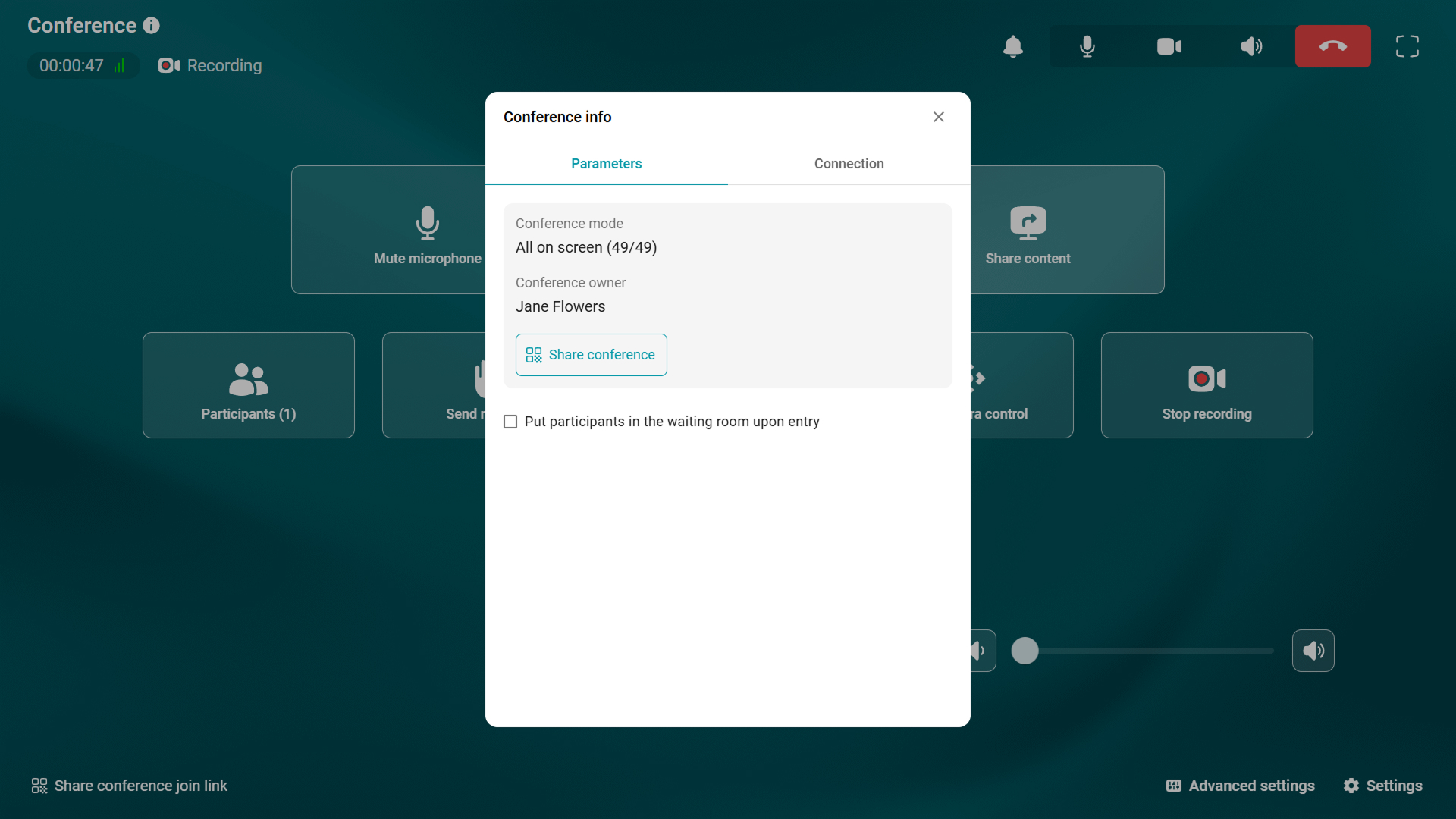
We’ve added text notifications that will be displayed in the control panel in case of various events such as the moderator’s actions with the endpoint camera or microphone, conference invitations, requests for the podium, and video recording requests.
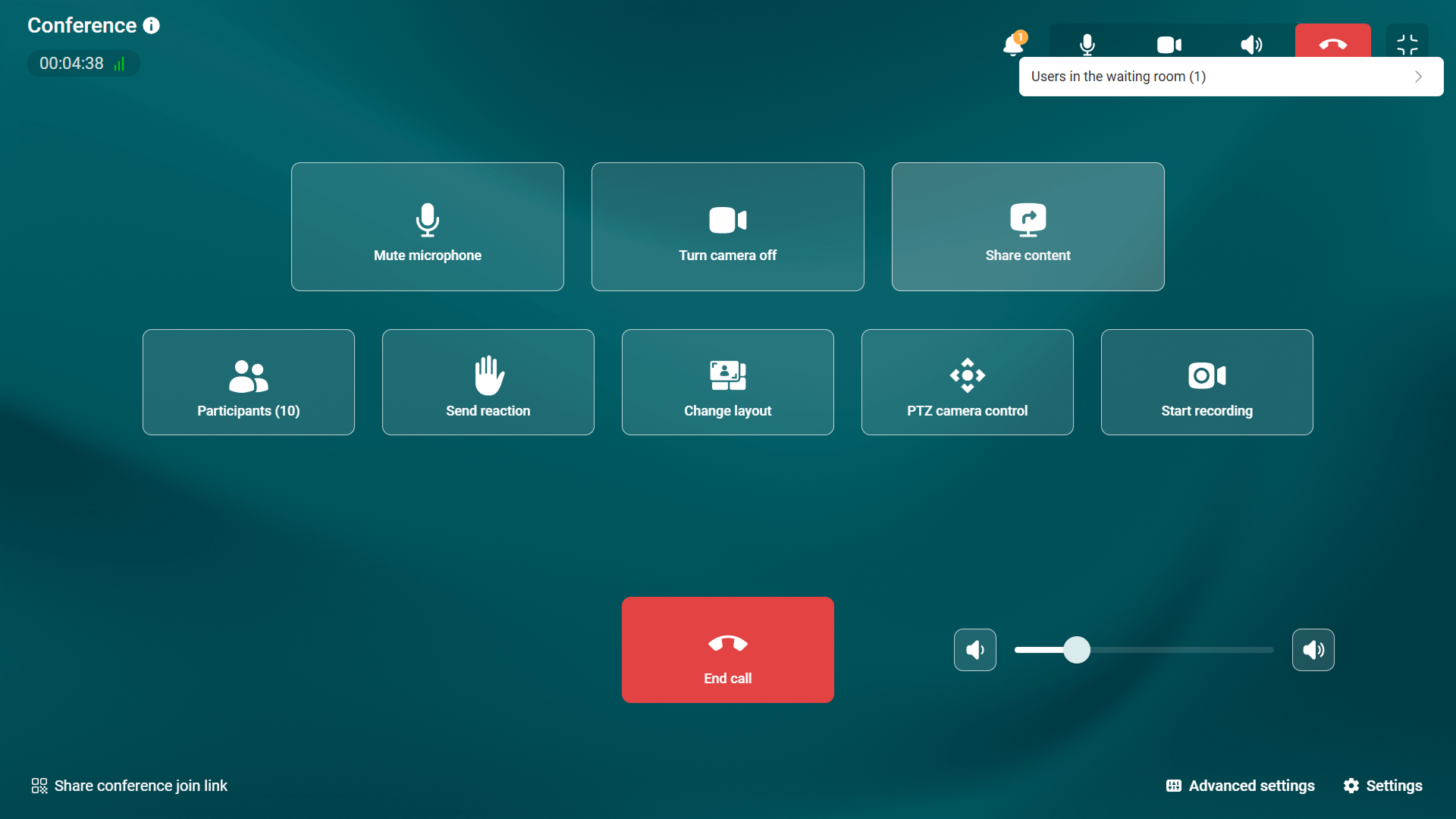
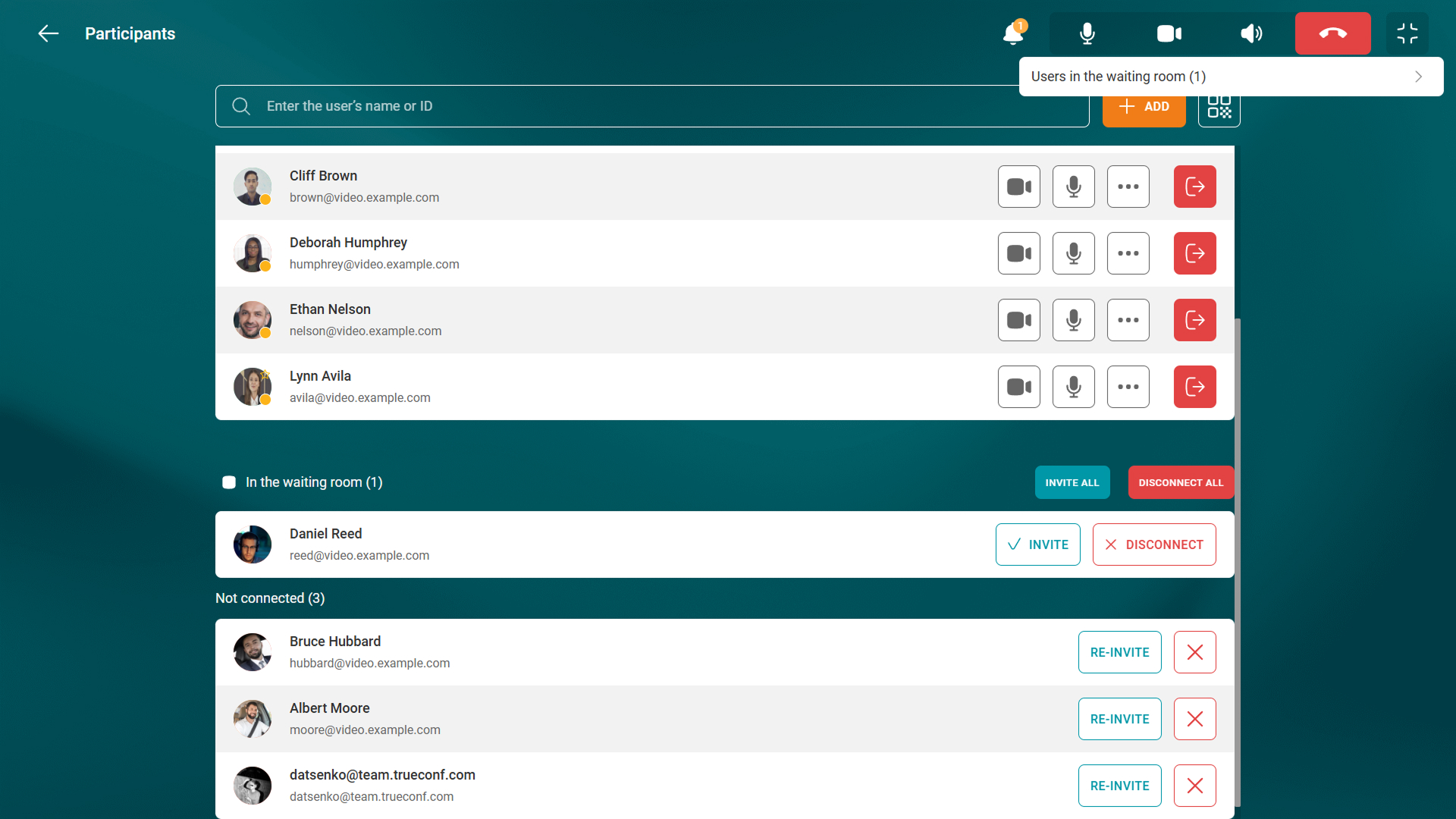
The list of participants was also improved. Participants are now grouped based on their current activity, e.g., content sharing, voice activity, and reactions, while inactive users are ordered by the time of their last activity. The list also includes invited participants who haven’t joined the conference yet. You’ll receive a notification whenever someone wants to join the conference from the waiting room.
Reactions
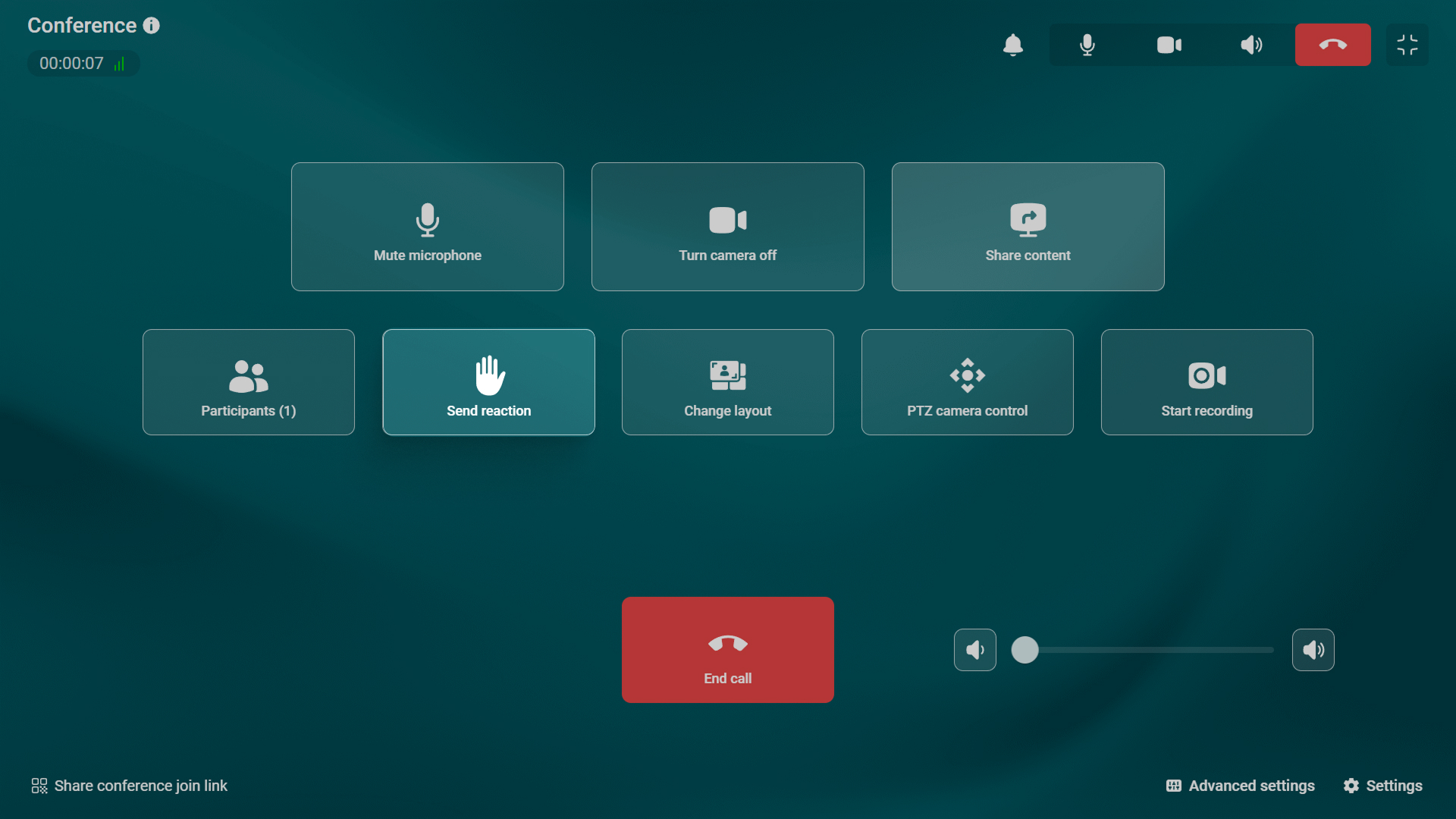
TrueConf Room 5.2 now supports reactions, which are displayed directly in participants’ video windows and the layout management panel. You can also send reactions through the web-based conference control panel.
More Video Layout Options
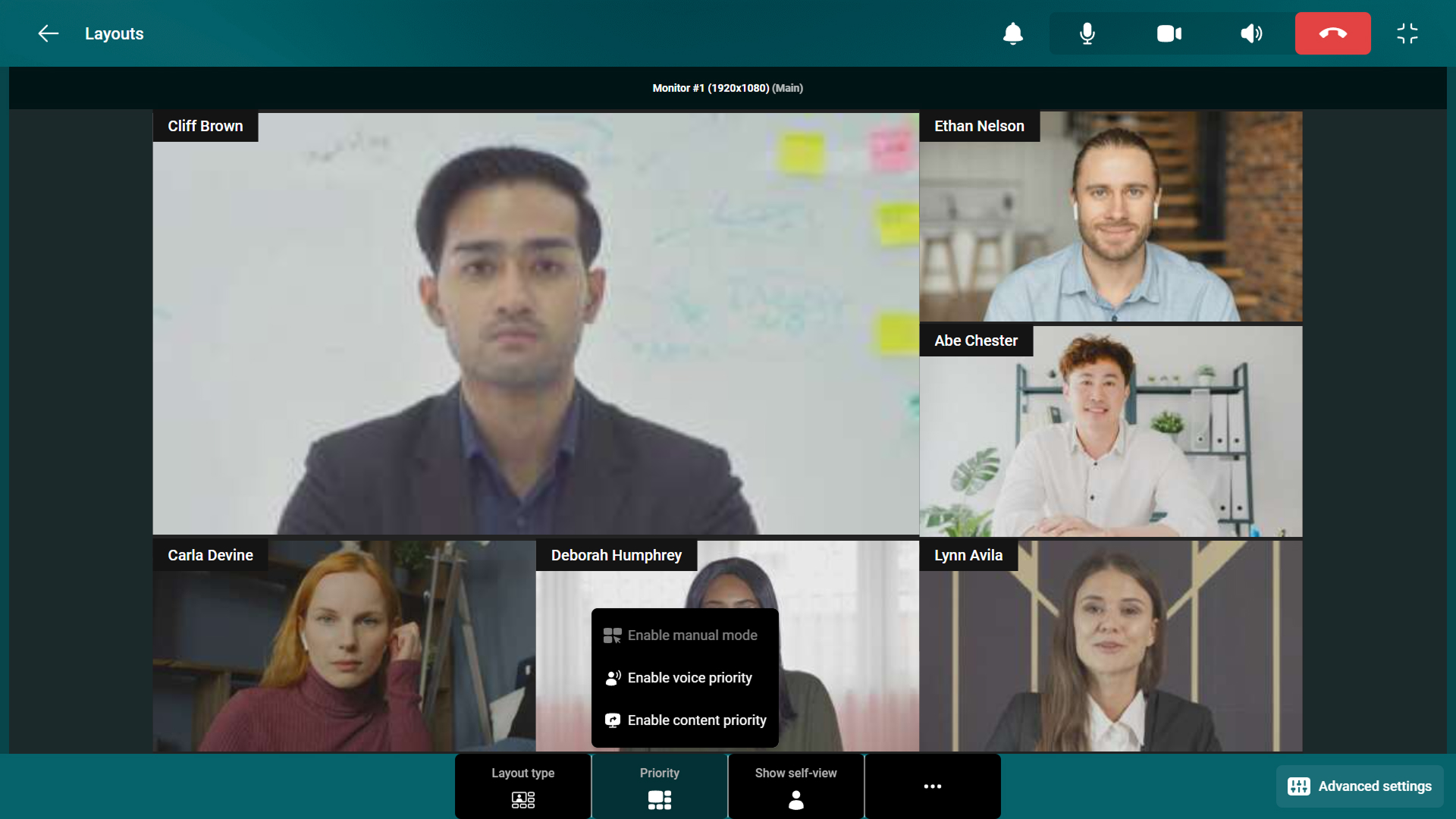
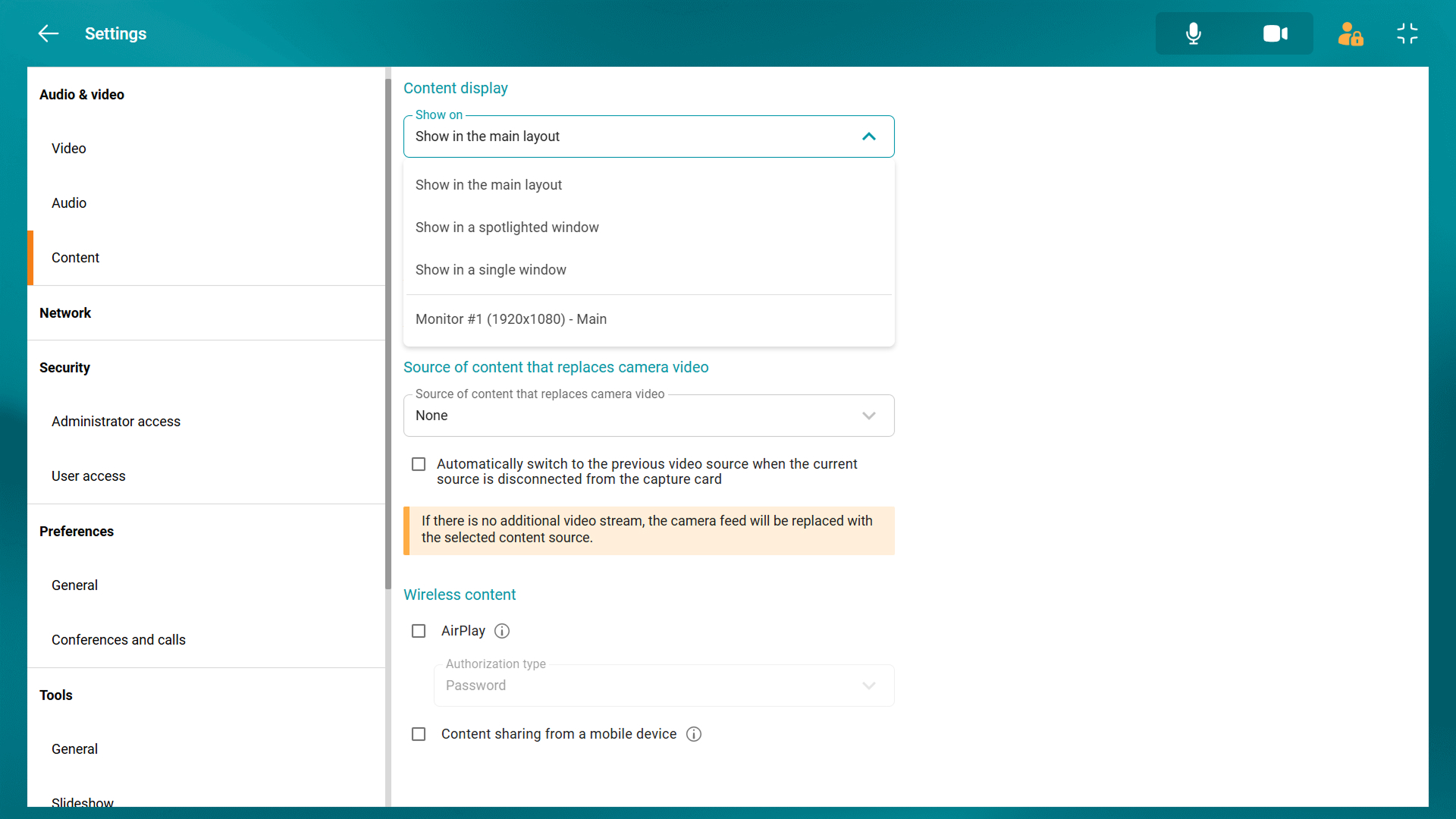
We’ve improved the conference layout management interface by adding new settings for content display. Besides, users can now hide their self-views.
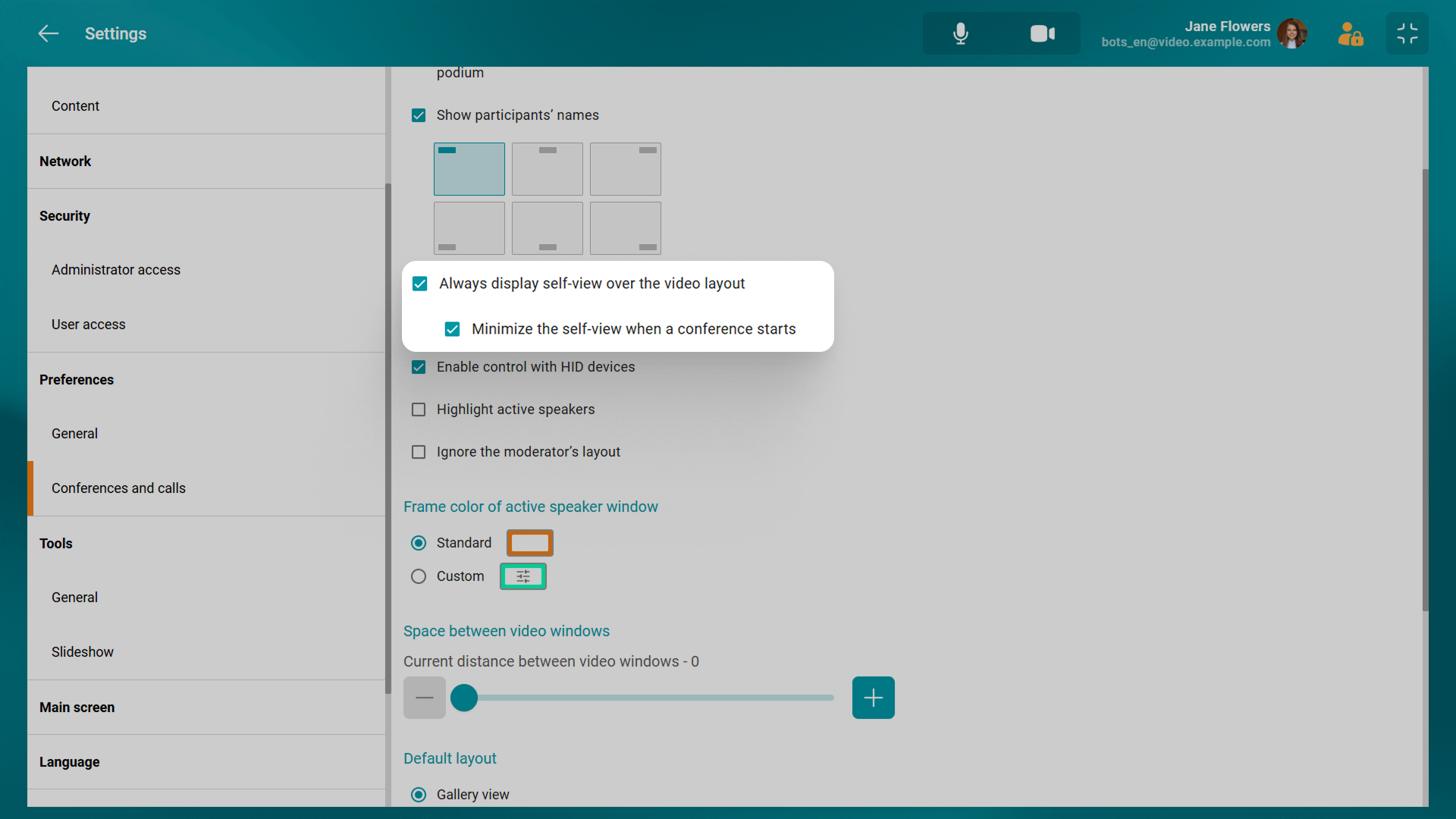
You can now hide your self-view not only during conferences but also during one-on-one calls. If your video feed overlays the layout, you can automatically minimize it when a meeting starts. Additional content display options are available in the application settings.
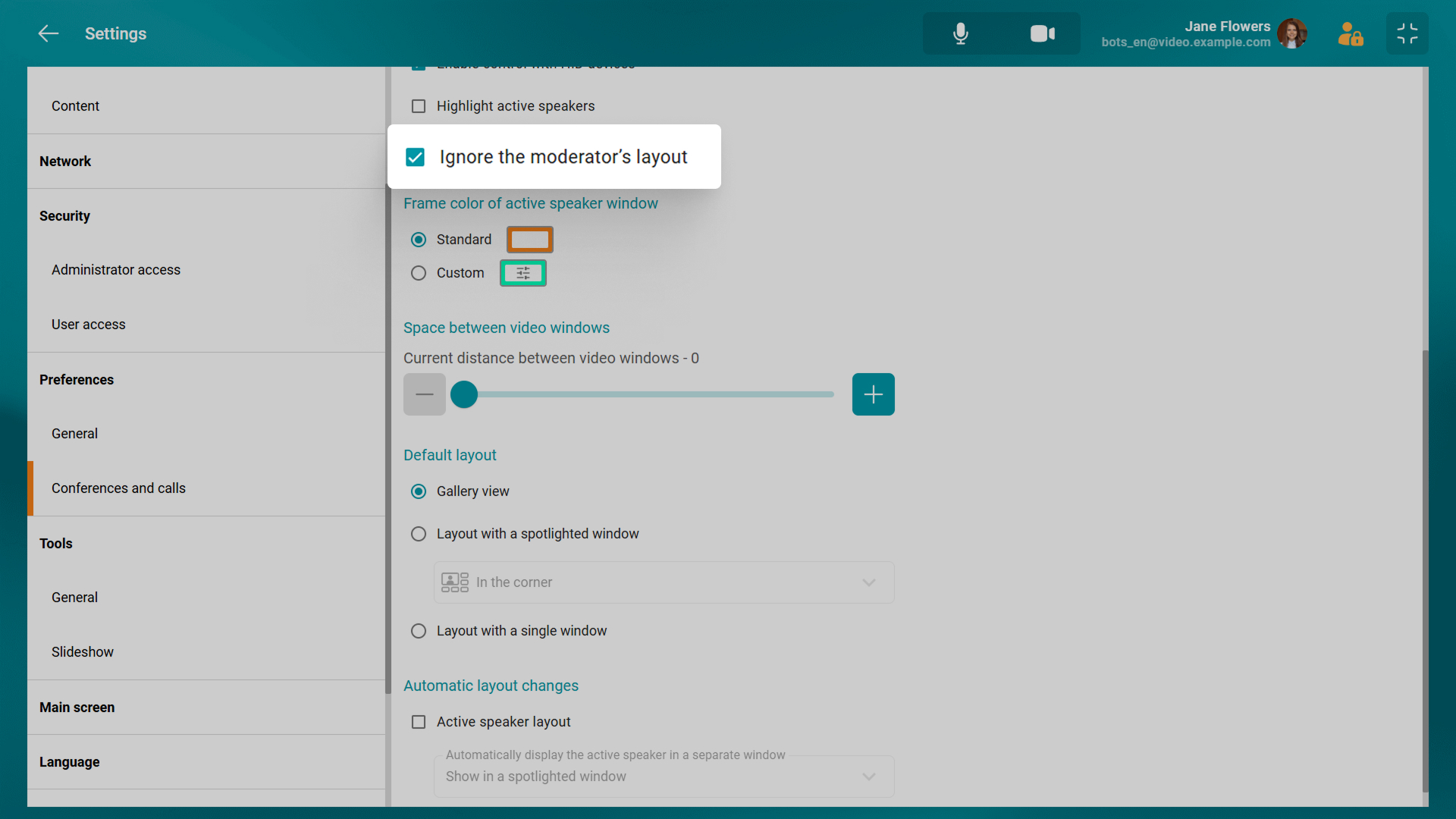
Users can also decline the layout set by a moderator. They can do it either in conference and call settings or in the advanced conference management window. If the moderator makes a layout mandatory for participants, a user will receive the corresponding notification.
Customizable Keyboard Shortcuts
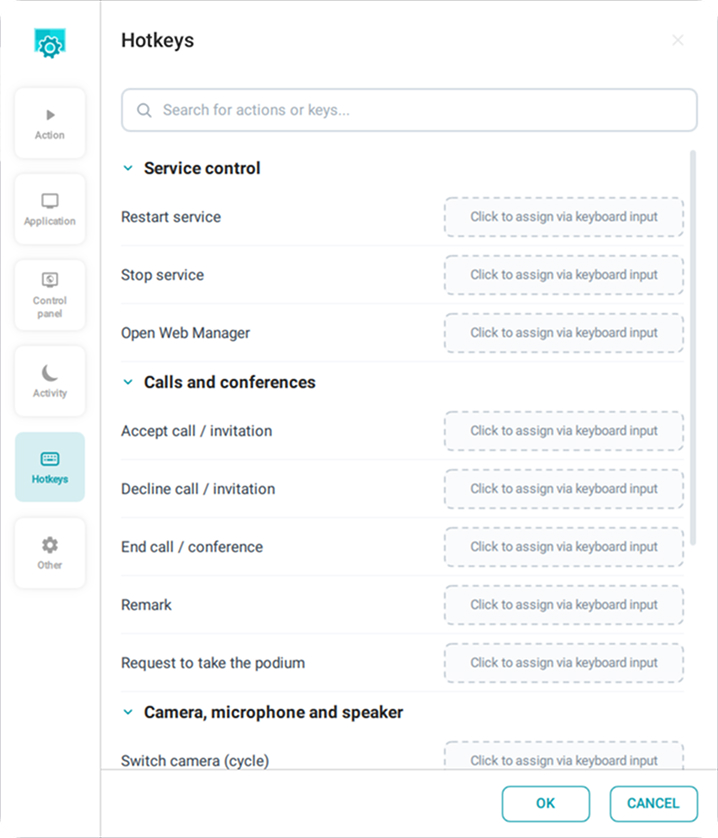
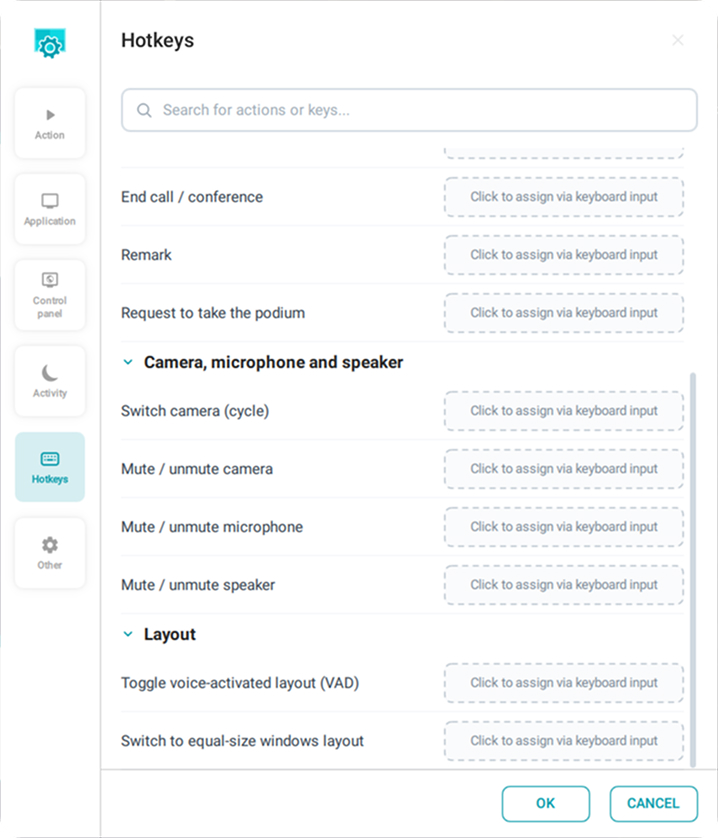
TrueConf Room Service now features a hotkey editor that lets you assign custom shortcuts to control both the service and the application. You can use shortcuts to answer or reject incoming calls, end calls, control your camera, microphone, and speakers, switch between video layouts, and perform other actions.
Other Changes and Improvements
- It is now possible to receive JSON data about the state of TrueConf Room, connected devices, and the work of various services. The data is sent to the /status address which is needed for integration with monitoring systems.
- Added support for Ubuntu 26.04 and Debian 13.
- Added support for Hindi and French localizations.
- Added support for the hardware buttons on the CleverMic SP35BT speakerphone and the remote control of the CleverCam V4K11 video bar.
- Your smartphone screen no longer locks while you are managing a conference or call through the web-based control panel.
- IP addresses and phone numbers are now automatically recognized when they are entered in the search field, which allows you to call them or add them to your contacts right away.
- Fixed a problem where the active speaker’s video or shared content was not automatically moved to the second monitor after it was reconnected, even though such video windows were supposed to be displayed on a separate monitor.
- Improved overall stability.
To view the full list of changes, please refer to our release notes.

Ivan Datsenko
Date published: 19.11.2026
Ivan Datsenko
Date published: 19.11.2026
Follow us on social networks