
Conference
Conference
In the Conference tab, you can start an instant conference or open the scheduler to create a virtual room or a scheduled conference. Additionally, you can join a conference using a QR code scanner:
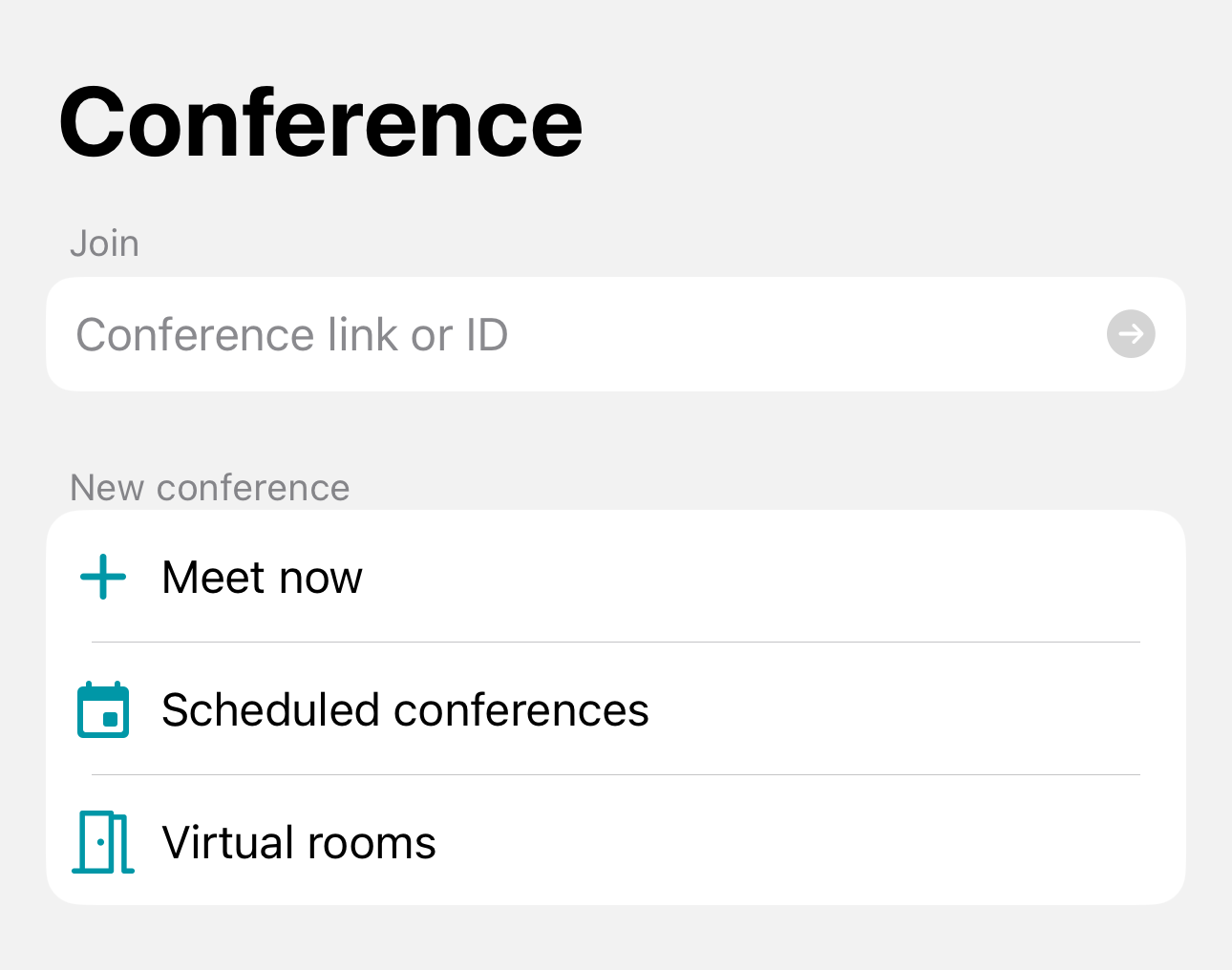
How to join the conference
To join a conference:
Go to the Conference tab.
In section Join, enter the conference link or ID.
To connect, press
 .
.
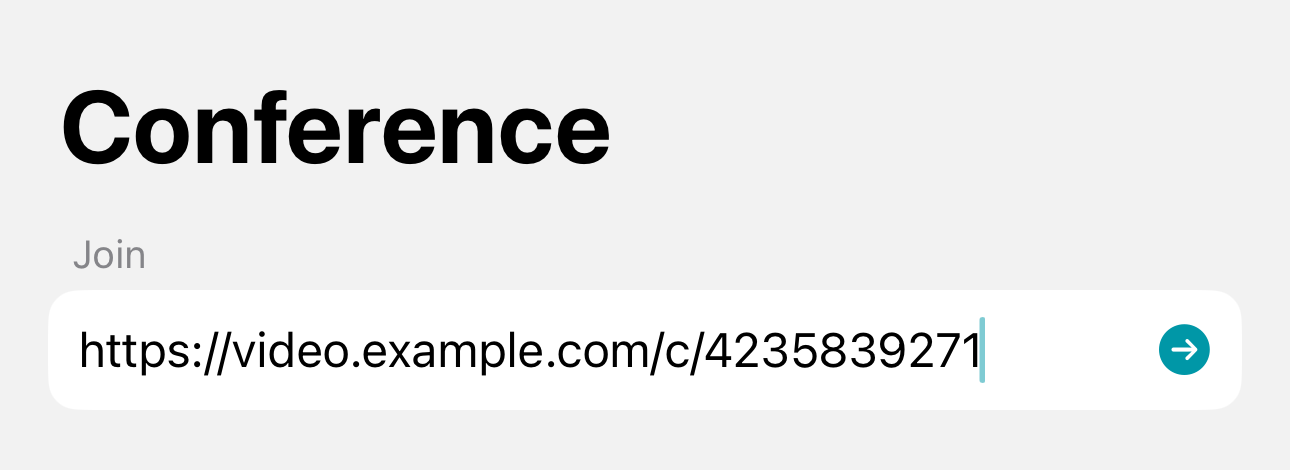
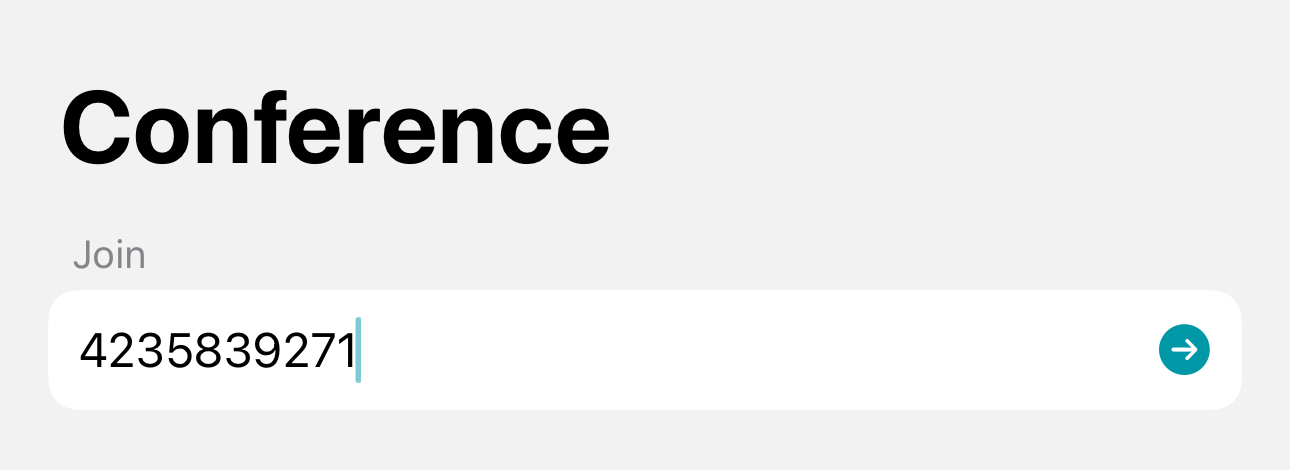
According to the Apple's security policy, you can join a conference via a link only if the server uses a commercial HTTPS certificate.
Additionally, you can join the event TrueConf using the following methods:
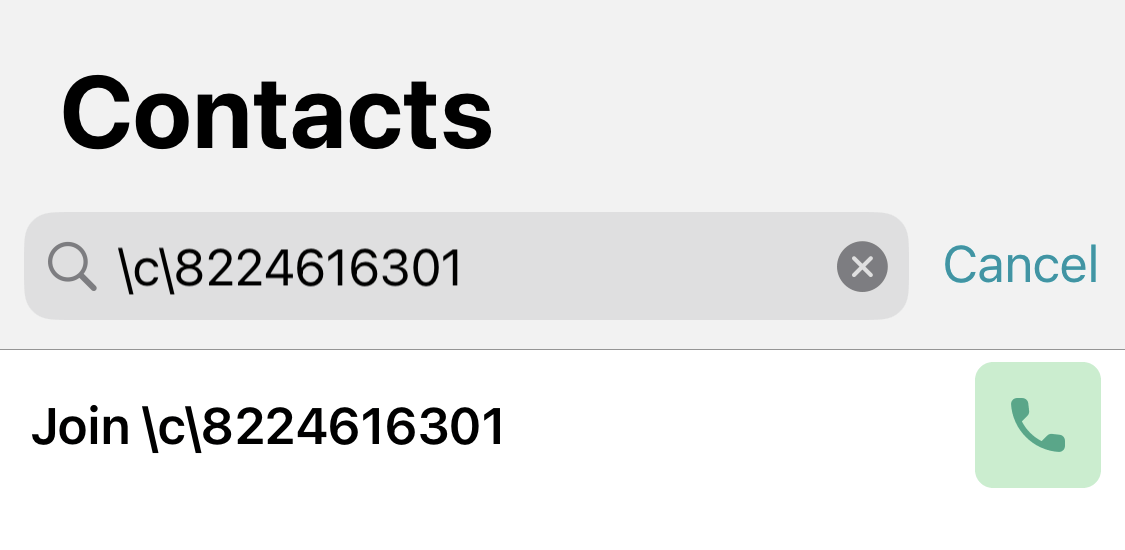
- from the address book. In the search bar, enter the conference ID or the link to its page and click the
 button or
  .
.
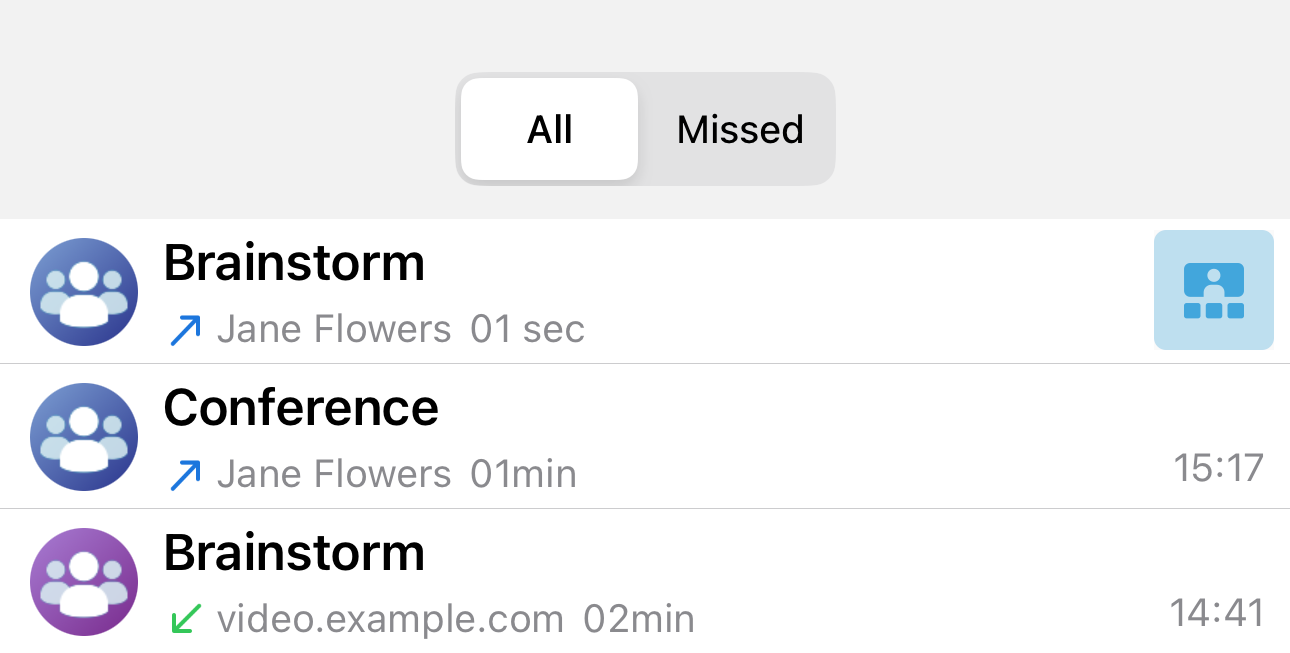
- through the call history in the Calls section by clicking
 ;
;
call the moderator;
go to the scheduler, select the conference, and click the Connect to the conference button (if you were previously added to the participant list);
- join the conference through its web page;
from the server guest page using its ID or QR code;
Access the conference page from your personal area (only if you are the moderator).
Device check
Before joining the conference, you will see a preview window showing the settings of your devices. Here, you can:
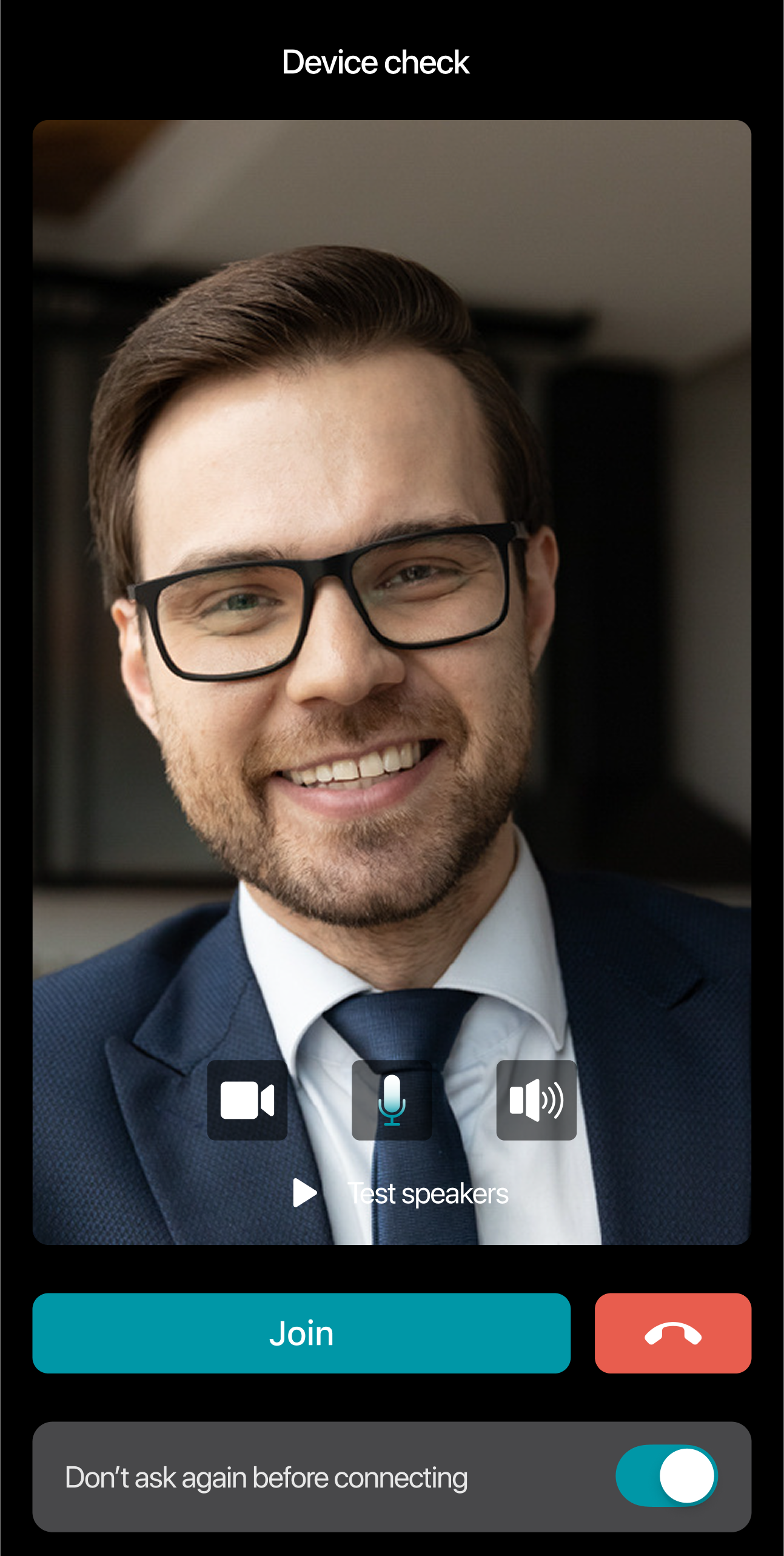
If the camera is turned on, you can:
Change it using the
 button.
Before accepting the call, select a virtual background using the
 button. You can also set a virtual background in the application settings.
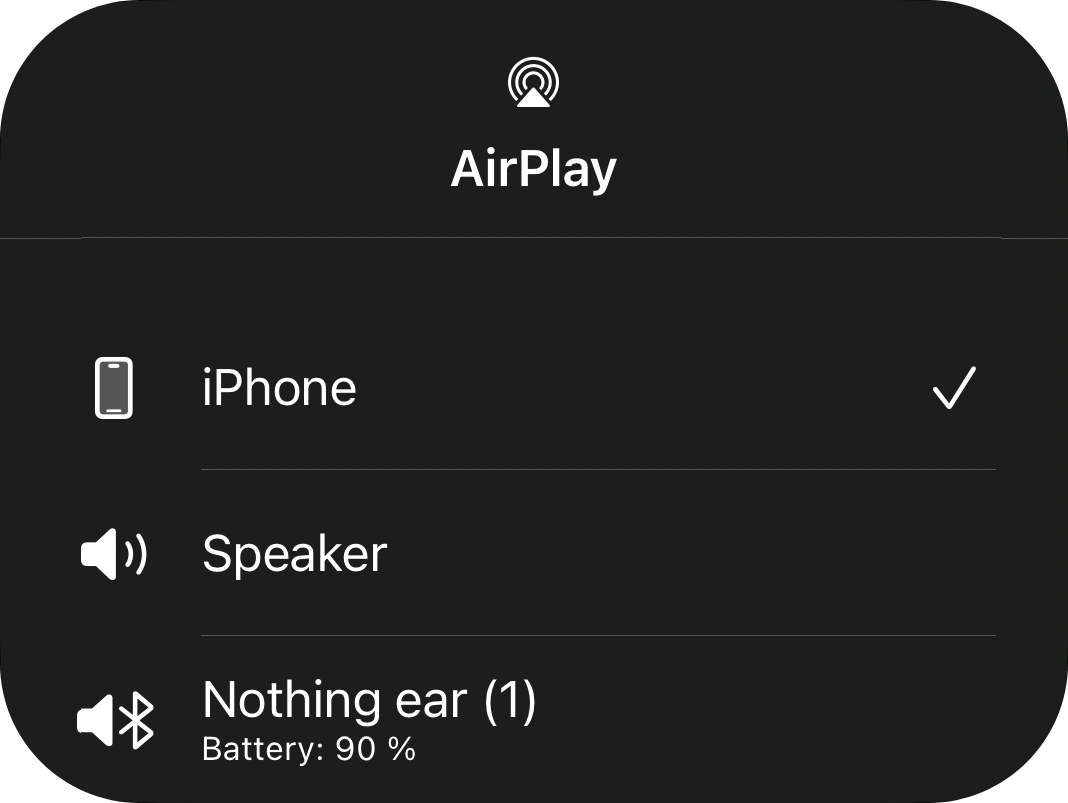
You can select the audio source by clicking the button -  , or choose the audio source through the Control Center by swiping down from the top-right corner of the screen:
To restore the Device check window, enable the Show the preview window before joining a conference option in the settings.
Creating a quick conference
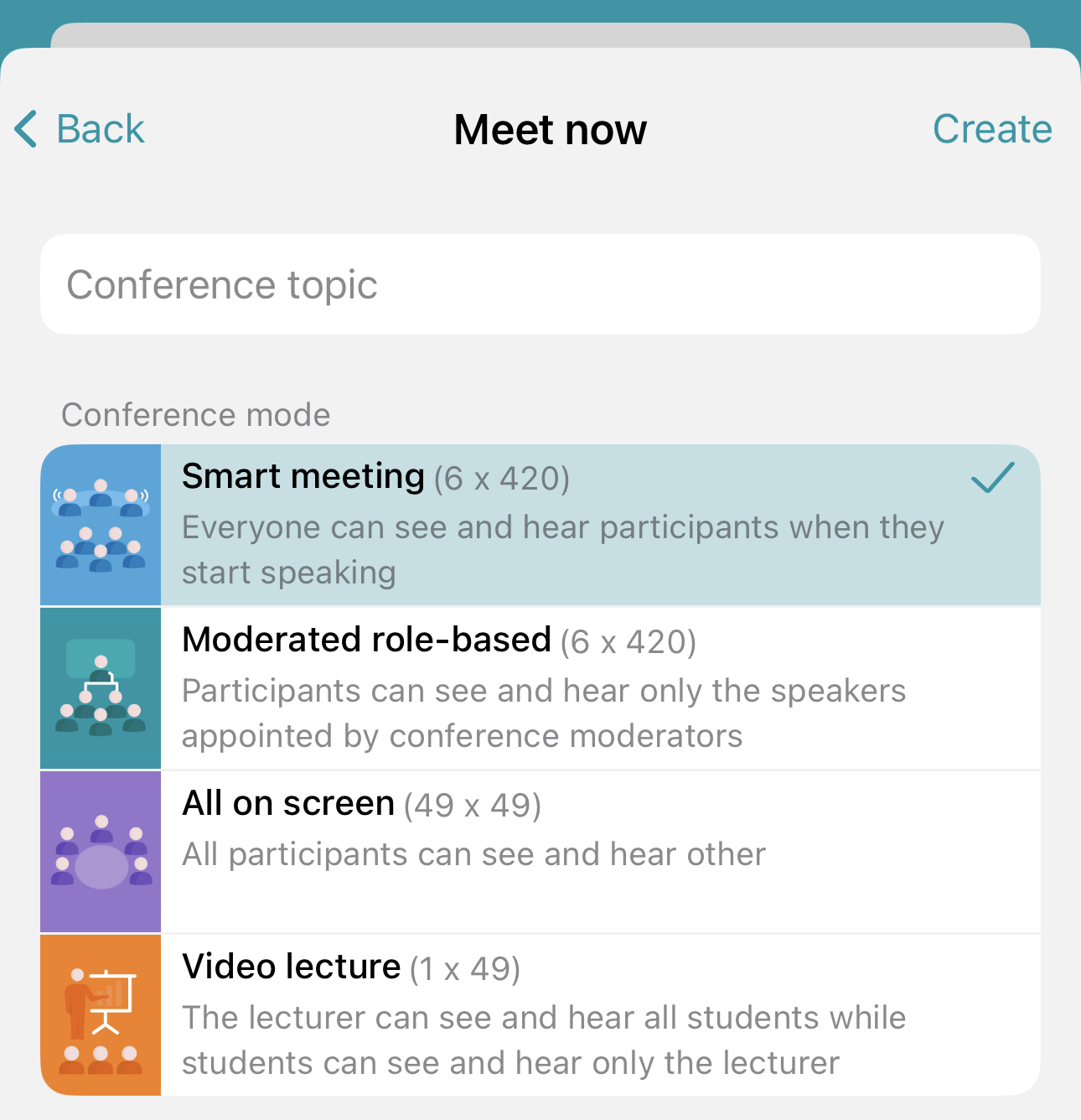
In the Conference tab, click Meet now, and in the window that opens, specify the name and mode: smart meeting, moderated role-based conference, everyone on screen, or video lecture.
You can also create a conference from a group chat. To do this, on the main screen, click  next to the chat name.
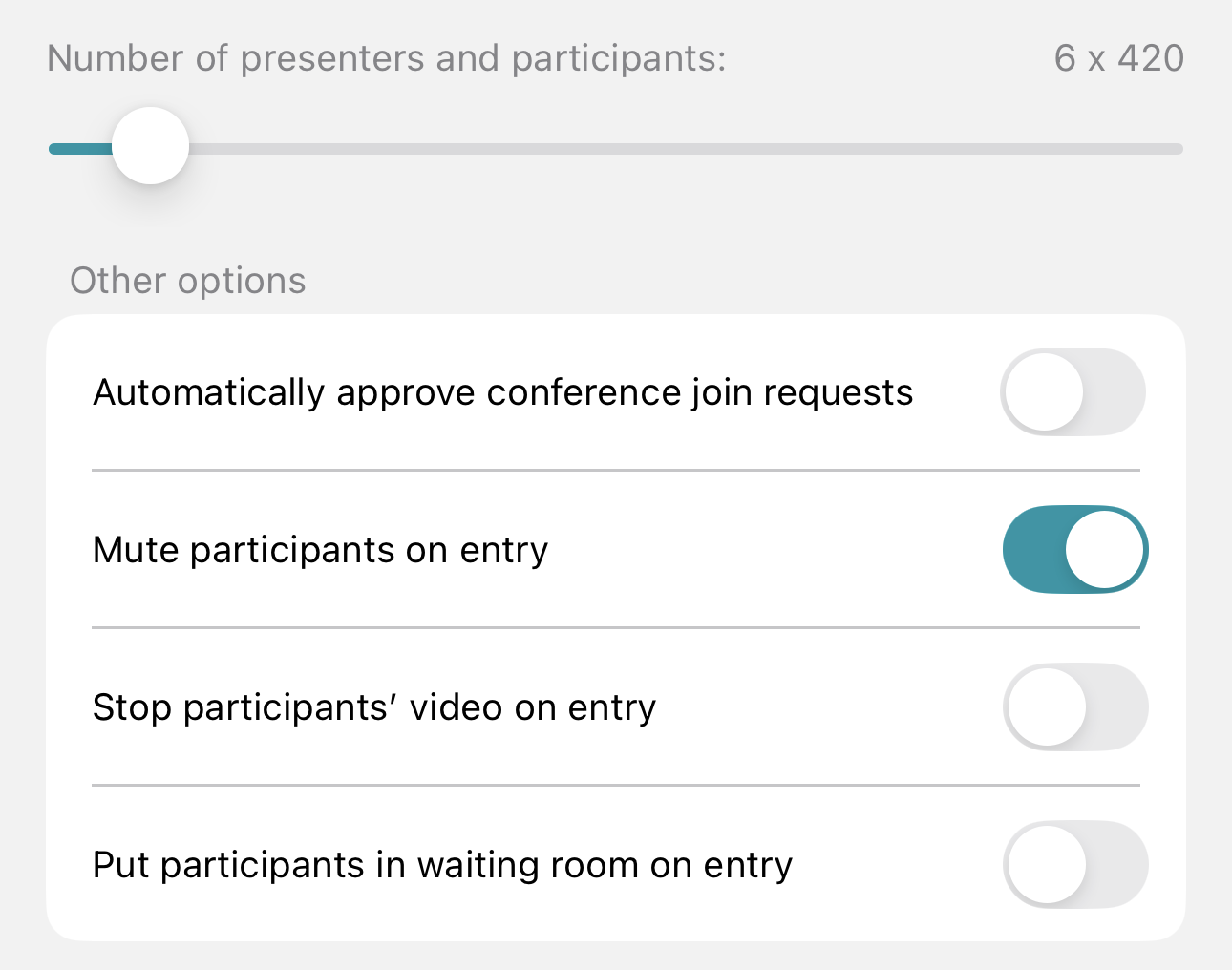
You can also configure additional settings:
- Automatically approve conference join participants By default, when joining a conference by calling its owner, the owner receives a request. You can change this behavior by selecting the checkbox. In this case, a user who wishes to join the conference will automatically connect when calling the owner.
- Mute participants on entry and Stop participants' video on entry – management of participant equipment behavior upon joining the event.
- Put participants in waiting room on entry – Once activated, all participants except the moderators will enter the waiting room. The moderator must manually add the necessary participants or add all users.
After specifying the parameters, click Create.
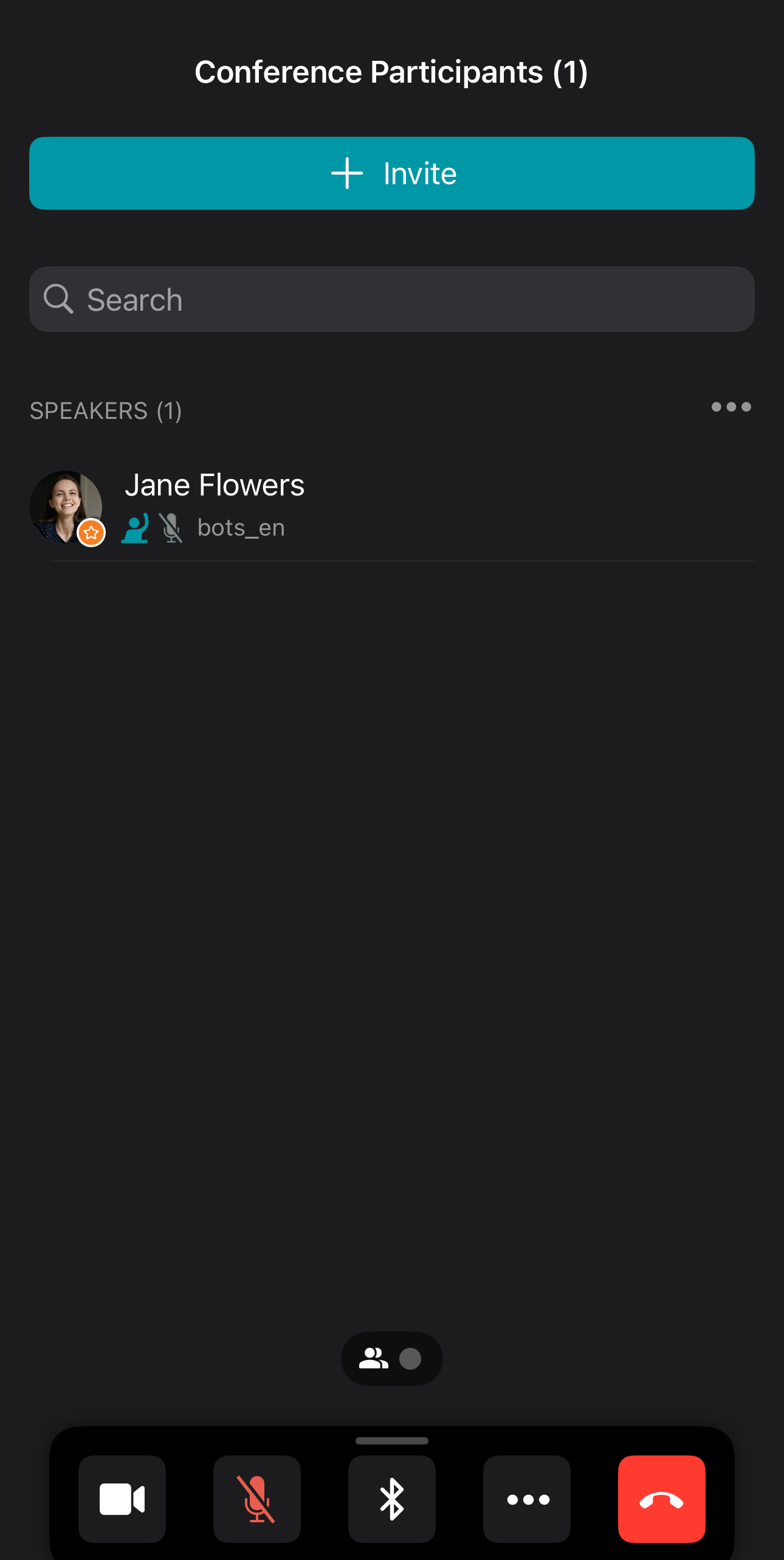
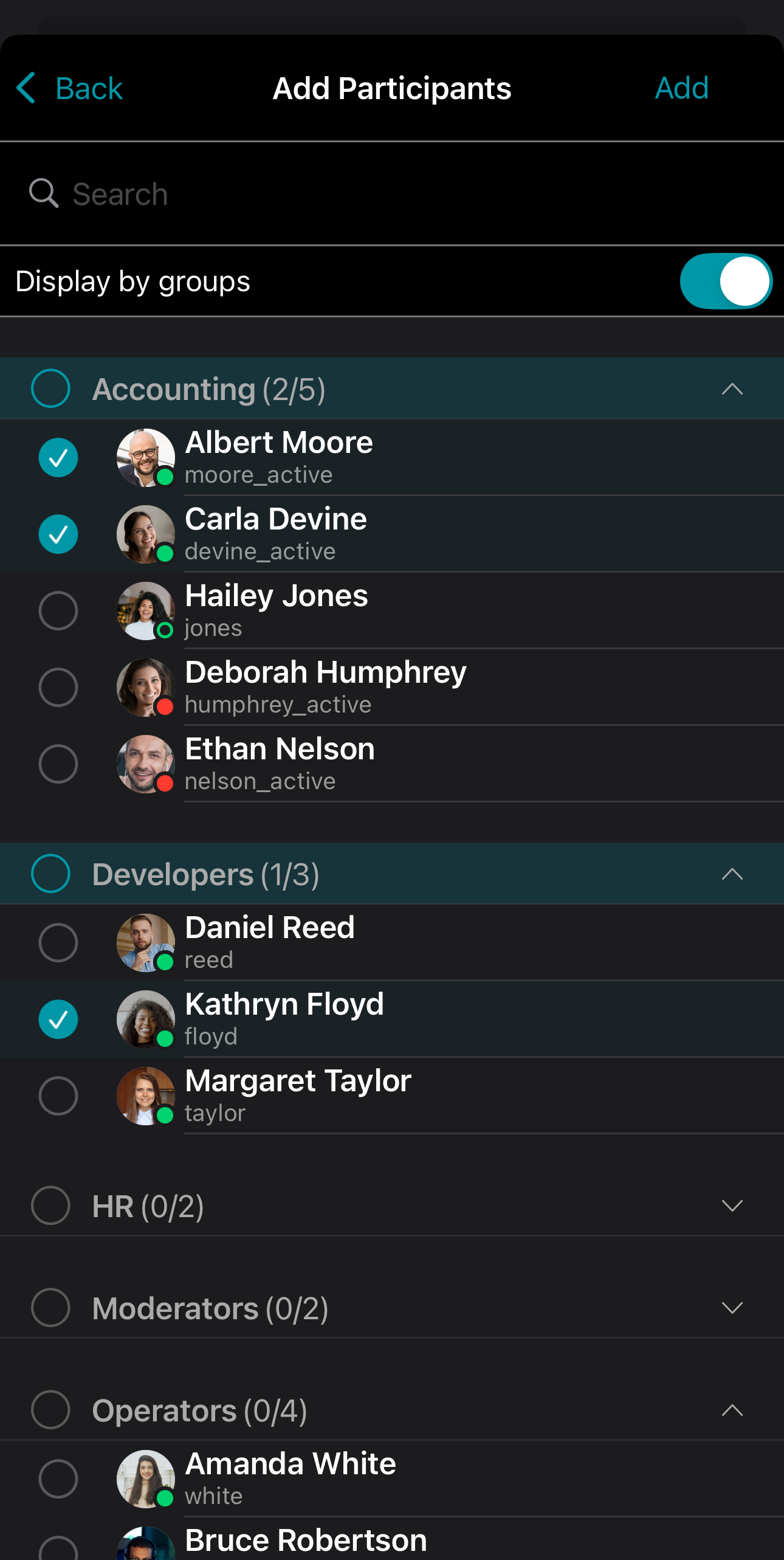
After that, swipe right to access the list of Conference Participants, tap the Invite button to open the list of all contacts in your address book. Select the individuals you want to invite to the conference and press Add.
Creating a scheduled conference and a virtual room
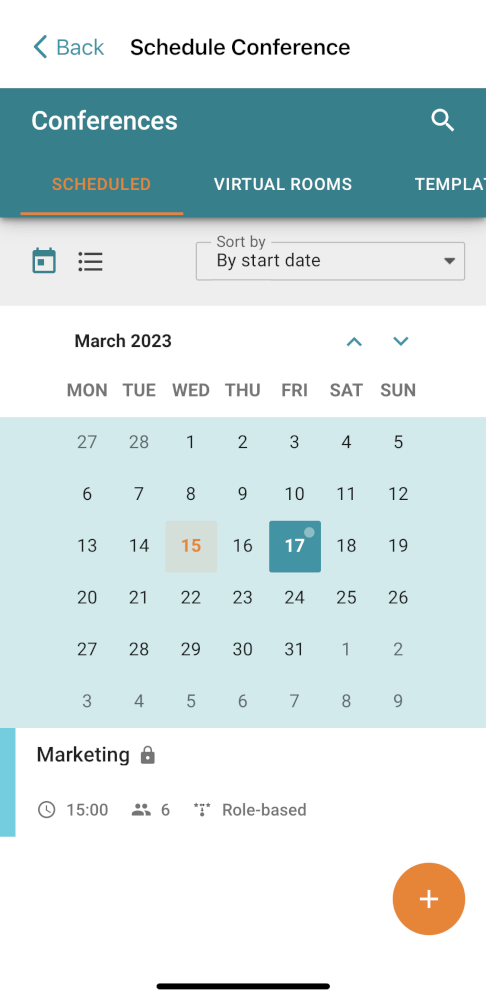
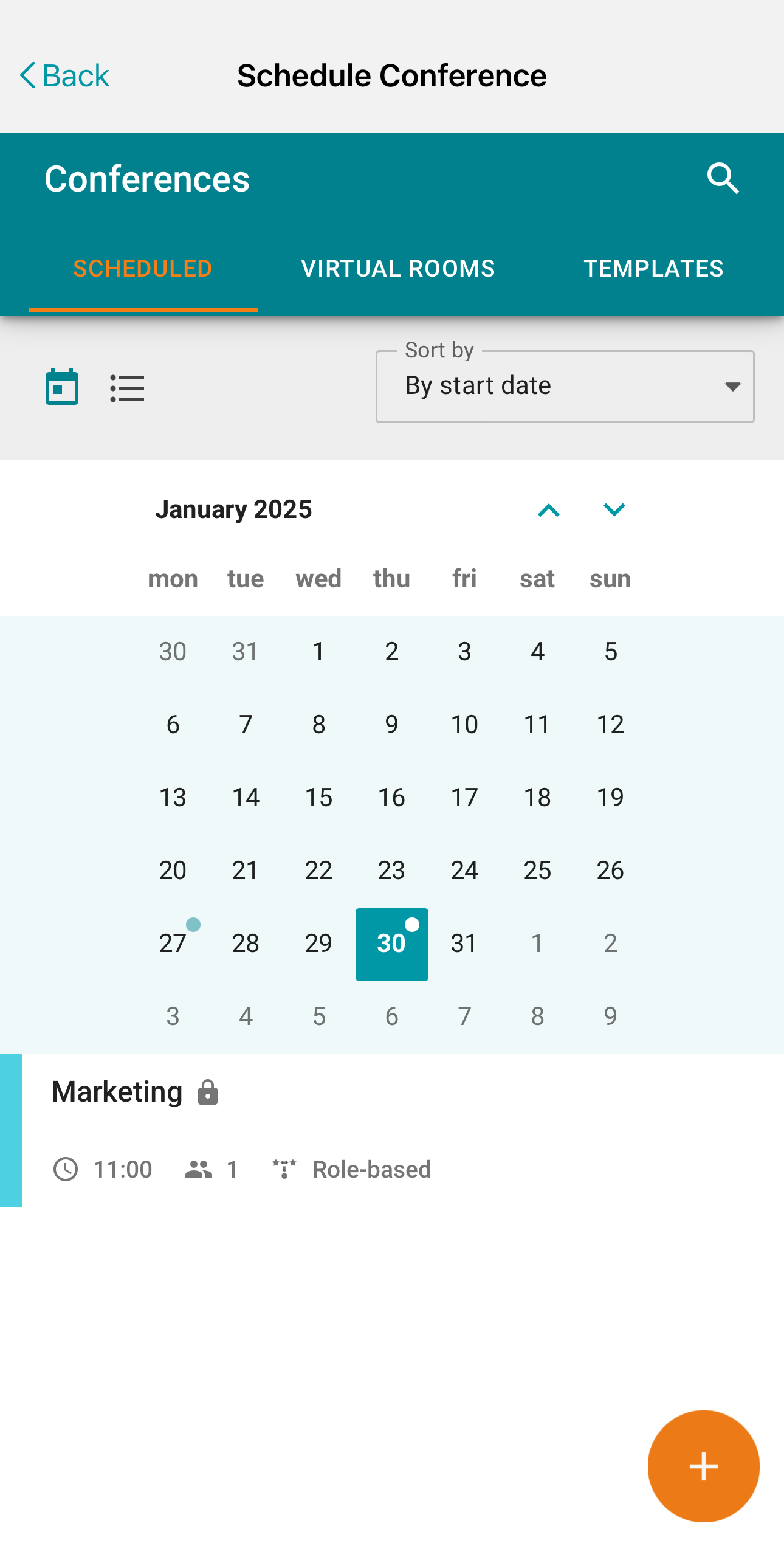
By clicking the Calendar or Virtual rooms button in the Conference section, you will access the conference scheduler, where you can:
Schedule a conference on a selected date and adjust its settings
Create a virtual room (a conference without schedule)
Create a conference template.
Detailed instructions on how to work with it are provided in our documentationTrueConf for macOS.