Chats
Chats
You can exchange text messages with other users both inside and outside group conferences.
When a user signs in to the application on a new device, the chat history saved on the previous device will be synced across devices.
When connecting to TrueConf Server with a version below 5.0, messages between devices will not be synchronized.
This section displays recent conversations with users, favorites, channels, archive, chat folders, and group chats, including conference chats.

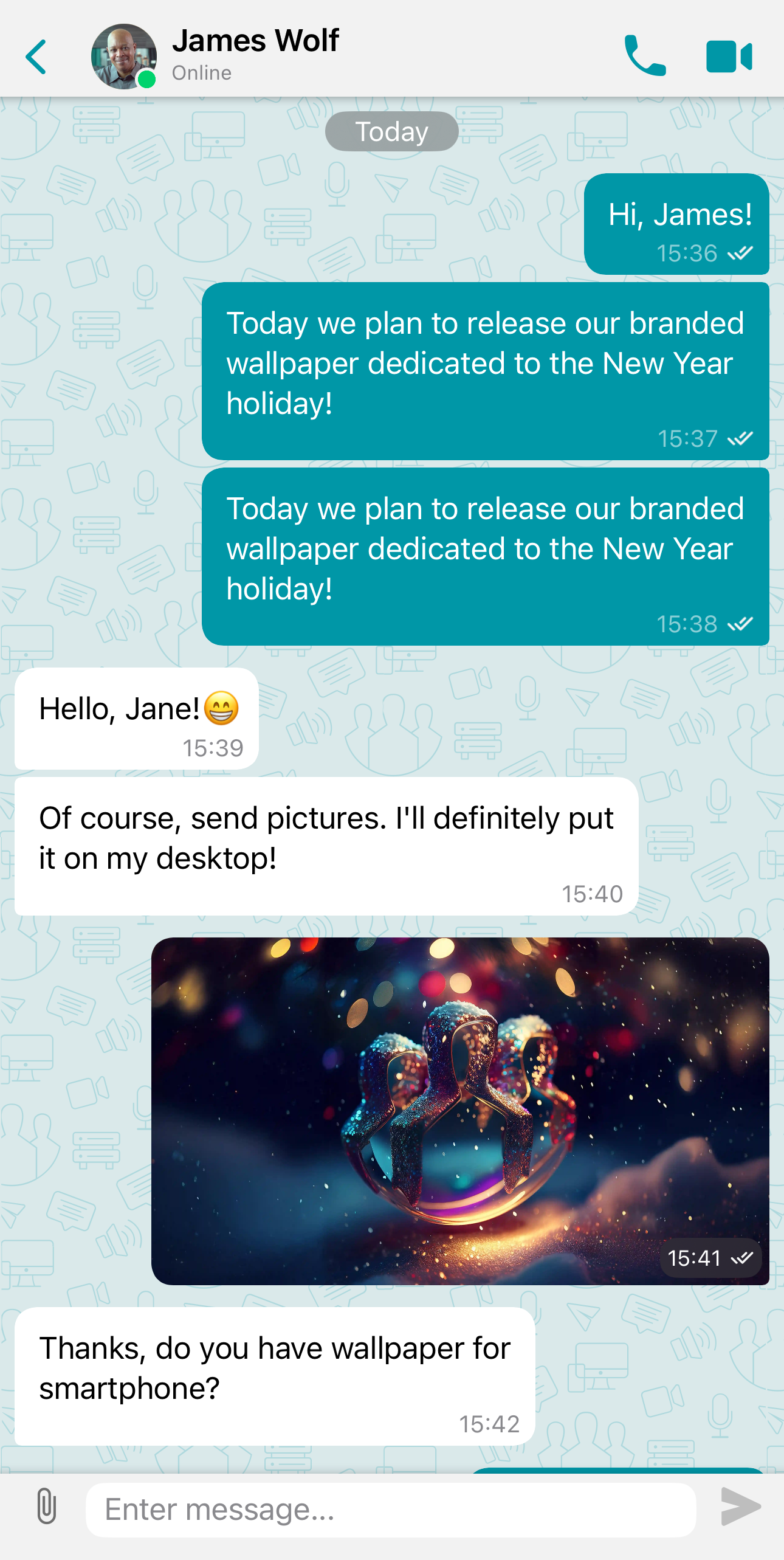
You can start a chat with a new user using the Search line or through the section Contacts.
Archive
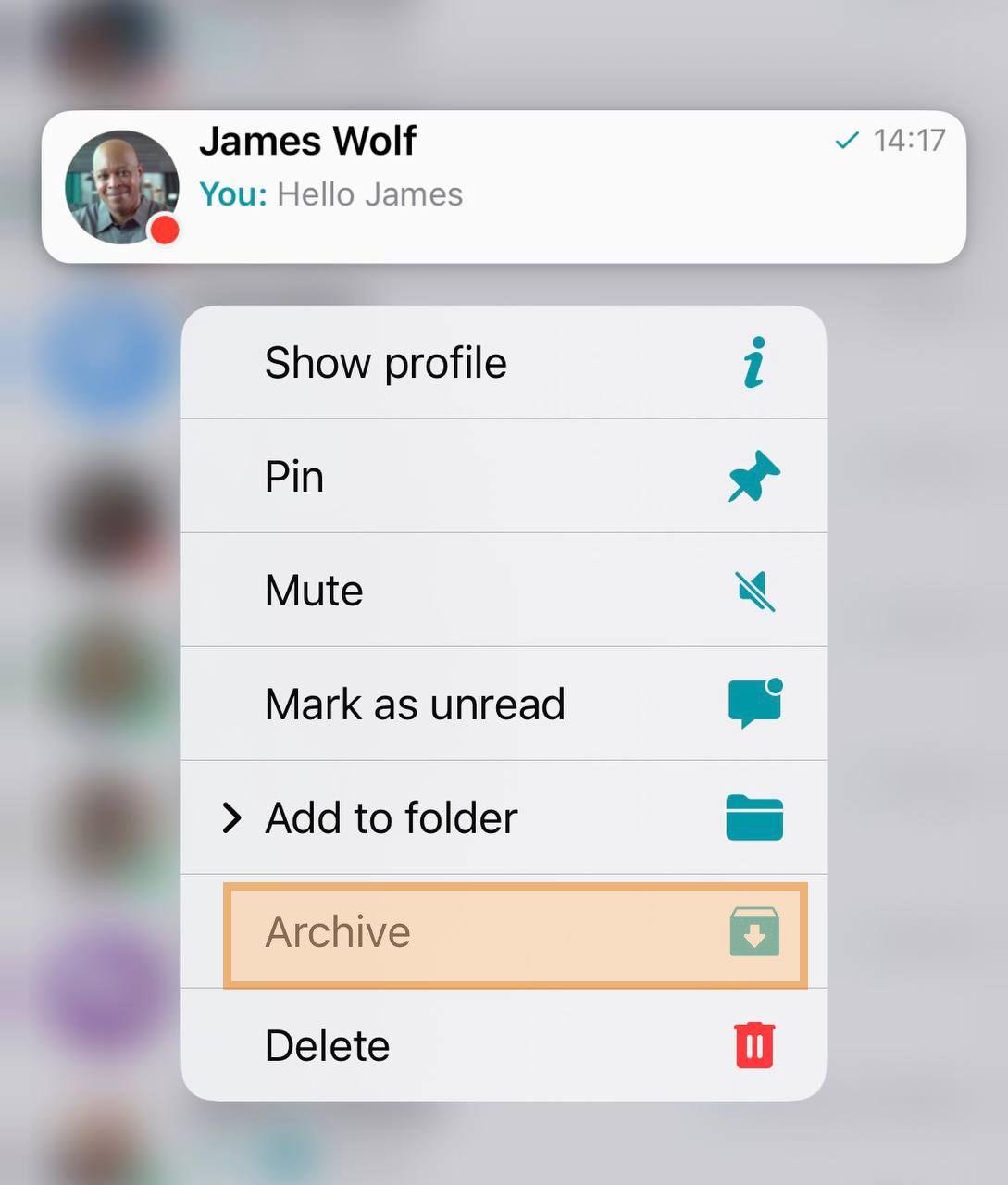
The archive is useful for managing a large number of inactive or less important chats/channels. You can easily remove them to free up space in the main chat list. To add a chat to the archive, press and hold the desired chat, then select Archive from the context menu.
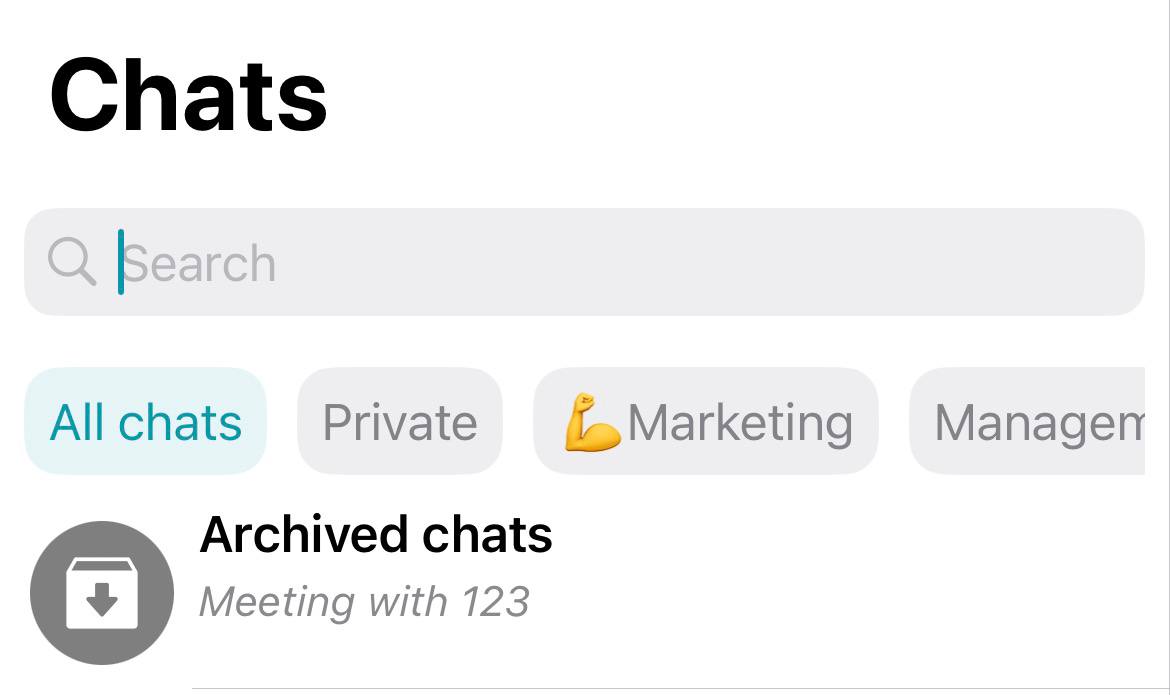
After this, the Archive folder will be displayed, containing all archived chats.
Pinning chats
While in the general chat list or in a folder with chats, you can pin desired group or personal chats with users. To do this, press and hold the required chat, then select Pin from the context menu:
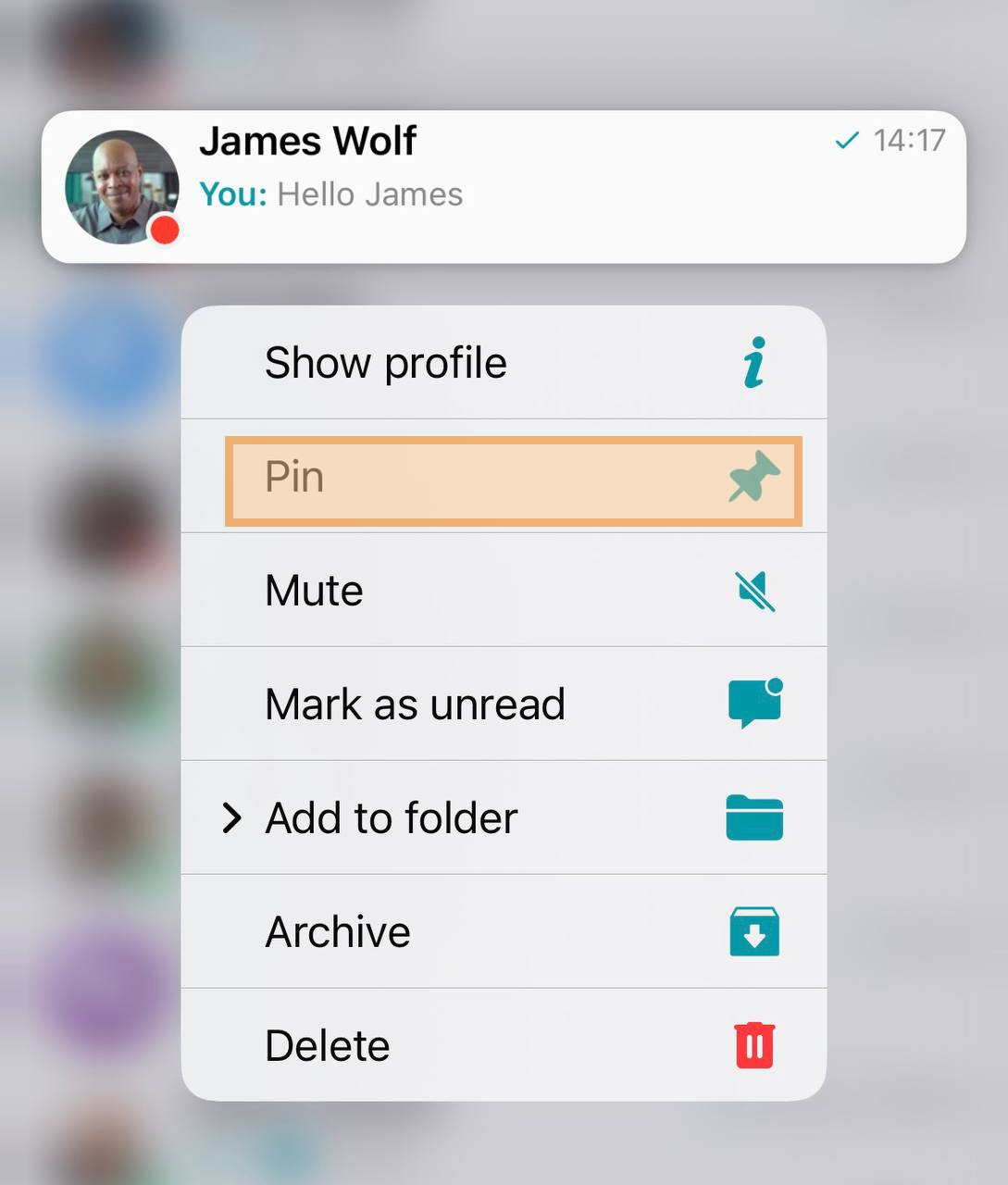
After this, the pinned chat will move to the top of the list and an appropriate label  will appear.
Label "unread"
While in the chat list, you have the option to mark important group or personal chats with users as unread. This can be useful if a message is important but you can't respond immediately. To do this, press and hold the desired chat, then select Mark an unread from the context menu.
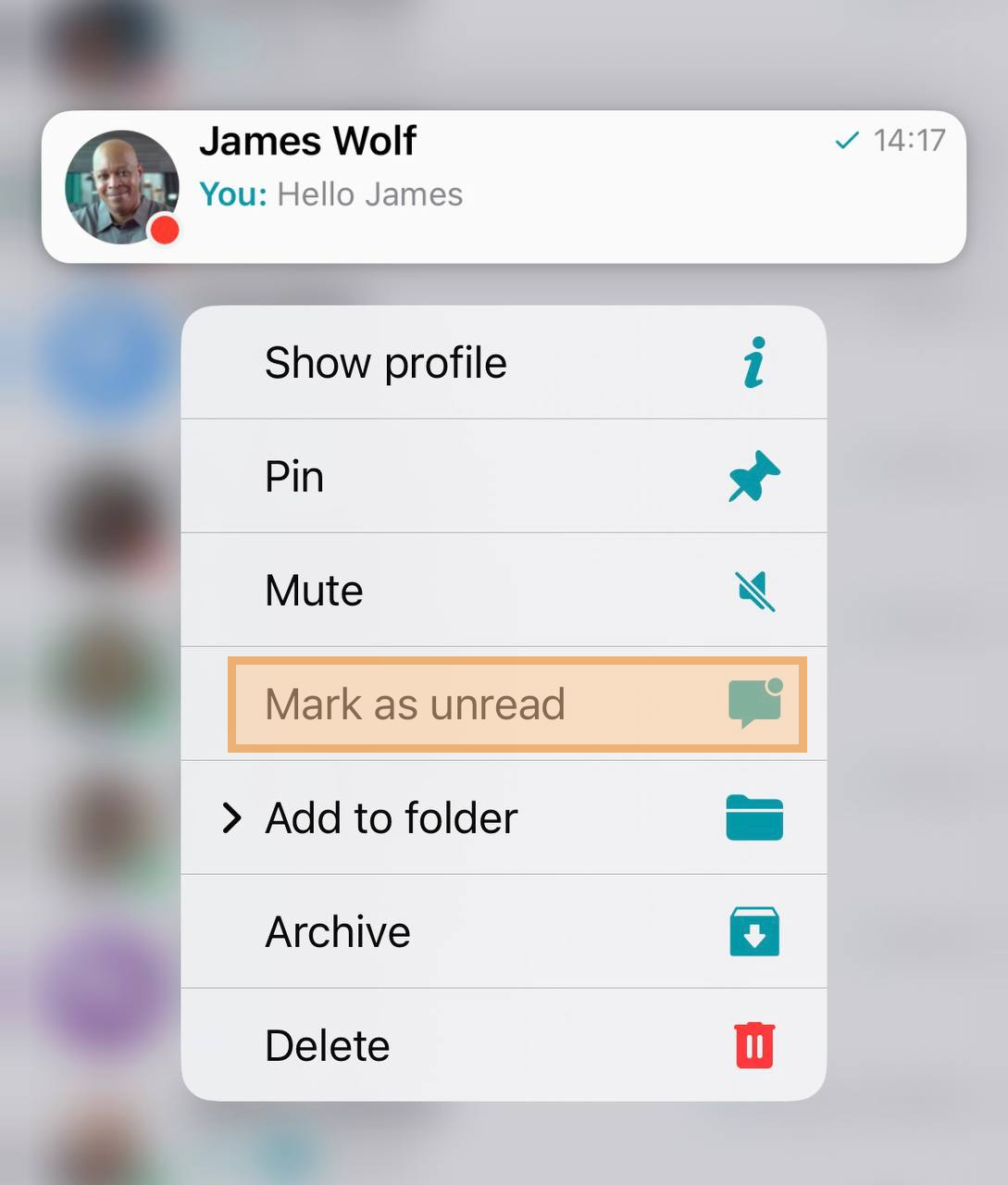
After that, the unread chat will be marked with the appropriate label  .
.
Chat folders
Above the chat list, folders containing chats are displayed. You can navigate through the list by swiping left or right. By default, the list is empty because no folders are configured.
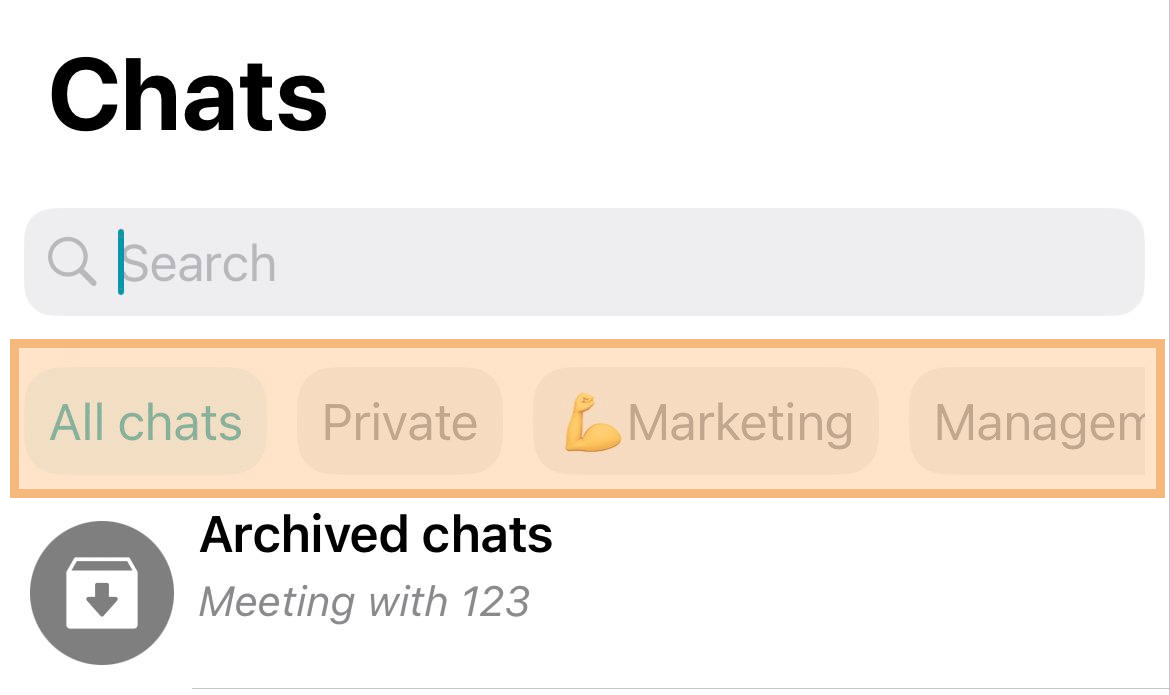
Creating a chat folder
To create a chat folder, go to section Options on the bottom panel. Then proceed to section Folders.
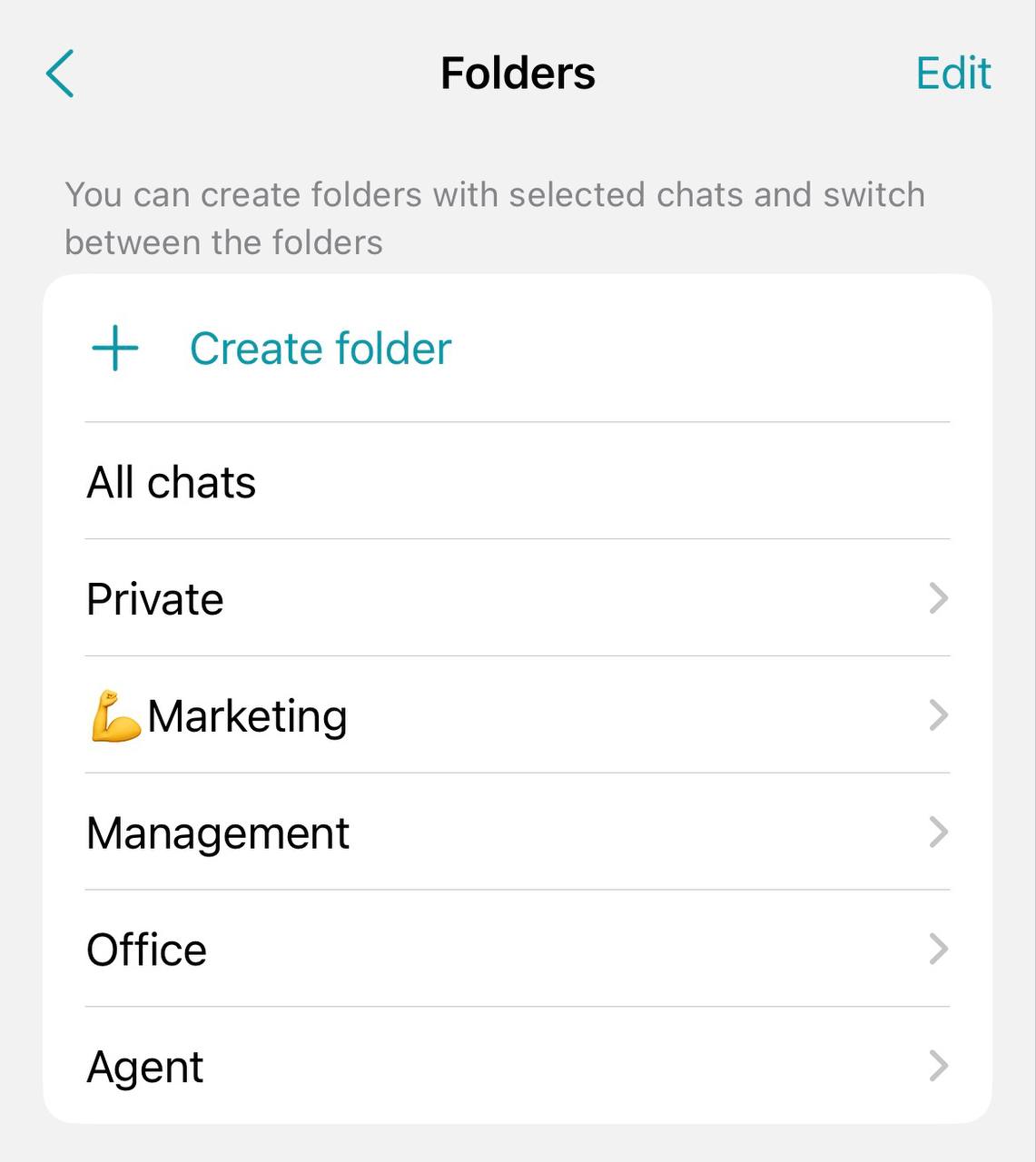
In the window that opens, existing chat folders are displayed. To create a chat folder, click Create folder.
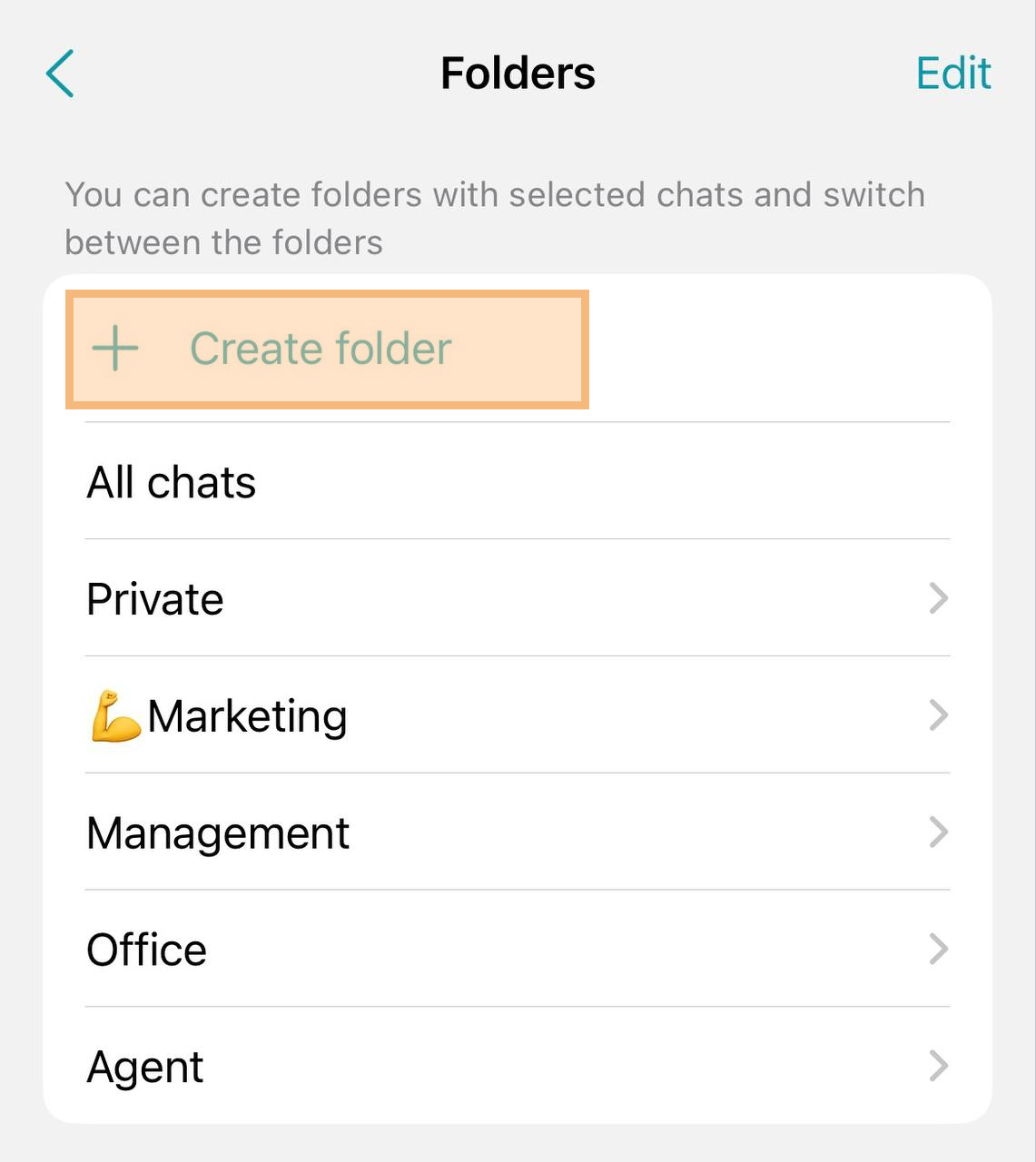
The system folder All chats cannot be deleted, moved, or edited.
In the window that opens, you need to enter the folder name in the field Folder name and add the necessary chats or channels by clicking the button Add chats.
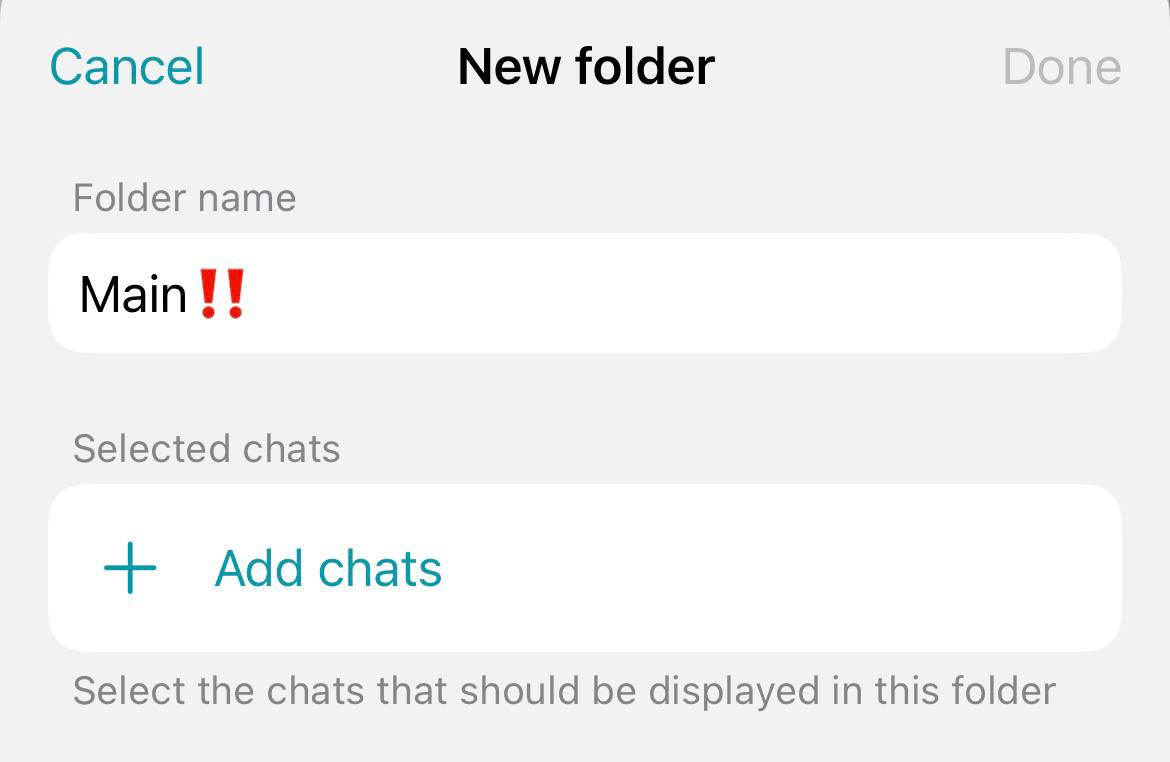
To create a chat folder, you must add at least one chat, as creating an empty folder is not possible.
Select the chats you want to add to the folder and click the Add button.
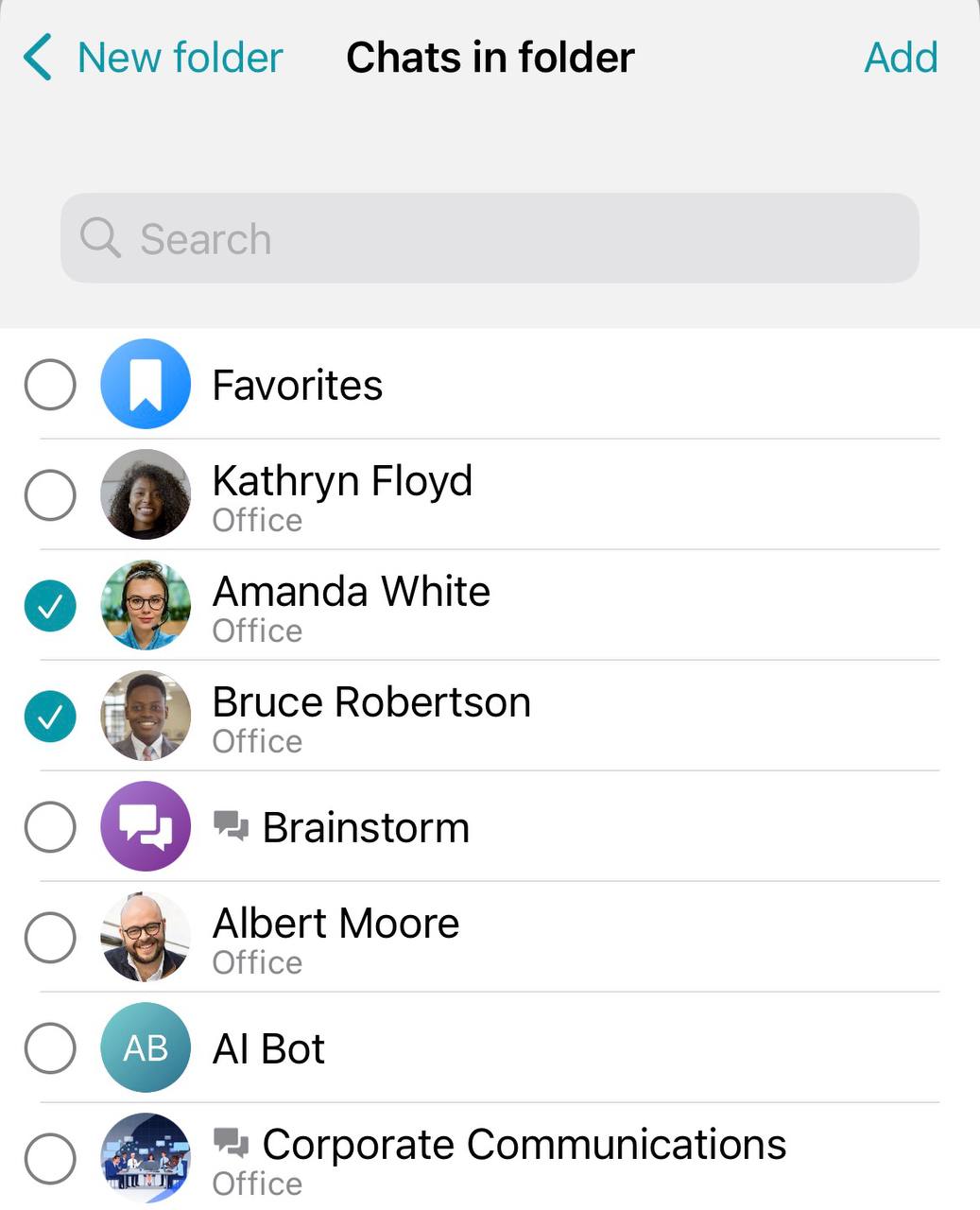
After adding the necessary chats, click the Done button.
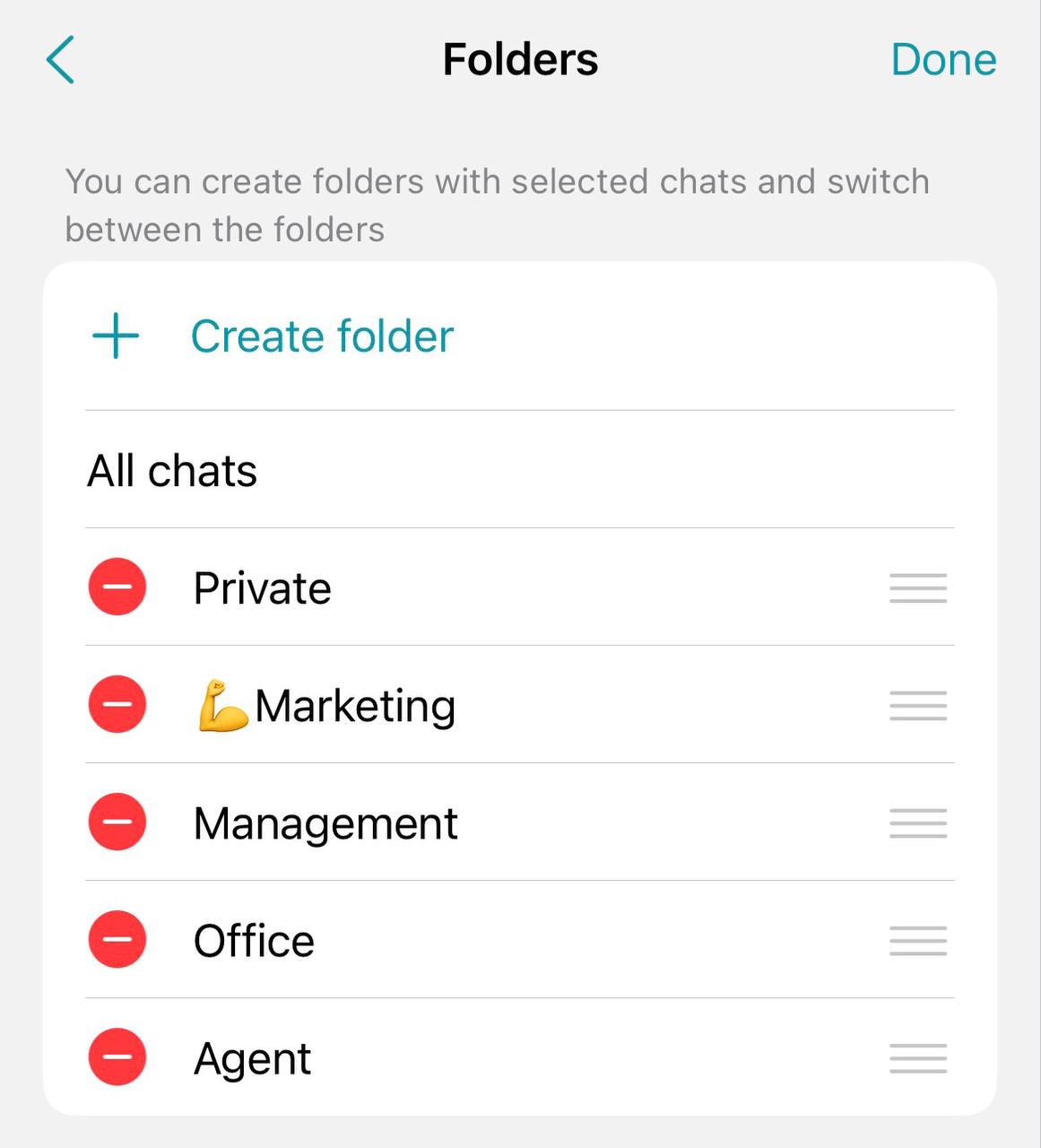
To delete chats or reorder them, click the Edit button in the upper right corner. Use the  button to delete a chat and the
  buttons to drag and rearrange chats.
Changing the chat folder
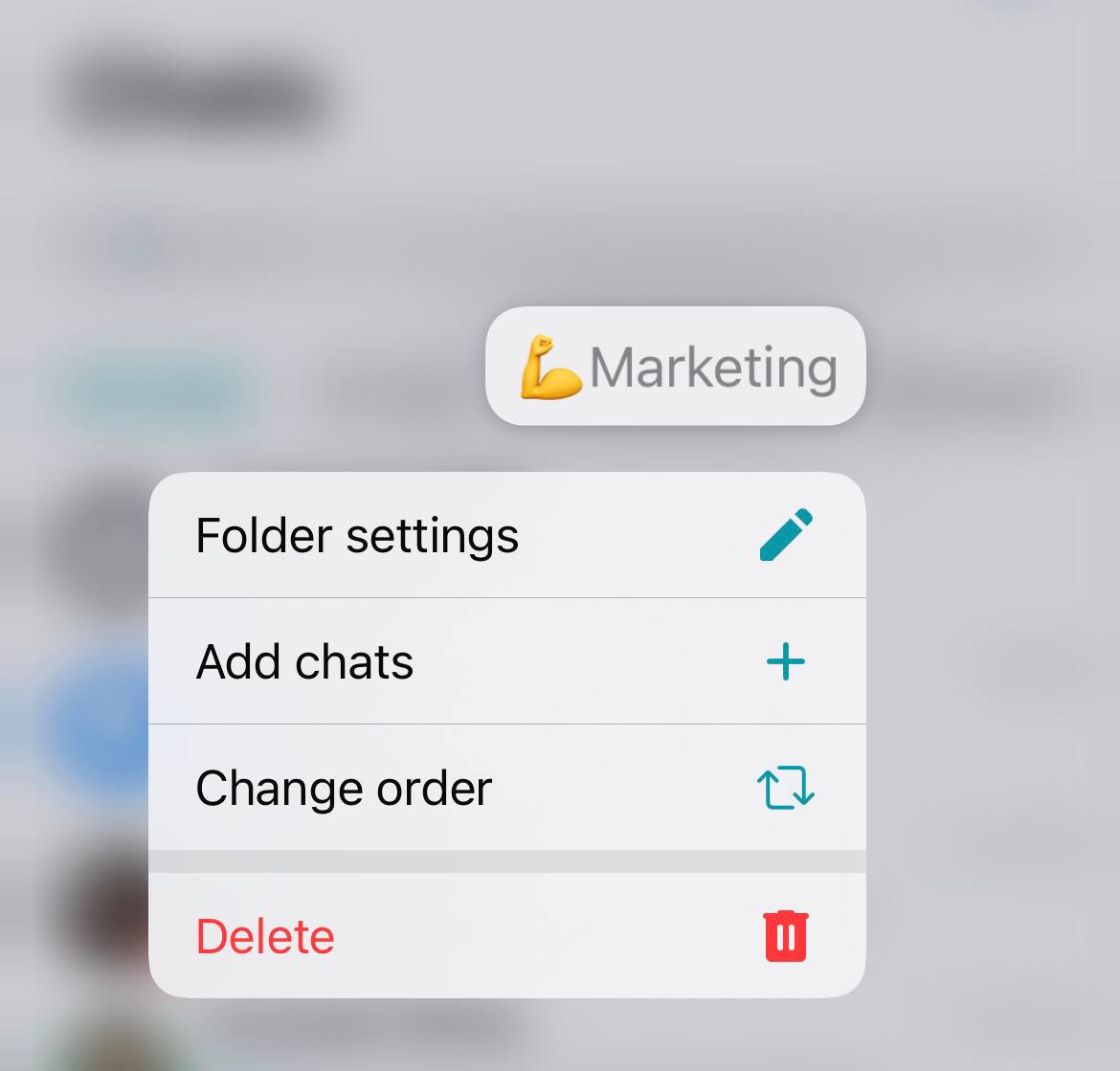
Hold the desired folder in the general list at the top to access the action menu for it:
Configure folder
Add chats
Change order
Delete.
Group chats
In the Chats section of the main application menu, you will find not only personal chats but also group chats, channels, and conference chats.

Channel is a group chat with the ability to restrict the users who can send messages. Unlike a regular group chat where all participants have equal rights to communicate, in a channel, only administrators can publish content, while other users act as readers.
Creating a group chat
To create a group chat:
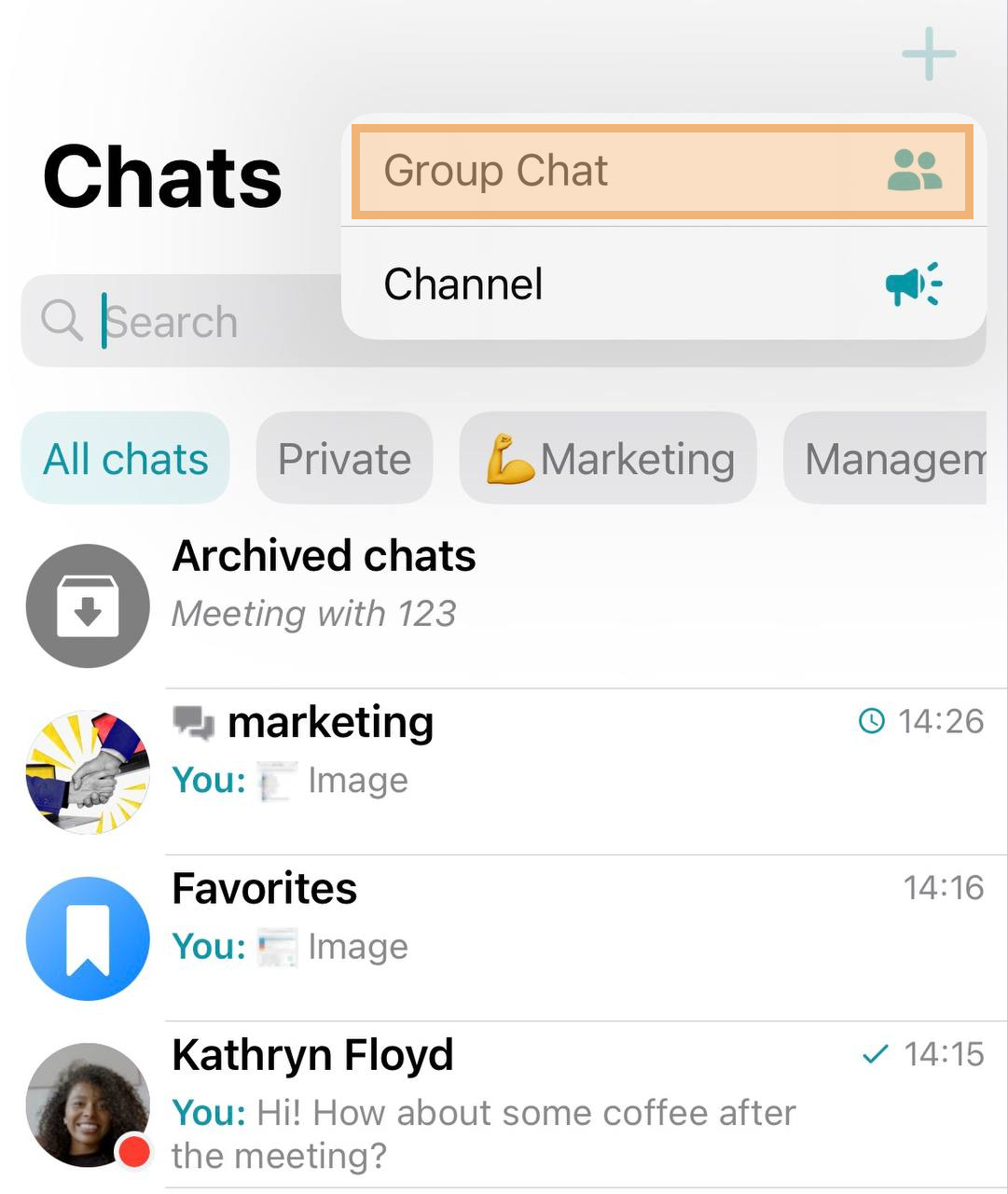
Click the
 button.
Select Group Chat.
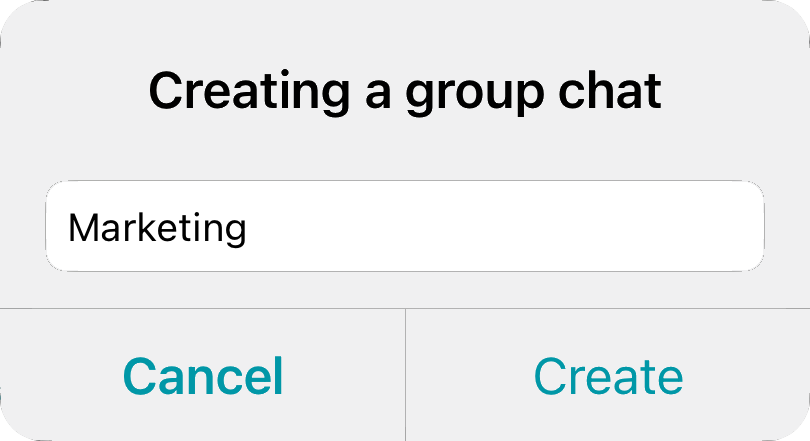
Enter the chat name and click the Create button.
Go to the chat profile, add the necessary participants, and set an avatar for the conversation.
Creating a Channel
To create a channel:
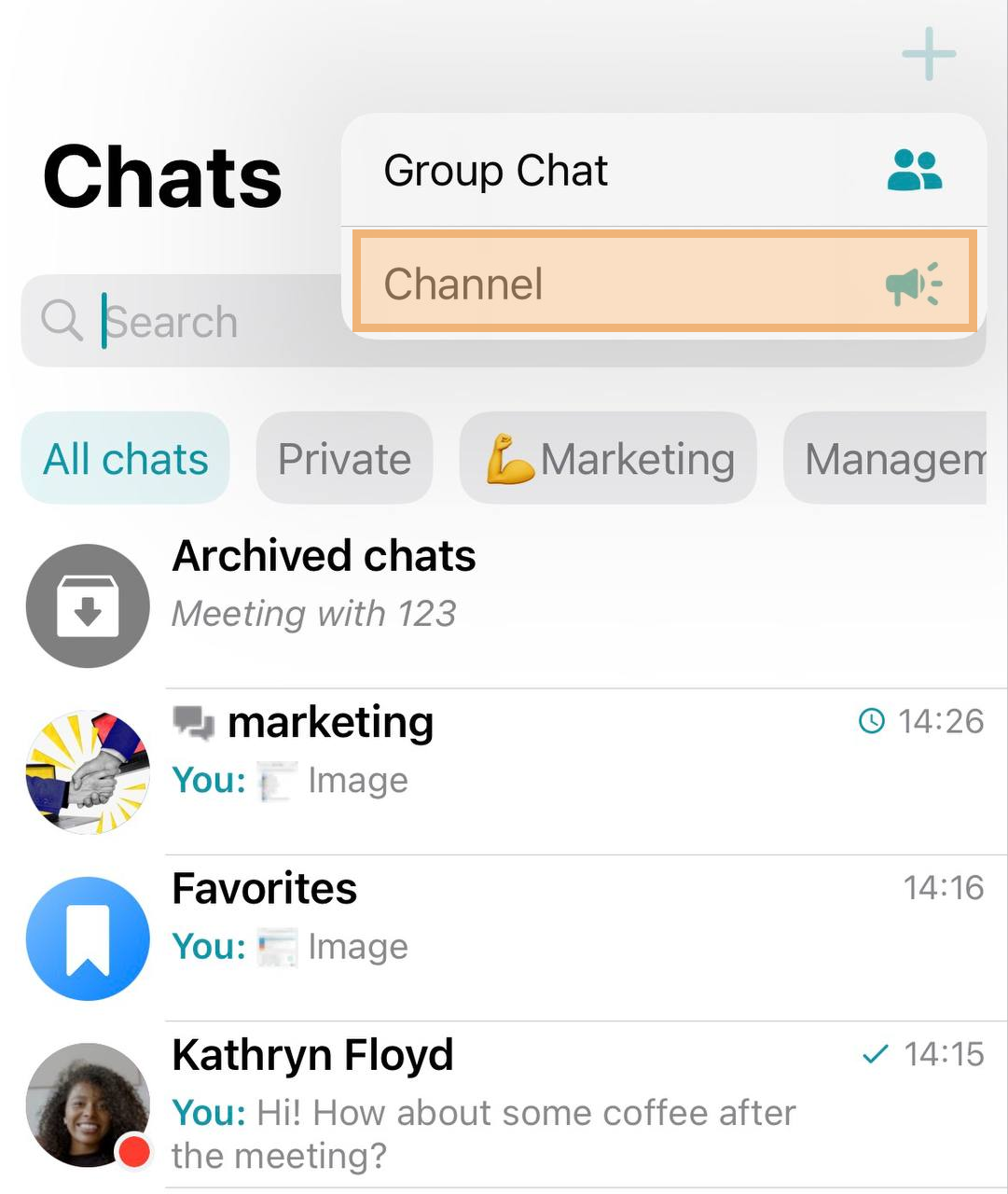
Click the
button.Select Channel.
Enter the channel name and click the Create button.
Go to the channel profile, add the necessary participants, and set an avatar for the channel.
Chat management
Open the selected chat and click on its name to view the profile.
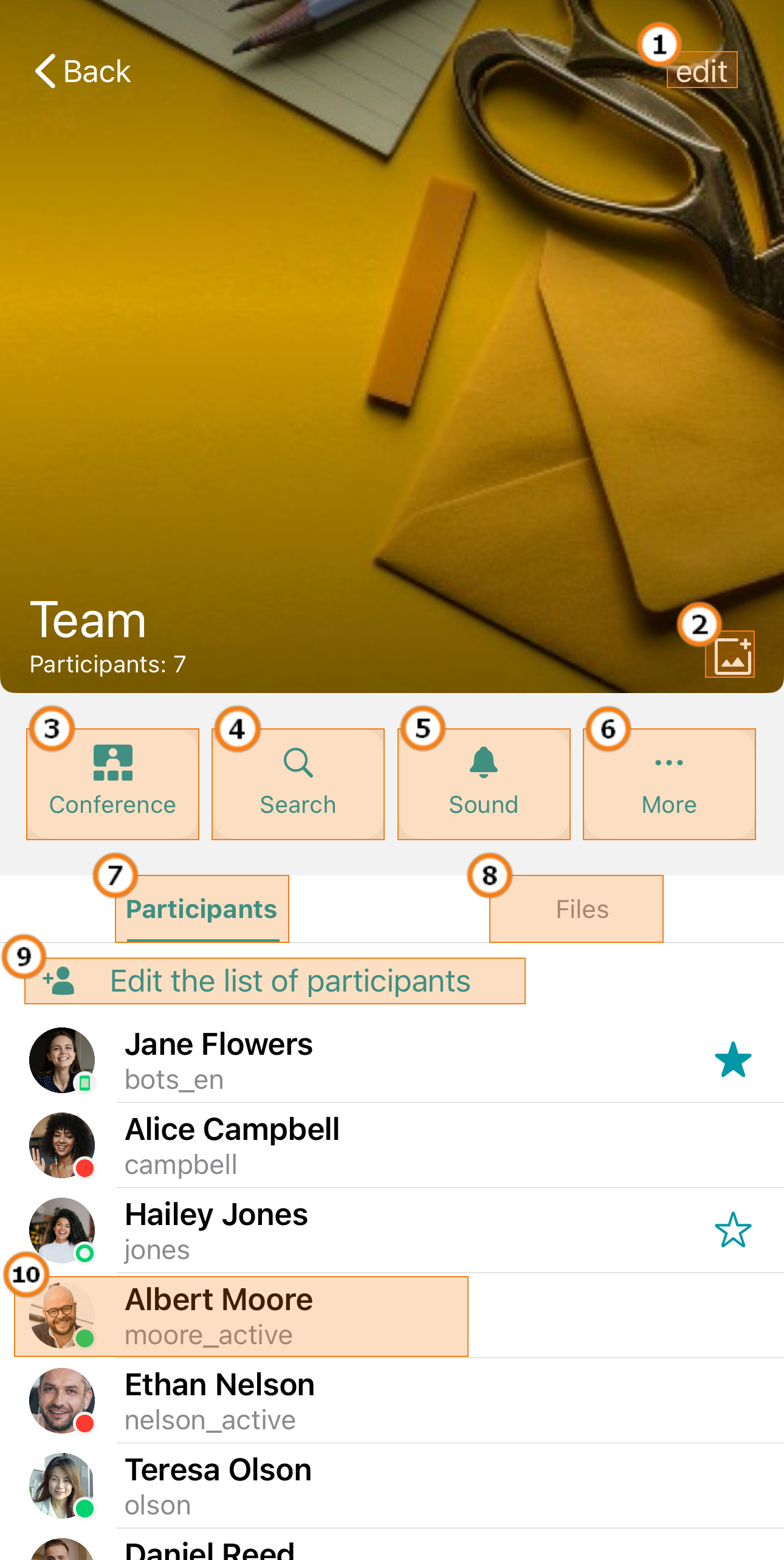
Edit the chat avatar.
Edit the chat name.
Start a group conference with chat participants.
Search messages in the chat.
Mute (or unmute) chat notifications.
Additional actions:
Deleting and leaving a chat. If you are the chat owner, you can delete the chat for all participants. If you decide to Delete for me only, you must transfer ownership to another chat participant.
Clear the chat history. If you are the chat owner, you can clear the chat for all participants.
Please be careful when clearing chat history or deleting a chat. This action cannot be reversed. Even if you are added to this chat afterwards, you will not be able to view previous messages because all chat history has been removed.
List of chat participants.
List of attachments sent in the chat.
Editing the chat participant list (when adding new participants, you can check the box Display chat history for new participants);
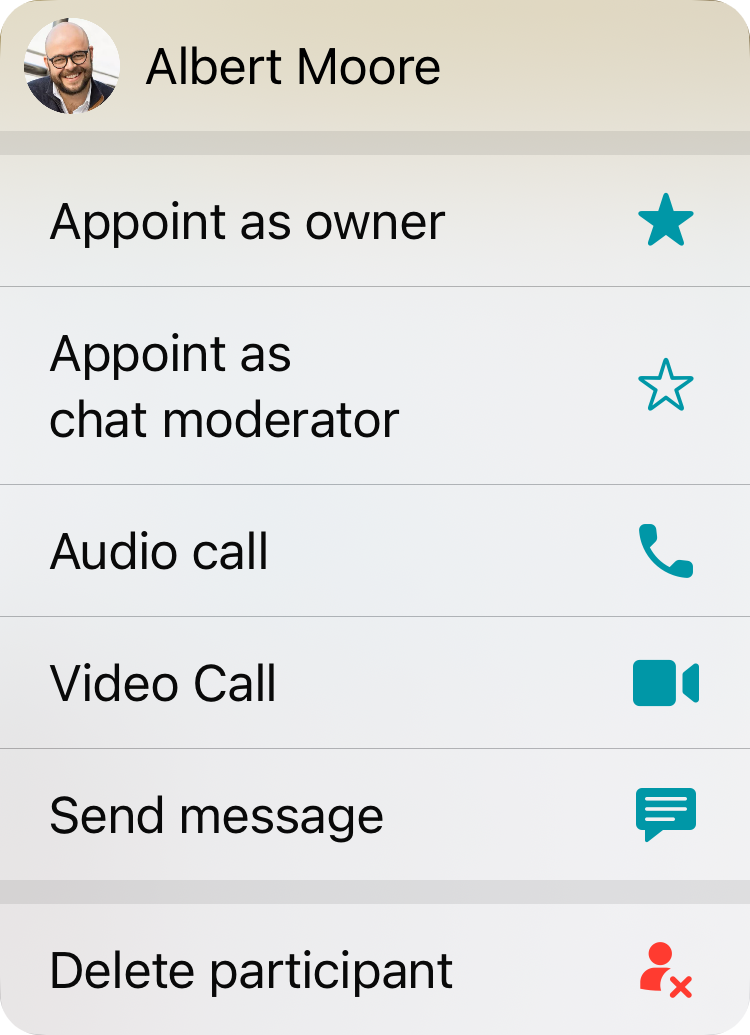
Actions on a user:
Open the profile
Assign
 as the owner. The owner has moderator rights and can also delete or clear the chat.
Appoint as moderator
 . The moderator can add/remove participants, appoint other moderators, delete messages, and change the chat name and avatar.
Audio call to the user
Video call to the user
Send a message to the user
Remove a participant from the chat.
Chat features
In chats, you can:
Send text messages, photos and videos, files, and geo-locations
share contacts. To do this, enter the contact in the format @Trueconf_ID, for example, @wolf;
Copy, edit, forward, or delete messages
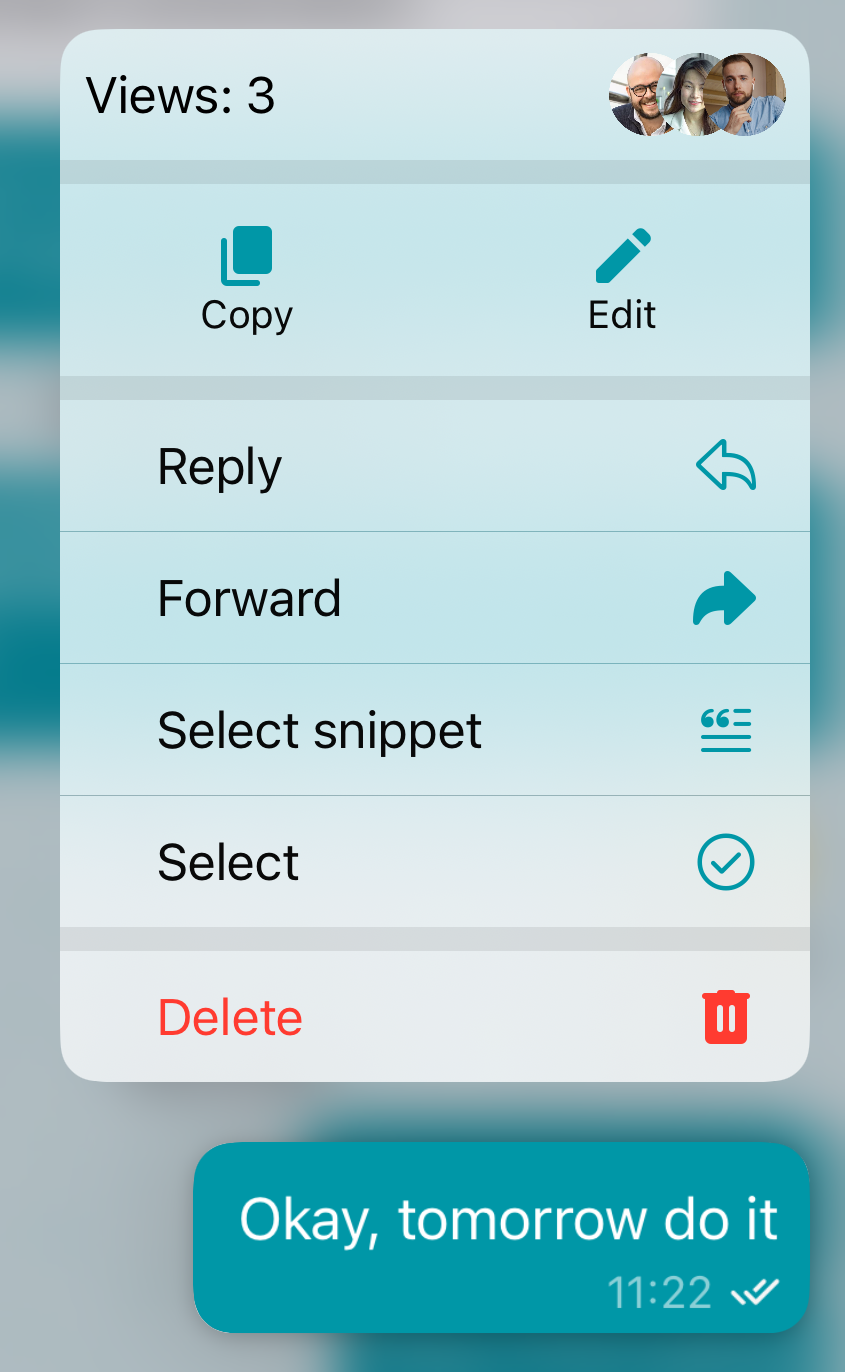
Editing messages is available for a limited time after sending, and it is configured by your server administrator. The administrator can also disable the editing feature, so if it's unavailable, please contact them. An edited message will display the label Edited.
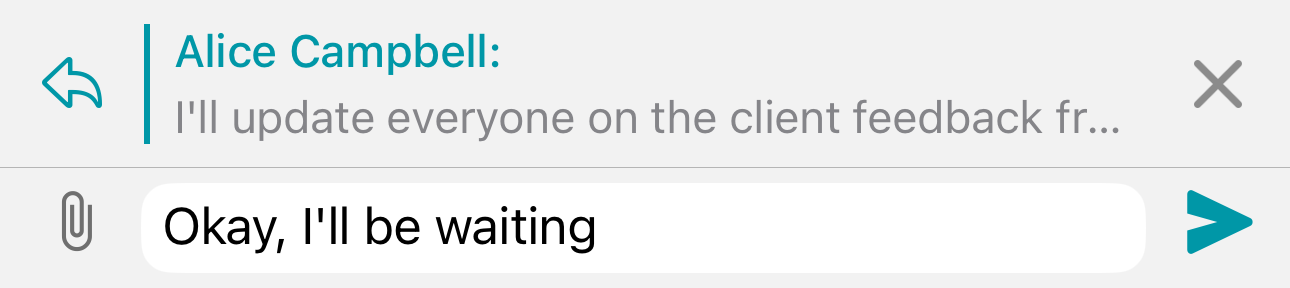
- Additionally, you can reply to a message by swiping it to the left.
- call a participant using the
 and
and  buttons (or a group of users
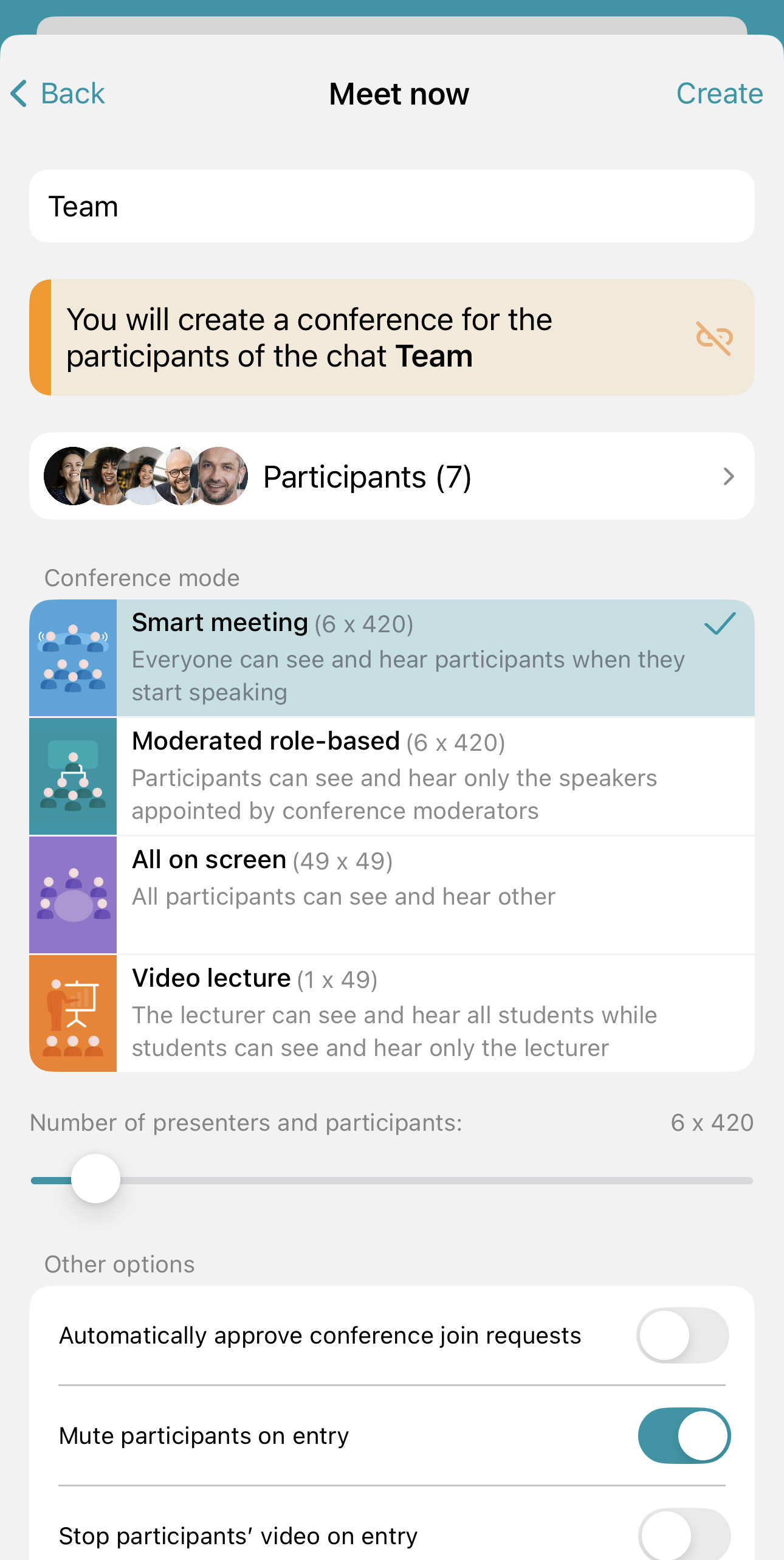
  ). When making a call from a group chat, a quick meeting interface will appear. Additionally, you can detach the meeting chat from the current conversation to create a separate new chat;
How to find a message
To find a message in the chat, tap on the chat name and select Search. Enter the text in the search field. As you type, the application will start searching, and the messages will be highlighted in a specific color:
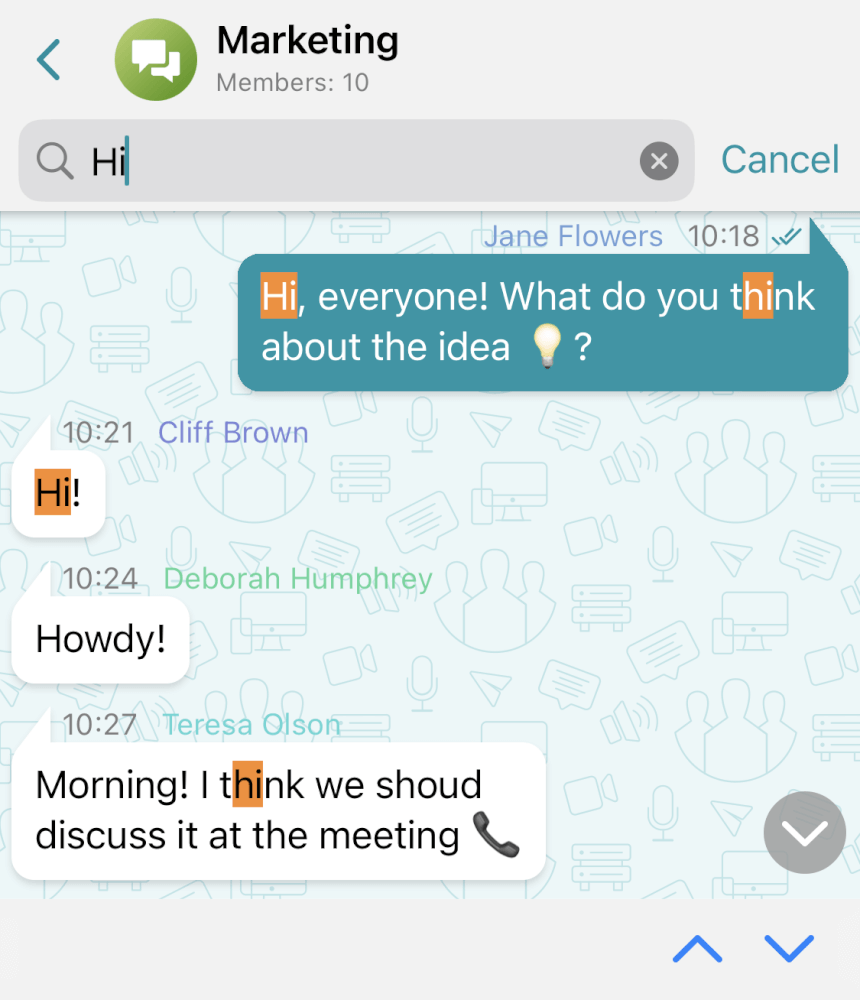
If multiple messages are found, you can navigate between them using the  and
and  buttons, with the number of matches displayed to their left.
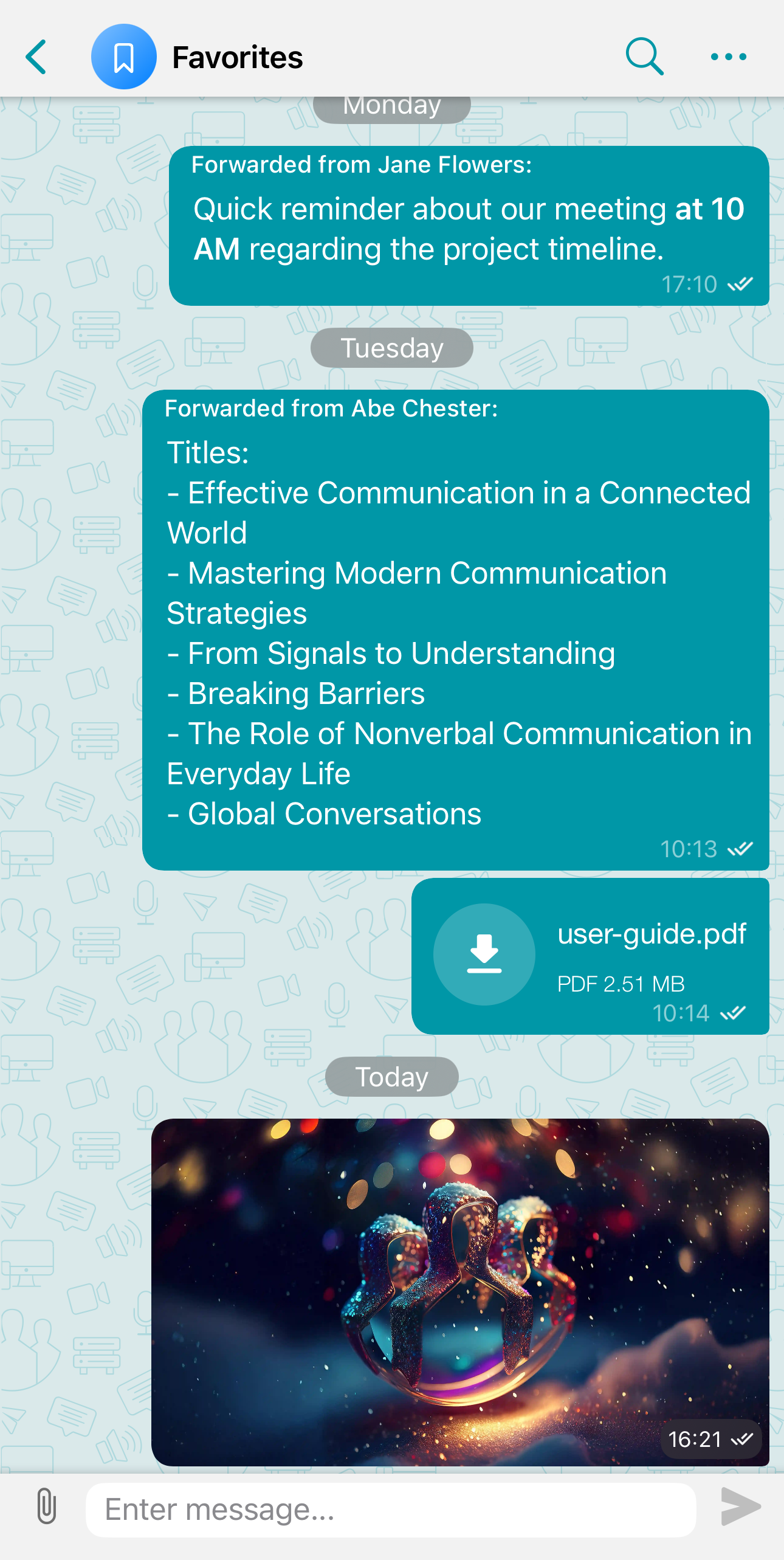
Favorites
All users of the TrueConf messenger have access to a special personal chat called Favorites. Here, you can store important messages of any type (texts, files, images, etc.) from other chats, as well as write notes to yourself. By default, it does not appear in the chat list until you forward something there or access it from the settings. Once something is added to Favorites, we recommend pinning it to avoid losing it.