
Contacts
Contacts
To access the address book, click the Contacts button.
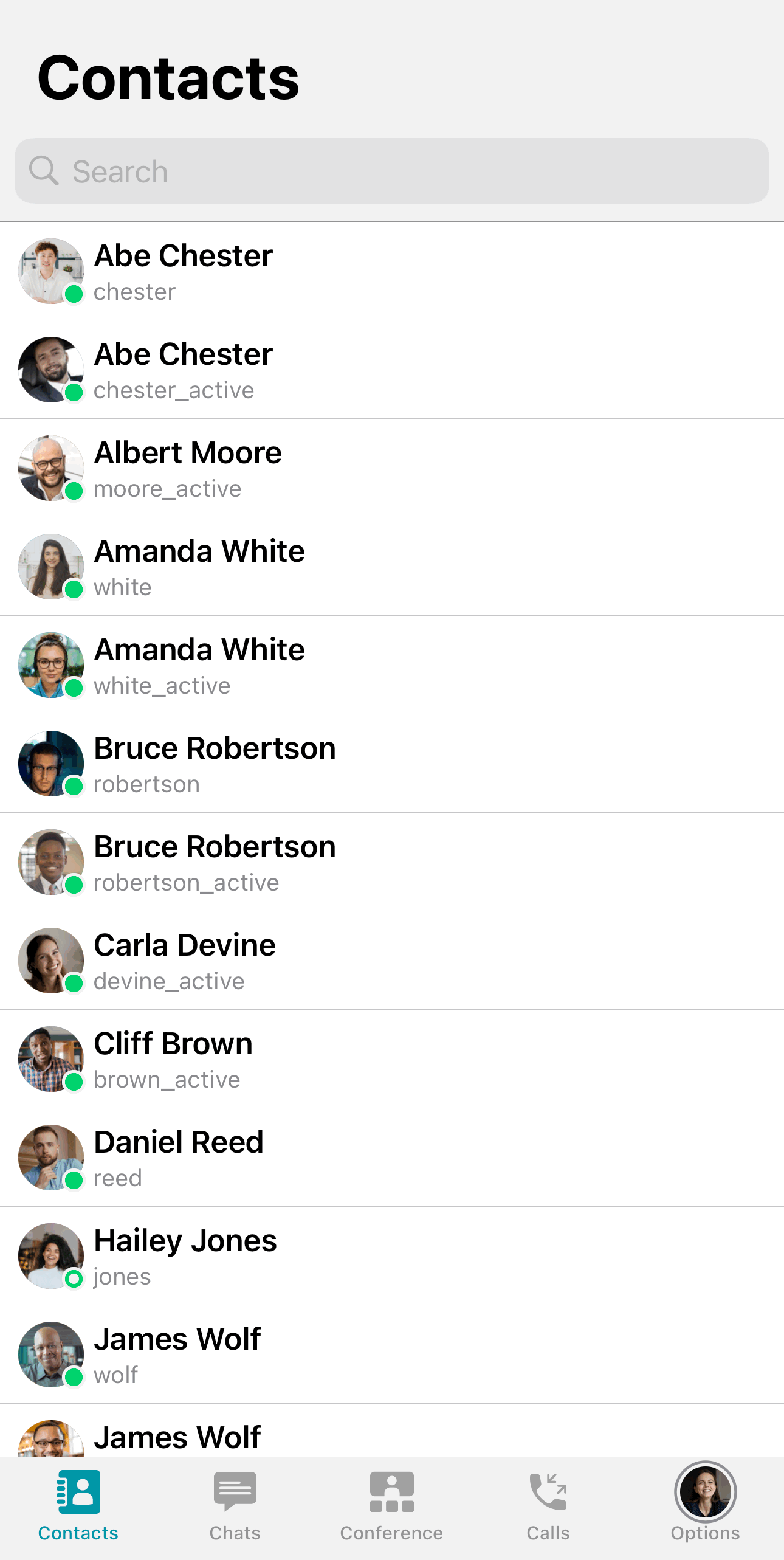
By default, contacts are displayed individually in alphabetical order, but you can enable group display in the settings.
Avatars
If there is no avatar set for a contact, you will see one of the following default avatars in the address book depending on the type of connection:
 — the user's display name (initials);
 — RTSP camera;
 — phone;
 — SIP/H323.
Quick preview
Tap and hold on a contact icon in the address book to open the quick preview window. Here, you can call the selected contact, send a message or block the user. Click on the profile avatar to view detailed information about the contact.
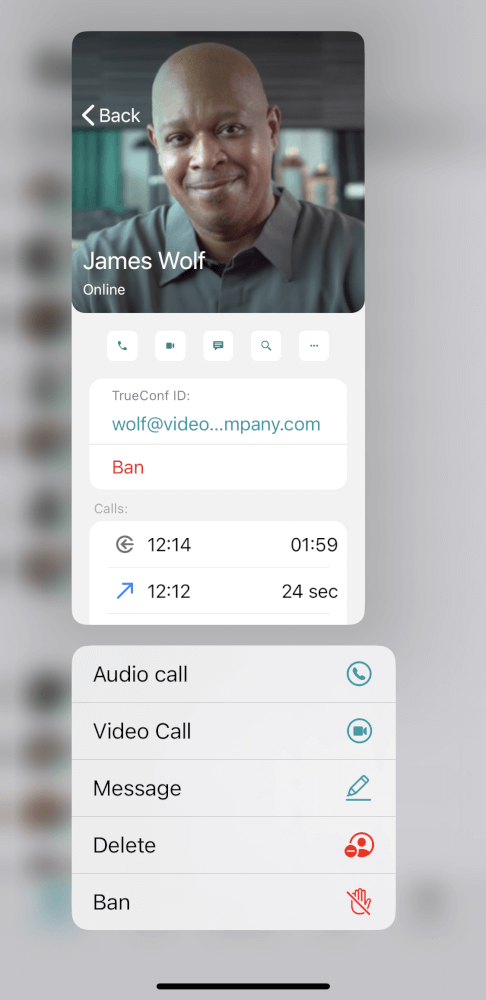
Only the contacts you added yourself can be deleted. The address book created by the server administrator cannot be edited.
User profile
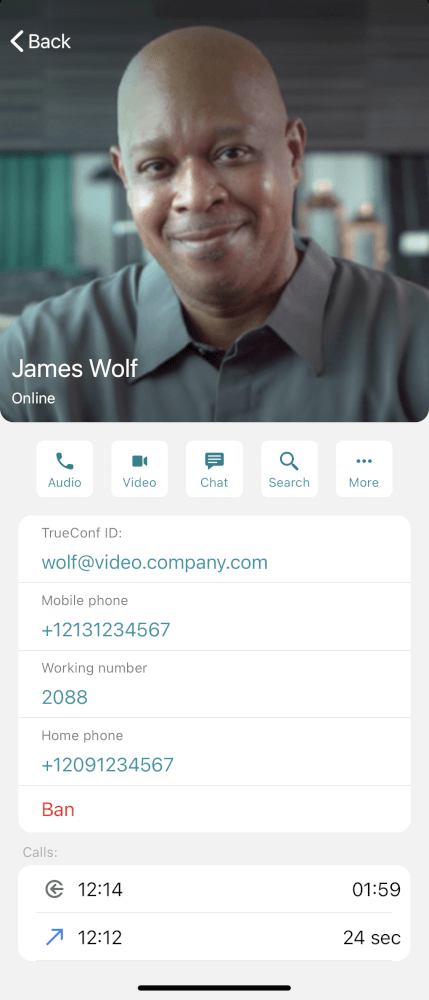
To go to a user profile, select a contact in the address book and tap the  button which is displayed on the contact’s avatar or use quick preview. Here, you will be able to:
view its name, TrueConf ID, and status;
Call the user
open the chat, search within the chat, or clear its history (using the button More);
block or delete a contact (using the More button);
disable notifications (using the More button);
view the call history with them, as well as shared files from the chat.
How to find a contact
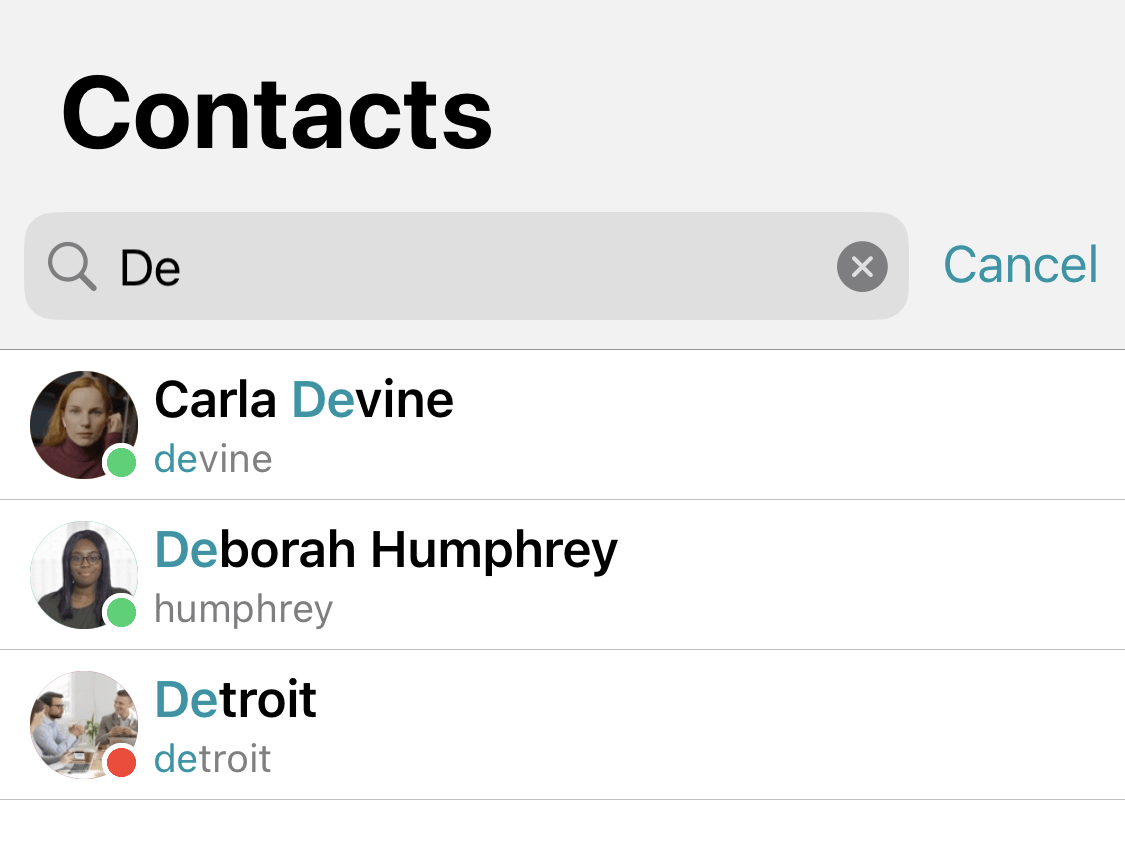
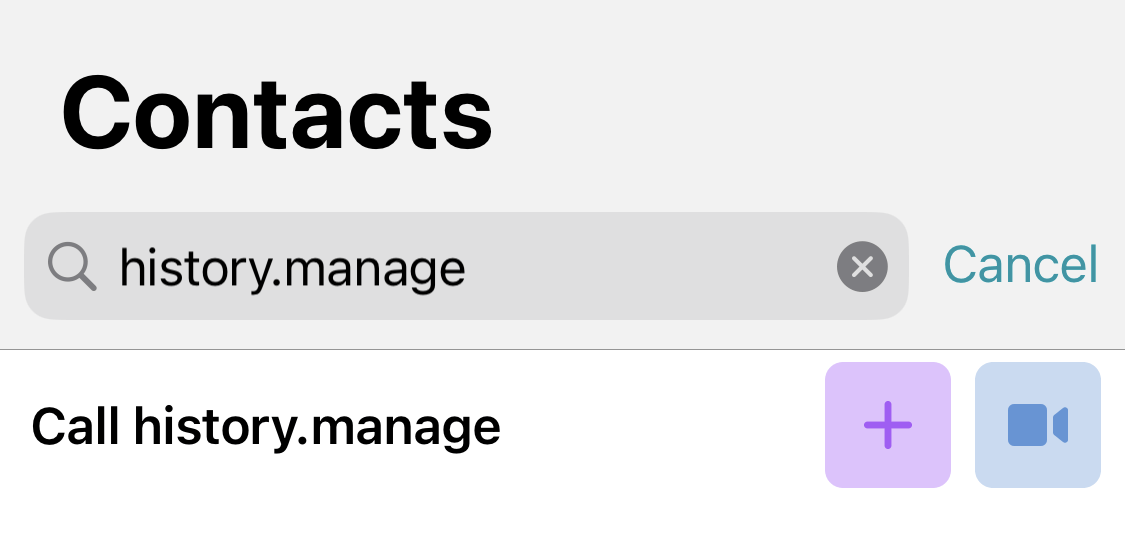
To find a contact, enter this person’s TrueConf ID or name in the search box. The result will be displayed in place of the address book.
How to add a new contact
There are several types of contacts that can be added using the call string:
A user of TrueConf Server can act as a participant (use the call string format
<TrueConf_ID>@<server>for this). A user from another server, with which a special type of connection called "federation" is configured, can also act as a participant.If you have a link to the conference page, you can join by pasting this link into the search bar, for example, in the format
\c\<CID>. You can also save the same link in the address book for quick access to a permanent virtual room.SIP devices (the format
#sip:<user_id>@<server_name>can be used for adding);H.323 devices (example format
#h323:@<IP>);RTSP devices (example of an RTSP address:
rtsp://192.168.1.100/axis-media/media.amp);email users (in this case, it is necessary to specify a call string with the
#mailto:prefix in the address book, for example,#mailto:user123@example.com). Available only for public conferences.
To add a user to the address book, search for them as described above and click the  button.
Please note that you don’t have to add users manually. Instead, your TrueConf Server administrator can organize your address book and set up user group display automatically.
How to block or delete a contact
To restrict a user from calling or messaging you, go to their profile and click Ban.
To quickly remove a user from the address book, just swipe left the user's name in the address book.
You can also delete a user by going to their profile and clicking the More → Delete contact button.
Global user list
By clicking the  button in the address book, you will access the directory of server users TrueConf Server that are synchronized with yours.
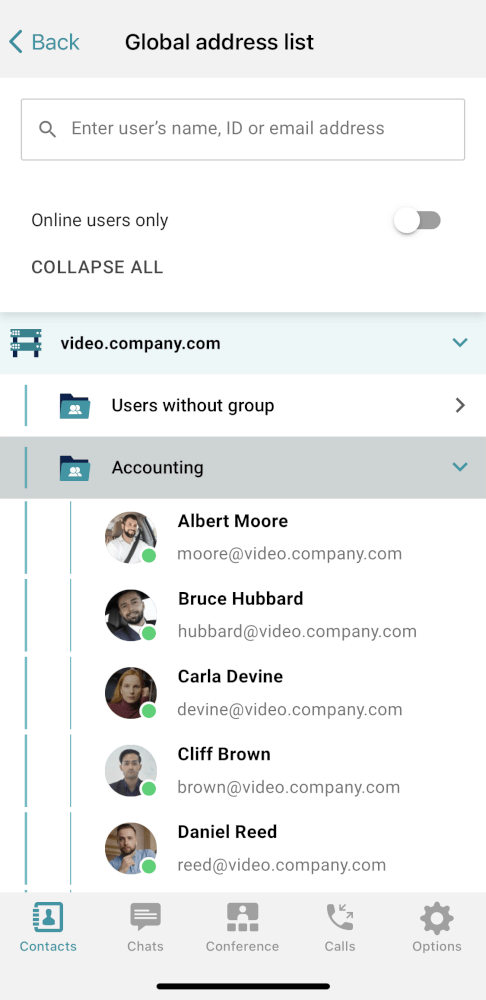
This menu item may be unavailable if integration with TrueConf Directory is not configured on the server.