Main Window and Conference Widget
The TrueConf for iOS/iPadOS client application supports both portrait and landscape orientations. For example, landscape orientation would be more convenient when viewing streamed content.
Conference window
The window of an ongoing conference consists of the following elements:
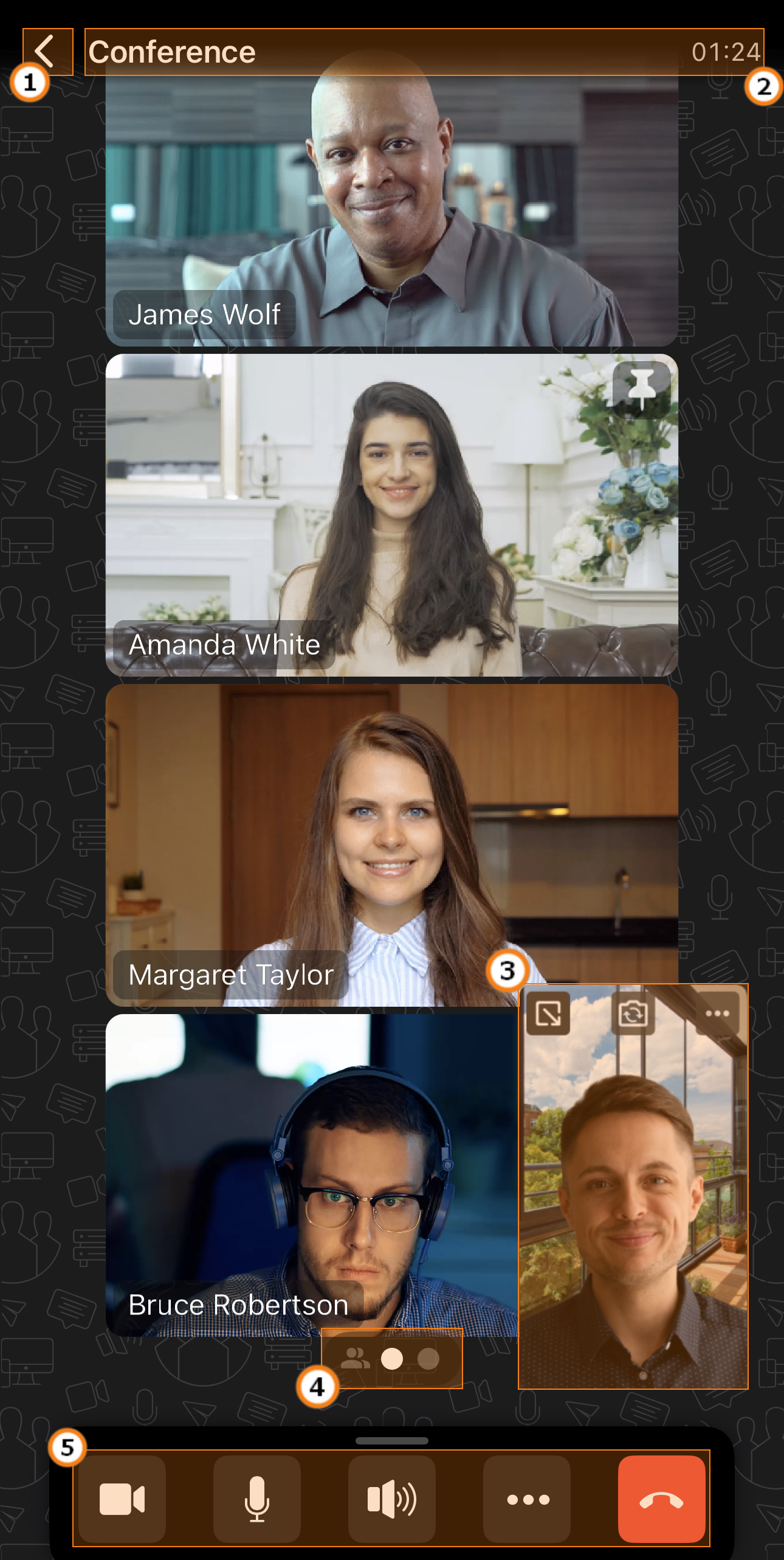
Open the conference chat.
Conference name and attendance time. Tap on the name to view additional conference details.
The navigation menu displaying the Conference participants section and additional screens with participants' video windows.
The control panel buttons are not hidden automatically; if needed, you can hide the panel manually. The selected control panel state will be preserved for subsequent calls and conferences.
Conference with simultaneous interpretation
In TrueConf for iOS/iPadOS, there is an option to participate in conferences with simultaneous interpreters. The simultaneous interpretation mode for a conference is set when it is created and cannot be changed later during event editing.
Simultaneous interpretation mode is available for role-based conferences and smart meetings
Conference language selection
Simultaneous interpreters cannot change languages through mobile applications TrueConf; they need to use only desktop applications.
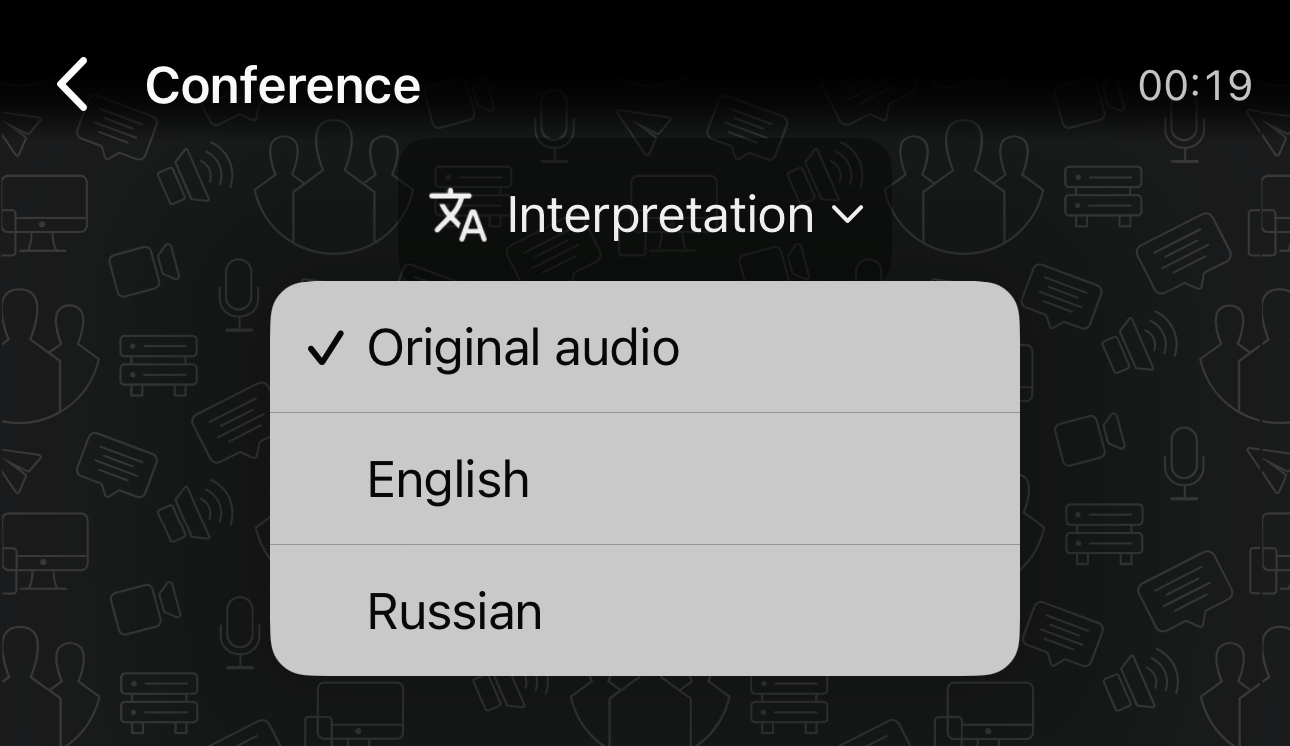
If you are in a conference with interpreters, you will be presented with an interface to select the language. Click Interpretation and choose the required language pair.
Control panel
When the conference starts, or when you tap on the video layout area during a conference, you can see the control panel, which is automatically hidden when idle, at the bottom of the screen.
To mute, press and hold the button, after which it will appear as  .
.
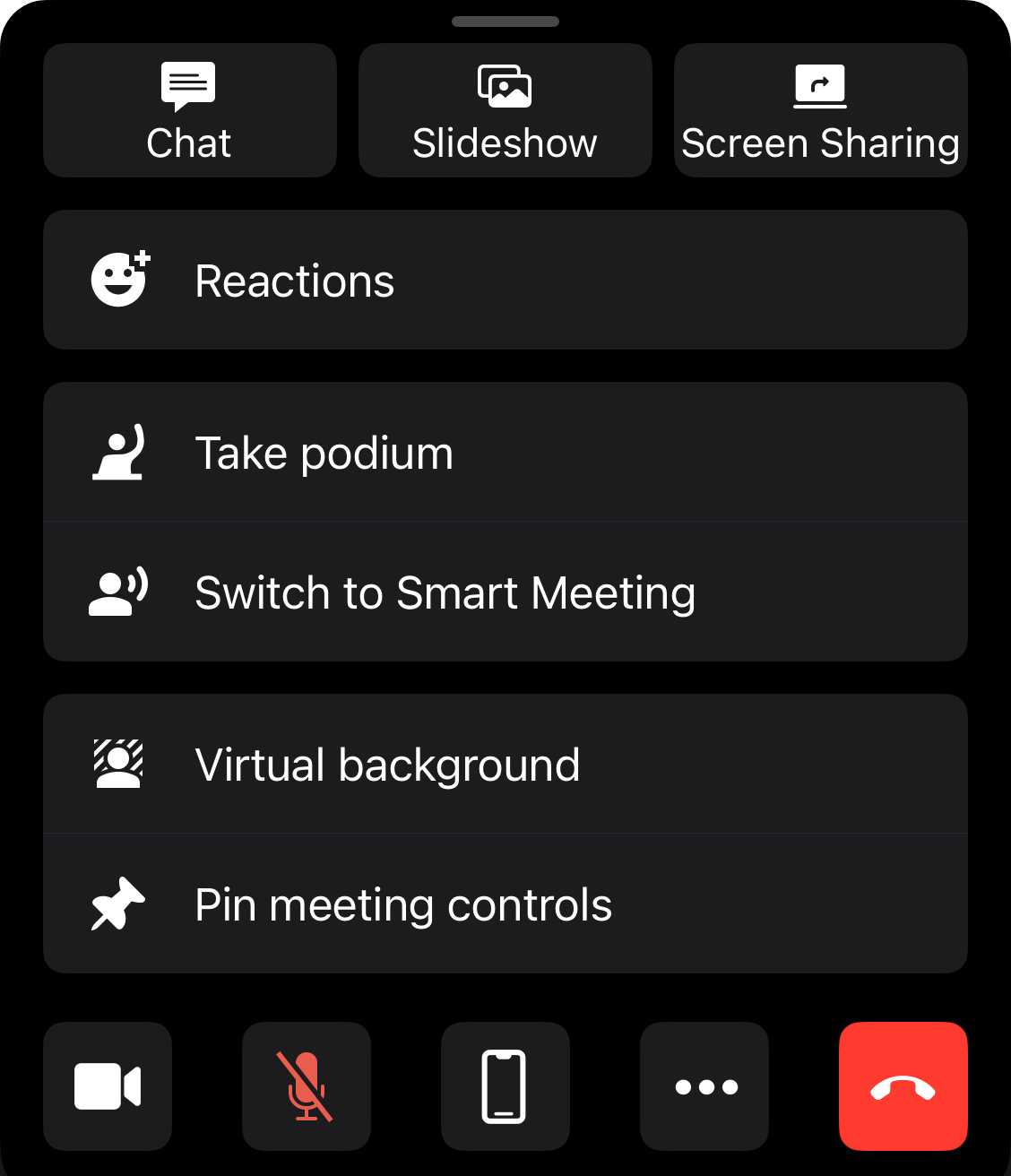
When you click the  button, an additional menu will expand, offering the following options:
Open the conference chat
Switch to slideshow presentation and view what the interlocutor is sharing in an additional slideshow or content stream;
screen sharing of your device;
For audio calls and video calls, you can switch modes by enabling the camera or pressing Switch to video mode.
Take and leave the podium
Take and leave the podium
Virtual background
pinning/unpinning the control panel;
switching to advanced conference management;
viewing conference information.
Advanced conference management
From the control panel, you can go to the Real-time management section. The following features are available in this section:
conference video recording;
transcript recording;
waiting room;
entry ban;
PIN code;
audio remarks ban;
changing the conference ID;
extending the conference.

Additional conference information
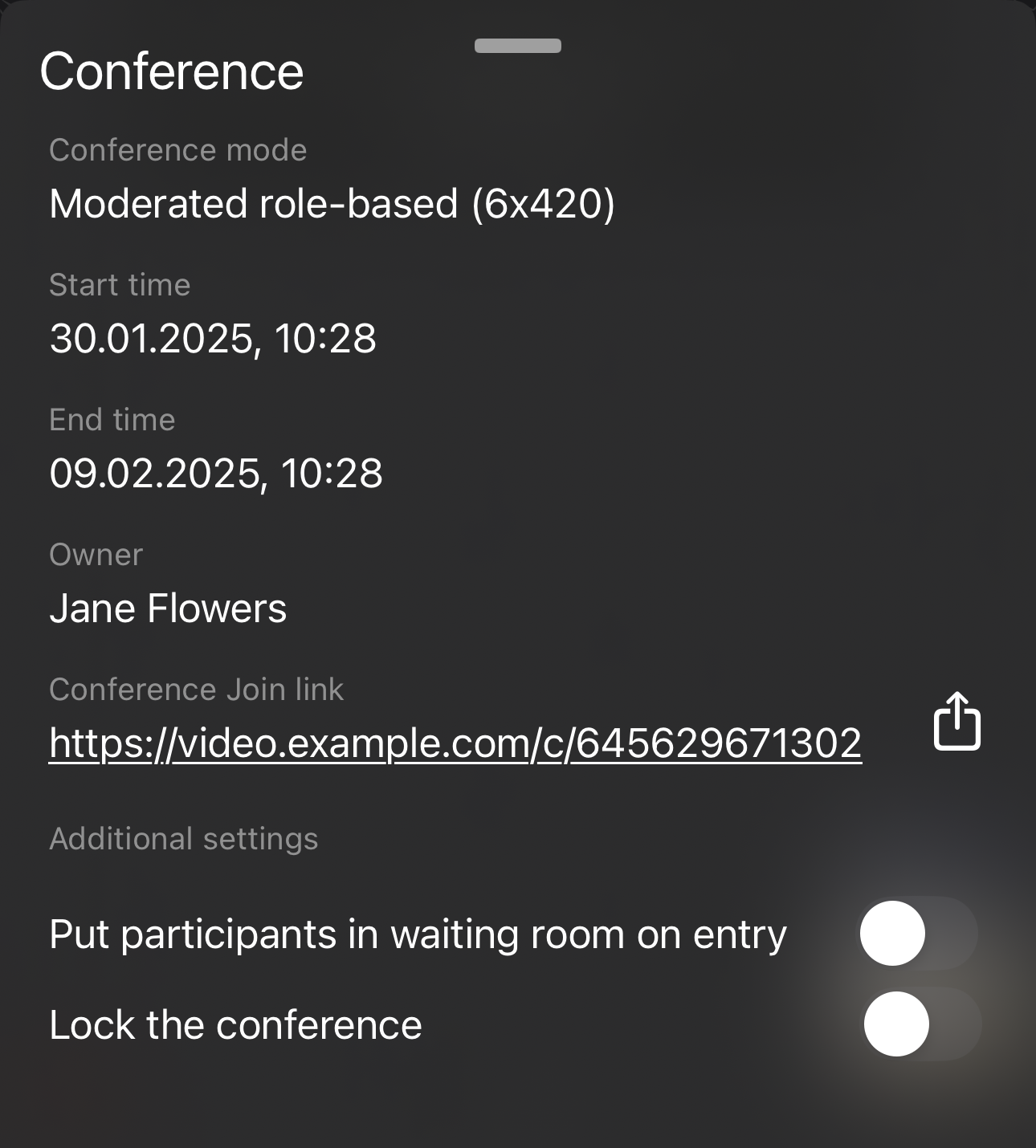
Additional information about the conference can be obtained by tapping the conference name or the presence timer, as well as the corresponding button on the control panel. After that, a window with the information will open:
Conference name
Conference mode
Conference start and end time
Conference owner's name
To copy or share the conference address, click
 .
.
Additionally, if you are the conference owner, moderator, or operator, the following settings will be available:
Send participants to the waiting room when they join the conference
Lock the conference for new participants.
Self-view window
In the self-view window, the following buttons and icons will be available:

 and
and  — increase and decrease the self-view window respectively;
 — switching between the front and rear (main) camera;
 — selecting one of the additional cameras (such as an ultra-wide camera or telephoto lens) and turning on the flashlight (only when using one of the rear cameras):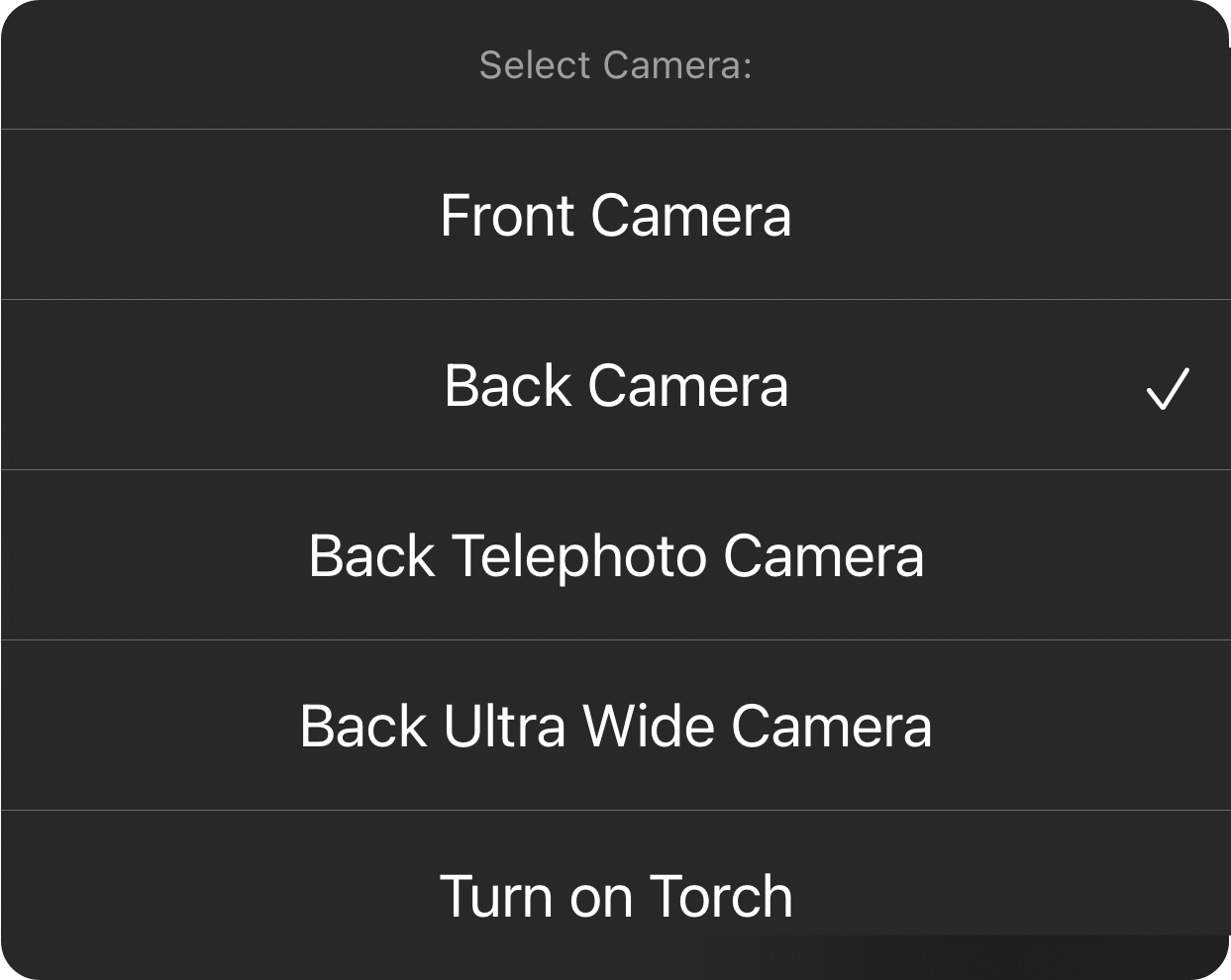
The self-view window can be moved to any corner of the screen.
“Center Stage” camera
In version TrueConf for iPadOS, "Center Stage" camera mode is supported. In this mode, the iPad frames your image to keep you centered. To enable this mode, press and select "Center Stage" Camera:
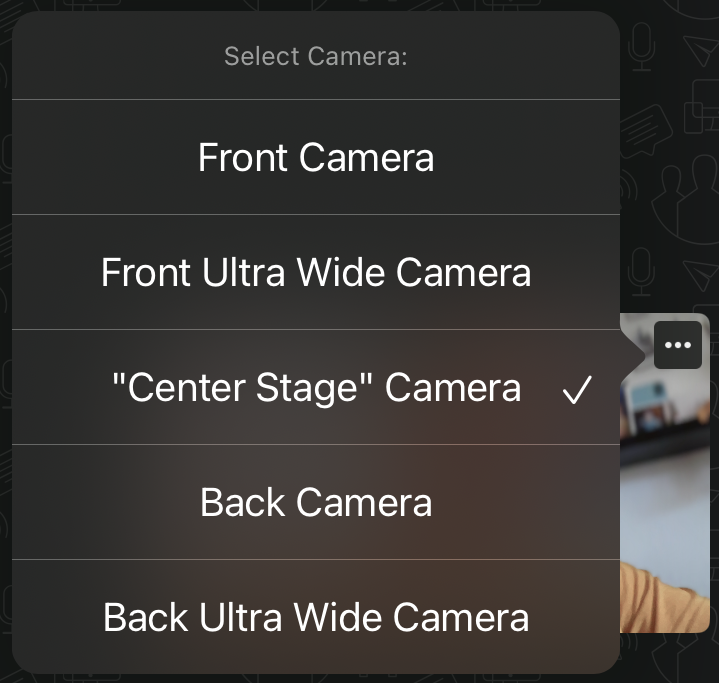
This feature is available only on iPad models released from 2021 onwards. For more details, refer to the requirements on Apple's website.
Conference participants
The list of conference participants can be found on a different screen. To view this list, swipe right. Here, you can:
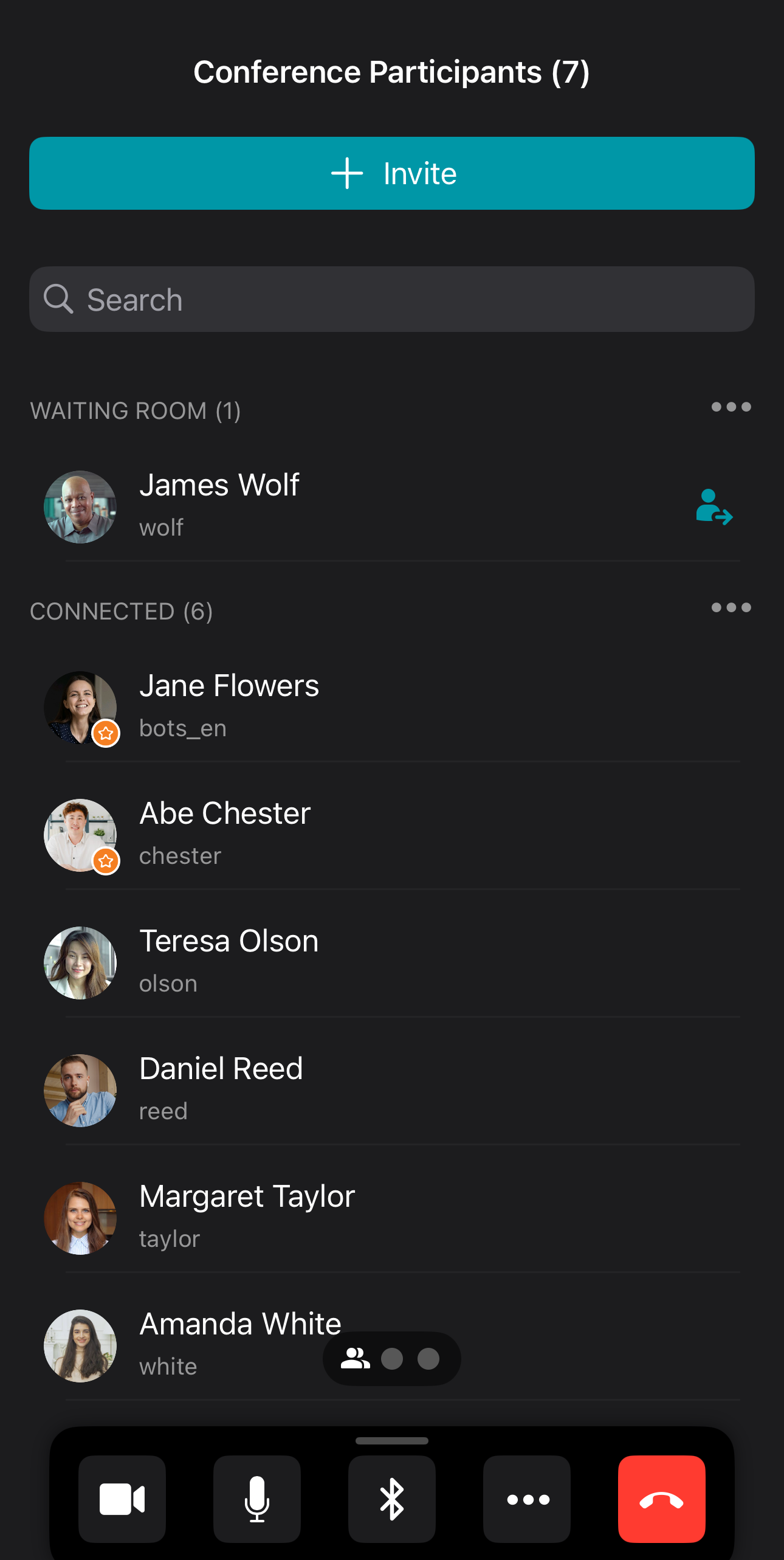
View the list of participants who have joined the meeting
see the conference owner, marked by
 ;
;see the conference moderators marked with
 ;
;add participants using the Invite button;
for users in the waiting room, accept the request to join the conference by clicking
 ;
;View the statuses of participants' devices.
Participant management
Tap and hold the row with the participant's name to open the context menu:
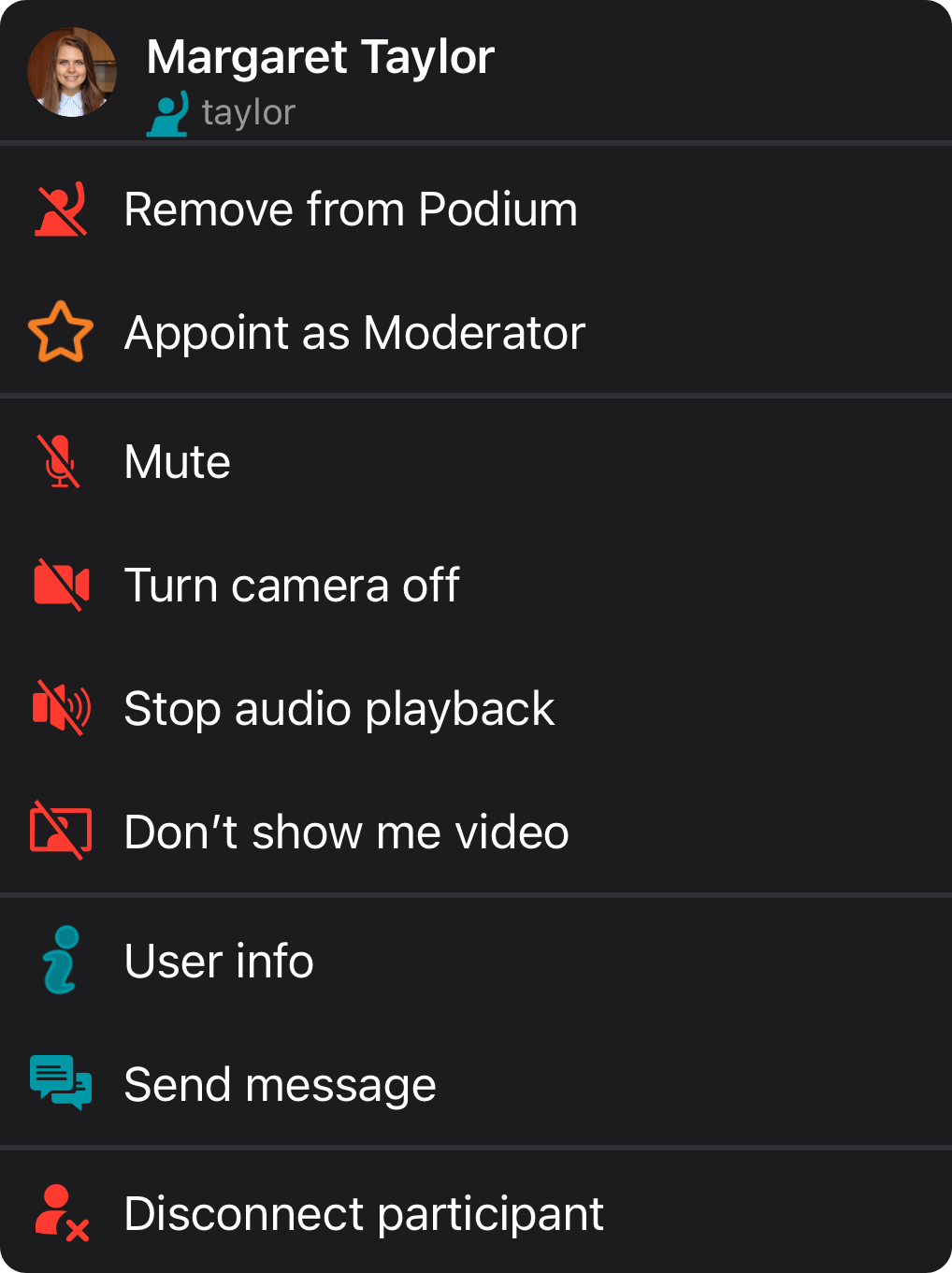
Similarly, if you are in the conference video layout, tap and hold the window of the selected participant to open the context menu.
Bulk actions on participants
Group actions enable seamless interaction with multiple participants at once. For instance, clicking within the user group Waiting room will open a menu:
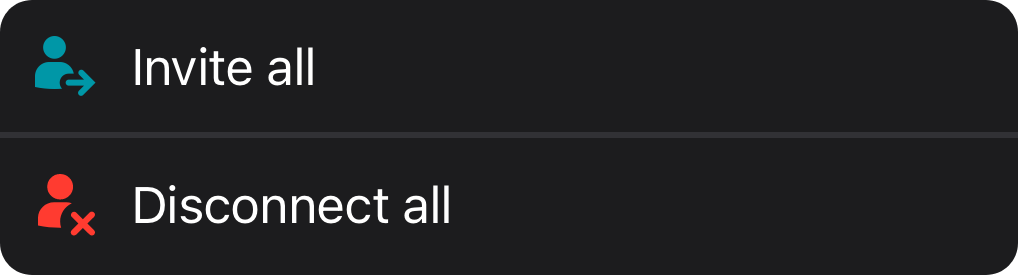
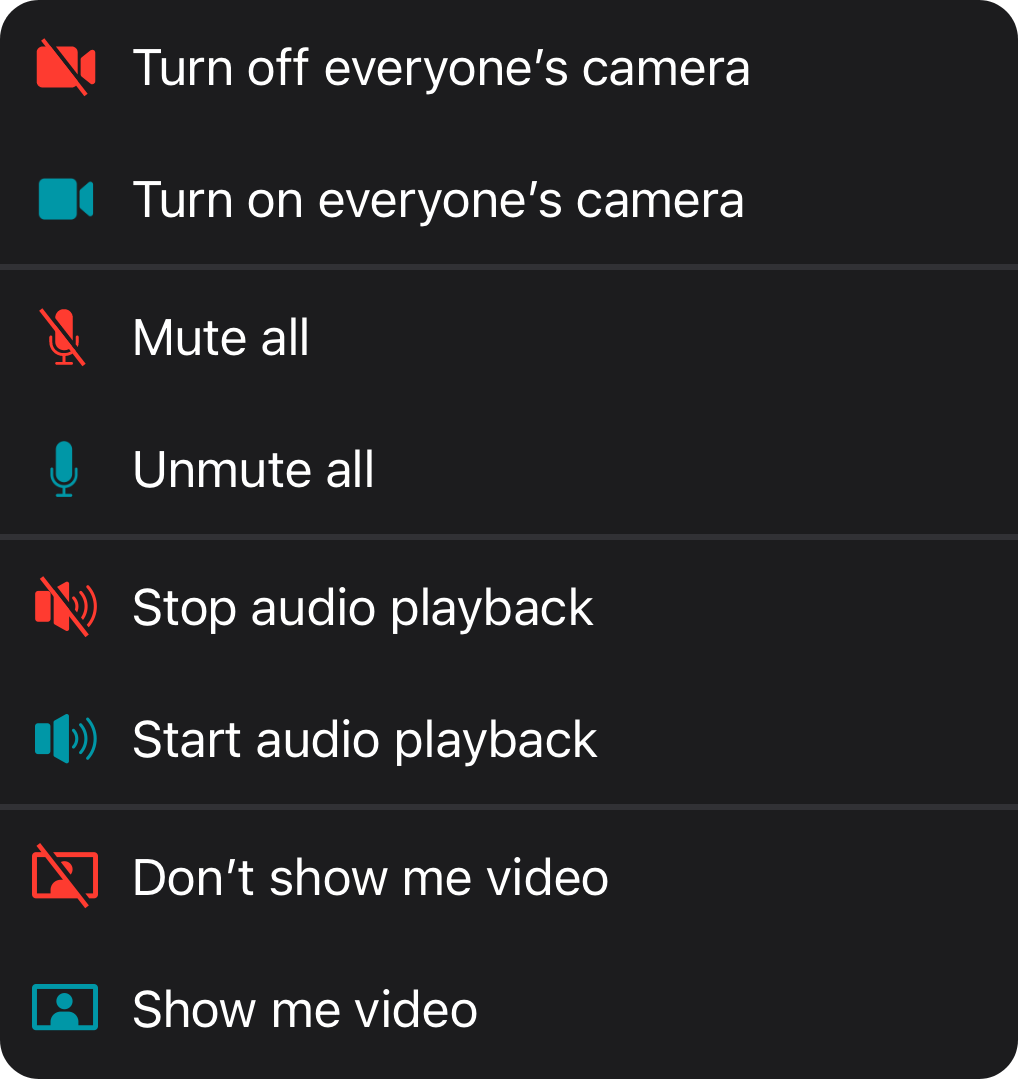
You will also have access to the menu for muting conference participants’ microphones and cameras (if you are the moderator) or blocking audio and video (for yourself only).
Switching between video layouts
The conference owner or moderator can set a video layout that will be compulsory for all participants.
However, if you are the moderator, you can manage the video layout from your smartphone through real-time meeting management. To do this, during an active conference, go to your personal area, select the desired conference, and click Conference manager. The TrueConf for iOS/iPadOS client application will not consider it, as it uses its own dynamic layout that supports splitting across multiple screens.
Customizing your video layout
You can edit your video layout, such as setting the number of video windows displayed on one screen in the settings. Additionally, you can pin a desired user on the screen in the smart meeting and everyone on screen modes. Click  to pin a participant to the main screen, after which the user will be displayed on the main screen, and their window will appear as follows: