
Settings
Application settings
This section includes various settings related to conferences, UI appearance, notifications, and many other parameters. In addition to changing application parameters, in the Settings section, you can:
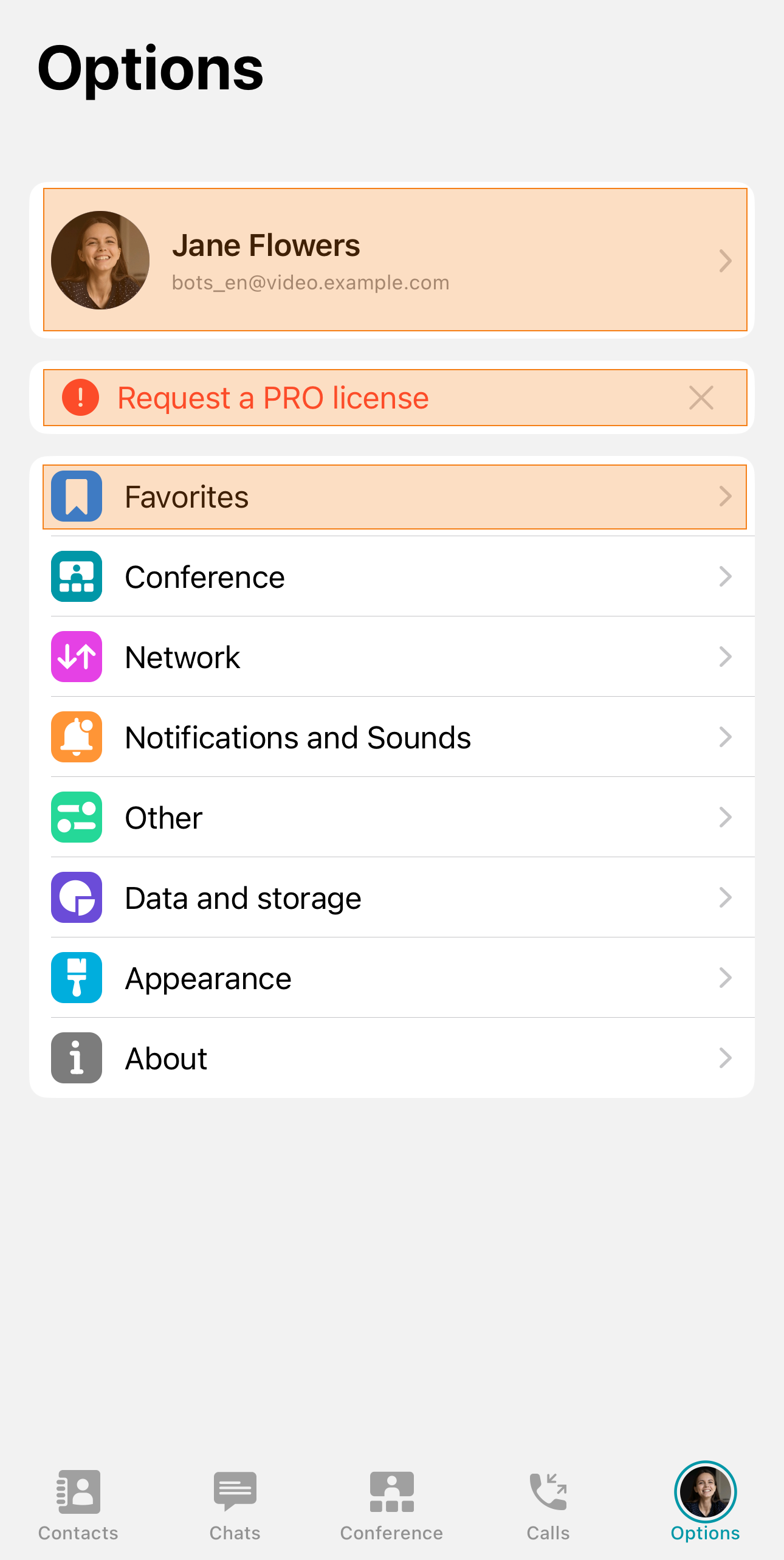
go to your profile;
request a PRO license;
go to Favorites;
open Chat Folders;
go to the Archive.
Conference
In this section, you can flexibly configure the main conference settings, audio, and video. We will discuss these topics in more detail below.
General
In section General, the following settings are available:
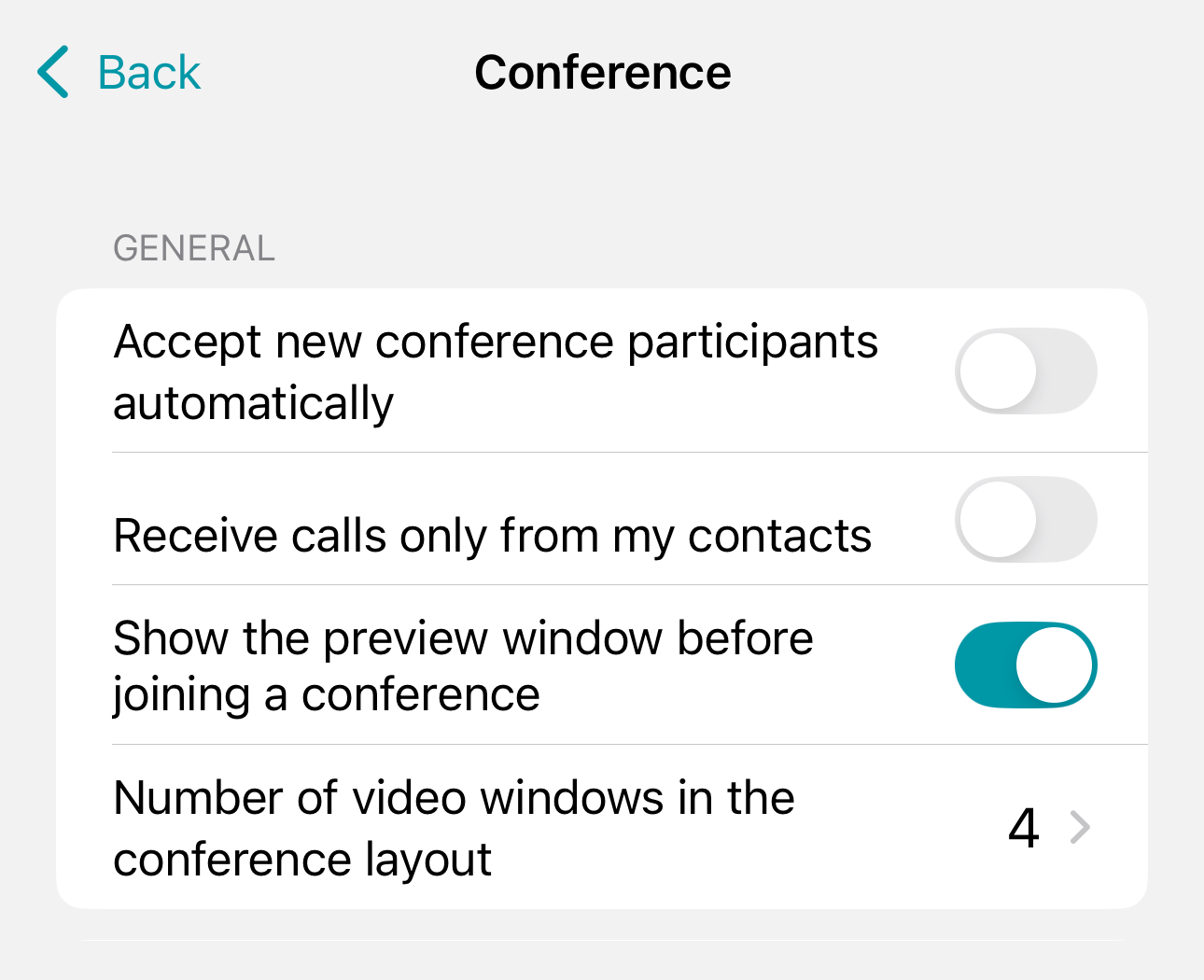
- Accept new conference participants automatically – if you are the owner of an active conference and a user calls you, they will be automatically added to the conference;
- Receive calls only from my contacts – you will receive incoming calls and conference invitations only from contacts in your address book; other users will not be able to call you.
- Show the preview window before joining a conference The window for selecting equipment and other settings is detailed here. You can disable it to avoid setting up the equipment each time.
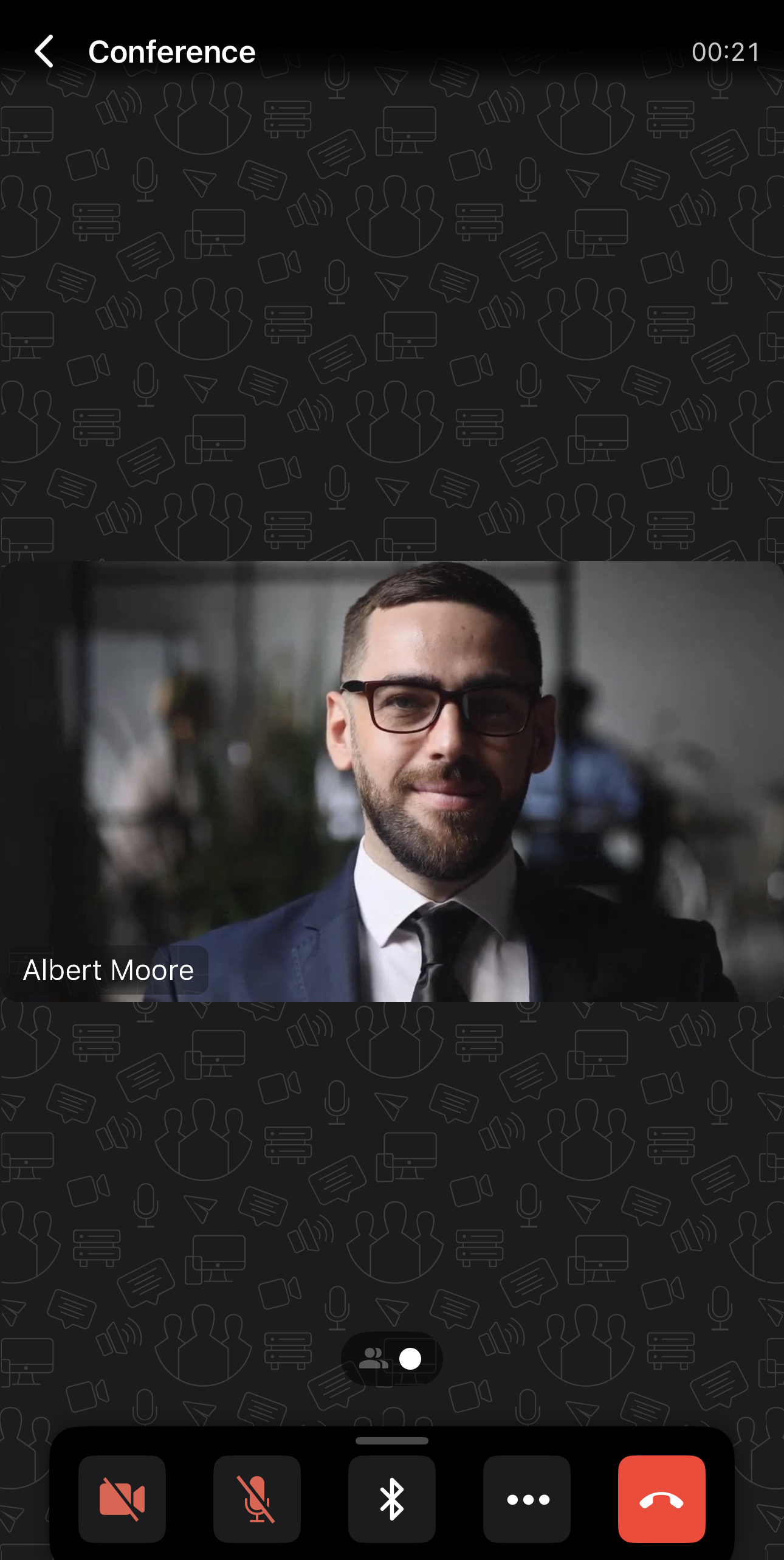
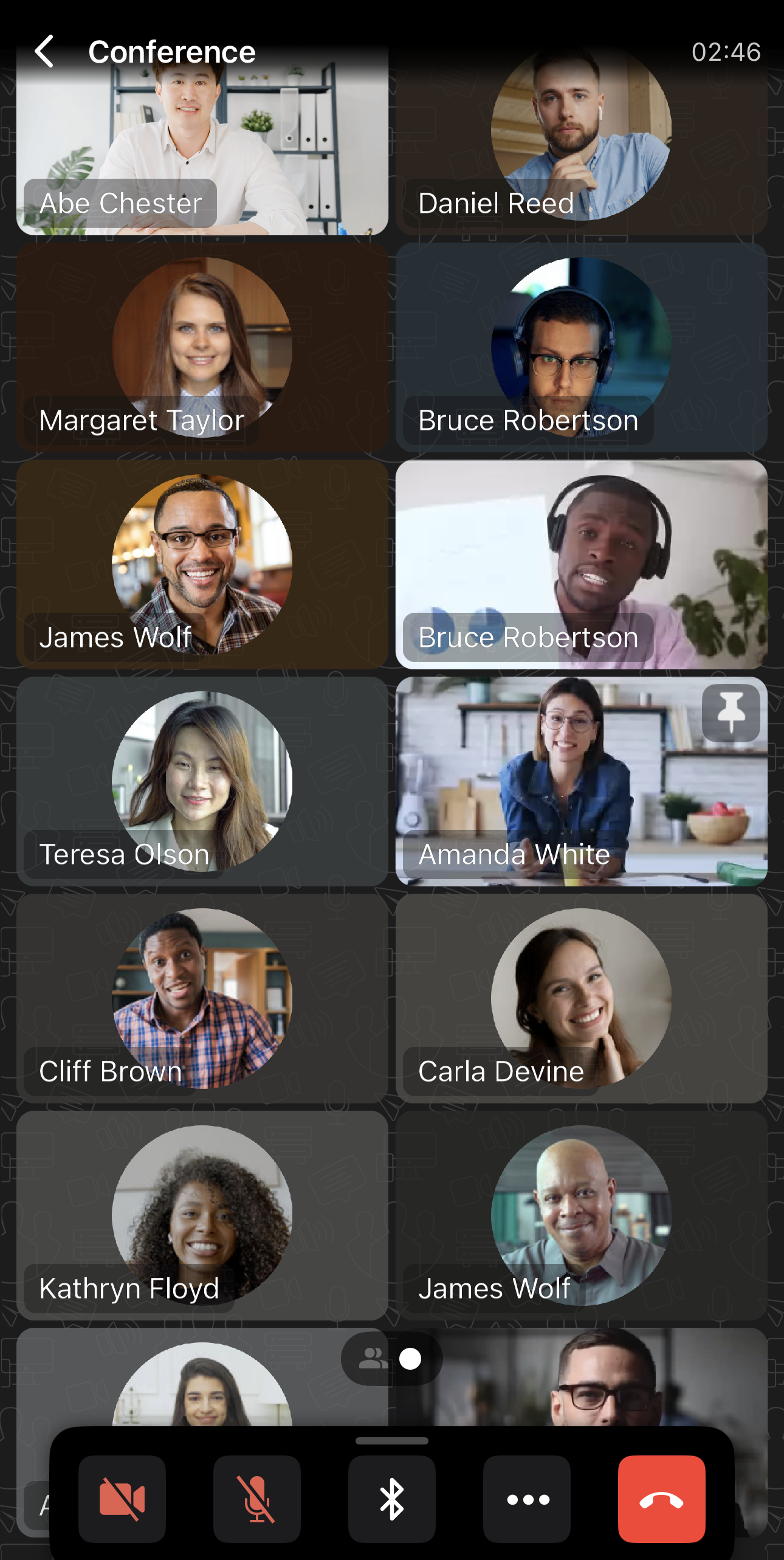
- Number of video windows in the conference layout – By default, the video layout displays 4 participant windows, with additional windows appearing on extra screens. You can adjust the number of visible windows to a number between 1 and 20. Below is an example with 1, 4, and 14 video windows.

Audio
- Join with microphone – the behavior of your microphone during an incoming call or when invited to a conference.
- Voice Activity Detection – highlighting the active speaker with an orange frame in the video layout and in the participant list of the conference.

Video
- Join with video - the behavior of your camera during an incoming call or when invited to a conference;
- Virtual background – a background replacement feature, where you can also enable the blur effect. Similarly, you can enable the blur effect in your device's camera settings. You can choose a standard virtual background or upload your own by clicking the
 button;
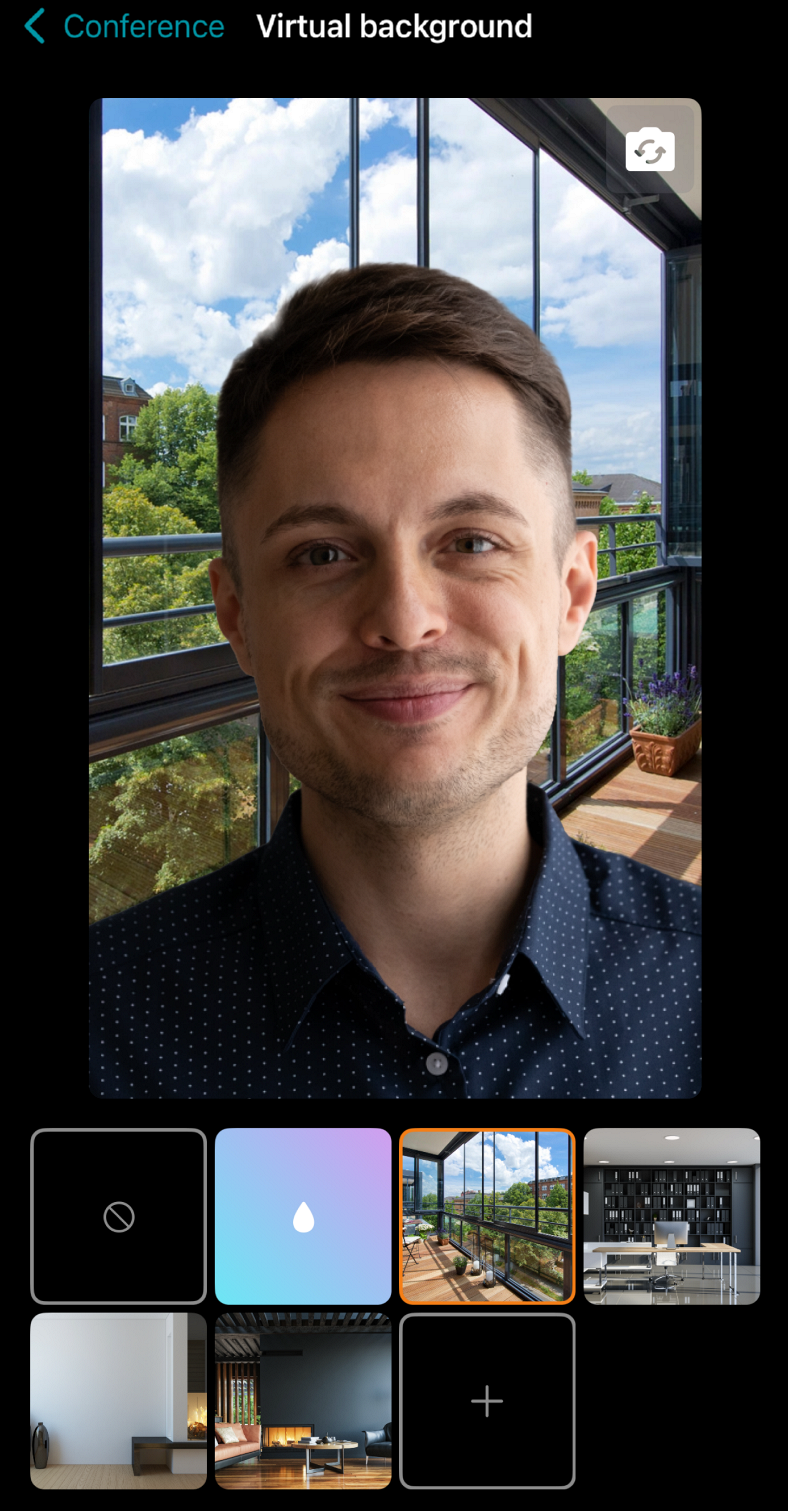
- Video quality optimization – In point-to-point calls, video from your interlocutor will be received at a lower resolution to reduce network and device load;
- Use Hardware H264 Codec – utilizing the built-in H.264 hardware codec, this setting positively impacts the device's power consumption and performance when using the application.
H264 codec is enabled by default because it is built into iOS at the hardware level and consumes much less resources than the software codec.
Network
In this section, a user can configure the network parameters of the application.
In section Connected to, the address TrueConf Server you are connected to is displayed.
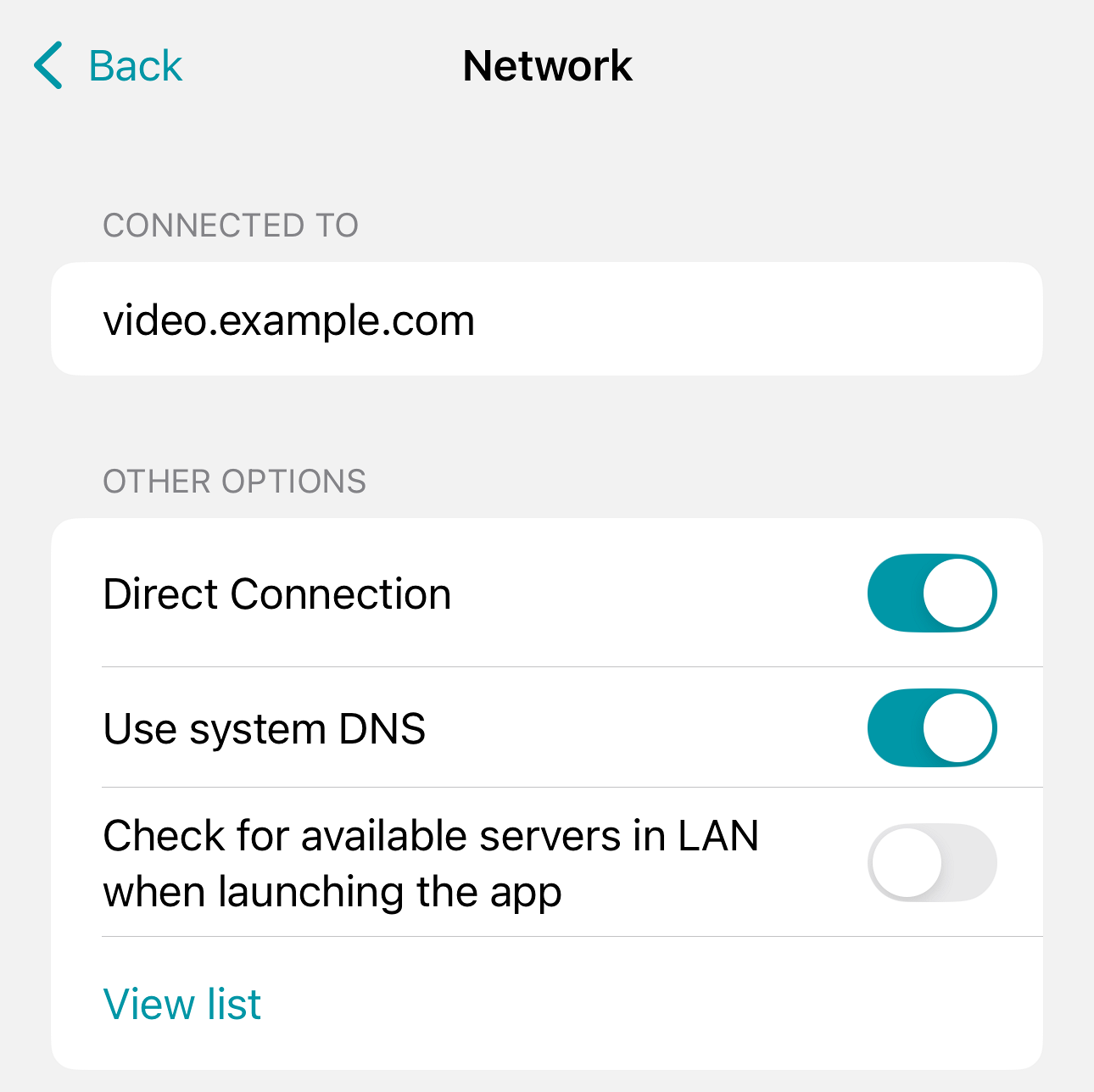
The following parameters can be found below:
- Direct Connection a point-to-point video call will be conducted directly, bypassing the server;
- Use system DNS – the ability to use a system DNS server in networks with complex configurations. By default, this option is disabled;
We do not recommend enabling this option unless necessary, as its operation may negatively affect connection stability.
- Check for available servers in LAN when launching the app Leave it enabled for the application to detect available TrueConf Server instances in your corporate network for connection.
- View list – view the list of available servers.
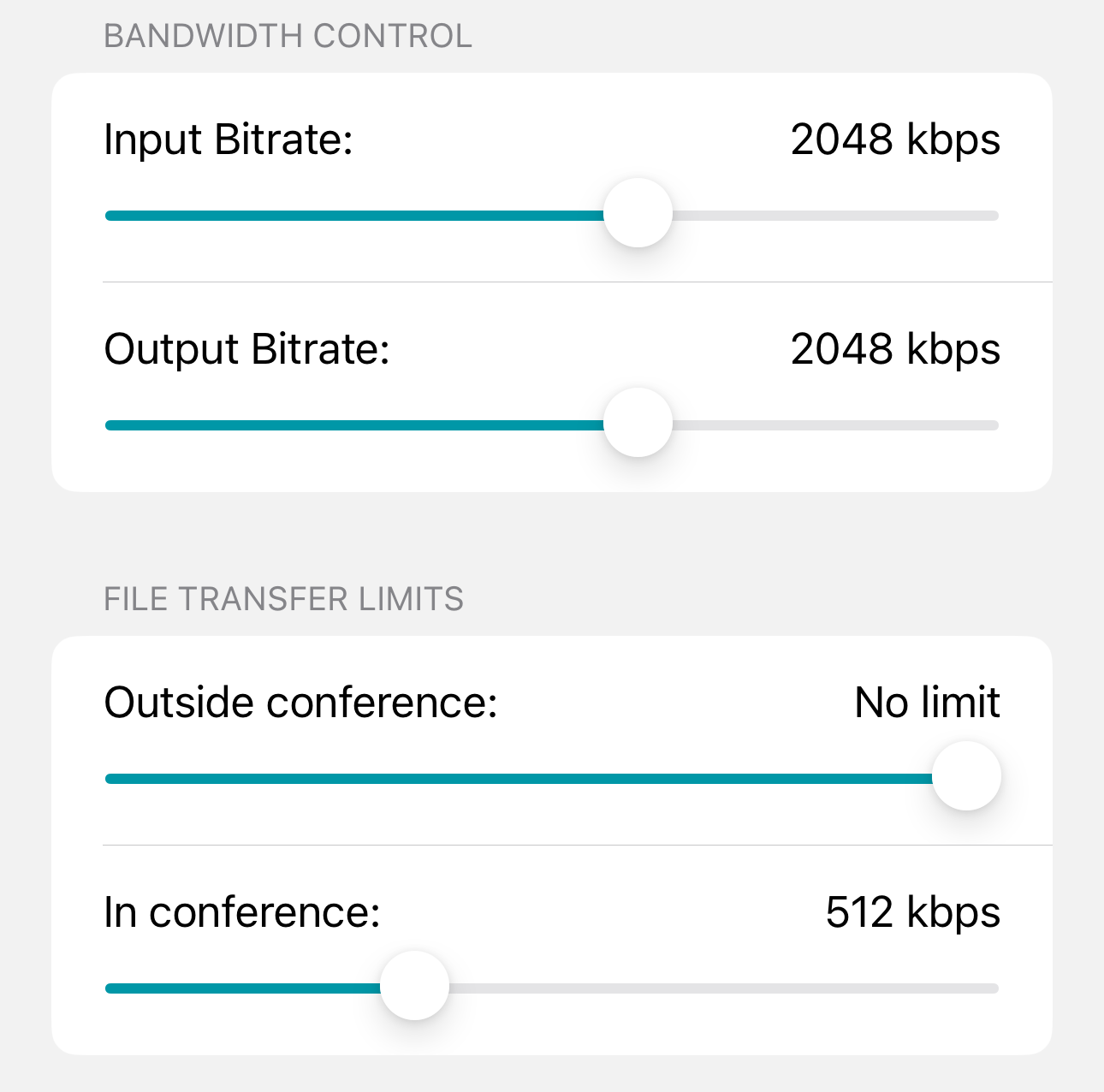
In sections Bandwidth control and File transfer limits, you can limit the transfer speed of media streams and files.
In the case of a low-speed Internet connection, for example, 2-3 Mbps, you can limit the bandwidth used by the client application. As a result, the quality of your video will be reduced, and the load on the communication channel will be decreased which will allow other applications to work correctly.
Please contact your server administrator for detailed guidance on configuring channel limits in your organization.
Notifications and sounds
In TrueConf for iOS/iPadOS, two types of notifications are implemented – system and embedded.
System notifications work when the application is closed or the device screen is locked. Their behavior is controlled by the OS settings.
Built-in notifications are used when working with the application directly. The sound of these notifications can be turned off in the corresponding section:
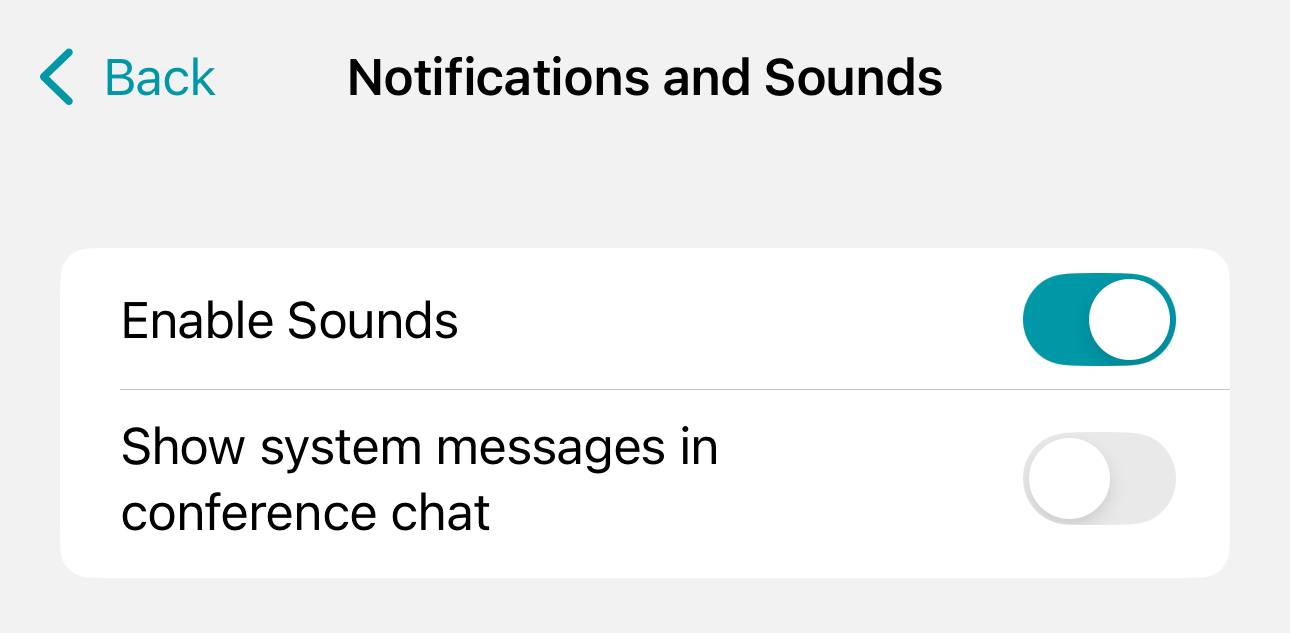
Once the Show system messages in conference chat option is enabled, you will receive notifications in the following format:

Miscellaneous
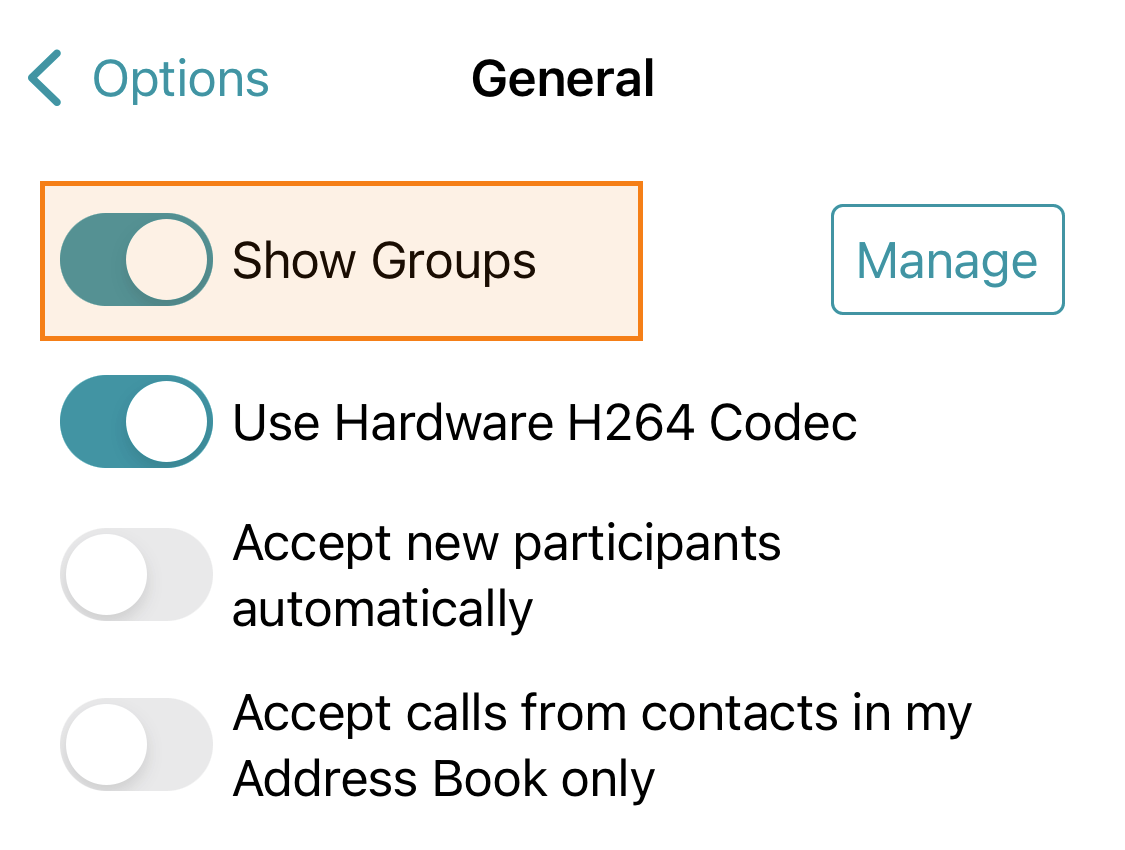
To enable the display of users organized by groups in the address book, activate the switch Display contacts by groups.
Group management
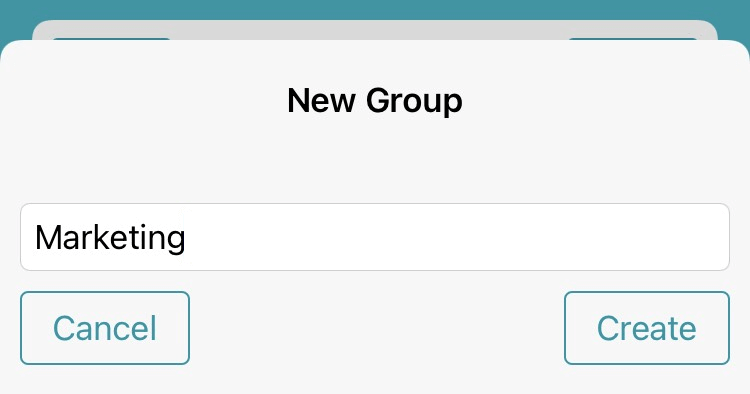
To create a group, go to Options → Other → Group management → New, enter its name, and click the Create button.
Editing or deleting groups
To delete or edit a group:
Go to the list of groups in the address book (if they are not visible, enable the group display).
Find the desired group, click the
 button next to its name, and select Edit Group or Delete Group from the menu that appears.
Data and storage
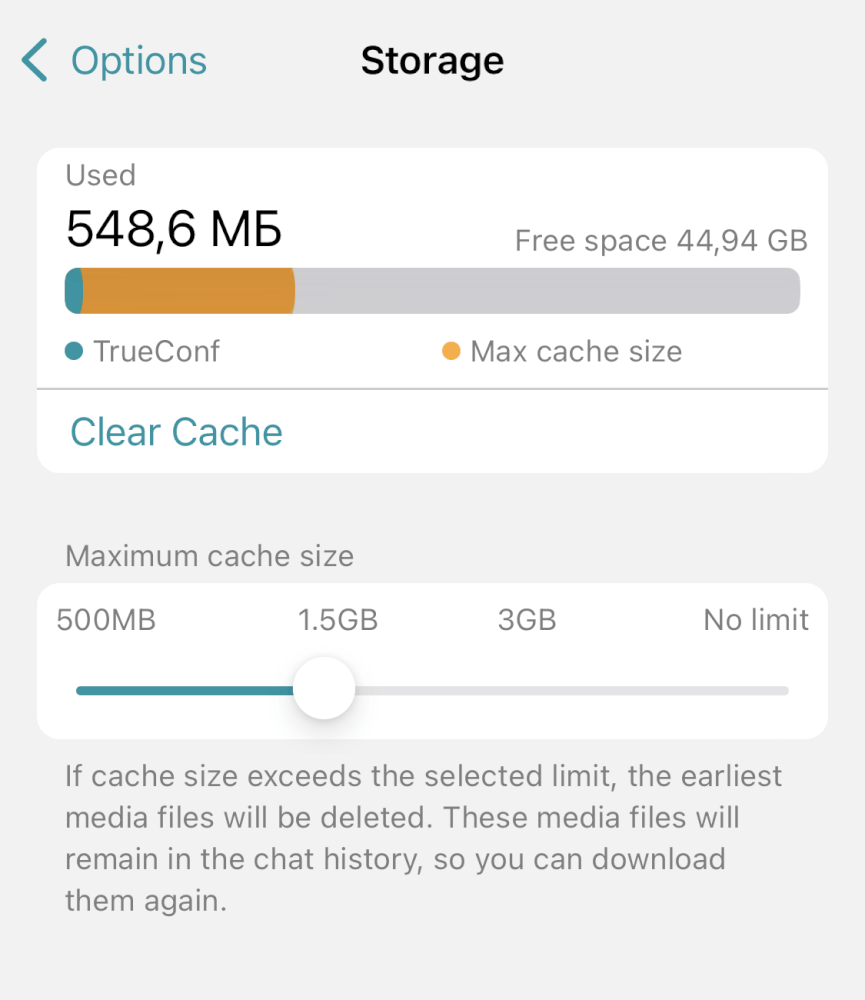
TrueConf for iOS/iPadOS Caches all downloaded media on your device. To view or limit the cache size, go to section Storage management.To delete cache, tap on the Clear Cache button; otherwise, just select the maximum size so that the application could automatically free up space when the limit is reached.
In the Automatic downloads section, you can select the type of network for automatic downloading of images in chats. If you participate in group chats where images are often sent, activate the Never option to save cache and reduce traffic. In this case, you will need to download images manually.
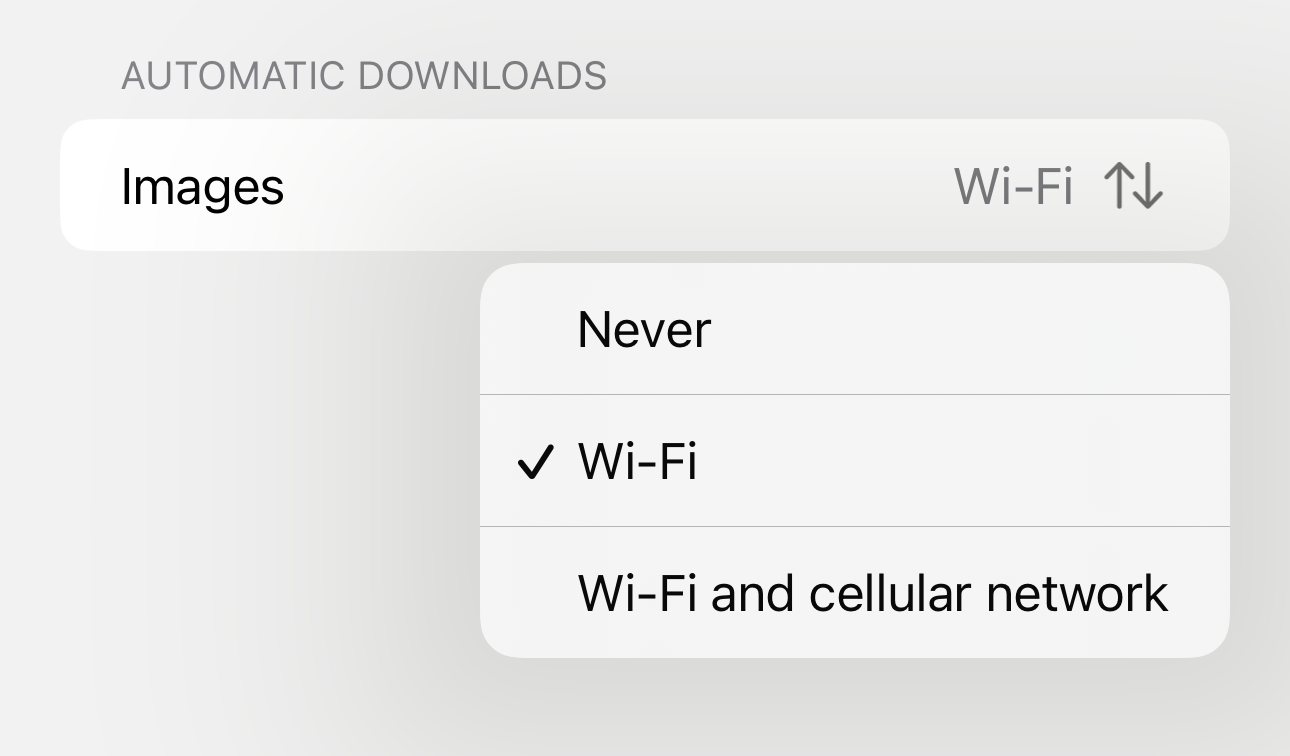
If your mobile plan has limited internet traffic, we recommend selecting option Wi-Fi.
Appearance
By navigating to the Appearance section, you can change the application's theme.
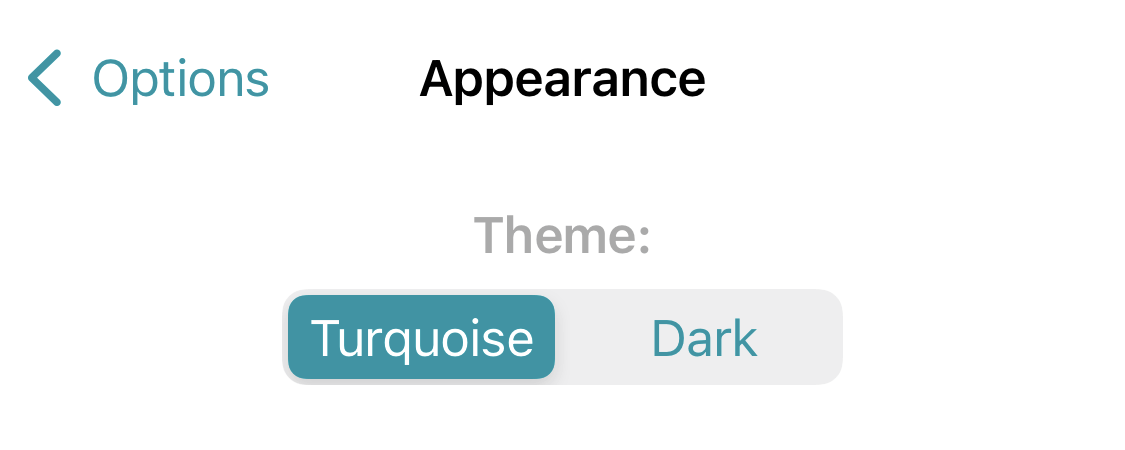
By default, the system theme is used. Switch to option Light or Dark to change the application to the corresponding mode.
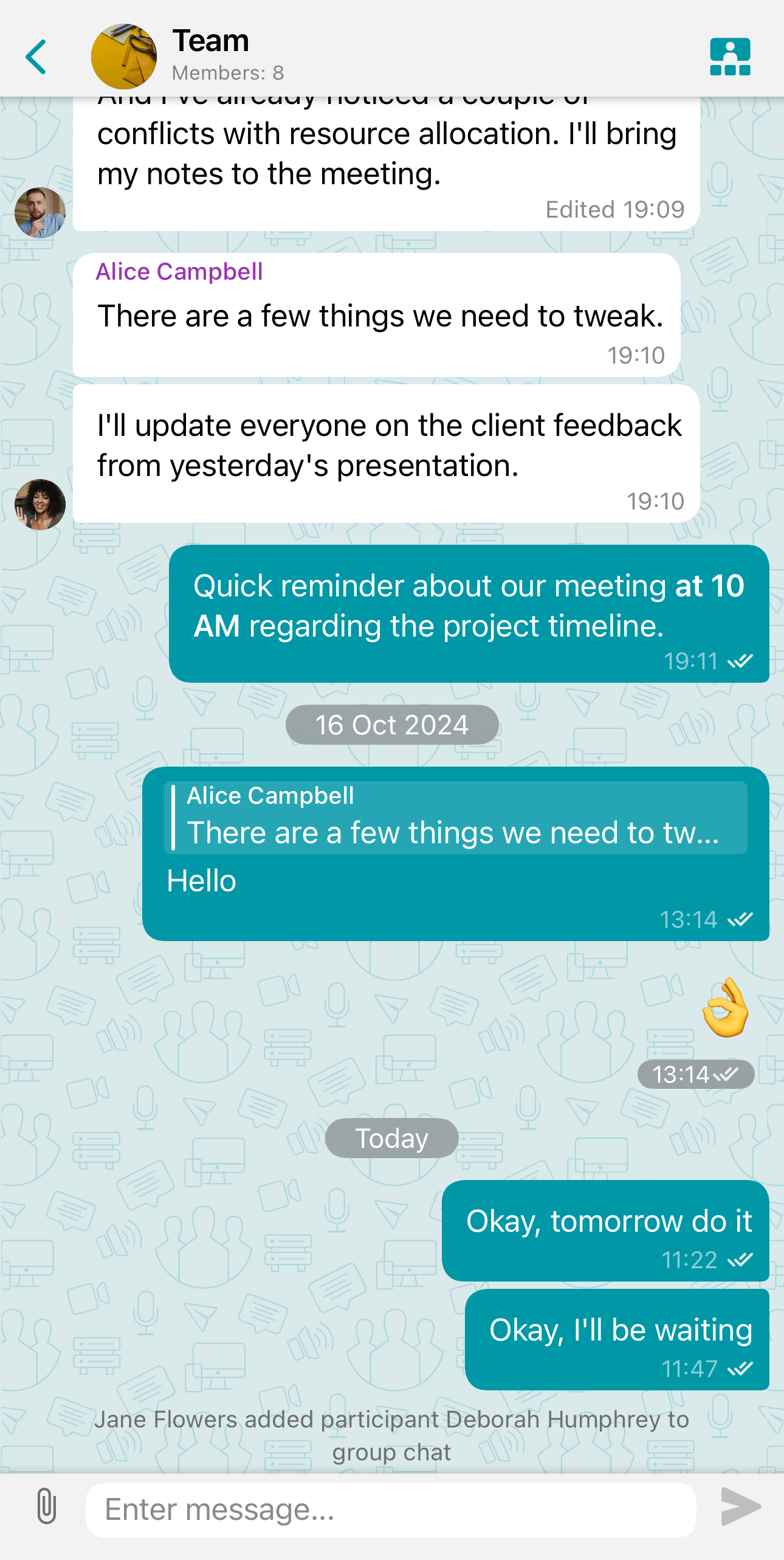
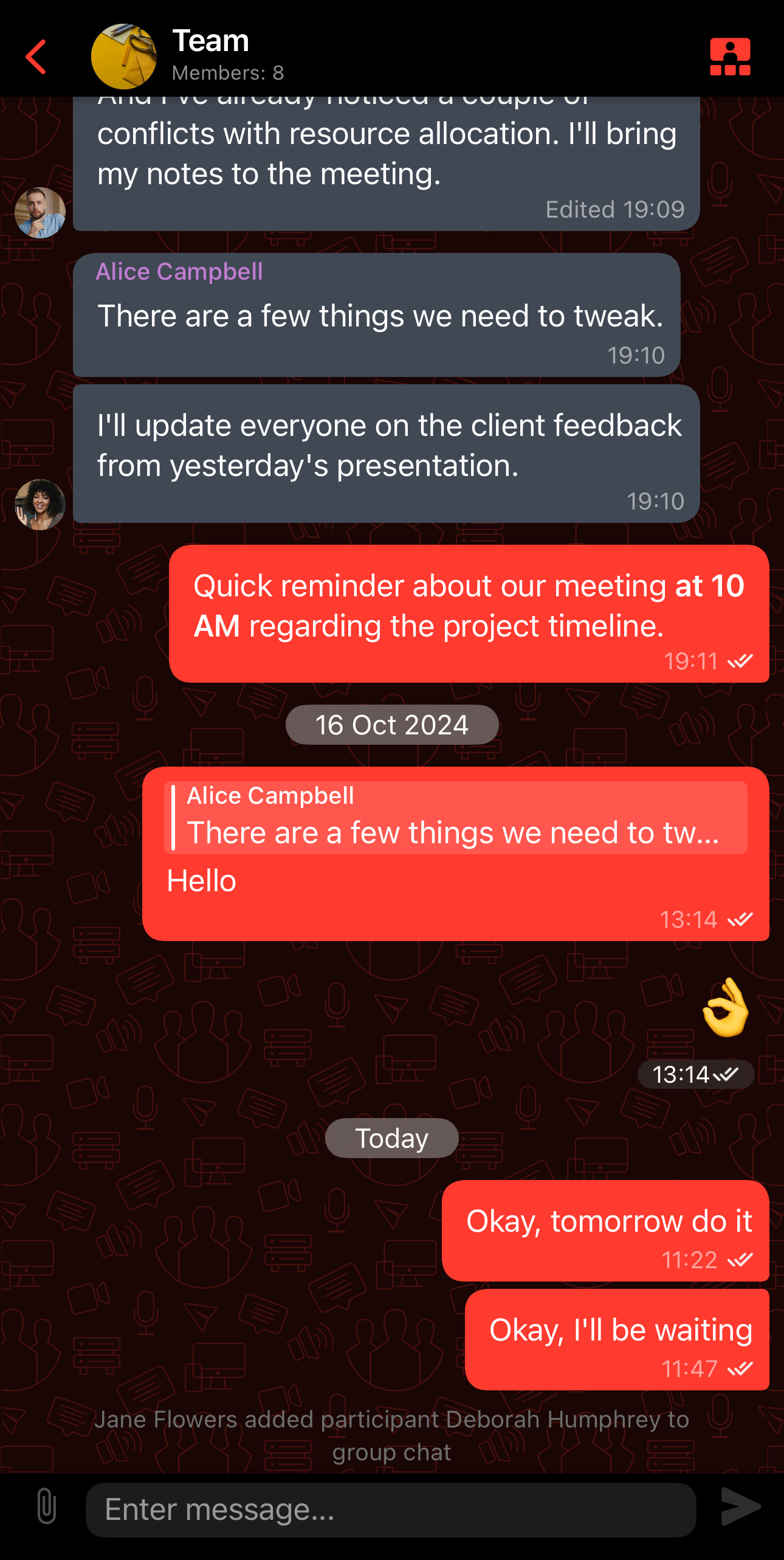
Below you can set the color scheme for the application. The selected color will be applied to your messages, icons, and other UI elements. Here is how the application with a dark theme and modified accent color will look like:
Additionally, for screen Home, you can replace the original application icon with  .
.
About
In this section, you can view information about the version of TrueConf for iOS/iPadOS and share logs related to the application's performance. For details on which logs are required when contacting TrueConf technical support, refer to the article.