
Collaboration tools
Slideshow
During video calls and conferences, users can not only see and hear each other but also share images. To do it, take the following steps:
In the conference management panel, click the
 button and select Slideshow.
Click the Send slide button to proceed to select an image on your device.
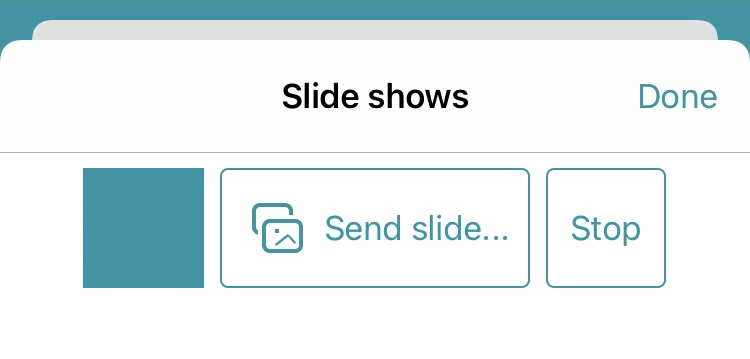
After adding, you can view the image by clicking on it. The text My currently broadcasted slide will be displayed at the bottom of the slide.
To stop the image display, press Stop. To return to the conference window, click the Done button.
According to Apple's security policy, when HTTPS connection is configured for TrueConf Server, you can share images only if a commercial certificate is used on the server.
Viewing a slideshow
When the user, you are talking to, starts a slideshow or content sharing in a separate video stream, a miniature copy of the shared content will be displayed:
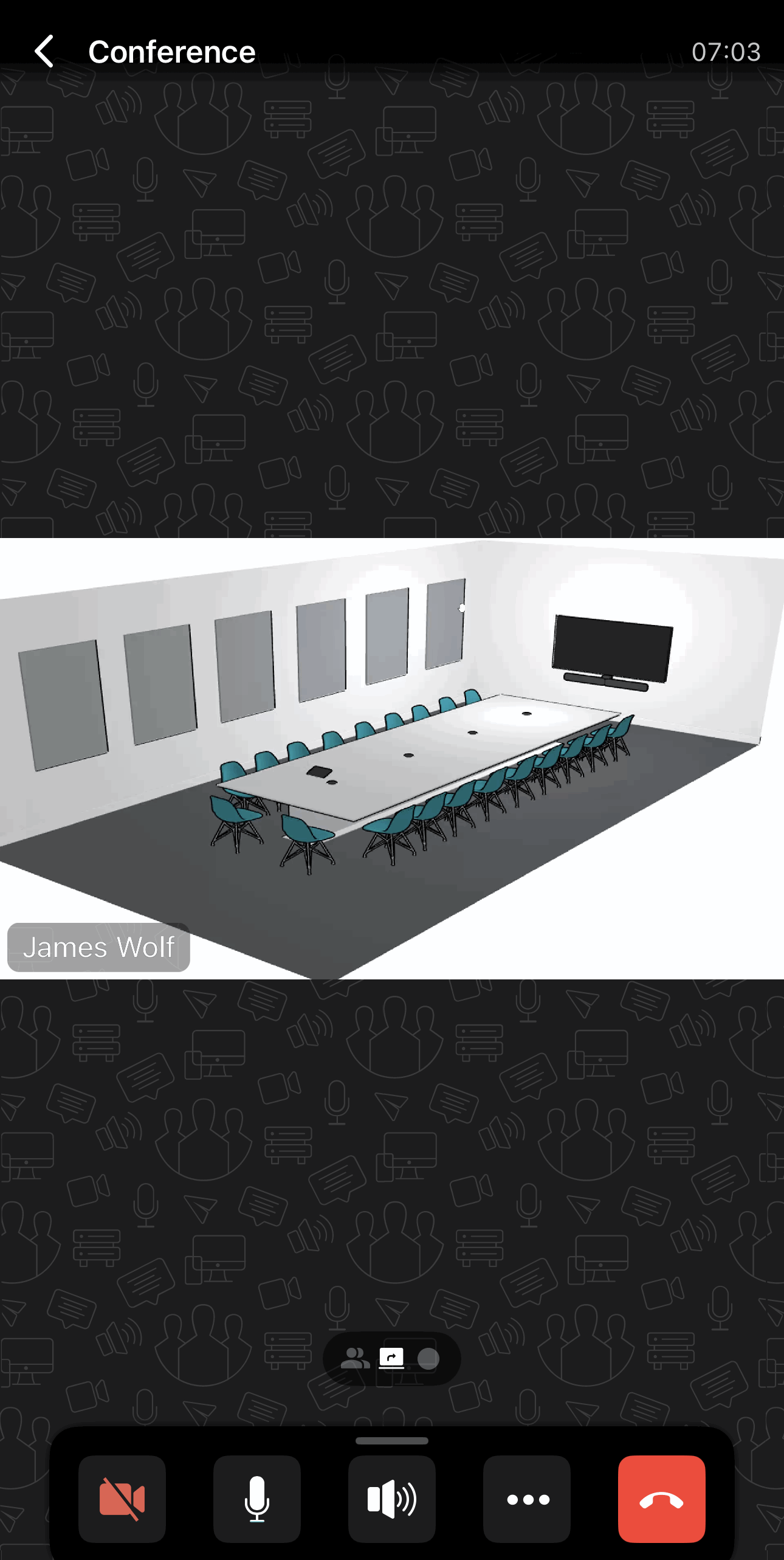
Depending on the content, the corresponding icon will be displayed at the bottom of the screen:
 – screen sharing;
 – presentation display (slides).
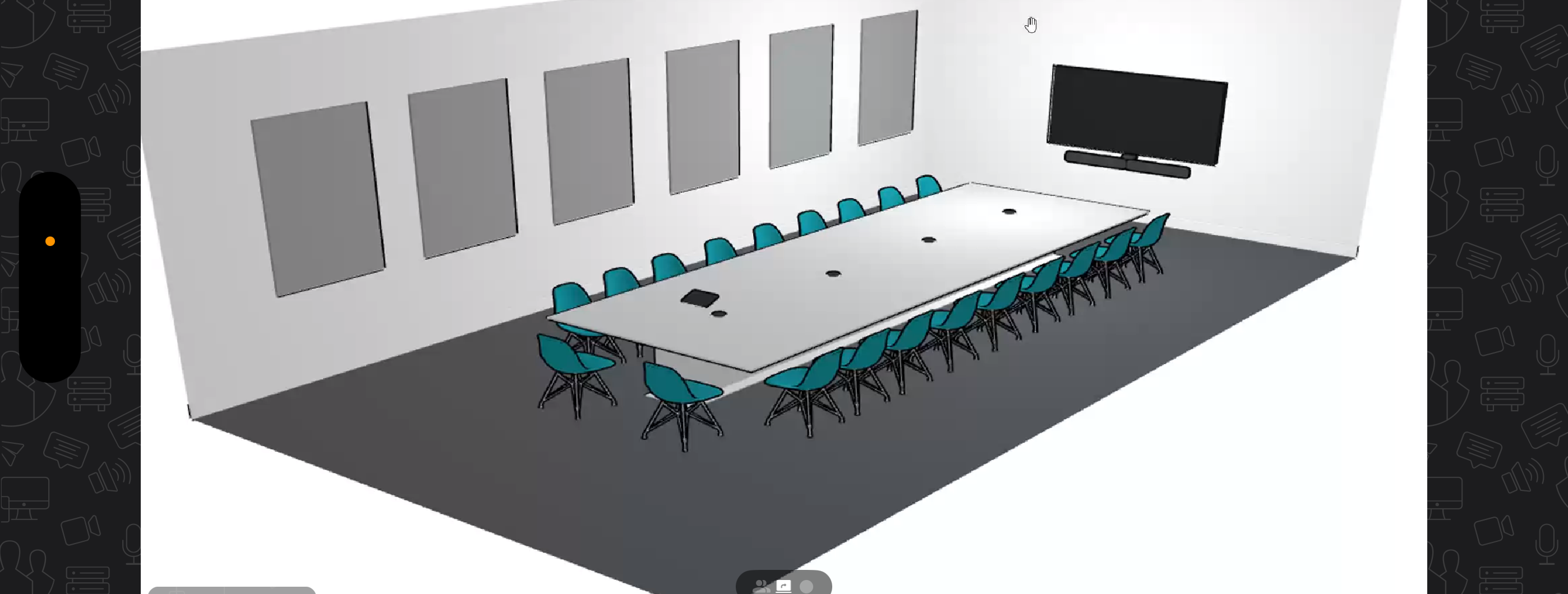
Use the landscape screen orientation so that it was easier to view the content:
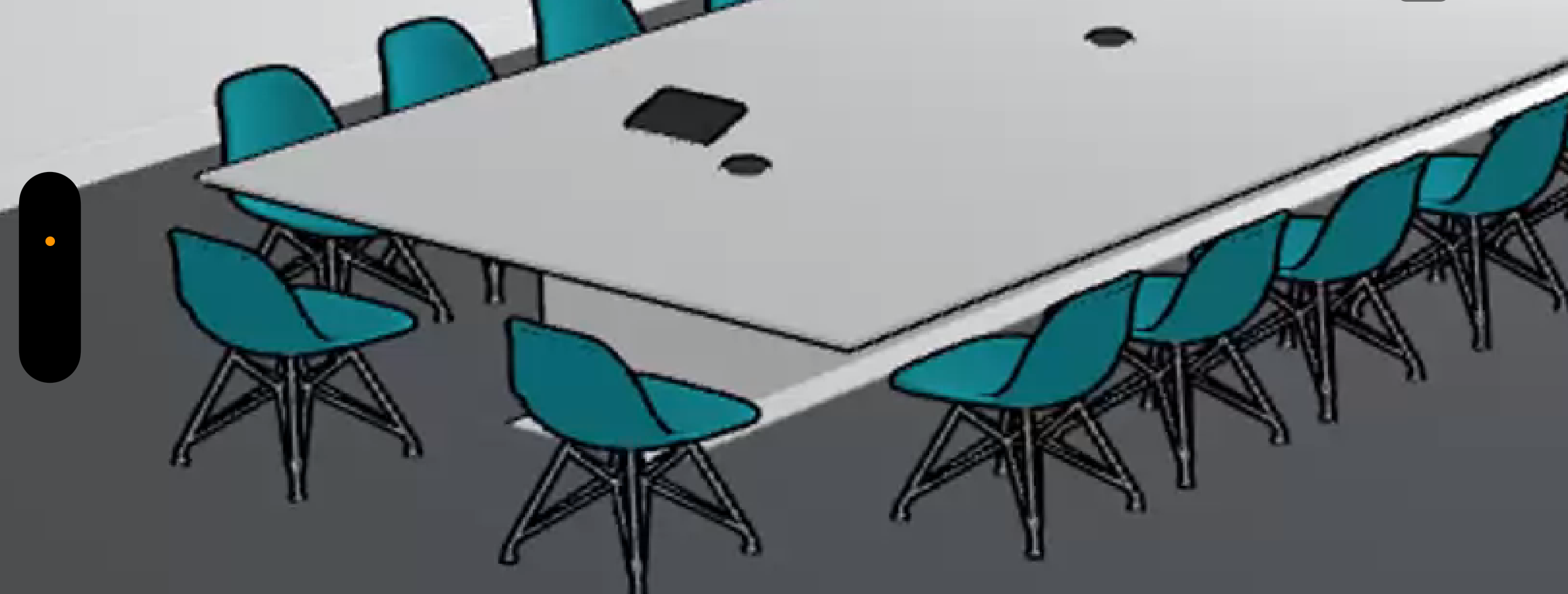
If you need to zoom in and examine the content in more detail, enlarge the window with the corresponding gesture:
To return to the conference window, click the  button.
Content sharing
According to Apple's security policy, when HTTPS connection is configured for TrueConf Server, you can share screen only if a commercial certificate is used on the server.
Please note that you will not be able to share your screen and show slides at the same time.
Start sharing
To enable content sharing during a conference, click the button in the conference control panel and select Screen Sharing. A window with Apple's standard screen sharing interface will open:
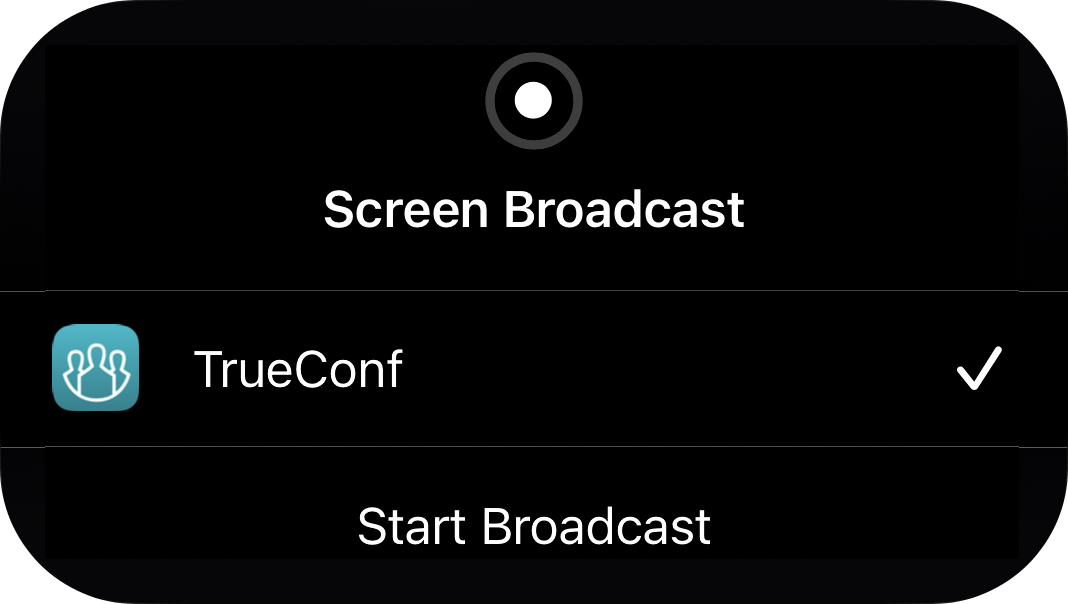
Click the Start Broadcast button, and content sharing will start in three seconds.
The entire screen will be shared, including notifications. We recommend enabling Do Not Disturb mode in the Focus section to prevent them from being visible to others.
To do this, open Control Centre, click the  button, and select Do Not Disturb.
Stop sharing
You have two options to stop content sharing: right in the TrueConf for iOS/iPadOS application or using the status bar.
Option 1
In the conference management panel, click the
button and select Screen Sharing.You will see a pop-up window with an active countdown timer.
Click the Stop Translation button.
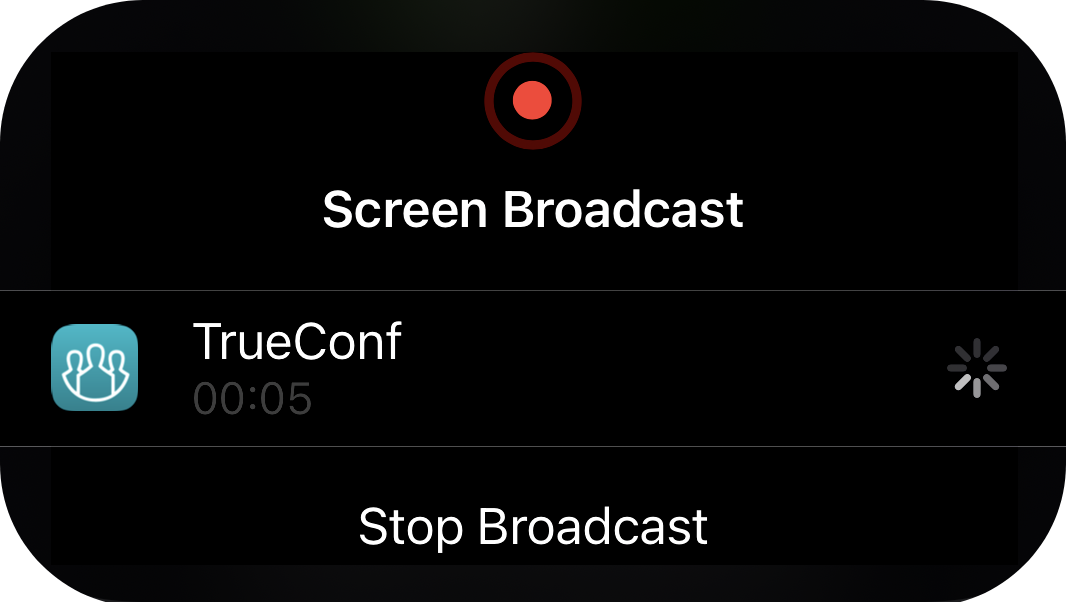
Option 2
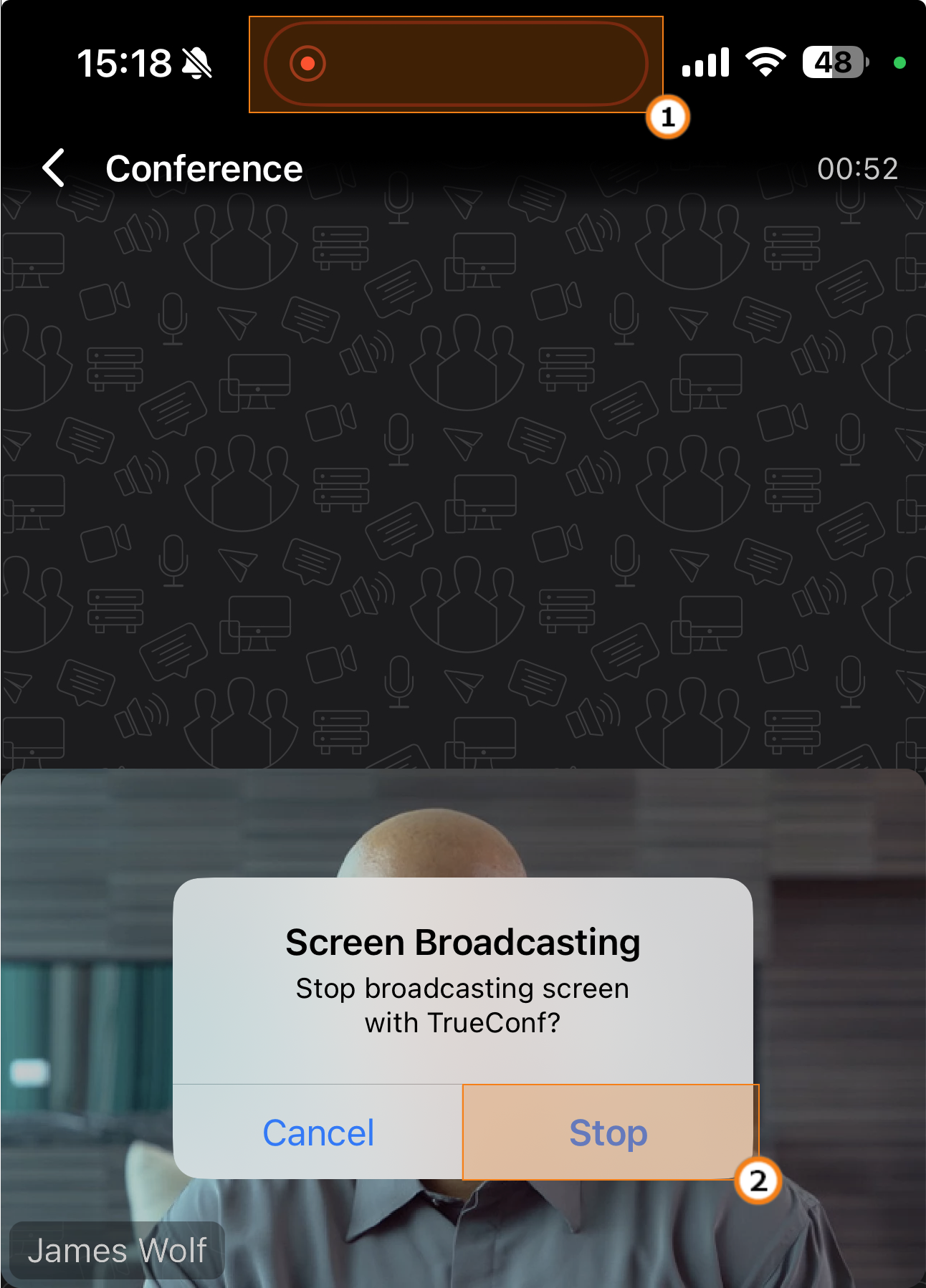
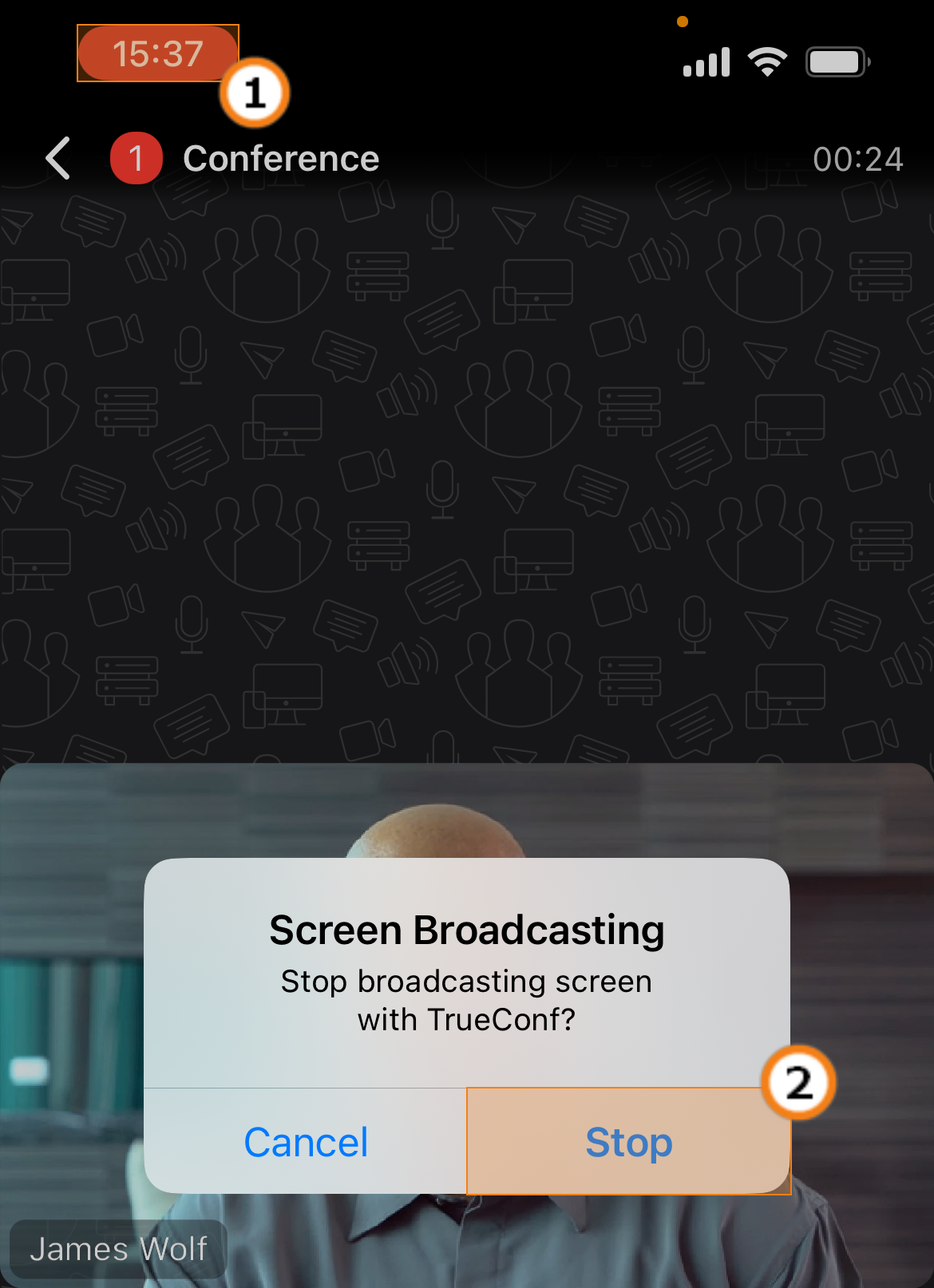
Tap on the red status bar.
Now press the Stop button.
PTZ camera control
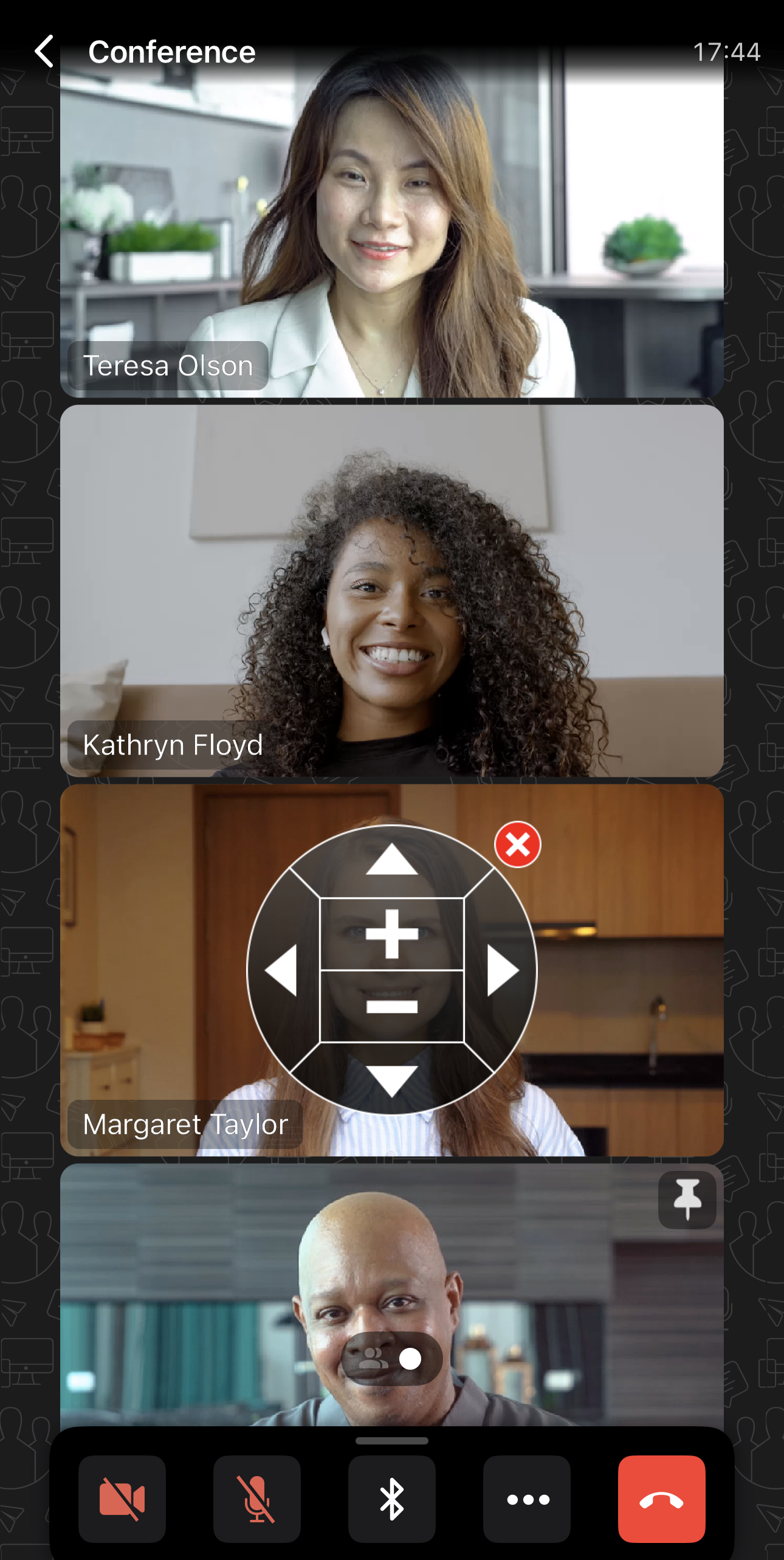
To start controlling a PTZ camera of a user, you need to press and hold the user's video window. In the pop-up list, choose the Camera Controls item to display the panel:
Reactions and polling
During the event, you can conduct polls among users in the conference participants window. This is done using small icons representing various reactions and statuses. To vote, click the  Reaction button, and a window will open with a selection of reactions and their statistics:
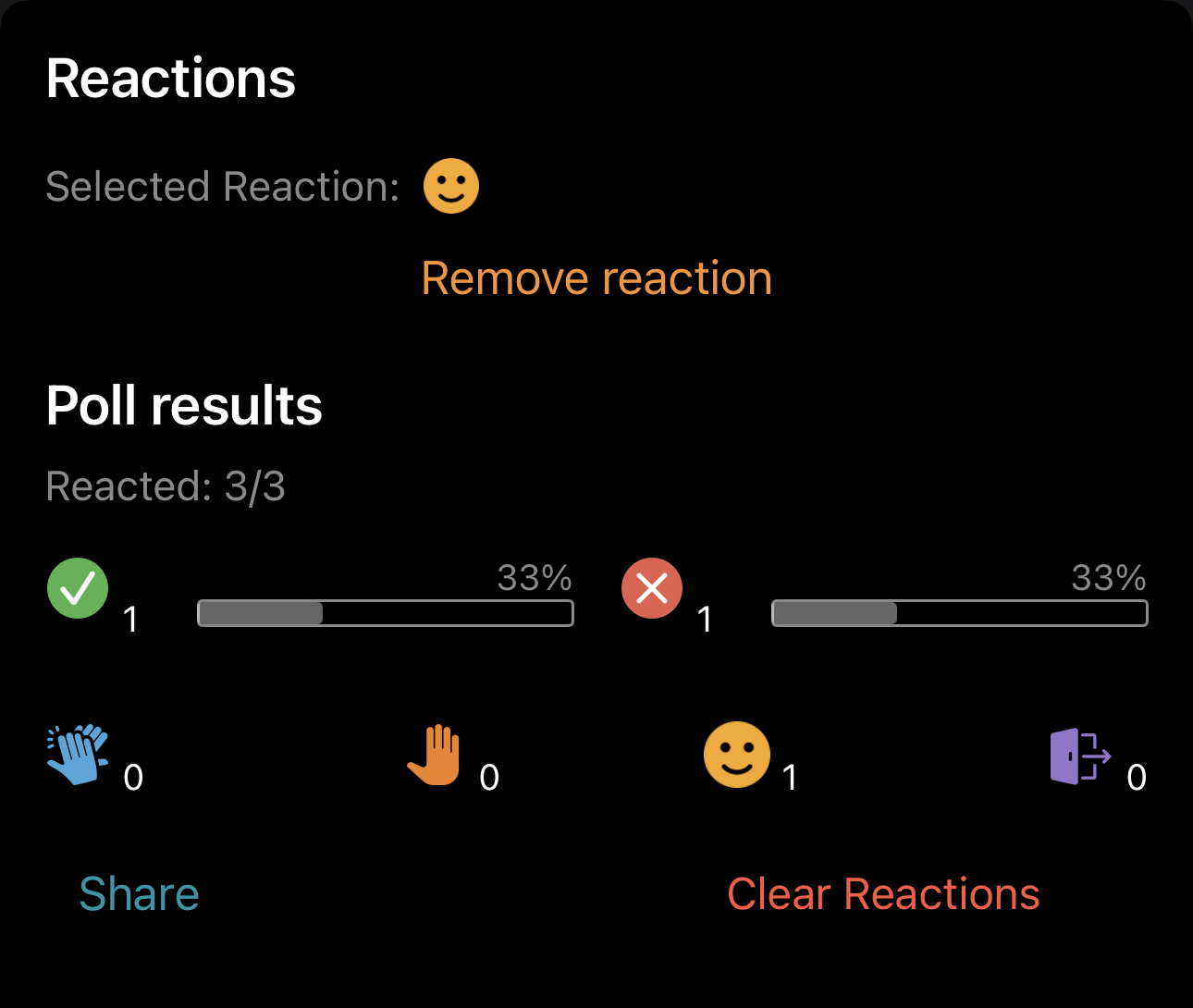
When a user reacts, one of the reactions will be displayed next to the user's name:

You can read more about polls and reactions in our documentationTrueConf for macOS.