
Conferences
Conferences
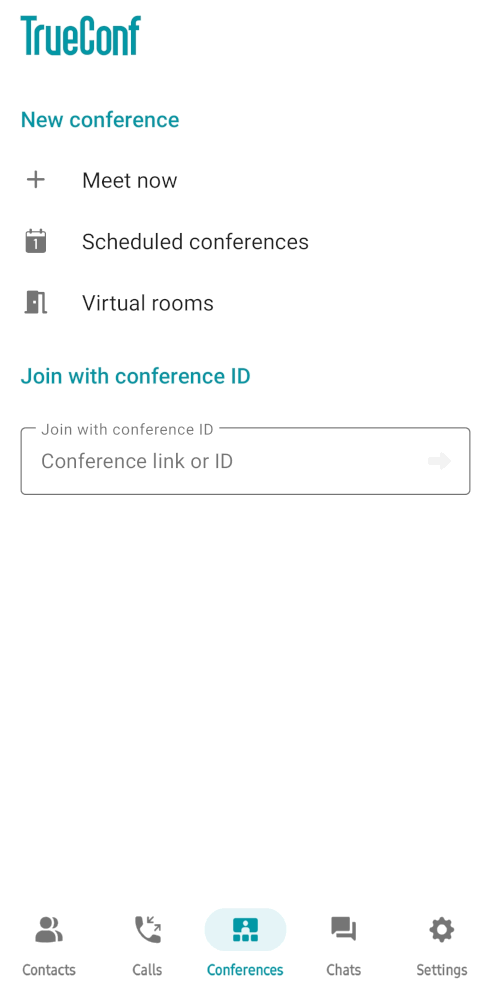
In the Conferences tab, you can start an instant meeting, create a virtual room, open the calendar to schedule a meeting, or scan a QR code to join an event:
How to join a conference
To join a conference, you will need to:
Go to the Conferences tab.
Enter the link or conference ID in the section Join with conference ID. The application will start searching for the conference only on your video conferencing server. To join a conference hosted on a different server, use the link to the conference page.
To connect, press
 or the Enter button on your keyboard.

Joining a conference is available in the search bar. To do this, click  , select Conference, enter the conference ID, and press the call button.
Additionally, you can join the TrueConf event in the following ways:
call the owner;
go to the scheduler, select the conference, and click the Connect to the conference button (if you were added to the participant list in advance);
- join the conference through its webpage;
navigate to the conference page by its ID from the guest page of the server;
access the conference page from your personal area (only if you are the moderator).
How to join a conference with a QR code
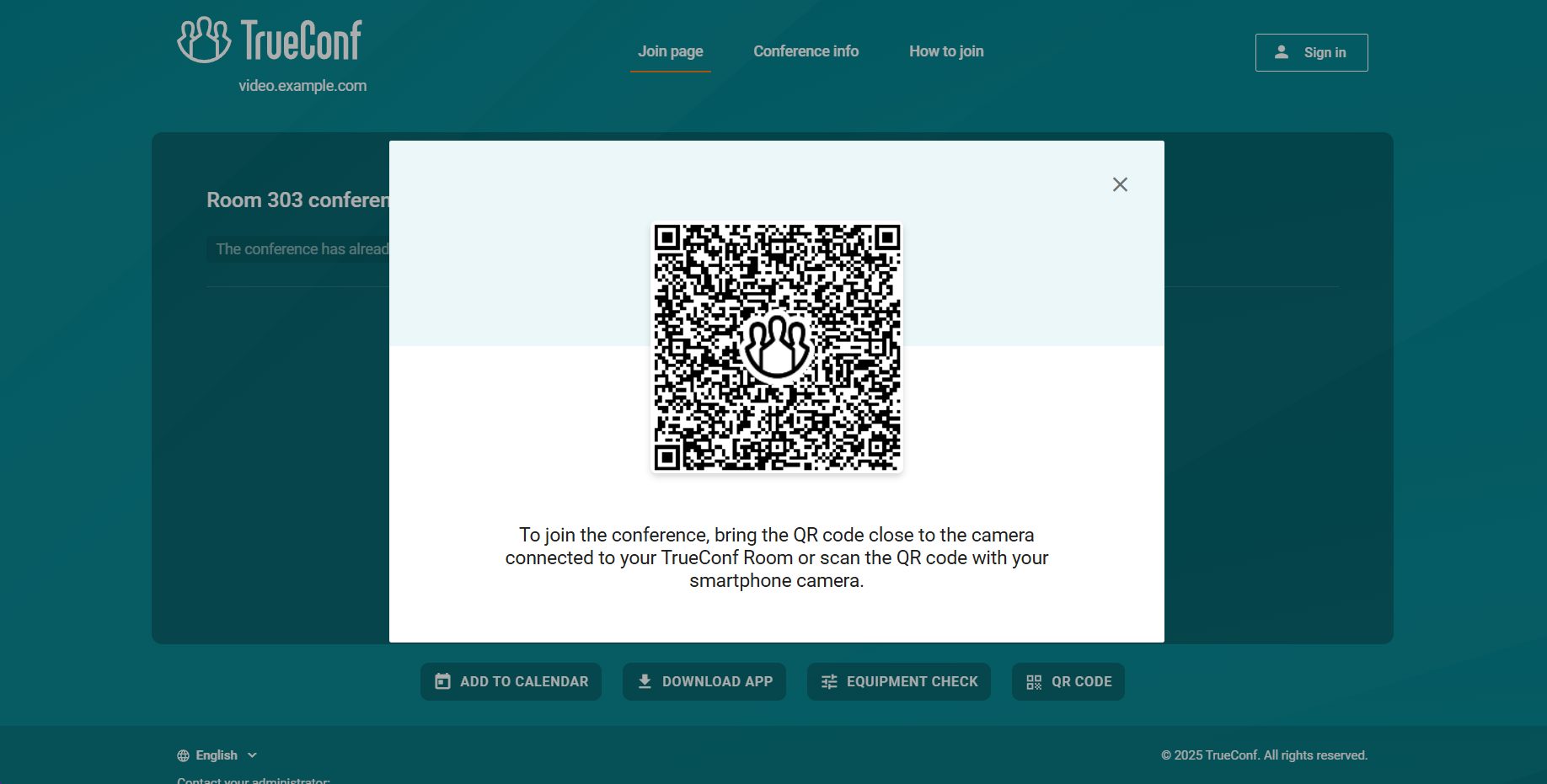
You can join events by using the QR code displayed on the conference connection web page. To view the code, tap the QR CODE button at the bottom of the page:
To join a conference with a QR code:
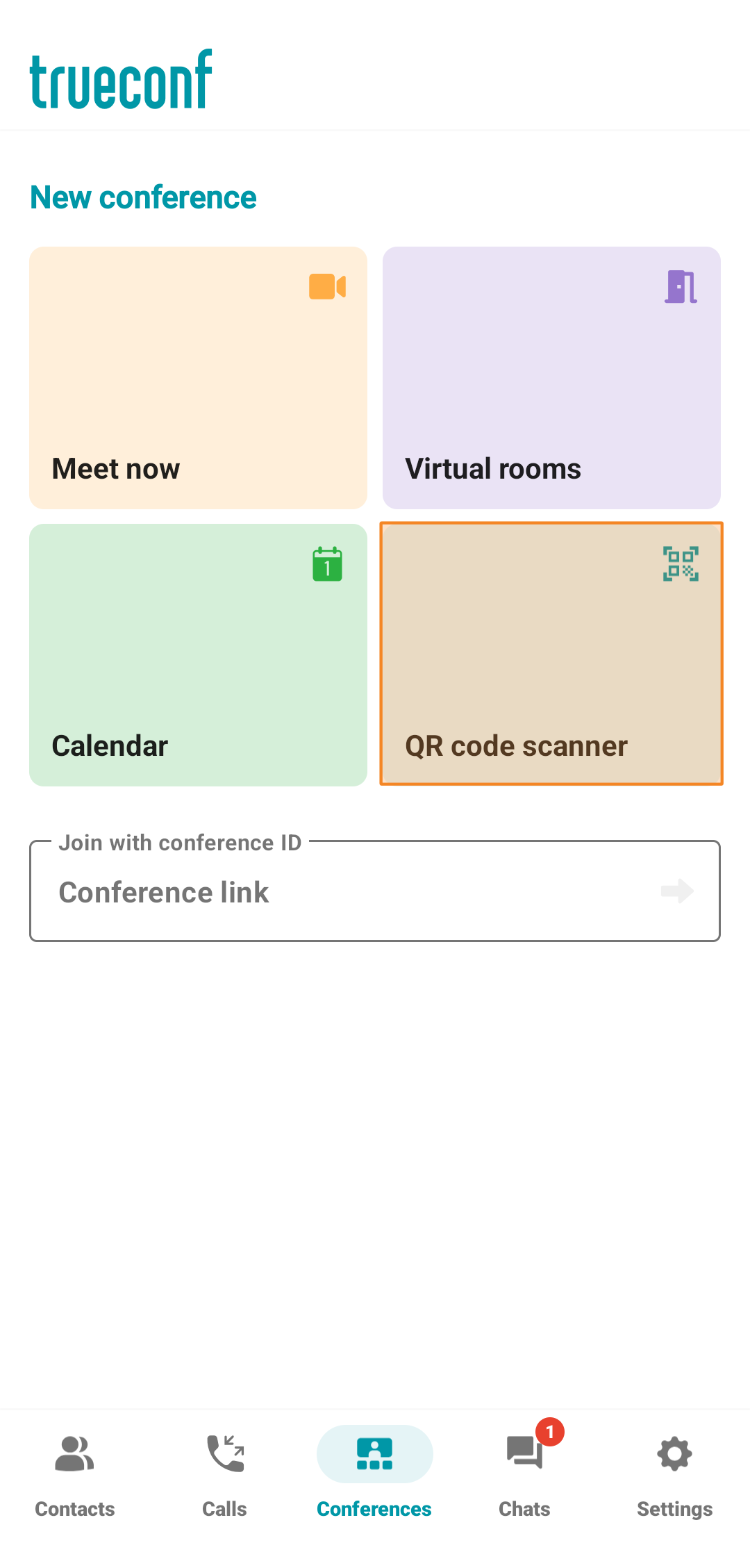
In the TrueConf mobile app, go to the conferences tab.
Click on QR code scanner.
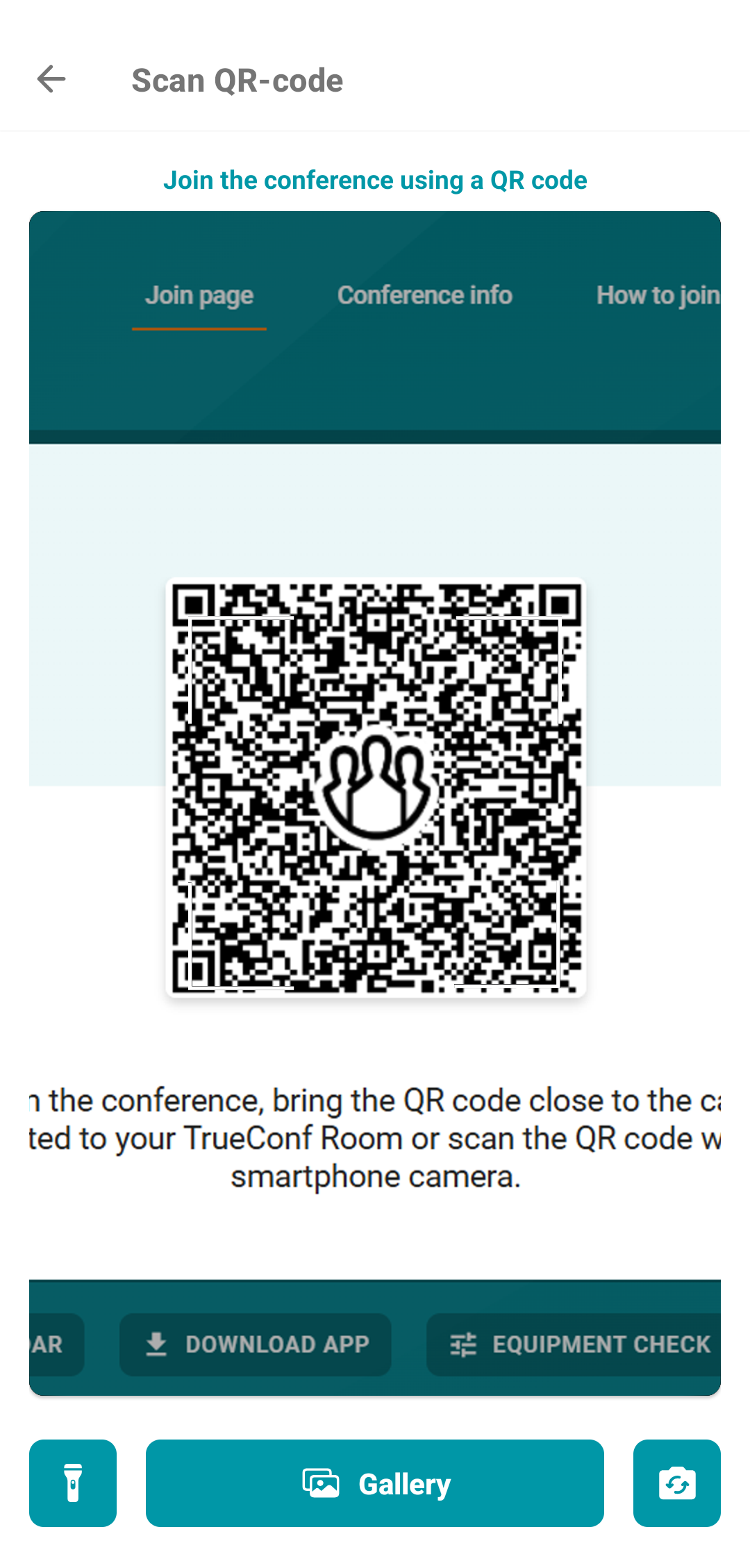
Next, join the conference in one of these ways:
Point your device's camera at the QR code. You can also switch to the front camera by pressing
 . Pressing
  will turn on the flashlight, which is useful if the QR code is difficult to see.
Scan the QR code from the image on your device by tapping
 and selecting an image from the device gallery.
Creating a quick conference
A quick conference is a virtual room with a simplified set of options that can be configured when the meeting is created:
Name
Participants
Mode
Number of speakers and participants
Additional options:
automatically approve users’ requests for conference participation
redirect participants to the waiting room
turn off participants’ camera and microphone when they join a conference
In the Conferences tab, click Meet now, and in the settings that appear, specify the name and choose a mode: smart meeting, everyone on screen, moderated role-based conference, or video lecture.
You can also create a conference from a group chat by opening the group chat and clicking  next to its name.
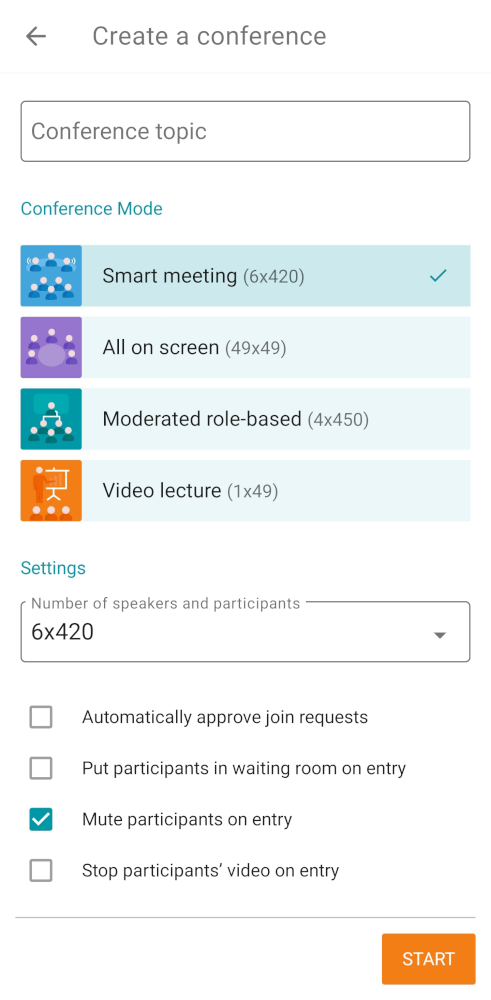
When choosing a smart meeting or a moderated role-based conference, you can configure the number of podium seats. In section Settings, click on the dropdown list Number of speakers and participants and select the desired number. For instructions on how to manage a smart meeting and a moderated role-based conference, see below.
By default, when joining a conference by calling its owner, the owner receives a corresponding request. You can change this behavior by selecting checkbox Automatically approve join requests. In this case, a user who wishes to join the conference will automatically connect to it when calling its owner.
Then click the  button to open the list of all contacts in your address book. Select those you want to invite to the conference and click Add participants.
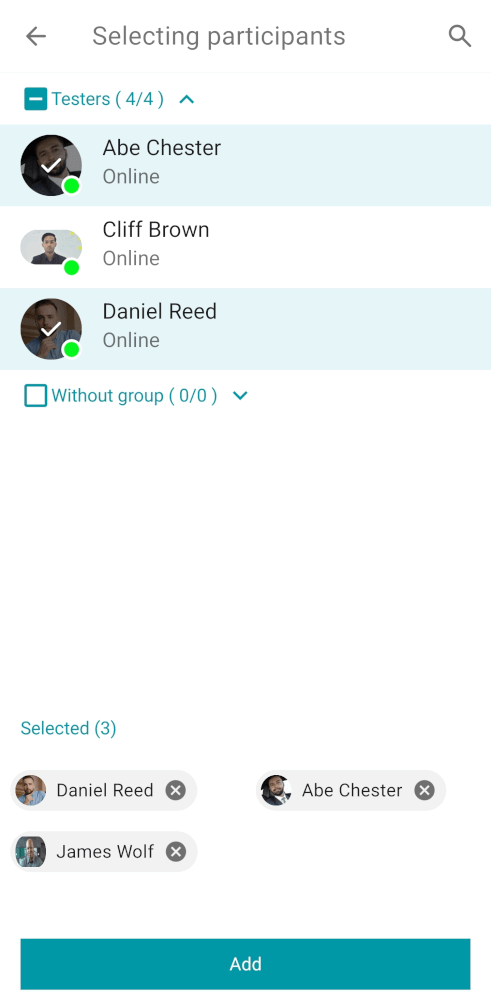
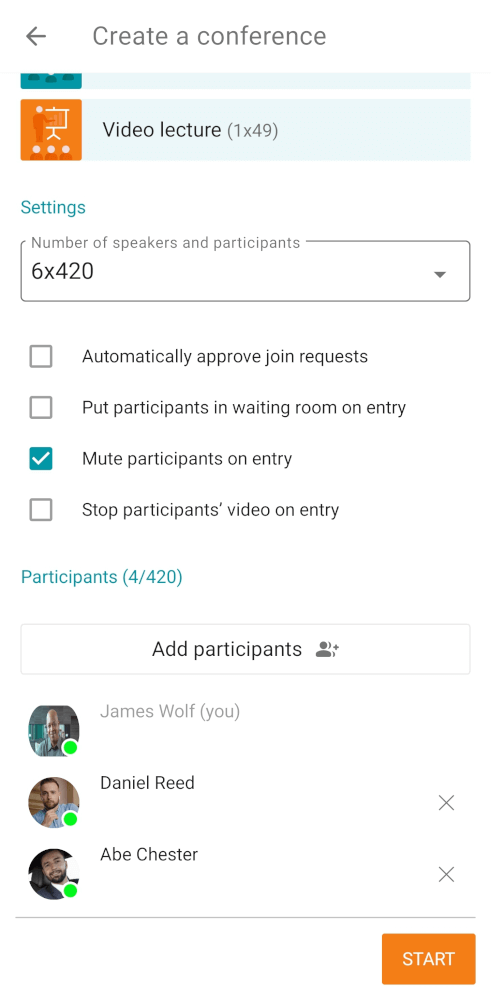
Click the Start button to start the event.
Creating a scheduled conference and virtual room
By clicking the Calendar or Virtual rooms button on the Conferences tab, you will be directed to the conference scheduler, where you can:
Schedule a conference for a specific date and configure its settings in advance
Create a virtual room (an unscheduled conference) that can last for up to 240 hours without any interruptions
Create a conference template.
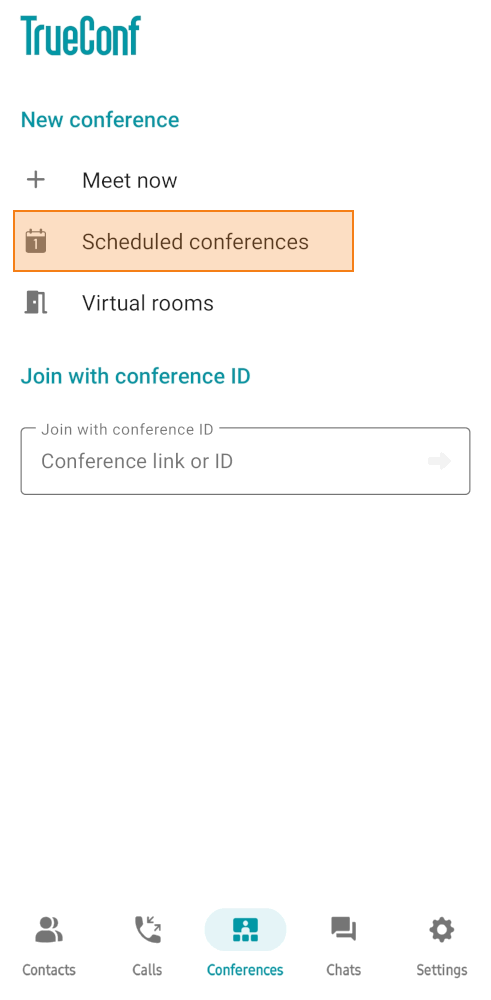
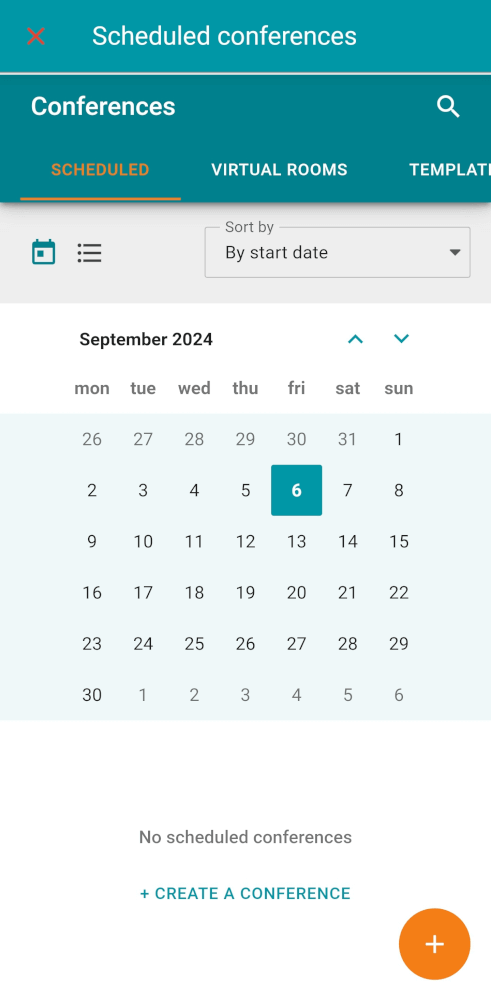
Detailed instructions on how to work with it are provided in our documentationTrueConf for Windows.