
Conference and layout management
Meeting controls.
Speakers
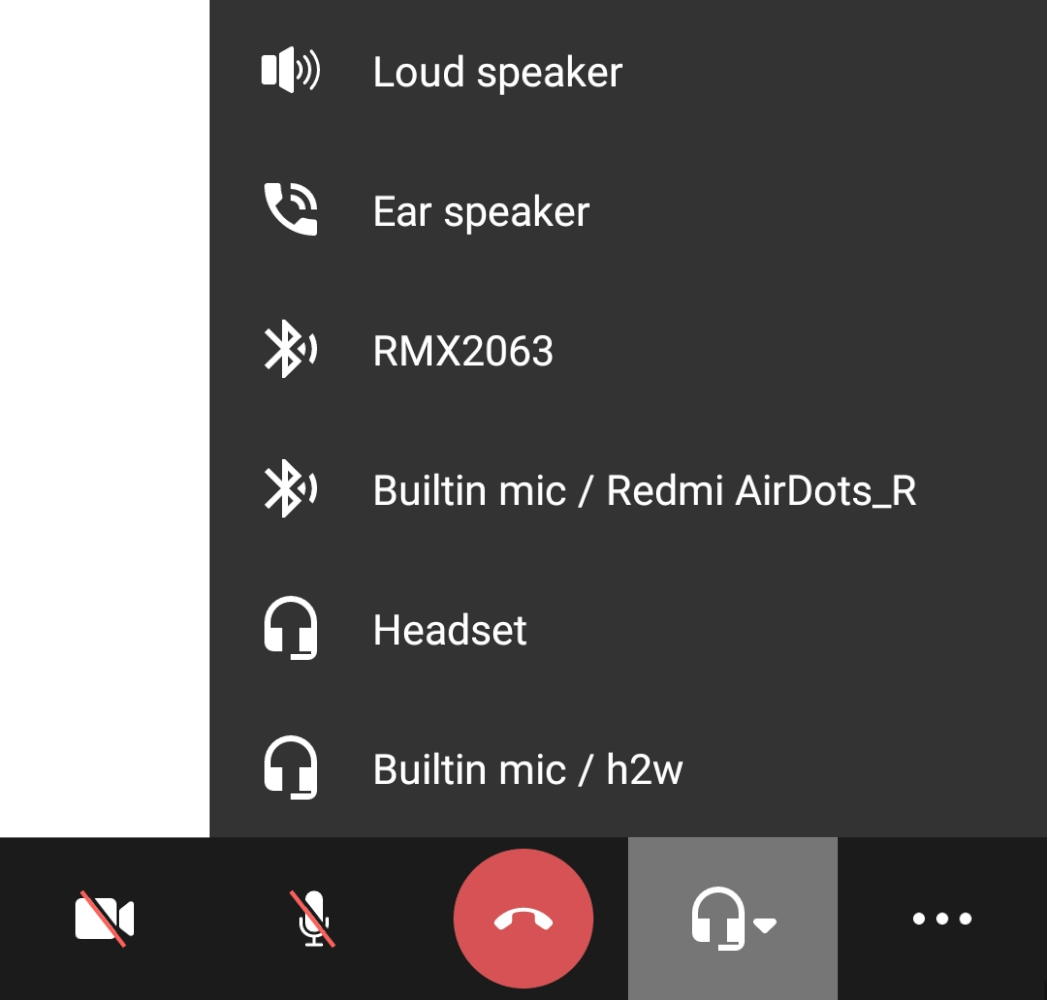
By default, during a conference an external speaker or headset is used as the playback device if it is connected. To change it, tap on  in the control panel and select the appropriate device. When the device is selected, the button will change its appearance, for example, to a Bluetooth connection icon.
Hold down the button to disable the playback device; it will change to  .
.
Microphone
To mute the microphone in the meeting control panel, click the  button; it will change to
  , and the self-view window will display the corresponding status.
Camera
Similarly to the microphone, you can enable/disable video transmission during a conference. To turn off the camera, click the  button, which will change to
  , and the self-view window will stop displaying your video and will be hidden (disappear from the screen). Click to turn on the camera and bring back the self-view window.
To switch between the front and rear (main) cameras of your device during a conference, use the  button in the self-view window.
Additional features
During a conference, you will be able to use some additional features. To access them, tap the  button on the lower panel. Here, you will be able to:
blur, change of virtual background (uploading images for the background is also available in the Settings section);
Choose how the conference control panel should be displayed; in particular, you can pin the panel to make sure that it is not automatically hidden, or unpin it so that the available space could be used for the layout.
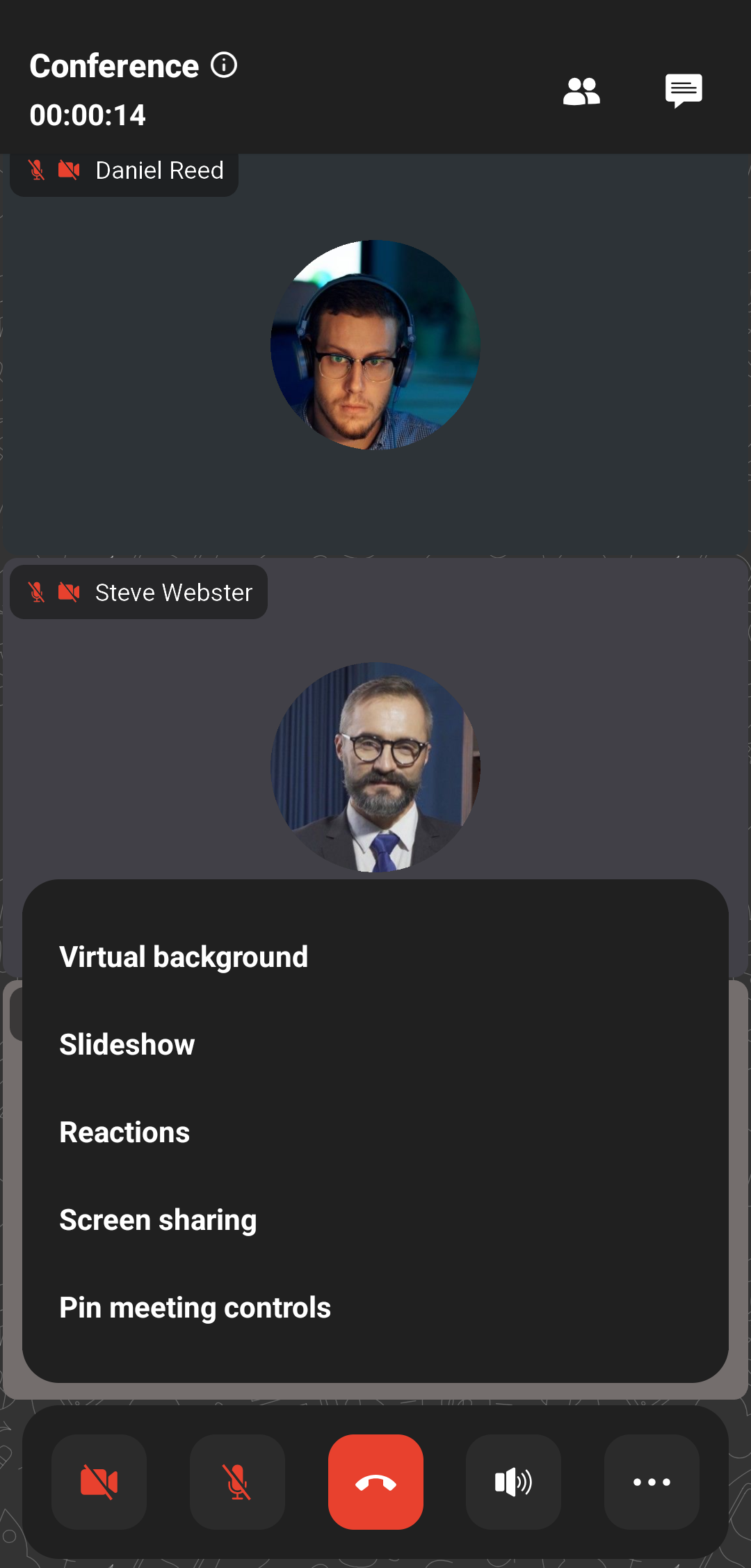
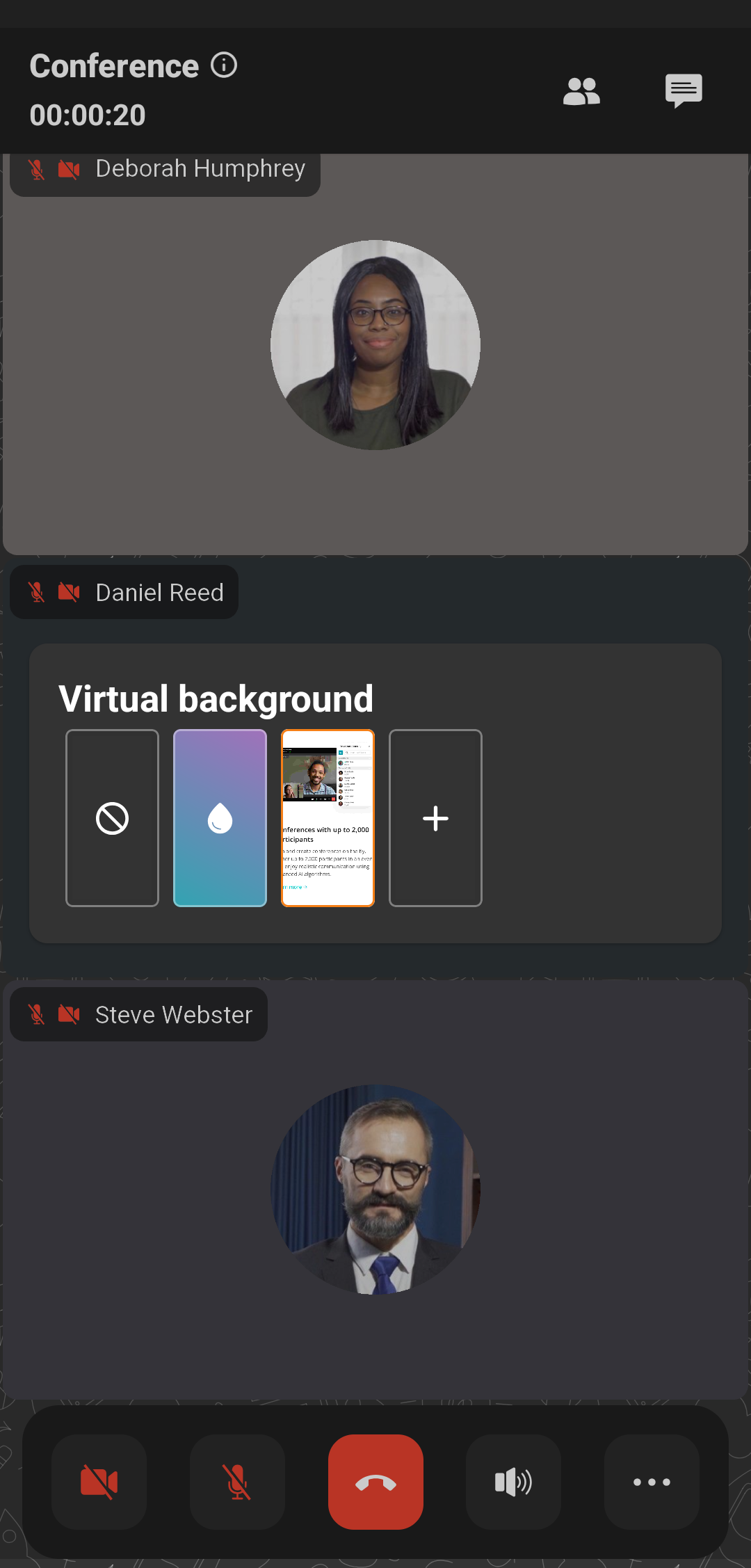
To change the virtual background during a conference, click , then Virtual background. Next, click + and choose the desired image from your device's gallery.
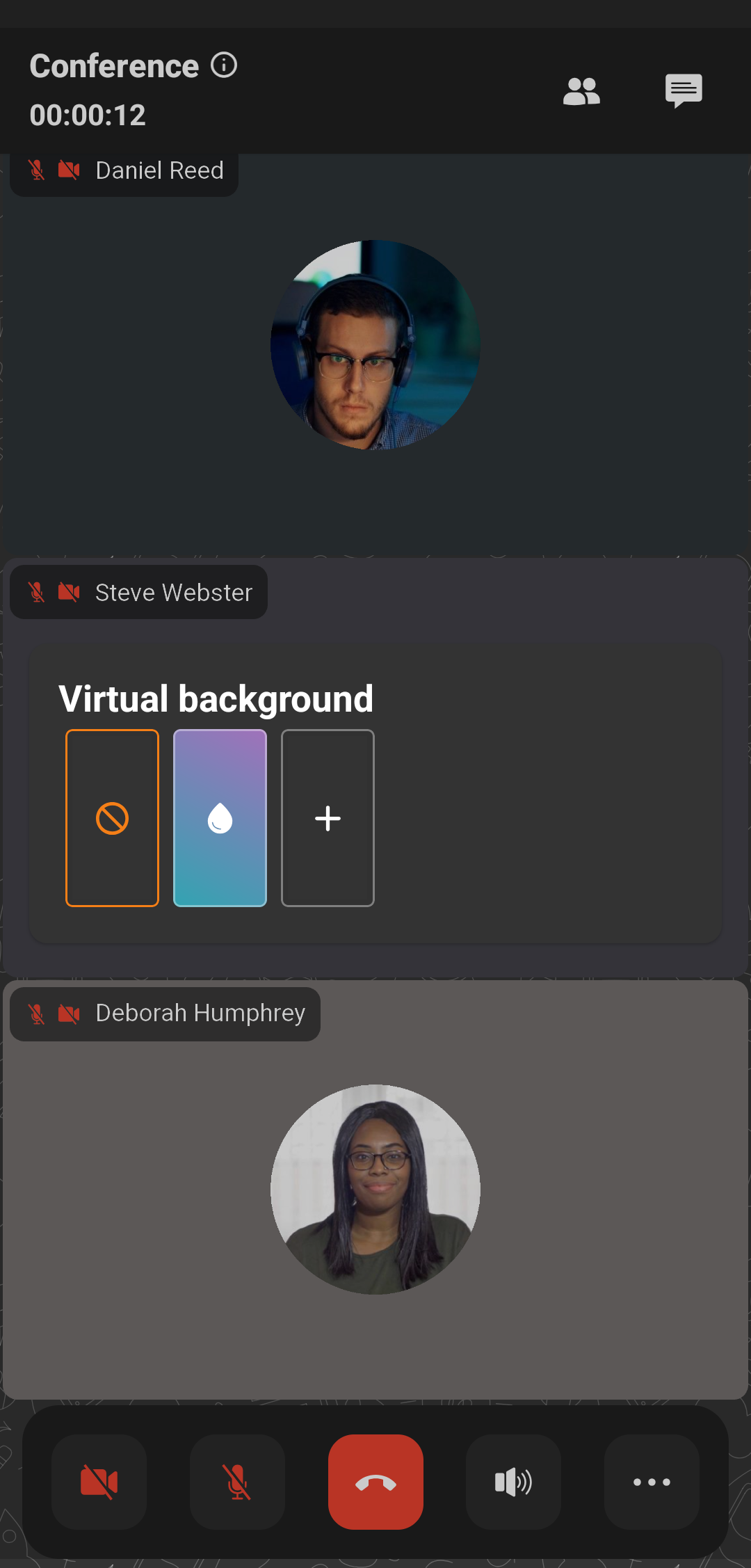
The image you select will be displayed in the list and you will be able to use it as a virtual background:
Changing layouts
The conference owner or moderator can set a video layout mandatory for participants.
However, if you are the moderator, you can manage the video layout from your smartphone using real-time meeting management. During an active conference, go to your personal area, select the desired conference, and press Conference manager. The TrueConf for Android client application will not consider this layout as it uses its own dynamic layout with multi-screen support.
Layout structure
The layout is generated dynamically and depends on the conference mode. Below, you can see the layout for a moderated role-based conference with the content window and speakers:
Display presentations or demonstrate content (up to 2 windows on the screen). You can select one of several presentations by switching using the corresponding icons
 at the bottom of the screen.
Active speaker.
The podium with speakers. For convenience, there can be several screens for displaying speakers, with a maximum of 9 participants on each screen.
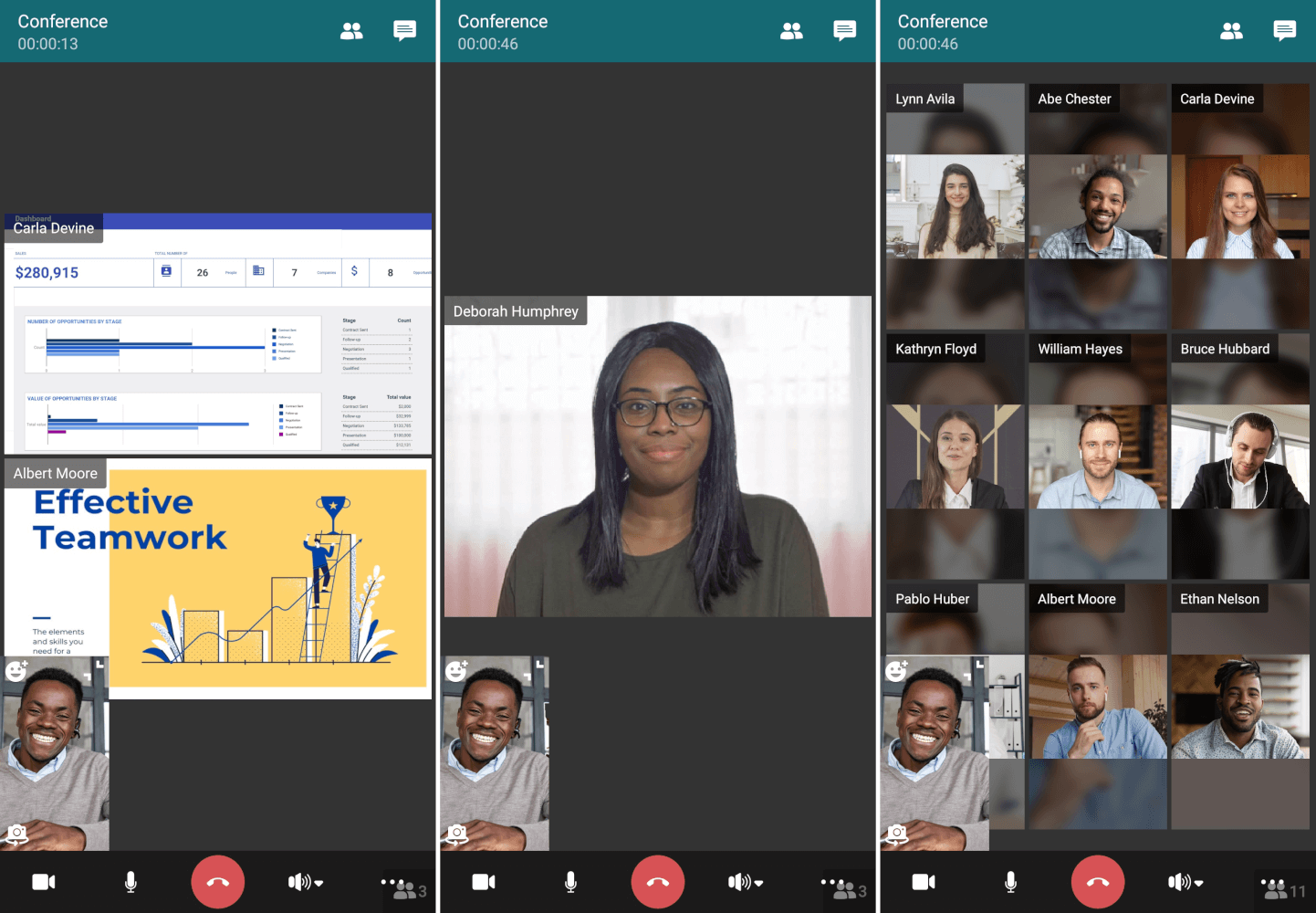
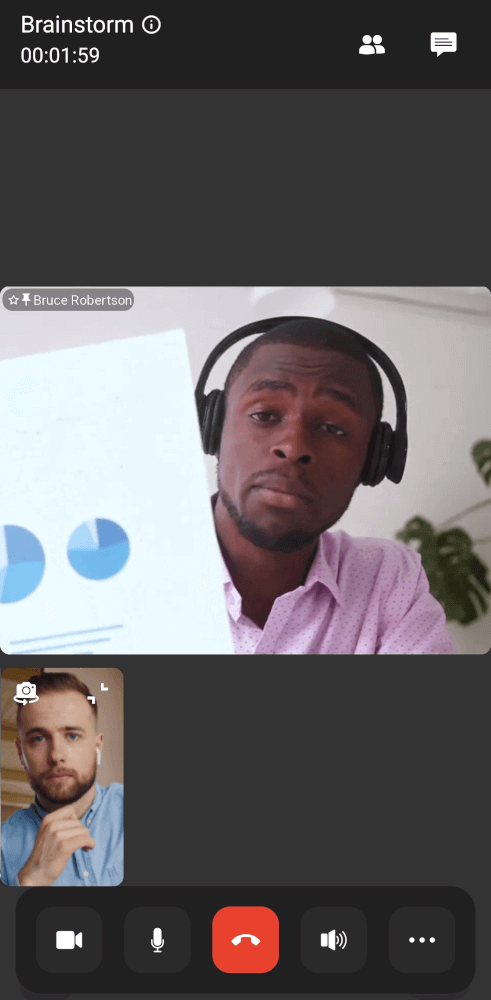
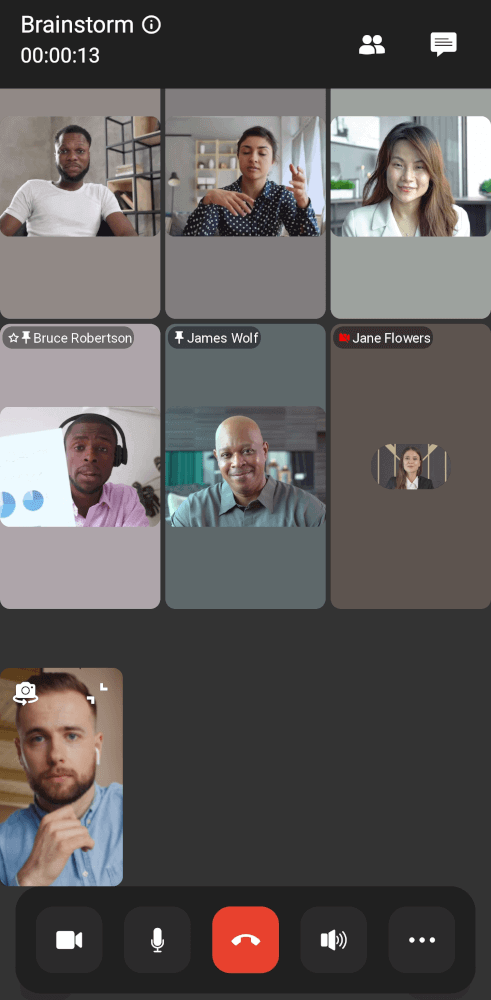
You can switch between windows by swiping left and right. Since there can be up to 49 speakers in a conference, there can be up to 6 screens: 5 screens with 9 participants each and the last one with 4 participants.