Surveys
Surveys
How to create a poll
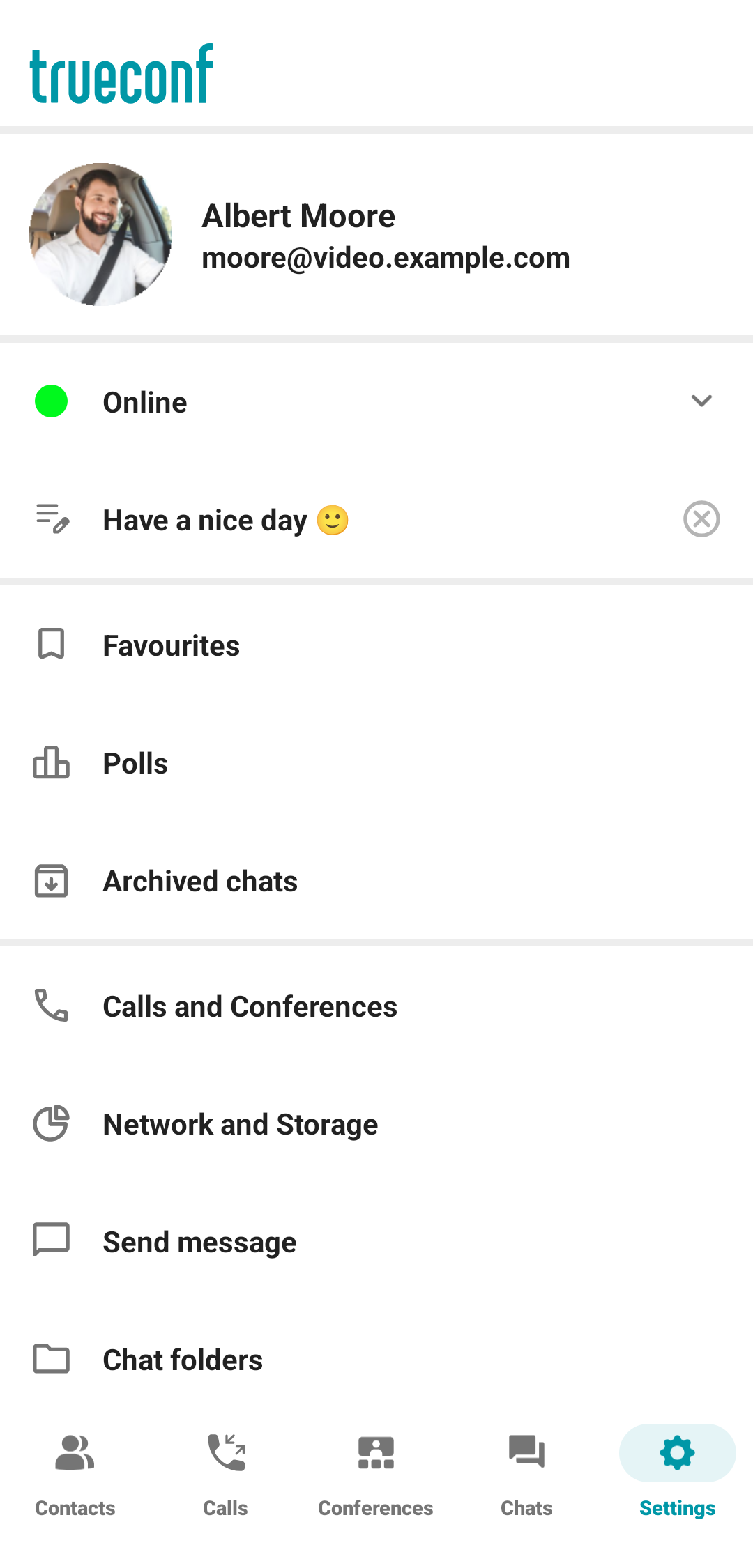
Creating, editing, and configuring polls are done on the corresponding page. To do this, go to the Settings tab, then click on Polls.
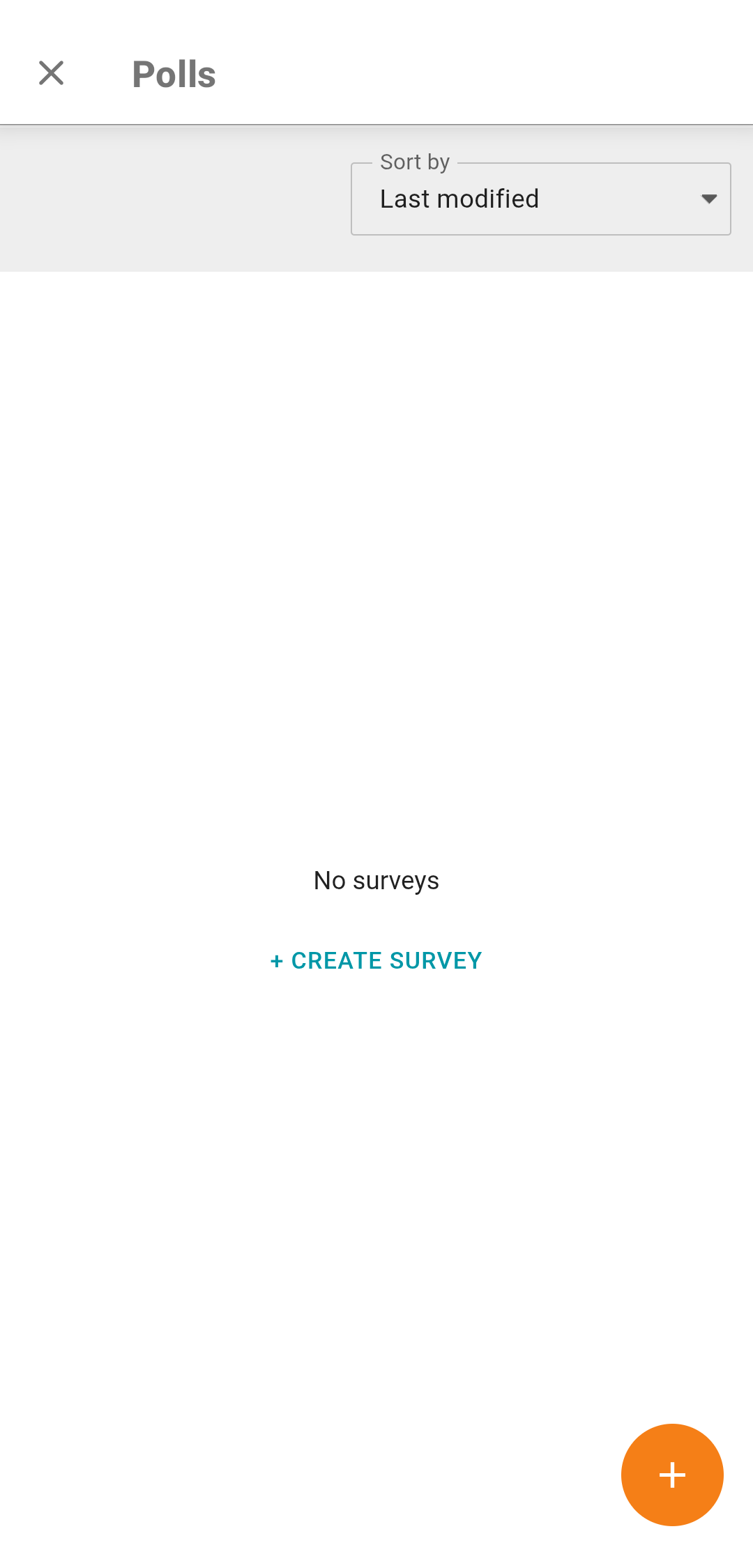
On the opened page Polls, click on Create survey or  .
.
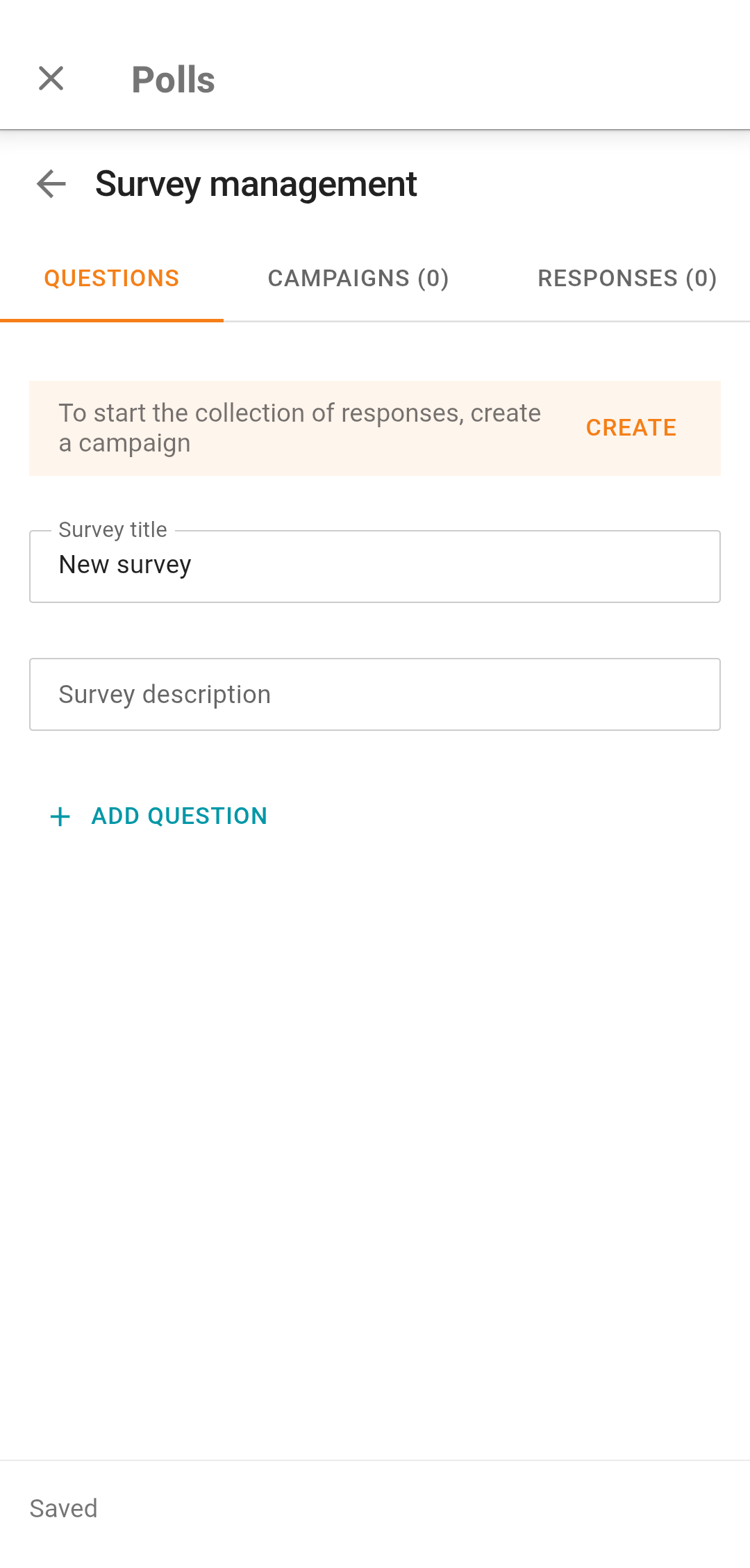
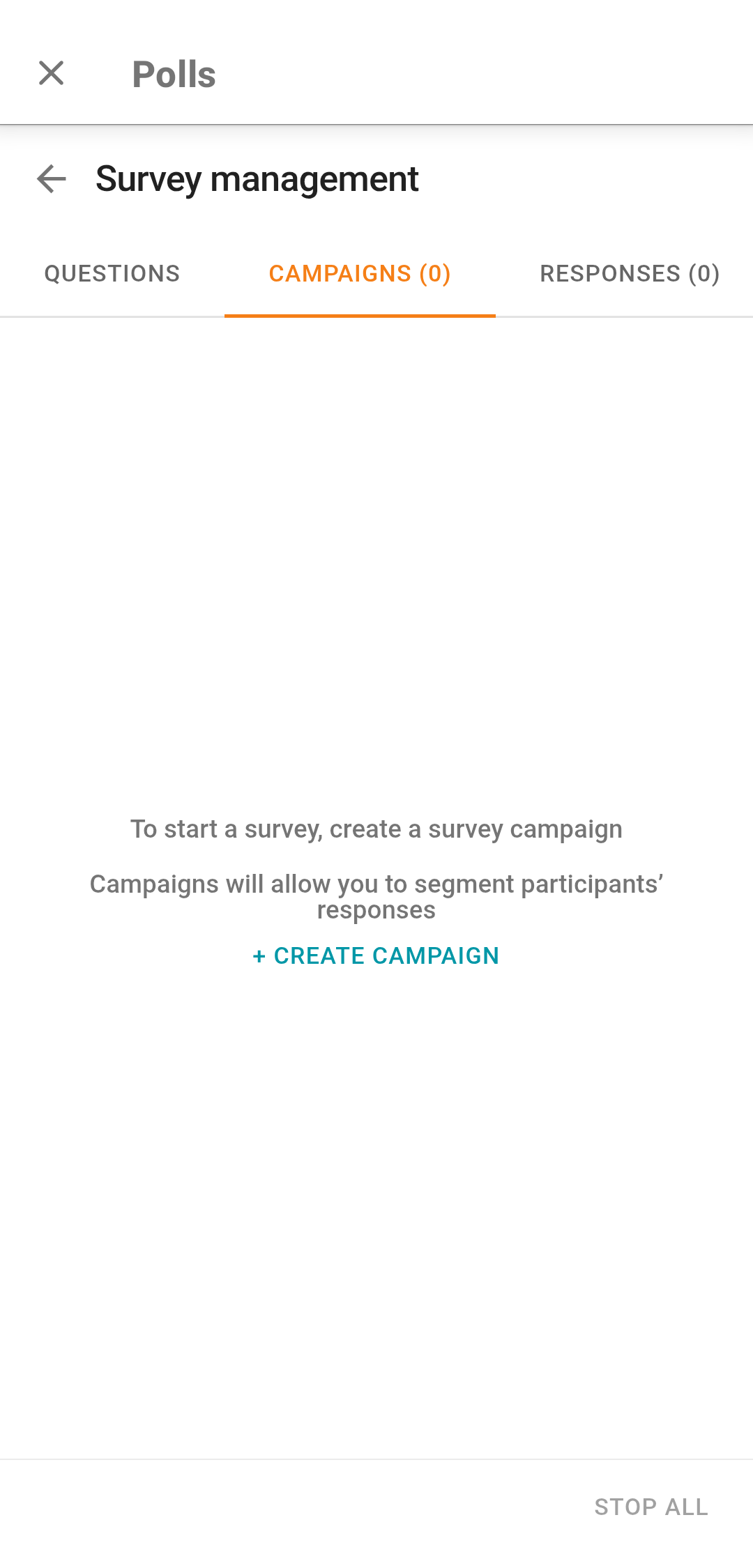
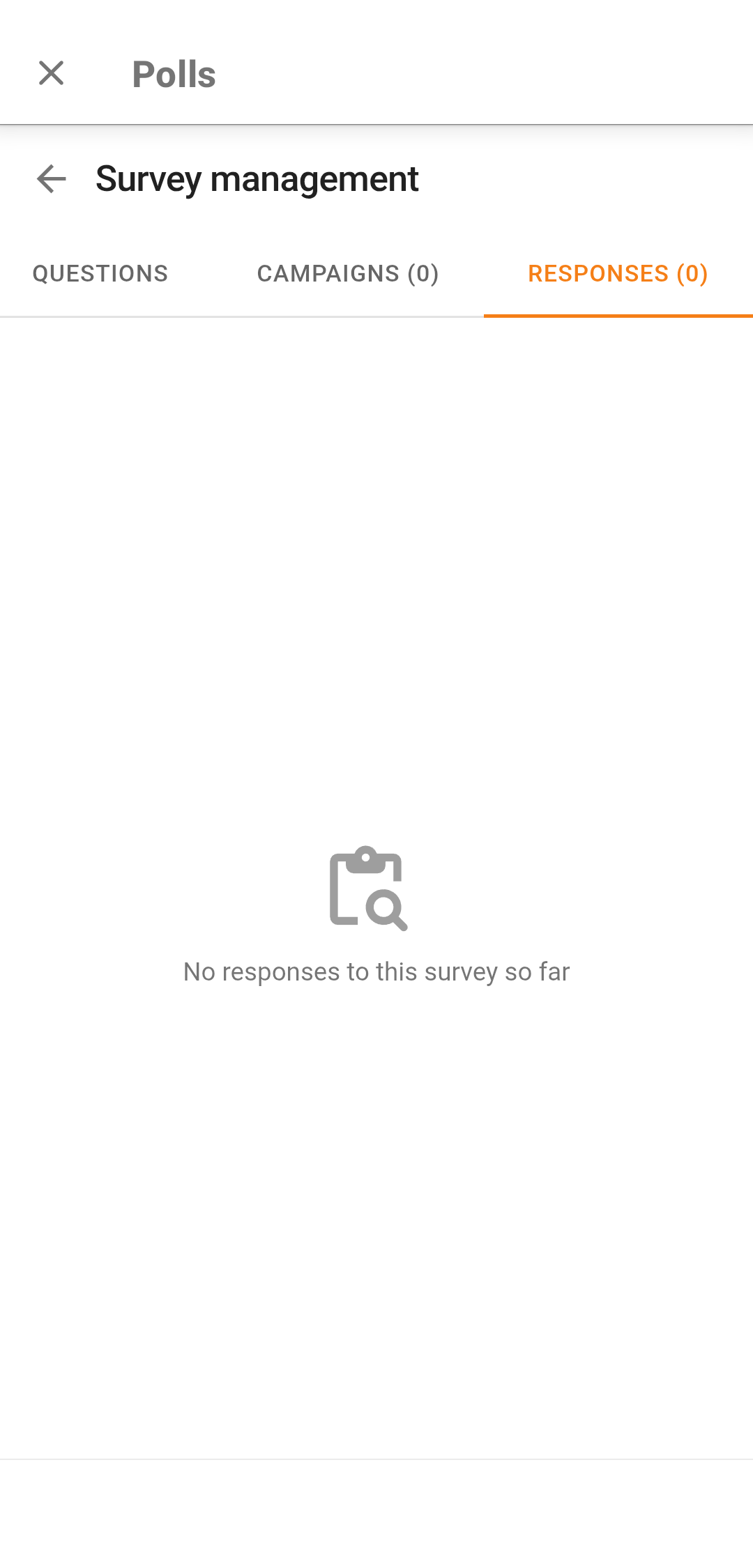
On the newly opened page Survey management, you will have access to three tabs: Questions, Campaigns, and Responses.
How to add questions
On the Questions tab, add the title, description of the survey, and the list of questions (there can be more than one). For each question, specify its type, add answer options.
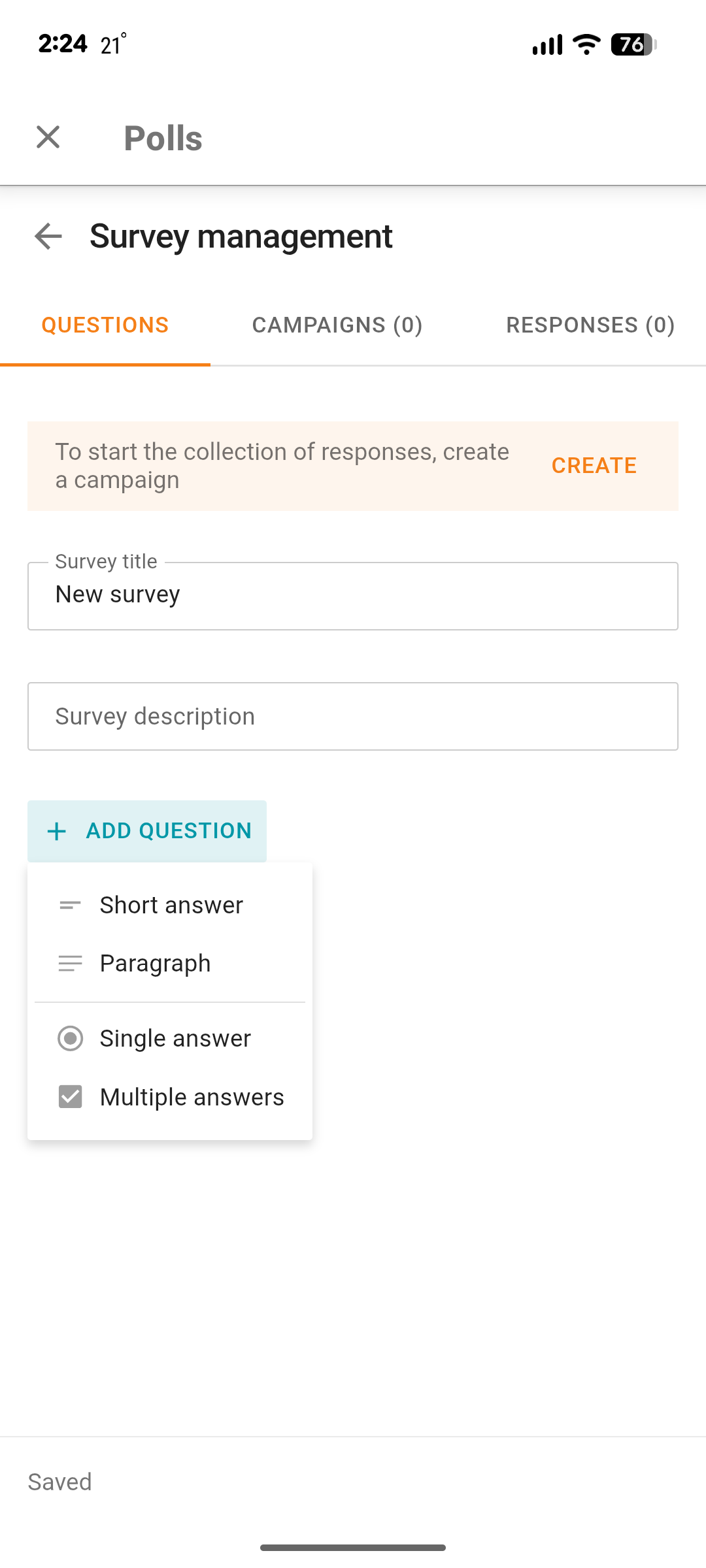
Click the Add question button to create questions. There are 4 types available:
- Short answer — short answer (up to 255 characters).
- Paragraph — the response can be a free-form answer in the form of a long text (up to 4,096 characters).
- Single answer — the response may include a selection of one of the available options.
- Multiple answers — the response may include several of the available options.
To hold a survey, you will need to create at least one campaign as shown here. You can create a campaign either before or after adding questions.
When you select the type of the question, it will be added to the list, and you will be able to:
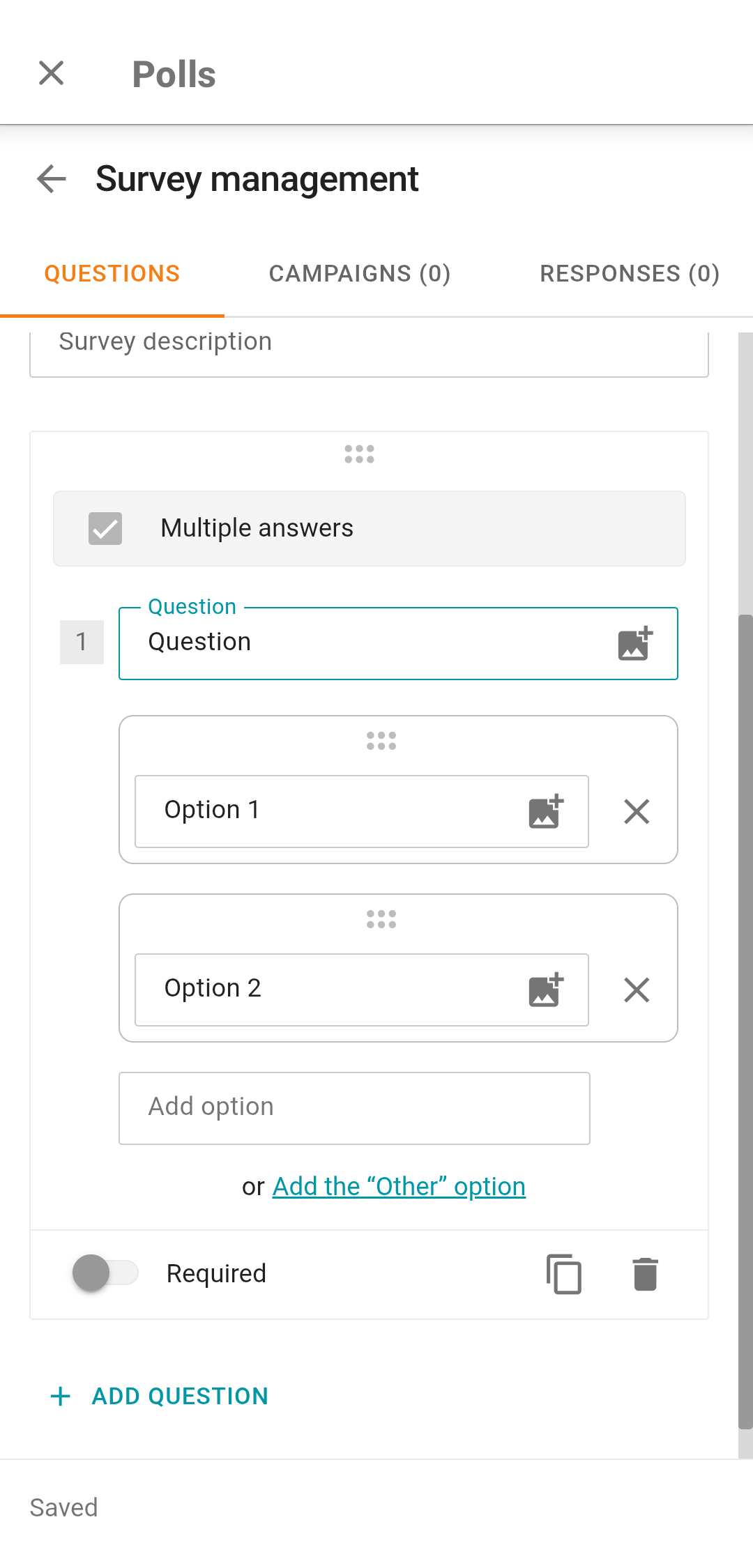
Change the order of questions by holding
 .
.Editing the question text in field Question.
Adding response options by clicking the Add option button.
Edit response options.
Deleting response options by clicking on
 .
.Reorder the response options vertically by holding
.Adding a custom response option by clicking on the text Add the 'Other' option (available for question types Single answer and Multiple answers).
Enable the option to skip the question using the toggle switch Required.
Duplicating the question by clicking on
 creates a complete copy.
Delete the question by clicking
 .
.
How to create and manage survey campaigns
In the Campaigns tab, you can create survey campaigns, which are used to collect and structure responses. Click the Create campaign button and configure its settings:
The circle of users allowed for this survey campaign in the dropdown list Who can take the survey:
- All users (public survey)Any users with a link to the survey can participate in a public poll.
- Users from my serverOnly server users can participate in the poll.
Checkbox Anonymous survey to hide or show the list of respondents.
Checkbox Allow participants to view their responses.
Checkbox Allow participants to retake the survey.
The Campaign ID field is optional. If this field is left blank when the campaign is created, the value will be generated automatically. This field represents the identifier included in the survey link. You can edit the Campaign ID to make survey links more readable and convenient. This feature may also come in handy when logs have to be sent.
The campaign ID has to be unique within your server.
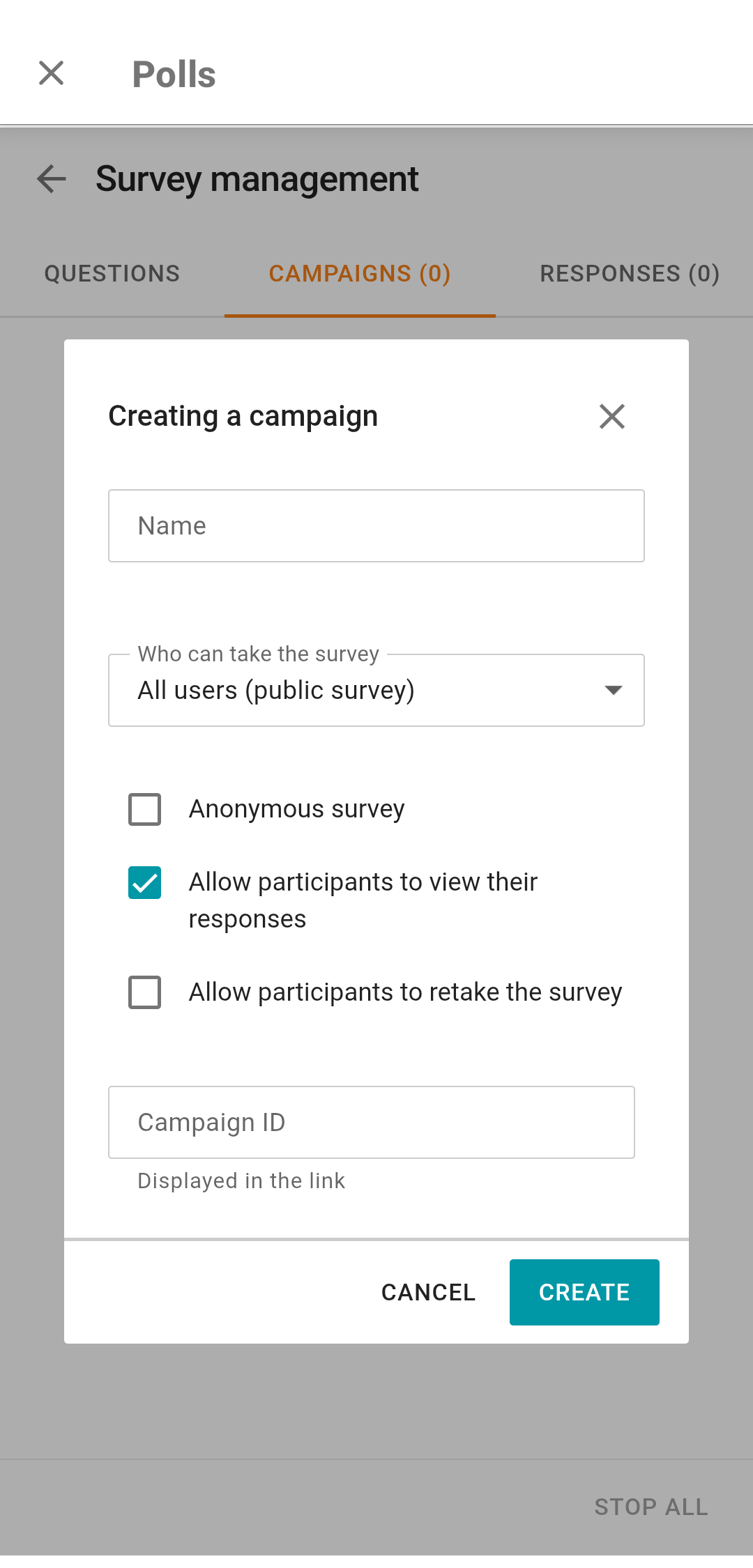
After configuring the campaign settings, click the Create button and it will appear in the general list for the respective survey.
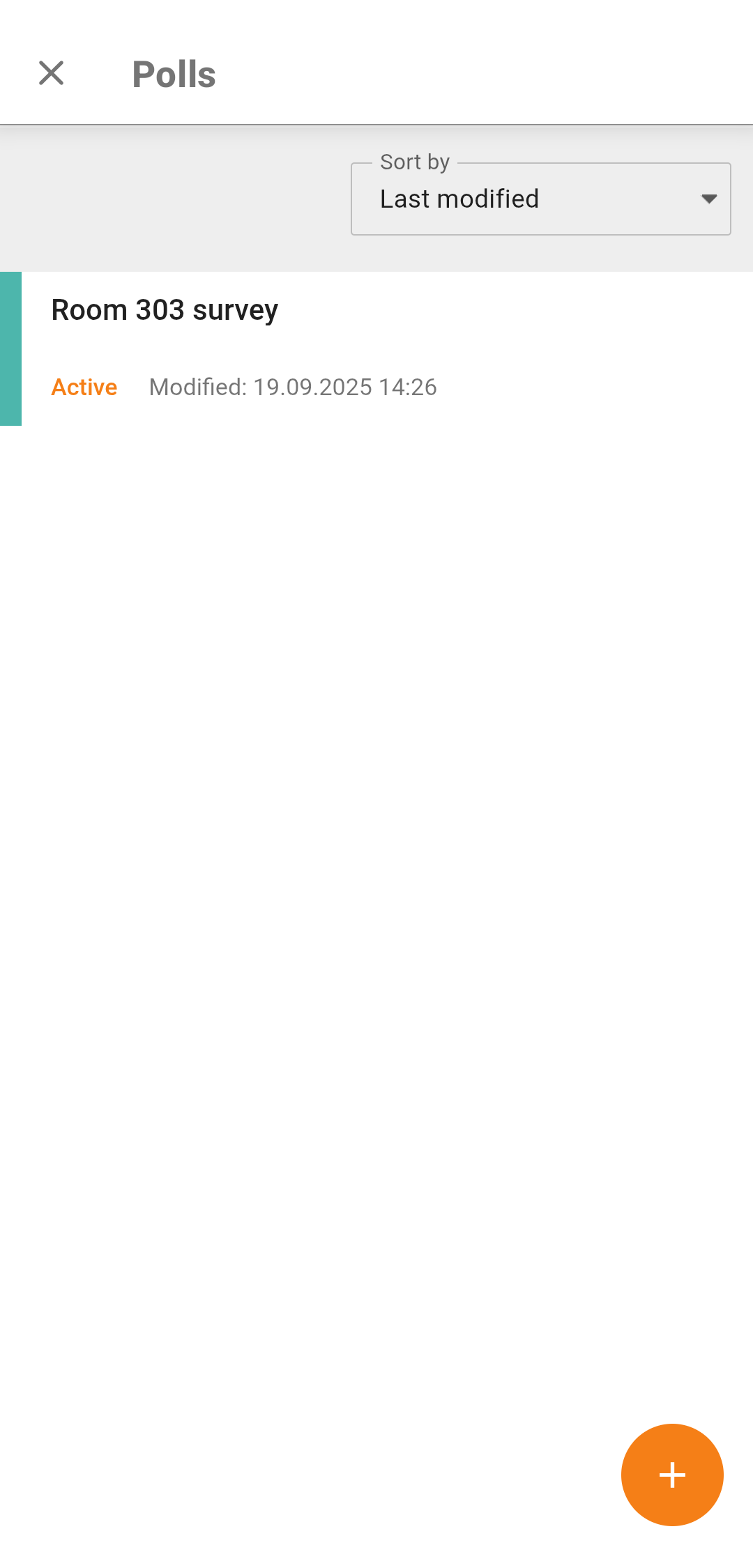
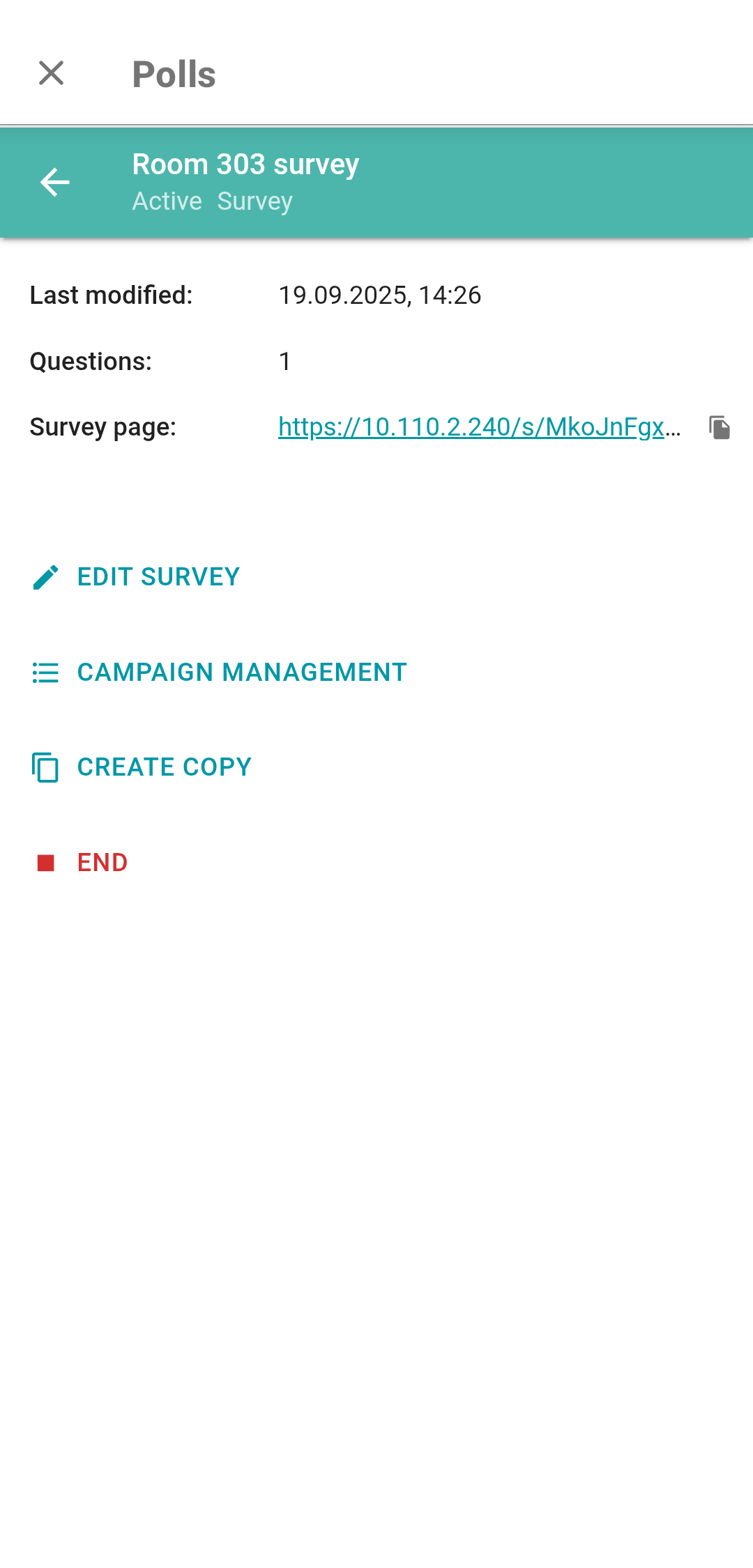
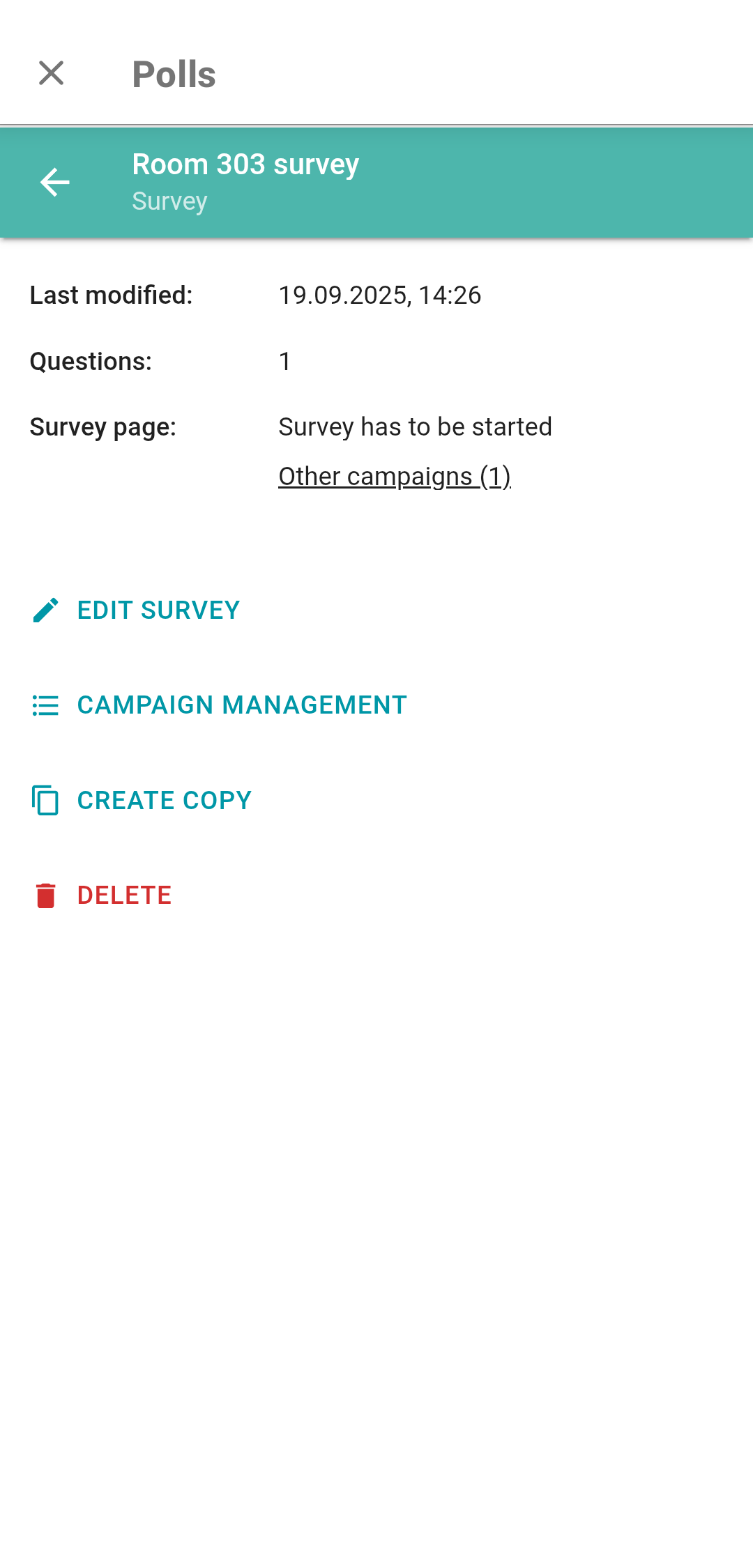
Tap on a survey to open its web page. Here, you can:
View survey details:
last modification date.
number of questions.
The link to the page where users can respond to the survey.
Click Edit survey to open the Questions tab;
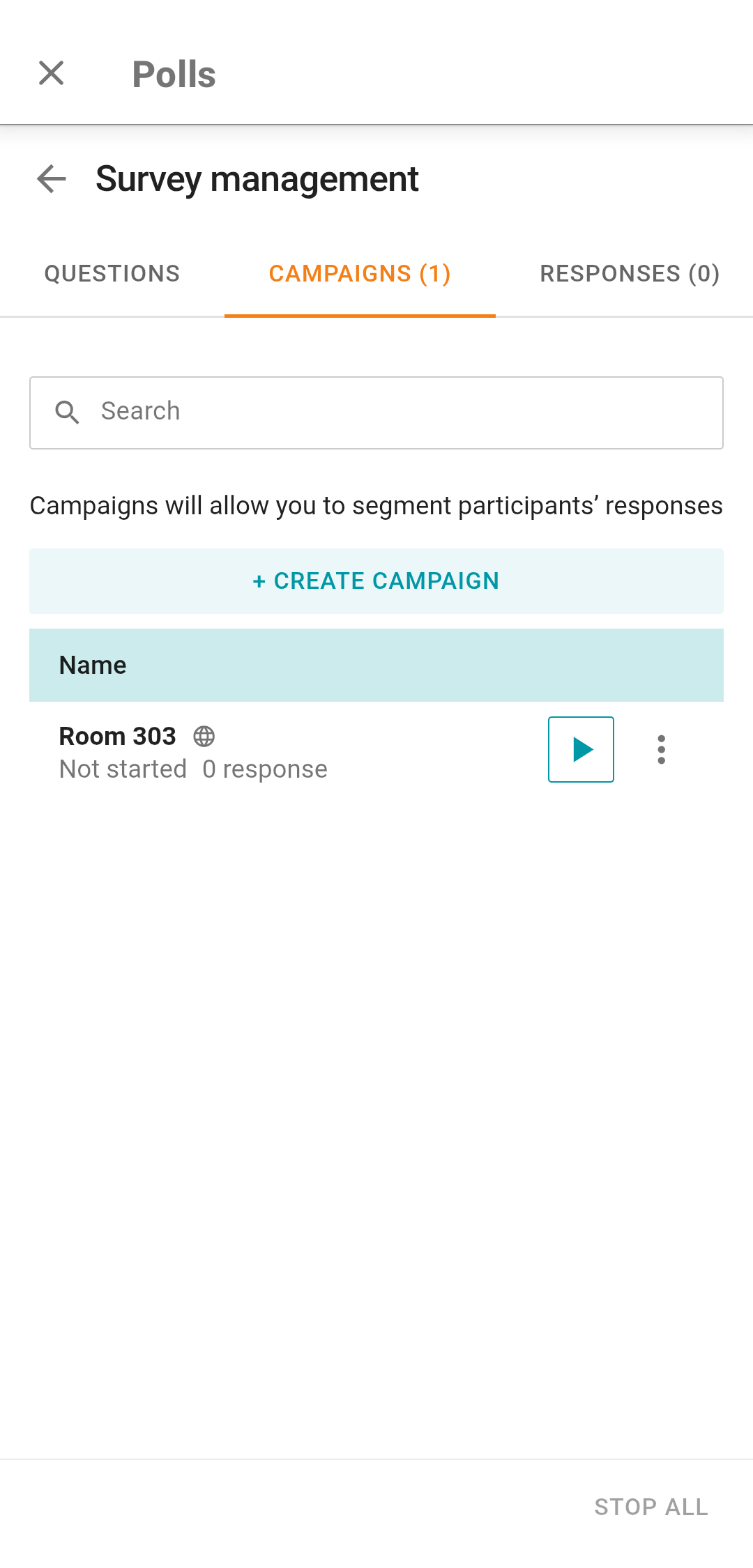
Click Campaign management to open the Campaigns tab;
Create a complete copy of the current survey campaign by clicking Create copy.
You can only end an active survey campaign by clicking on End.
If a campaign is inactive, you can delete it by clicking the appropriate button, or you can start it. To start, click on Other campaigns, then in the window that opens, click on  next to the desired campaign.
Viewing survey results
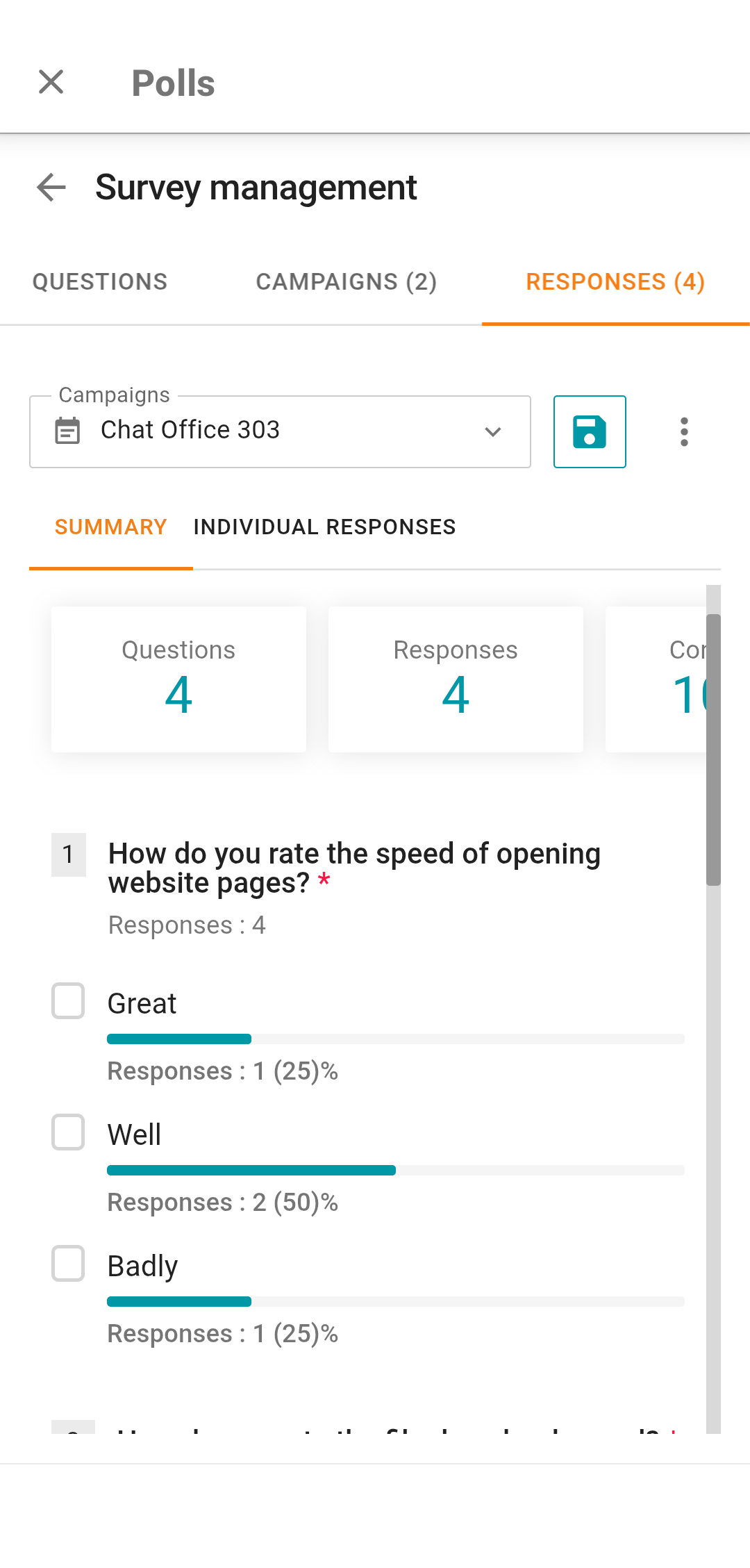
The poll creator can view the results by clicking View responses on the main poll page, which will open the Responses tab. In the Campaigns dropdown list, you can select the poll campaign for which you need to see the results. The Summary tab provides detailed information with the percentage of responses for each question:
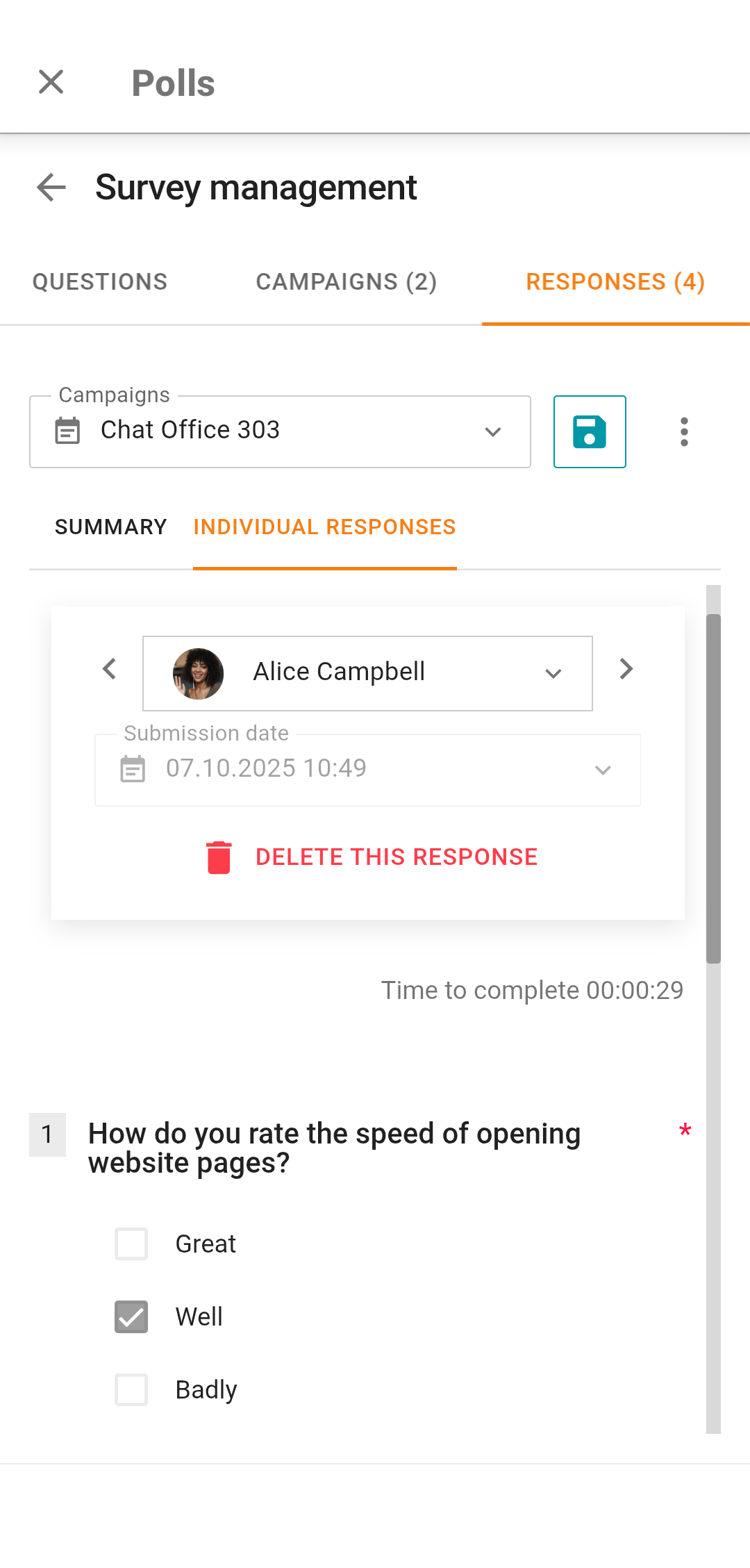
On the Individual responses tab, response statistics for each participant of the completed survey are available:
Publishing a survey in a group chat
To create a poll in a group chat, click on  , select the attachment type Polls. Then, press the Send a poll button.
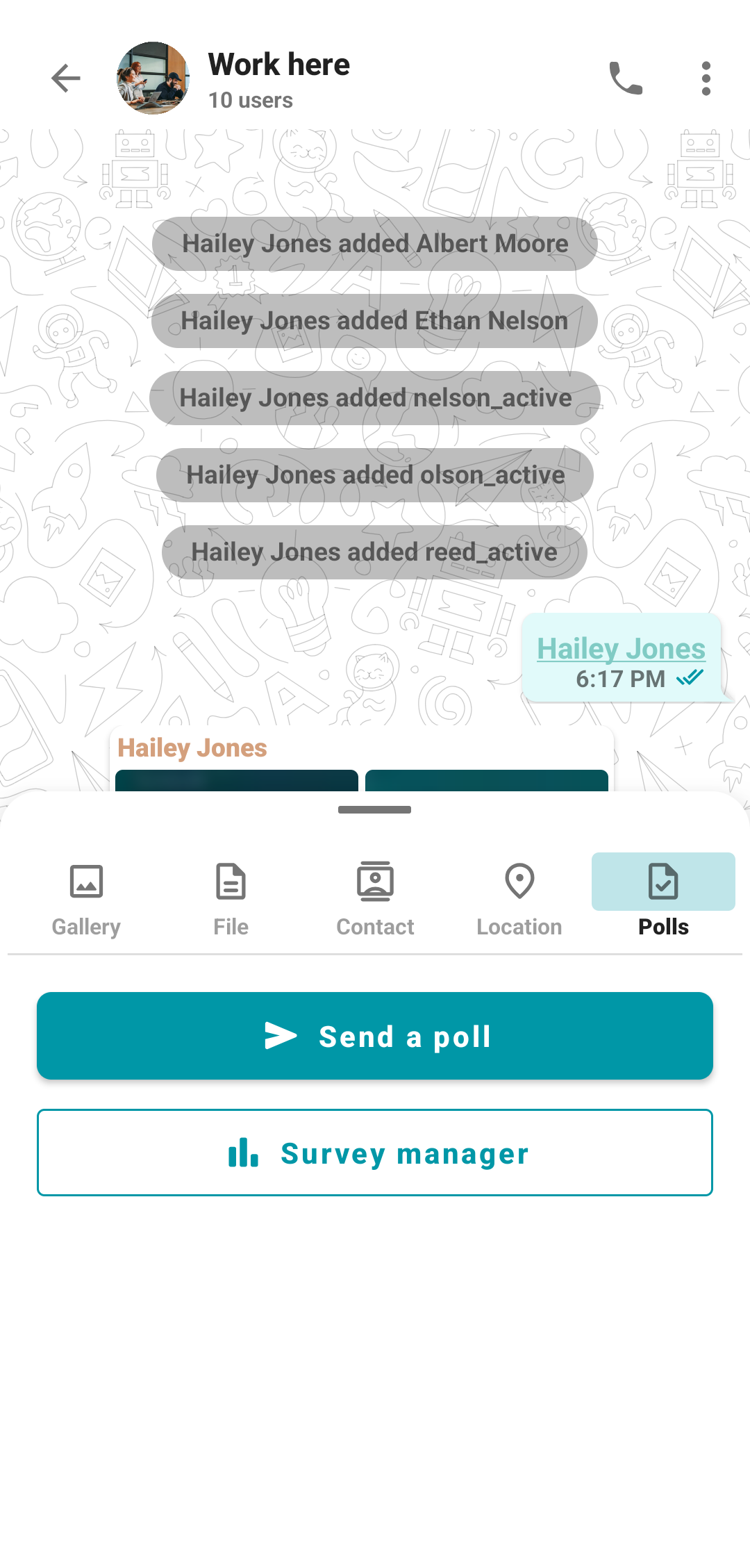
In the window that opens, select the appropriate poll. If the list is empty, you can create a poll as shown earlier. Once you select a poll, the poll campaign settings window will open, choose the necessary options and click the Create and send button.
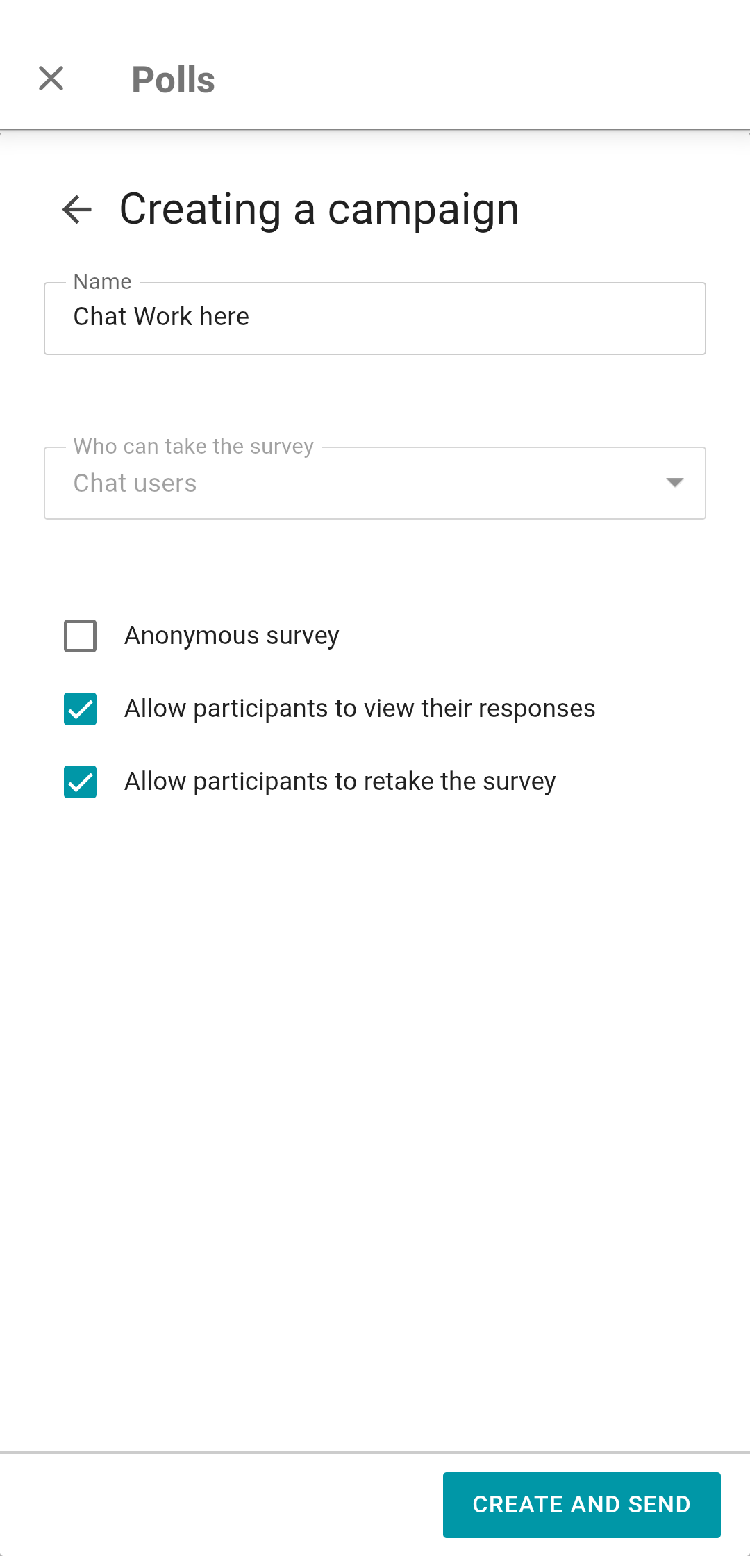
When creating a poll for a group chat, the parameter in field Who can take the survey is set to Chat users and cannot be changed.
Survey completion
To respond to a survey which was shared in a chat, just tap on Go to survey in the corresponding message to open the survey window. In other cases, to respond to the survey, a user has to follow the link which is specified in the settings of the survey campaign. If the campaign is not anonymous, you will need to sign in before responding to questions. To take part in a public survey, you only need to enter your name.
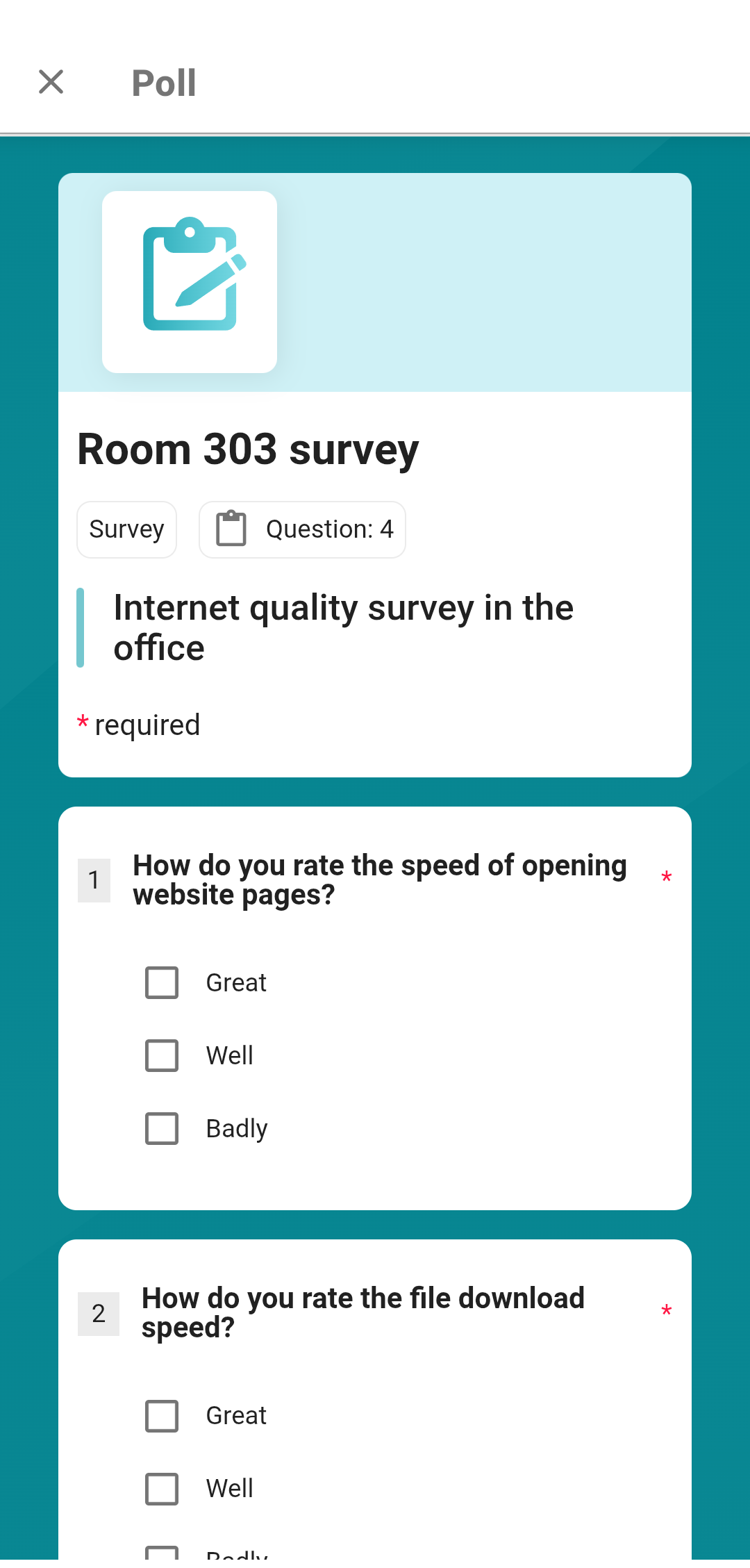
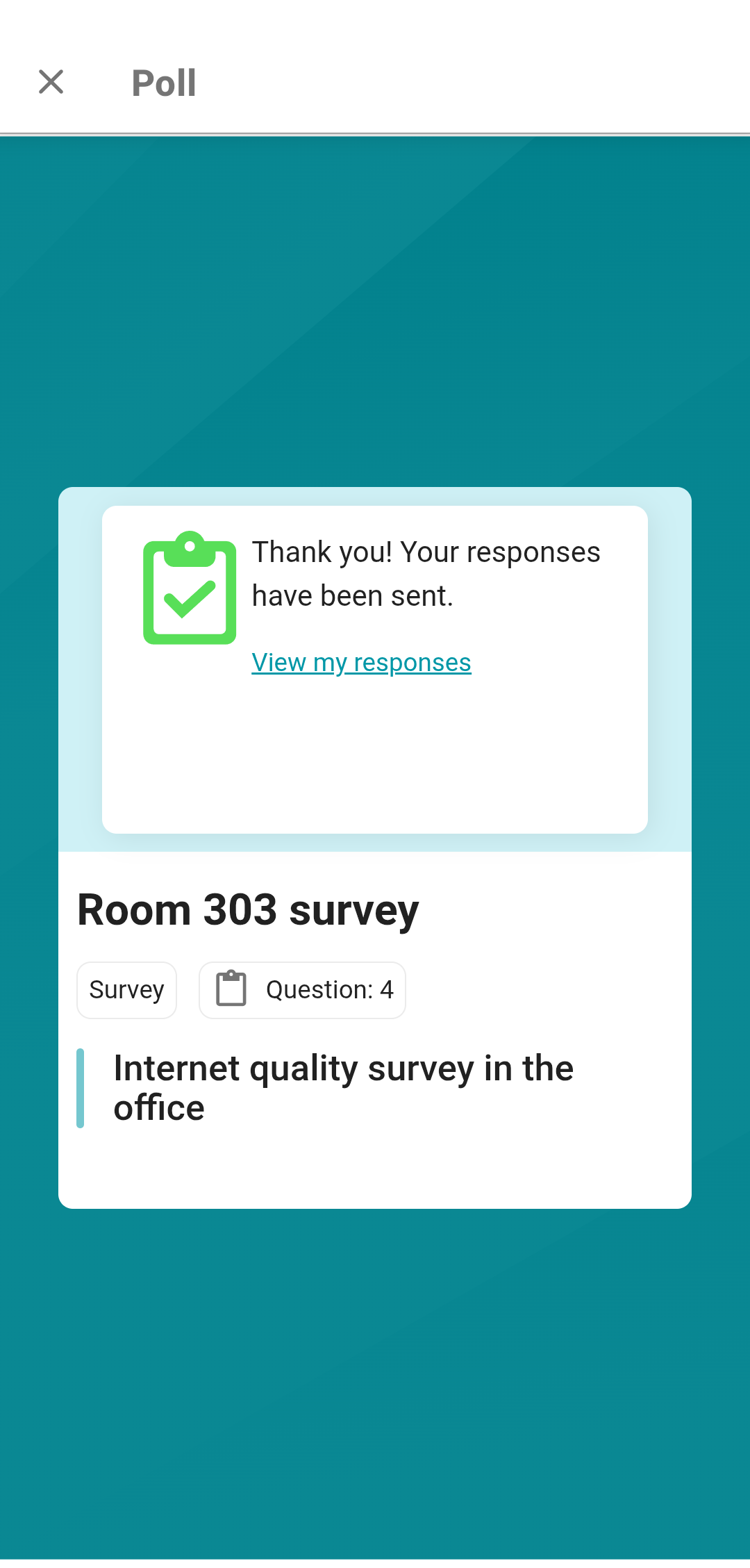
After answering all the questions, tap the Send button to save your results. Depending on the campaign settings, on the opened page, you may be allowed to retake the survey and review your answers.