
Calls
Calls
Incoming call menu
When receiving an incoming call or conference invitation, the user's name (or event name) will be displayed. The call type will also be specified: TrueConf audio call or TrueConf video call.
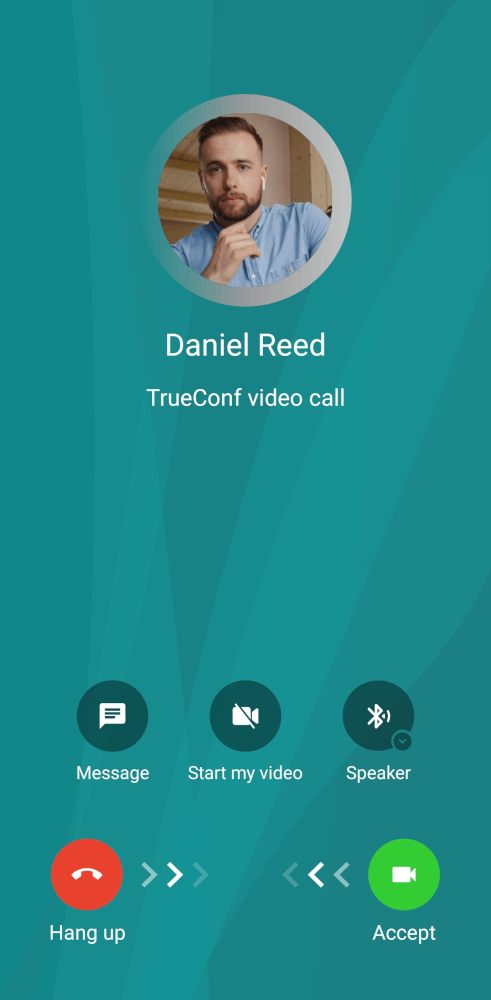
In addition to the buttons for accepting and declining a call, the following actions will be available to you:
 – send a message instead of answering the call. You can choose a quick response from the default options or write your own message. It will be sent to the caller, and the call will be automatically declined. This feature is available for incoming one-on-one audio or video calls and invitations to an ongoing conference from one of the moderators.
 - answer the call with the microphone enabled, or mute it beforehand
  ;
; – accept the call with the camera on, or turn it off in advance
  ;
; – answer the call using the earpiece or speakerphone
  . If a Bluetooth headset is connected to the smartphone, you will see the corresponding icon
  .
.
How to make a call
In section Calls, the call history is displayed. To call a user you have previously contacted, simply press the call button  . The call list is divided into All and Missed.
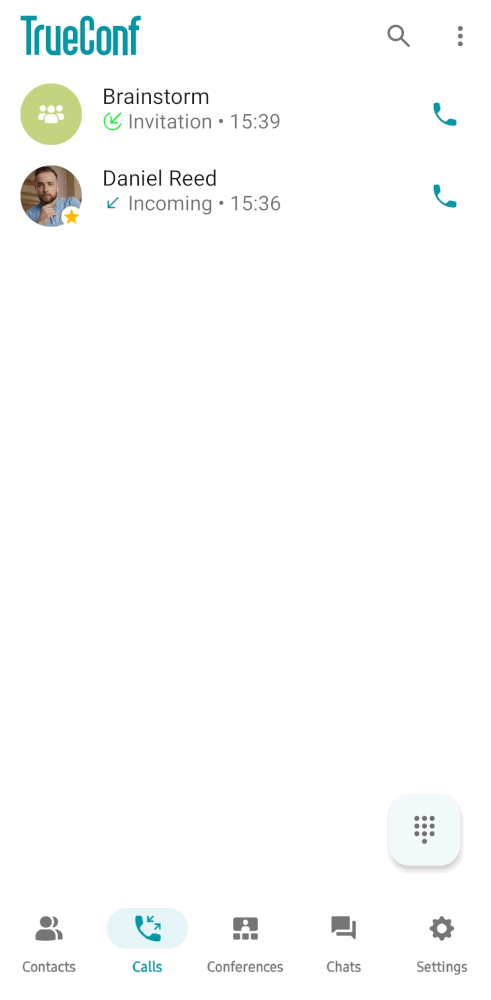
To call a contact not listed in the call history, you need to find them in the Contacts section (in the address book) or in the chat list.
Contacts
After signing in, you can go to the address book by tapping the Contacts button.
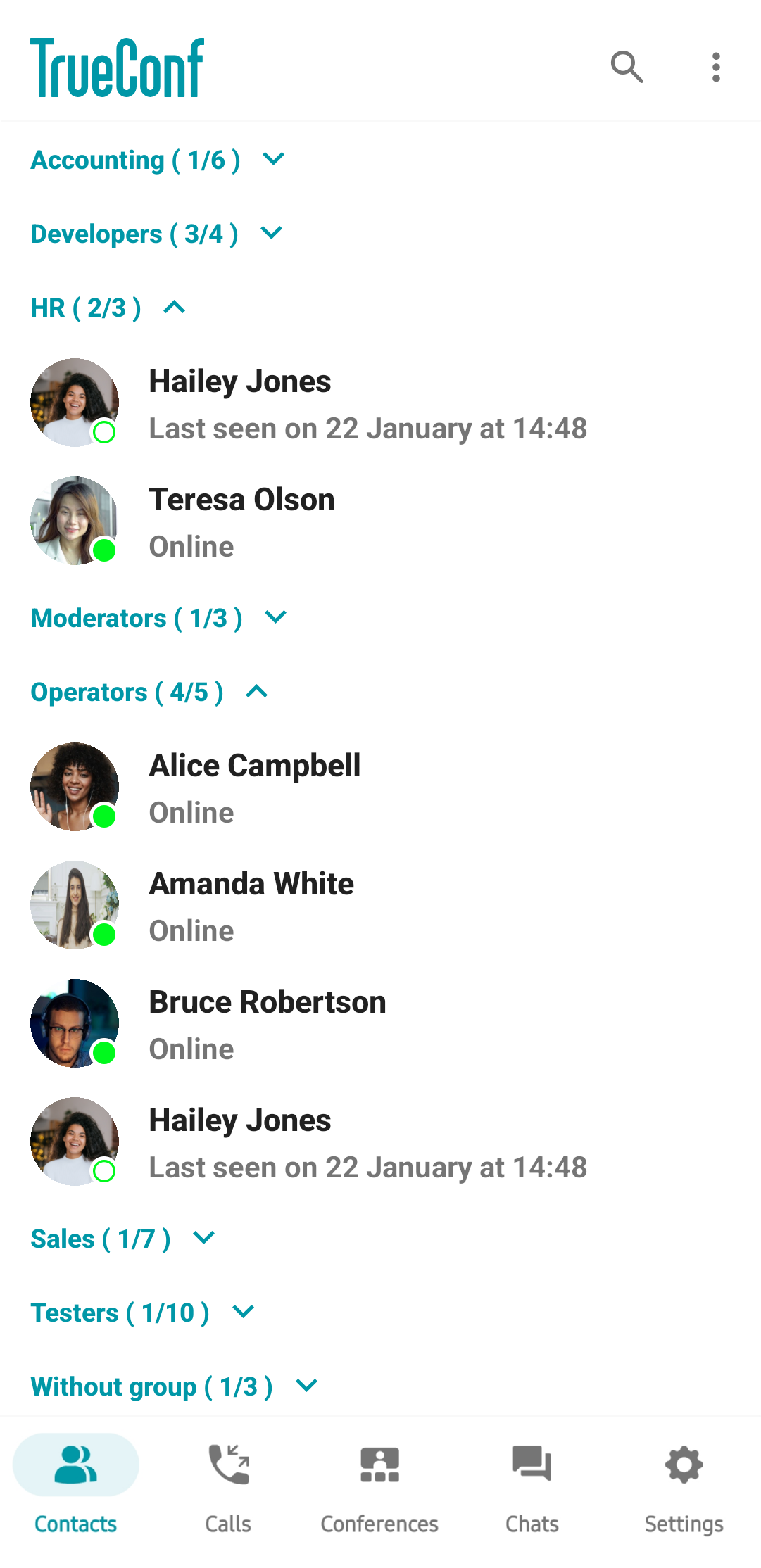
By tapping on  you can:
Sort your address book contacts by name or status (users who are online will be at the top of the list). Additionally, you can disable group sorting to display individual contacts instead of groups.
Create a user group. You can add users to such a group on your own.
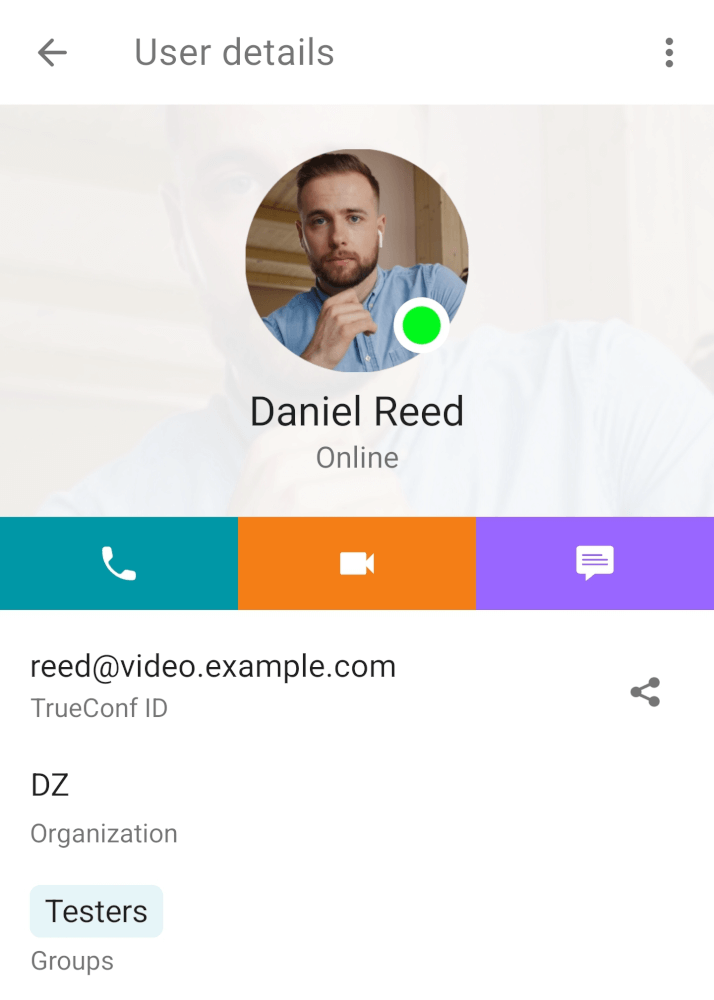
On the contact page, you can start an audio or video call by tapping the corresponding buttons.
Global address book
With the global address book, you can communicate with users from other servers (this feature is configured by the server administrator). To contact a user on another server, go to the Contacts tab and click the  button.
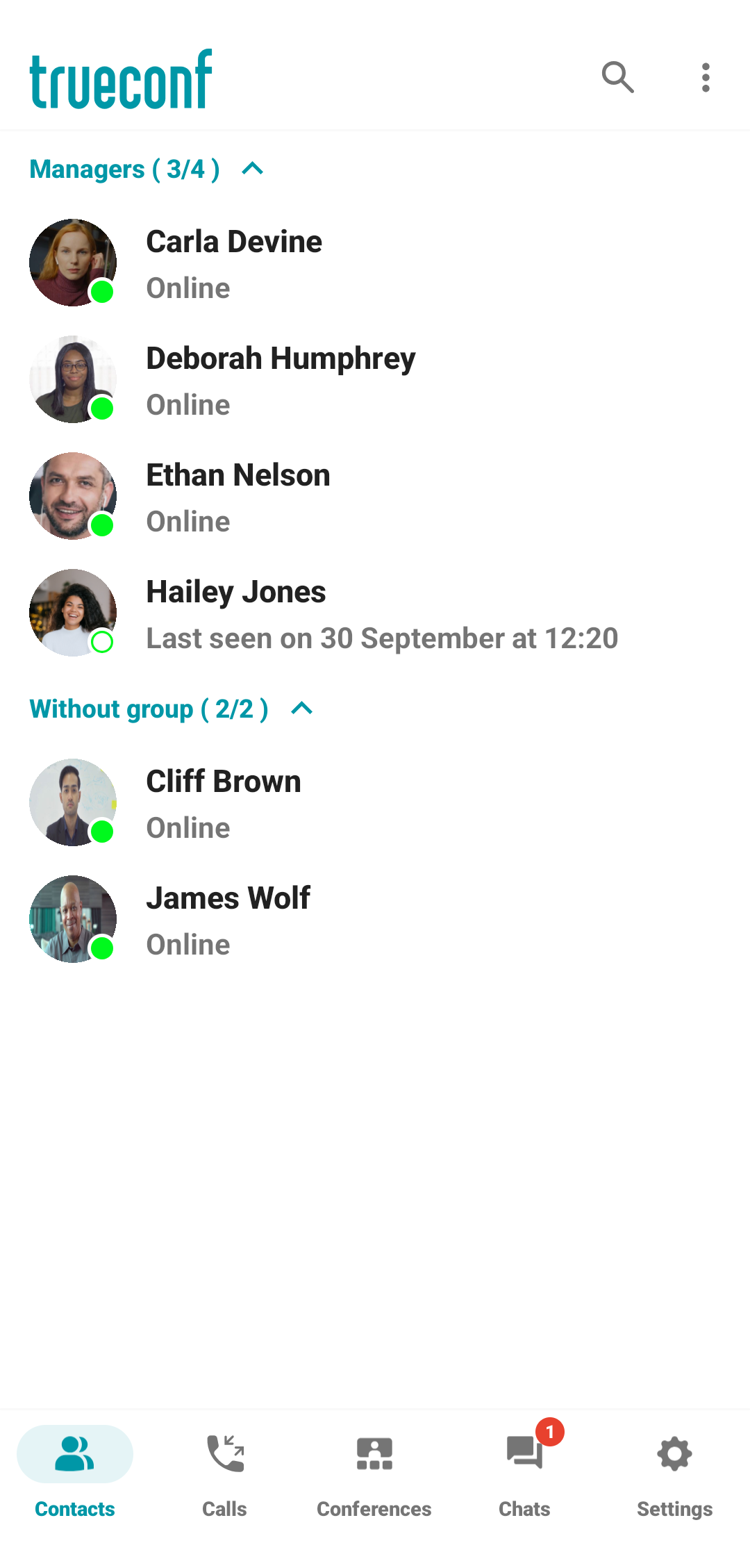
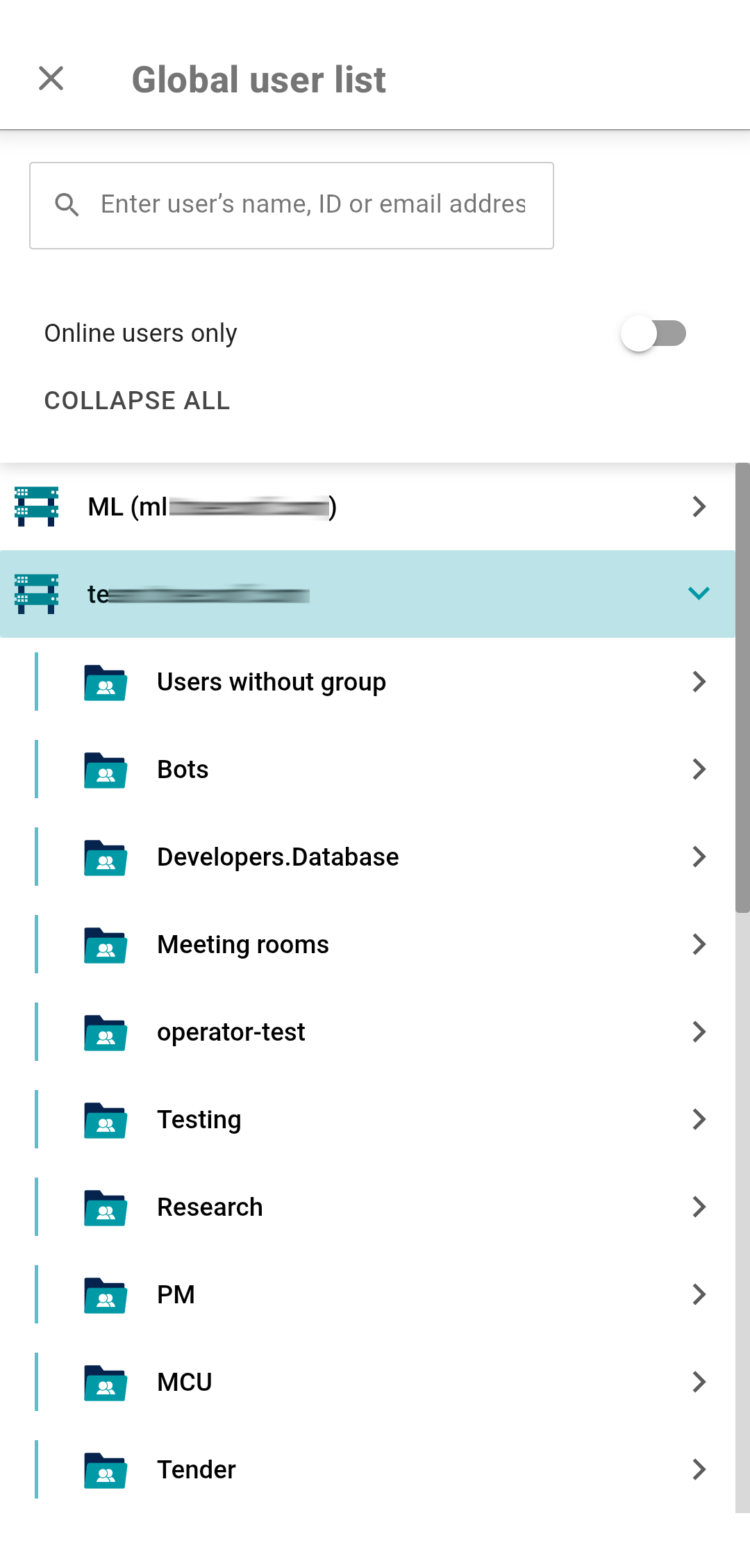
In the pop-up window, you will see the list of servers with users you can contact. Expand the list and select the user you want to talk to. For the sake of convenience, you can use the toggle Online users only which makes it easier to find a contact.
In the selected contact card, just like with users on your server, you can make an audio or video call and send a message.
Call to a phone number
To make phone calls, integration with the corporate PBX gateway must be configured.
From the dialer
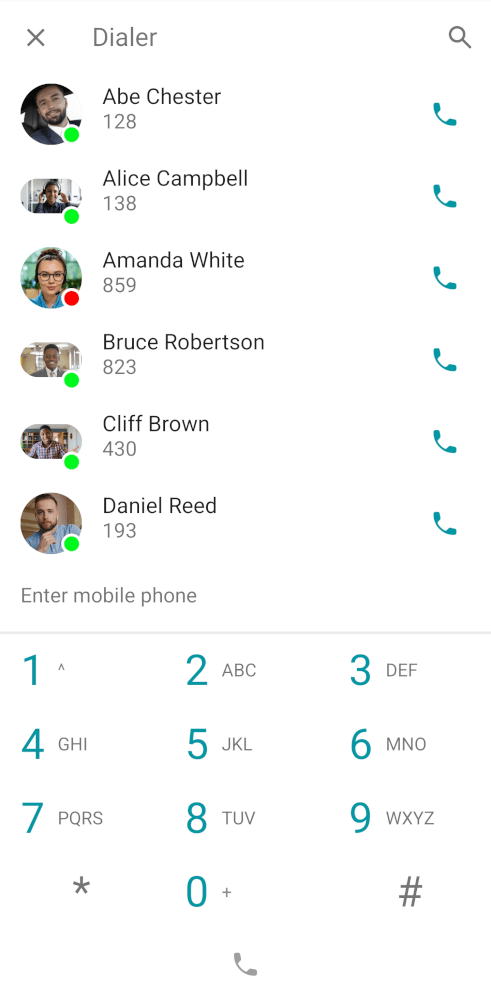
TrueConf applications also allow users to make calls to phone numbers from the dialer where you can find the list of users whose phone numbers are registered on the server.The dialer is accessible by clicking the  button in the Calls section.
From the search field
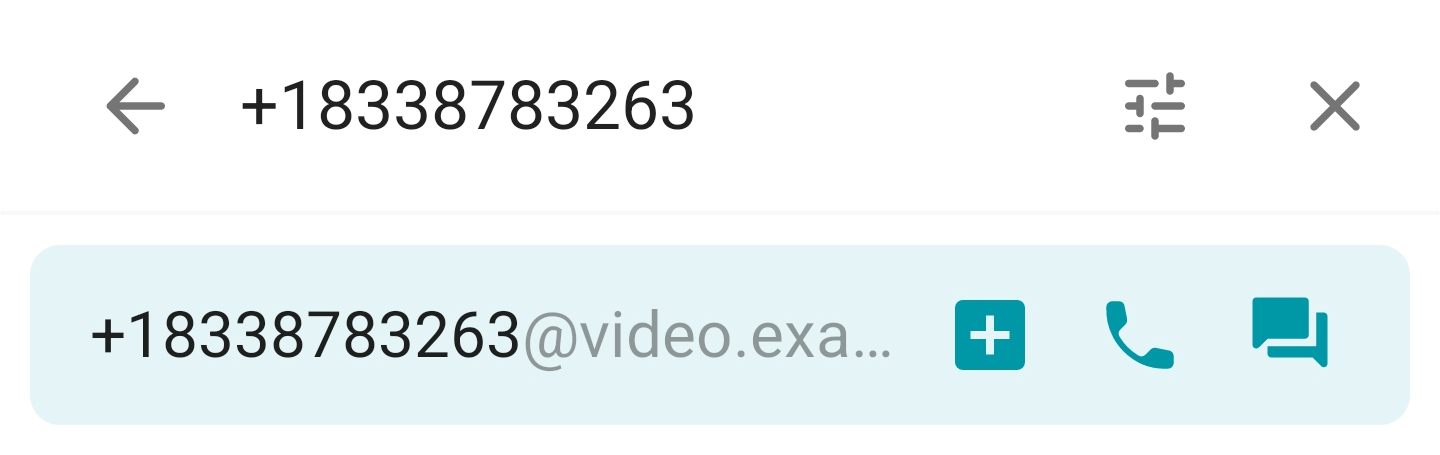
Enter the phone number in the search bar (available in sections Contacts and Calls) in the international format and press the call button in the menu that appears below. For example, to call the sales department of TrueConf, dial +1 (833) 878-32-63.
You can also call extension numbers connected to your PBX.
For example, if a user has the internal number 910, to call them, press the  button in the search bar, select Phone number, and enter the phone number.
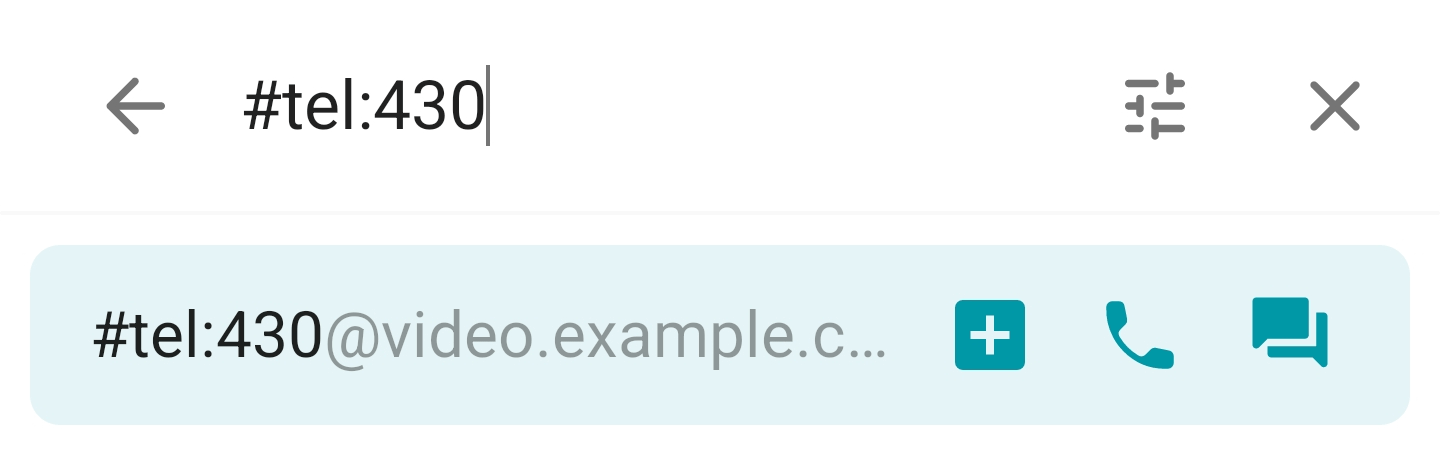
You can also go to the main menu, select Search, and enter the string in the format #tel:910.
Call to SIP/H.323 and RTSP devices
To call third-party devices or a server, use the dial string in the format that matches the recipient type. To do this, in the search bar (available in sections Contacts and Calls), click the button, select the appropriate direction, enter the information, and press the call button.
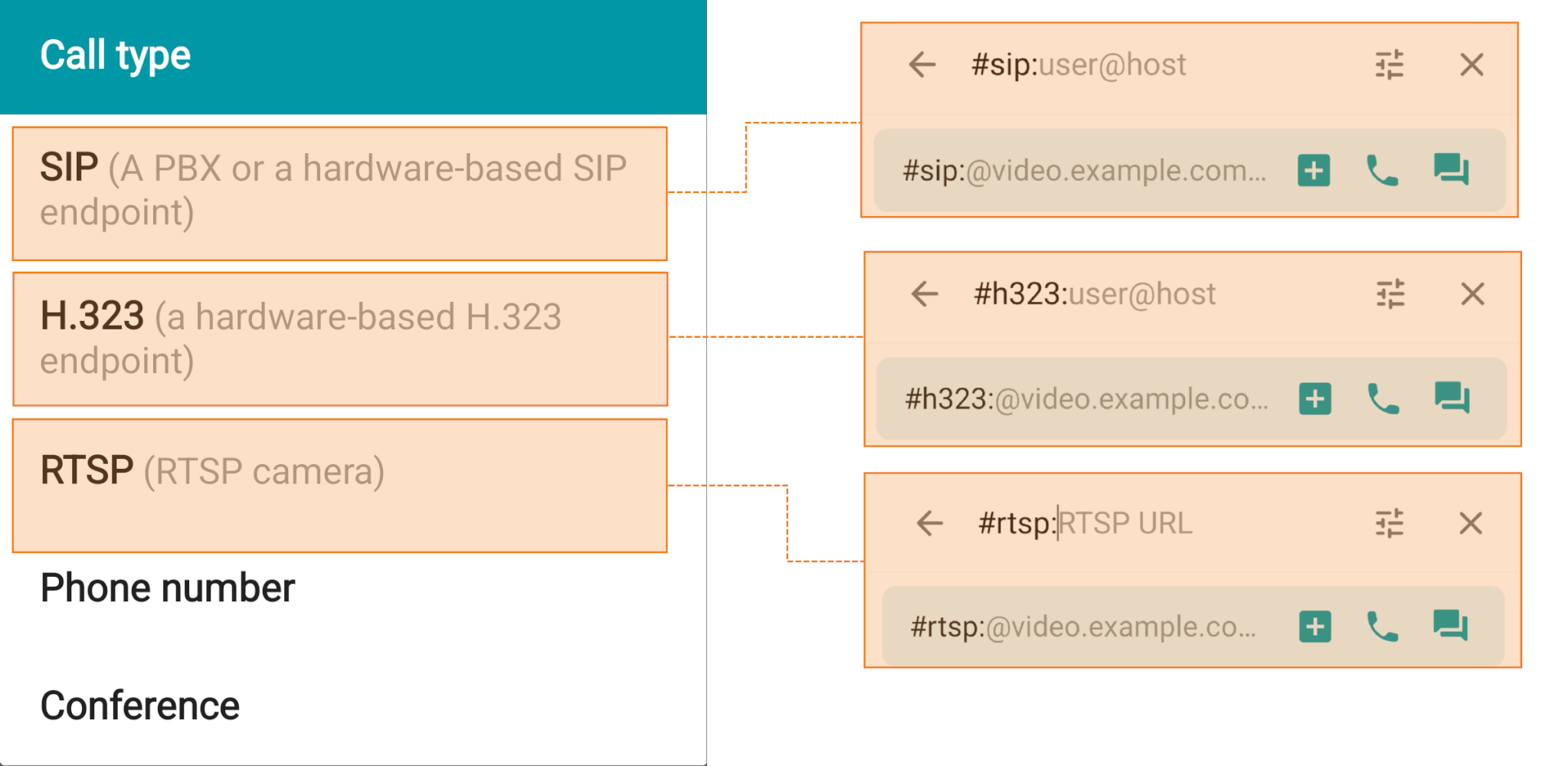
Supported devices and call string formats:
- SIP devices (including those using DTMF tones);
- H.323 devices;
- RTSP devices.