
Main window and conference widget
Main window and conference widget
The TrueConf for Android client application supports both portrait and landscape orientations. For instance, landscape orientation is more convenient when viewing streamed content.
Conference window
The window of an ongoing conference window will include the following elements:
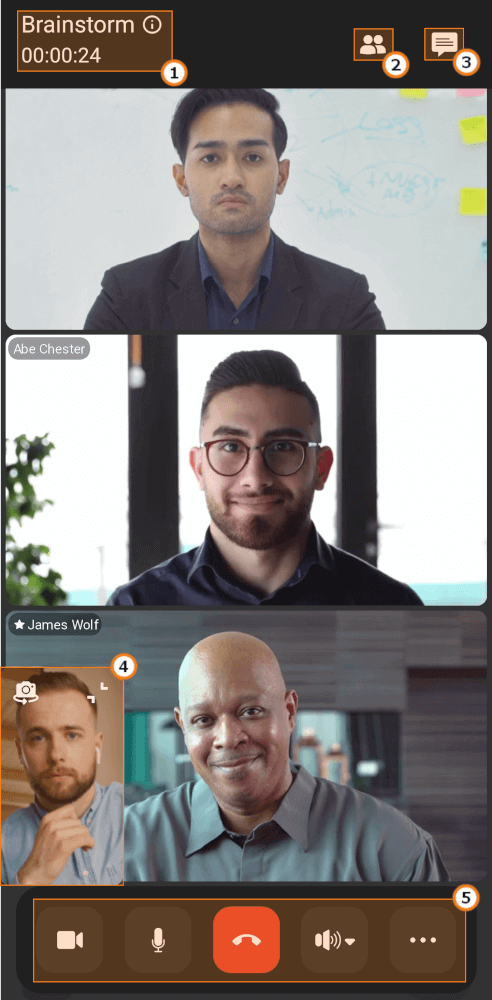
Conference name and attendance time. Click on
 to open the About conference window.
You can hide the control buttons by tapping on any area in the conference window.
Conference window
You can find more information about the conference by clicking the button.
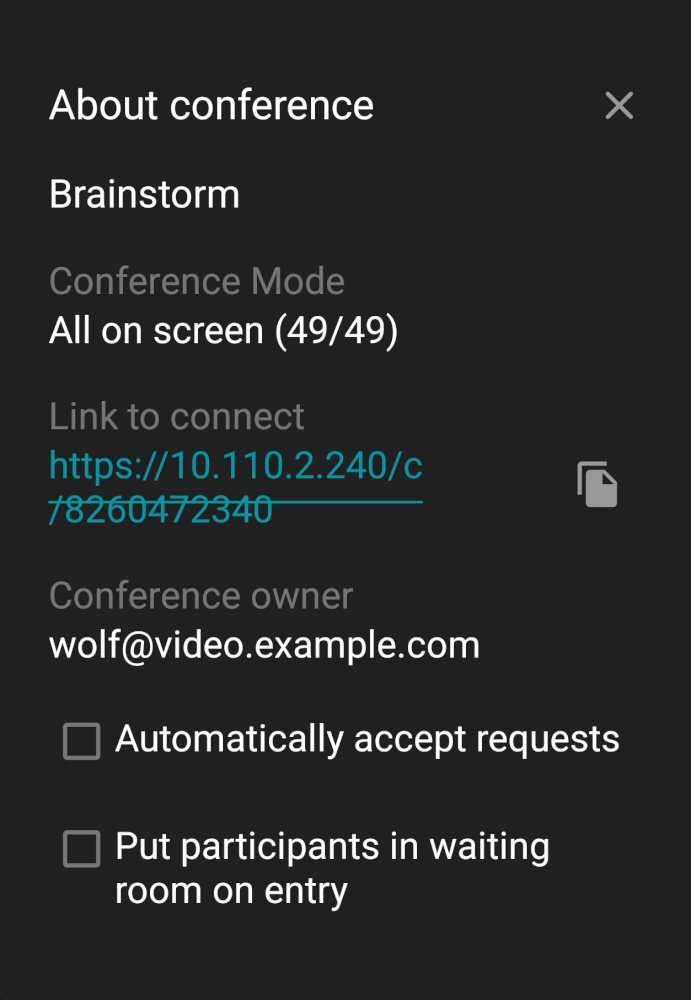
Here you can find the following information:
Conference name
Conference mode
Start time and the expected end time (the maximum duration of a virtual room without interruption can be up to 240 hours)
Conference address, click
 to copy it;
Conference owner's email.
Additionally, if you are the owner, moderator, or operator, the following settings will be available:
Automatically accept conference join requests
Send participants to the waiting room when they join the meeting.
Self-view window
The self-view window will include the following buttons and icons:
 — minimize the self-view window;
 — switch camera;
 — turn on the flashlight (only when using the rear camera);
 — you are not on the podium;
 — your microphone is off.
The self-view window can be dragged to any part of the screen.
List of participants
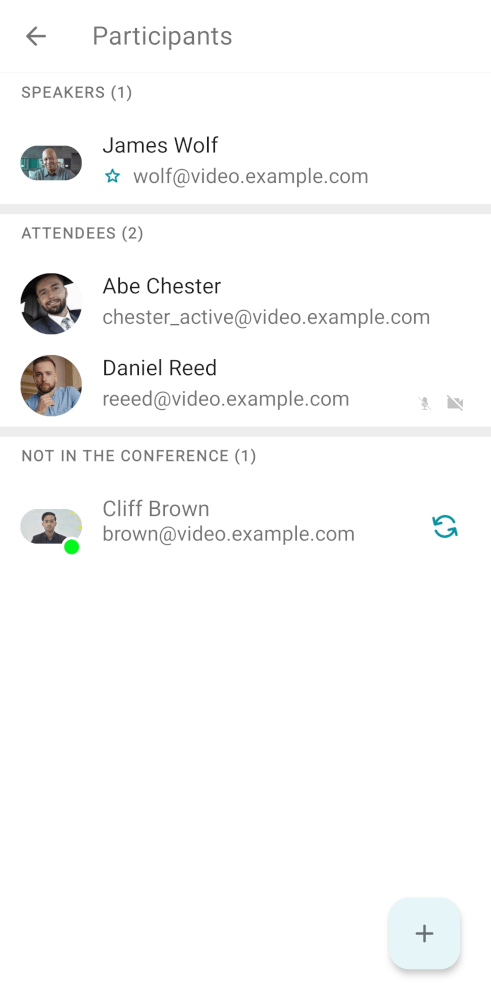
To access the participant list, click the  button on the top control panel. Here you can:
add participants using the
 button;
Accept conference join requests
Re-invite participants to the conference
Accept podium invtations (if you have been invited by one of the moderators)
Approve podium requests (if you are the moderator).
Participant management
Tap and hold on a participant’s name to open the context menu. The following options will be available:
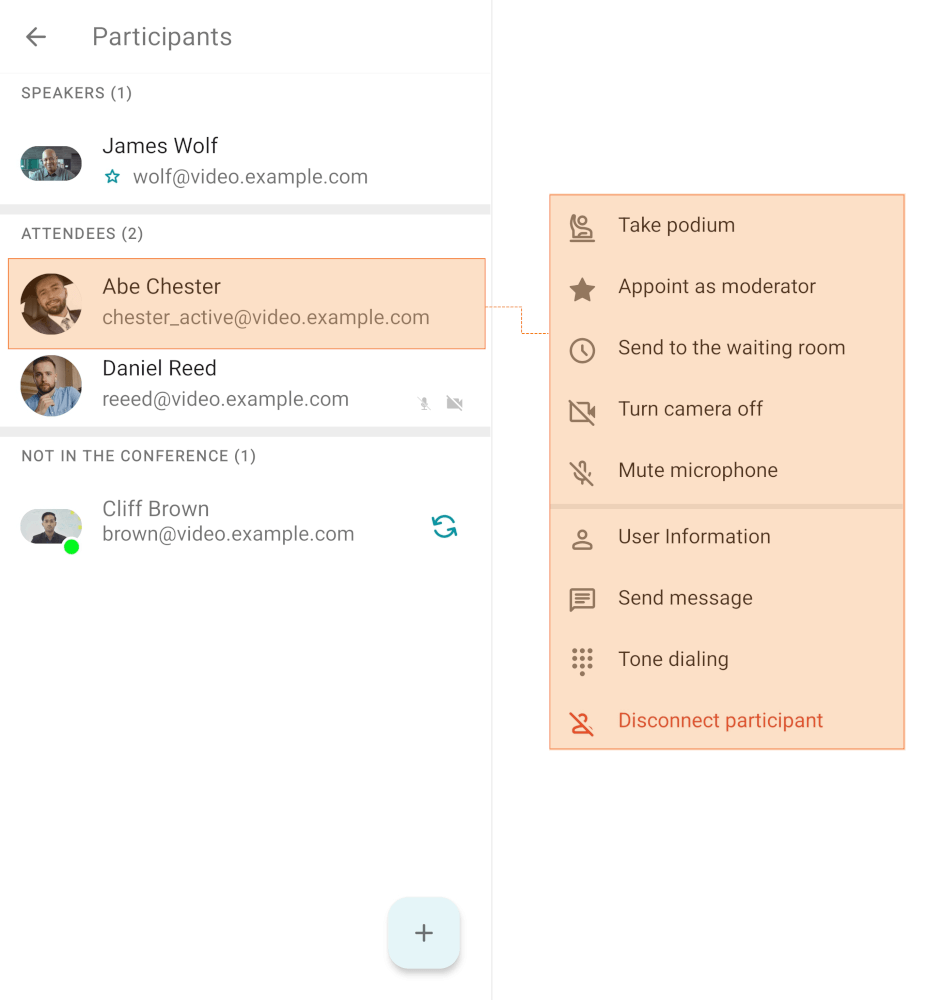
Similarly, you can tap on a participant’s video window in the layout to open the context menu.
Conference widget
Permission Display over other apps is required for the widget to function. To grant this:
In your device's menu, locate the TrueConf application.
Hold it to display the pop-up menu, then press App info.
In the list, locate the Display over other apps toggle and activate it.
Please note that these steps may differ depending on the Android version you are using.
During a conference, you can hide (minimize) the application window. In this case, you will see a conference widget with the video window of the person you are talking to (if it is a one-on-one call), the speaker or your self-view.
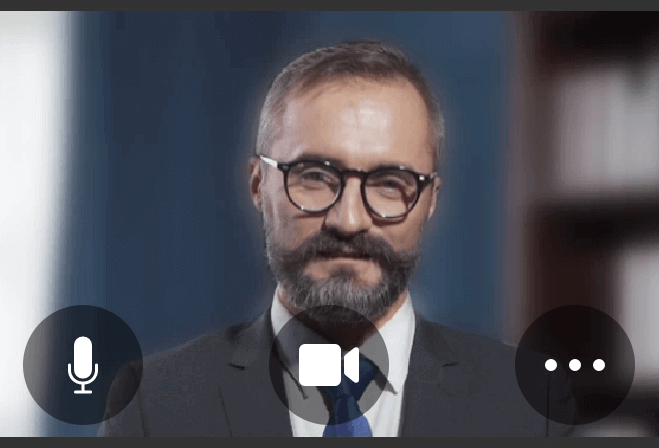
To switch between video windows, just tap on the current video and you will see the next one.
Here, you can also:
Turn on/off your microphone and camera
enable screen sharing;
Leave the conference or end it.