
Voting and content sharing
Voting and content sharing
Voting and reactions
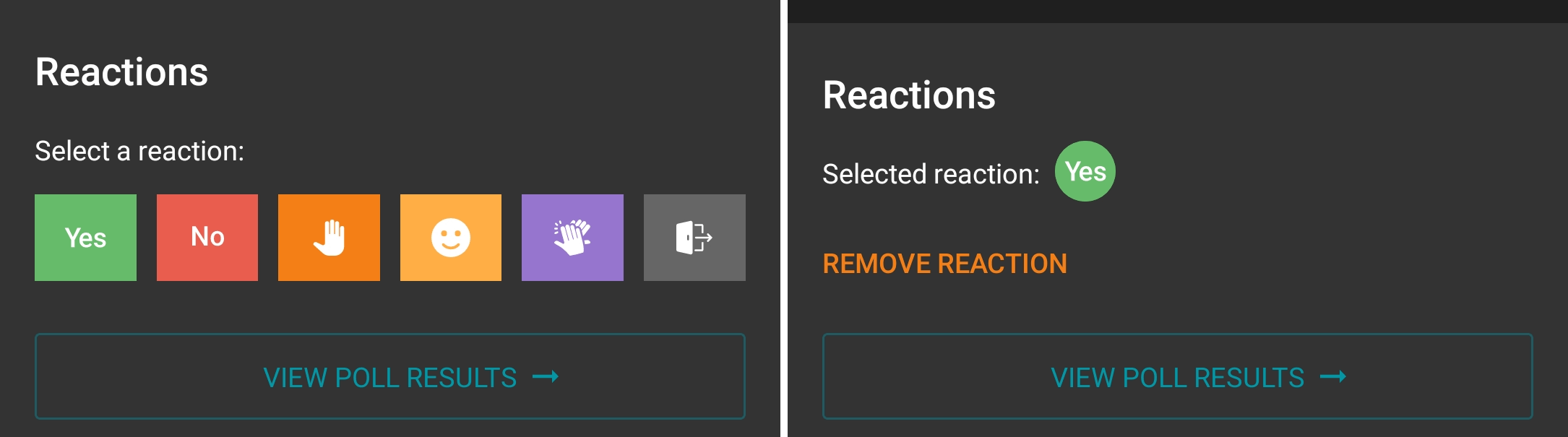
During conferences you can carry out votes among participants who can use different emojis to express their reactions.

In the control panel, click the  button and go to Reactions or click
  in the bottom right corner to select the desired reaction. If you wish to change it, click Remove reaction and select a new one.
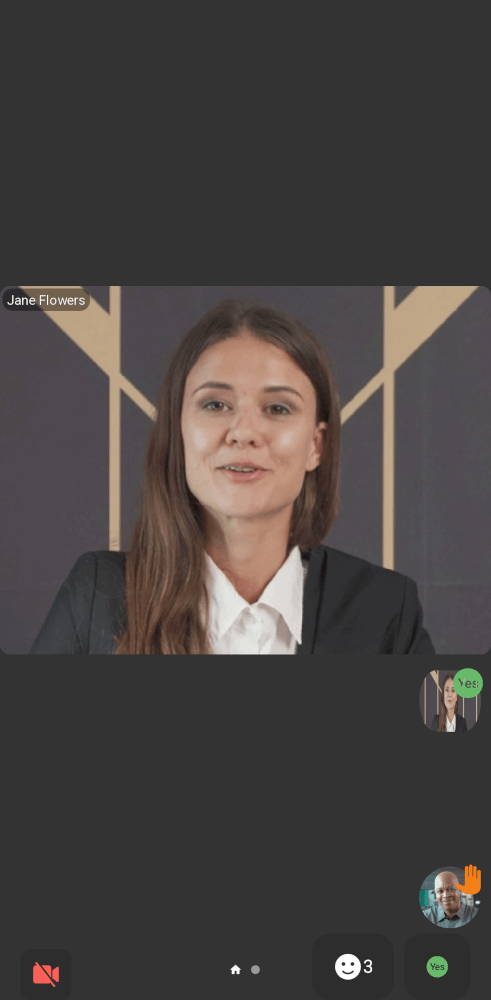
Conference participants' reactions are displayed in the layout in the following way:
The number of people who took part in the poll is displayed in the bottom right corner. Other people’s reactions and your reaction will be displayed as pop-up notifications.
User reactions are displayed for a few seconds in the video windows.
When the control panel is hidden, your reaction is displayed in the bottom left corner. By tapping on the reaction, you will open the window with the selected status. Otherwise, the status is shown in your video window (self-view).
Number of votes and the total number of conference participants.
Poll results
To view detailed information about the voting, click View poll results.
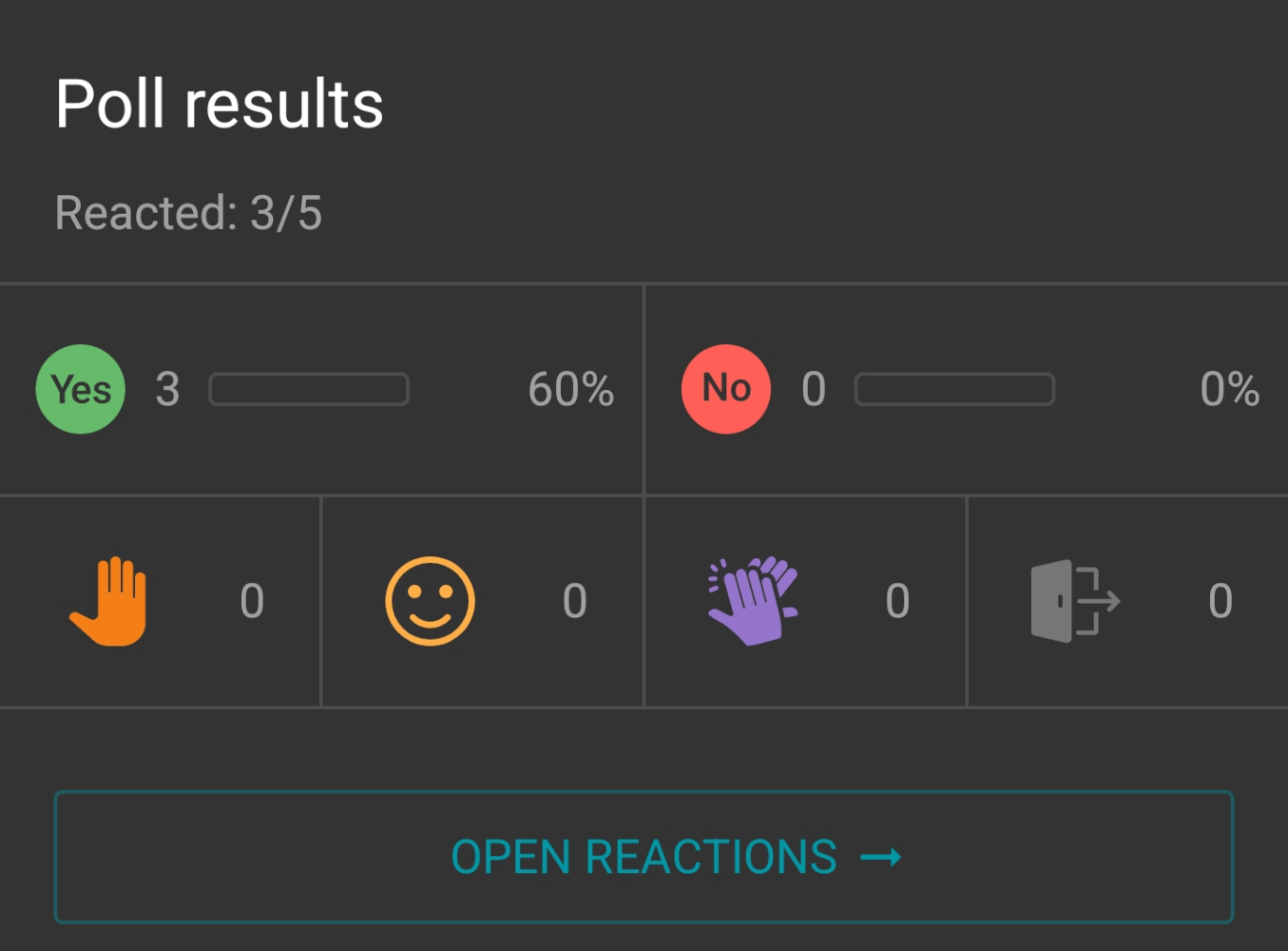
Next to the list of possible reactions, there is the counter Reacted that shows the number of participants who have voted. You can also view user reactions in the participant list.
The percentage next to options Yes and No is calculated from the total number of participants.
The moderator of the conference can clear all reactions made by other participants. To do this, simply click the Clear reactions button, which appears at the bottom of the statistics menu.
In this menu, the moderator also has the option to save the reaction statistics from the conference chat. To do this, click Share results and select Conference chat. By clicking More, you can copy the statistics or use them in another available application.
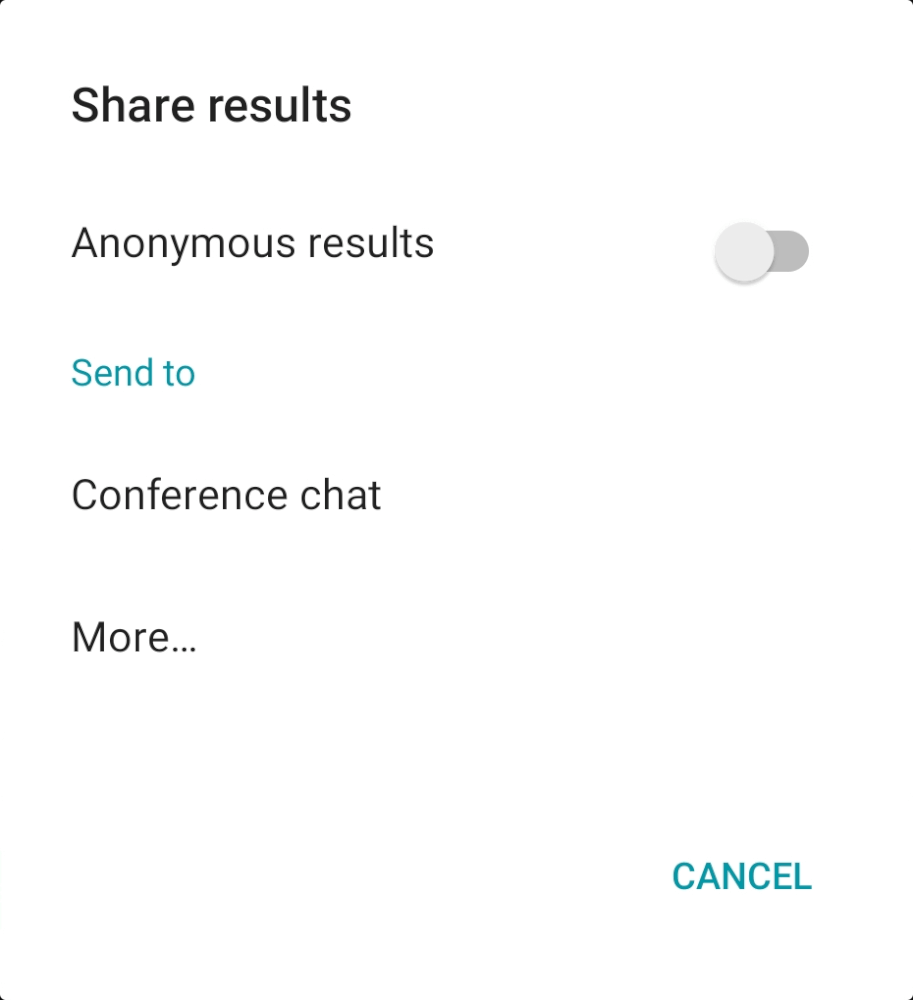
Check the box Anonymous results to export anonymized statistics without allocating votes to participants.
Collaboration tools
Slideshow
During the conference, you can start a slideshow presentation from your gallery images by clicking and selecting Slideshow. This will open a window to choose photos from your camera roll (by default).
You can select a different album, if your images are in a different folder. Tap on the  button and you will see the list of all folders and albums with images.
Select the appropriate images for the report and click the Start slideshow button.
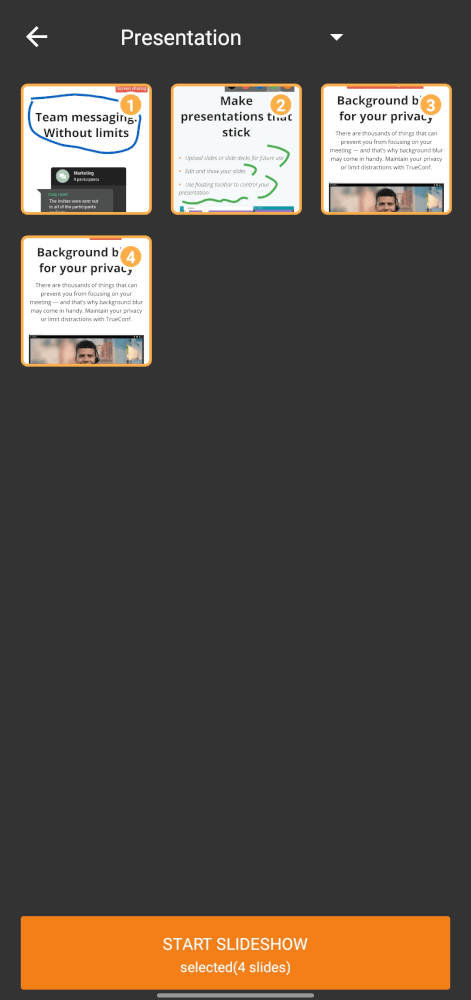
If you press the Start slideshow button without selecting any photos, the entire album will start playing.
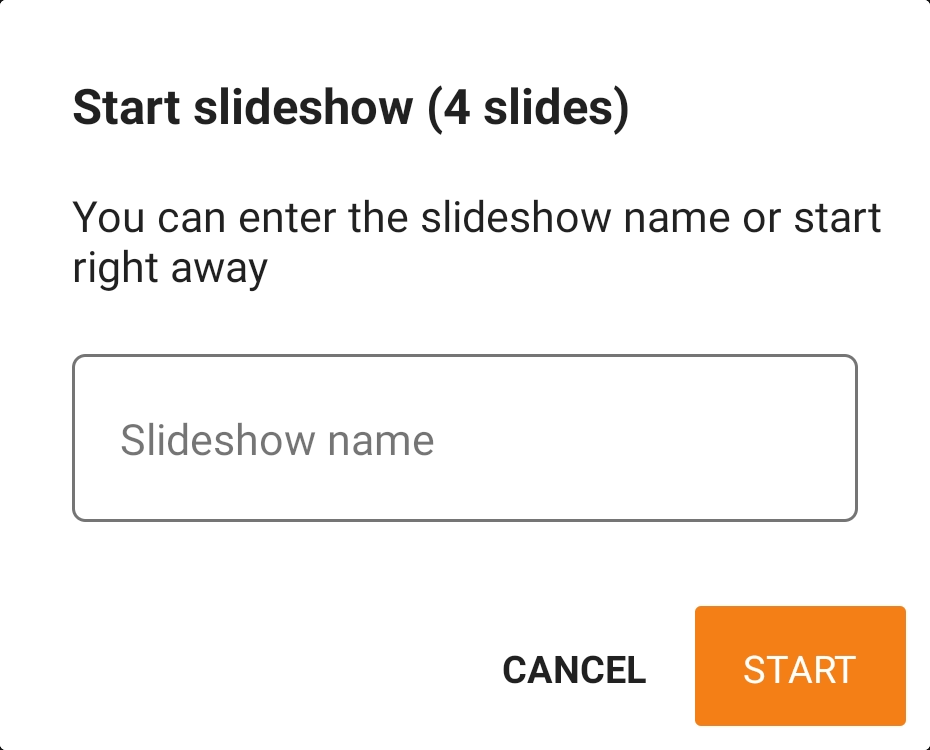
You will also be prompted to give a title to your slideshow to make sure that other participants can quickly find the right slideshow in cases when multiple users are showing slides during a meeting. Tap Start to continue.
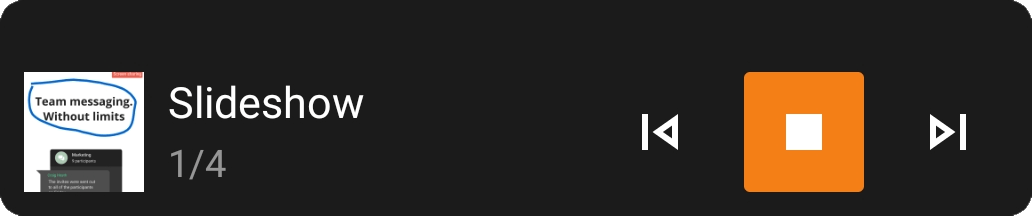
The slideshow management widget will be displayed in the conference window. It will include the slideshow title, and buttons for switching between slides and ending the slideshow.
Content sharing
You can use your client application to share the screen during calls and conferences. It is possible to show slides created in popular office suites or online editors (such as Microsoft PowerPoint, LibreOffice, Google Slides, etc.). Please note that appropriate software must be installed if you want to open such documents.
Your device screen will be seen by all the participants who joined the video conference from TrueConf client applications or browsers (via WebRTC). Additionally, the content shared during the conference can be recorded.
In the conference control panel, click and select Screen sharing.
When you launch it for the first time on your smartphone or tablet, the Display over other apps permission settings will open. Find the TrueConf for Android application in the list and toggle the switch to the active position.
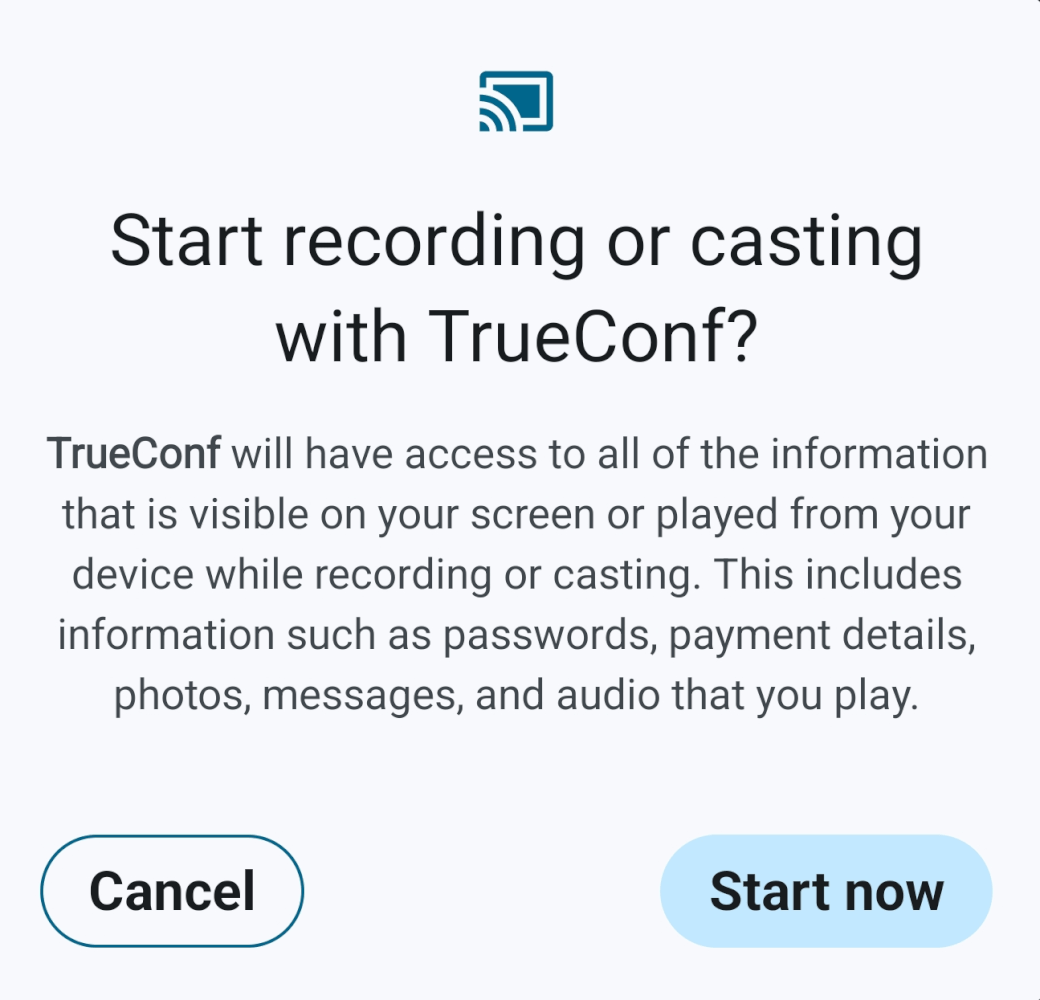
After this, a window prompting you to start the broadcast will appear. Confirm this action by clicking the Start now button.
Then, the application will be hidden (minimized) and you will see the content management widget. It will be displayed over other apps all the time while you are sharing content. Other participants will see the content and video from your camera.
Content management widget
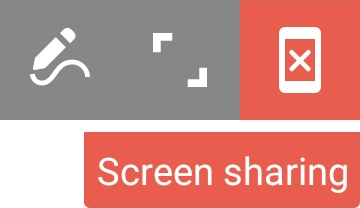
The content management widget includes the following components:
 - stop broadcasting;
 - expand the widget, which will open a small window displaying the video of another speaker or your self-view (similar to the window in the conference widget);
 - enable drawing mode;
 — A string with the widget name, which allows you to move the widget to any part of the screen.
Screen annotation mode
When screen annotation mode is enabled, the widget will look in this way:
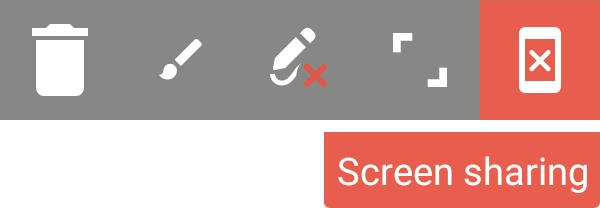
 — clearing the screen of annotations;
 — configuring brush width and color;
 — disabling the drawing mode.
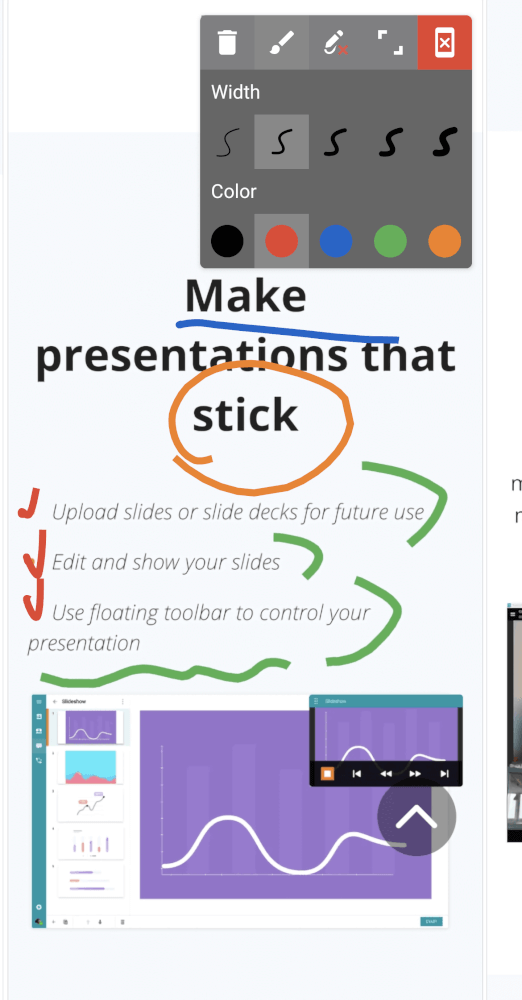
Screen annotation is one of the main features in TrueConf for Android because it enables users to highlight the most important parts of the shared content or add key points:
Features available in a smart-meeting conference
During a conference in Smart meeting mode, only the participants, who are on the podium, will be seen and heard. Participants are given the podium according to a specific rule: the person who is speaking or sharing content (even without voice activity) takes the place of another participant who has stopped speaking. The first participant to be replaced in the video layout is the one who has been silent longer than others or who started sharing content earlier (if the microphone is muted).
You can find more details about the smart meeting in the user guide TrueConf for Windows.
The moderator can pin any participant to the podium so that they are not replaced even if they are silent. To do this during the conference, open the participant list and in the participant actions menu, click Pin window.