
Settings
Settings
This section covers the terminal settings available to the user without entering a PIN code.
The administrator can restrict access to advanced settings using a PIN code.
Information
To view detailed information about the terminal, go to the Settings → Information section:
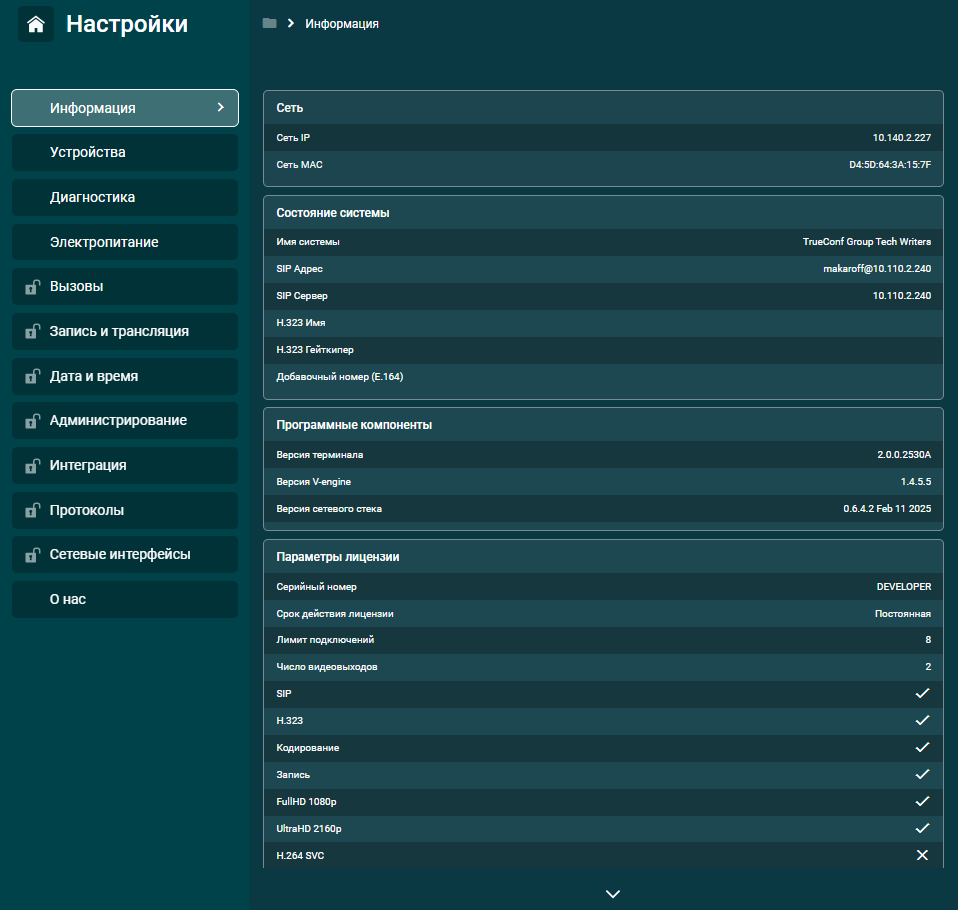
network address;
system status;
version of software components;
license parameters;
integration status with TrueConf MCU, TrueConf Server, AD/LDAP, and Email.
Devices
Camera Settings
By navigating to Devices → Camera, you can select the camera in use. This section displays a list of all available cameras connected via USB, HDMI, VNC, RTSP, and NDI.
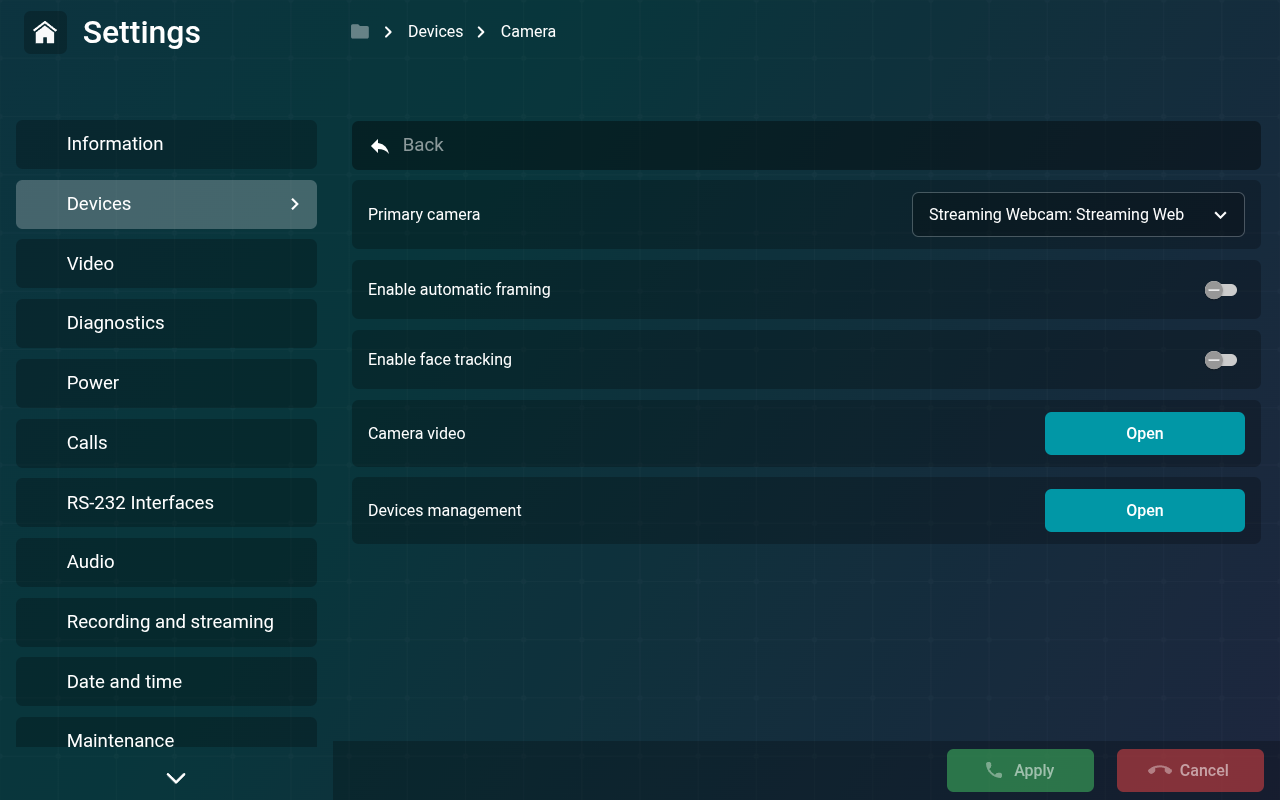
By enabling option Enable automatic framing, the image from your camera will automatically be cropped to keep you in the center of attention.
Item Enable face tracking highlights all people in the frame with a colored border.
In the Device management section, you can add RTSP and VNC sources from the address book. After that, these sources can be used as your camera.
Camera image
This section allows you to configure the image from your camera. You can edit:
Brightness – camera image brightness;
Contrast – camera image contrast;
Auto exposure – this parameter affects the camera image's automatic exposure settings:
- Aperture Priority Mode – automatic exposure control mode;
- Manual mode – independent adjustment of the camera exposure settings.
Saturation – the level of saturation in the camera images;
Exposure Time, Absolute – this parameter affects the settings for the maximum exposure time in the camera images;
Hue – this parameter affects the hue settings of the camera image. This parameter will be adjustable if Manual mode is selected in the Auto exposure setting;
White Balance, Automatic – automatic white balance;
Focus, Automatic – automatic focusing;
Gamma – overall image gamma;
Gain – this parameter affects the gain (sensitivity) settings in the camera image;
Power Line Frequency – allows the camera to synchronize its image capture frequency with the power supply frequency. Available settings: 50 Hz, 60 Hz, and off;
White Balance Temperature – this parameter affects the white balance temperature settings in the image. The adjustment is available when the Off mode is selected in the White Balance, Automatic section.
Sharpness – adjusts the image clarity of the camera;
Backlight Compensation – adjusts the image to compensate for backlighting;
Focus, Absolute – camera image focus settings. This parameter can be adjusted if the Off mode is selected in the Focus, Automatic section.
Additionally, settings for PTZ cameras are available:
Pan, Absolute – PTZ camera rotation setting. This parameter can be configured if the Off mode is selected in the Focus, Automatic section.
Tilt, Absolute – PTZ camera tilt adjustment. This parameter can be configured if the Off mode is selected in the Focus, Automatic section.
Zoom, Absolute – this parameter affects the camera's zoom settings. It can be adjusted if the Off mode is selected in the Focus, Automatic section.
Zoom, Continuous – this parameter affects the speed of continuous zoom. You can adjust this parameter if the Off mode is selected in the Focus, Automatic section;
Iris, Absolute – this parameter affects the settings for the maximum amount of light reaching the camera sensor. It can be adjusted if the Off mode is selected in the Focus, Automatic section;
Pan, Speed – this parameter affects the pan speed settings of the camera image. It can be adjusted if the Off mode is selected in the Focus, Automatic section. The further right the slider and the higher the number, the faster the speed.
Tilt, Speed – this parameter affects the tilt speed settings of the camera image. It can be adjusted if the Off mode is selected in the Focus, Automatic section. The further to the right the slider is and the higher the number, the faster the speed.
Audio Settings
Go to the Devices → Audio section to adjust the microphone and speaker settings.
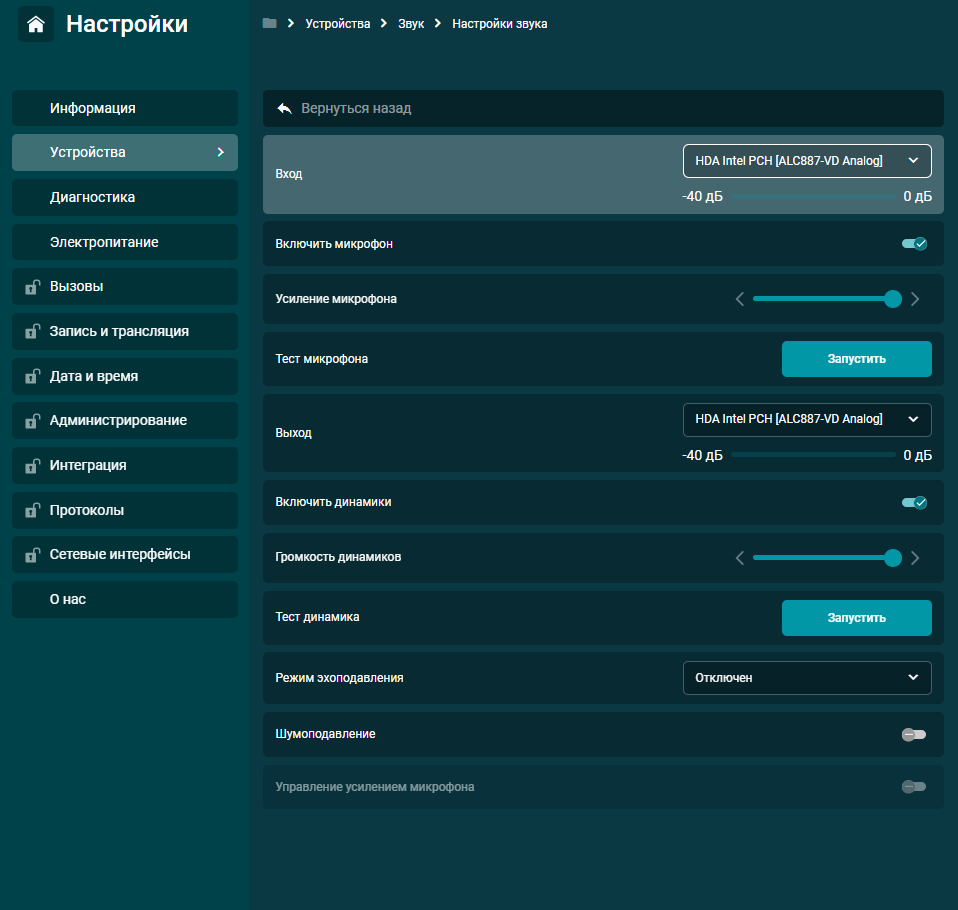
For audio input, you can:
choose Microphone;
enable or disable it;
adjust microphone gain;
configure echo cancellation mode – 50 Hz filter only, Half-duplex, Full-duplex, and Custom;
enable mode Noise suppression;
enable Microphone gain control (the system automatically adjusts the microphone gain). This setting is available if one of the echo cancellation modes is selected;
perform a microphone test.
And for the audio output, you can:
choose Speakers;
enable or disable audio sources;
adjust the volume;
conduct sound testing.
Complete speakerphones come with built-in echo cancellation, so you need to set the software echo cancellation mode to Disabled in the settings to work with them.
When enabling echo cancellation, select the appropriate mode:
- 50 Hz filter only - eliminates low-frequency noises, such as stomping and banging on the table;
- Half-duplex - effective if the microphone is positioned very close to the speaker;
- Full-duplex – main operating mode;
- Custom – contains parameters optimized for a specific device.
Enabling software echo cancellation will be effective when outputting audio to a TV or external speakers.
Video settings
Go to the Devices → Monitor section; this option allows you to set parameters for capturing images and displaying them on one or more screens.
Monitor Management
In this section, you can configure connected displays.

If your setup uses two screens, you can select which one will be used as the primary or secondary display.
In the HDMI Mode section, you can set the resolution and frame rate for the terminal display interface.
Item Rendering resolution is responsible for setting the resolution of the video layout in calls (Auto, FullHD 1080p, and UltraHD 2160p).
The UltraHD 2160p resolution for video layout in calls is not available in all configurations. When displaying the layout on 2 monitors, the rendering resolution of each layout is limited to FullHD 1080p.
Below, you can Detect video outputs and perform Monitor test (useful for screen calibration).
Presentation
In this section, you can add RTSP and VNC sources for presentations. The process of adding presentation sources is described in the relevant section of the documentation.
Layout
Go to the Video → Layout section, where you can configure the appearance of the video layout during calls.
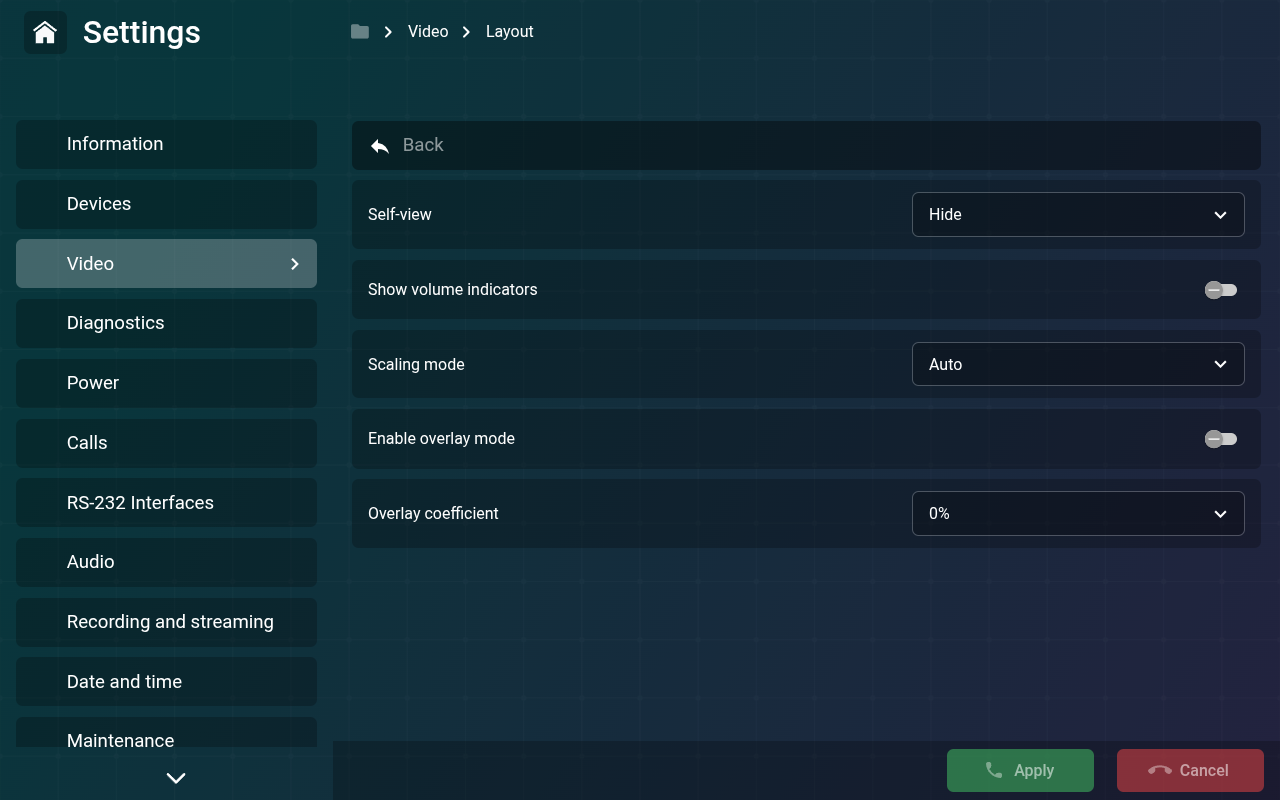
By default, option Hide is selected in section Self-view. Set option Show to view self-view in the video layout.
To display microphone sensitivity in participant windows, activate the Show volume indicators parameter.
* <interface ru="Авто" en="Auto"/> – в зависимости от видео участников, терминал автоматически подбирает режим кадрирования;

* <interface ru="По размеру видео" en="Scale to fit video"/> – видеоокна участников полностью отображаются в раскладке;

<StdPic id="scaling_video" custom_style="width:350px"/>

* <interface ru="Подогнать под окно" en="Crop to fit window"/> – видеоокна участников кадрируются под ширину вашего экрана.

<StdPic id="scaling_window" custom_style="width:350px"/>
If you activate option Enable overlay mode, participants' videos will be displayed over the prioritized video window.

Below is the Overlay coefficient setting, which is responsible for the distance between video windows. Here's how the layout looks with a 25% overlap:

Diagnostics
This settings section is intended for monitoring the operation of TrueConf Group and its network connection.
System Monitoring
This section allows you to monitor key system performance metrics in real-time, including the usage of RAM and persistent memory, as well as network and CPU load.

System log
Here you can export detailed records of events, processes, and errors occurring in the system to a USB drive. This section should be consulted when issues arise with terminal operation. We recommend leaving this procedure to your administrator.
Ping
This section is designed for checking and identifying connection latency to servers, routers, and other devices. Enter the required IP address and click the Test button. Detailed information will then be displayed.

Tracing
If you need to trace the route of packets from your device to the destination node, use the built-in Traceroute tool. Enter the required IP address and click the Test button.
Network Packet Log
The network packet log allows recording of network traffic passing through TrueConf Group. Only an administrator can download and view the logs using the control panel, and downloading to an external USB drive is also available.
You need to provide the traffic recording files when contacting technical support.
Power Supply
In the Power → Power management section, you can:

- Go ot sleep modeYour administrator can configure the sleep mode, for instance, to activate it when the power button is pressed.
- Shut down the endpoint ;
- Restart OSAfter pressing, the operating system and the visual interface of the video conferencing terminal will restart.
- Restart the endpoint After clicking, the terminal application software will quickly restart.