Receiving and making calls
Receiving and making calls
Outside video sessions, the endpoint can have one of the following statuses:
set to sleep mode;
displays the main screen, shows the image from the main camera, and can also record or broadcast the video;
displays content from a source connected to the HDMI input.
Any incoming video call disables such statuses.
Processing Incoming Calls
If the administrator has configured automatic call acceptance, the terminal TrueConf Group will automatically answer the call. However, if Do not disturb mode is set, the call will be automatically declined.
However, if the Ask for user’s confirmation mode is selected, a call notification and sound alert will appear on the main screen. You can accept it by pressing the call  button on the remote or answer the call on the control panel.
On a terminal with the MCU feature enabled, you can accept subsequent calls and turn the current call into a conference. To do this, simply accept incoming calls using the remote control or the control panel just like the first call, or set up automatic acceptance of subsequent calls.
How to call another endpoint/device
How to make calls via SIP, H.323, RTSP, VNC and NDI
For frequently called numbers, it is convenient to use the address book.
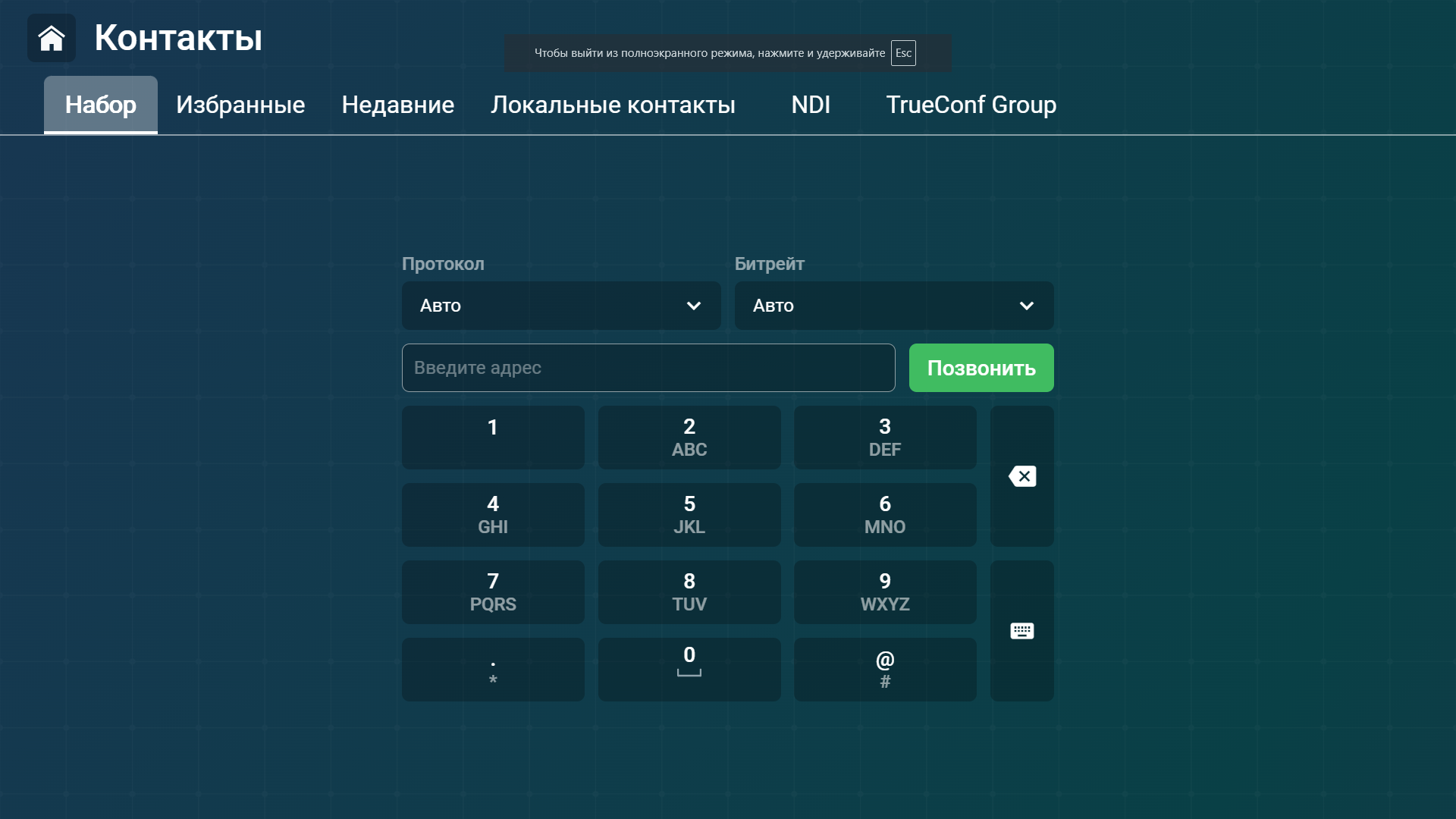
In the main menu, select Contacts (or press the call button on the remote
).On the Dialer tab, enter the address of the device you want to call, for example,
111@10.120.1.10.
For a SIP or H.323 terminal, you may omit specifying the protocol. In this case, TrueConf Group will first attempt to call using one protocol, and then the other. Protocol priority is determined in the settings.
To connect to an RTSP stream (IP camera, online broadcast, etc.), or a VNC or NDI source, make sure to specify the required format at the beginning of the address, such as rtsp://10.120.1.10, or select the appropriate protocol from the dropdown list.
3. Press Call on the screen or the button on the remote control.
You can call back this device if needed from the Recent contacts section.
Call a user
To call a user registered on the VCS server TrueConf Server, use one of the following formats:
<TrueConf_ID>@<server><TrueConf_ID>@<server>:<port>
where:
<TrueConf_ID>— TrueConf ID of the user;<server>: server IP address or name that you need to call<port>— port for connection (if it differs from the standard5060for SIP and1720for H.323). For more details on SIP/H.323 connection settings on TrueConf Server, refer to its documentation.
For example:
james@video.company.com
james@video.company.com:5070
Call in a TrueConf conference
If you are registered on the same server via SIP or H.323, you don't need to specify the server address; simply enter the conference ID. This method is recommended. To connect to a video conference held on the TrueConf server, use the call string in one of the following formats:
00<Conference_ID>@<server>00<Conference_ID>@<server>:<port><Conference_ID>@<server><Conference_ID>@<server>:<port>
, where:
<Conference_ID>— conference ID;<server>: Server IP address or name<port>: Connection port (if different from the standard one)
For example:
001949195144@video.company.com
001949195144@video.company.com:1730
\c\1949195144@video.company.com
\c\1949195144@video.company.com:1730
If necessary, you can explicitly specify the call protocol (SIP or H.323) to the left of the address input field.
Viewing Call Information
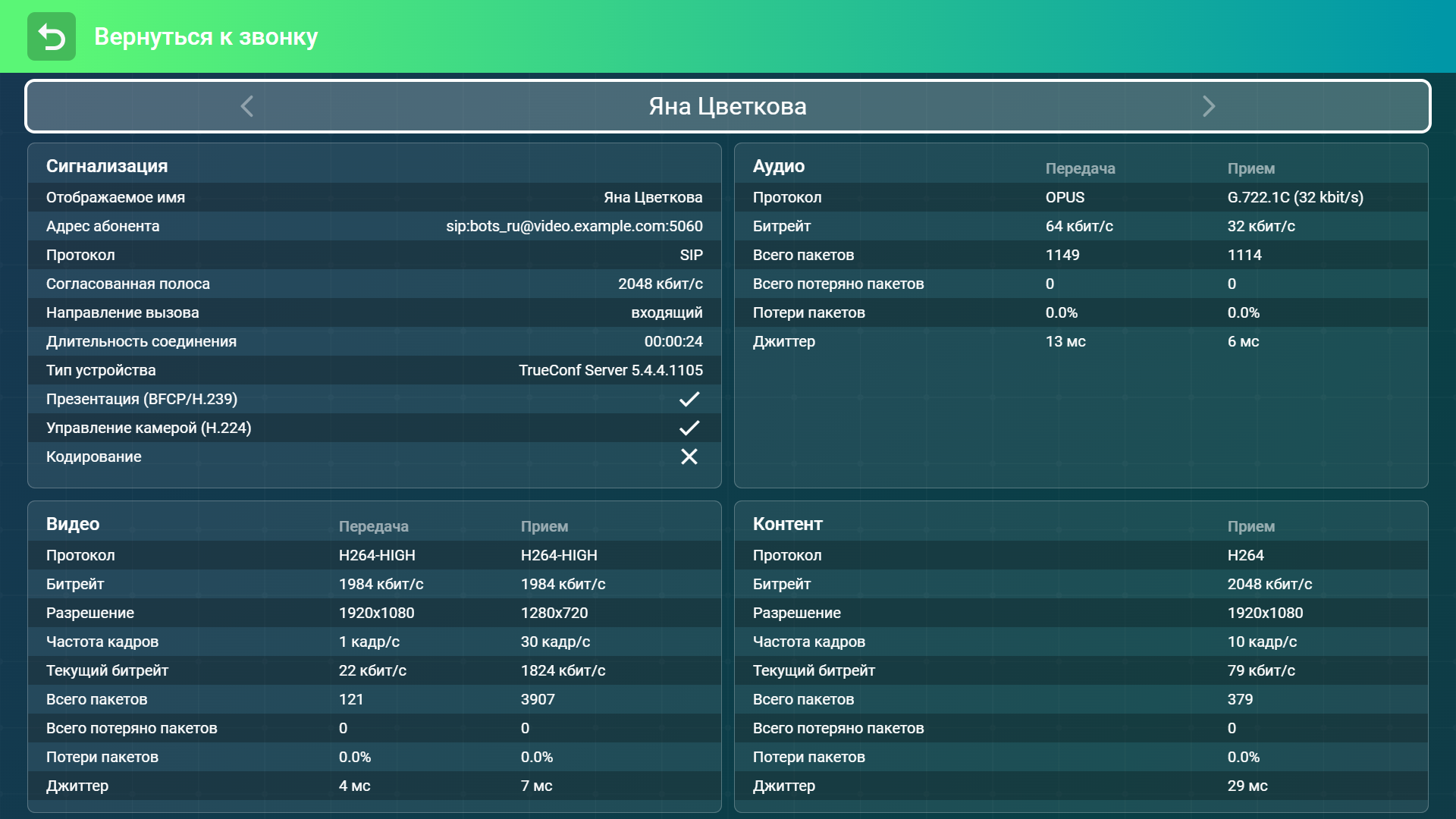
You can view technical data during a video call. To do this, press the button  on the remote control and select Connection information from the menu that opens. You will see a list of the current call parameters, including:
User's address
Call duration
Used codecs
Video resolution and speed
Packet loss statistics for audio and video streams. In this case, the last 10 seconds rather than the entire call are used to calculate the loss percentage.
If your TrueConf Group has the MCU mode enabled, you can switch between the statistics windows for each participant using the left and right buttons on the control panel:
How to Set Up a Group Conference
To hold group conferences on TrueConf Group, ensure that the MCU module is included in your package, and the MCU function is enabled in the settings.
To create a conference, call any of the participants by following the instructions above, and then sequentially add all other participants.
Adding users during a session
In the conference menu, click  , and the Contacts window will open. You can now add a participant from any contact section.