
Terminal management
Terminal management
There are several ways to control the endpoint:
In meeting room:
remote control (IR receiver is located at the front of the device);
Remotely:
- web interface accessible to the administrator via the local network.
The remote control is powered by two AAA batteries (included in the package).
Home Screen
Immediately after being turned on, the main screen should appear on TrueConf Group, displaying:
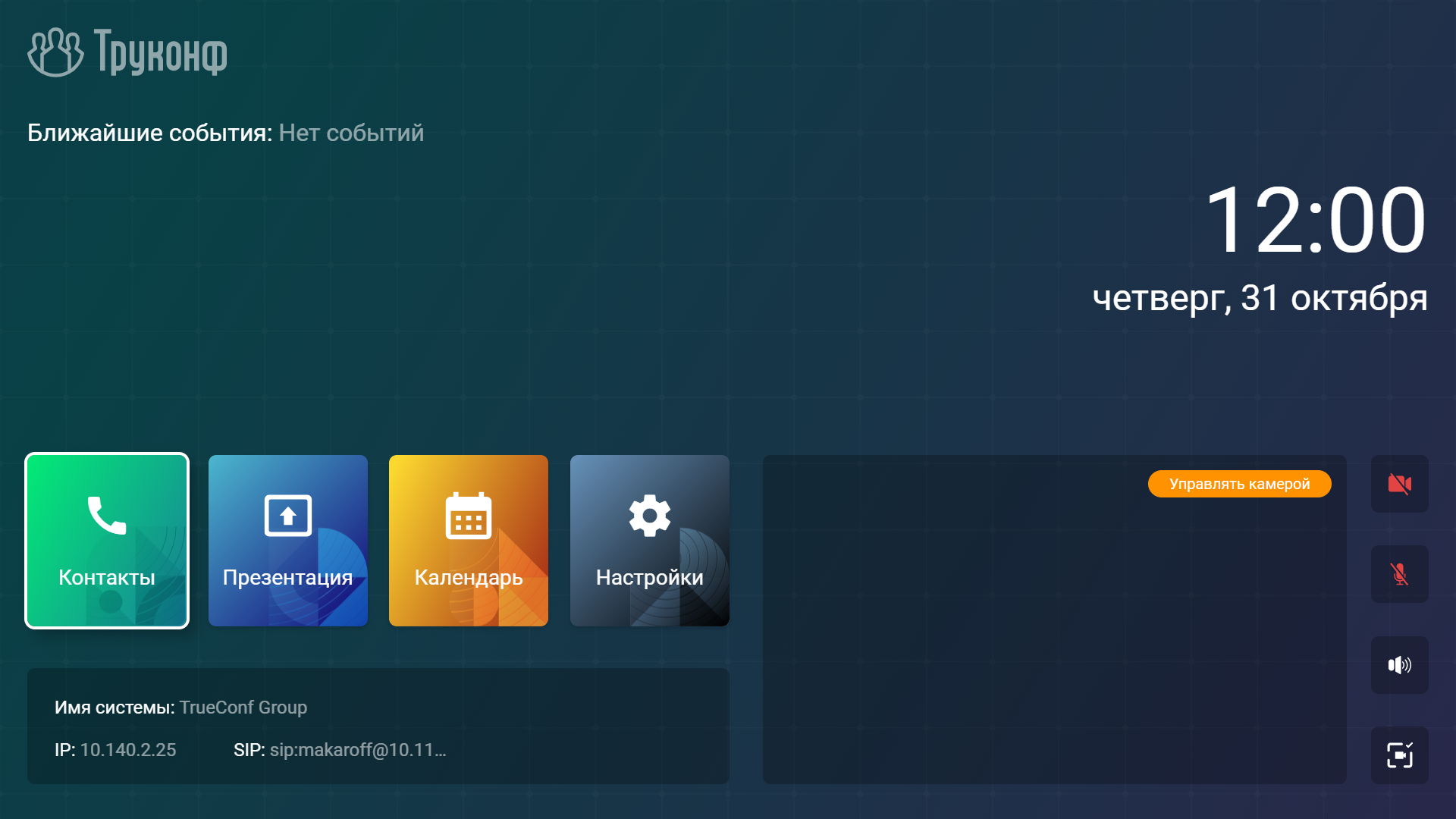
Upcoming scheduled events (4 items). For each event, the following details are displayed: time, platform (TrueConf Server or TrueConf MCU), name, number of participants, owner's name, protocol, and connection address. To join, simply press the Connect button. To display event cards, the administrator must configure integration.
Current date and time.
Main sections of the terminal menu:
- Contacts - address book;
- Presentation - the presentations menu, where you can view them and add network sources (NDI, RTSP, VNC);
- Calendar - calendar with scheduled events;
- Settings - user terminal settings.
The status of the local network connection (the IP address of the terminal upon successful connection or the text Network unavailable otherwise), as well as the notification panel with information:
about the system name;
on SIP server registration (configured by the administrator in the protocol settings) – if successful, the terminal name on the SIP server will be displayed, for example,
SIP: meeting-room; otherwise, an error code will be shown, such asSIP: 401 Unauthorized;Regarding registration on the H.323 gatekeeper (configured by the administrator in the protocol settings) – if successful, the terminal name on the H.323 gatekeeper will be displayed, for example,
H323: meeting-room. Otherwise, an error code will be shown, such asH323: TransportError.
Image from your camera. After selecting this window using the arrow keys on the remote control (the window will be highlighted with a white frame), press OK. A screen will open where you can:
control your camera position;
select angle;
create a view;
manage devices: select resolution, PTZ protocol, and other settings;
go to recordings and broadcasts.
Equipment status control buttons:
 - disabling the camera selected as the primary;
 – mute microphone;
 - muting the terminal;
 - selecting the PTZ camera angle.
To navigate to a component (button or section) in the main menu, use the arrow keys on the remote control to select it (the window will be highlighted with a white border) and press OK.
To select an item from the dropdown list or start typing text, you also need to move the focus to the corresponding element and press OK.
To enter text, you can also use the on-screen keyboard. To bring up the on-screen keyboard, focus on the field and press the button OK on the remote control.
Tablet screen
The tablet interface offers the most convenient and efficient way to interact with the terminal. It allows you to manage the conference proceedings and TrueConf Group settings. Instructions on how to connect a tablet can be found in the relevant section of the administrator documentation.

To manage peripherals, tap  at the bottom of the tablet screen. In the area that appears, you will have access to controls:
Camera – click to enable/disable.
Microphone – click to enable/disable.
Speakers – click to adjust the volume.
With a tablet, you can control the camera angles. To do this:
On the main screen, press the Camera button.
Click the Position management button.
Click on Create new position.
In the form that opens, fill in the fields:
- Name – the name of the angle is at your discretion and can be left blank.
- Quick number Assign to one of the dial numbers, from 0 to 9.
- Preview - the toggle switch responsible for the preview availability.
Verify the entered values and click Save.
The created view will appear in the list, and by clicking on it, you can:
Rename the angle in field Name.
Change the speed dial number in the drop-down list Quick number.
Change preview availability.
Save the changes made.
Permanently delete the layout without the possibility of recovery.
During the call, you have access to the following controls:
- Presentation - selecting a device or file for streaming content.
- Layout - changing the current video layout.
- DTMF – entering DTMF commands.
- More - includes additional call management options:
- Select - selecting a camera angle from the available options.
- Selfview – enable or disable the display of your video.
- Videostream management – manage the selected video stream: your own camera, your presentation, or a remote participant's camera.
- Priority participant - Assigning the selected conference participant as a priority.
- Participants – display the list of conference participants and the option to add new ones.
- Device control – managing connected devices.
- Record and translation – recording the conference or streaming via one of the available protocols: RTMP, SAP, NDI.
- Connection information – display information about signaling, video, and audio streams for transmission and reception.
- Settings – display of codec settings interface.
Remote Control Keys
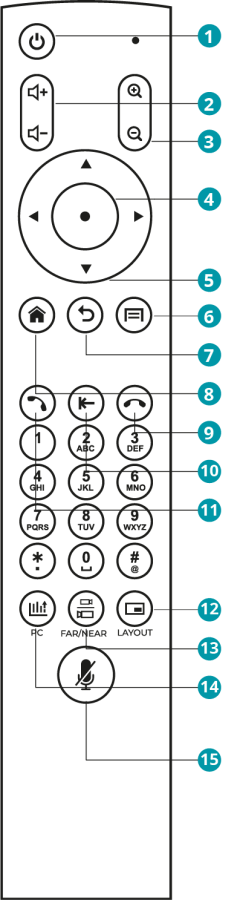
The remote control has the following keys:
| Keys | Description |
|---|---|
 | Shutting down the terminal |
 | Adjusting the speaker volume level of the terminal |
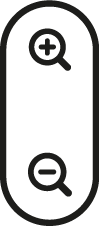 | Zoom buttons when controlling a PTZ camera or presenting |
 | The central key of the navigation block (hereafter referred to as the button): activates the on-screen button currently in focus; expands the on-screen list currently in focus. |
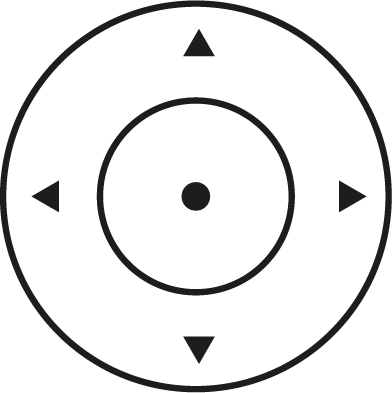 | Arrow keys: in the menu – navigate between interface elements; during a call or conference – control the PTZ camera. |
 | Navigate to the main menu |
 | Return key: when navigating menus, it goes back to the previous section, and in the topmost menu section, it hides the menu; during a group conference or call, it ends the session. |
 | Depending on the context of use: in the main menu, it navigates to the settings section; during a video conference session, it opens the context menu for managing the session. |
 | Call button: when navigating to the address book or call history, it calls the selected contact; in the main menu, it opens the address book. |
 | When entering characters or using the on-screen keyboard, it deletes the last entered character. |
 | Reset key: during a call with one interlocutor, it ends the call; during a group conference, it allows you to select and terminate one of the connections; while navigating the menu, it returns to the previous section, and in the topmost menu section, it hides the menu. |
 | Source selection. Depending on the type of connected source (external device or flash drive), the corresponding window will open. |
 | During a call, it switches the function of control buttons (arrows and zoom buttons) between different content sources: your PTZ camera, the counterpart's PTZ camera, and the shared presentation. |
 | Switching video layout during a conference |
 | Muting the microphone (an icon will appear at the bottom of the screen) |
Also available in the web interface is an on-screen control panel that fully replicates the functionality described above.