
Layout Management
Layout Management
During a point-to-point call
In video call mode, a subscriber connected to TrueConf Group receives only one video window displaying the terminal camera feed. By default, both video windows are displayed on the terminal screen, but you can disable the display of your own image (self-view). To do this, press the button  on the remote control and select Hide selfview from the menu that opens. Then, only the image from the other subscriber will remain on the TrueConf Group screen. To return the self-view to the video layout, press the button on the remote control again and select Show selfview from the menu that opens.
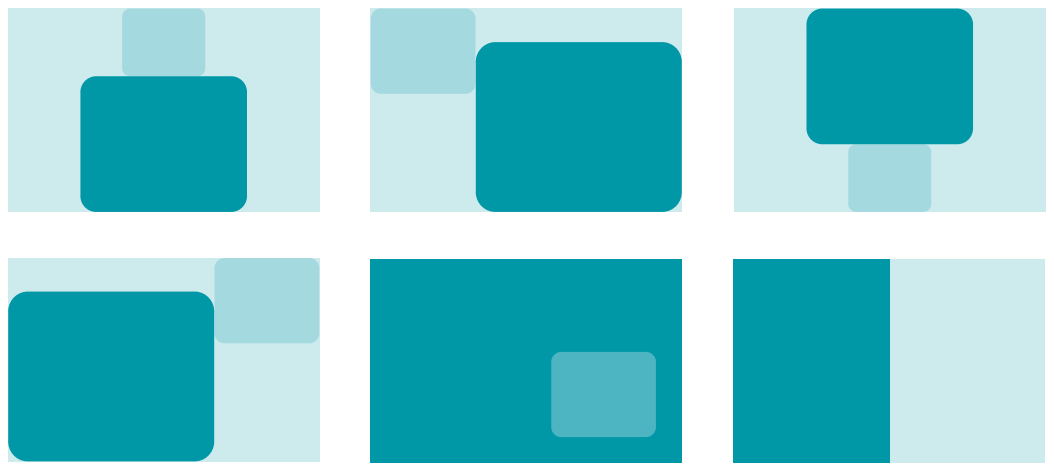
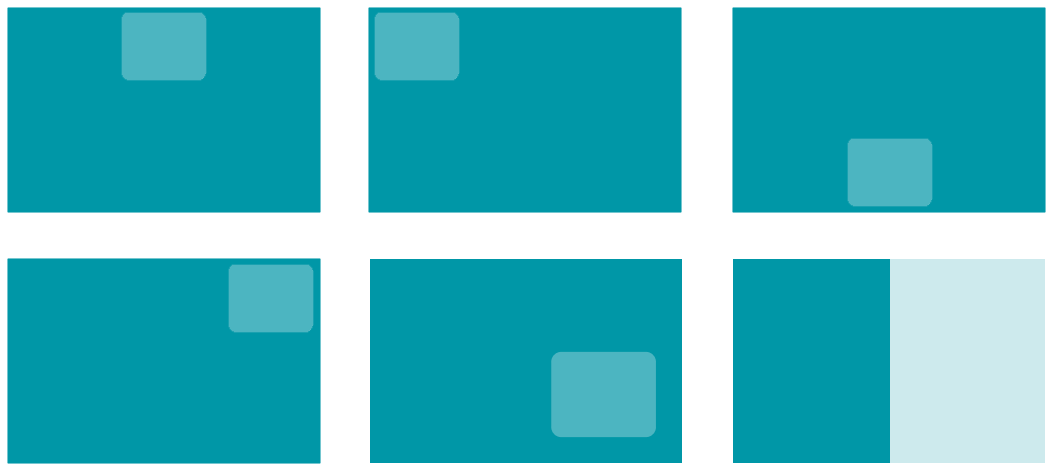
When self-view is enabled, you can switch video layouts using the button Layout  on the remote control. The following layouts are available, highlighting the connected subscriber's video window in turquoise:
- when the layout without overlapping (default option) is created:
- when activating overlay mode:
During a group conference
During the conference, the video layout of participants is determined based on the selected video stream mixing mode when configuring the MCU function.
- Video lecture – all participants receive video and audio only from the endpoint acting as the sole moderator of the conference, while all video layouts are displayed on the endpoint;
- All on screen – all video streams from participants and the terminal are included in the video layout;
- Voice activated – All video streams from participants and the terminal are included in the video layout, but the active speaker will be displayed in the priority video window.
In all on screen and voice activation modes, you can choose one of the following layout types with the larger video window highlighted in turquoise:
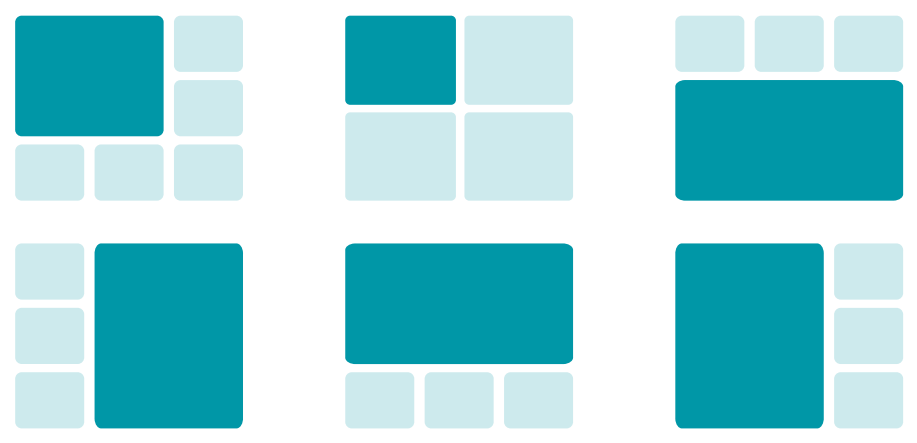
When the mode with overlay is activated, the window placement scheme is the same, but the main window is displayed in full screen with the others overlaying it, as shown above for a point-to-point call.
The larger video window can be set using one of the following methods:
when creating a conference on the terminal – to the first participant called;
for incoming calls – to the first participant who connects;
During a conference:
using the remote control – press the button
, go to the  Spotlighted participant menu item, and select the desired participant;
by the administrator in the section Conference of control panel
Below, there is an example of an “all on screen” layout: in this mode, all video windows will be equal in size and the spotlighted window will be displayed in the upper left corner:

When using a layout with a larger video window displayed on the left side, you will have the following view:

Below you can find a diagram and an example of the layout with a larger window displayed in the upper part of the screen:

Switch the video layout using the Layout button on the remote control or in the Conference section of the control panel. When the layout changes, the name of each conference participant is displayed at the bottom of their video window for a few seconds.
To enable or disable the display of local video (video from the camera used by the terminal) in the video layout generated for the terminal, press the button on the remote control, and in the menu that opens, select option Hide selfview. It will still be included in the layout transmitted to other participants.
If you want to remove the image transmitted by the terminal from all video layouts, press the button on the remote control and select Hide selfview.