
How to Use Microsoft Teams on Linux?
In the corporate sector, staying connected is critical. However, it’s important to remember that in large organizations, the update cycle for both software and employee devices tends to be slow, due to the complexity of supporting hundreds or thousands of workstations. This raises the question: can an application that is no longer supported still effectively fulfill all corporate requirements? Let’s explore this issue using the Microsoft Teams client application as an example.
What are the drawbacks of Teams as a corporate communication tool?
It is also worth noting that not all desktop users run Windows. As of December 2025, a small but notable portion of PCs (around 3% in total) use Linux.
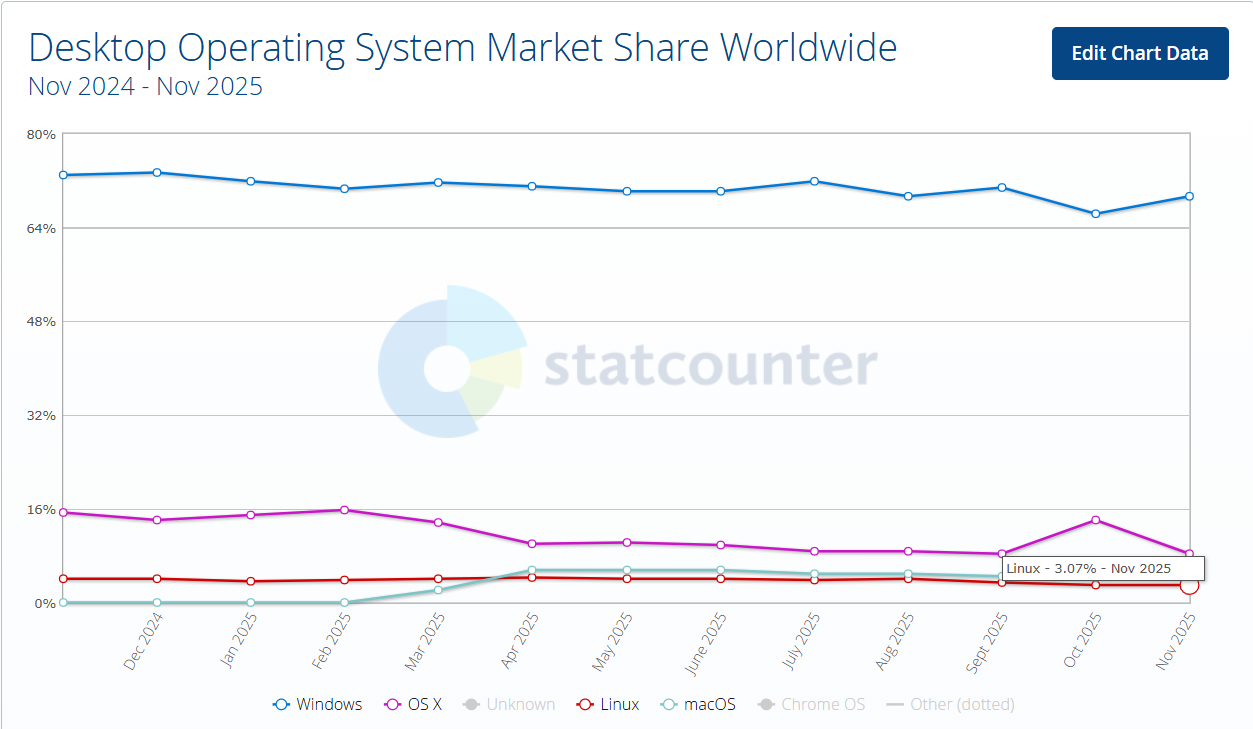
There could be several reasons for this:
- the company has a policy mandating the use of Linux-based operating systems;
- budget constraints prevent the company from upgrading its hardware;
- insufficient device performance, for example, such as when using thin clients.
The use of thin clients is common in corporate environments that employ VDI (Virtual Desktop Infrastructure). In such setups, a native application and a low-resource operating system are essential, which is why Linux is frequently found there.
Officially, a native Linux client for MS Teams existed from 2019 to 2022. However, its lifespan was relatively short, as Microsoft soon ended support. The application was abandoned due to its low popularity, which was caused by a significant feature gap. compared to the Windows application.
As a replacement, users received a newer, vendor-supported (but more limited) solution: a Progressive Web App (PWA). This shift aligns with Microsoft’s broader move toward cloud solutions, not only for server infrastructure (Teams is exclusively cloud-based) but also for client applications, effectively promoting the browser as the primary interface.
This results in the following key limitations for MS Teams:
- limited VDI support, only for guest OS Windows 10 and above;
- the native application is supported only for desktop computers on OS Windows version 10 and above;
- limited browser support for the PWA application: Microsoft Edge, Google Chrome, and Mozilla Firefox (last three versions); Safari (last two versions);
- no native Linux client: available only as a PWA/web application.
Due to these constraints, some companies may need to seek an alternative solution with better support.
What is a good alternative to Teams for corporate communication?
For team collaboration as an alternative to MS Teams, the TrueConf client application is an excellent choice.
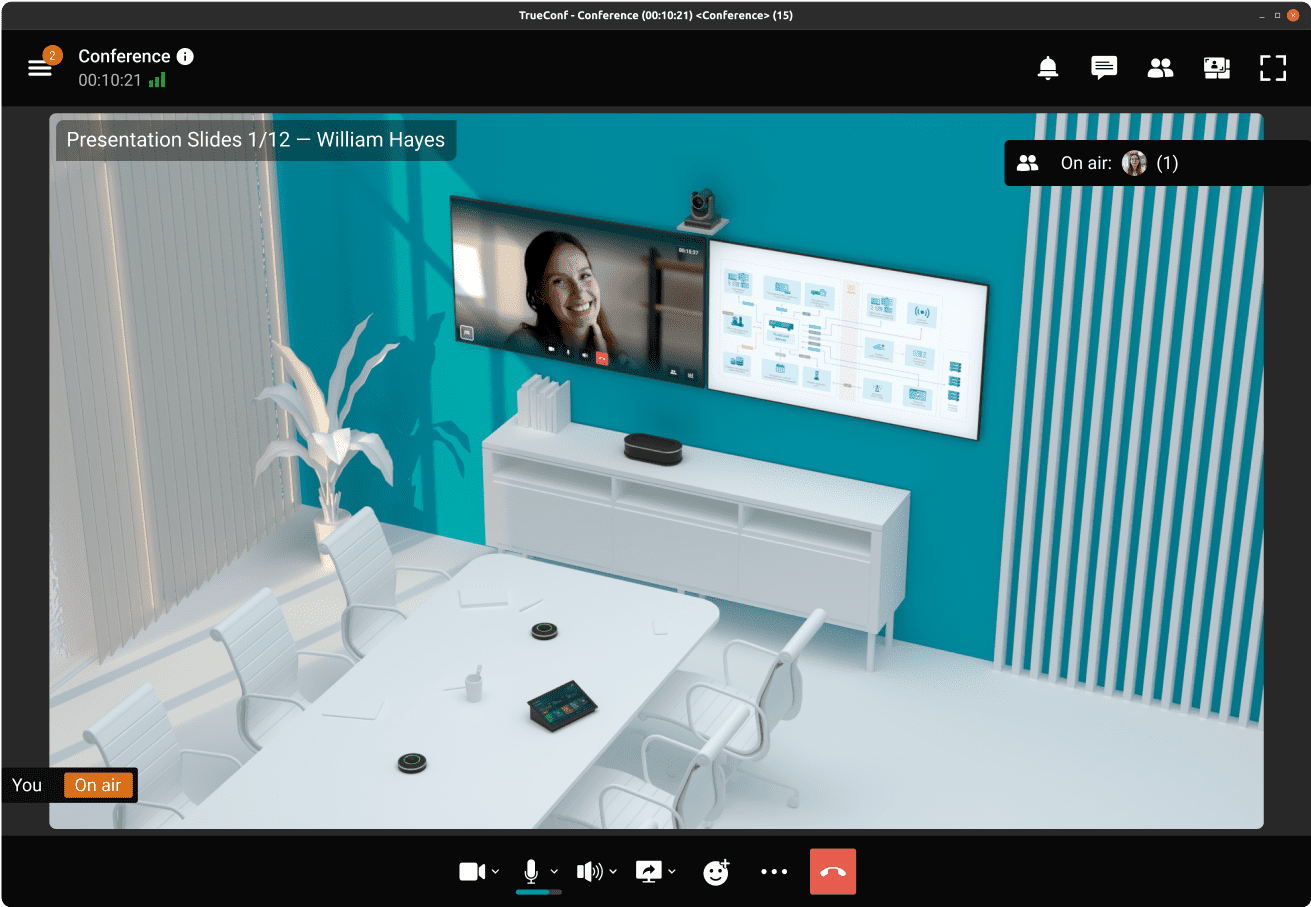
To start using the TrueConf messenger with video calls, simply install TrueConf Server on any PC (system requirements are quite low):
Once installed, create the necessary accounts and assist users with installing the client application. All detailed installation instructions can be found in the documentation.
The TrueConf client application supports a wide range of platforms and delivers a comprehensive set of corporate features:
- corporate messenger with channels, archive, and favorites;
- work within the company’s network;
- extensive list of supported OS:
- Windows version 7 and above;
- Linux;
- macOS;
- iOS/iPadOS;
- Android;
- Android TV.
- browser support;
- full VDI compatibility;
- single sign-on (SSO) feature, which allows authentication without without manual login;
- host events with external guest participants;
- conferences with 1000+ participants;
- content sharing;
- advanced moderation tools;
- audience interaction tools (content annotation, voting, polls);
- flexible conference management;
- event planning tools;
- support for simultaneous interpretation;
- SIP/H.323 support — to connect dedicated meeting room systems directly to conferences;
- event transcription with the TrueConf AI Server solution;
- multiple conference modes for different tasks.
Learn more about the features of the TrueConf client application on its page.
Furthermore, the TrueConf application on all desktop operating systems supports the ability to launch with predefined parameters, you can find more details about this in the article.
Additional materials to help you set up and use the TrueConf application:
- system requirements for desktops and mobile devices;
- user documentation for the TrueConf desktop application;
- materials on integration with IP telephony;
- articles for broadcasting a conference;
- materials on interaction with other solutions in the TrueConf ecosystem;
- troubleshooting guides;
- user documentation for the TrueConf mobile application for Android and iOS/iPadOS.

Alexey Arkatov
Date published: 23.12.2025