
Launch TrueConf Client Applications via Command Line Parameters

TrueConf client applications for desktops (Windows, macOS, Linux) and TrueConf Room PC-based room software can be launched using command line parameters. In this case, upon opening the application users automatically can:
Log in
Connect to the right server
Launch applications in the selected mode (full screen or minimized)
Call users or join video conferences
Launch another instance of application to control the second camera, e.g. to capture the second video source.
Parameter List
In TrueConf applications for macOS and Linux, if you specify parameters with a "\" character, you need to escape it with a second "\" character, e.g., "/c \\c\\6427906610".
| Function | Parameter and Use Case |
|---|---|
Authorization |
|
Connect to a server by its IP address or domain name |
|
Specify the domain, which SRV-records will be used to search for an available video conferencing server to connect to |
|
Forced authorization or connection to the server |
|
| Launch Applications in Different Modes | |
Full screen (without interface elements) |
|
| Minimized | -m |
“Instance” mode |
|
Select the monitor to display the TrueConf Room main screen |
|
Disabling the video layout received from the server for TrueConf Room |
|
| Call Users and Join Conferences | |
Call users |
|
Join conferences on the server via \c\CID |
|
Automatically close the application once the call/conference is ended |
|
| Additional application parameters | |
Change of the renderer type |
|
Launching the application with parameters from a file |
|
Where:
[user] — user login
[password] — user password [server] — TrueConf Server IP
[server] — TrueConf Server IP address
[server_name] — TrueConf Server FQDN
[port] — port reserved for server control panel
[id] — unique ID for the instance of application
[CID] — Conference ID
Parameters can be combined at random. For example:
To connect and log in on TrueConf Server, run the following command:
TrueConf.exe -h 192.168.1.100:12345 -l maria -p 4839 -eTo be logged in and call the user, run the following command:
TrueConf.exe -c george -l maria -p 4839 -eTo be logged in and join the conference, run the following command:
TrueConf.exe -c \c\5427905512 -l maria -p 4839 -eTo launch another instance of application and connect to TrueConf Server via IP, run the following command:
TrueConf.exe -t 1 -h 192.168.1.100:12345 -lfTo launch another instance of the TrueConf Room application, connect to TrueConf Server using its domain name and display the application main screen on an additional monitor, run the following command:
TrueConfRoom.exe -t 1 -h video.company.com -lf -monitor 2
How to Use Parameters at Launch
On Windows
Using the command line
By default, the TrueConf application is not added to the Path environment variable. Therefore, to launch it via the command line, you must always use the full path to the executable file: `C:\Program Files\TrueConf\Client\TrueConf.exe. For convenience, you can add the application's folder to the Path. Run the following command as an administrator:
setx PATH "%PATH%;C:\Program Files\TrueConf\Client"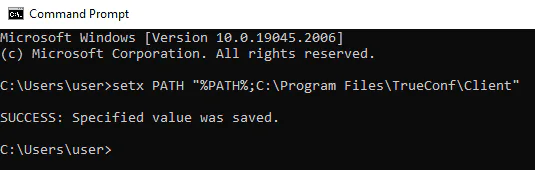
After executing the command, restart your OS. Now you can launch the application through the command line:
TrueConf.exe -t 2 -h 10.110.2.123 -l danilov -p p@ssword123 -e
Using the Application Shortcut
Locate the TrueConf client shortcut on your desktop or taskbar.
Right-click the shortcut and select Properties.
Add the startup parameters in the Target field after the quotation marks enclosing the file name, for example,
-t 2 -h 10.110.2.123 -l danilov -p p@ssword123 -e`:
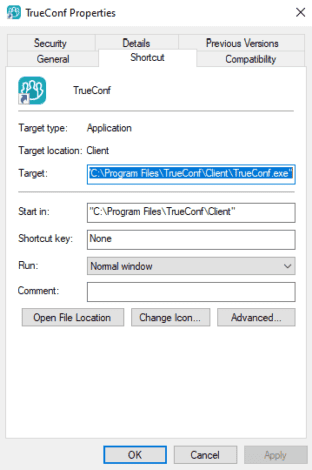
- Click **OK** to save the changes.
On Linux
Using the terminal
To launch the TrueConf application with parameters on Linux, you can use the terminal. First, you need to determine the necessary parameters and select them from the table. After that, just enter the command into the terminal and press Enter. The following command is provided as an example:
trueconf -t 2 -h 10.110.2.123 -l danilov -p p@ssword123 -e
Using a .sh script
To avoid typing the command repeatedly, you can automate the launch using a script.
For convenience, it is recommended to do this in a separate folder, such as tcscripts. To create the folder, execute the command:
mkdir /home/$USER/tcscriptsNavigate to the directory and create a script using the command:
printf '#!/bin/bash\ntrueconf -t 2 -h 10.110.1.123 -l danilov -p p@ssword123 -e' > script.sh${**PARAM_NAME**:-**POSS_VAL**}
printf— command for text processing;#!/bin/bash— indicates the command execution environment;\n— newline character;trueconf— command to launch the TrueConf application;-t 2— parameter to create a new application instance with ID 2;-h 10.110.1.123— parameter specifying the IP address of the server to connect to;-l danilov— parameter specifying the login for authorization;-p p@ssword123— parameter specifying the password for authorization;-e— mandatory parameter when used with-land-p;>— operator for redirecting output to the specified file;script.sh— name of the script file.
Next, make the script executable:
sudo chmod +x script.shThe script is now ready. You can execute it from the terminal with:
./script.sh
On macOS
Using the terminal
By default, the TrueConf application is not available for launch through the terminal. To avoid memorizing the path to the executable file, we will add an alias (symbolic link) to the standard directory /usr/local/bin:
sudo ln -s '/Applications/TrueConf Client.app/Contents/MacOS/TrueConf Client' /usr/local/bin/trueconfYou can now launch the application with parameters directly:
trueconf -t 1 -h 10.110.2.240 -l danilov -p p@ssword123Using this method requires the terminal window to remain open while the application is running.
Using Quick Command (Shortcuts)
You have likely encountered the Shortcuts application when using the Apple ecosystem. If not, here is a user guide.
We have prepared a basic command for you to launch a separate instance of the TrueConf application, which can be added to your menu bar for quick access:

Through the Shortcuts application, you can customize it to your needs:
add new parameters;
hardcode the executable command so that the application opens immediately when the shortcut is launched without requesting additional parameters;
add your business logic.
