
Embedding TrueConf video conferencing into your website

Access to a TrueConf conference can be arranged directly from your website page. To do this, simply embed a widget with the conference page. The widget is implemented as an iframe (HTML frame), and you can find its code in the TrueConf Server control panel or obtain it from an API request.
Below, we will show you how to do it.
Please note that only public conferences can be embedded into a website. To learn more about public web conferences and how to set them up, read our manual.
Guide for TrueConf Server Administrator
Select a video conference you would like to add to your website in TrueConf Server control panel (Group Conferences → Conferences section). Click on the link next to Integration**.**
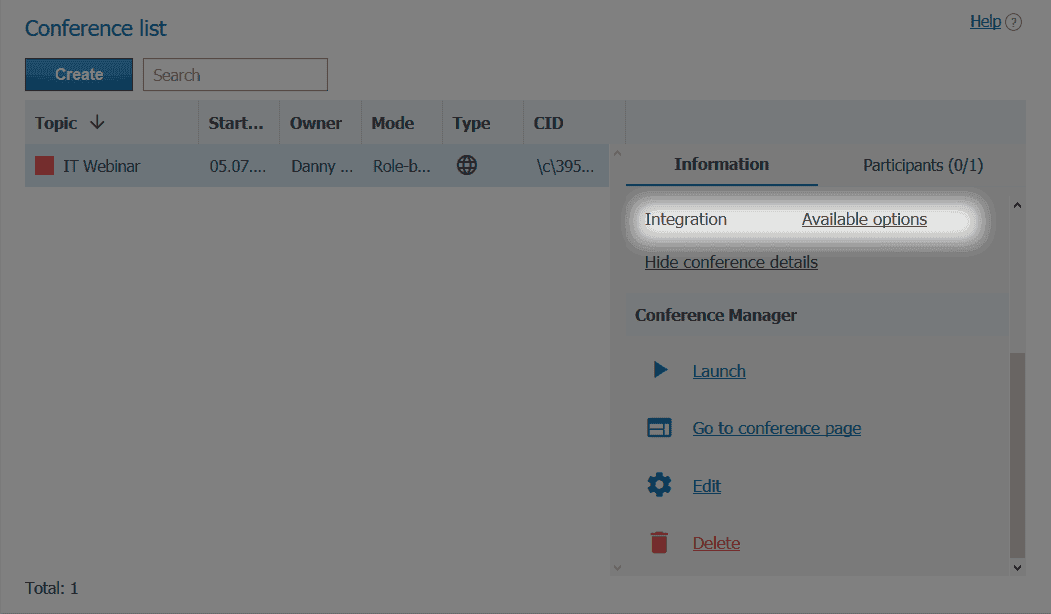
You will find the conference html widget code in the window that opens.
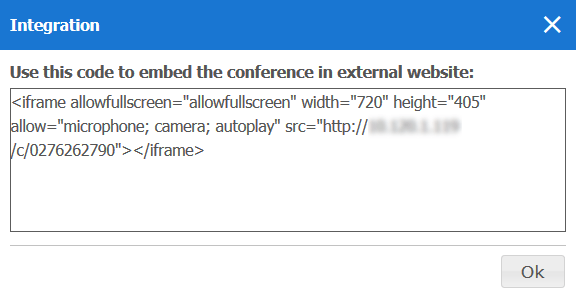
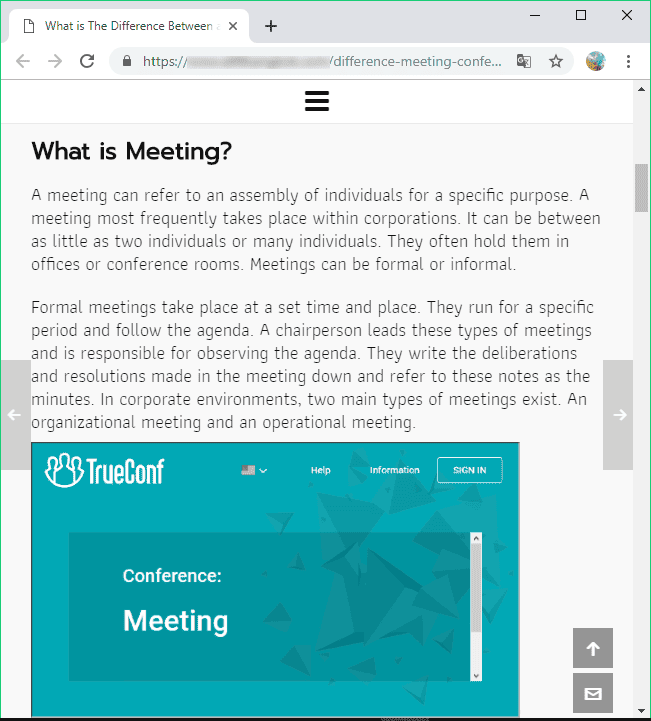
Copy this code and paste it into your web page.
Guide for TrueConf Server User
In fact, conference widget is an ordinary widget, so if you know conference page address, you can paste it to the general template (src parameter):
<iframe allowfullscreen="allowfullscreen" width="720" height="405" allow="microphone; camera" src="[address]"></iframe>As a rule, page address [address] looks like [server]/c/[CID], where:
[server]— IP or FQDN name of your server[CID]– Conference ID
For example:
https://server.company.com/c/32512468
You can embed web conference to broadcast the video meetings scheduled in your conference scheduler.
How to customize conference webpage
You can limit access to the conference page functions listed in the table below by adding disabled parameter to the widget html code:
| Value | Function |
|---|---|
| chats | Chat |
| participants | List of conference participants |
| hangUp | Hang up |
| speaker | Audio device settings |
| camera | Video capture device settings |
| microphone | Audio recording device settings |
| settings | Hardware settings |
| podiumControls | Go to the podium (for role-based conferences) |
| showDesktop | Screen sharing |
| slideShow | Slideshow |
| fullscreen | Full-screen conference mode |
| header | Chat, the list of participants and full-screen mode |
| footer | Hang up and all hardware settings |
For example, to disable access to the chat and the list of participants, you should add the following stings #disabled=chats,participants to your widget code:
<iframe allowfullscreen="allowfullscreen" width="720" height="405" allow="microphone;camera" src="https://server.company.com/webrtc/32512468#disabled=chats,participants"></iframe>