
Video Conferencing
Conferences
During each video conference, the following additional permissions may be granted to its participants:
Read more about user and guest capabilities in our knowledge base.
Connecting to a conference
You can join a video conference in one of the following ways:
- call the moderator;
join the conference by its ID;
In the scheduler, select the conference and click the Connect to conference button;
- join the conference via its web page
navigate to the conference page by its ID from the server's guest page;
access the conference page from your personal area (only if you are the moderator);
In the search field, enter the webpage address of the conference.
Creating a сonference
In the panel located below the address book, go to the Conference Manager section. On the Options tab, specify the conference name and select its type.
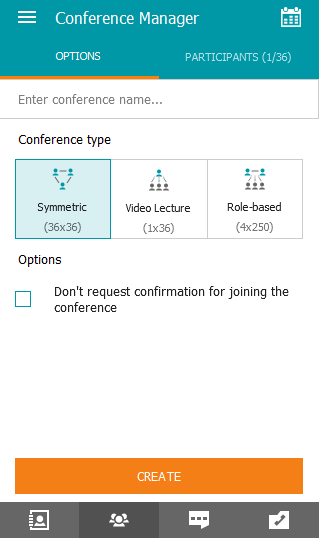
By default, when joining a conference by calling its owner, the owner receives a corresponding request. You can change this behavior by checking the box Don't request confirmation for joining the conference. In this case, a user who wants to join the conference will automatically connect to it when calling the owner.
You can check this box after creating the conference as well. During the conference, go to the Conference Manager → Tools tab through the panel in the bottom right corner.
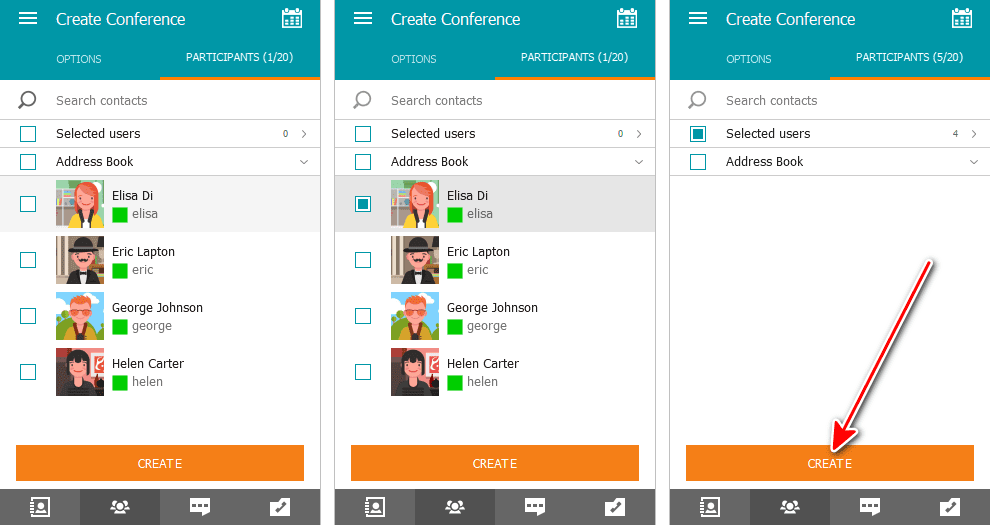
After that, open the Participants tab. A list of all users in your address book will be displayed. Select those you want to invite to the conference and click Create.
Scheduling a conference
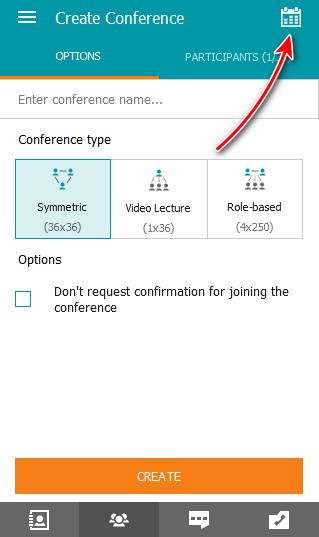
By clicking the  button at the top of the Conference Manager section, you will access the conference scheduler, where you can:
- schedule a conference for a specific date and configure its settings in advance;
create a virtual room (an unscheduled conference);
Create a conference template.
Creating a conference in the conference scheduler may not be possible due to the restrictions set by the server administrator on a group policy level.
To create a conference in the scheduler, follow the steps:
Click the
 button (Сreate a conference).
Specify the launch type: internal (default) – without the possibility of guest connections, or public (webinar) – allowing users not registered on the server to join.
Selecting the type of Public conference (webinar) may not be available if the server administrator has not enabled the option to create web conferences.
3. Click Continue to access the main settings.
"General" tab
In this section, you need to specify:
Conference name.
- mode (by default, Symmetric is selected);
number of speakers if a moderated role-based conference is selected;
type of conference launch: scheduled (planned) or unscheduled (virtual room);
Date, time, duration, and, if necessary, recurrence for a scheduled conference.
To create conferences with the same settings in one click in the future, check the box Save as template.
"Participants" tab
Go to the Participants tab and add users to the conference using one of the following methods:
from the address book
by their TrueConf ID
specifying the dial string for the SIP/H.323 or RTSP device
Via email (possible only for public conferences).
"Layout" tab
On the Layout tab, you can select the default video layout for all conference participants or individually for each one.
Editing the video layout is not available for asymmetric video conferencing.
To configure the layout, complete the following steps:
Specify the video layout type.
Select the number of participant video windows;
If necessary, you can add an additional window for content sharing.
Assign a participant to each video window or click Auto-fill layout (you can rearrange the video windows using the mouse). You can use full-screen mode for convenient video layout configuration.
Select the location of a participant's name (at the top or at the bottom of the video window).
If necessary, check the box Do not allow users to change the layout.
"Advanced" tab
In the Additional tab, configure the following settings:
- Conference ID ;
the ability to join a conference without an invitation (for internal conferences only);
permissions for guest participants (only for public conferences);
Allow conference recording
Send email invitations to conference participants.
Creating a conference from a call
Sometimes it's necessary to involve additional participants in the conversation process.
The TrueConf for Windows client application allows you to quickly turn a call into a video conference by adding new participants to the conversation. This does not require interrupting the call or starting a new conference.
To add a new participant to a conversation:
In the panel located at the bottom of the application, navigate to section Address book.
Select the user you want to add to the call and call them using the method described in the previous section.
In the same way, you can connect an IP camera or another device to the call using the call string format.
Inviting users to the conference
You can invite participants to the conference if you are a moderator. This can be done in three ways.
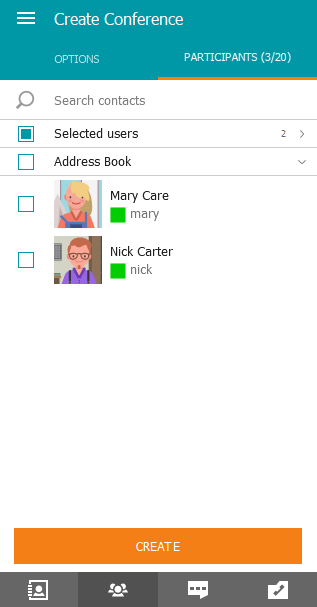
Firstly, when creating a conference from the client application, you can compile a list of participants from your address book:
Second, if you call any user during a conference, this user will be invited to the current conference (the user will join the conference immediately after answering the call).
Thirdly, if you are the conference owner or have operator rights, you can go to the participants list in real-time meeting management and invite users using the button  to the right of the search bar.
Removing conference participants
The moderator can remove a participant during an event, including another moderator (but not the conference owner). To do this, click on their profile in the participant list on the right panel of the application (make sure to navigate to the participant list, not the address book). Buttons will appear next to the user's name, one of which, marked with a minus sign  , will remove the user.
You can also use the context menu by right-clicking on the name of the subscriber you wish to remove and selecting Disconnect participant.
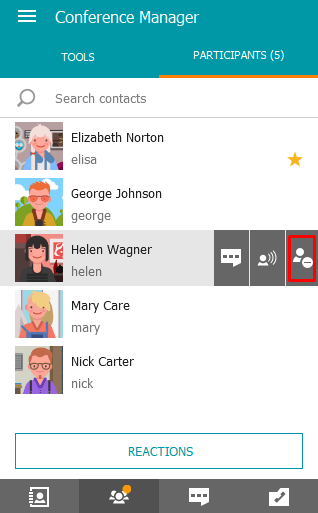
A user who has been removed in this way will not be able to join the conference by himself, even if he or she is the conference moderator.
How to invite a group to a meeting
To create a video conference with a group of users, go to group list view and select Invite to conference from the group's context menu. You will be directed to the conference creation menu.
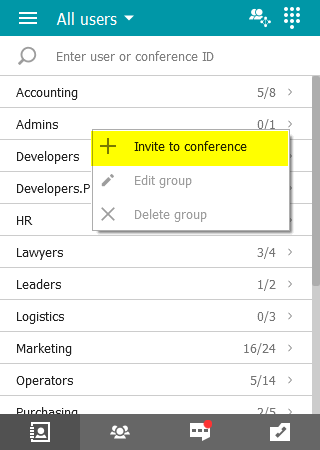
Similarly, you can invite a group to an active video conference if you are the moderator.
Terminating the conference
If you are the moderator of a conference, upon exiting by pressing the  button, you will be given the option to either leave the conference, allowing others to continue, or to end it for all participants.
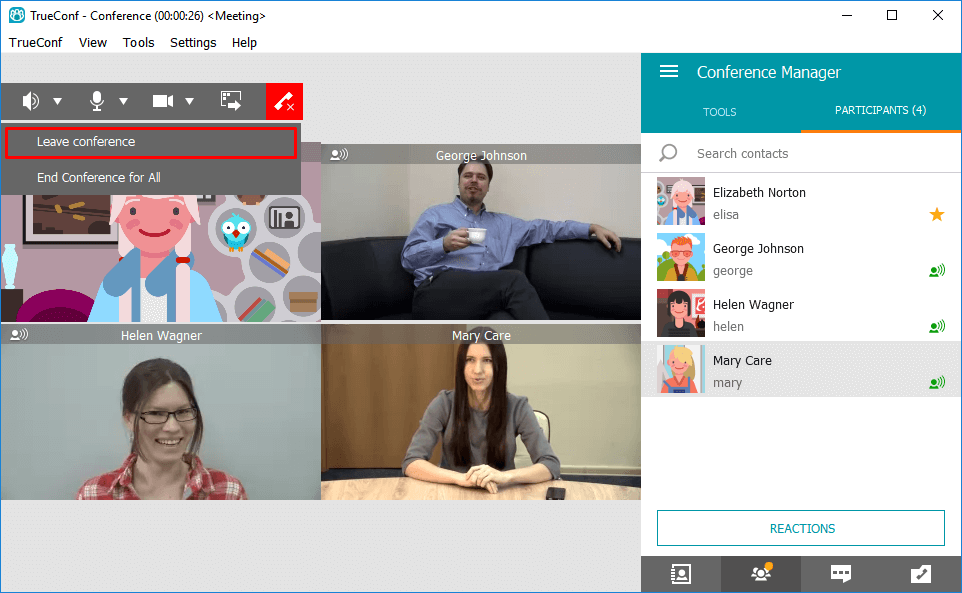
If you select option Leave conference (without ending for all), you can return to it in one of two ways:
- call using their ID or page address;
If you are the owner, you simply need to start creating a new event. The application will automatically redirect you to a conference where you are the owner (as long as there is at least one participant remaining).