
During the conference
During a video conference
Changing video layouts
During a video conference, you can change the arrangement of participant video windows on the screen — the video layout of the conference.
To do this, navigate to the Conference Manager → Tools tab and go to the Video window layout section. Here, you can select one of the available participant window display modes.
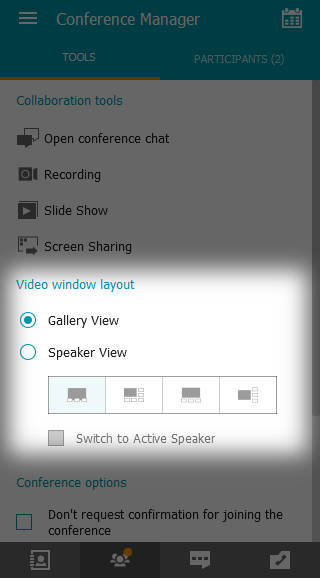
If you select the Speaker View mode, the Switch to Active Speaker checkbox will become available. When this checkbox is selected, the application will automatically identify the current speaker and enlarge their image.
Can I customize the video layout during the meeting?
Yes, it is possible.
If a TrueConf app user changes their video layout during the meeting, the view of other participants (both native and browser-based) will not change.
To change the order of video windows:
Hold down the mouse button on the window you want to move to a different location.
Drag it to the position of the window you want to replace.
Release the mouse button to switch the participants ' panes.
To select a priority window, which will be displayed as the largest in the layout:
Double-click the left mouse button on the image you want to bring to the center of the video layout and enlarge.
Other windows will be displayed as thumbnails. Double-click again on the larger window to return the video layout to its original position.
Adjusting priority windows is also simple. Drag-and-drop or double click the pane to change its place.
How to lock a video layout for other meeting participants
If you are the conference owner or its operator, click Proceed in the Video window layout section above the block with participant window display options.
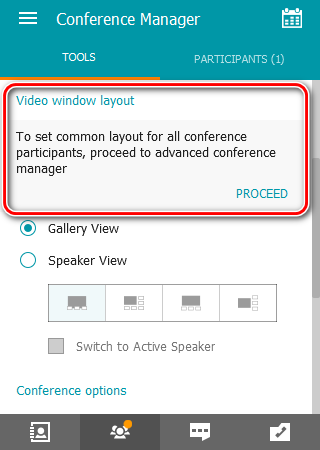
Ведущие конференции, но без прав оператора, менять раскладку у других участников не могут.
A window for real-time meeting management will open, where you can configure the video layout as described in your personal area in the user manual TrueConf Server.
In this window, you can also view detailed information about the conference by clicking the  button in the upper left corner.
Can conference participants reject the video layout set by the owner?
Yes, they can, if you select Enable users to change layout in the advanced settings when configuring the video layout using the real-time meeting management tool.
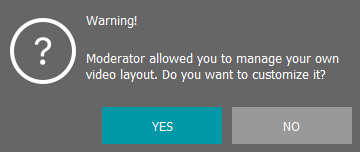
In this case, the meeting participants will be notified that the customized video layout is available and will be offered to change their view:
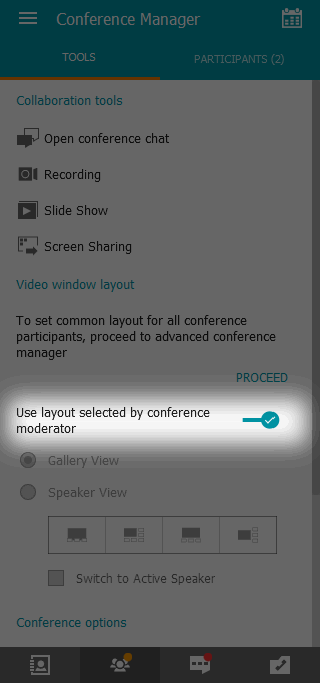
Even if the moderator's video layout was declined, the user will still be able to enable it. The toggle will be available in the Conference Manager → Tools tab under the Video window layout section:
Managing and changing participants' audio and video devices
During a conference, you can not only turn a user's camera or microphone on and off but also select the appropriate ones from the list available on their device and adjust the microphone sensitivity.
To do this, go to real-time meeting management and follow the steps outlined in the user guideTrueConf Server.
TrueConf virtual meetings overview
How to make an audio remark
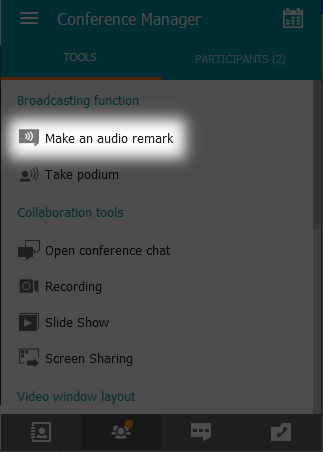
Any participant in a moderated role-based conference can make a brief audio remark without requesting special permission. To do this, they need to hold down the Make an audio remark button on the Conference Manager → Tools tab and speak while the button is pressed. Once the button is released, the user's audio will continue to transmit to the conference for an additional three seconds (a countdown will be displayed on the button).
How to take and leave the podium
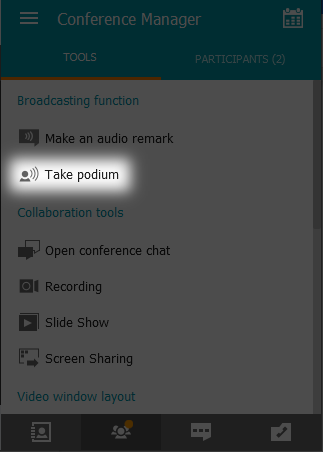
In the same menu, there is a Take podium button. After you click it, the respective request will be sent to the moderator, and upon approval, you will be added to the podium as a presenter. This action is available to any conference participant.
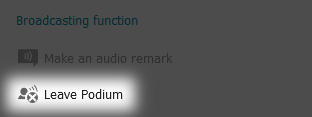
To end your presentation, click the Leave Podium button, which will appear in place of the Take podium button during your presentation.
Granting and changing meeting roles
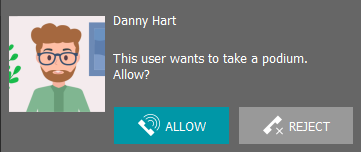
After a viewer sends a request for access to the podium, the conference moderator will receive a message in the following format:
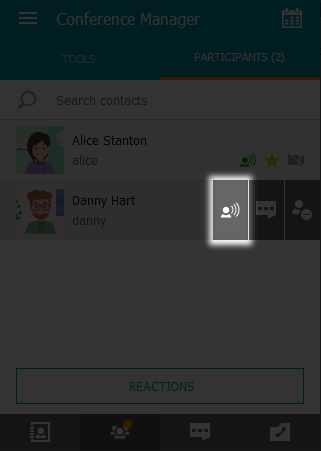
During a moderated role-based conference, the moderator can add participant to the podium by selecting them from the participant list and clicking the icon depicting a person speaking.
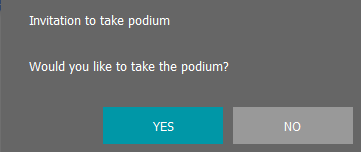
The participant will be invited to become a presenter:
Similarly, you can remove a participant from the podium using the  button. You can also manage any participant's presentation using the context menu items Invite to Podium and Remove from podium, which appear when you right-click on a user in the participants list.
Reactions and Polling
TrueConf for Windows allows conference participants to take and participate in polls using small reaction or status icons:

Reactions and polling do not directly affect conferences. Instead, they serve only as an additional means of sharing information between participants. This mechanism can be used to express your opinion during a video conference without making an audio reply.
Reactions are set on the Conference Manager tab in the Participants section. By clicking the Reactions button, you can select the desired status. If needed, you can change the reaction (simply by selecting a different one) or reset it (using the button below).
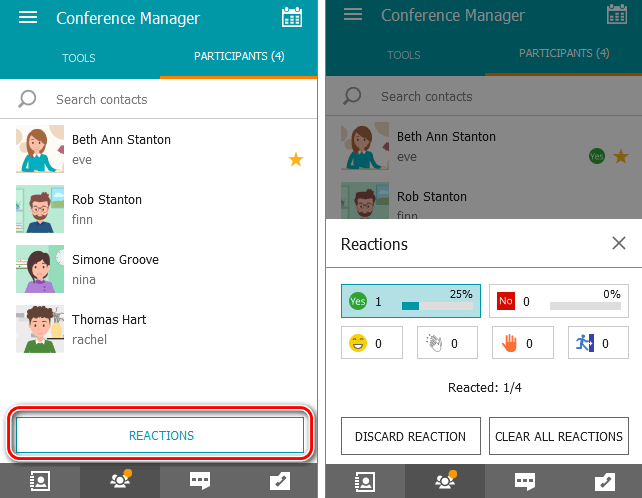
Next to the list of possible reactions, there is a counter Reacted that shows the number of participants who have reacted.
Please note that “Yes” and “No” statistics is calculated taking into account all conference participants (not only those who voted). For example, if one attendee votes “Yes” and other attendees do not vote, then “Yes” will still have only 20% in a conference for 5 users.
Ведущий конференции может аннулировать все реакции, проставленные другими участниками. Для этого достаточно нажать кнопку Clear all reactions, которая отображается внизу при выборе собственной реакции.