During the Conference
During a call or conference
Conference window
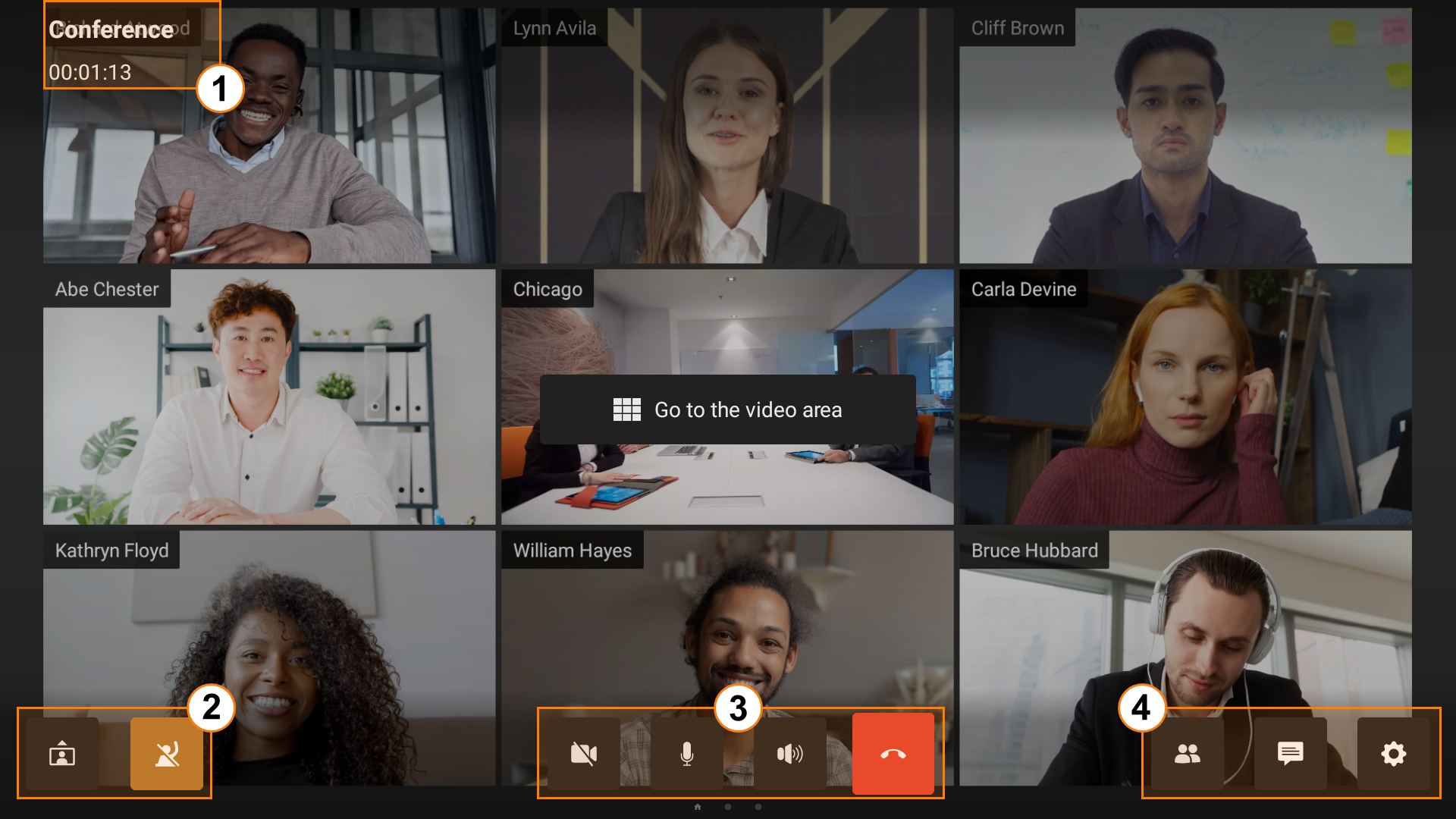
The window of an active conference includes the following components:
The info bar where the name and duration of a conference is displayed.
Conference management.
The panel leading to:
Self-view window
Press the  button to collapse the self-view window, and press the
  button to display the self-view window.
If your microphone is muted, you will see the  icon in the self-view window.
Participant management
During a conference, you will have access to various tools for managing participants. Some of the actions are available in the video area while others can be found in the participant list.
Video area
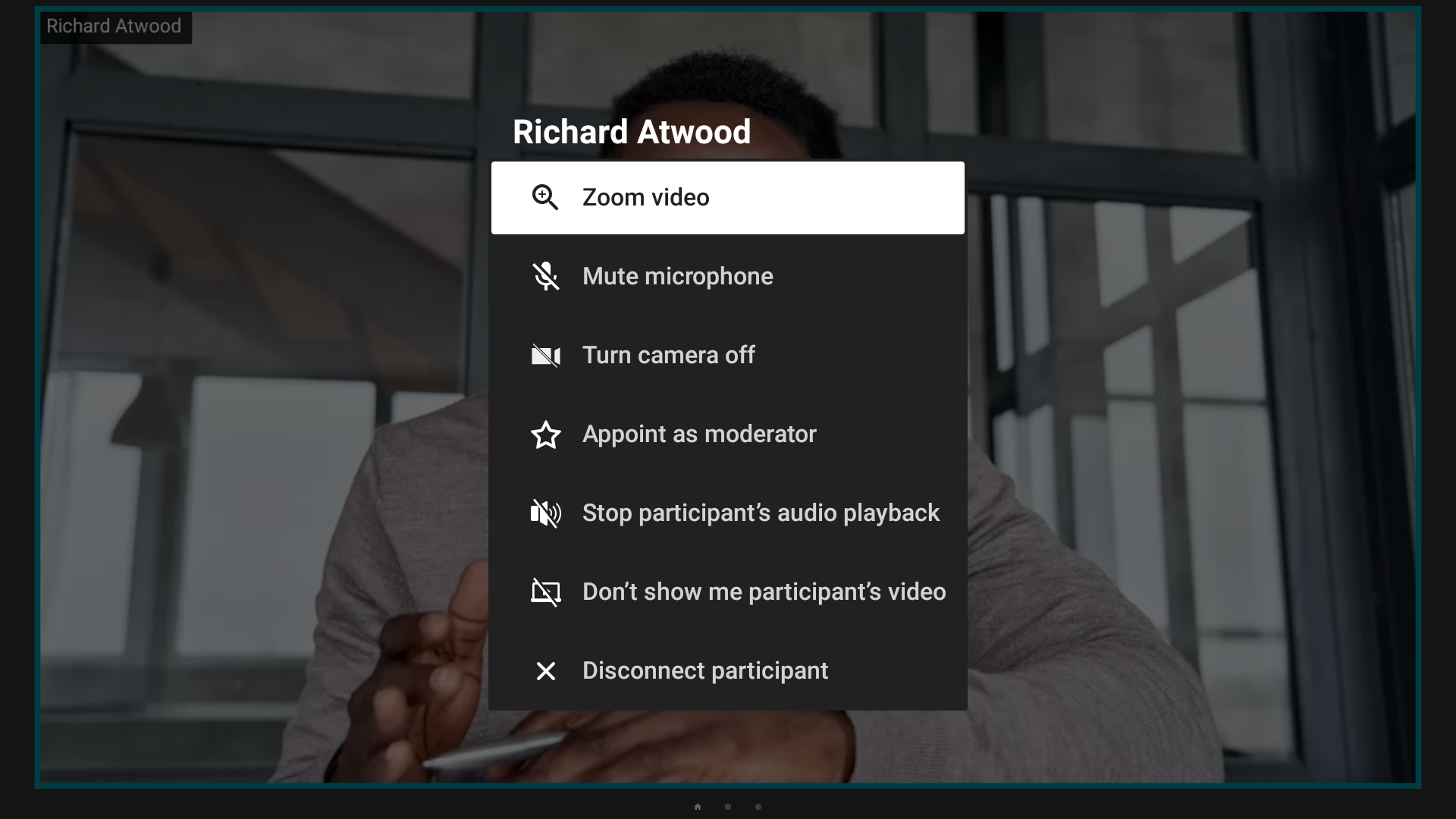
To open the list of available actions, use a remote control to go to the video area (where the conference layout is displayed) and select a video window. Here you can:
- Disable the reception of audio and video from a participant.
If you are a moderator, the list of possible options will be extended. You will be able to:
Enlarge video
Turn off a participant’s microphone and video
Appoint a participant as a moderator
Disconnect a participant.
List of participants
To access it, click the  button on the conference control panel.
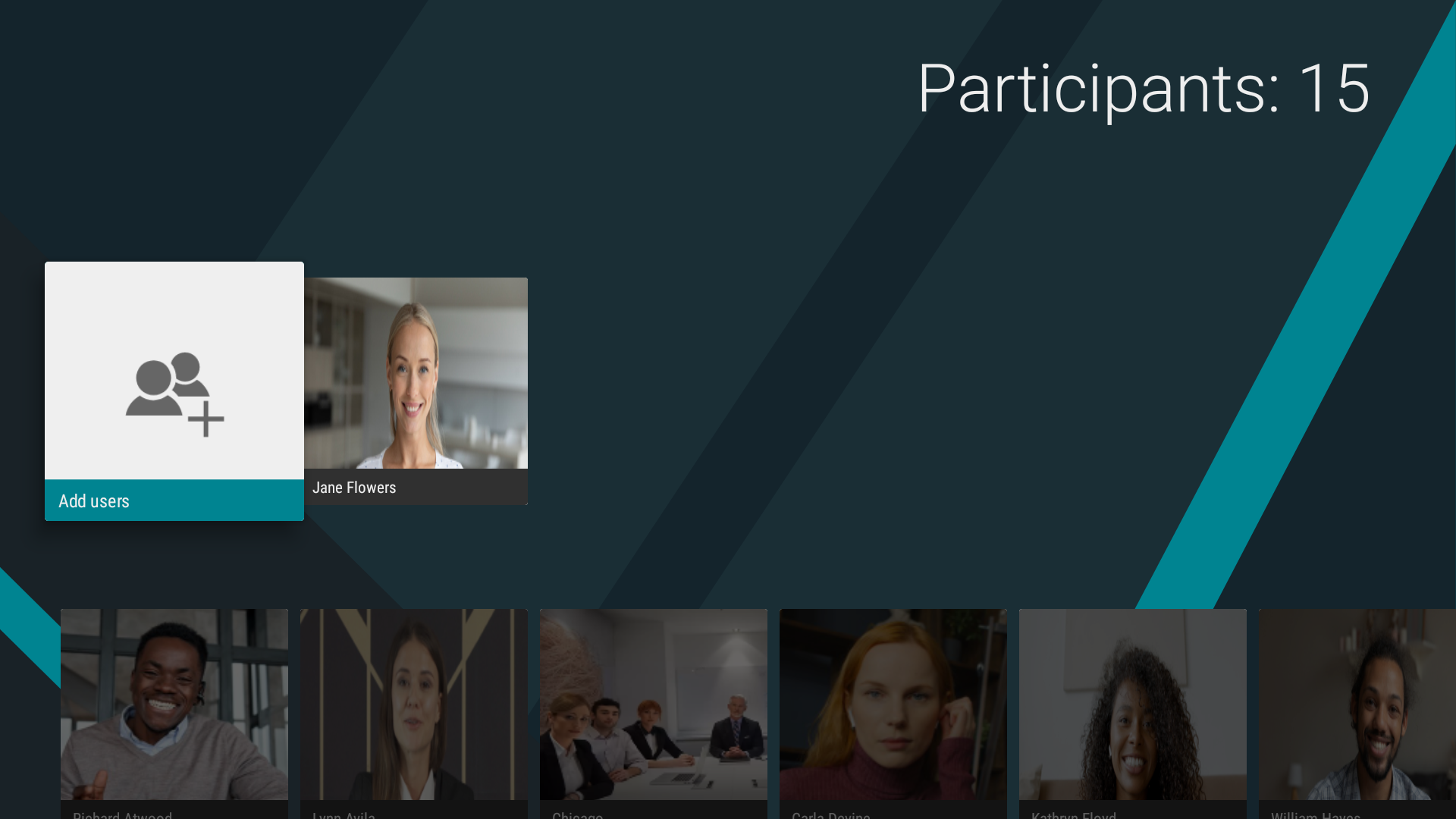
Here, you can:
Check the number of meeting participants
View information about a user
If you are a moderator, you can:
Add new participants to a conference
Remove a participant from the conference
Invite the participant to the podium and remove them from the podium.
Adding users to the address book
You can add a user to your address book right during a conference. To that end, you need to:
Open the list of participants in the conference menu.
Select a user and go to their profile.
In the window that opens, go to the User Information menu.
Click the Add button.
AV device settings
Managing your microphone and camera
To mute your microphone:
During the conference, go to its menu and click the mute microphone button
 .
.The button will appear crossed out
 .
.
Similarly, you can enable or disable video transmission in the conference by clicking the camera button  .
.
Switching between cameras
If you have multiple webcams connected to your Android TV box, you can switch between them. To do it, press the icon in the conference menu and choose the corresponding camera:
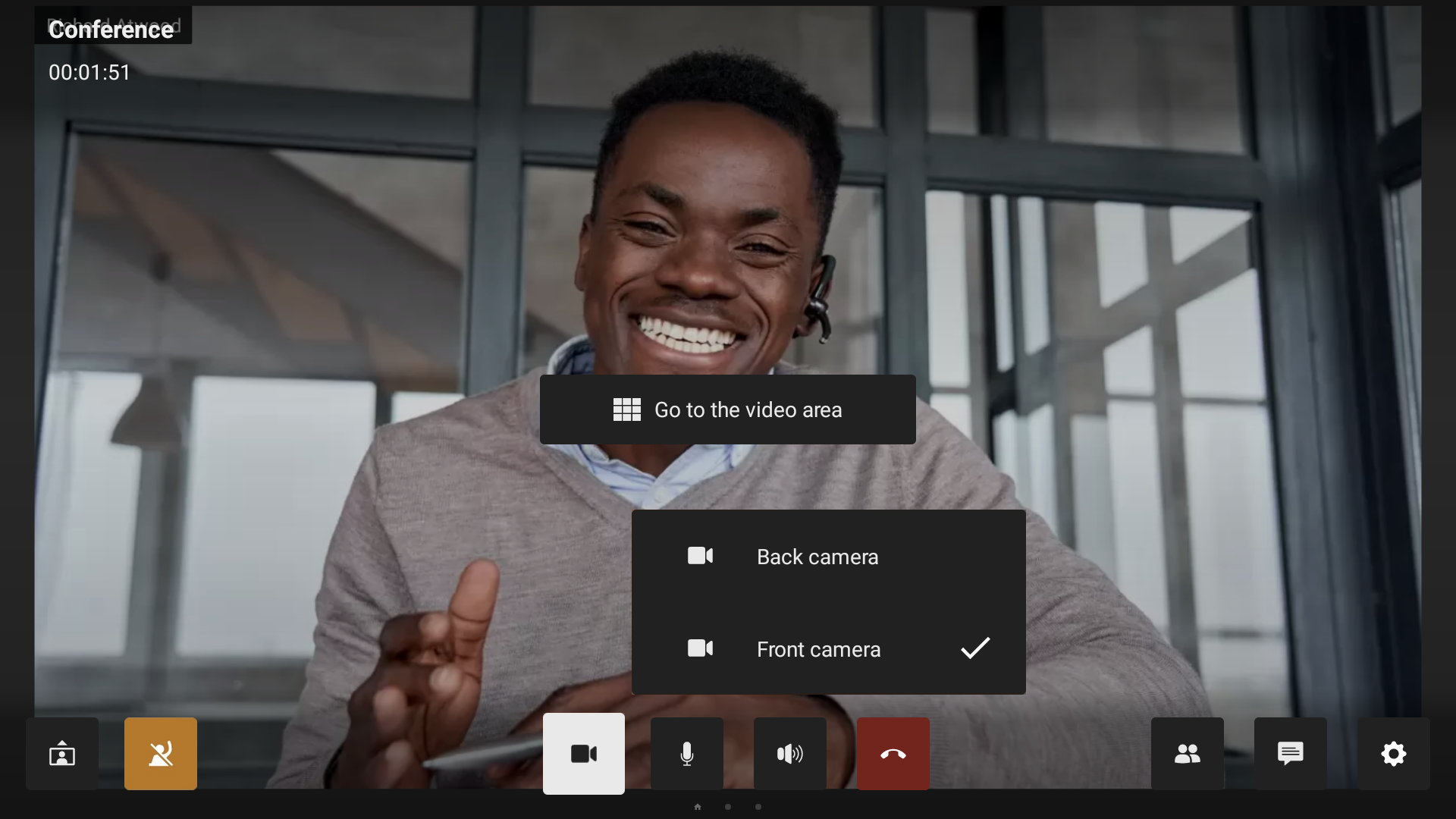
You can also do this in the advanced hardware settings.
Additional device settings
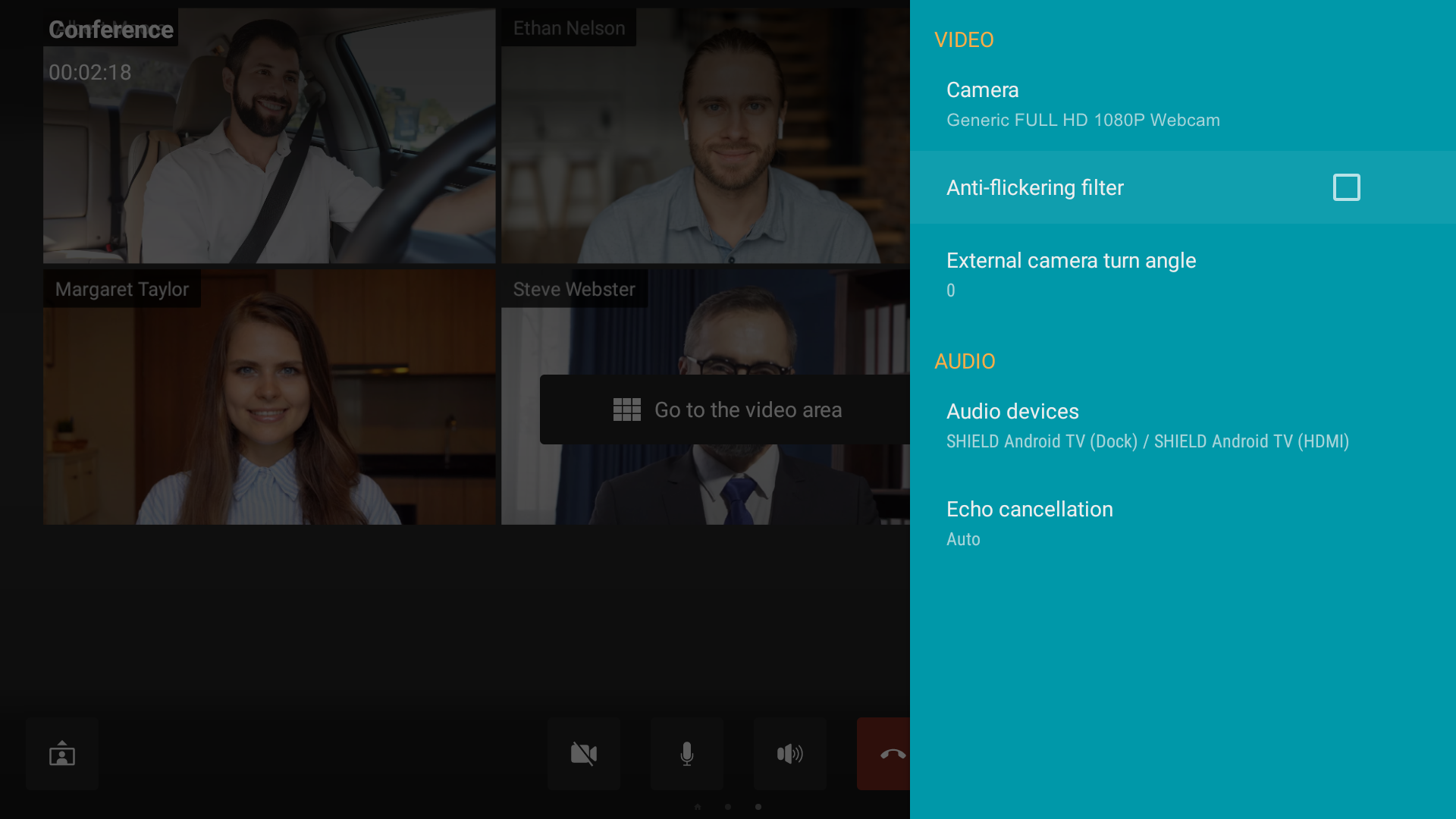
By clicking the  button, you can access the advanced equipment settings. There you will find:
Switch between cameras, microphones and speakers if you have multiple devices connected.
Enable automatic anti-flickering filter.
Change the camera angle for compatible webcams.
Adjust volume level.
Configure echo cancellation (auto, on or off).
Changing layouts
The moderator of the conference that you have joined can set a layout which will be received by all participants (one can do it in the real-time meeting management section). However, TrueConf for Android TV client application will not be affected by this layout because it uses a dynamic layout supporting multi-page display of video windows.
How the layout is formed
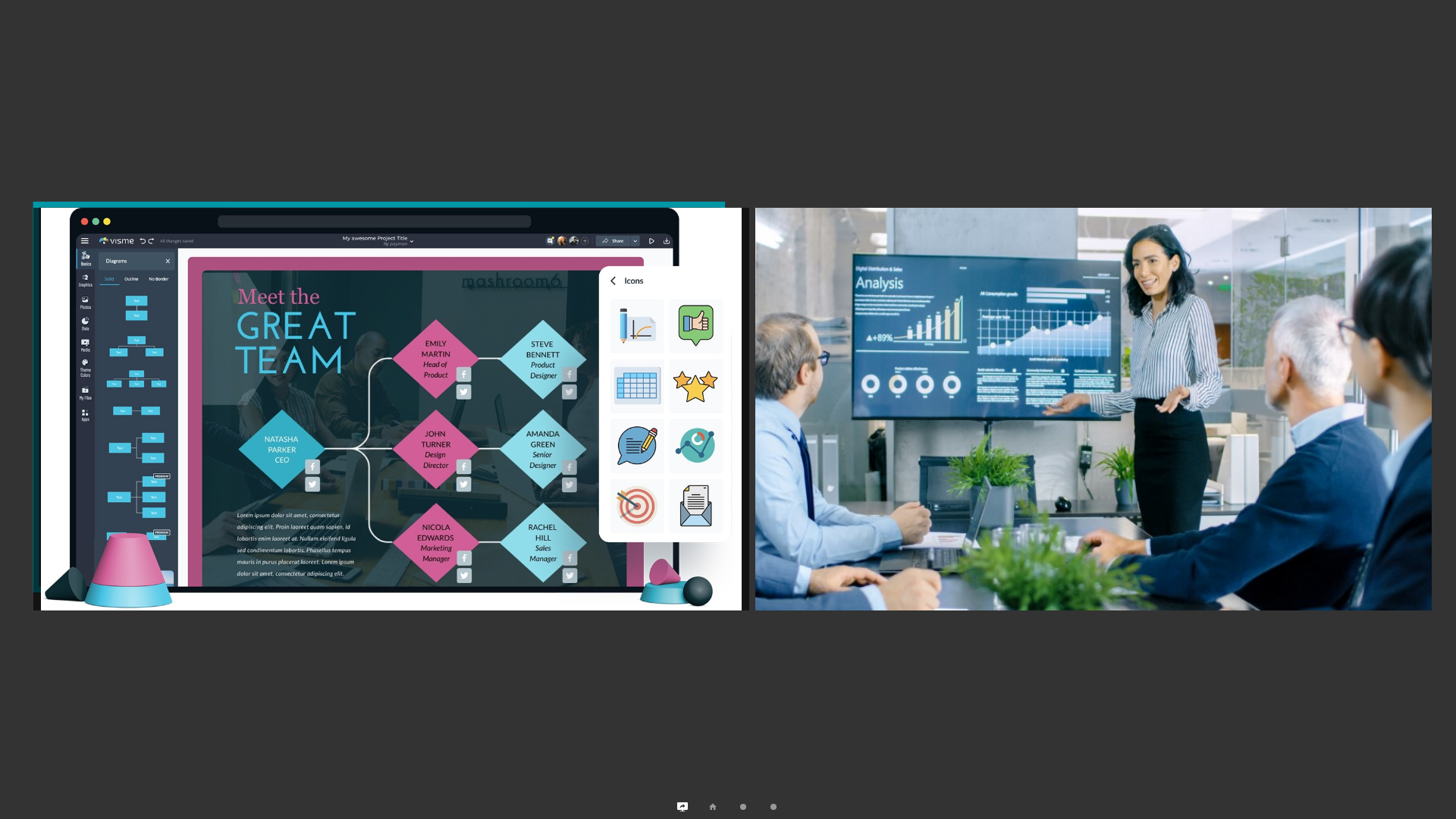
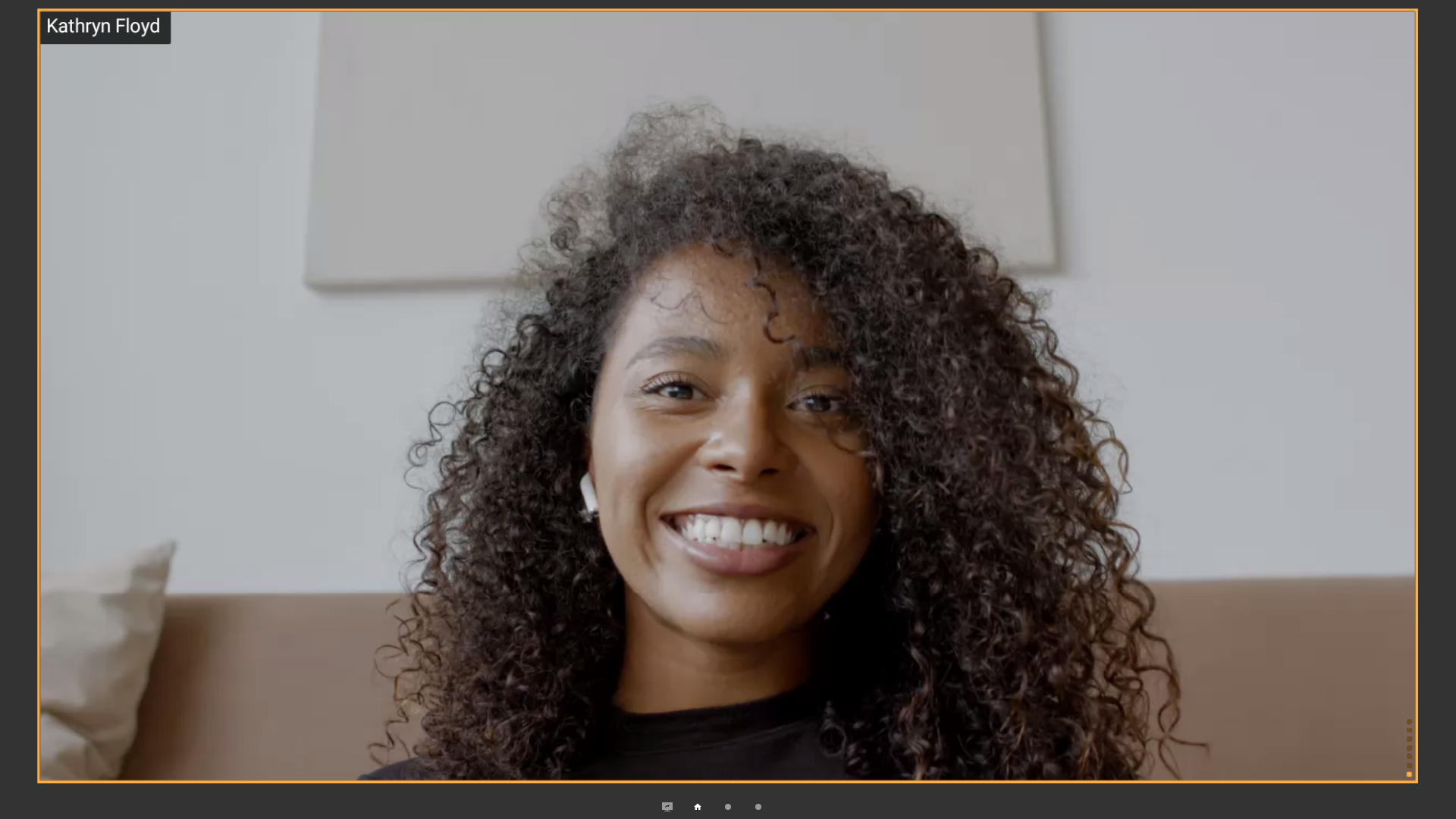
The layout is formed dynamically and varies depending on the conference mode. Below, we will describe the order of windows in a moderated role-based meeting with a content window and multiple presenters:
Slideshow or content sharing (up to 2 windows on the screen).
Active speaker.
The podium with presenters.
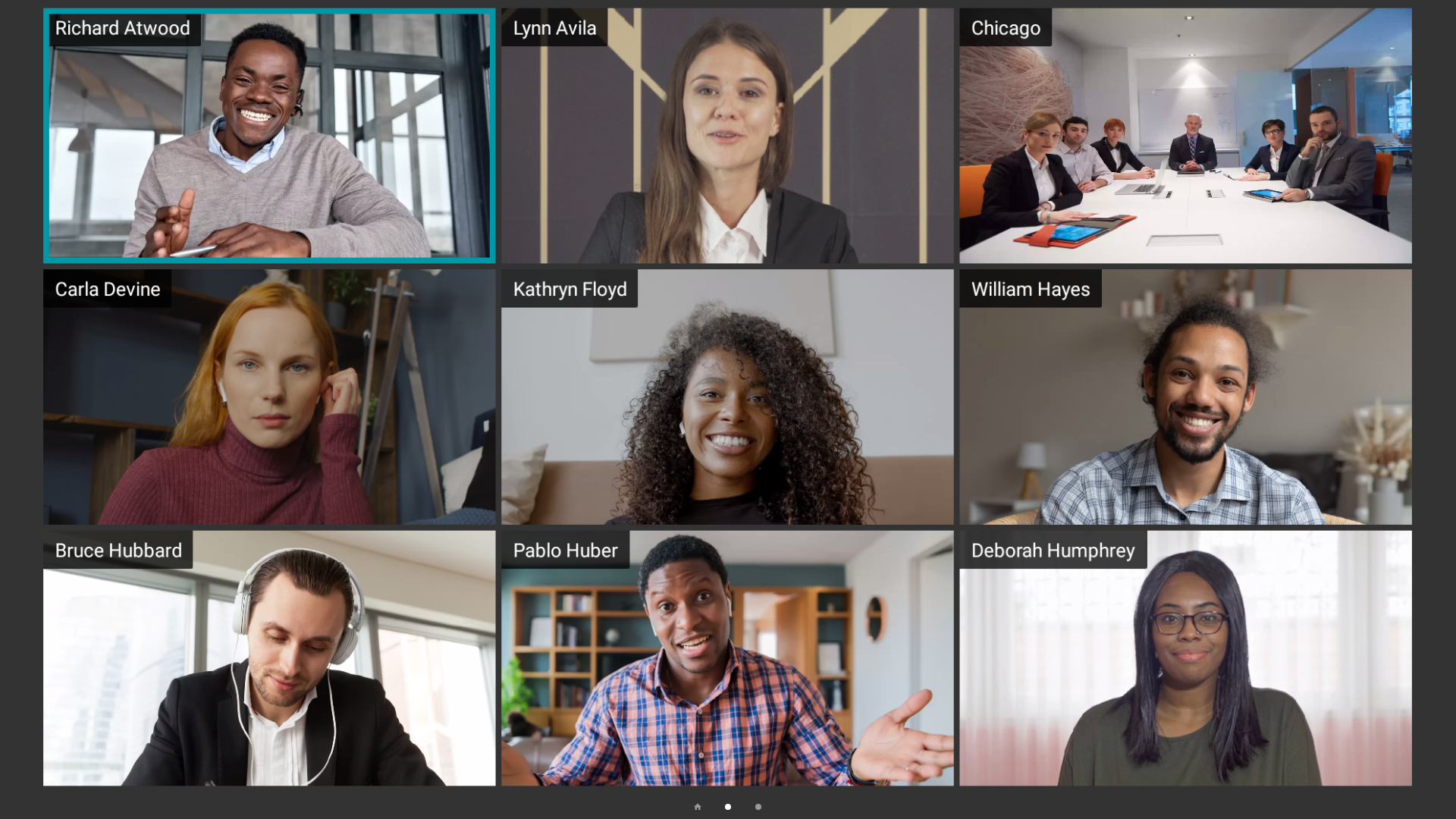
You can switch between windows with the right and left arrows on your remote control. The number of screens with speakers is unlimited. Up to 49 video windows can be displayed simultaneously in a conference.
Features in a moderated role-based conference
How to take and leave the podium
When you are in the listener role, the label You are not now on the podium or icon  is displayed in the lower-left corner of the video area. To speak on the podium, click the
  button in the conference control panel. Once the moderator approves the request, the label will disappear, and you will be able to speak to other participants. To stop broadcasting from the podium, click the
  button.
Please note that if you have accidentally clicked on the button, you will be automatically removed from the podium. In this case, you will have to send a podium request to the moderator once again.
Assigning a speaker
When a podium request is sent by an attendee, the moderator will receive the following notification that will be displayed in the upper part of the screen:
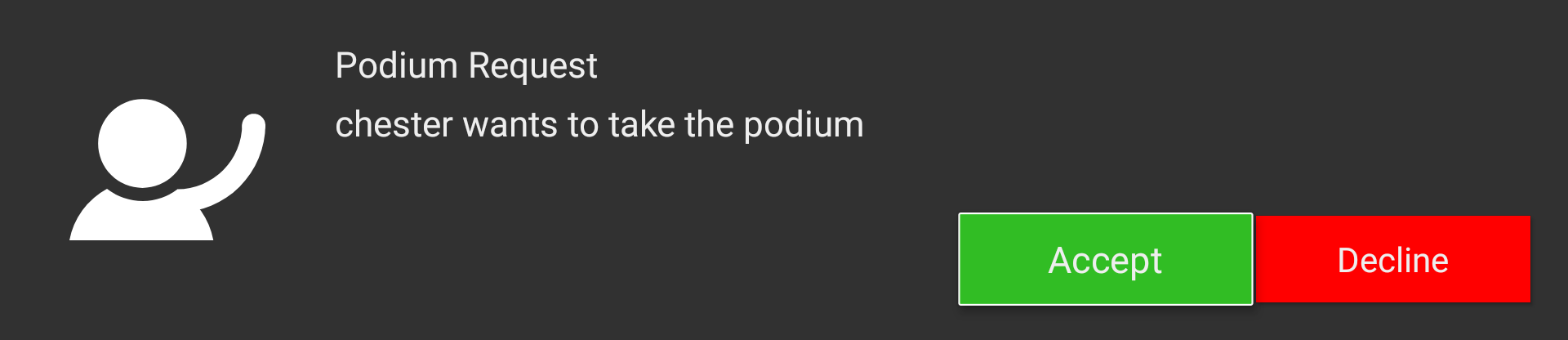
The request displayed in the upper part of the screen will be hidden in a few seconds. If you did not have time to accept it, go to the list of conference participants and take the steps described below:
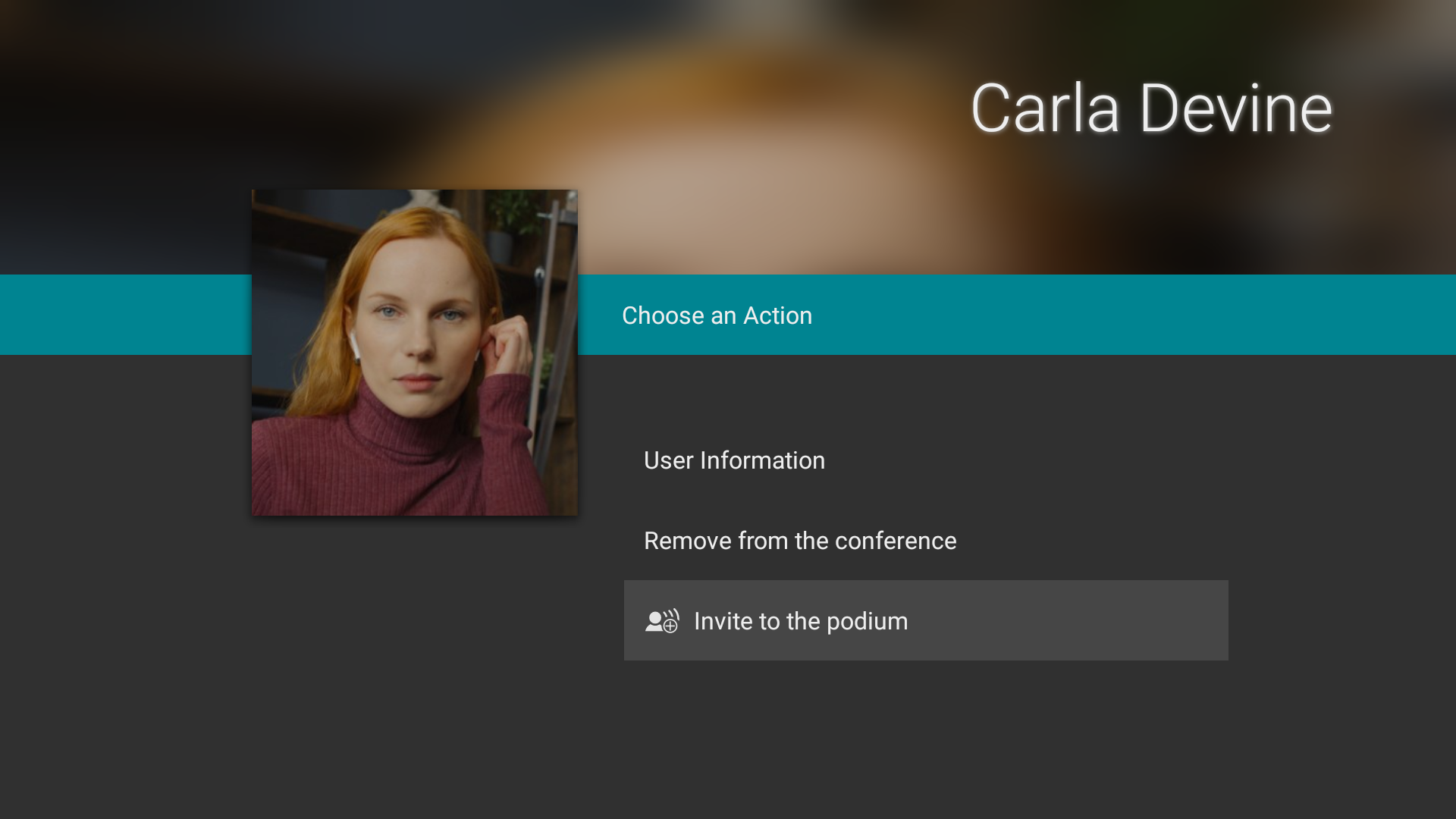
If you are the moderator of a moderated role-based conference, you can invite any of the participants to the podium. To do it, go to the list of participants, open the profile of a participant who you want to make a presenter and click on the Invite to the podium button in the opened menu.