Calls
Incoming calls
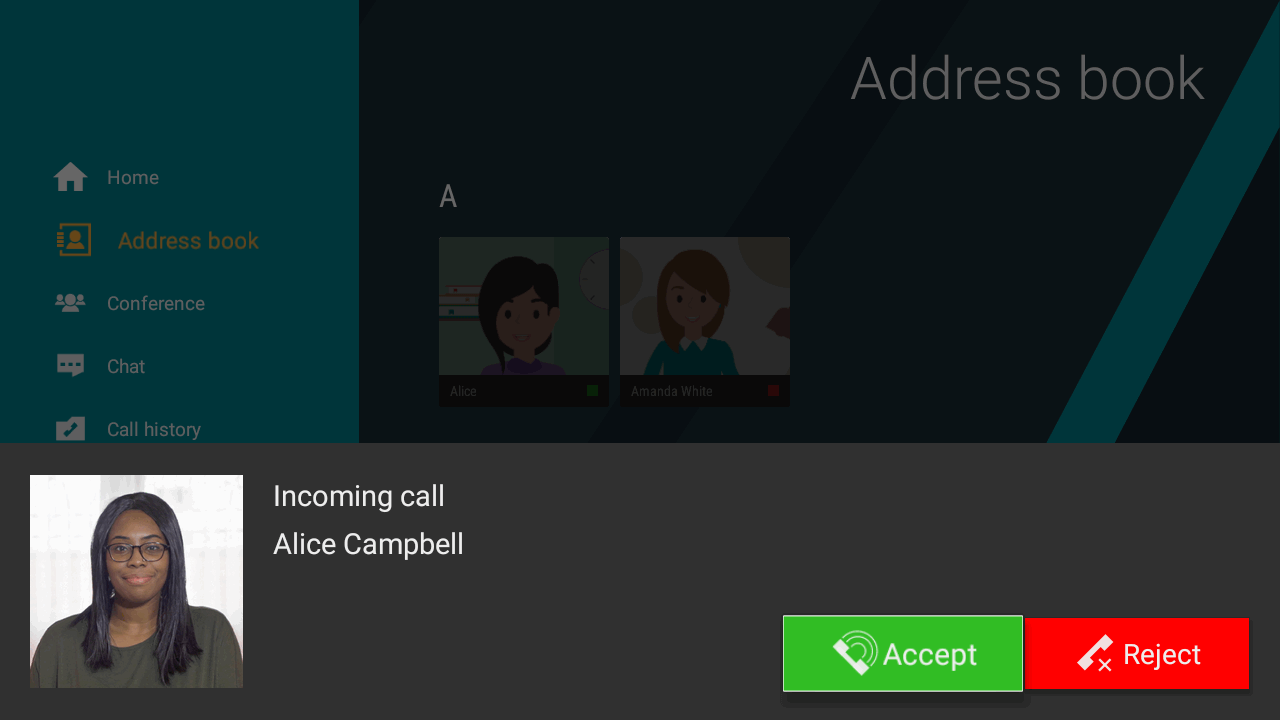
You can receive an incoming call with caller’s name information displayed while visiting any app menu section:
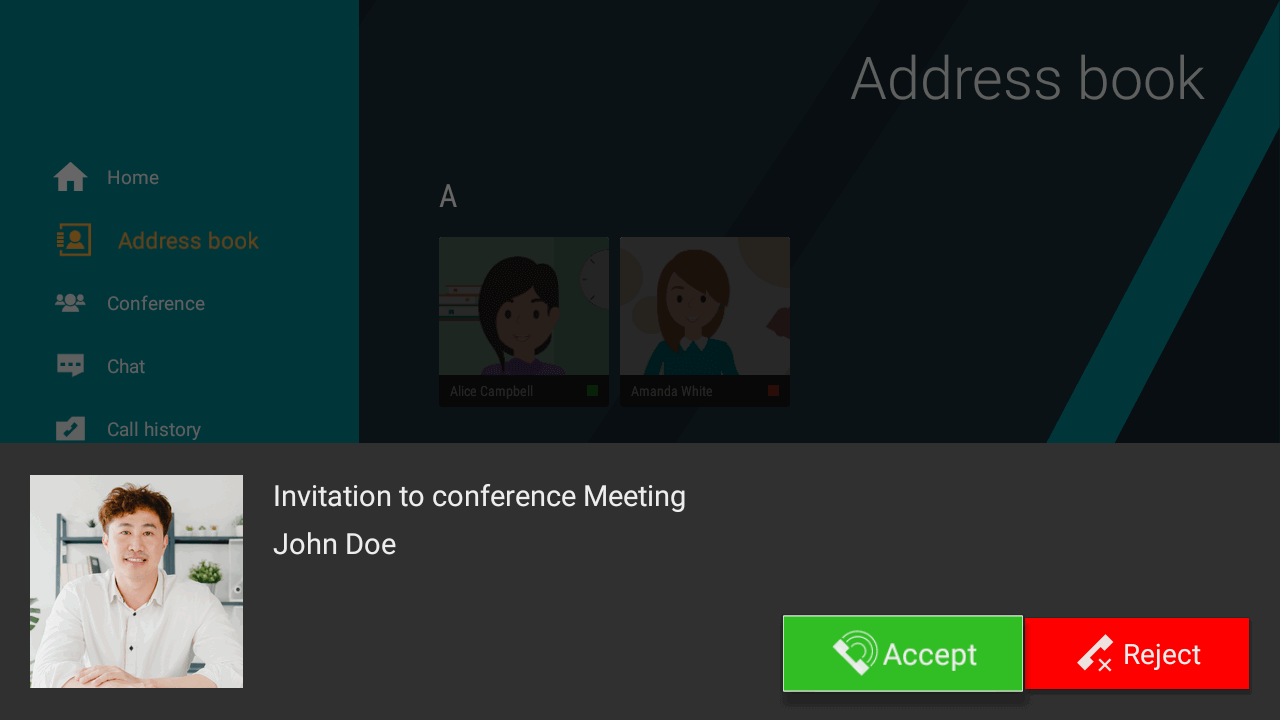
In a similar way, you can be invited to a video conference:
To save memory, your device may unload TrueConf. However, as long as your internet connection is active, you will still be able to receive incoming calls and conference invitations even though your status will be set to recent activity in other users' address books.
To enable incoming app notifications in the above-mentioned situation, you need to have an Internet connection and Google services on your Android TV device.
Making a call
To call a user, you need to:
Find it in the address book.
Go to their profile and click Call.
To end the call, press the Back button on the remote control or the
 button in the call menu.
During communication, you will have access to several features that are detailed below for conferences: chat, disabling/enabling the camera and microphone, as well as their configuration.
Call history
To view your call history, choose the corresponding item in the app menu:
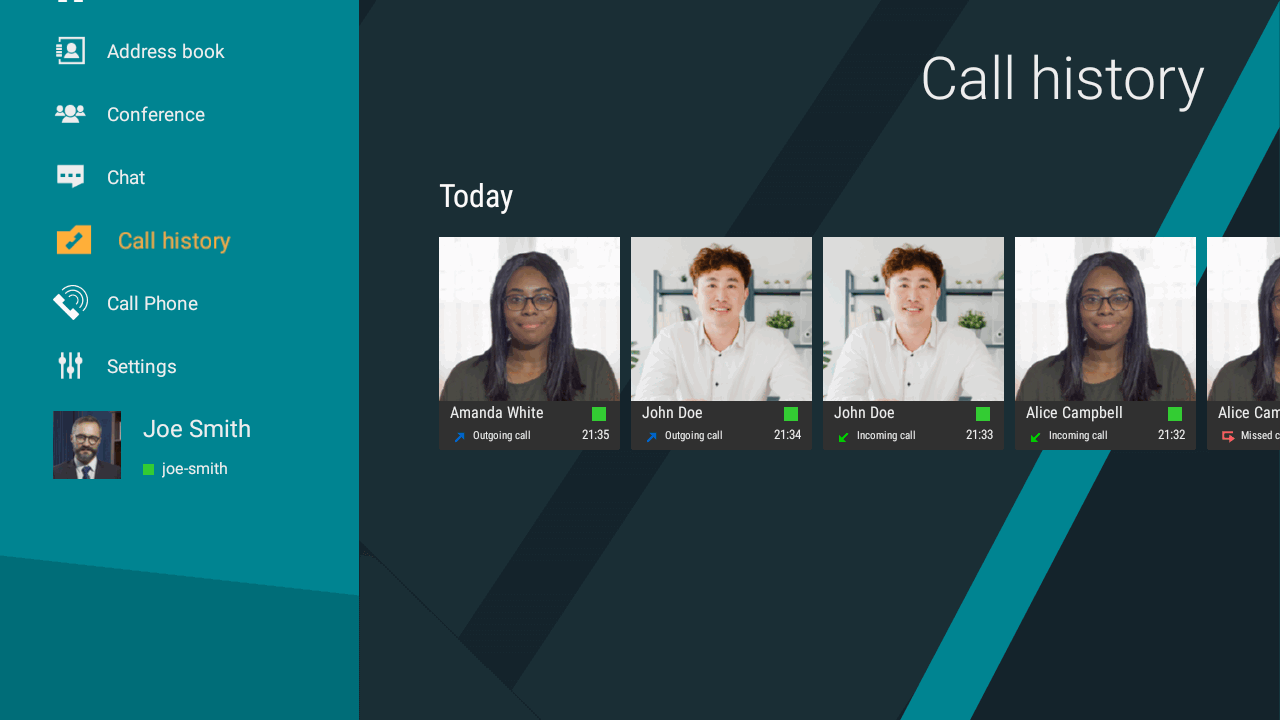
With this list, you can call a user again or re-join a conference if it’s still ongoing and this user is the conference owner.
How to call a phone
To call a phone number, you need to:
Go to the dialer from the Call Phone menu.
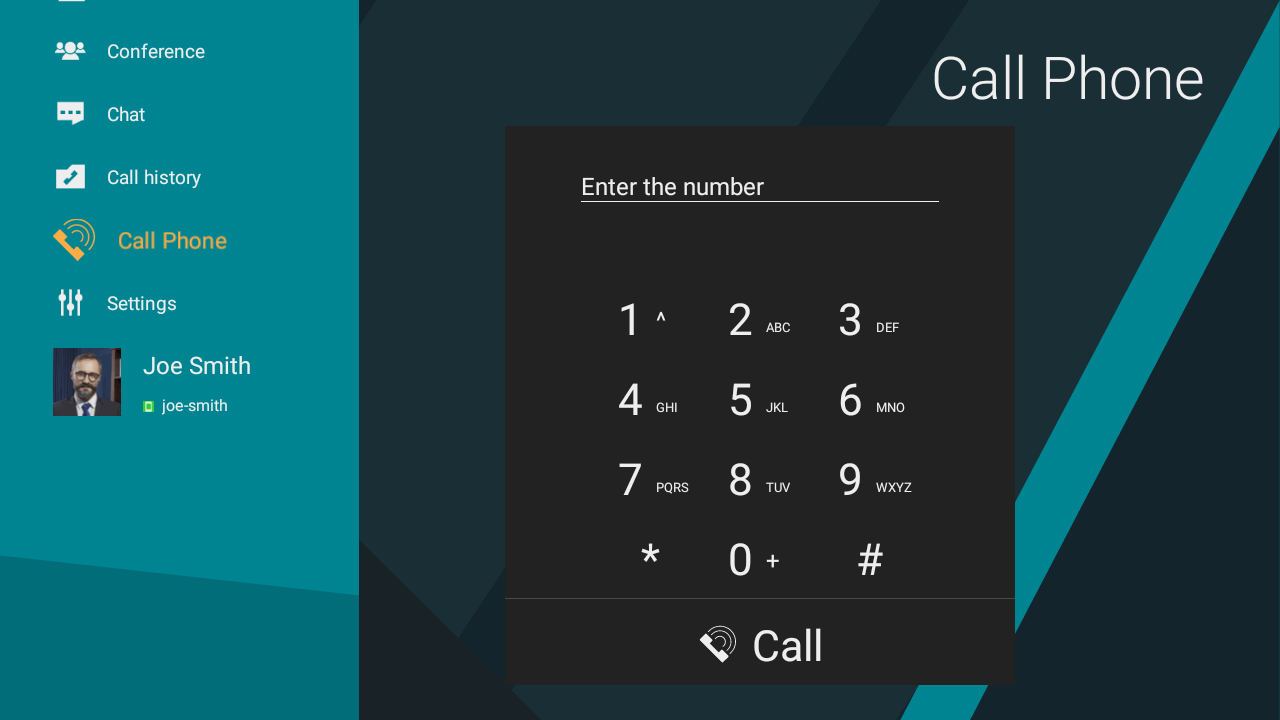
Use the remote control to dial the required number. Contacts matching the dialed sequence will be displayed at the bottom:
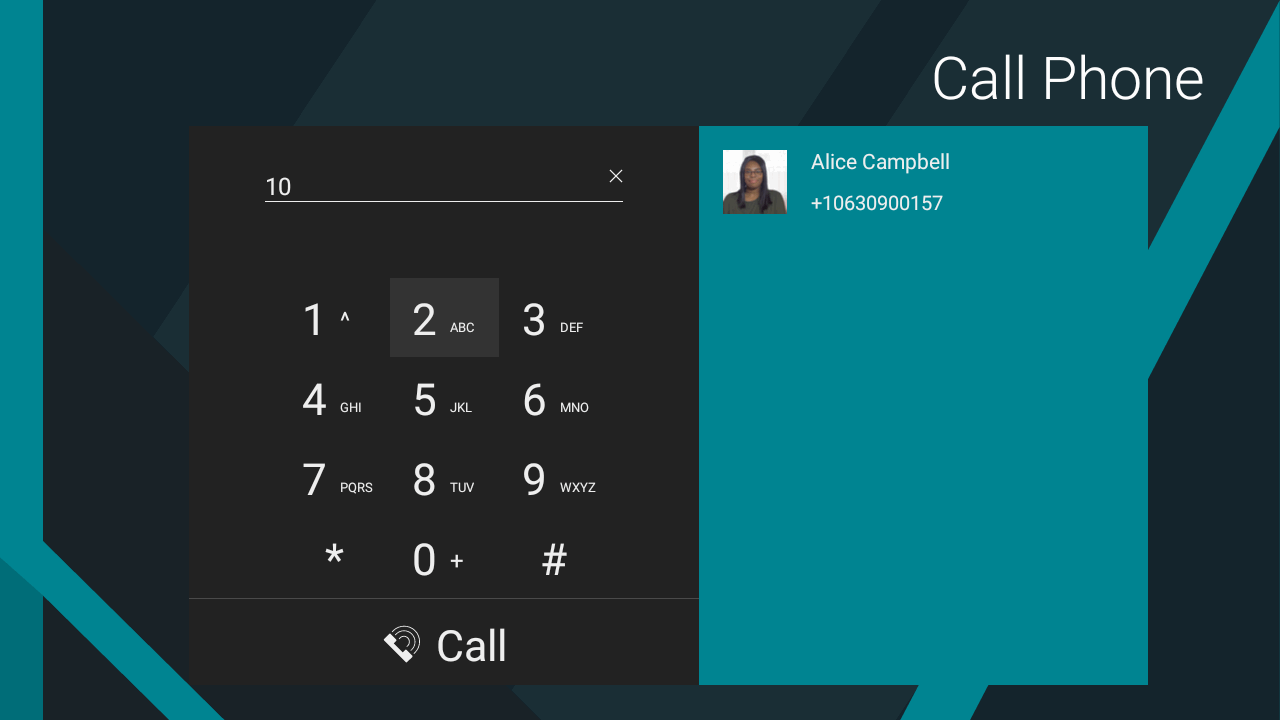
Navigate to the found user and click on their card, then press the
 button.
Calls to SIP / H.323 endpoints
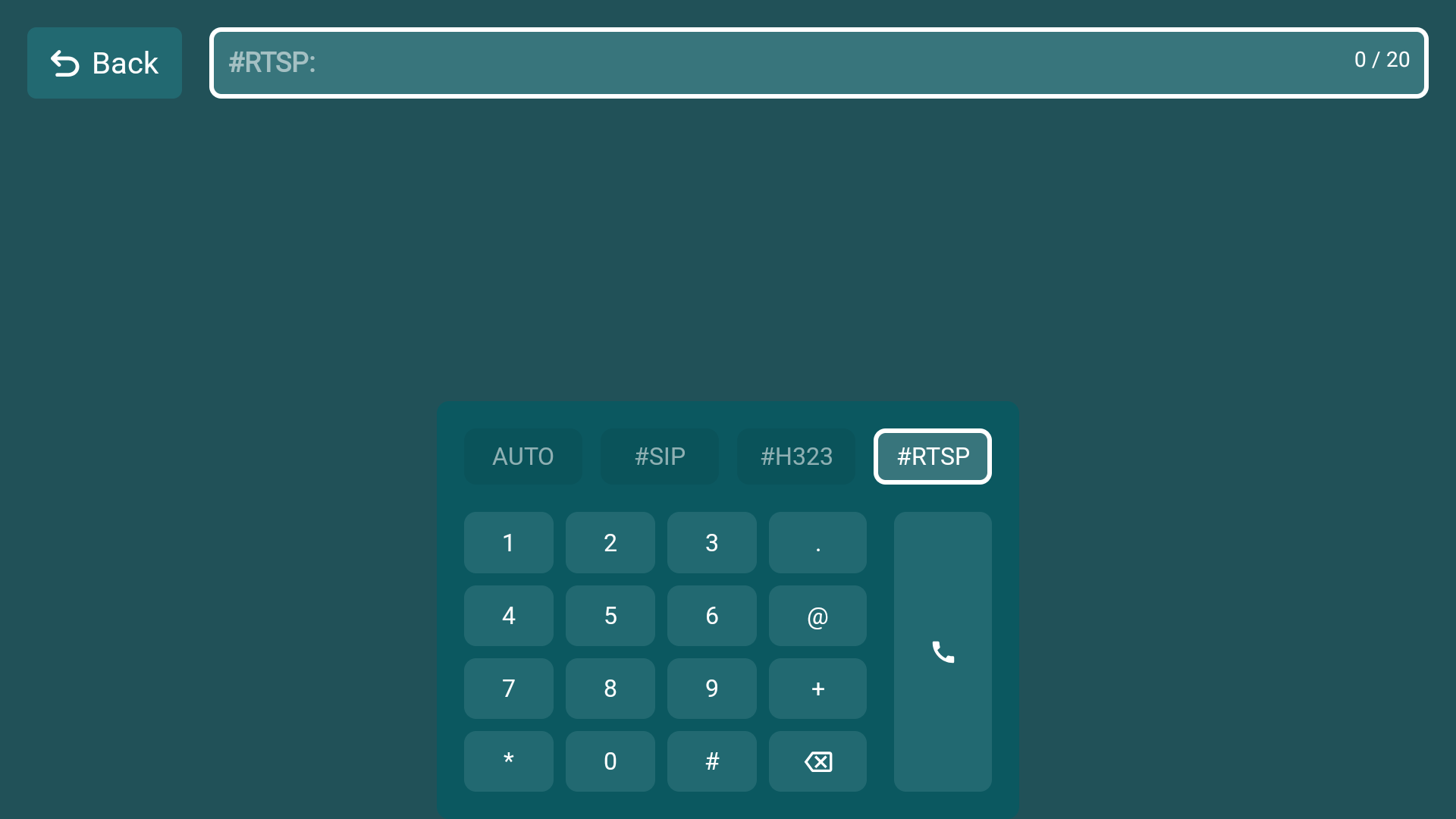
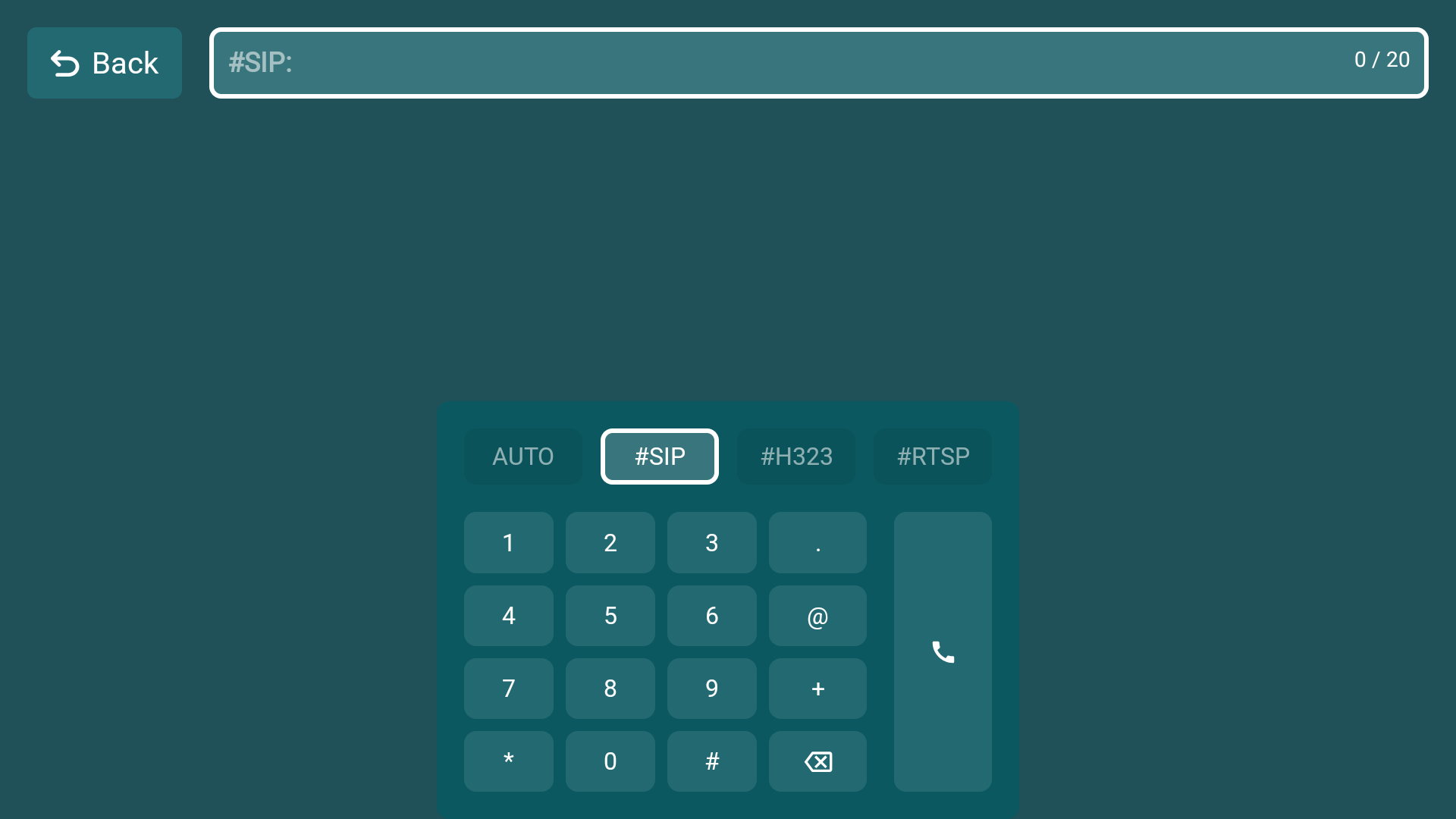
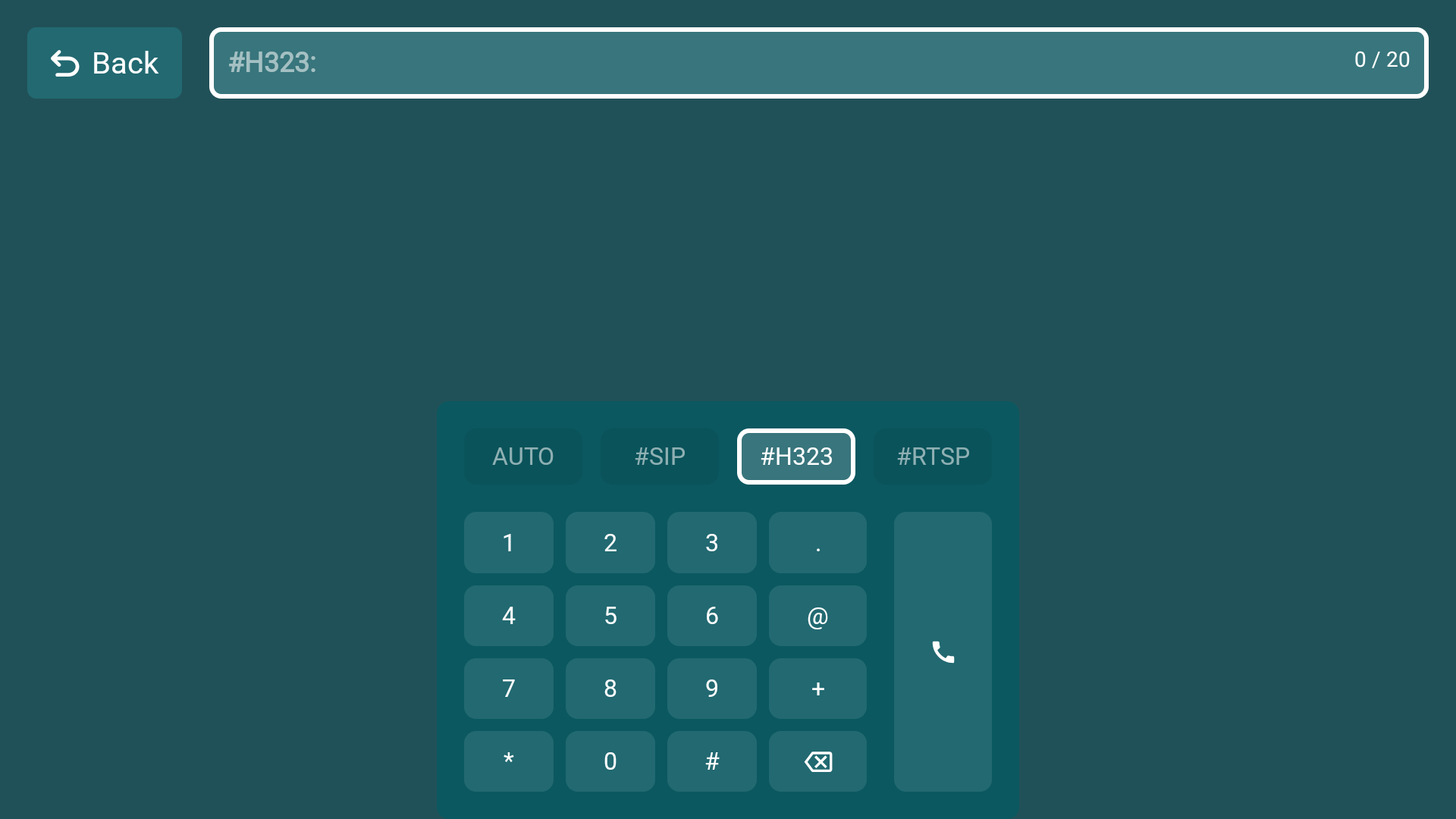
Calls using SIP and H.323 protocols are made in a similar way. All you need to do is select #SIP or #H323 in the dialer interface. Then enter the subscriber's number according to the SIP or H.323 call formats.
Connection to RTSP streams
Connecting to an RTSP stream is similar to the previous sections. Simply select the dialer interface #RTSP, then enter the subscriber number according to the call formats RTSP.