Getting Started
Getting started
Home page
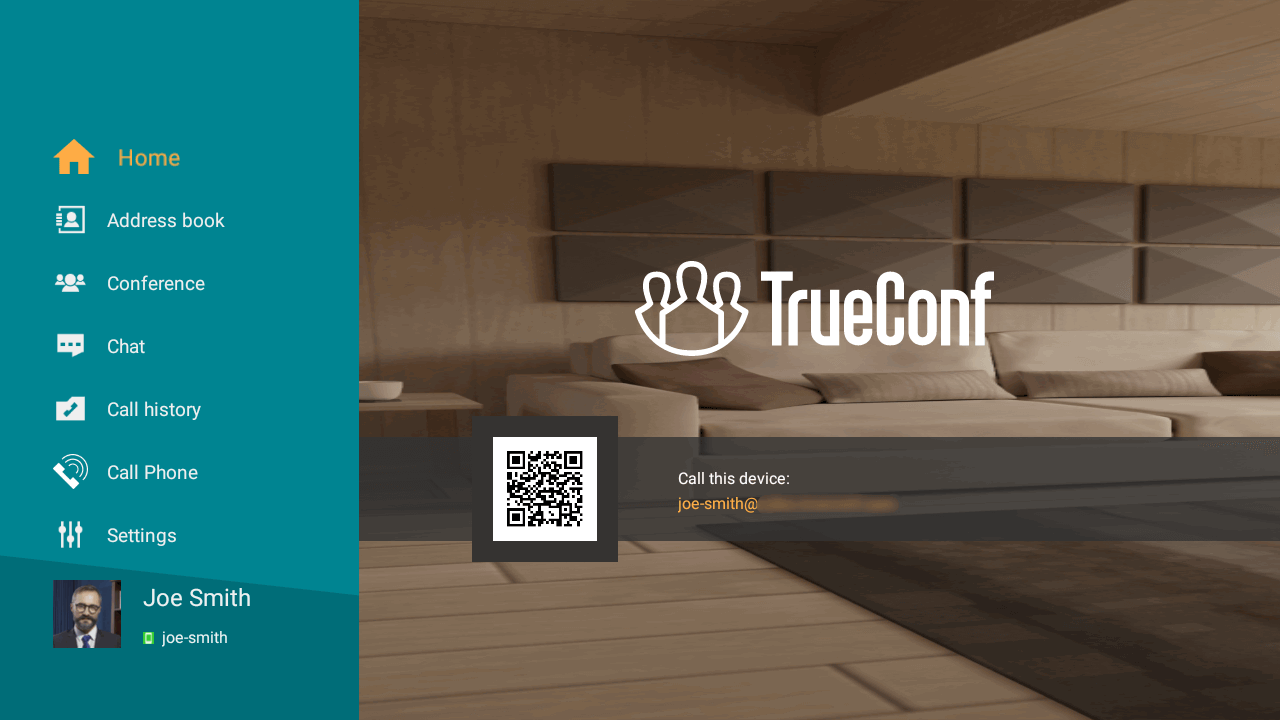
On the home page you can find the address of your Android TV box. You can share it with your contacts to start communication. To do this, you can use your smartphone or tablet’s camera to scan the QR code on your home page and forward the link to your friends or colleagues.
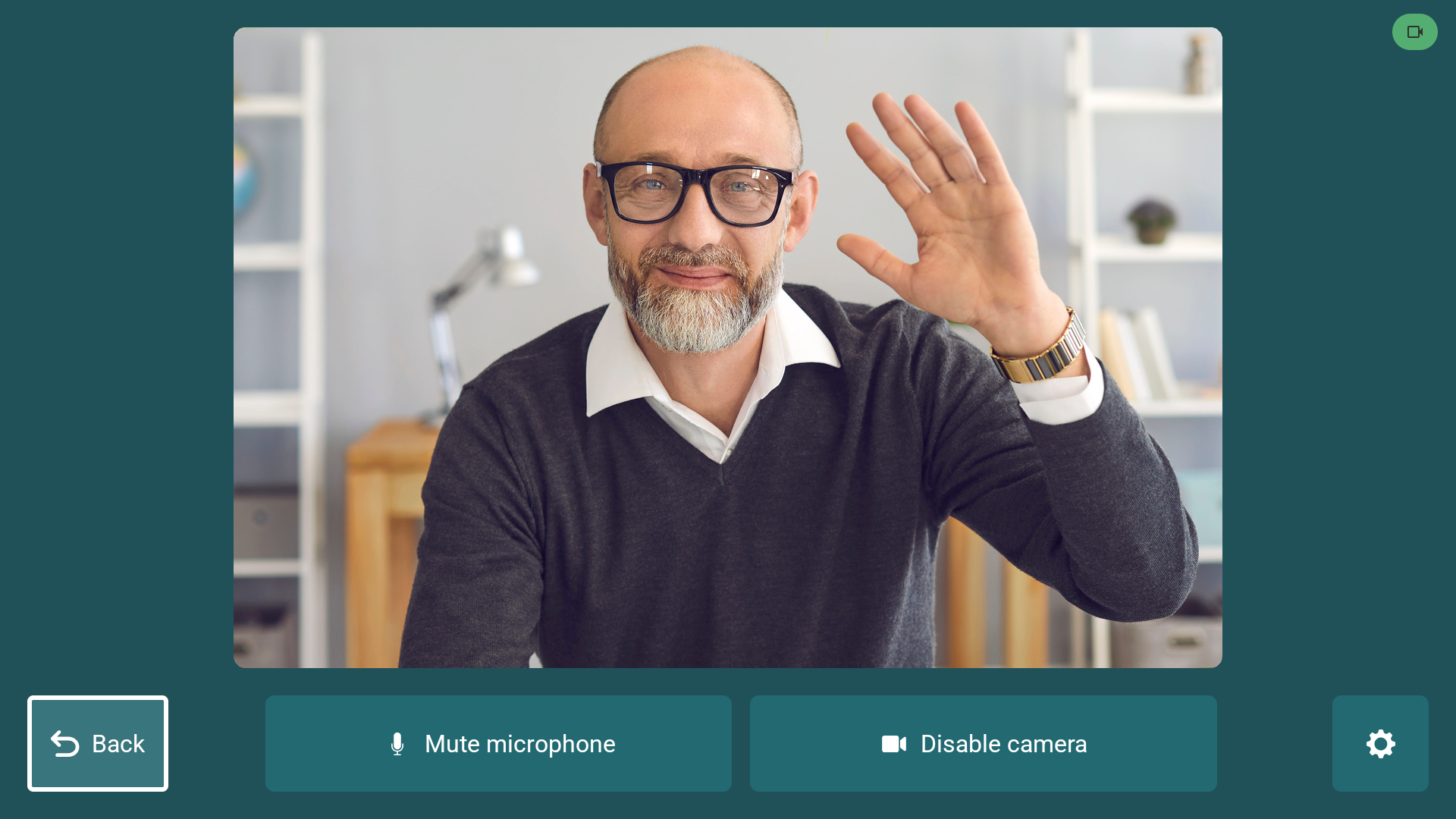
After clicking on the user widget, you will see the screen where devices can be configured:
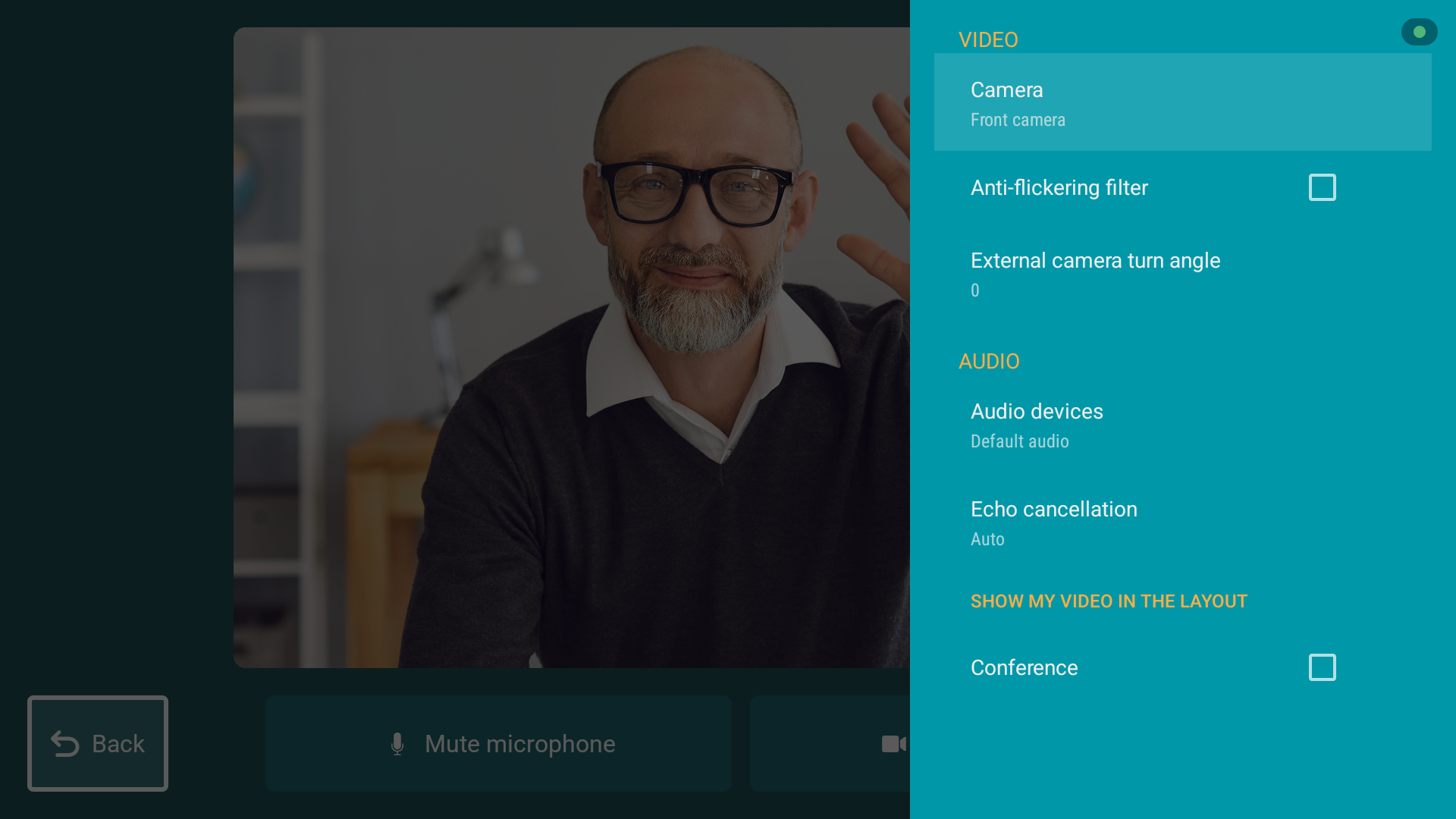
Click on  here for additional hardware configuration:
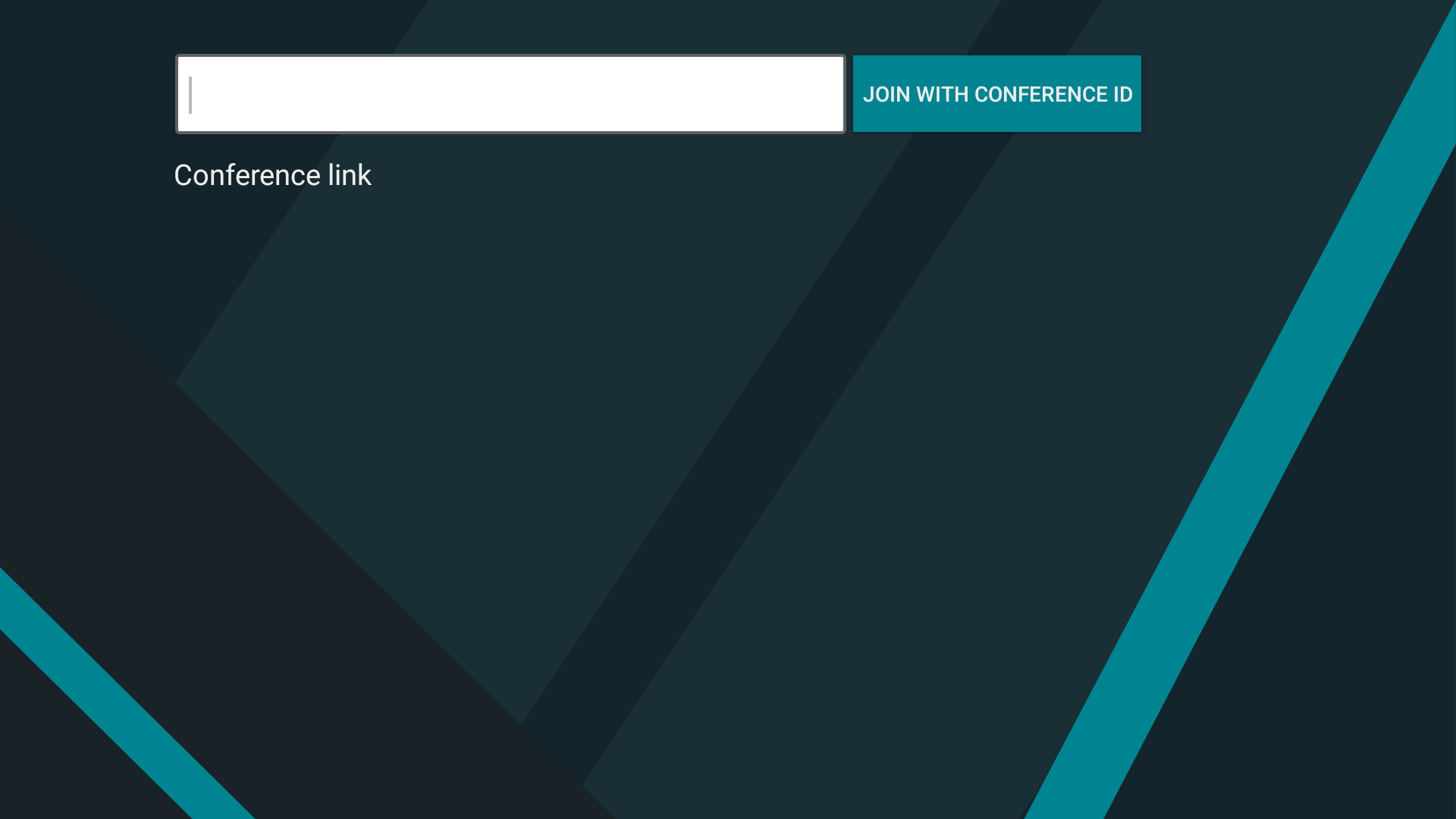
To join a conference via a link, click the  button on the main screen. The corresponding window will open:
To open the dial pad for phone calls, click on the icon  .
.
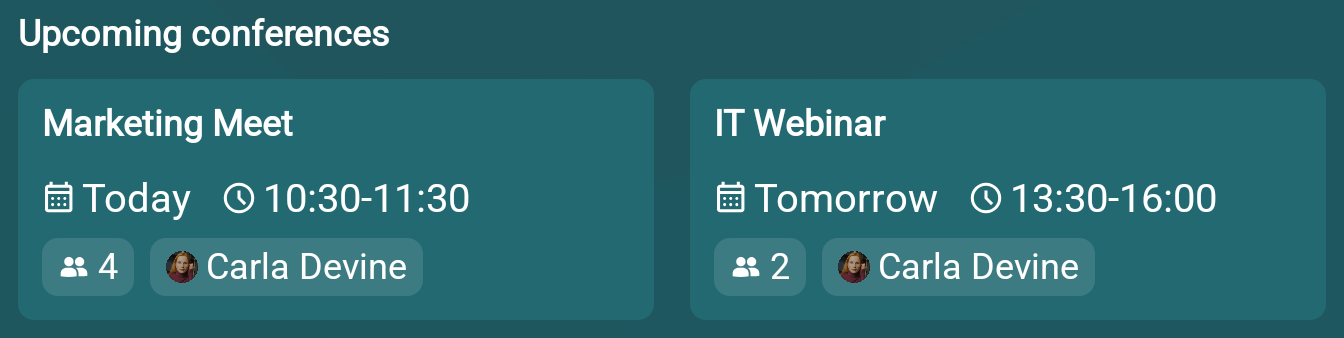
At the bottom, there is a widget displaying the upcoming scheduled conferences:
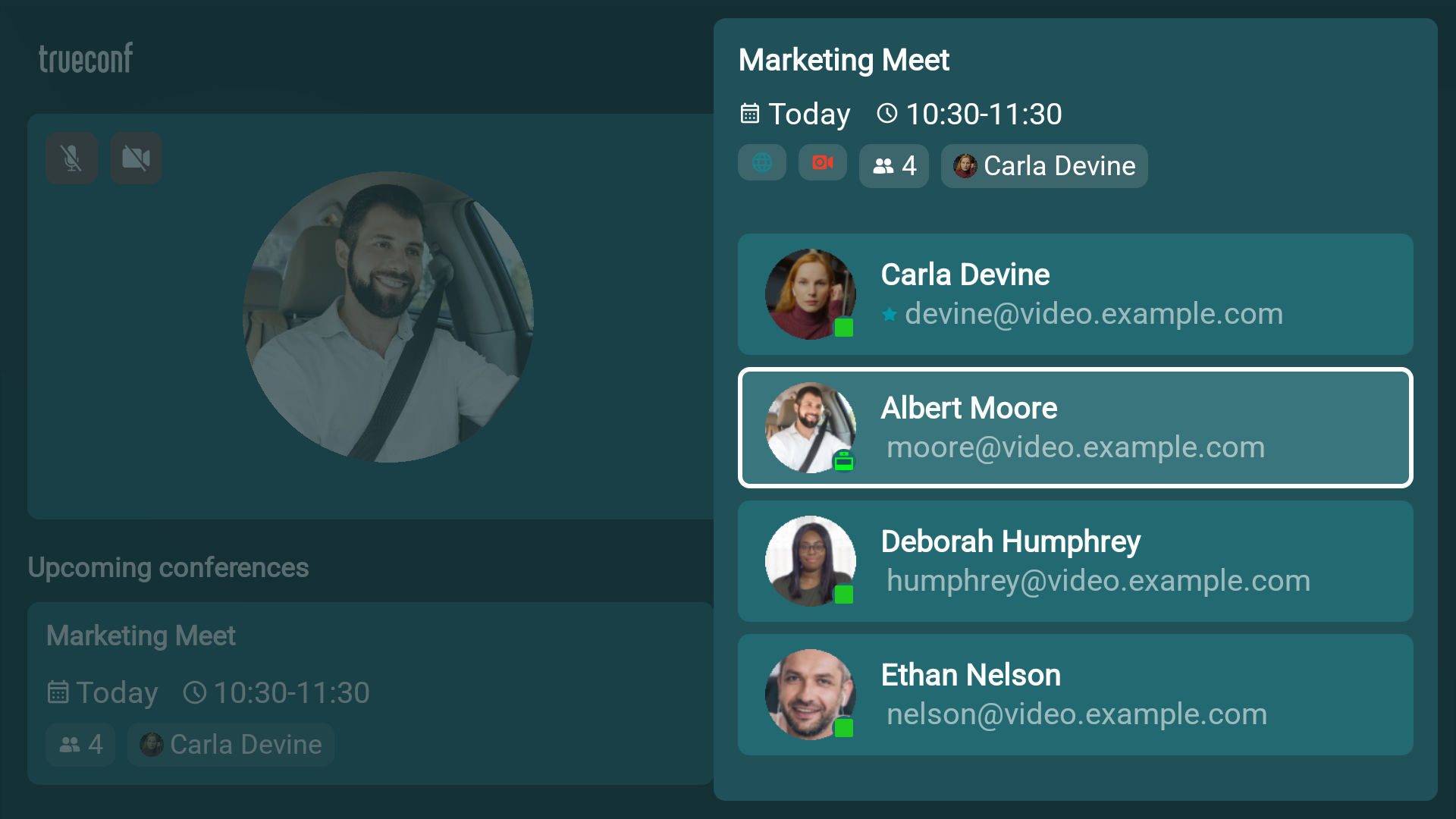
To view additional information about a conference, such as the list of participants, click on its card:
If no conferences are scheduled for the next two days, a message will be displayed next to the event creation widget:

You can create a conference from the main screen by clicking on the widget New conference, which will open the event creation screen. Then follow the instructions in this section.
It is equally easy to join a conference which has already started. To do it, click on the corresponding widget on the main page:
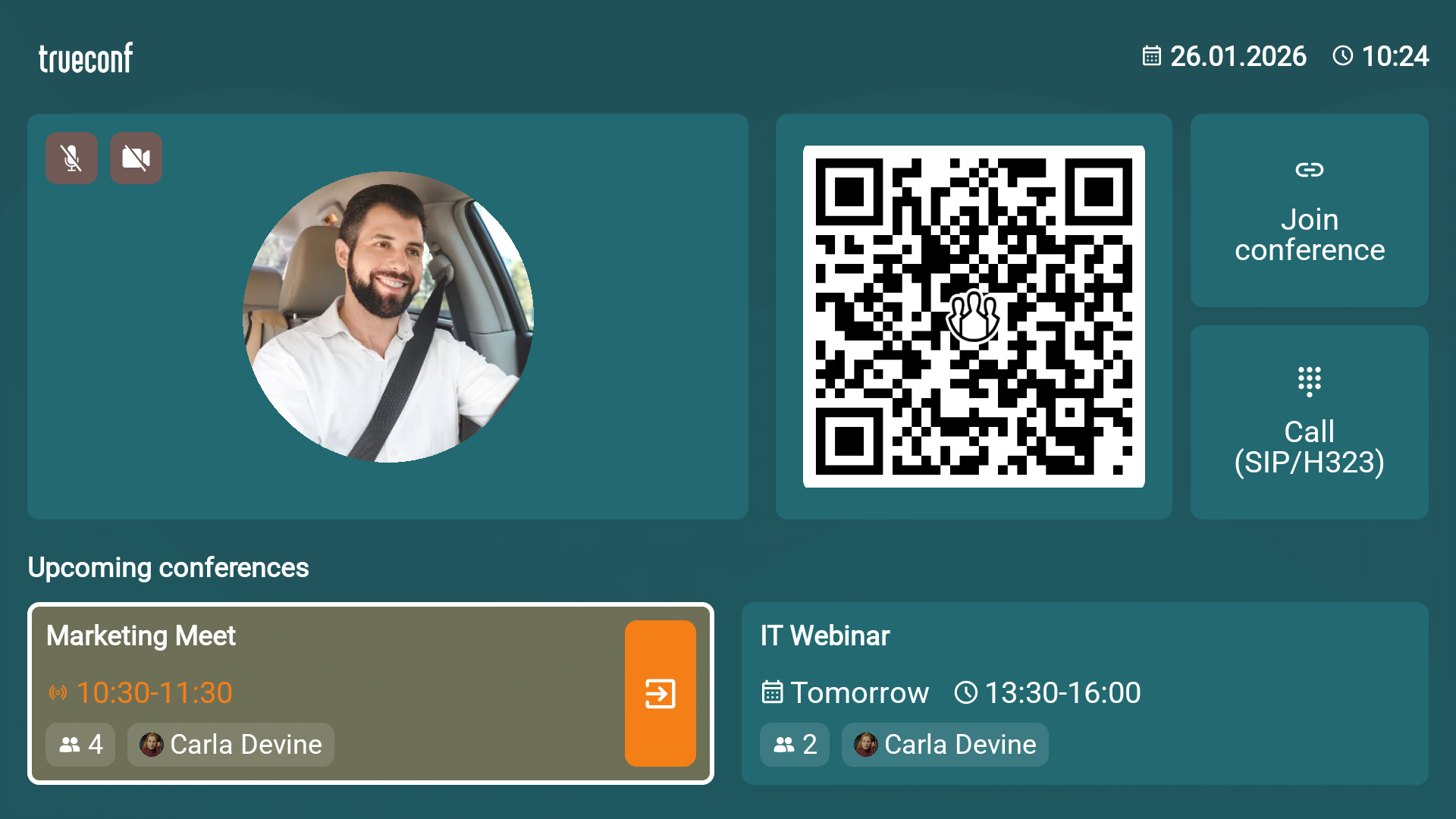
The feed from your webcam will be displayed in a separate widget which allows you to check what other meeting participants will see. You can make it full screen by selecting the widget and pressing the OK button on the remote control. To return, click the OK button.
On the left, you can find the main menu where you can:
Address book
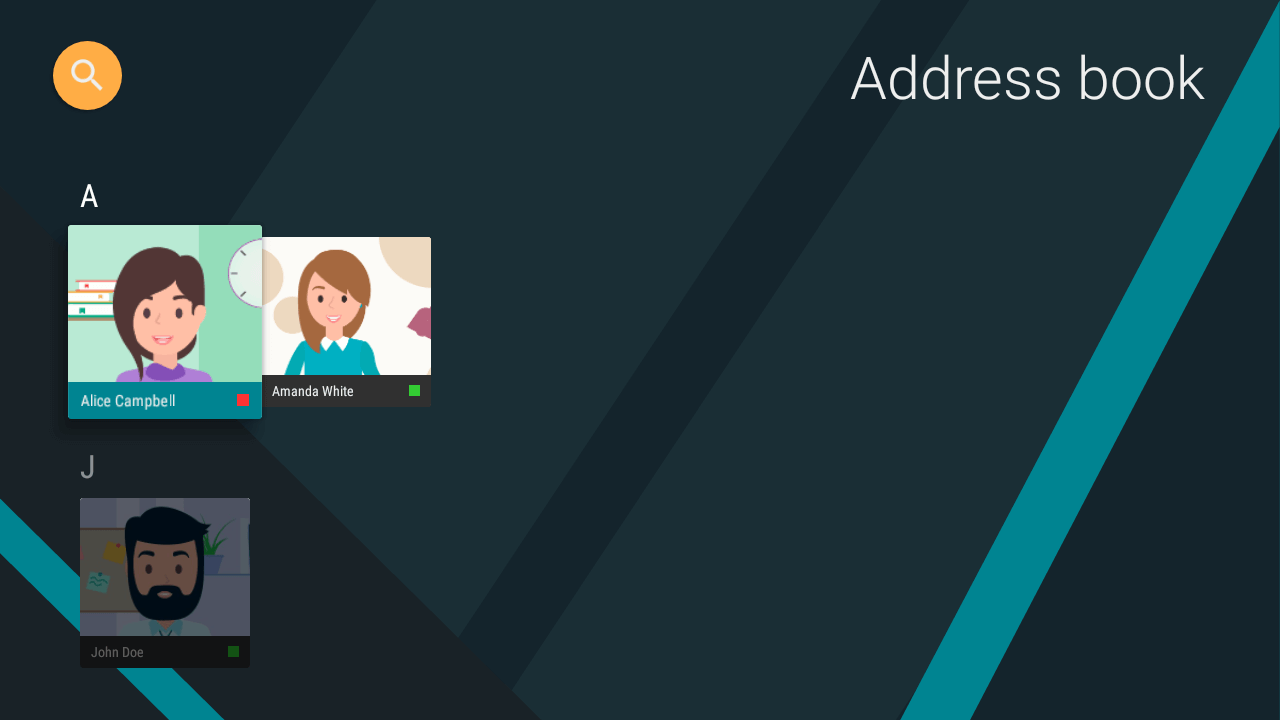
When you go to the address book, you will see a list of your contacts if you have previously filled it in using one of the following methods:
in the client application;
in the user's personal area on the server;
Your TrueConf Server administrator could also fill the address book for you in the server control panel.
User statuses
Every user in the address book will be displayed with one of the following statuses:
 — online
 — online via smartphone or tablet;
 — online from a hardware or software SIP/H.323 terminal;
 - recent activity: network status for users who have previously logged into the mobile app but are currently offline;
 — participates in the conference as its owner;
 — busy in a video call or conference;
 — away (not at the computer for a certain period, default is 15 minutes);
 — do not disturb (manually set in the user profile, for example, in the TrueConf for Androidclient application);
 — offline.
How to find a contact
In the upper right corner of the screen, there is a  button to access the search field. This allows you to quickly find a user TrueConf by their ID and proceed to their profile for further actions.
User profile
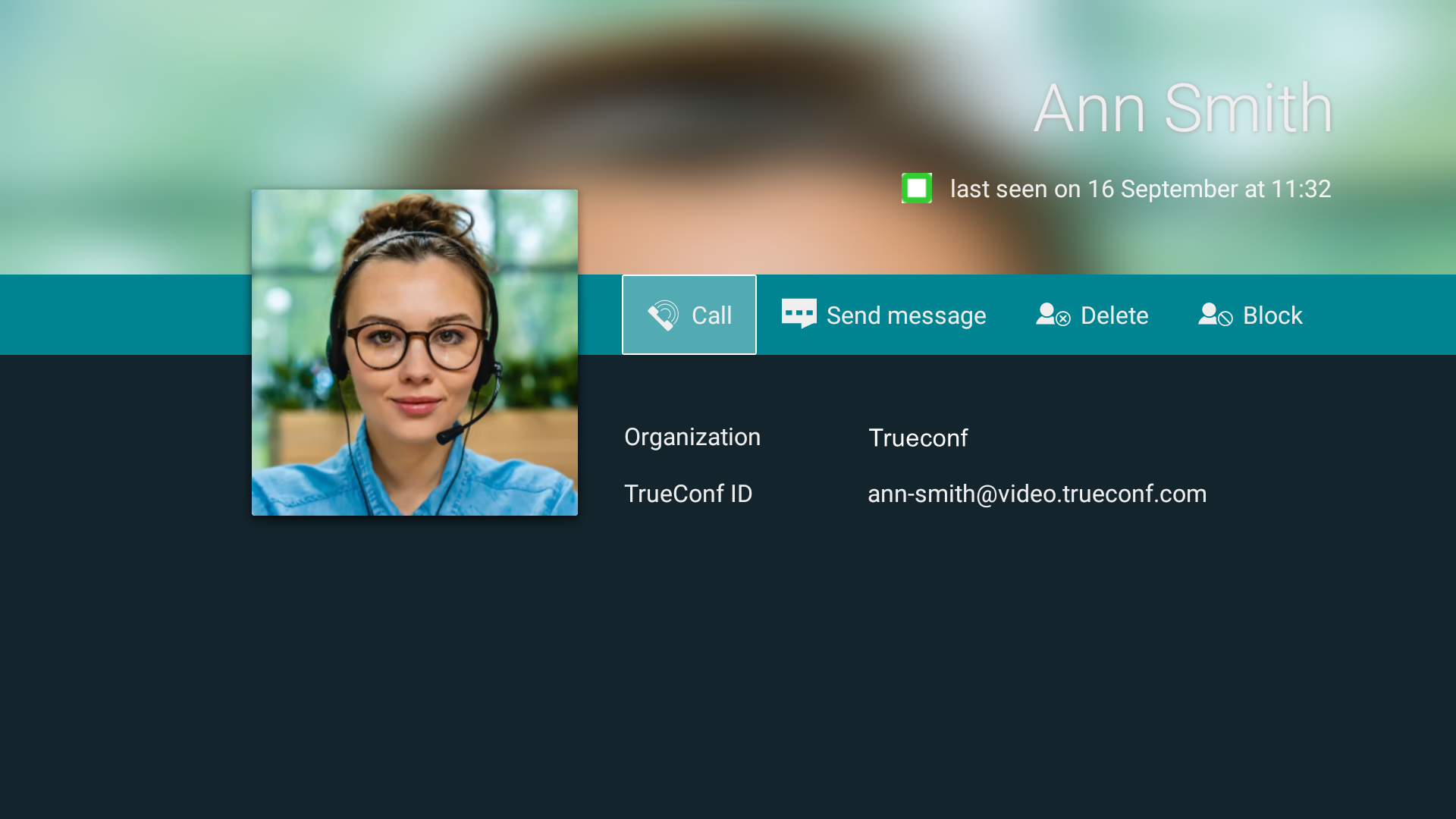
To view additional information about a user, select the user in the list and proceed to their profile. You’ll see the following information:
Full name
- TrueConf ID;
Status
Optional (if specified): company’s name and up to 3 phone numbers
In the user profile, you can find buttons for making a call, accessing the chat, deleting the contact from the address book and blocking this contact.
Adding a new contact
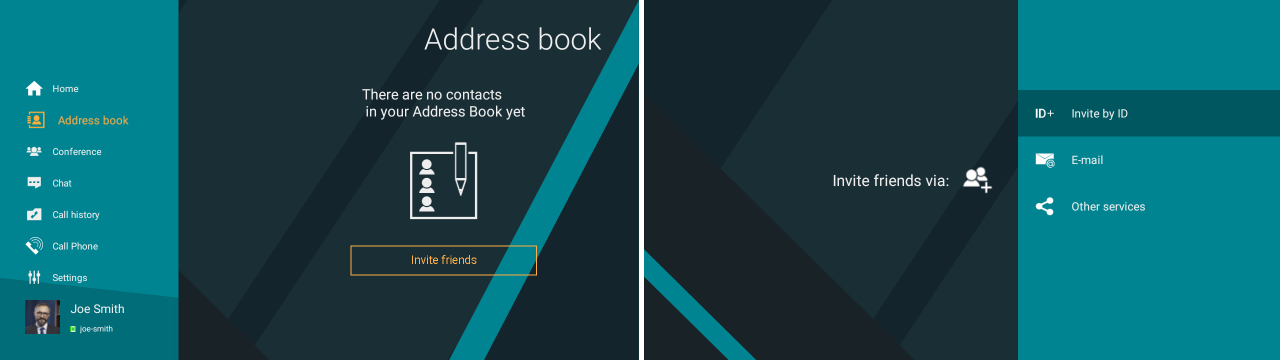
If your address book is empty, you can find a button to invite your friends and colleagues, e.g., by TrueConf ID or email:
Moreover, you can add a user directly during the conference.
Deleting a contact
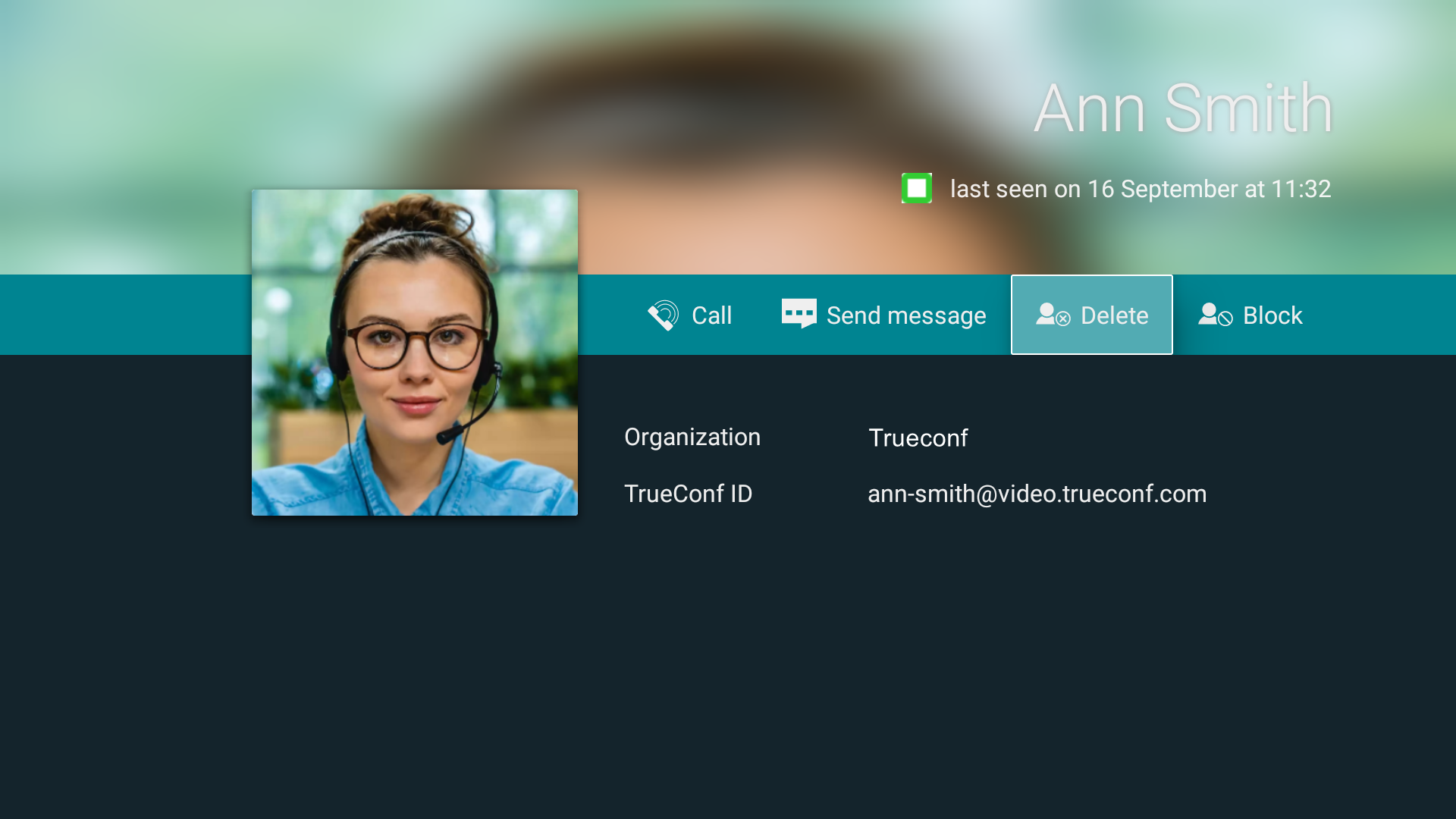
To delete a user from the address book, proceed to the user profile and press the corresponding button:
Blocking a user
Sometimes you may need to prevent some users from contacting you. To this end, you can add a user to the “black list” by pressing Block in their profile:
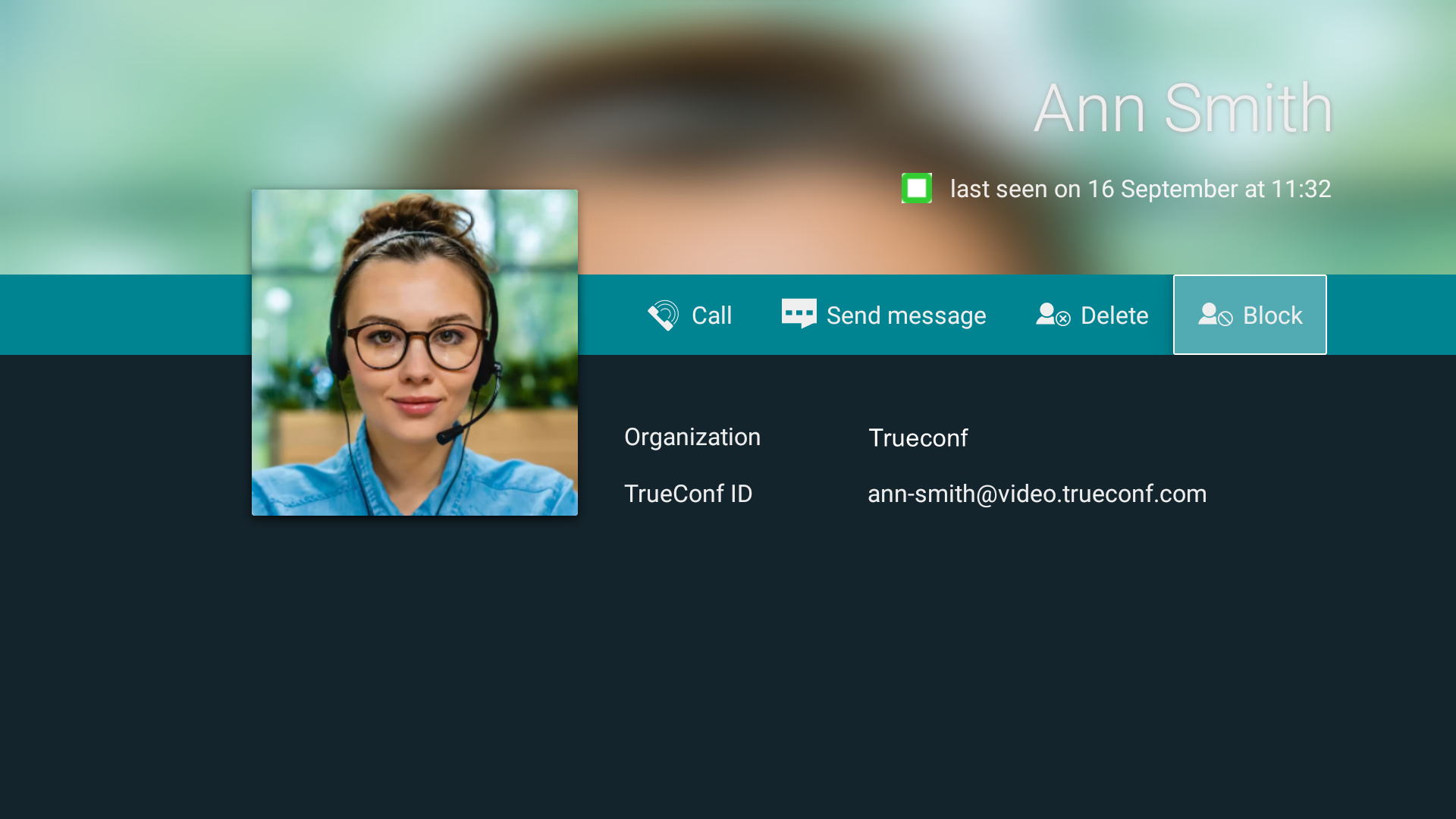
Once you’ve done this, you can see the blocked user in your address book, make calls and invite them to your conferences, but you will be unable to send messages to this user. The blocked user won’t be able to call you, invite you to conferences and send you messages. To unblock a user, press the corresponding button in the user profile.
A blocked contact will also appear in the blocked list when you use the TrueConf client applications.
Viewing your profile
If you’d like to view your personal information, proceed to the bottom of the app menu:
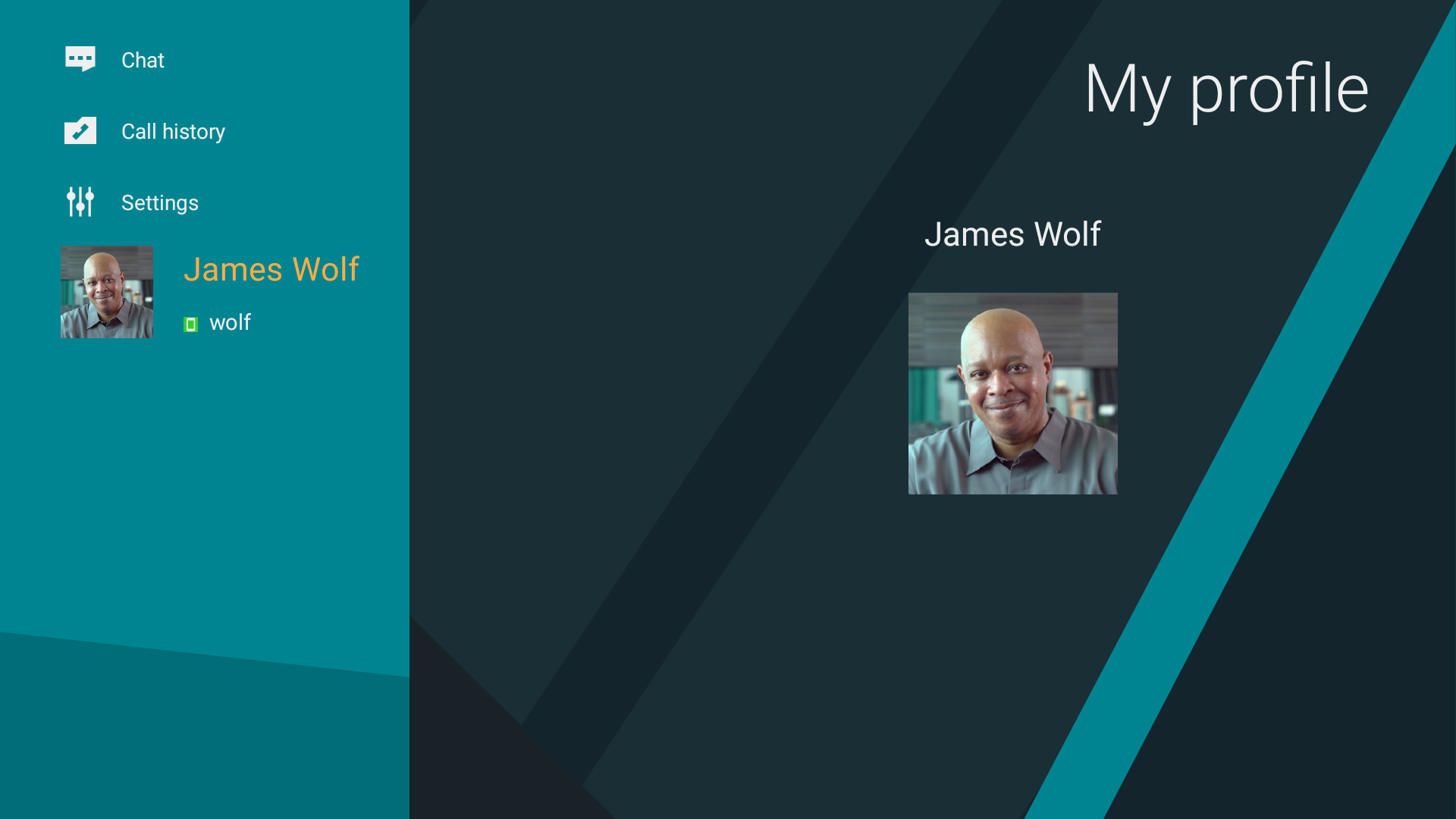
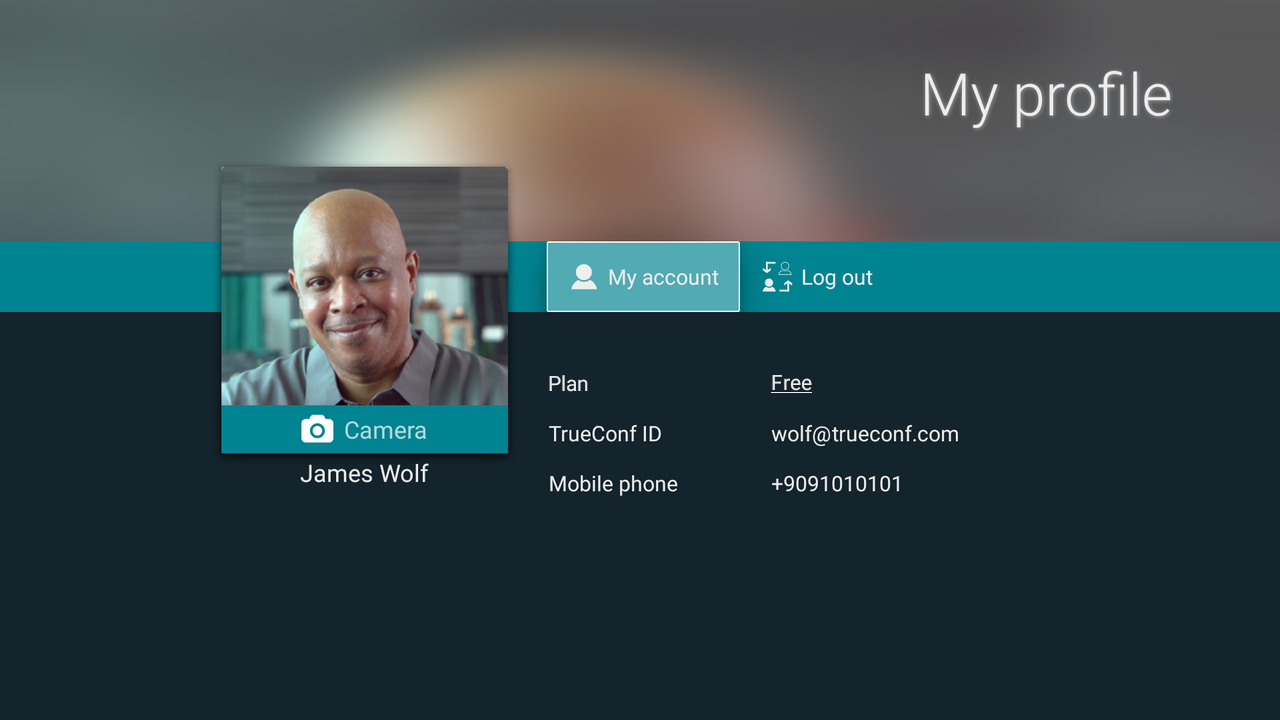
Press OK or the right arrow on the remote control to go to your profile. When connected to the corporate TrueConf Server, you will see your TrueConf ID, company name, and phone number (if provided):
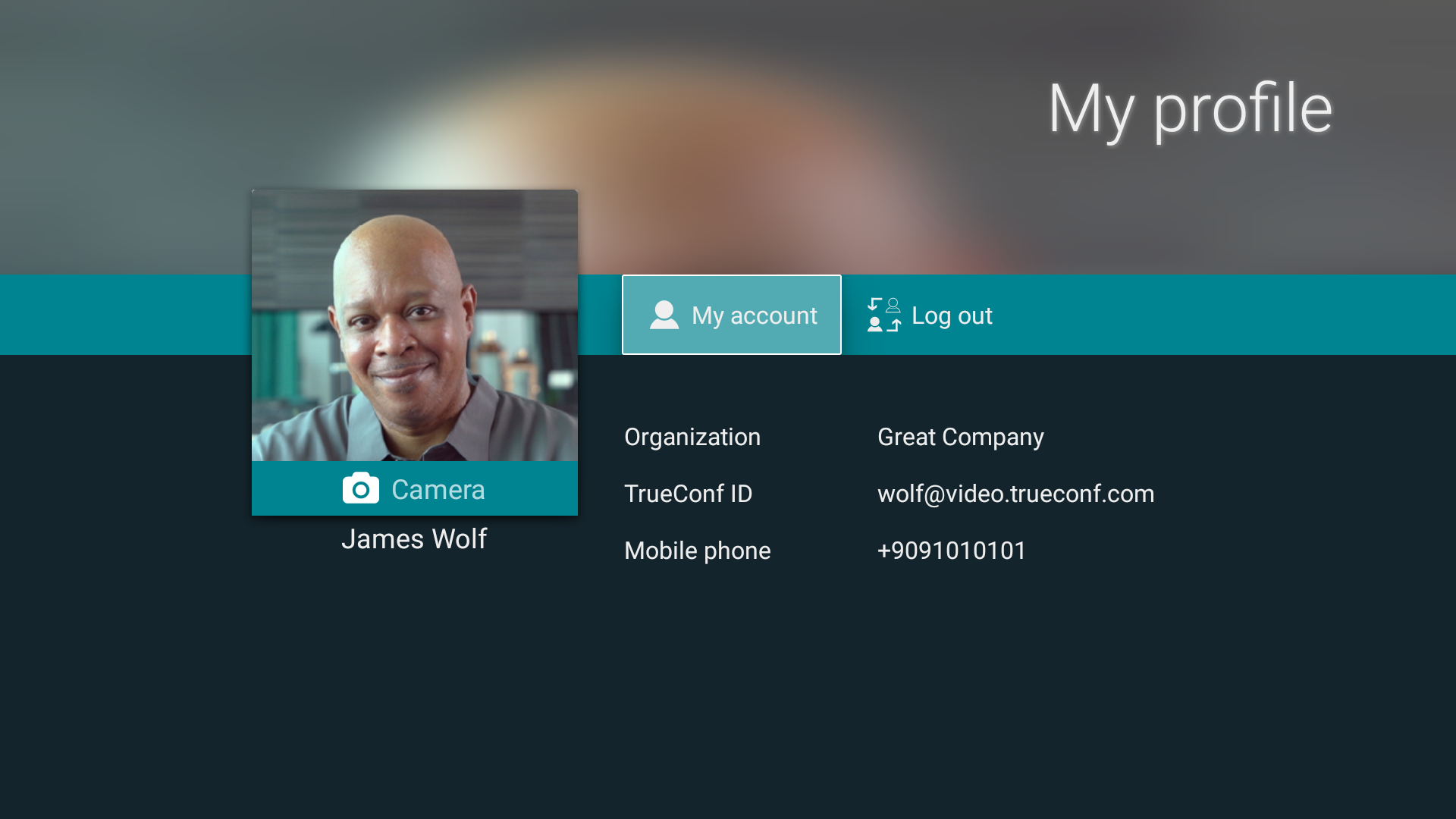
In your profile, you can:
Change your avatar by taking a picture with your webcam.
Go to your personal area.
Switch user, which will open the menu for entering TrueConf ID and password.
If you are using the TrueConf Online cloud service, you will see your plan name and TrueConf ID: