
TrueConf Integration for Moodle LMS

In this guide, we will explain how to easily integrate video conferencing by TrueConf into the educational process.
We do not provide a separate plugin for Moodle, so the integration is limited to using a link to the conference page or embedding a widget.
Moodle overview
On every distance education platform based on Moodle LMS you can find courses that consist of lectures and practical tasks for a specific subject. All courses are displayed in the sidebar menu of the main page.
Each course is built up from activities that have lessons, tasks and other elements dedicated to learning a topic and completing the test.
Let’s assume that you have installed Moodle LMS in a corporate network or you are using a cloud-based version.
Step 1. Adding a course
Go to your distance education website, enter as an administrator and create a course. Enter the required fields and save changes. You can change the course configuration any time if required.
To have a quick access to the course from the sidebar menu, you can add a Manager role to your account.
Step 2. Creating a conference
Schedule a TrueConf video conference in one of the following ways:
using TrueConf control panel (if you are an administrator)
using Scheduler in TrueConf client applications
in a personal area
For regular lessons, it is recommended to schedule a recurring conference. If you need the meeting to be constantly accessible (e.g. for occasional communication with teachers or students), you can create a virtual room.
For Moodle integration, we do not recommend using ad hoc conferences created via your app, as the link to such a conference will be inaccessible once the meeting is over.
Step 3. Adding a video conference into a course
Enable editing mode on the course web page. Add the required elements or resources such as lessons, pages, hyperlinks, surveys, tests, etc. When setting up these elements, you can add TrueConf video meetings in most cases.
Please note that TrueConf conferences must be public to enable unauthorized students to connect to them. If you want to learn what a public conference is and how to create it, please read our guide.
“Lesson” element
In Moodle, Lesson is a sequence of HTML pages where you can add educational material and QA polls.You can add a conference URL on any information page, which is convenient if you want to open the video lecture in a new tab. To do this, please check the Open in a new tab box when you add the URL.
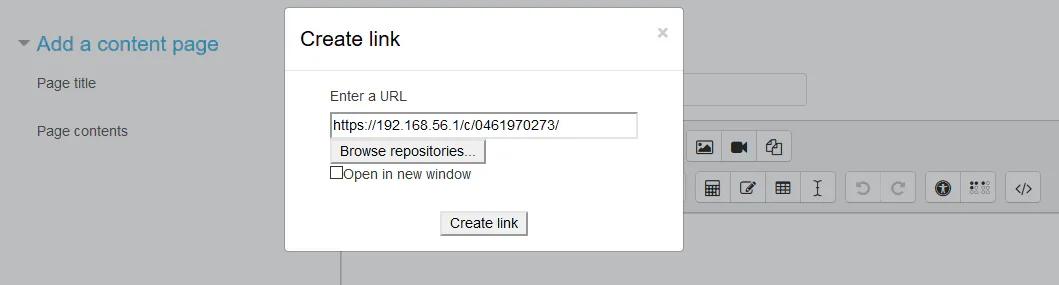
To embed the conference widget directly on the lesson page, switch to the HTML editing mode and add the URL as an HTML widget.
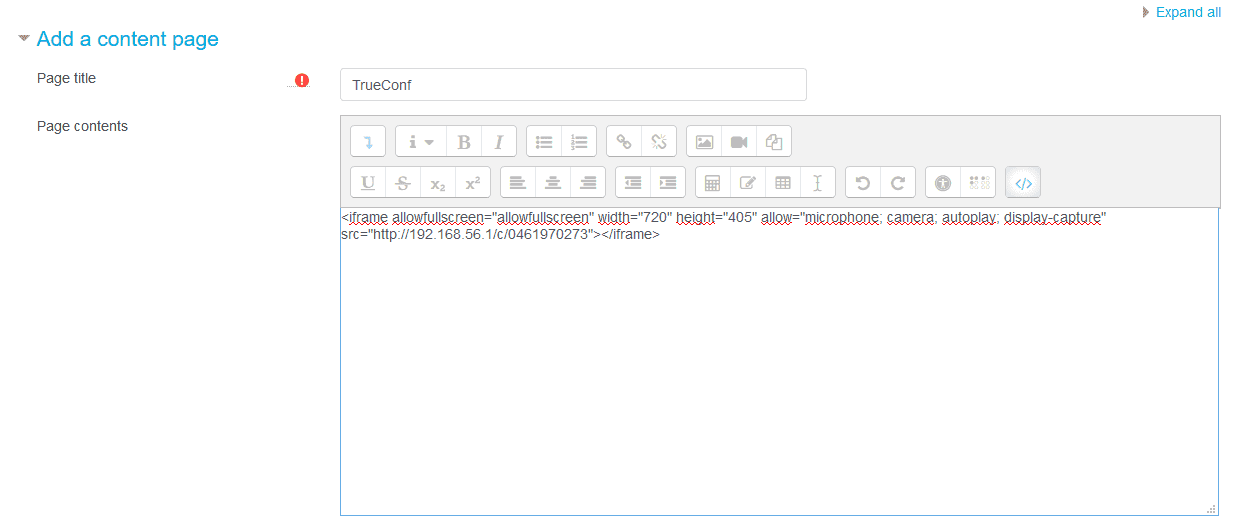
“URL” resource
You can use a URL resource to add a conference URL on the page. This element allows you to add an external resource on the lesson page in an explicit form that will be visible to all visitors.
Select the URL resource in the components list, enter the name and the conference URL. Select how you want your link to be opened in the Appearance:
Open - in this window
In pop-up - in a new browser window without a menu or address bar, you can adjust the initial size of this window
New window - in a new normal browser window (with a menu and address bar).
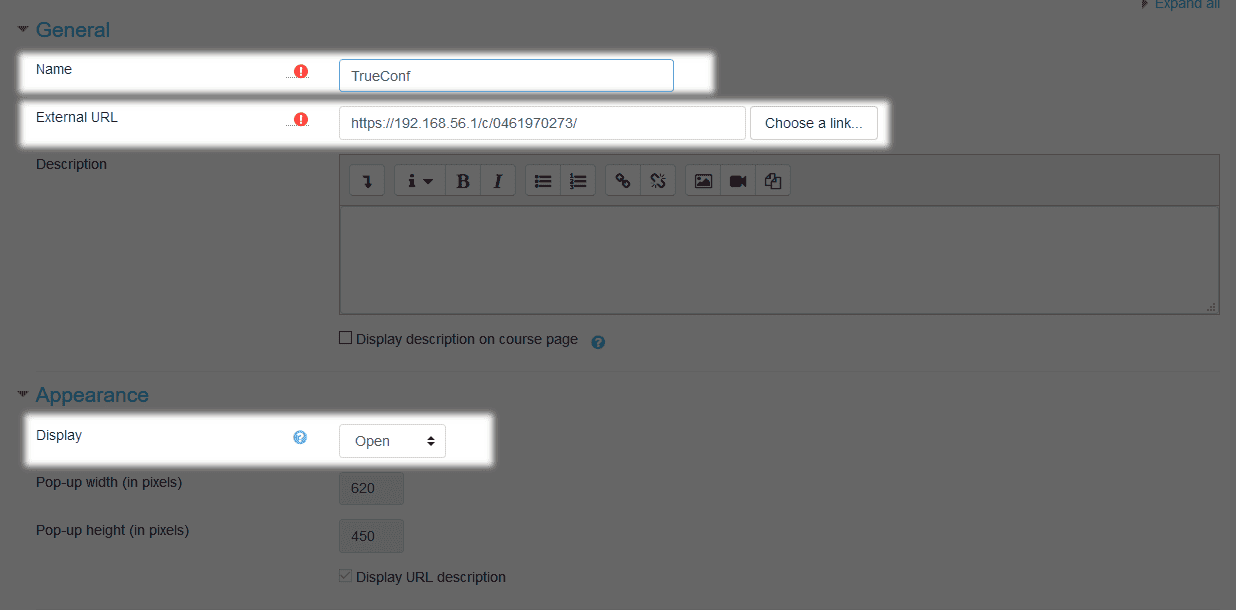
We do not recommend using In a frame and Embed modes, as these modes do not allow your browser to use microphone and speakers. This may result in your students’ inability to participate in lessons.
To access the New window mode, you need to enable it in the Available display options in the settings menu of the URL plugin.
“Page” resource
The Page resource will be useful for better displaying or placement of additional material outside of lectures. It is a regular HTML page, just like the lecture elements. Accordingly, you can add a widget to display the conference page, as it is described earlier.
Step 4. Adding participants
Now you can add users with teachers’ and students’ rights to the configured course.
Go to the course page to configure the users assigned to the course and add them with the appropriate roles.
Now your course is ready to be launched!

FAQ
What is moodle?
Moodle is a free, open-source e-learning platform widely used for creating and managing online courses. It provides educational tools for developing flexible learning content and conducting interactive online classes.
What are the main features of Moodle?
Moodle offers a wide range of features, making it one of the leading platforms for e-learning. Here are some of its key features:
Resources and Activities: Educators can upload educational materials in various formats, including text, images, audio, and video, as well as create interactive activities such as forums, quizzes, glossaries, workshops, and more. The platform also offers advanced assessment tools, including customizable grade books and the ability to generate reports on assignment completion and student performance.
User management: Moodle supports the management of student profiles, groups, roles and permissions, as well as tracking their activity and progress.
Plugins and Extensions: Moodle has an active developer community offering numerous additional plugins and modules to extend the platform's functionality. Moodle can also be integrated with other systems, such as content management systems (CMS), learning management systems (LMS), and other educational technologies.
Security and Privacy: The platform ensures data and personal information security by supporting various authentication and backup methods.
What is the cost of Moodle?
Moodle is a free open-source platform; however, operating and managing Moodle can incur certain costs.
Here are some of them:
Hosting: You will need to pay for hosting Moodle on a server if you are not using local deployment. The cost of hosting varies depending on the provider and the required resources.
Technical support and setup: If you lack the technical skills to install and configure Moodle, you might need professional assistance, which is also a paid service.
Integration with other systems: If you need Moodle integration with other systems, such as content management systems or student databases, this may also incur additional costs.
How to deploy Moodle?
To try Moodle, you can use one of the following methods:
Official Moodle Demo Site: Moodle offers a demo site where you can test the system's functionality without needing to install it. Visit the official Moodle demo site and log in as an administrator, teacher, or student to explore the platform's various features.
Installation on a local server: You can install Moodle on your computer for testing and development. This will require setting up a local server using software such as XAMPP or MAMP, followed by installing Moodle.
Using a hosting provider: Many web hosts offer a “one-click” installation for Moodle, making the process quick and simple. You can create an account, select a hosting plan, and use the hosting provider's tool for automatic Moodle installation.
Moodle Cloud Solutions: There are cloud-based versions of Moodle, such as MoodleCloud, which allow you to quickly launch Moodle without the need to install and configure a server. MoodleCloud offers a free trial version with limitations on the number of users and functionality.
Integration of Moodle with other services
Moodle has a flexible architecture that allows the integration of external services and applications. Below are the methods and tools for integrating Moodle with other systems:
Plugins: There are numerous community-developed plugins available for integration with various services, including content management systems (CMS), email, video conferencing, and more. If you have specific services you wish to integrate with Moodle, it is recommended to explore existing plugins for those services or consult specialists to develop a custom solution.
Web Services: Moodle offers a web services API that allows other applications to interact with Moodle. The web services support various protocols, including REST and SOAP.
LTI (Learning Tools Interoperability): Moodle supports the LTI standard, which allows for the integration of external educational tools and resources. This can be useful for connecting to various educational platforms and services.
SSO (Single Sign-On): Using SSO, users can log in to Moodle and other services with a single set of credentials. This is convenient for managing access and enhancing the user experience. Moodle supports SSO through SAML, OAuth 2.0, and other protocols.
Integration with Database Management Systems (DBMS): Moodle can be configured to work with various database management systems, such as MySQL, PostgreSQL, Microsoft SQL Server, and others, for data exchange and synchronization.
Integration with CRM and ERP systems: Specialized plugins and custom developments allow Moodle to be integrated with Customer Relationship Management (CRM) and Enterprise Resource Planning (ERP) systems.
File storage: Moodle can be integrated with external file storage services such as Google Drive, Dropbox, Microsoft OneDrive, and others for managing course files and resources.
Integration with payment systems: To organize paid courses, Moodle can be integrated with payment gateways and systems such as PayPal, Stripe, and others.
Advantages and disadvantages of Moodle
Advantages:
Open Source: Moodle is free and open-source software, allowing users to modify and extend the platform to suit their needs.
Flexibility: Moodle's modular structure allows for the customization of courses using various resources and activities.
Scalability: Moodle is suitable for both small classes and large organizations with thousands of users.
Extensive community: There is an active community of users and developers continuously creating new plugins, themes, and updates.
Multilingual support: Moodle is translated into more than 100 languages, making it accessible for international use.
Standards Support: Moodle supports a variety of e-learning standards, such as SCORM, AICC, and xAPI (Tin Can)
Disadvantages:
Configuration complexity: Despite its flexibility, the initial setup and maintenance of Moodle can be challenging and require technical expertise.
Hosting requirements: Moodle requires a fairly powerful hosting solution for stable operation, especially when there are a large number of users.
The need for regular updates: To ensure the security and stability of the platform, it is necessary to periodically update Moodle and installed plugins.
How to create a video lecture in Moodle?
To create a video lecture in Moodle, follow these steps:
Access the course: Log in to the Moodle website and open the desired course.
Edit Mode: Enable edit mode in the course.
Add a Resource: In the desired section, select the button to add a new resource or course element.
Select type: Choose the appropriate resource type from the list, such as "Lecture," "Page," or "Book."
Fill in the content: Enter the title and add the lecture content using the editor.
Save and check: Save the changes and verify the display of the video lecture.
How to create a test in Moodle?
To create a test in Moodle:
Access the course: Visit the Moodle website and open the desired course.
Edit Mode: Enable edit mode in the course.
Add a quiz: Click on "Add an activity or resource" and select "Quiz".
Configure the test: Set the test name, description, and configure the parameters (time, attempts, grades).
Create questions: Proceed to add questions, specifying the type and content for each one.
Fill in the content: Set the availability and opening/closing dates of the test, if necessary.
Save and verify: Save and close the test settings.
How to install Moodle on a local server or hosting?
To install Moodle on a local server or hosting, follow these steps:
Install the necessary software (Apache, MySQL/MariaDB, PHP) on your server or ensure that your hosting meets Moodle's requirements.
Download the latest version of Moodle from the official website.
Unpack the downloaded archive and upload the files to the server or hosting (via FTP or the file manager in the hosting control panel).
Create a database for Moodle and a user with access rights to this database using a database management tool (phpMyAdmin or similar).
In your browser, navigate to the Moodle location (e.g., `http://localhost/moodle\` or `http://yourdomain.com/moodle\`) and follow the installer instructions.
Set up cron jobs on the server or through the hosting control panel for the automatic execution of Moodle scheduler tasks. Once the installation is complete, Moodle will be available for configuration and use.
How to find the Moodle version?
To find out the version of Moodle, follow these steps:
Log in to Moodle using an administrator account.
Go to the administration section, typically located in the sidebar (usually labeled "Site Administration" or "Site administration").
In the administration section, find the item "Server", then select "PHP info". The displayed page will show the Moodle version at the very beginning. It may also be listed in the subsection "Moodle Info".
Sometimes the Moodle version can be found in the footer on the main page of the administrative panel or on the website's homepage.
If you do not have access to the Moodle administrative panel, you can also find out the version by checking the contents of the version.php file located in the root directory of your Moodle installation. Open this file with a text editor, and you will find the version number in the line starting with $release = ...;.
Please note that depending on the security settings on your Moodle site and the version of Moodle, some of these options may be hidden or unavailable without administrative privileges.
What helpful resources are available for beginner administrators to learn Moodle?
- Official Moodle Documentation - It includes guides explaining how to install, configure, and manage Moodle.
- Moodle Community Forums - here you can ask questions, share experiences, and receive advice from experienced users and developers.
- Moodle Academy - Free online courses from Moodle creators offering detailed training for administrators and educators.
- Moodle Help Center (Moodle HQ YouTube Channel) is the official Moodle YouTube channel that features instructional videos and webinars.
Moodle courses on e-learning sites - platforms like Udemy, Coursera, and Lynda offer courses on Moodle, including those for administrators.