Group conferences
Group conferences
Joining a conference
To join a conference, you can:
specify its ID in the Conferences → Join the conference menu:
https://example.com/c/[cid]— the web page address for the conference with ID[cid](you might have received it in an invitation email).\c\[cid]@example.com#vcs— conference address, including on another serverexample.com.\c\[cid]@example.comis the conference address, including on another serverexample.com.\c\[cid]— the conference address on your server (that's why the server name is not specified).
if it has already started, call its owner by finding them in the address book (they will be marked with a star icon
 ).
).
During the conference, you can turn off your camera and microphone, use the chat, etc., as shown in the relevant section.
Waiting Rooms
TrueConf Videobar can participate in conferences with waiting rooms. While in Waiting room, you won't see the list of conference participants or other users who are also waiting to join. Upon connecting to a conference with this option, you will be placed in Waiting room and receive a notification: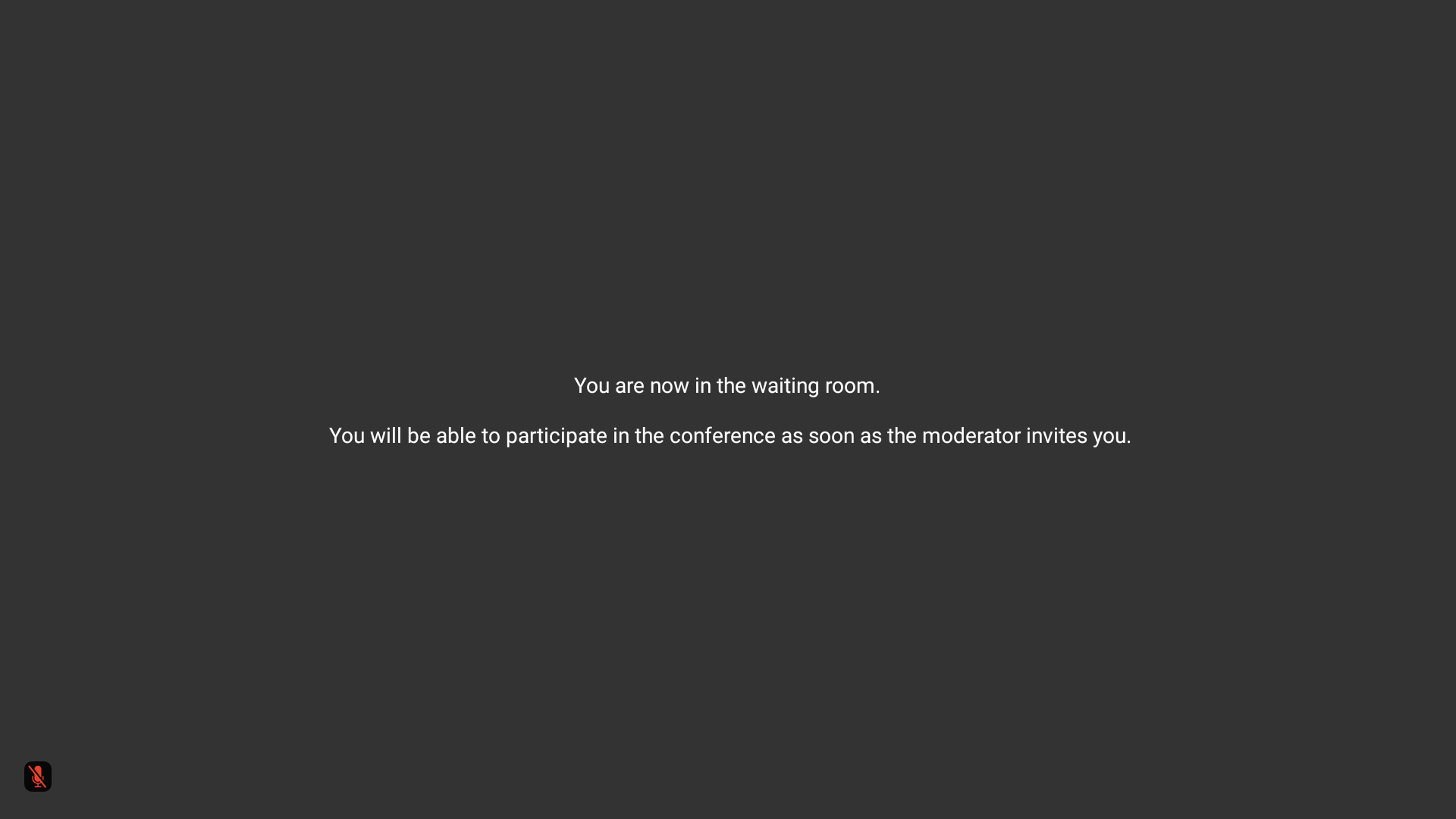
To join the conference, the moderator must approve your participation.
Creating a conference
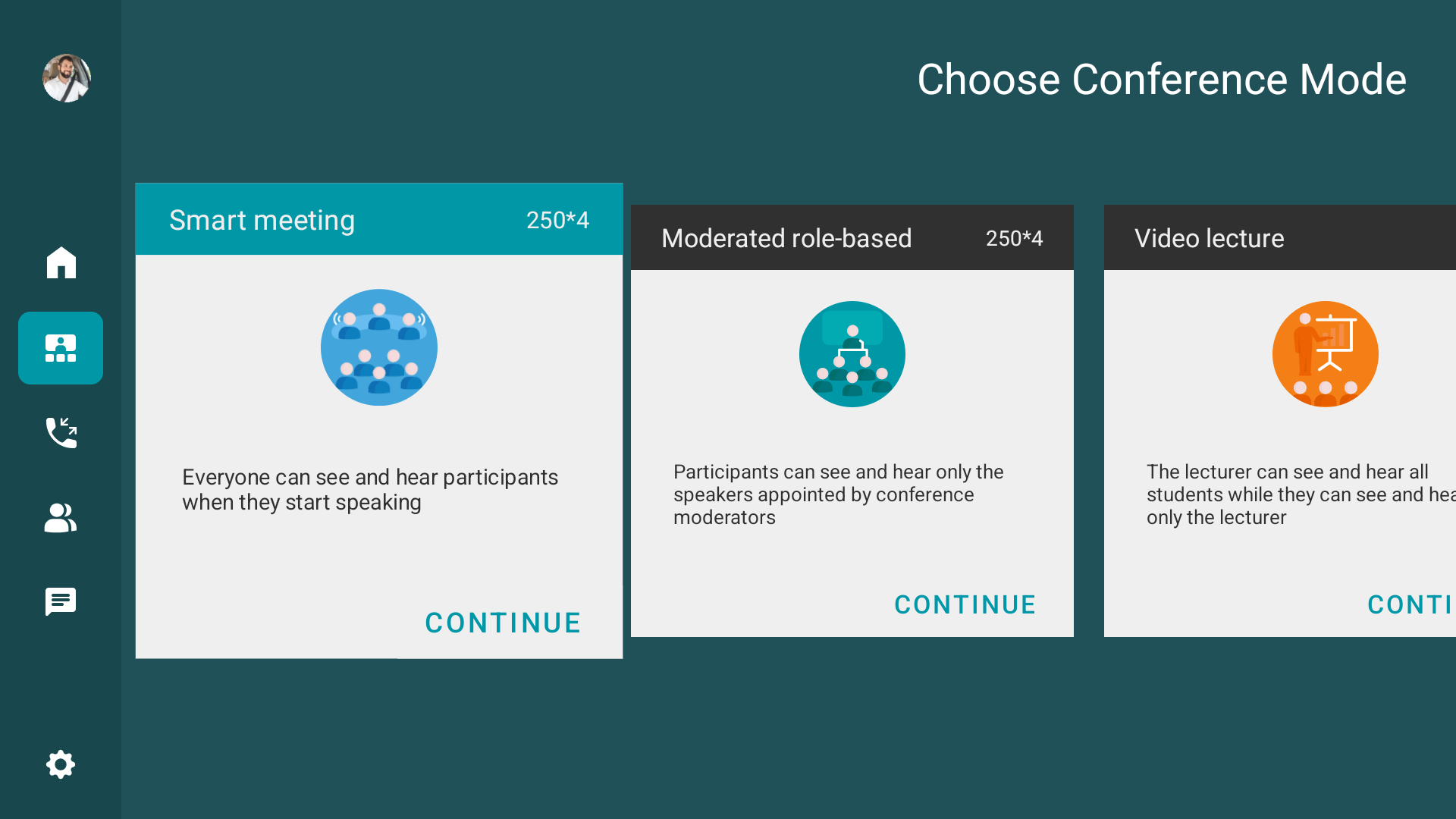
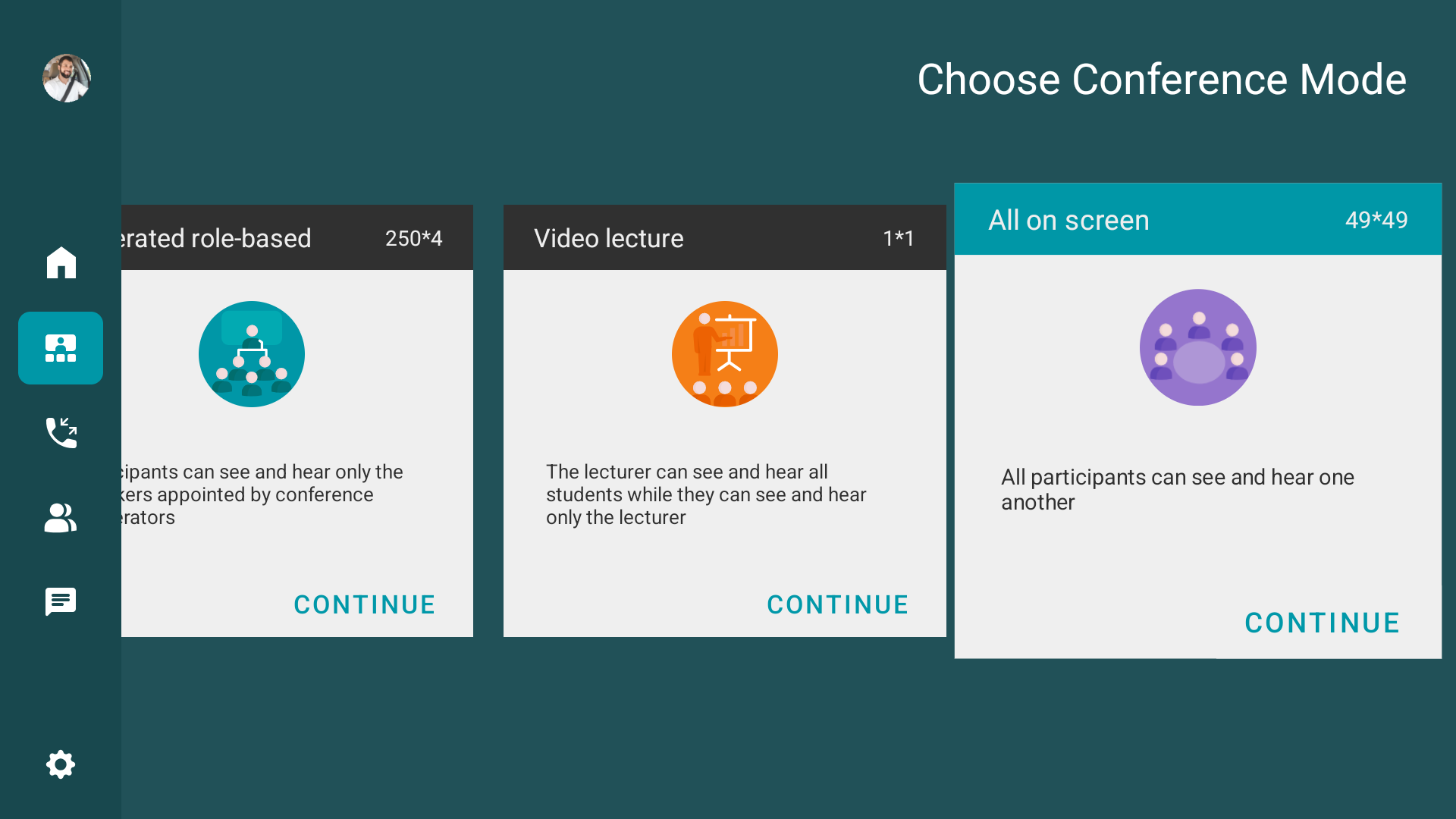
Terminal TrueConf Videobar allows you to organize a video conference of one of four types:
Smart meeting
A group conference with participants divided into listeners and speakers. The video layout shows participants with an activated microphone or content sharing. The number of speakers displayed on the screen depends on the podium size specified when creating the conference.
To create a group conference in Smart meeting mode:
Go to the Conferences → New Conference section in the sidebar menu.
Select mode Smart meeting.
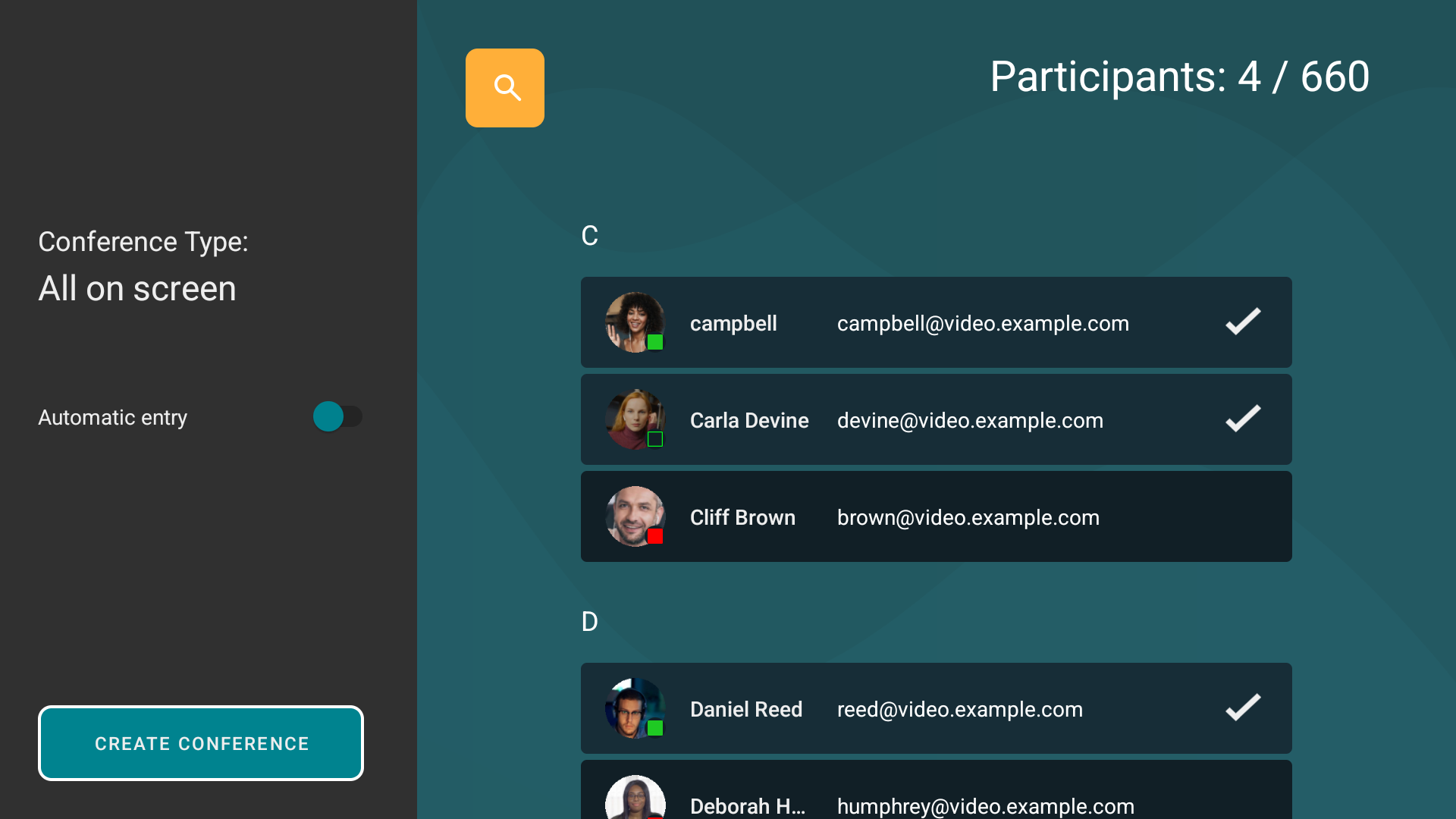
Select the conference participants from your address book:
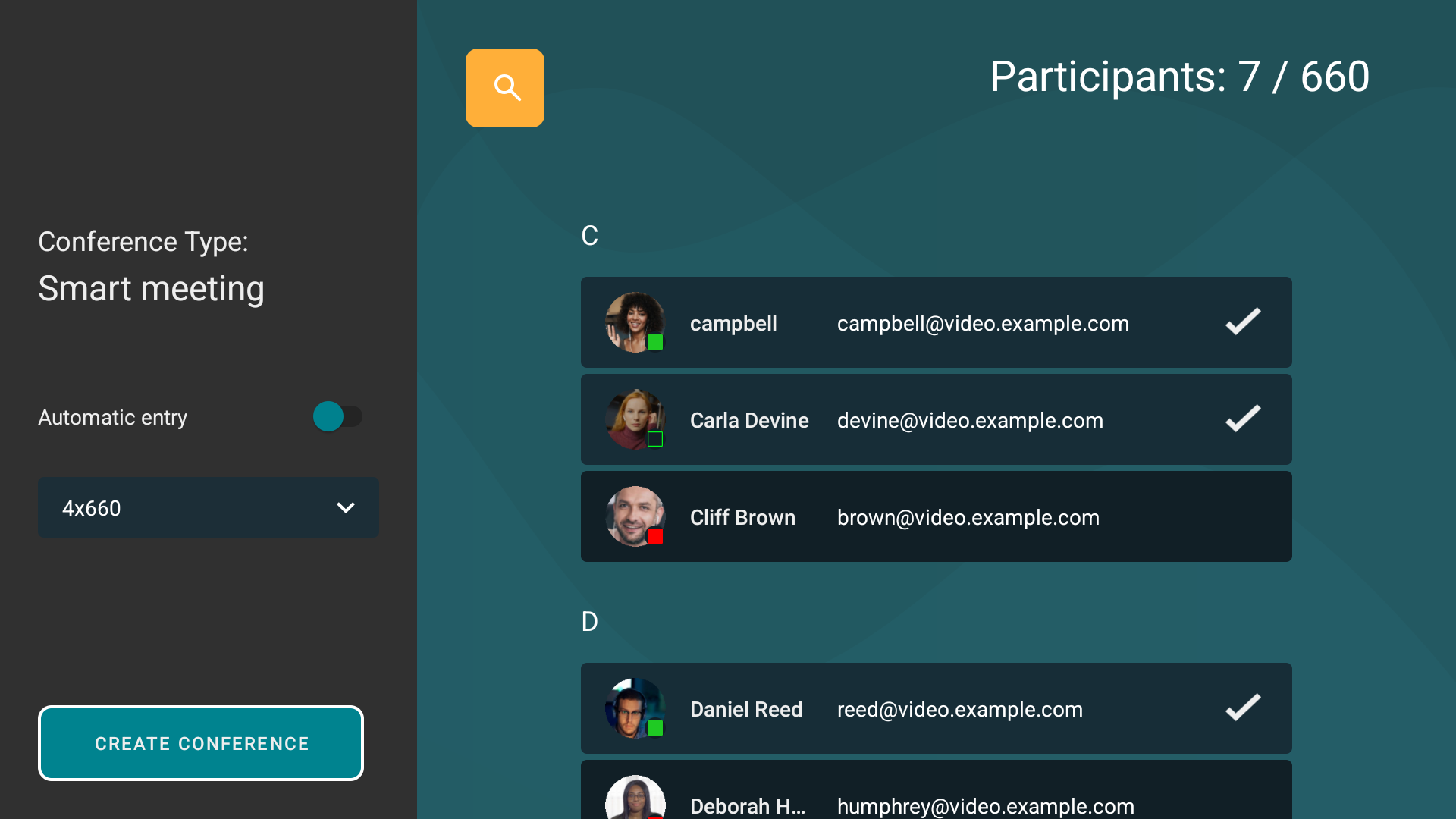
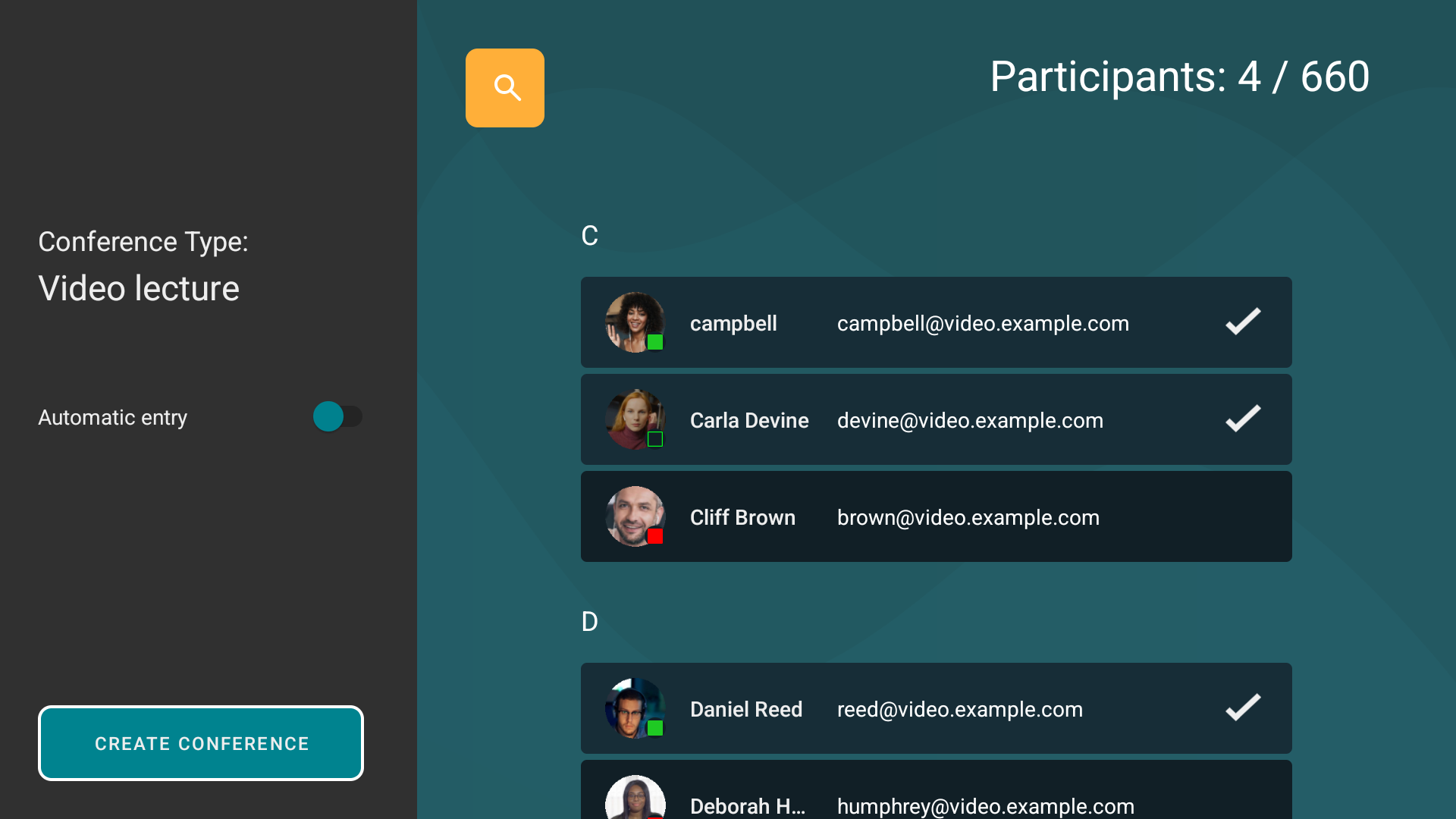
Check item Automatic entry to allow a user who wants to join the conference to be automatically connected when they call you.
Click Create conference.
The conference will launch immediately, all the participants will receive an invitation.
All subsequent conference modes are created in a similar manner.
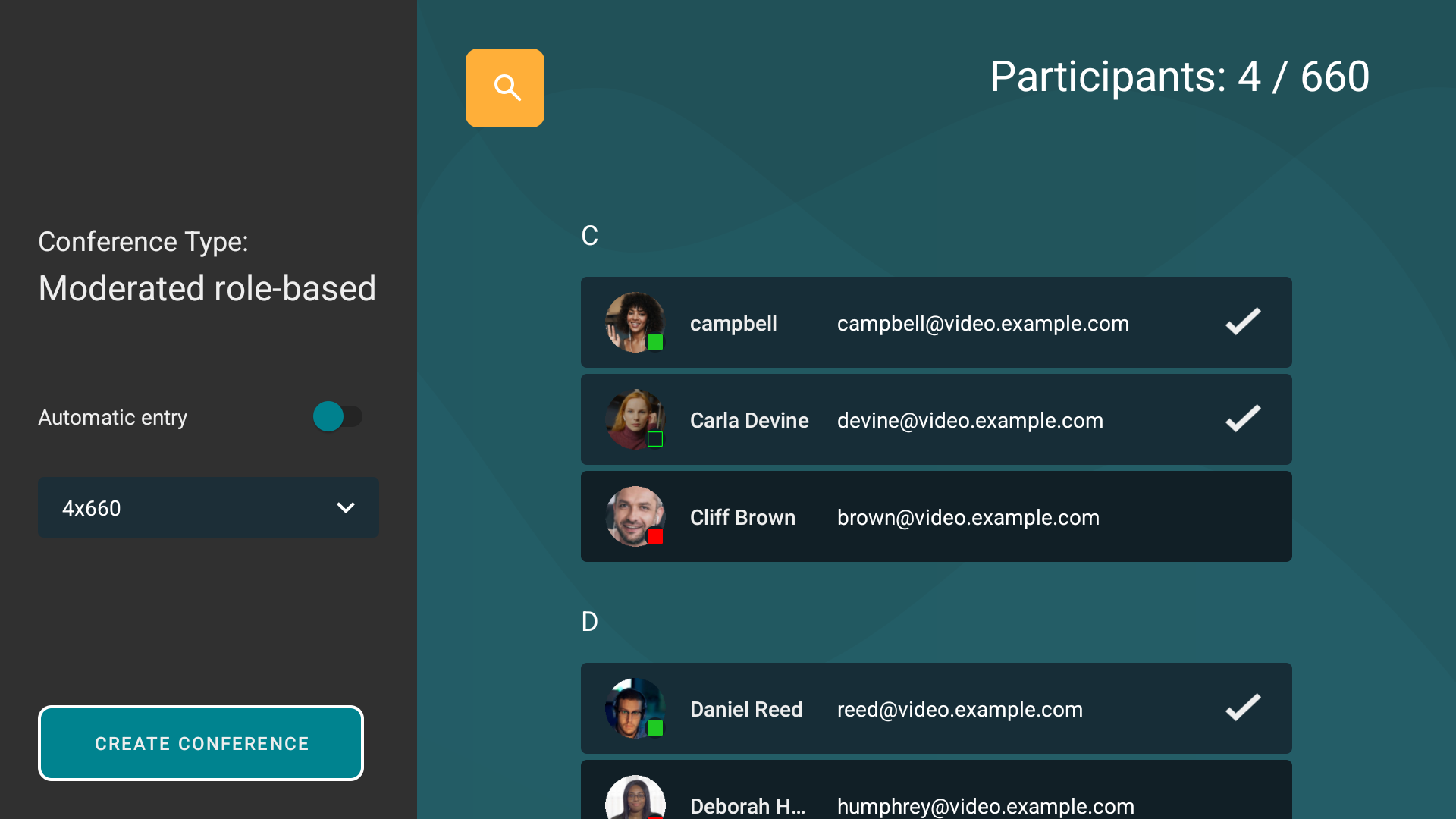
Moderated role-based conference
This mode is similar to Smart meeting, but the conference owner and moderators decide which participants go to the podium. When selecting the conference mode, specify Moderated role-based.
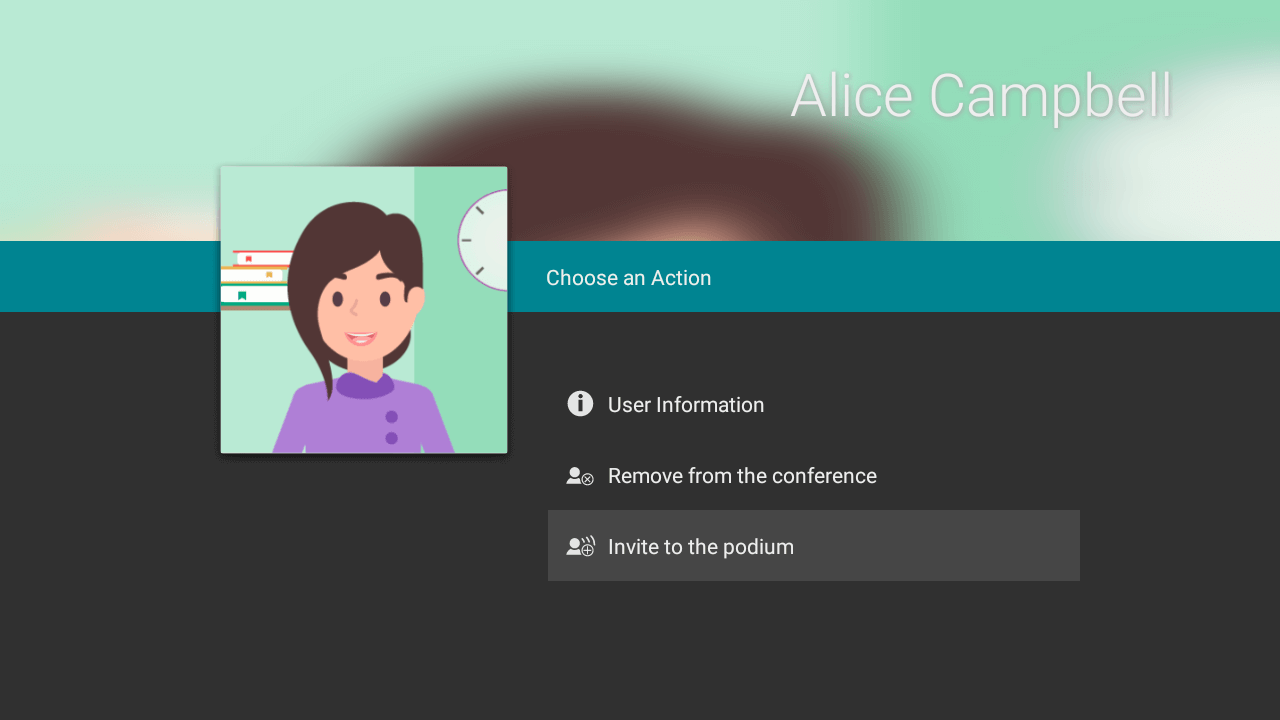
Assigning a speaker
If you are the owner or moderator of the event, open the participant list in the conference menu using the  button. Then go to the profile of the participant you want to make a speaker, and in the menu that opens, click Invite to the podium.
Becoming a speaker and making an audio remark
To become a speaker, use one of the following methods:
Press the asterisk key on the remote control – you will immediately take the floor if you are the moderator of the conference, or you will send a request to speak.
select the
 icon in the conference menu, and you will have access to the buttons for sending an audio remark or requesting the moderator to appear on the "video podium":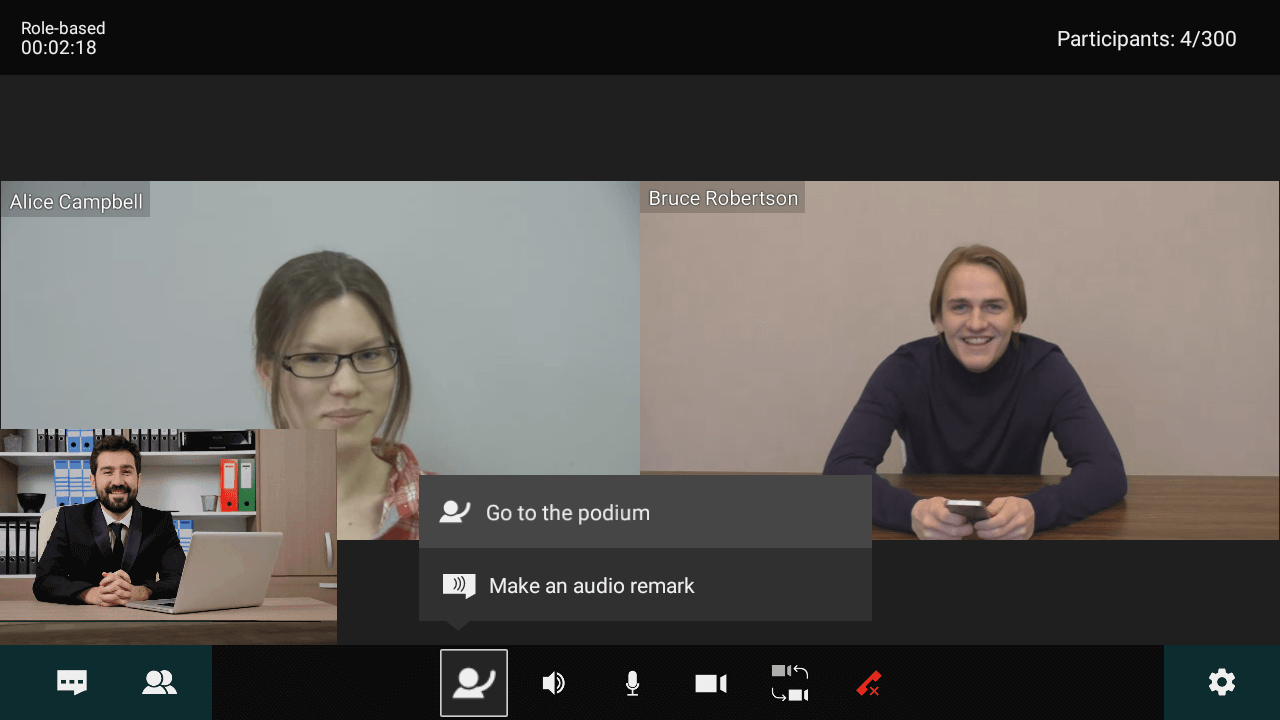
You can stop presenting by pressing the “asterisk” key on the remote control again or the  button in the conference menu.
To make an audio remark, you can:
Press and hold the hash key on the remote control while speaking.
Press the “pound” key on the remote control once, and then press the key OK. To end speaking, press OK or Back.
Video lecture
In this mode, all participants can only see and hear the speaker. When choosing the conference mode, specify Video lecture.
All on screen
Organizing an online event where all participants can see and hear each other. When selecting the conference mode, specify All on screen.