
Endpoint management
Endpoint management
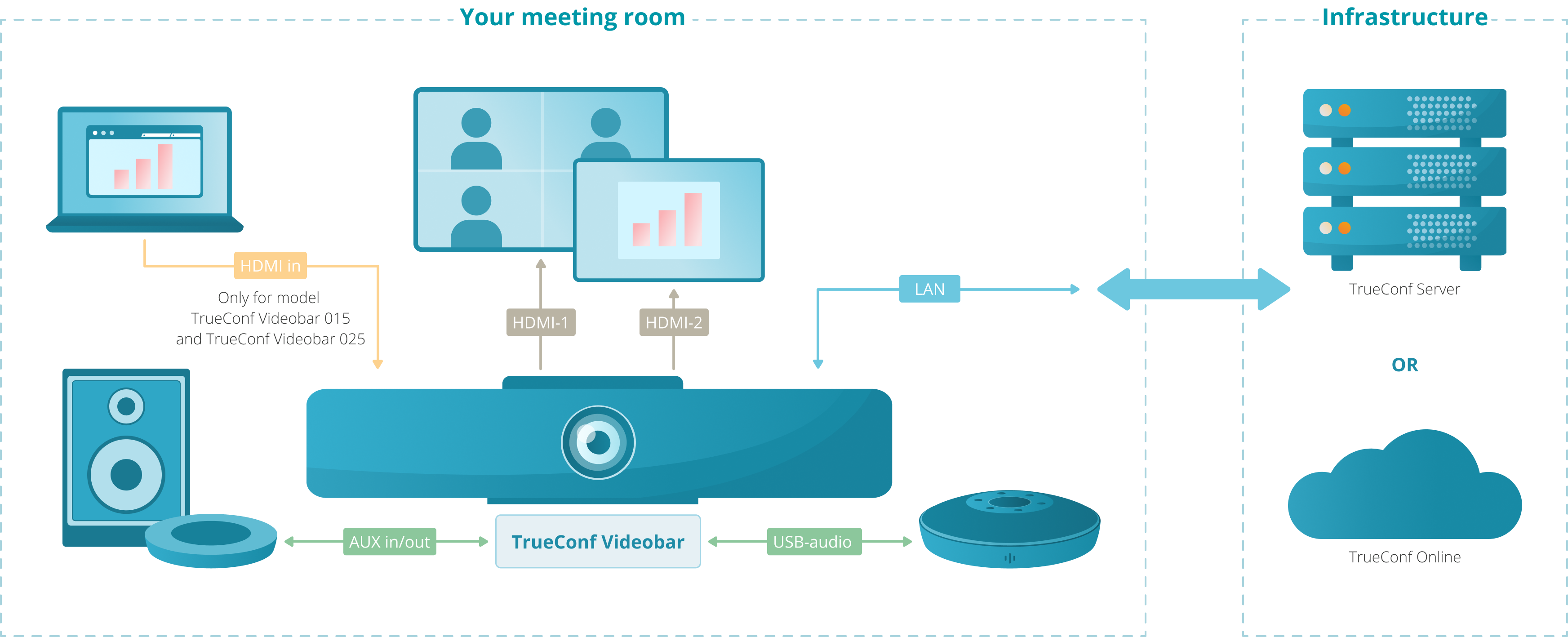
How to connect
Connect the power cable, network interface, monitor and audio output devices (headphones, speakers or output audio via HDMI to a monitor with built-in speakers) to your video conferencing endpoint.
For models TrueConf Videobar 010 and TrueConf Videobar 015: if you need to output audio via HDMI, use output HDMI out 2, as HDMI out 1 does not support audio streaming.
You can also connect the following devices:
Additional monitor
External webcam and microphone
content output device (for model TrueConf Videobar 015 and TrueConf Videobar 025).
Remote control buttons
TrueConf Videobar 010/015 remote control
You can manage your endpoint using the remote control powered by two AAA batteries (included in the package). It uses a 2.4 GHz band that helps enhance the control range and usability as compared to IR remotes.
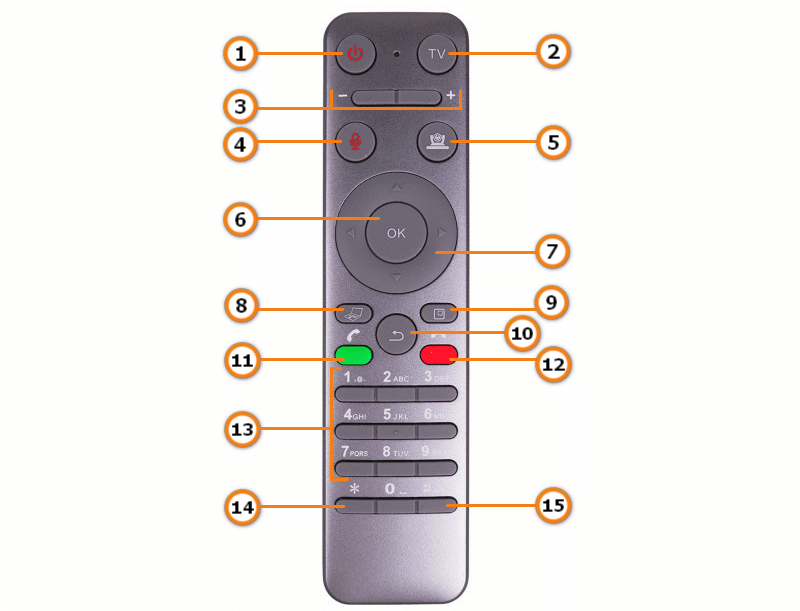
Turn on/off the endpoint.
Programmable button.
Adjusting the general volume level of the system.
Unmute/mute the microphone.
Turn the camera on/off.
Go to the selected menu item or activate the interface button.
Arrow buttons — navigate between interface elements.
Switching between images transmitted to the conference from USB-connected external cameras and (for model TrueConf Videobar 015) content captured via HDMI.
Switching between layouts.
Return to the previous menu section.
Take an incoming call or call a user in the address book/call history.
Depending on the usage scenario:
Decline an incoming call
End a video call
Leave a group conference
Deleting the character before the cursor when used in an input line (for example, when connecting a terminal to a server).
Numeric keypad for entering digits 0-9.
Depending on the usage scenario:
Enter a period in the input line, e.g., when connecting to a video conferencing server
requesting the floor and leaving the floor in a moderated role-based conference.
Used in a moderated role-based conference for audio replicas:
A single tap opens the audio reply menu. To start broadcasting, press the OK button; to end it, press the OK button or back
 .
.Push and hold this button to open the audio remark menu and talk until the button is released.
TrueConf Videobar 025 remote control
The remote control uses an infra-red transmitter and operates on two AAA batteries (included).
When using the TrueConf Videobar 025 model, a single remote control can manage different terminal instances without any additional configuration.
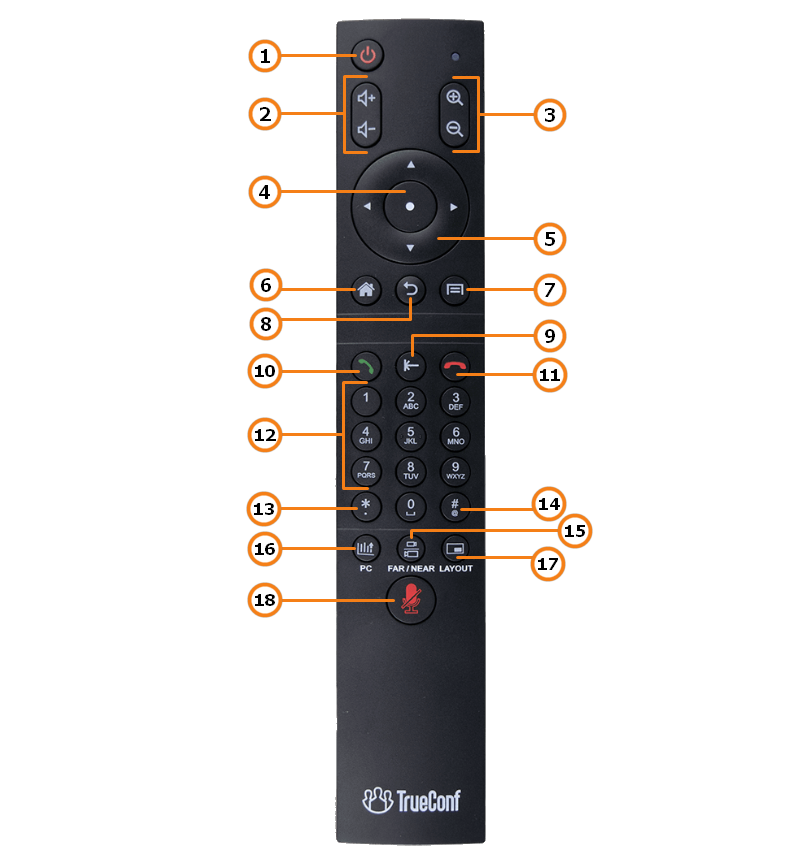
Turn on/off the endpoint.
Adjusting the general volume level of the system.
Zooming camera video and content.
Go to the selected menu item or activate the interface button.
Arrow buttons — navigate between interface elements.
Navigation to the main menu. Ignored when a user is in a call or conference.
Depending on the usage scenario:
In the main menu – navigate to the address book
During a call or video conference, the context menu for a participant is opened when his/her video window is selected in the layout.
Return to the previous menu section.
When entering characters or using the on-screen keyboard, the last entered character is deleted.
Take an incoming call or call a user in the address book/call history.
Depending on the usage scenario:
Decline an incoming call
End a video call
Leave a group conference
deletion of the character that stands right before the cursor if the input line is used (for example, when connecting the endpoint to a server).
A numeric keypad for entering digits 0-9 and letters (without T9 support). To select the next character, quickly press the desired button multiple times in succession.
Depending on the usage scenario:
Enter a period in the input line, e.g., when connecting to a video conferencing server
requesting the floor and leaving the floor in a moderated role-based conference.
Used in a moderated role-based conference for audio replicas:
A single tap opens the audio reply menu. To start broadcasting, press the OK button; to end it, press the OK button or back
 .
.Push and hold this button to open the audio remark menu and talk until the button is released.
Accessing the terminal camera control menu (available with firmware version 3.0+).
Switch between images transmitted in the conference from cameras (in case external USB cameras are connected) and content captured via HDMI.
Switching video layout (available with firmware version 3.0+).
Unmute/mute the microphone.
Managing multiple endpoints using a single remote control
Only for models 010 and 015.
By using multiple TrueConf Videobar terminals, you can configure their management simultaneously from a single control panel. To do this, you need to pair the control panel with each device as follows:
Press and hold the OK key and the "asterisk" key on the remote control at the same time – the LED on the remote will start flashing after 3 seconds.
Release the buttons — the LED will keep blinking.
Turn on the endpoint.
If the binding is successful, the LED will be coming on for 2 seconds and then turn off. Otherwise, if there is a pairing error, the LED will be quickly blinking for 20 seconds and then will be slowly blinking for 3 seconds. After that, the remote control will go into sleep mode.
To unpair the remote from TrueConf Videobar:
Turn on the endpoint.
Press and hold the OK and "hash" buttons on the remote control simultaneously for 3 seconds—the LED on the remote will start blinking.
Release the remote control buttons — the LED will turn off, while the device will be unbound. Otherwise, if there is an error, the LED will be blinking for 20 seconds, while the remote control will go into sleep mode.