
Getting started
Getting started
Starting the endpoint and adjusting network settings
The terminal automatically powers on when electricity is supplied. To wake the terminal from sleep mode, simply press the power button on the remote control. Once the terminal is on, the home screen will appear on the main connected monitor. The current date and time are displayed at the top of the screen.
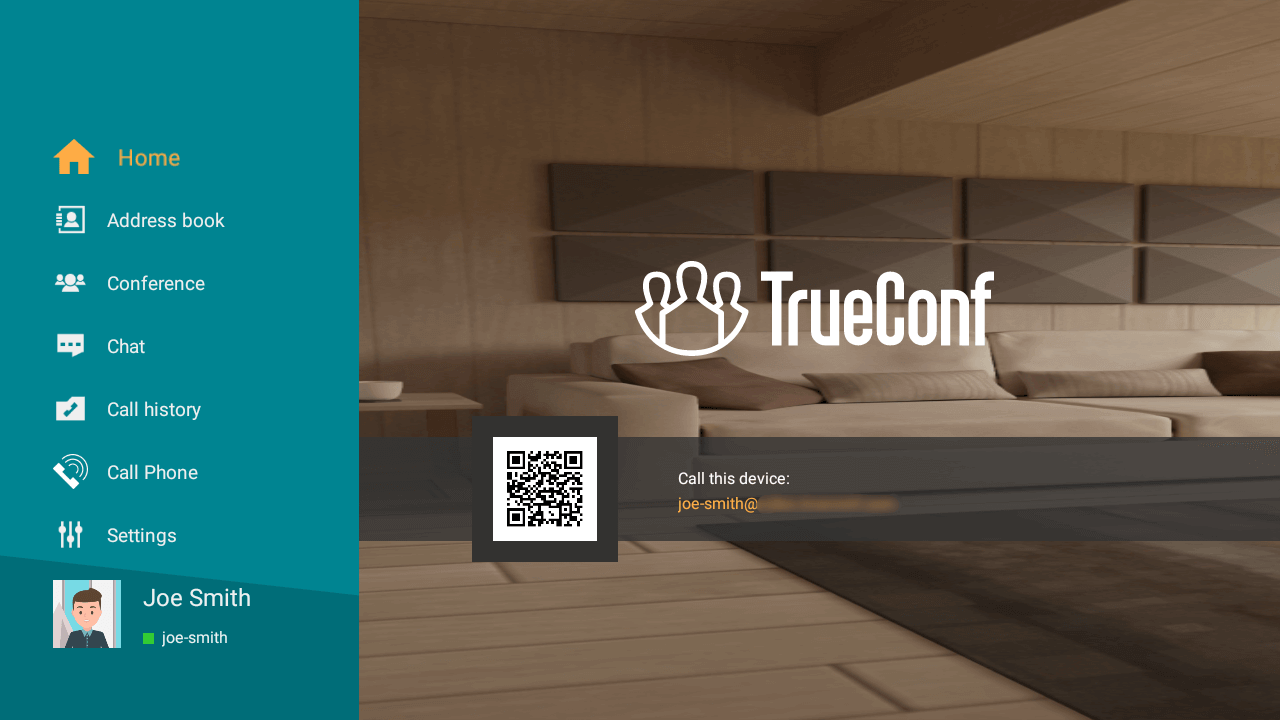
First, you need to connect to the network. By default, the device is configured to operate on an Ethernet network with automatic configuration via DHCP. Simply connect the Ethernet cable to the terminal port and wait for the authorization window to appear.
To ensure the best sound and video quality, your connection must meet the quality requirements. It is recommended to use a wired connection whenever possible.
If necessary, you can manually configure the Ethernet or Wi-Fi network connection by going to the system settings in the bottom right corner of the login page.
Connecting to your video conferencing server
When you first launch TrueConf Videobar, you will need to select a server to connect to and choose an authentication method. The terminal can work with both a corporate server TrueConf Server and a cloud service TrueConf Online (default option).
To log in to the cloud service, choose the appropriate method: using a cloud accountTrueConf (which can be created on the official TrueConf website) or an account from one of the popular social networks.
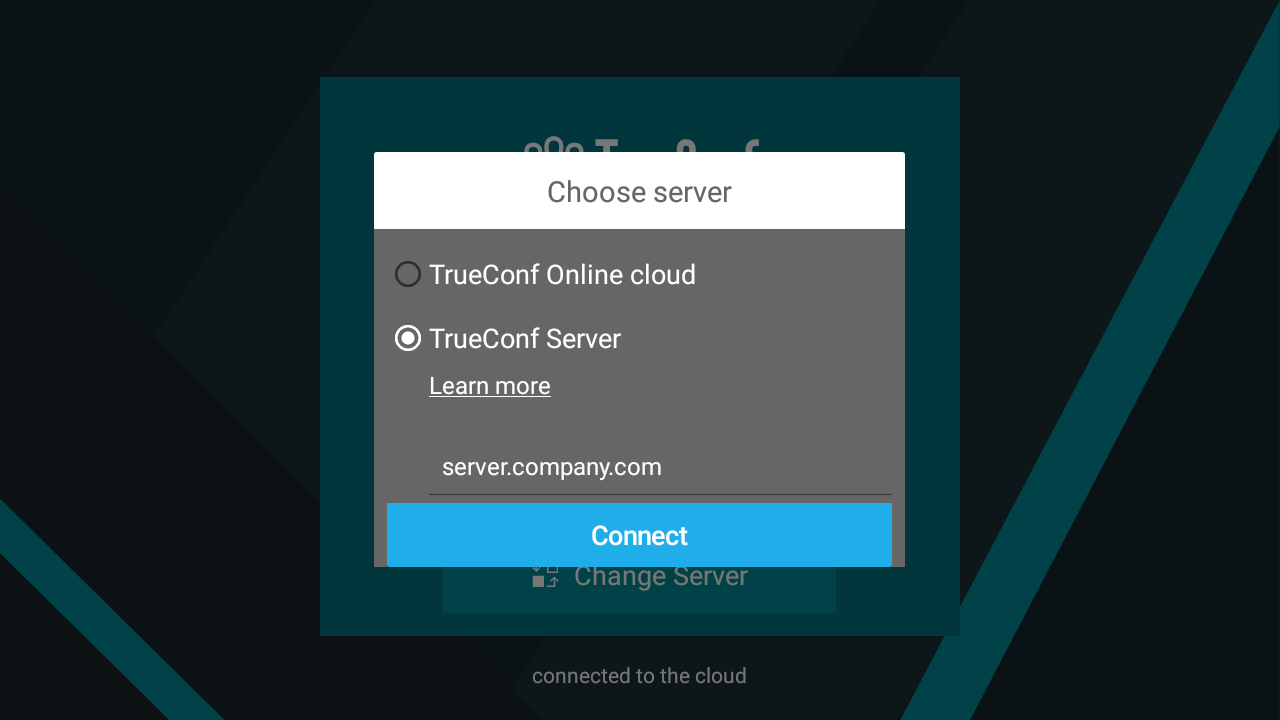
To connect to your corporate server, click the Change Server button. In the window that opens, select the TrueConf Server option and enter the server's IP address or domain name (for example, video.example.com). Then click the Connect button:
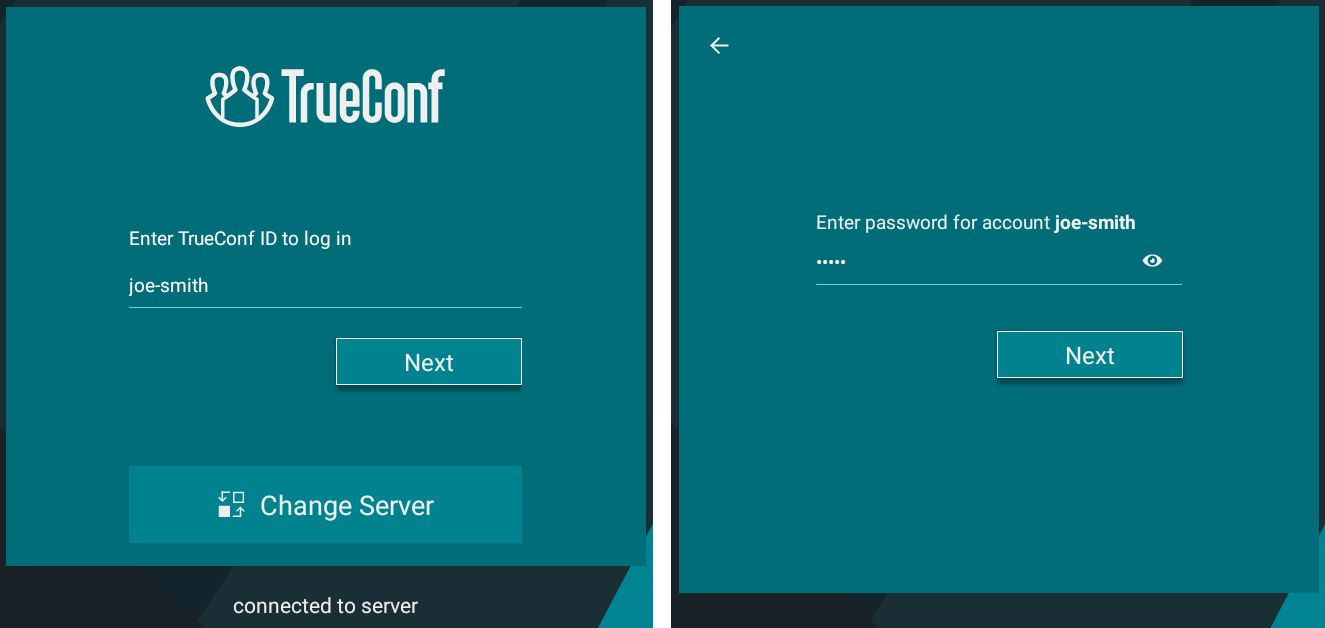
Next, enter your server credentials: login (TrueConf ID) and password:
After logging in, grant the application permission to record audio, take photos, and shoot videos when prompted. After that, you will see the terminal's home page.
Besides the built-in microphone array, you can use the following audio capture devices:
External webcam’s microphone
USB speakerphone or microphone
If necessary, you can switch devices during the video conference later.