
During the meeting
During the meeting
Content sharing
The VCS terminals TrueConf Videobar 015 and TrueConf Videobar 025 support content sharing during a video call or group conference. To do this, you need to connect a device that transmits content via an HDMI cable. For example, you can connect a laptop to the terminal and share a presentation.
To start sharing content, you should do the following:
Before or right during a conference, connect the device to the HDMI in port.
If necessary, enable content transmission via HDMI.
After that, your device’s content will be displayed in your video window (instead of your camera video).
You can switch from content sharing to camera using the Switch camera/content button on the remote control or in the conference menu, under the list of camera devices:
Mirroring your screen to the second monitor
If you need to duplicate the displayed image on a second monitor, use the HDMI out 2 port. The connected screen will then show an exact copy of the main screen's image.
Keep in mind that the HDMI out 1 output on TrueConf Videobar 010 and TrueConf Videobar 015 terminals does not support audio stream output.
Viewing chat messages
To access the chat during a video call, press any of the arrow keys on the remote control, then select the  button from the menu that appears. In a video conference, you can choose between the general chat or messaging with a specific participant.
Adding users to the address book
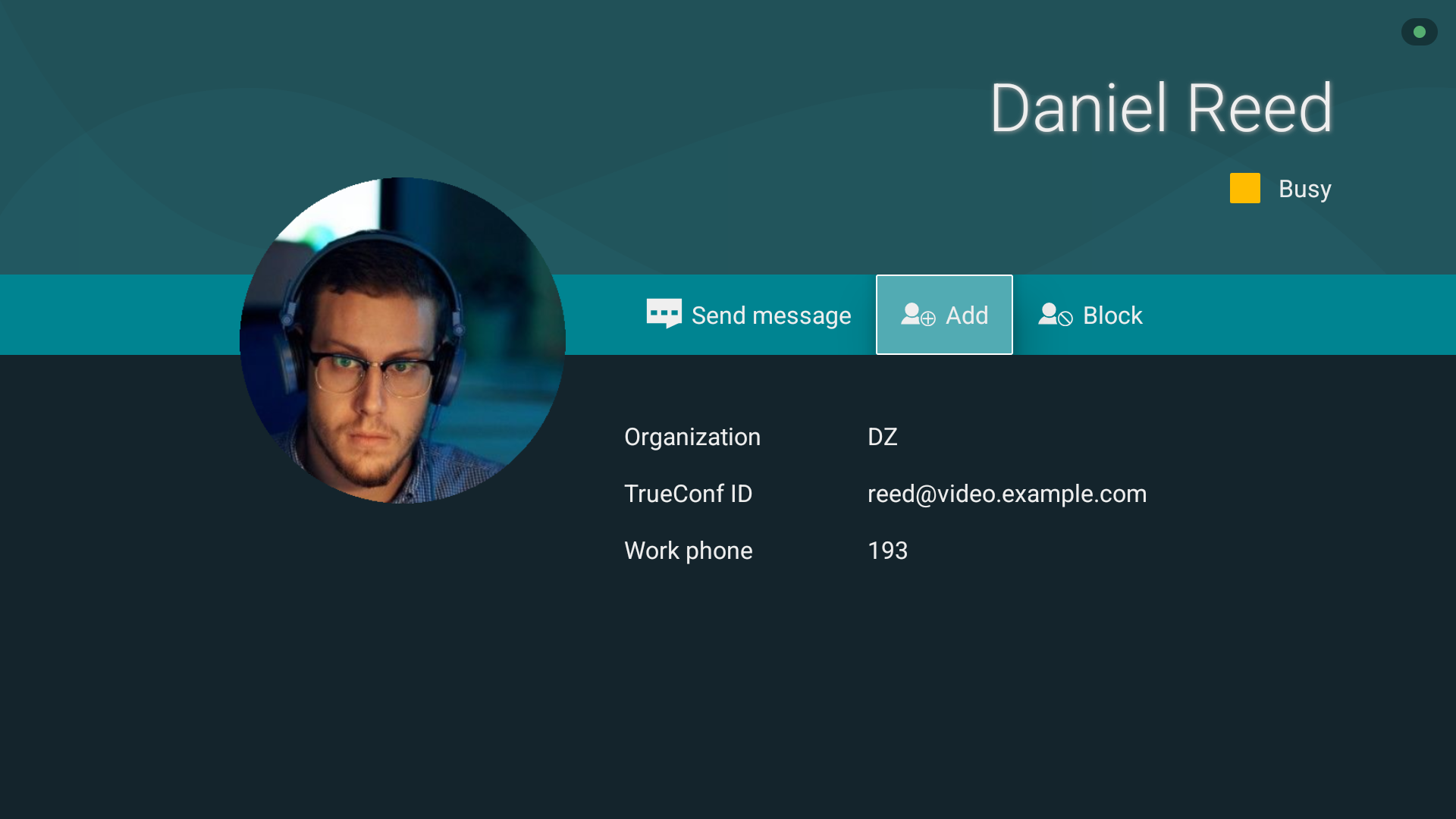
You can add a user to your address book right during a conference. To that end, you need to:
Open the list of participants in the conference menu.
Select a user and go to their profile.
In the window that opens, go to the User Information menu.
Click the Add button.
Managing your microphone and camera
To mute your microphone:
During the conference, press the mute button on the control panel, or go to the conference menu and click the mute button
 .
.The button will appear strikethrough
 .
.
Similarly, you can enable or disable video broadcasting in a conference by pressing the camera off button on the remote control or the camera button  in the conference menu.
PTZ Camera Control
TrueConf Videobar Allows you to control a PTZ camera connected to the terminal, a built-in camera (TrueConf Videobar 025), as well as participant cameras. During the conference, press , after which you will be able to control your camera:
To control a participant's camera during the conference, click on their video and select option Camera control request.
To control other participants' cameras, you need to have moderator rights in the conference.
External webcams
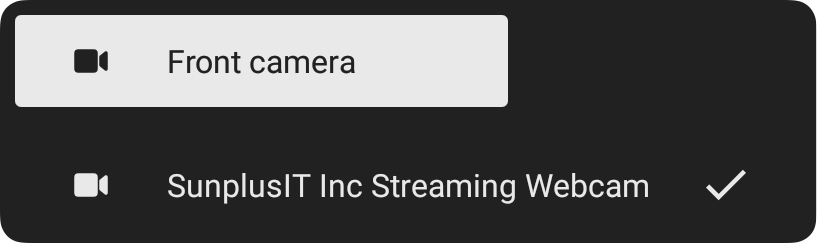
During a conference, it may be necessary to switch between different webcams. TrueConf Videobar allows you to connect additional cameras to the existing USB ports.
To switch between cameras during a video call or conference, use the camera switching window in the conference menu:
Automatic face focus
The TrueConf Videobar 025 terminal is equipped with an AI-based algorithm that recognizes participants' faces and keeps them centered in the frame. This helps to focus attention on the users in the meeting room.
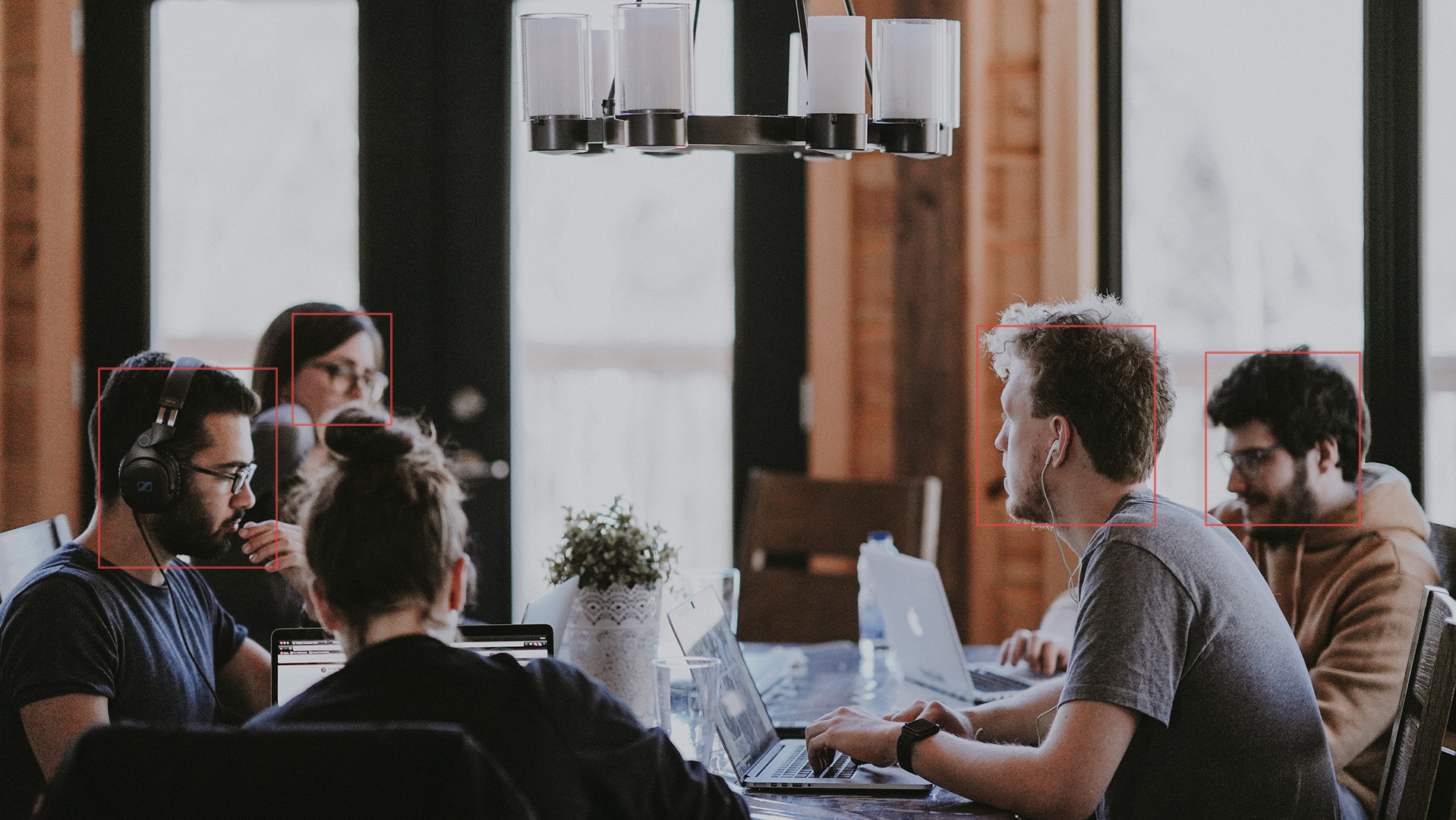
To enable face focusing, press the  button on the remote control.
Additional settings
Using the  button, you can access the additional menu. There you will find:
Switch between cameras, microphones and speakers if you have multiple devices connected.
Enable automatic anti-flickering filter.
Change the camera angle for compatible webcams.
Adjust volume level.
Configure echo cancellation (auto, on or off).