
Video calls and messages
Video calls and messages
Incoming calls
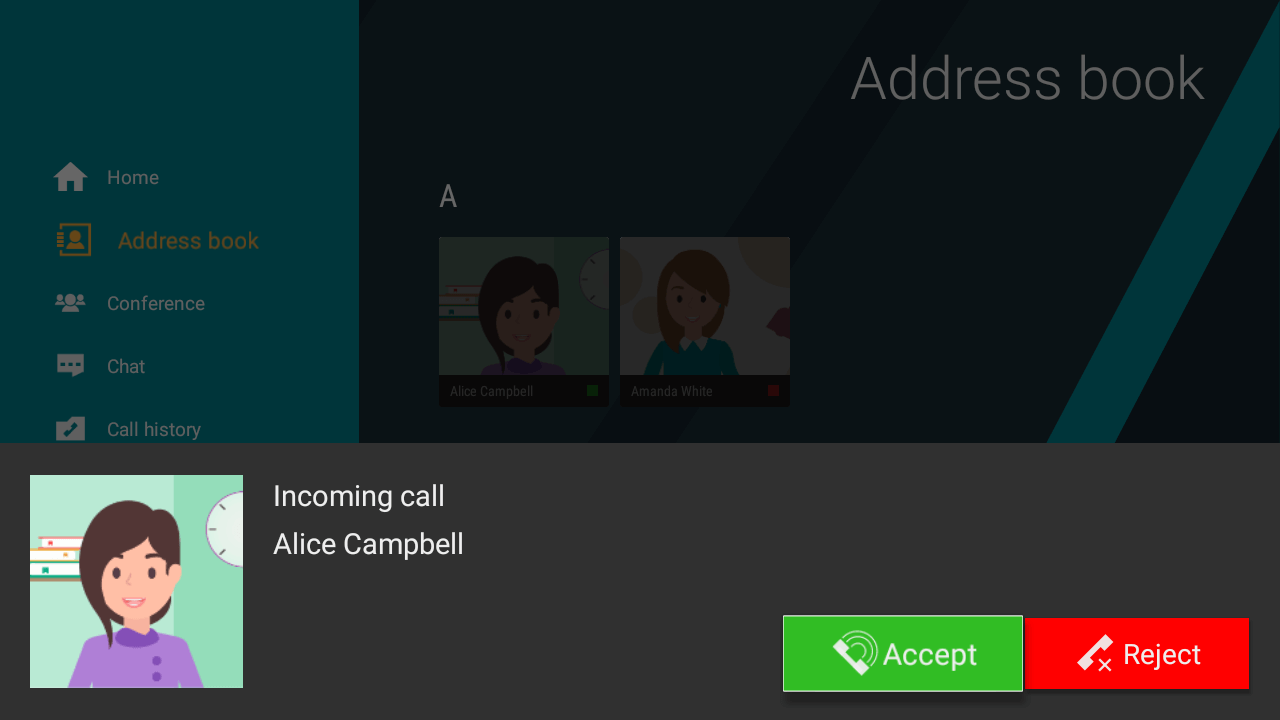
You can receive an incoming call with caller’s name information displayed while visiting any device menu section:
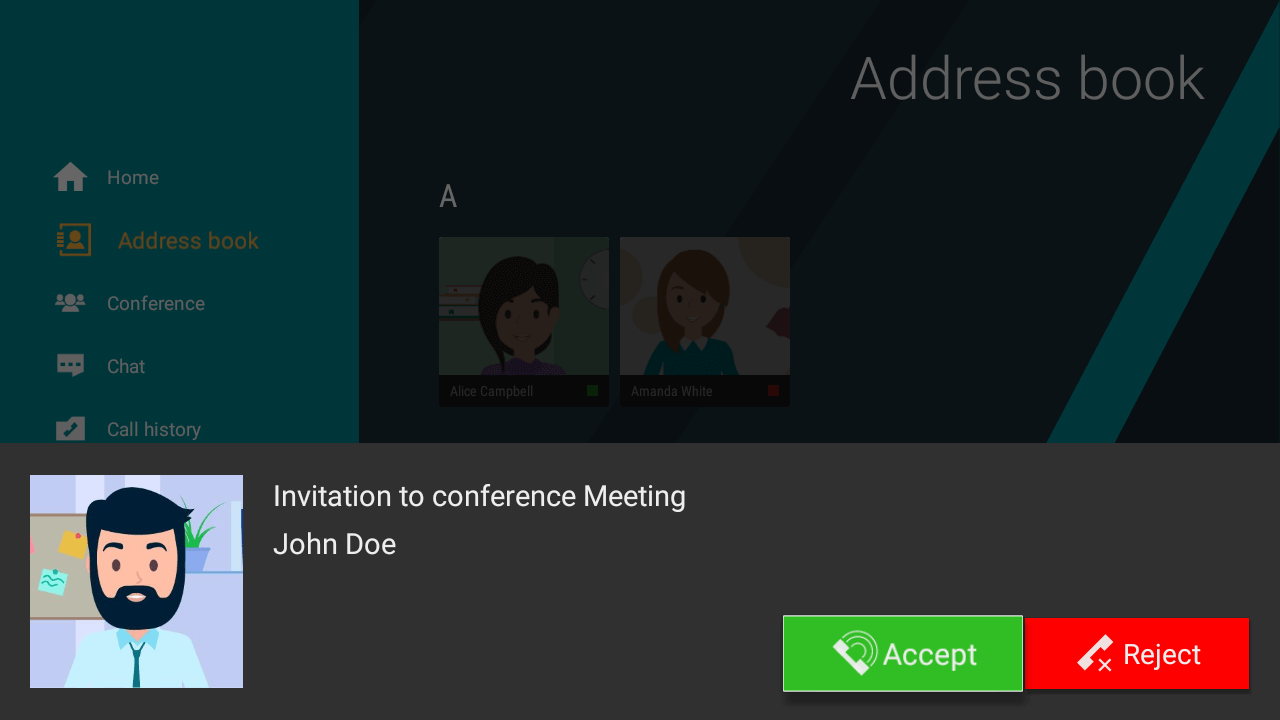
In a similar way, you can be invited to a video conference:
Making a call
To call a user, you need to:
Select it in the contacts section.
Press the call button on the remote control, or go to the subscriber's profile and click Call.
To end the call, press the end button on the remote control or the
 button in the call menu.
During communication, you will have access to several features: chat, turning the camera and microphone off/on, and their configuration.
Call history
To view call history, go to the Calls section:
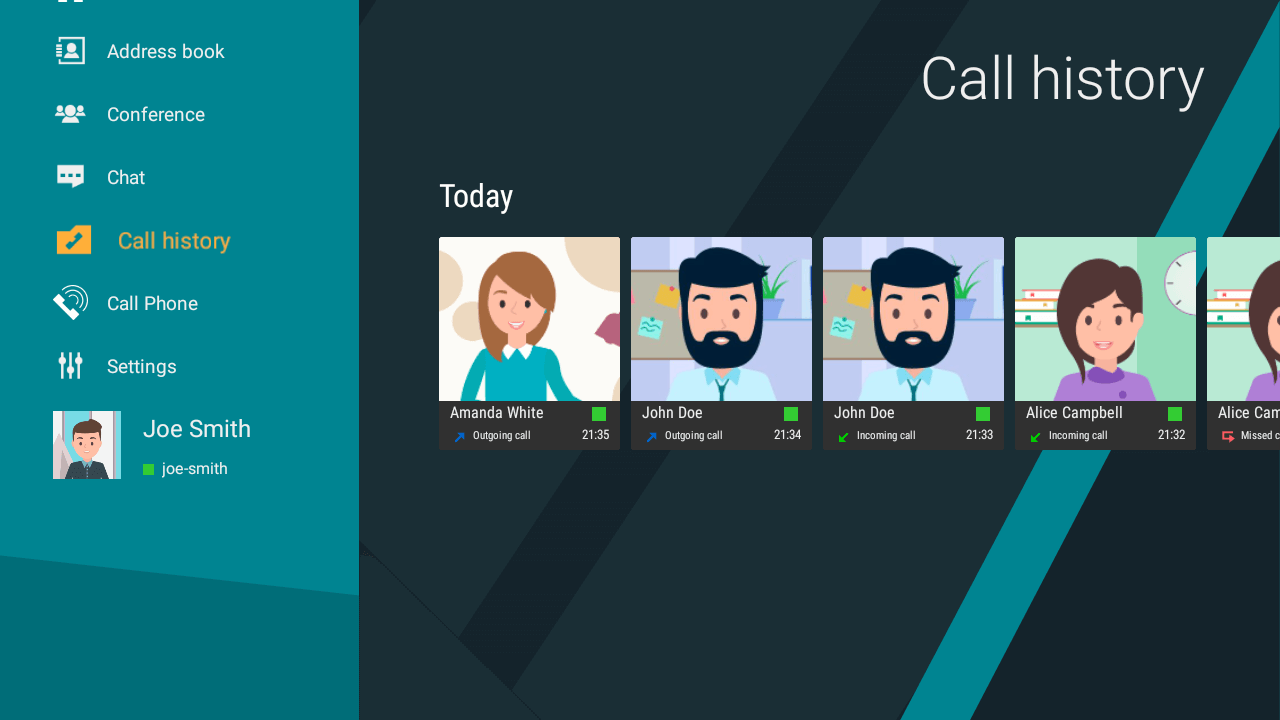
With this list, you can call a user again or re-join a conference if it’s still ongoing and this user is the conference owner.
Using a chat
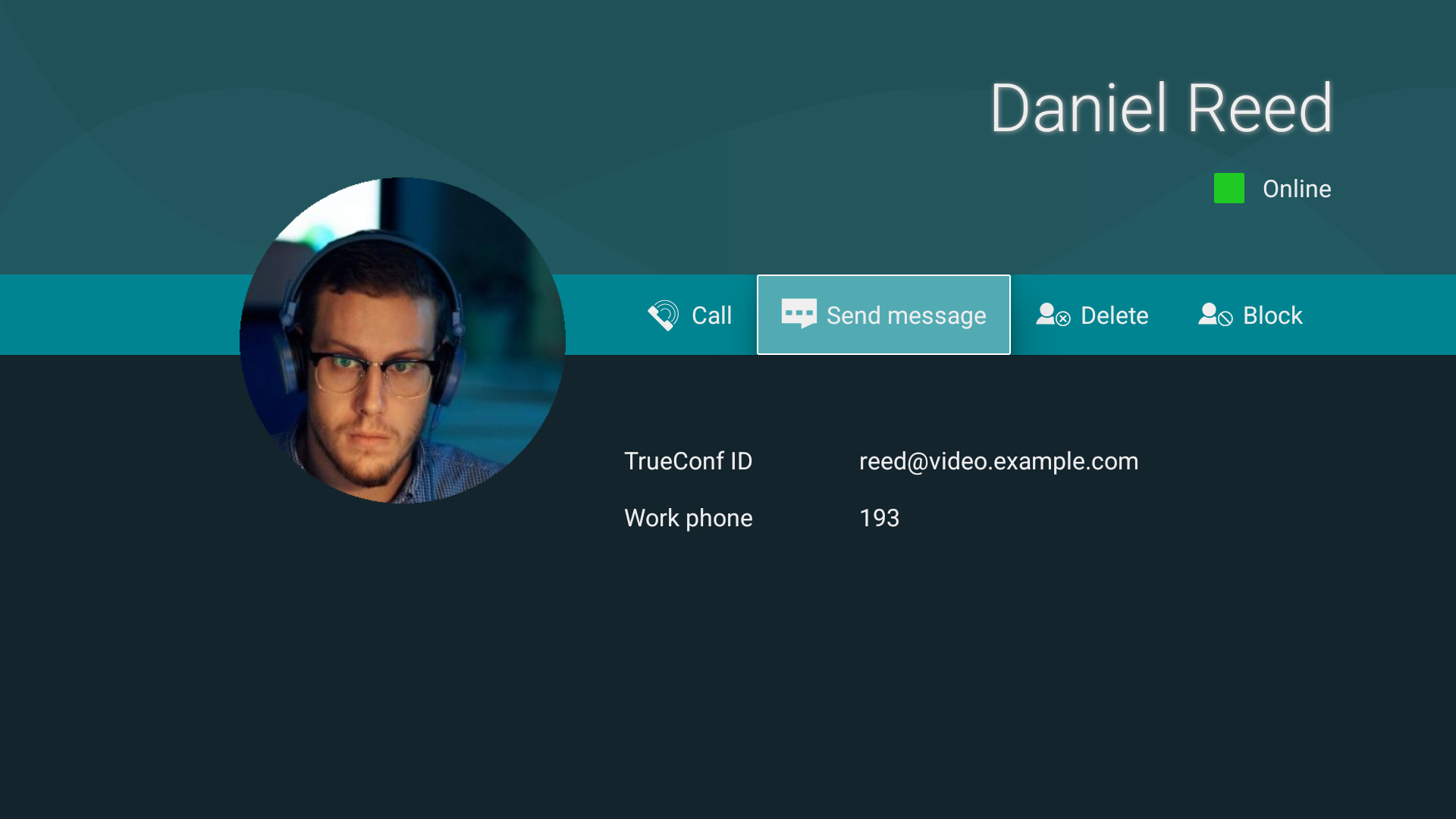
To start a text chat with any of your contacts, go to their profile and click the Send message button.
The list of your conversations is displayed in the Chats section, and includes personal and group chats, as well as channels:
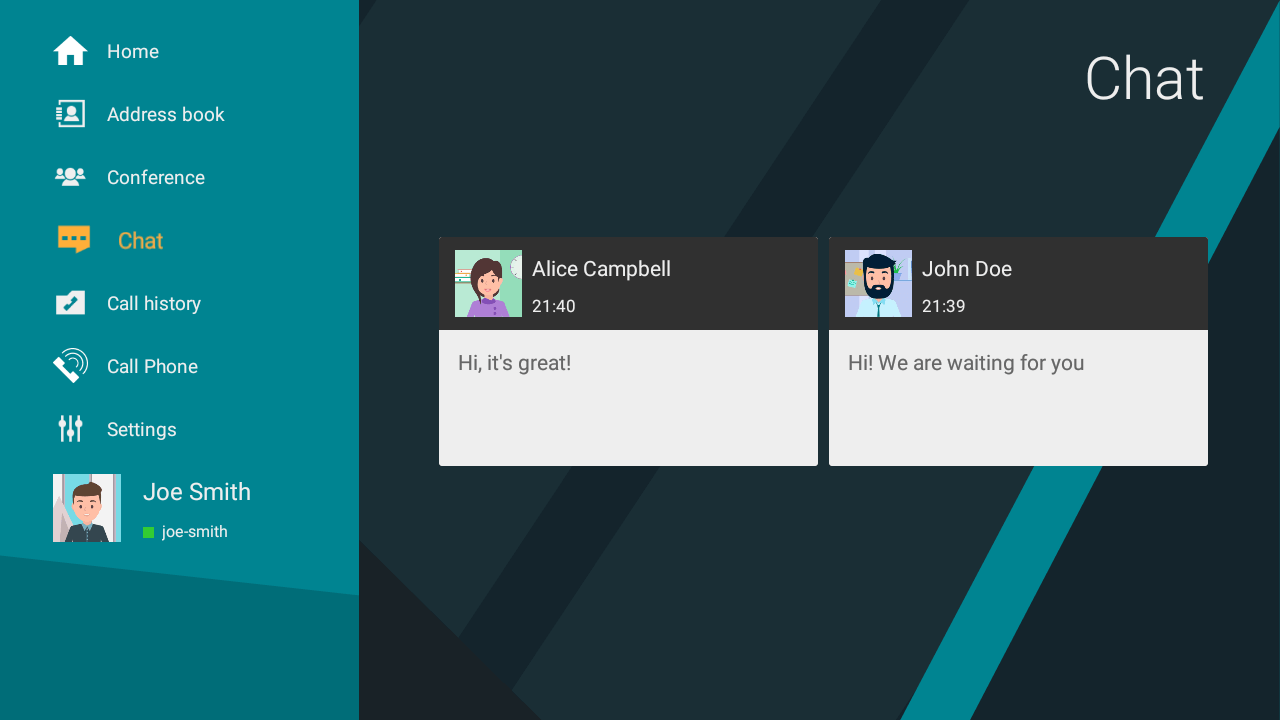
Proceed to any of your chats to continue exchanging messages and use the Arrows on the control panel to go to other chats:
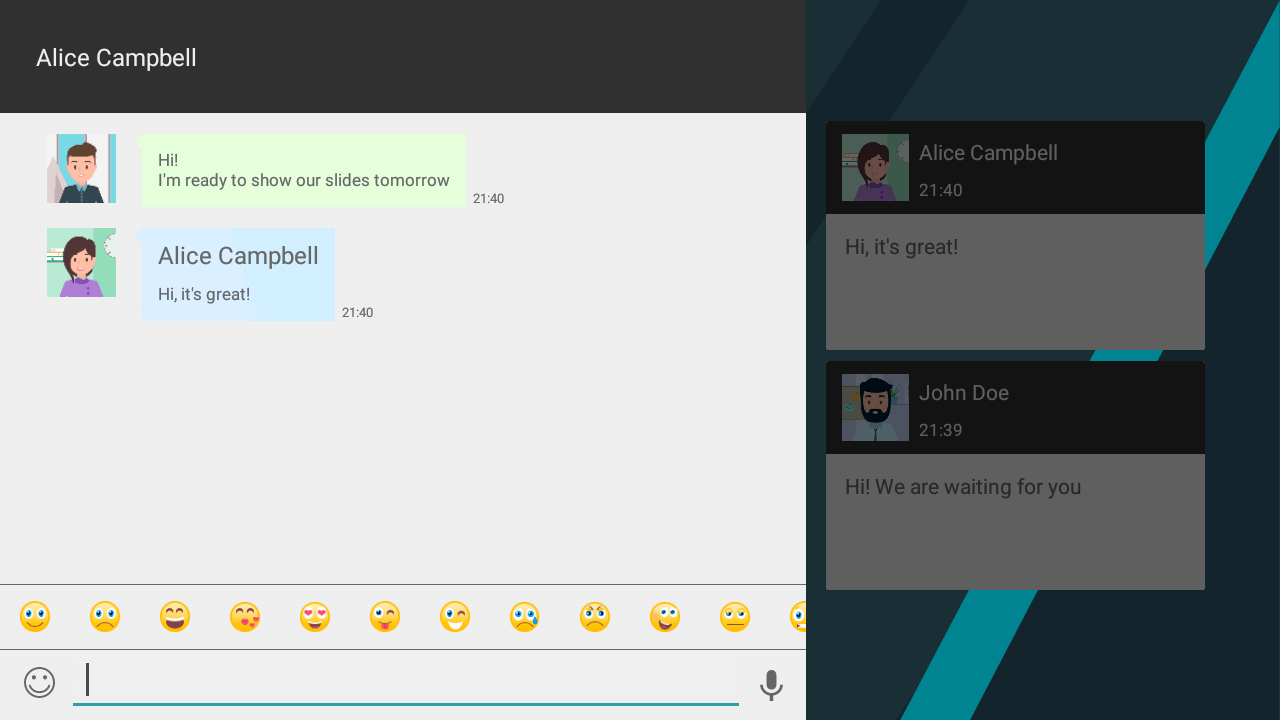
Chat is also available during a call and video conference.
How to call a phone, SIP/H.323 terminal, MCU, or IP camera
To call SIP/H.323 devices, an MCU, phone numbers, or to connect to an RTSP stream (such as an IP camera), use a dial string format appropriate to the recipient type. Examples of dial strings (addresses) you can specify:
sip:number@example.com— SIP device, such as a terminal in a meeting room. Read more about SIP addresses here.#h323:number@example.com— H.323 device, such as a terminal in a meeting room. Read more about H.323 addresses here.#tel:123— the subscriber's phone number for a call, which can be either a mobile number or an internal extension on your PBX.rtsp://192.168.1.100/axis-media/media.amp— An RTSP stream, such as capturing a stream from an IP camera or another conference where external broadcasting is enabled.
Calls to phone numbers are available only if the VCS server in use is configured with integration to a PBX or telephony service.
To call a phone number, you need to:
While in the Calls or Home sections, click the
 button to access the dialer.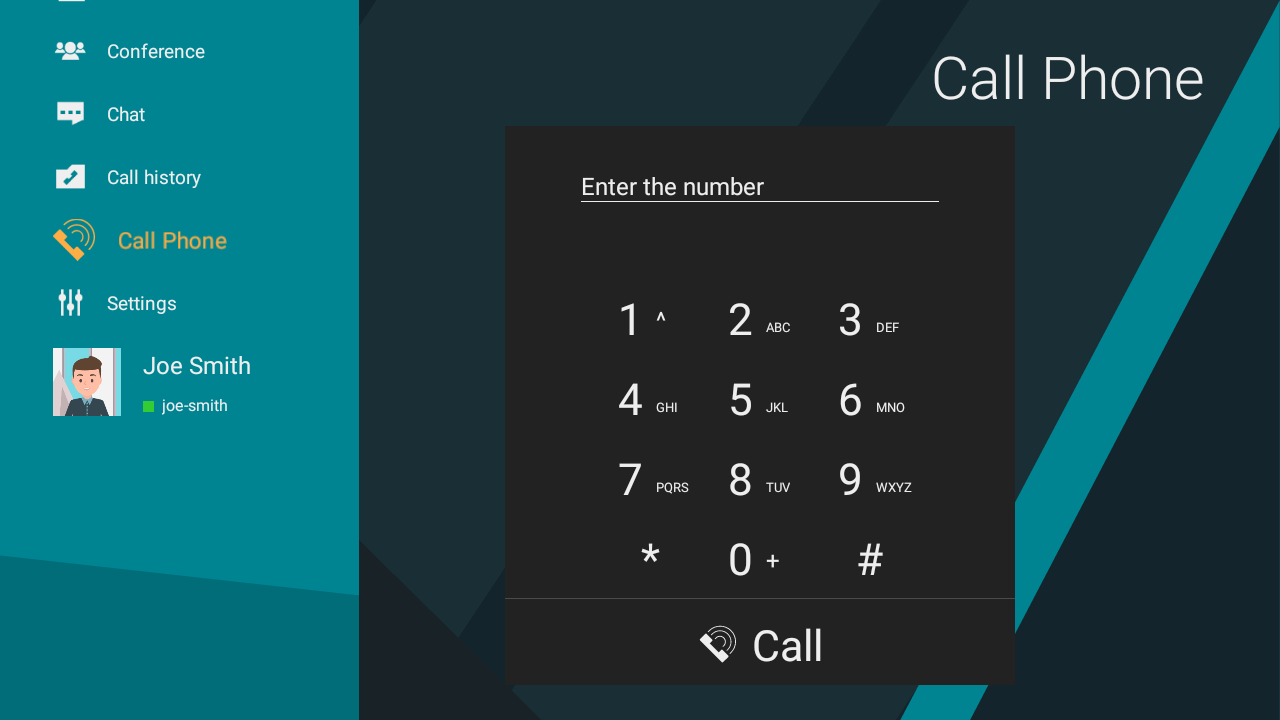
Use the remote control to dial the desired number. Users matching the entered sequence will be displayed:
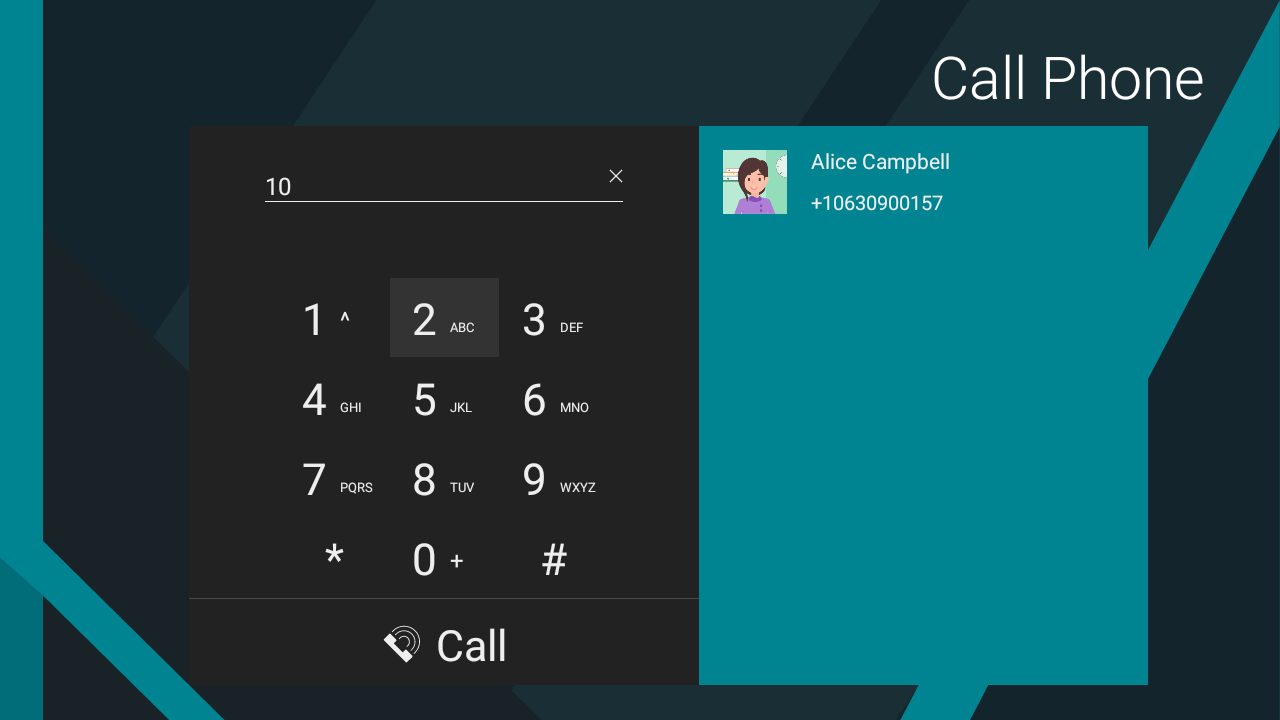
Select the user widget and press the OK button on the control panel, then
 .
.