
How to fix mobile app issues caused by untrusted certificates

With the release of version 3.3.1 of the TrueConf Android client app, security for handling SSL/TLS certificates received from TrueConf Server has been improved. As a result, some customers may have encountered certain issues on their mobile devices.
Instructions for TrueConf system administrators
Here is how the problems may manifest themselves:
The list of authentication providers (AD FS, Keycloak, etc.) is not displayed on the server connection screen.
Unable to access some sections of the app that are loaded from the server via the web (for example, opening surveys or another smart app).
The upcoming scheduled events are not displayed in the Conferences section.
The cause of these issues is the use of SSL/TLS certificates on the server side that are not trusted by the Android OS itself. These are the certificates configured in the Web → HTTPS section of the server control panel.
Fixing the untrusted certificate issue
Updating TrueConf Server to version 5.5.9+
The most reliable solution is to update TrueConf Server to version 5.5.9 or newer. Its release is expected between November 16 and 20, 2026. Starting with this release, the server will exchange its certificates with client applications in a secure manner with certificate verification.
Manually adding the required parameter for TrueConf Server versions 5.3.x - 5.5.8
You need to manually add a parameter with the public keys of your TLS/SSL certificates to your TrueConf Server. If your company uses TrueConf Enterprise 1.x, apply the setting described below on all servers of the complex. Once the parameter is added, it will be automatically sent to client applications.
Adding a parameter to resolve certificate issues:
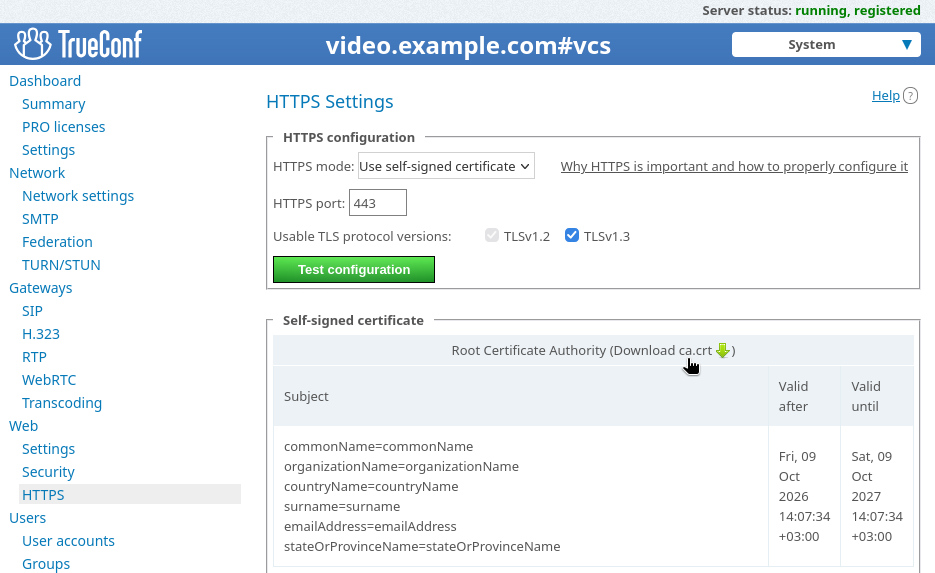
Prepare a JSON file containing the list of public keys of the certificates used on the server. To do this, go to the Web → HTTPS section and click the Download ca.crt link:
Replace all line breaks with /n by running a simple command in the terminal (command prompt):
Linux
sed -z 's|\n|/n|g' path/ca.crtwhere
pathis the path to the downloaded certificate.Windows
powershell -NoProfile -Command "(Get-Content -Raw 'path\ca.crt') -replace '\r?\n','/n' | Set-Content path\cert_one_line.txt' -NoNewline"where
pathis the path to the downloaded certificate.The result will be saved to the
cert_one_line.txtfile next to the certificate.
Paste the string obtained in
cert_one_line.txtinto the JSON template below:For Windows OS (note the slash escaping):
{ \"certificates\": [ \"YOUR_KEY\" ] }For Linux:
{ "certificates": [ "YOUR_KEY" ] }
Example of the expected result on Windows:
{ \"certificates\": [ \"-----BEGIN CERTIFICATE-----\nMIIE123123ААА9jt6ZlDg==\n-----END CERTIFICATE-----\" ] }Example of the expected result on Linux:
{ "certificates": [ "-----BEGIN CERTIFICATE-----\nMIIE123123ААА9jt6ZlDg==\n-----END CERTIFICATE-----" ] }Add the resulting string to the list of parameters on the servers:
If the server is installed on Linux, log in to the OS where the server is running and run the following command in the terminal:
sudo /opt/trueconf/server/bin/vcs/tc_regkey set appproperties web_ca str 'json'If the server is installed on Windows, open the cmd terminal (command prompt) as administrator and run the command
cd "C:\Program Files\TrueConf Server"
.\tc_regkey.exe set AppProperties web_ca str "json"
where
jsonis the text from step 3.Restart services:
on Linux OS: trueconf and trueconf-manager
on Windows OS: TrueConf Server and TrueConf Server Manager.
Please note that TrueConf officially provides security patches for 3 major releases of TrueConf Server, namely versions 5.5, 5.4, and 5.3. If your server version is lower than 5.3, we recommend that you contact us to discuss upgrading to the nearest secure release.