How TrueConf Users Can Make a Test Call via trueconf:/SIP/H.323/RTSP

The trueconf: protocol is designed to interact with TrueConf Server and TrueConf client applications. Once you have set up the hardware and software for video conferencing, you can check the connection quality using this protocol and TrueConf echo test. To do this, enter echotest@trueconf.com in the search field in the TrueConf client application and press the call button  .
During video conferences, TrueConf Server users can connect to endpoints and IP cameras via SIP/H.323/RTSP protocols. Here, in this article, we will show you how to test this feature by making a call to public SIP/H.323/RTSP endpoints. You can find the list of such sources below.
The number of SIP/H.323/RTSP connections depends on the server license. TrueConf Server Free provides 1 connection which is enough to make a test call.
Making a test call to SIP/H.323/RTSP endpoints in TrueConf client application
Enter the call string in the search field of the TrueConf application in the format specified in the table (see the Call String column).
Please note that we are not responsible for the accessibility of these endpoints; so, keep in mind that they might not be available at the time of testing.
| Protocol | Name | Result | Call string format |
|---|---|---|---|
| SIP | TestYourCall | Echo test, tone dialing test | #sip:+16312403912@testyourcall.tk |
| Cisco Loopback | Virtual meeting room (video) | #sip:loopback@rtp.ciscotac.net | |
| SIP Test Call | Echo test, tone dialing test | #sip:thetestcall@getonsip.com | |
| SIP2SIP | High bandwidth audio, MSRP chat, file transfer, conference info | #sip:ROOM@conference.sip2sip.info | |
| SIP2SIP | Echo test | #sip:4444@sip2sip.info | |
| SIP2SIP | Dialing test and audio | #sip:3333@sip2sip.info | |
| H.323 | WebEx | Test call, tone dialing | #h323:173.243.2.68 |
| Ivr.vc Halloween | Video test + tone dialing with the ability to select a video | #h323:halloween@ivr.vc | |
| Cisco TAC Loopback | Recording and playback of the video from a web camera | #h323:loopback@cisco.com |
RTSP connection test
There are two options for carrying out the test: with the help of an IP camera or by connecting to a conference that had been created in advance.
If you have an IP camera that can send an RTSP stream, you can make a test call to this camera as it is shown in our article. Otherwise, it is possible to use such a feature as conference streaming which is available in TrueConf Server.
Important! If you want to run this test by following the instructions described below, you will need to have administrator rights because it will be necessary to access the TrueConf Server control panel.
If you want to perform the test by connecting to a conference that has been created in advance, you should first create a custom RTSP Pull configuration in the Streaming section of the TrueConf Server control panel. Check our documentation to learn more.
Important! You will need to activate the license needed for streaming.
When the stream template is ready, create a new conference and select these parameters in the control panel:
Mode – All on screen;
Date and time – Without schedule;
Select RTSP Pull in the Streaming section of the Advanced tab.
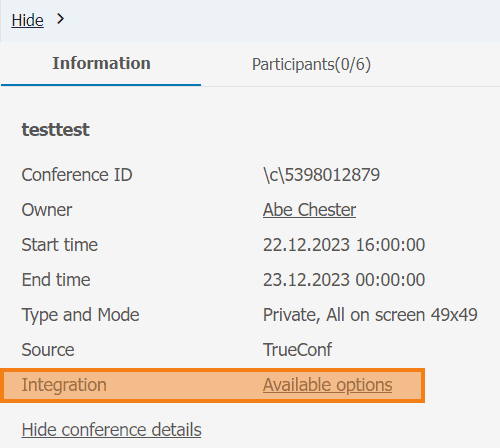
Then, go back to the list of meetings and select your conference. In the Information tab, select Integration and click Available options. In the pop-up window, you will see an RTSP link to the event stream. You will be able to use this link for a test call.