Conference page
Conference page
Every conference created on TrueConf Server is represented by its own page, which may vary in appearance depending on the launch type and access mode of the event.
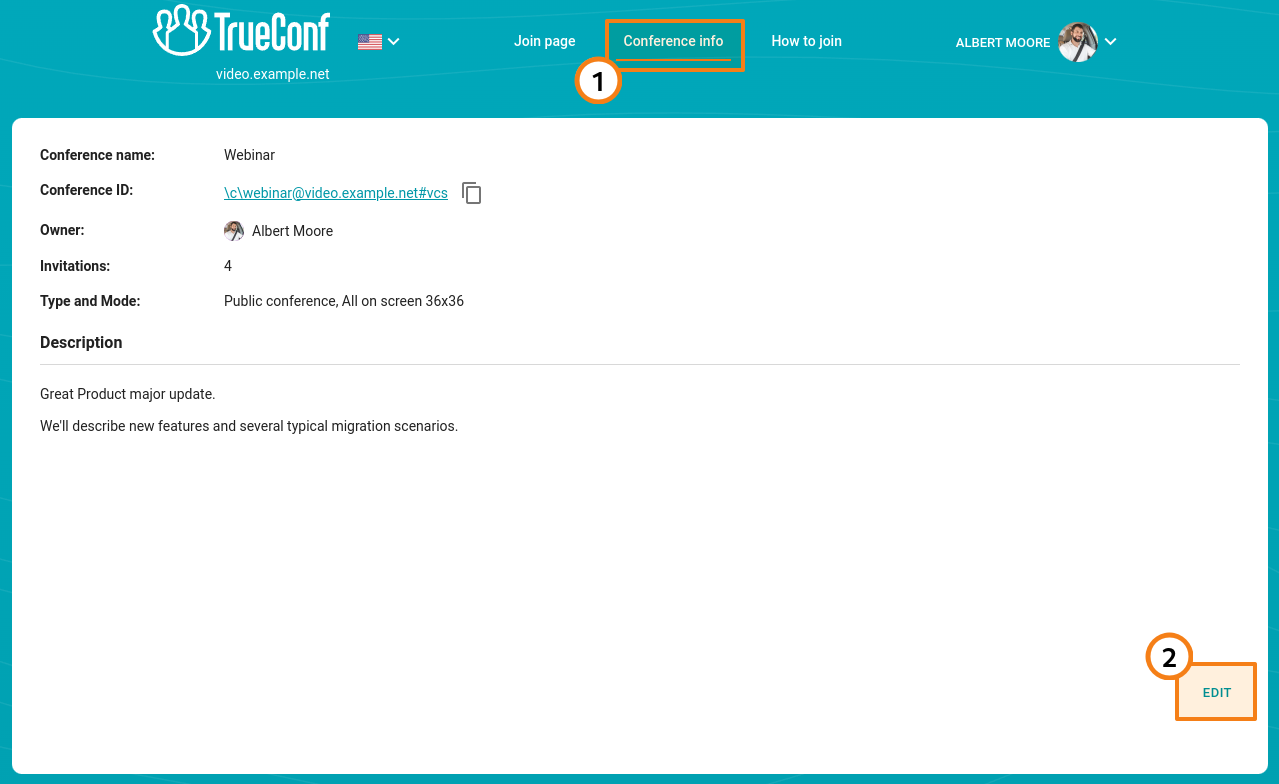
The conference owner has an additional option on the conference page. If the event has not yet started, the owner can edit the description by going to the Conference info tab and clicking Edit:
As a tool for participating in the conference, it is recommended to use a client application rather than a browser, as it offers significantly more features.
Virtual room or started scheduled conference
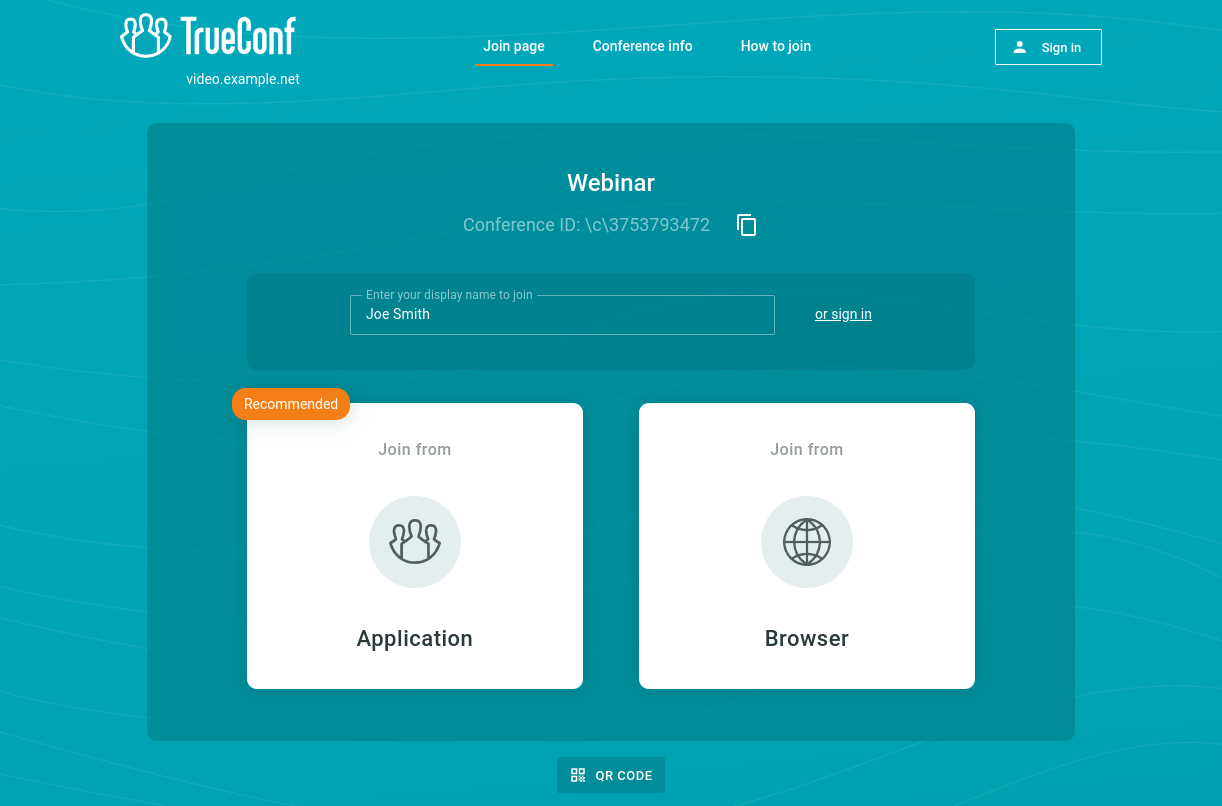
On the virtual room page or when a scheduled conference has started, you will see buttons to select your connection method: using the TrueConf client application or a browser. For a webinar, you will also have the option to join as a guest, in which case you will need to enter your name in the designated field:
Scheduled conference without registration
In this case you will see the general information about the webinar and the button for adding this event to your calendar:
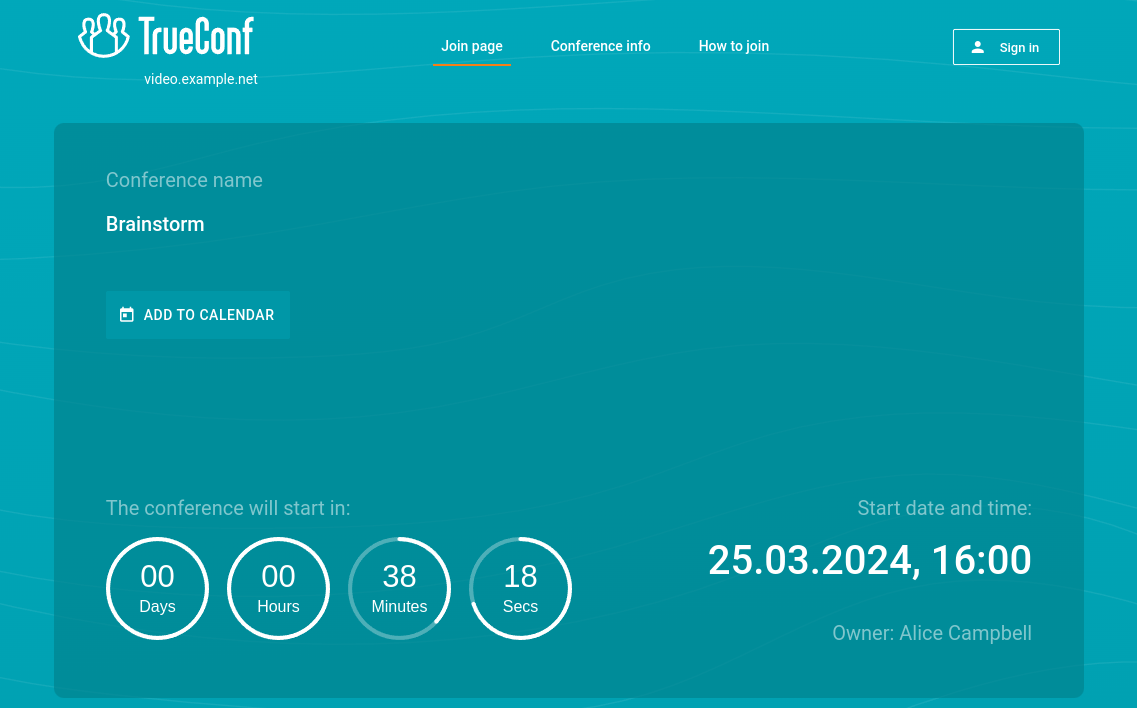
After the conference starts, you can join it using your account on TrueConf Server or as a guest (for a webinar), as shown above.
If the conference is still ongoing after the scheduled end time, it will still be possible to join it. For example, if a duration of 1 hour was planned and the automatic end by schedule on the Advanced tab is not activated, the call can continue.
Scheduled conference with open registration
Registration is available only for public conferences. In this case, in addition to the conference information, you will see a Sign up button for webinar registration. When you click it, you will be prompted to fill in the necessary information about yourself (mandatory fields will be marked with an "asterisk"):
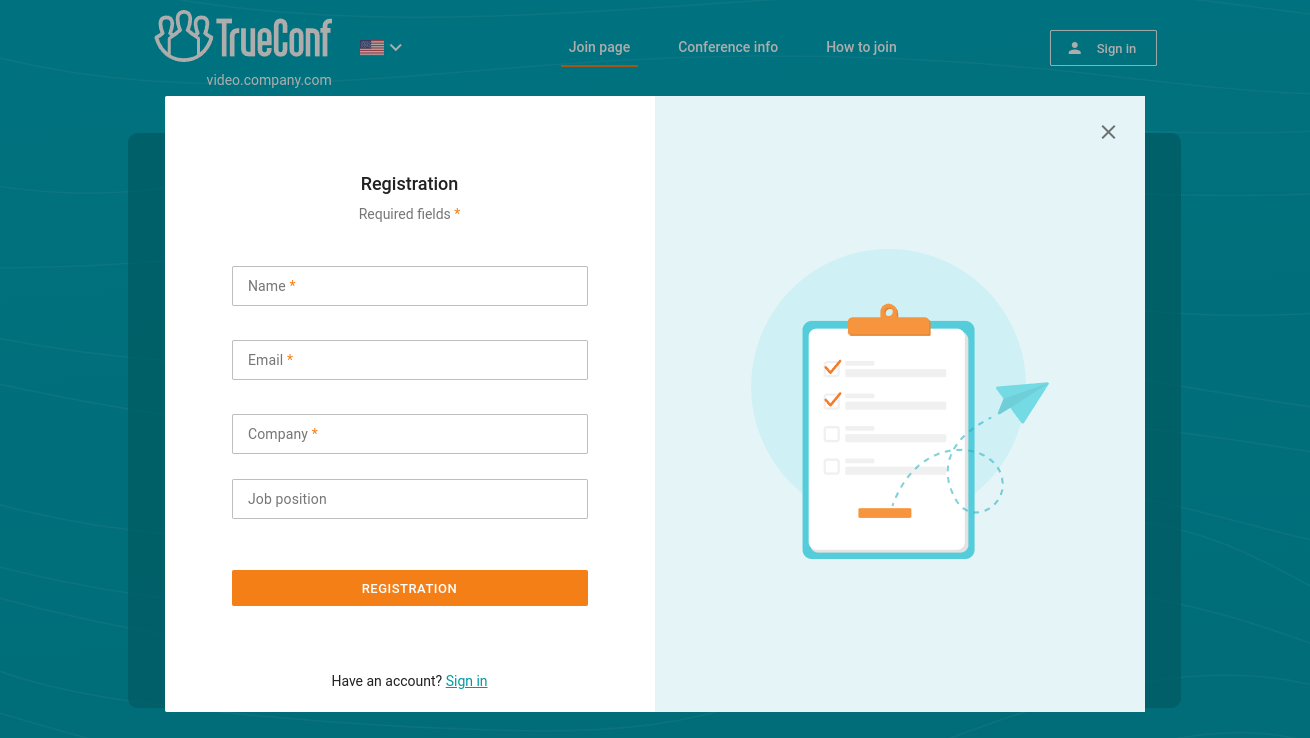
If invitation emails are configured on TrueConf Server, you will receive a link to connect at the specified email address. Otherwise, in the window that opens, you will need to click the Copy link button and save it in a convenient location.
The connection link is unique and cannot be shared with another participant or used on multiple devices simultaneously. For example, your session on a desktop computer will end if you try to connect on your phone.
When configuring registration for the conference, entry may be restricted to authorized users only. In that case, to be included in the list of webinar participants:
Log in to the event page using the Sign in → Enter as a registered user buttons.
Click Attend.
For more information on the different ways to join a conference, refer to the relevant knowledge base article.
Why do we recommend using the client application instead of a browser?
TrueConf offers convenient client applications for all major platforms. We recommend using these applications to participate in events, as they offer more features compared to browsers, due to limitations of WebRTC technology. Additionally, each browser developer may deviate from standard recommendations for implementing various features. Client applications do not encounter this issue, as all functionalities are already available and are not dependent on external vendors. Among the clear limitations of the browser client compared to native applications, TrueConf we note:In a browser, a user can only connect to an ongoing conference; one cannot work outside the conference.
Fewer chat features.
The maximum size of a file that can be sent to a chat is limited to 1 Gb.
Not all moderator features are available, such as participant role management, waiting room, etc.
For more information on how to use client applications on different platforms, refer to the relevant documentation.
If you need to use browser-based connections for TrueConf conferences, you still have the following options:
connection from popular browsers (a list of verified solutions is available on the website);
participation in a conference of any mode and access type (private or public);
Ability to select an audio track when joining a conference with simultaneous interpretation
Conference chat
Ability to share the screen or application windows
Send a request for the podium in a moderated role-based conference.
Selection of devices
After joining a conference from a browser, you will see the window for selecting audio and video devices:
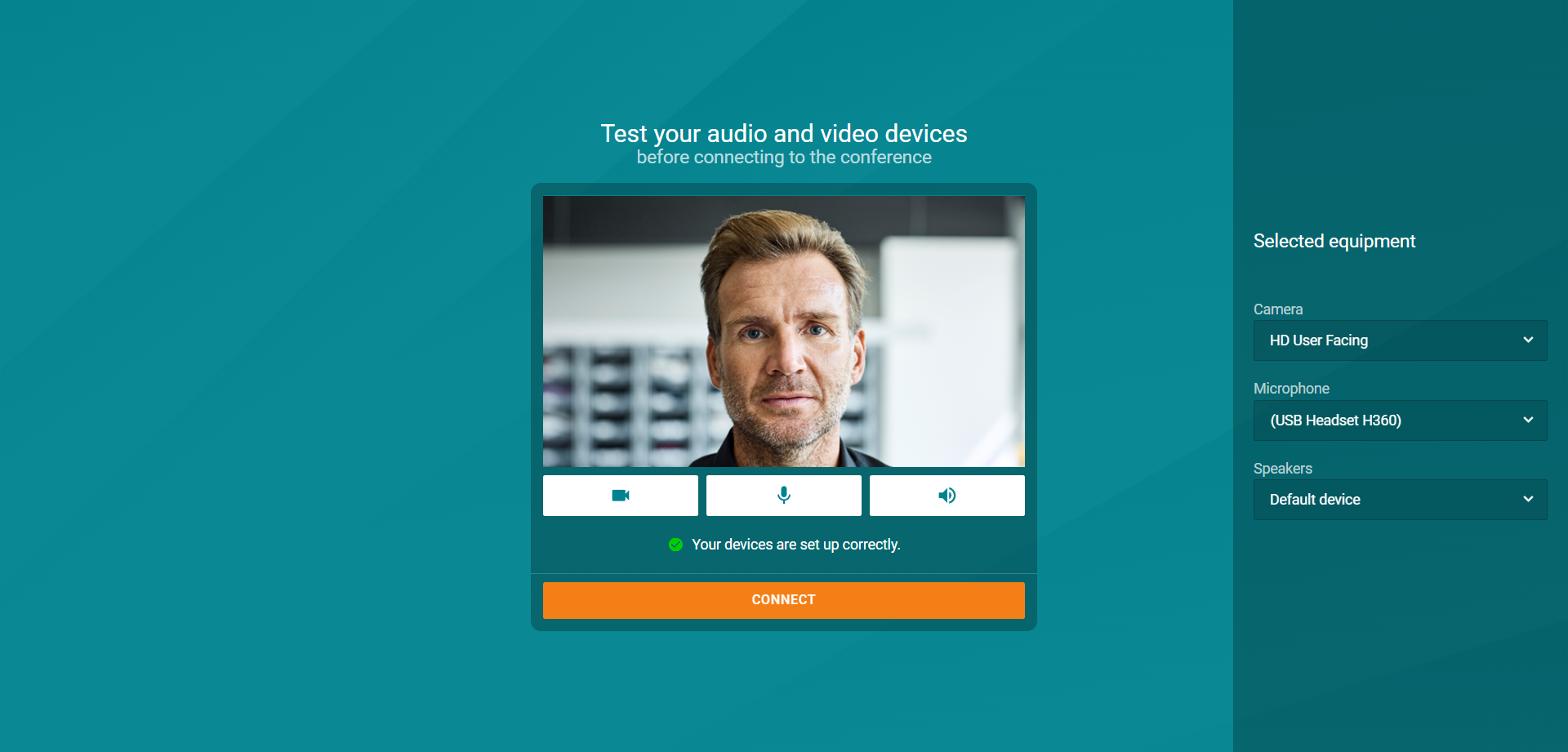
Select the required equipment from the panel on the right using the drop-down lists. Then click the Join button to join the event.
The main conference window in a browser
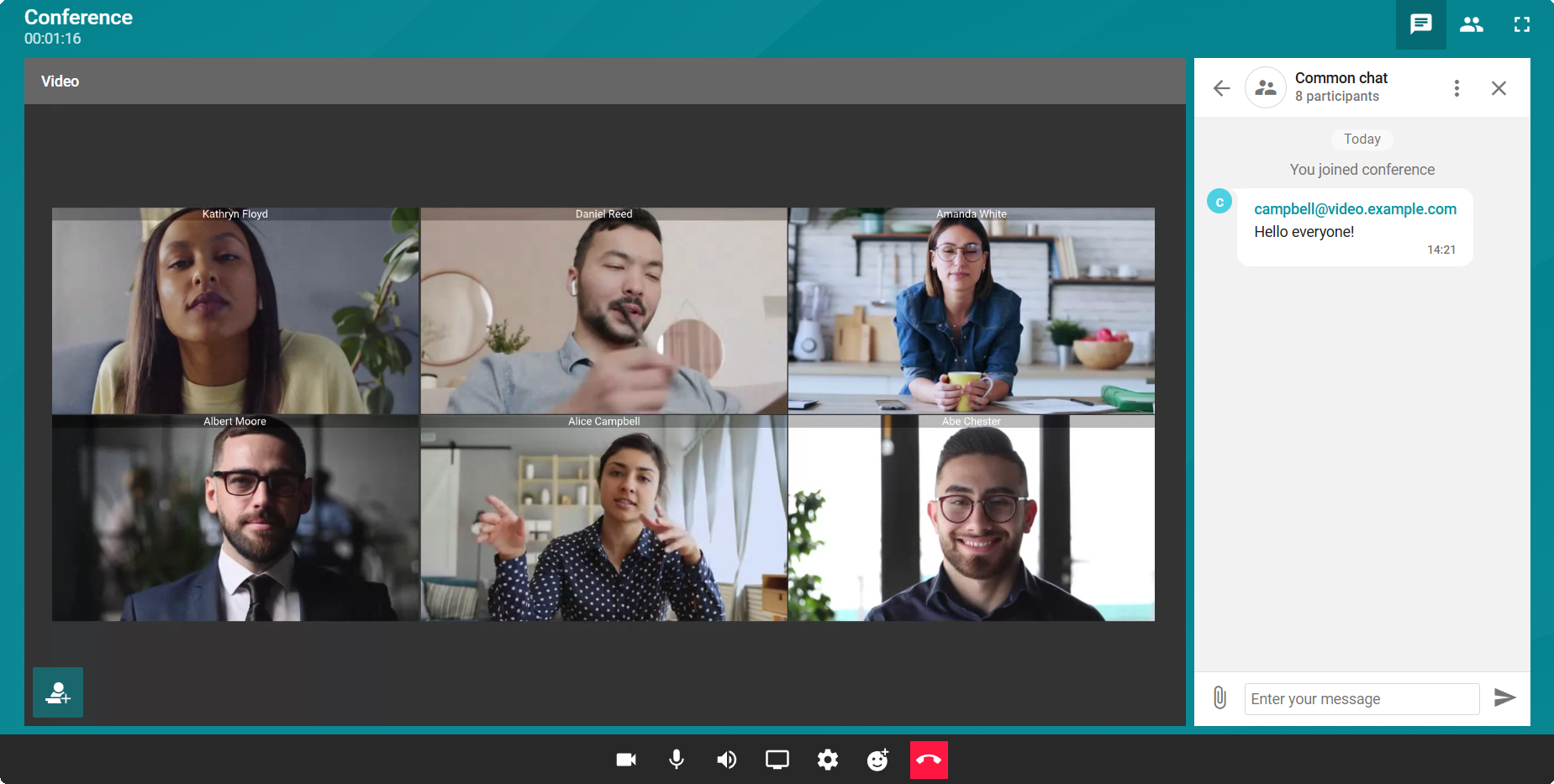
After joining the conference, you will see the main window:
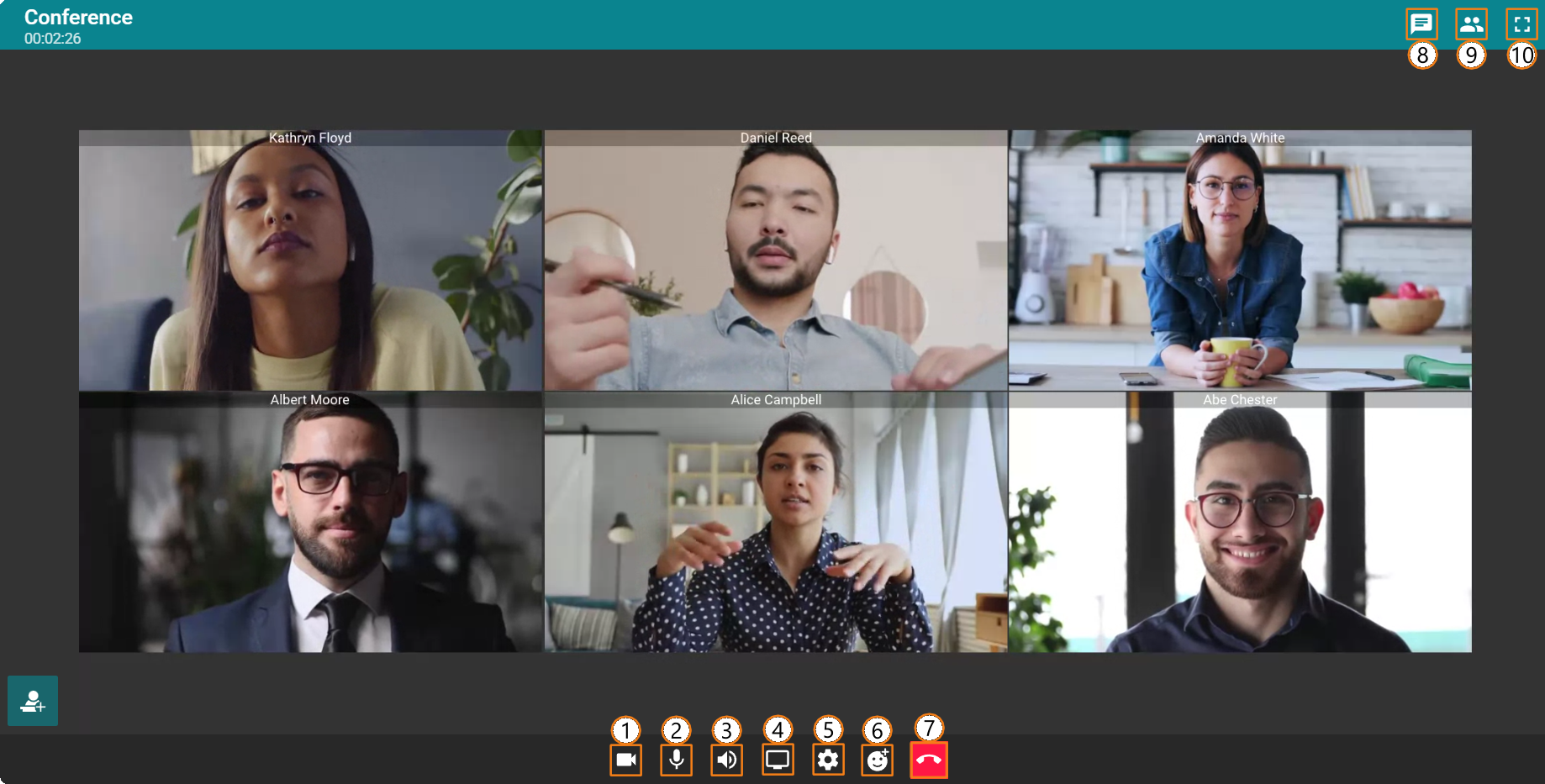
Here, you can make use of the following features:
-
 Turn the camera on/off
 -
 Unmute/mute the microphone
 -
 Enable/disable audio from other conference participants
 -
 Start/stop content sharing
 -
 Configure devices
 -
 Use reactions
 -
 Leave the conference
 -
 Open/close the general conference chat
 -
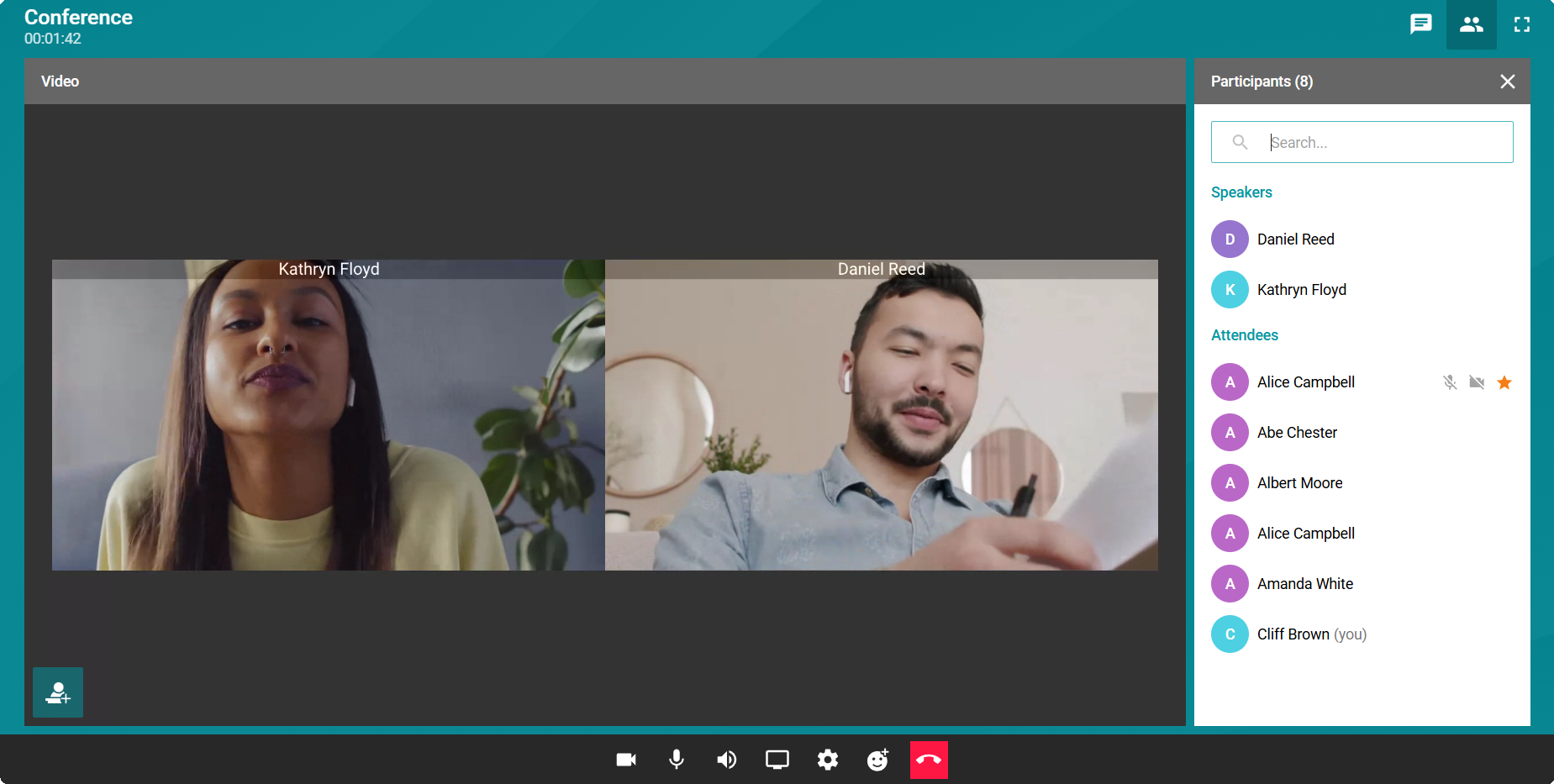
 View the list of participants
 -
 pin the conference button panels so that they do not hide automatically;
 -
 Enable full-screen mode.
Waiting room management
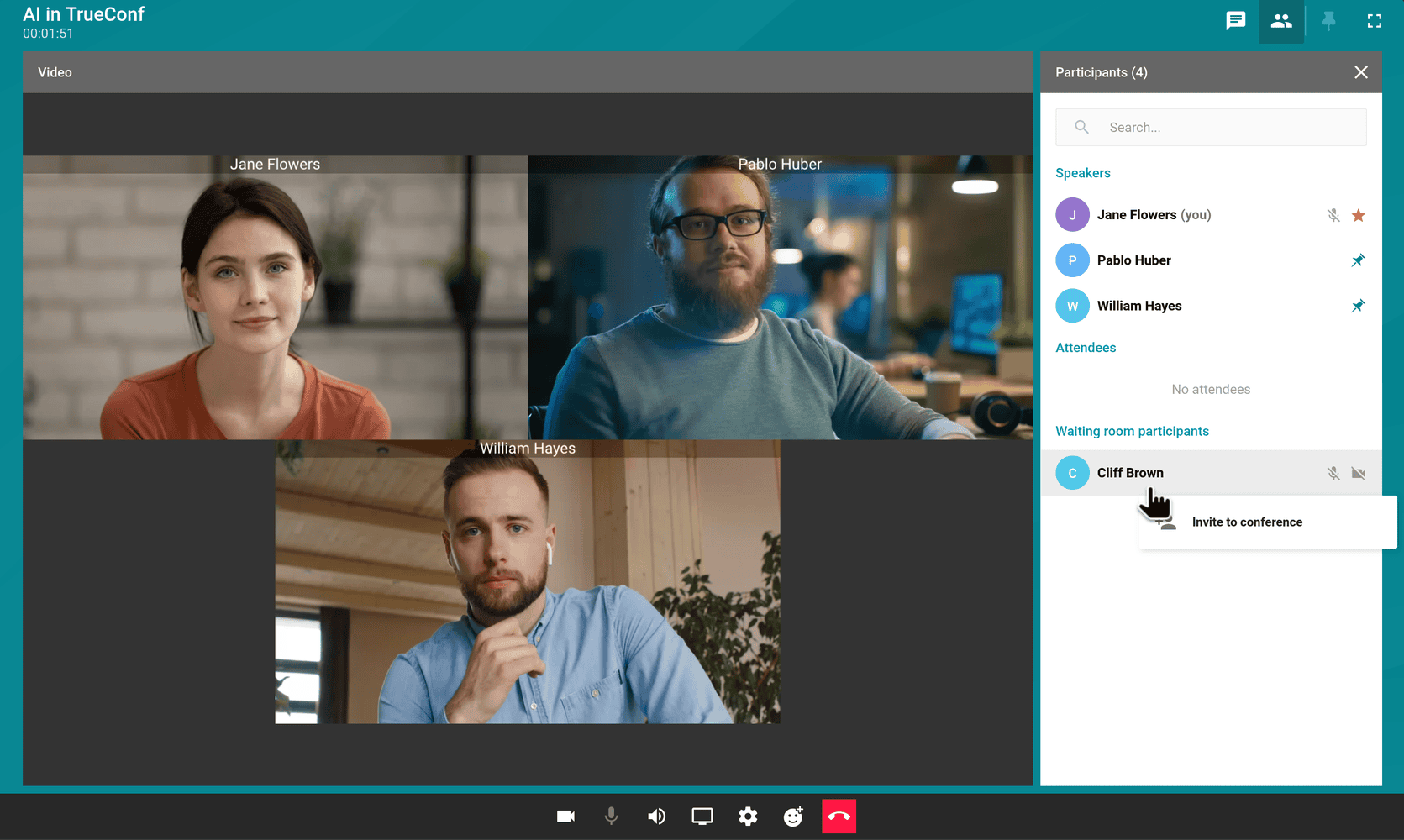
If the waiting room is enabled for the conference, the moderator can also manage moving participants from it to the full participants list through the browser. To do this, simply right-click on the desired user:
Working with the conference chat
Click the button to open the conference chat. The event's group chat area will appear on the right, where you can send text messages and files.
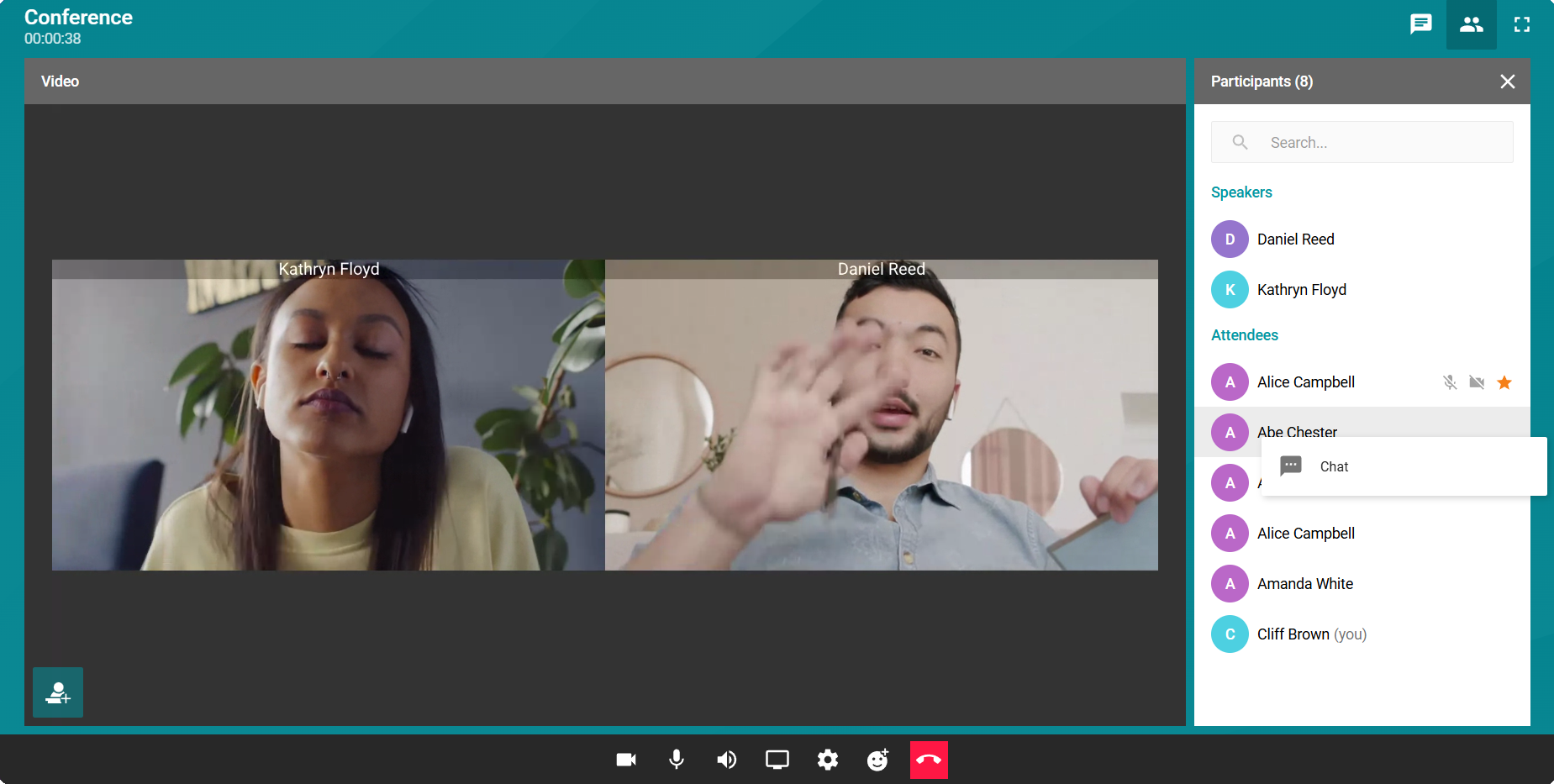
To send a private message to a participant of the event, open the participant list by clicking on . Right-click on the desired participant, and then select the Chat menu item.
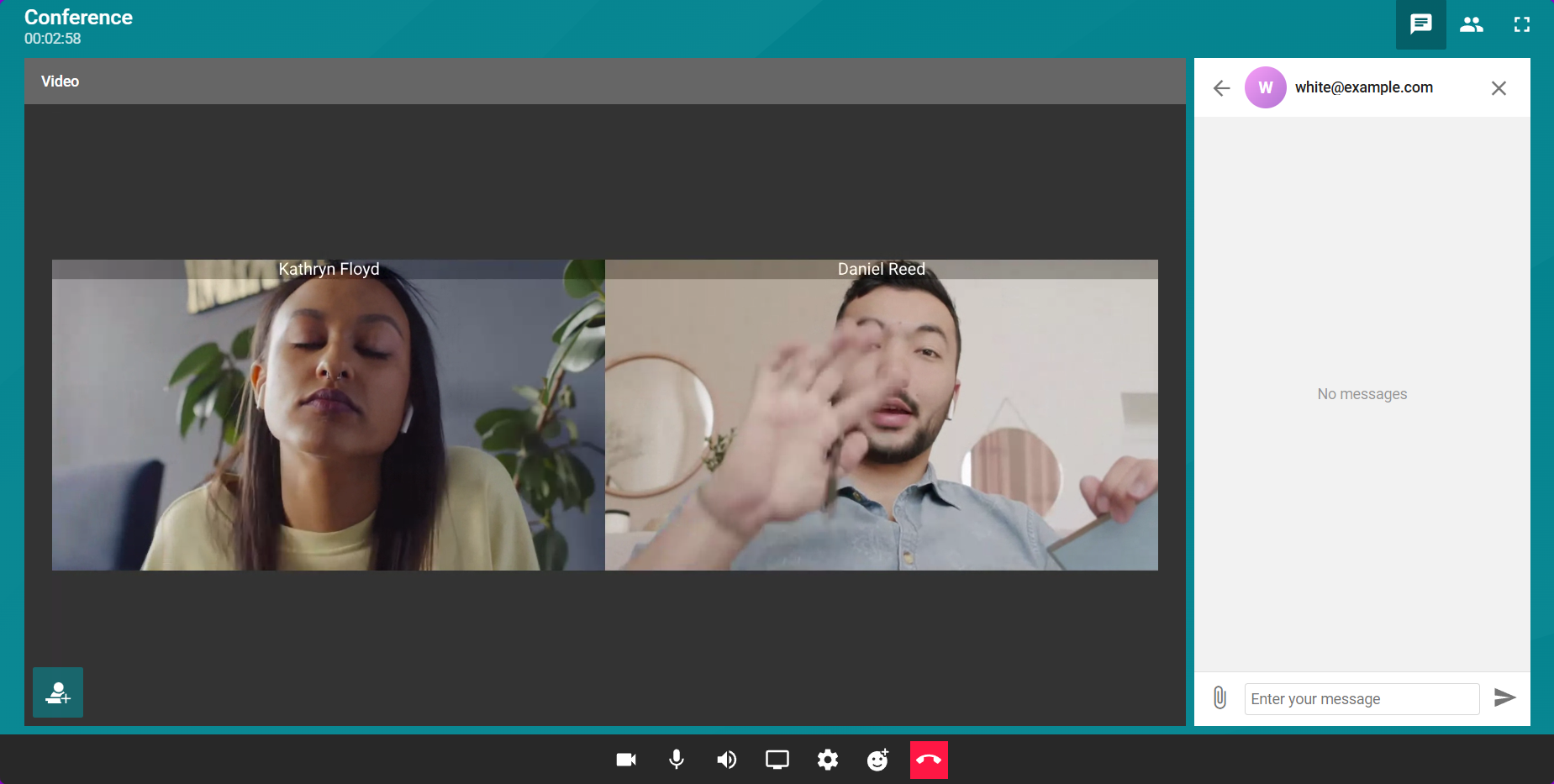
You will open the chat with the conference participant:
How to take the podium and select an interpretation audio track
Taking the floor is only available in the moderated role-based conference mode. To take the floor, click the  button. Then wait for the moderator to approve your request to become a speaker or to decline it. If approved, you will be on the podium with all the speaker's capabilities accessible to you. If you need to leave the podium, click the
  button.
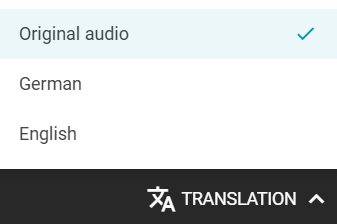
When participating in a conference with simultaneous interpretation, you can select an audio track by clicking the Translation button. Choose the desired language from the available audio tracks.