Conference analytics and video recordings
If you are the conference owner, you can view its analytics and list of recordings.
This feature is available for any conference regardless of its schedule mode (a virtual room or a scheduled conference) and its status (ongoing or inactive).
Conference analytics
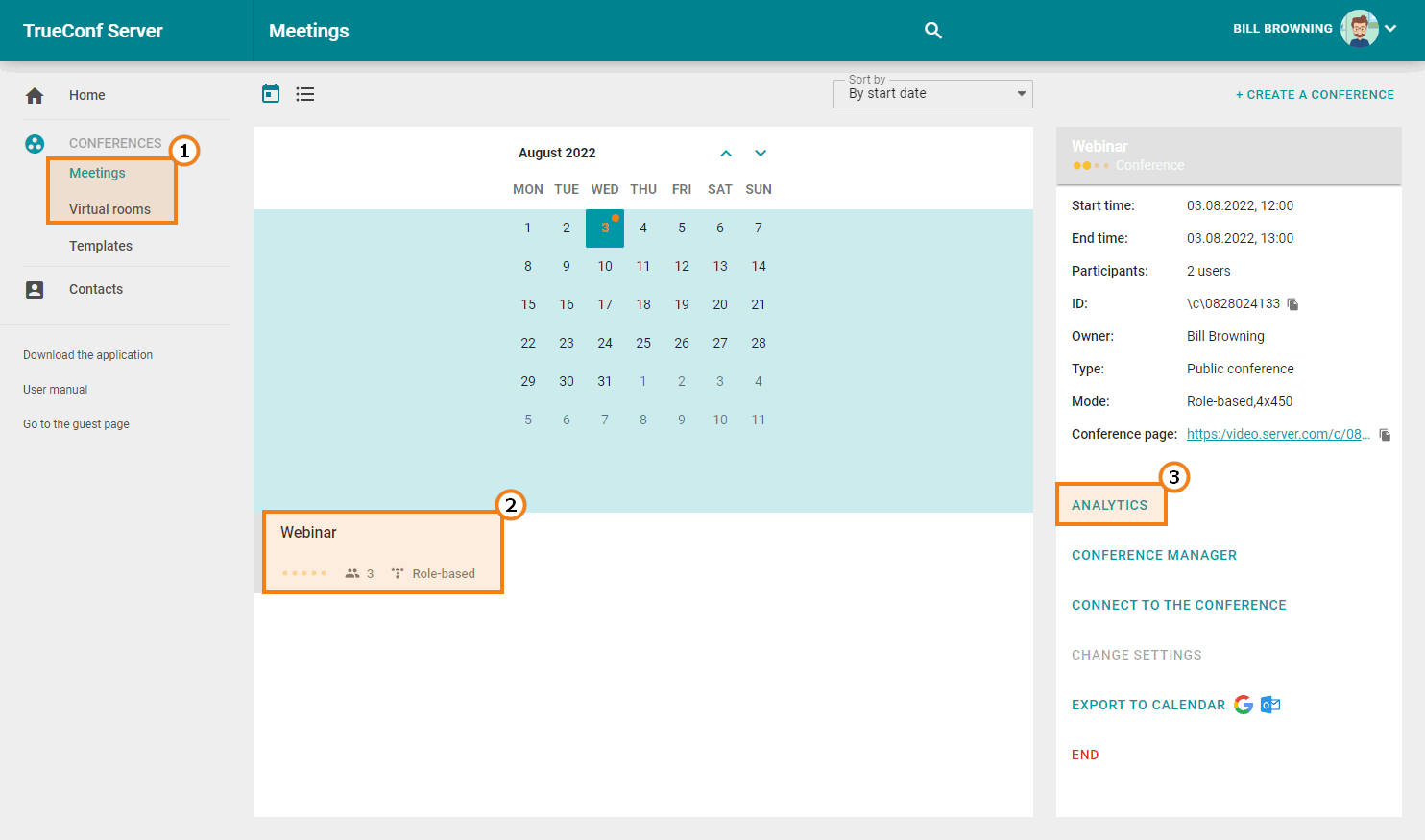
The TrueConf video communication system provides detailed analytics to the conference owner, including participant data, their joining and connection history, and chat messages. To view the data, select a conference in the Meetings or Virtual rooms section and click the Analytics button on its card.
Information about participants
Go to the Participants’ entries tab to view the main information about them, including the time they were added to the participant list. For a webinar with open registration, guests who registered will also be displayed:
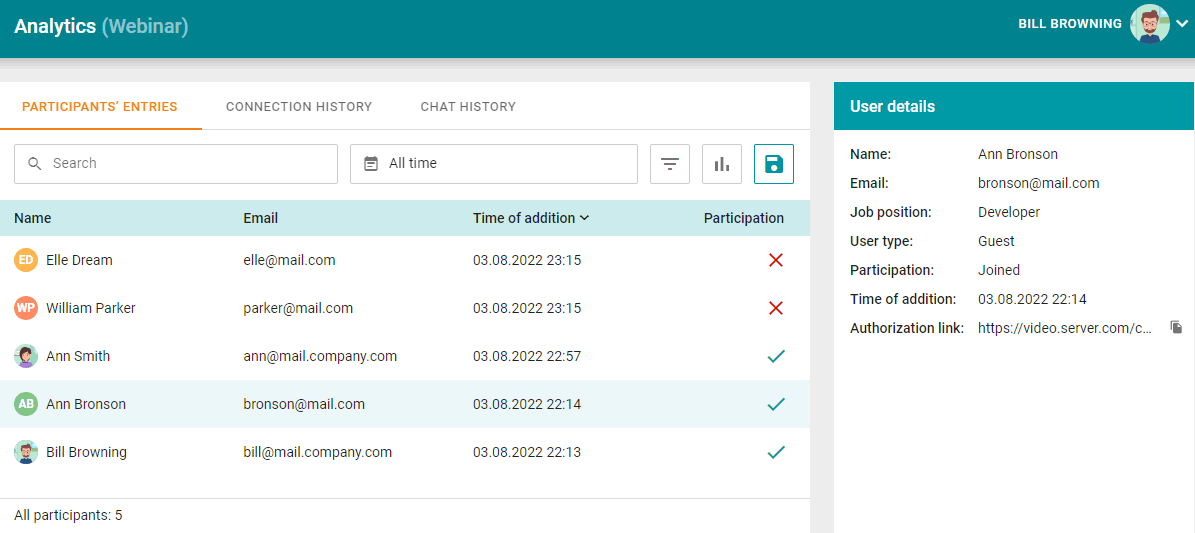
If you select a participant in the list, you will be able to view information about this user. For example, here, we have selected the user named Ann Bronson.
In the search field, participants can be filtered by name or email. You can also click on the  button to filter participants by two parameters:
By authentication type — registered server users, guests or all participants
By connection status (joined or did not join the meeting).
By default, the list of participants is displayed for the period bettwen the time when the conference was created and the moment when it ended. However, you can select a custom time interval by clicking on the  calendar icon.
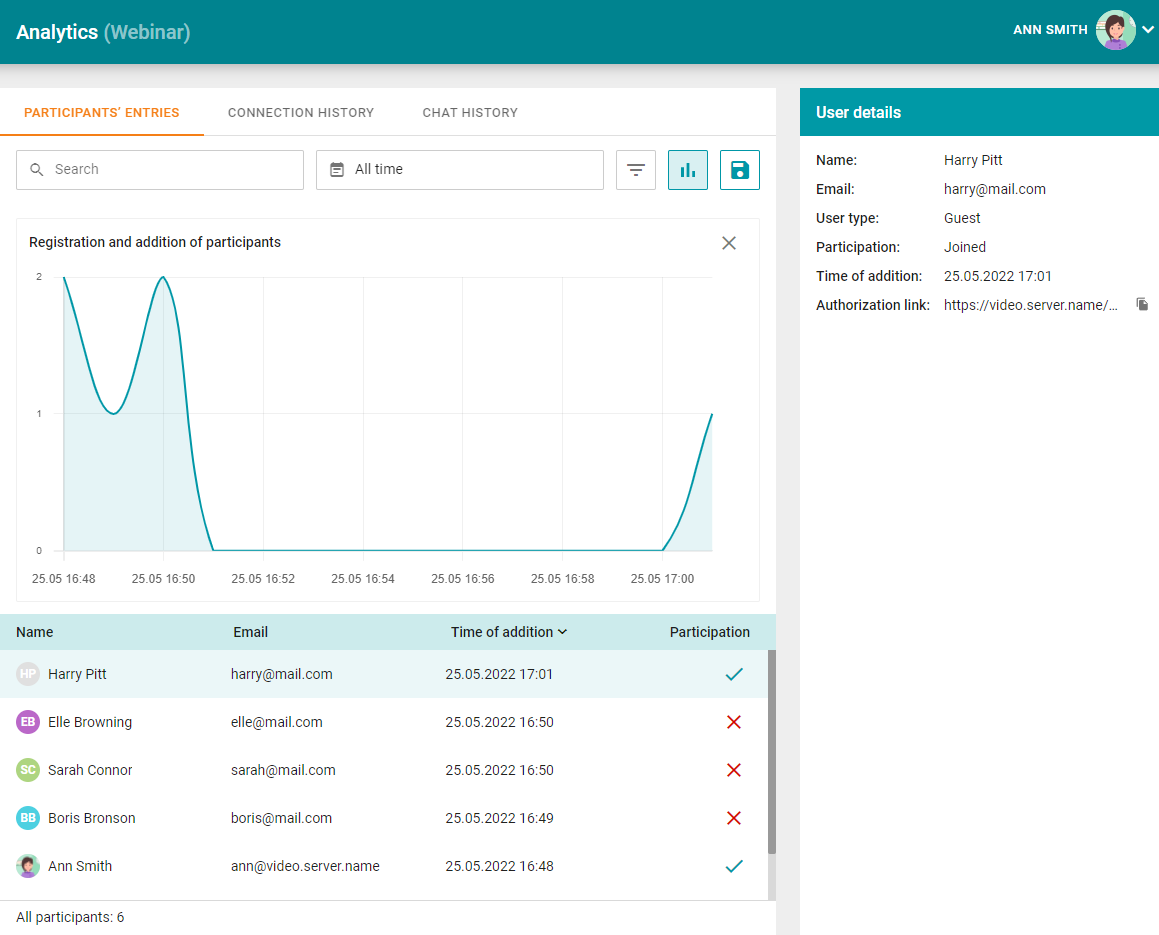
To display the chart showing when users were added to the list of participants click on the  button. You will be able to apply the following filters:
To export this statistics to a .csv file, click the  button. All rows will be saved, regardless of the applied filters.
Connection history
To view conference participation statistics, go to the Connection history tab:
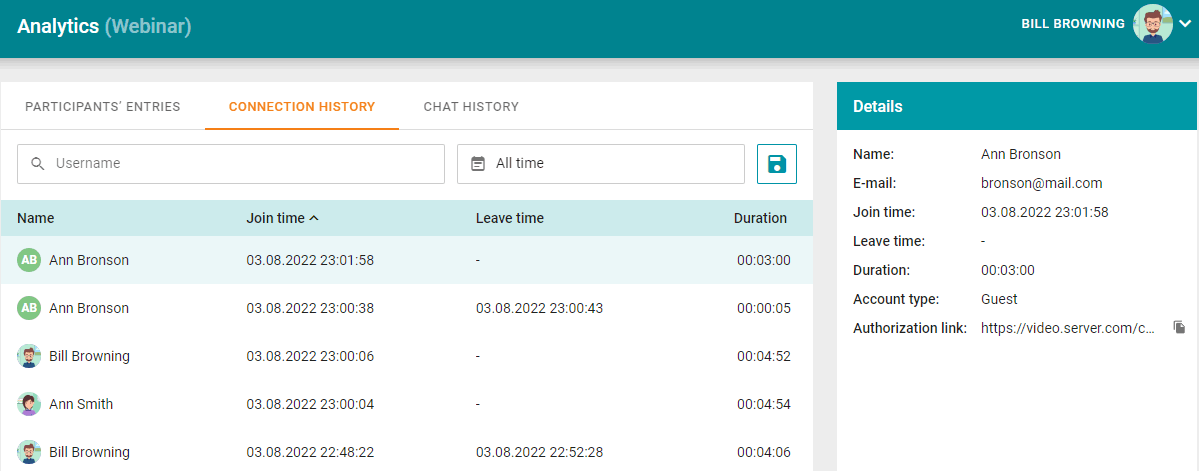
You will see information about every connection and exit event. The above examples shows that Ann Bronson and Bill Browning joined the conference two times. It is possible to search for participants by name and select the time interval for filtering and saving data to a .csv file.
View chat
When you navigate to the Chat history tab, you can view the entire conference chat history:
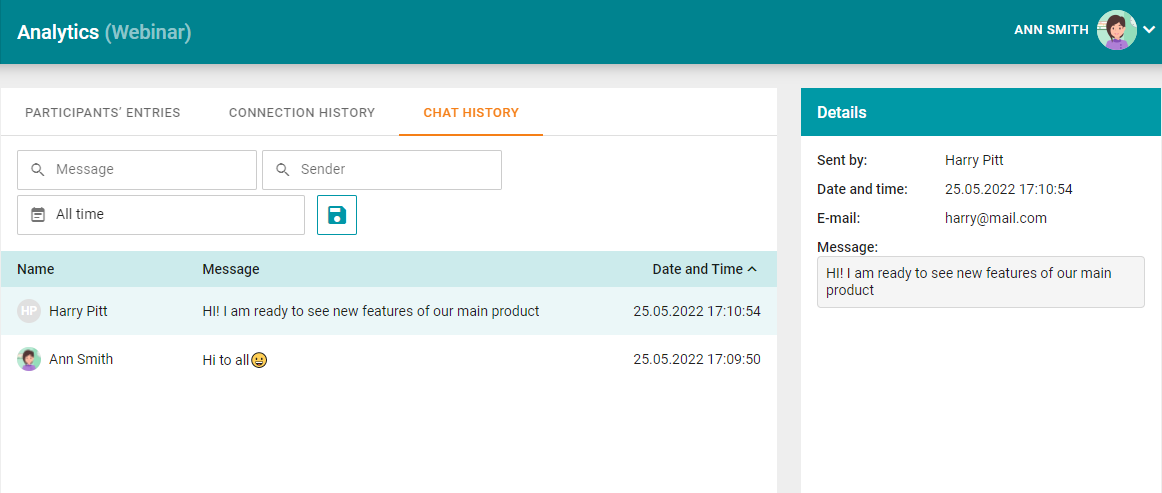
Messages can be filtered by words or phrases, sender, and the time of sending. It is also possible to save messages to a .csv file.
Conference recordings
As the conference owner, you can also download its recordings, which are stored on the TrueConf Server.
For information on how to work with recordings saved locally on the client application TrueConf, refer to its documentation.
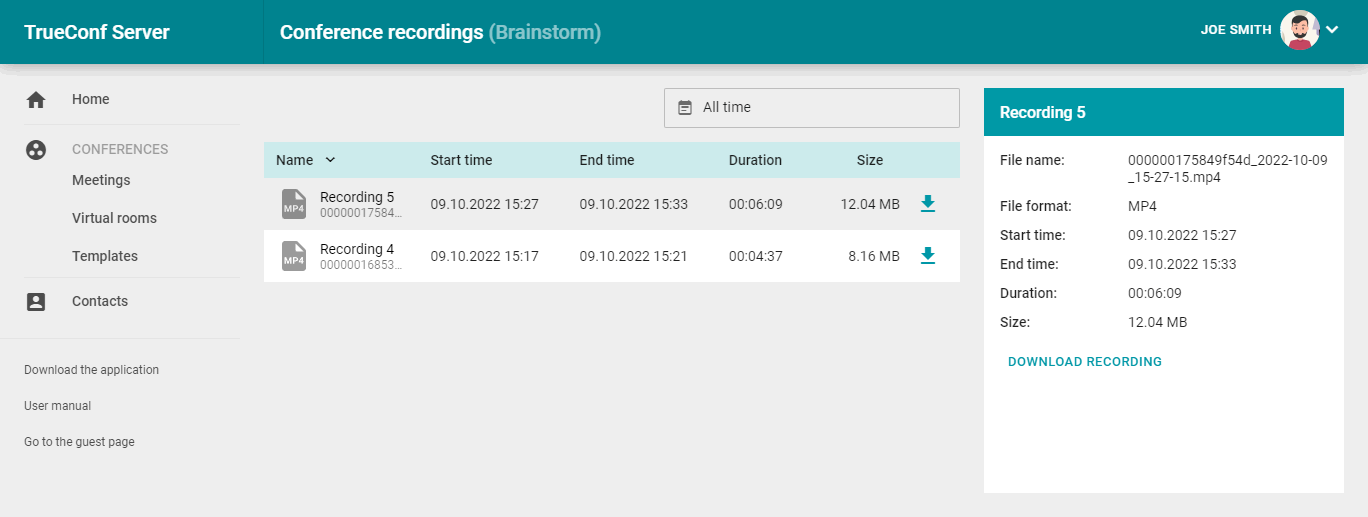
To view conference recordings, go to section Recordings on the left panel, or to section Meetings or Virtual rooms, and select the desired conference. If the event has only one recording, you will see the Download recording button, which will start downloading the file when clicked. However, if there are multiple recordings, meaning the conference was started more than once, the card will display the Conference recordings button to access the list of files.
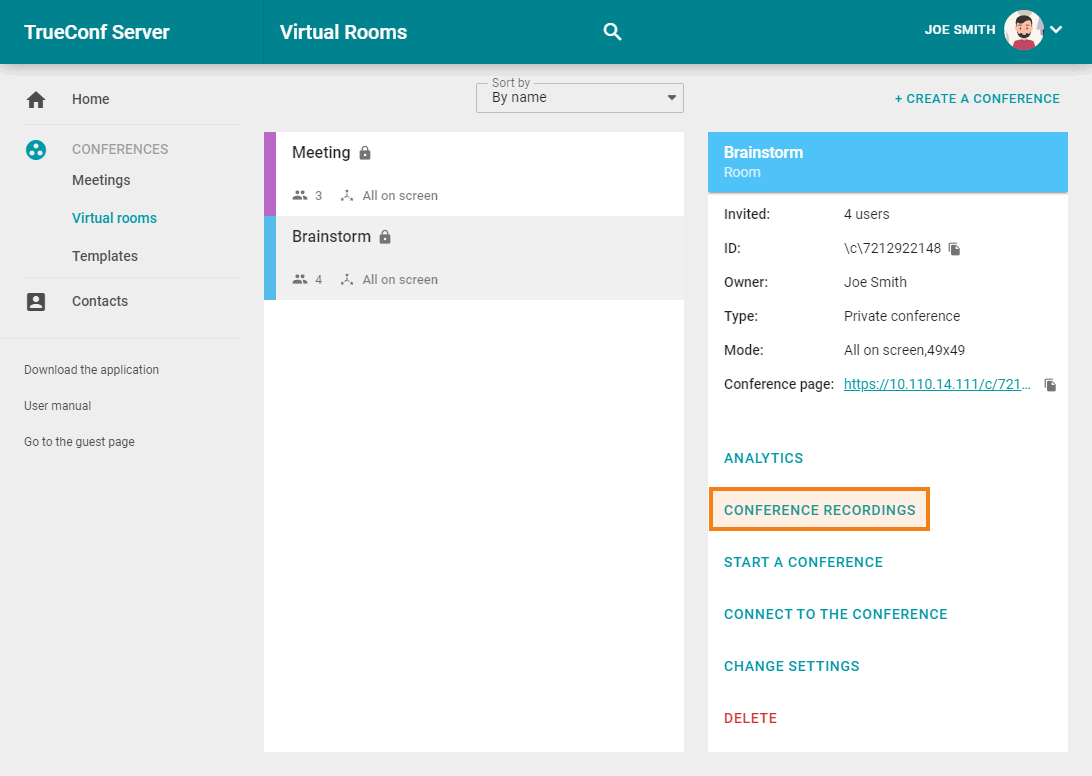
When selecting each file, you will see the main information: the name, format, start and end time of the recording, its duration, and size. You can download the desired file using the Download recording or  button: