
Optimizing TrueConf Room for Multi-Monitor Conference Setups

TrueConf Room is a client application for video conferencing designed specifically for meeting spaces:
One of TrueConf Room's key advantages is its full multi-monitor support: you can place the overall layout, the active speaker, the content window, or any other video window from the layout on separate displays. We cover layout management in our documentation; below, we'll walk through the complete workflow for using TrueConf Room effectively on a Windows PC in a meeting room with 3 video output monitors and a touchscreen for control. This is a common setup for comfortable conference room meetings.
In this configuration, moving content and the active speaker to dedicated monitors works seamlessly in both point-to-point calls and group conferences. Note that "content" refers to any stream being shown in the meeting: a participant's content window, an additional stream (e.g., a presentation), or an NDI stream.
Configuring Monitors in the OS
You need to set up the monitors in the operating system according to the diagram below:
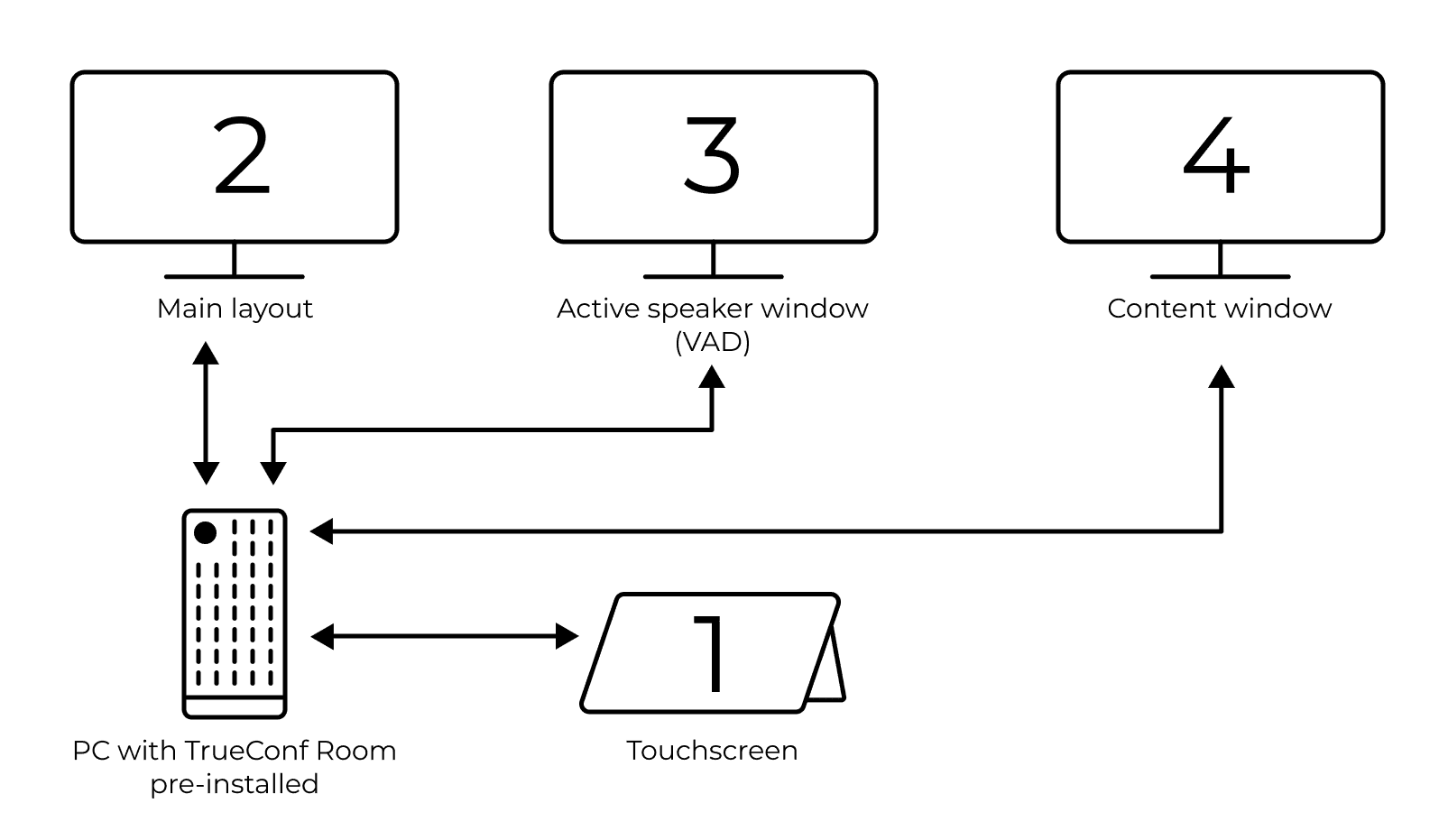
Make sure the touchscreen is connected to the TrueConf Room PC via USB and is recognized as the 4th monitor. Then:
Use the Win + P keyboard shortcut to switch the multi-monitor mode to Extend.
Set the touchscreen as the primary monitor:
Right-click on your desktop;
Right-click on the desktop.
To identify which monitor is which, click Identify – the numbers 1, 2, 3, and 4 will appear on the respective screens.
Make sure the touch monitor is set as the main display. For example, if the number 1 appears on the touchscreen, select Monitor #1 and check the Make this my main display box if it's not already enabled.
Installing the Application on Windows
Download the TrueConf Room for Windows application.
Run the installer.
In the Autostart options window, check the Launch automatically checkbox to add the TrueConf Room Service to the OS startup. The service will then launch the TrueConf Room terminal on boot.
Configuration of TrueConf Room Service
In the TrueConf Room Service settings window, specify the following parameters:
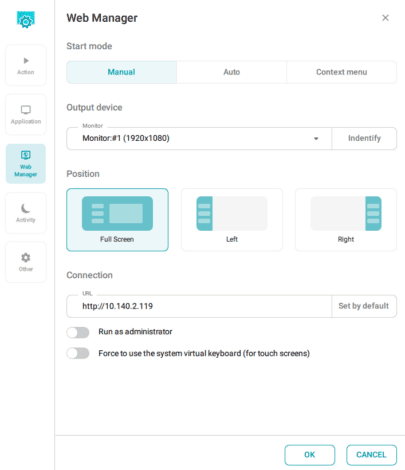
To configure the TrueConf Room control panel startup, select the Web Manager section and adjust these settings:
Check the Automatic launch box.
In the Output device dropdown, select the touchscreen you set as the primary monitor in the OS (e.g., Monitor #1).
For the Layout option, select Full screen.
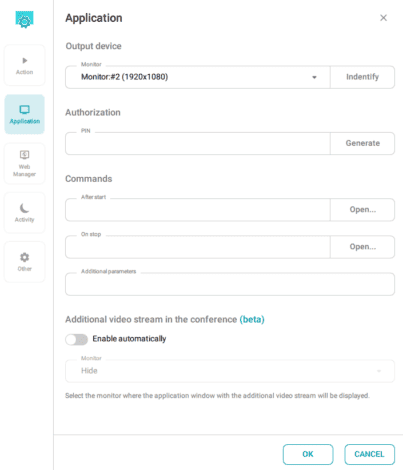
Select the Application section and, in the Output device dropdown, choose Monitor #2.
Click OK.


Configuring Video Window Output to Monitors
On the TrueConf Room main screen, click the link in the center of the window:
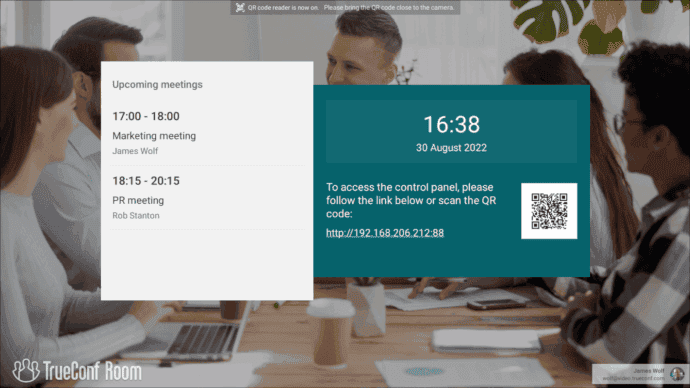
In the control panel that opens, navigate to Settings → Preferences → Conferences and calls:
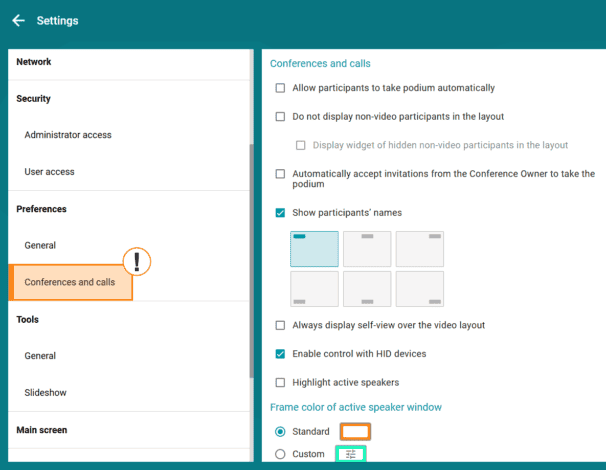
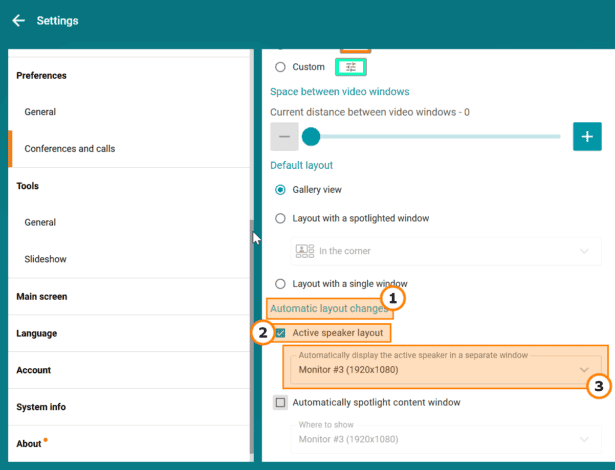
In the Automatic layout change block (1):
Check the Active speaker layout checkbox (2) and select Monitor #3 (3):
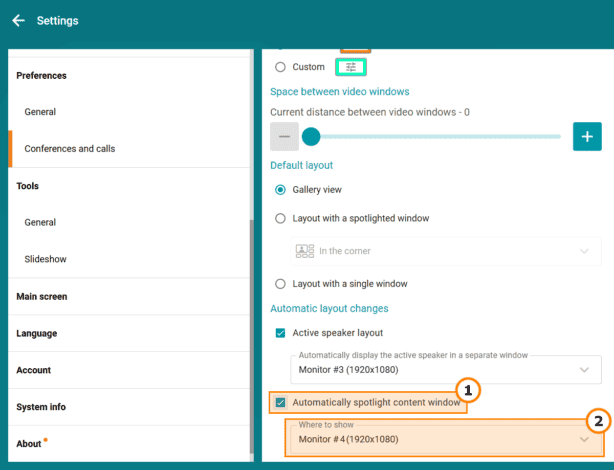
Check the Automatically spotlight content window checkbox (1) and select Monitor #4 (2):

After completing all settings, restart your PC and verify that after Windows starts, everything appears on the correct monitors: the TrueConf Room settings on the touchscreen, and the main application window on the second monitor.
Connecting to the Server and Testing the Layout
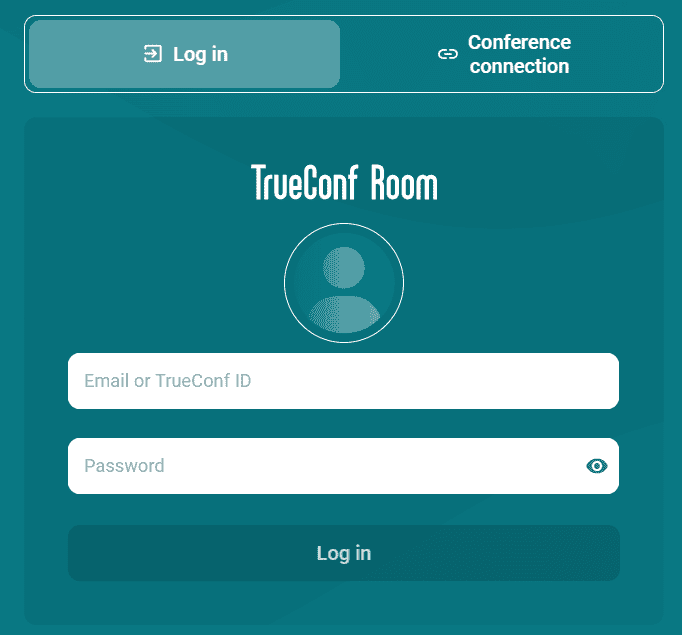
On first launch, the TrueConf Room control panel opens to the authorization page. Enter your TrueConf Server address, along with the login and password for this meeting room account (you can get these details from your administrator):
After logging in, run a test conference in "everyone on screen" mode with at least 2 participants (or a regular video call), and have one of them share their desktop during the call. The window placement should then match the layout shown in the diagram above.