
How to use TrueConf in a meeting room

Meeting rooms are designed to solve a range of business tasks: business meetings with customers or partners, internal meetings and briefings. However, for the sake of effectiveness, the meeting room must be properly equipped. For this reason you should choose an individual solution for video communication and collaboration that suits your goals and meets requirements. This article describes some popular and proven scenarios for using TrueConf products in meeting and conference rooms.
Using TrueConf Room, conference room software
The best option is to install the free TrueConf Room software on a PC — a solution for meeting rooms and conference halls that allows you to make calls and hold video conferences, including in 4K resolution.
With TrueConf Room, meeting room visitors can easily hold video meetings in one click. To enter the control panel, you can use any device:
PC
laptop
smartphone
tablet
various mini PCs or specialized solutions from our partners (Logitech, Lenovo and HP).
To access the control panel, scan QR code from the TrueConf Room main screen or follow the web address from a meeting room display.
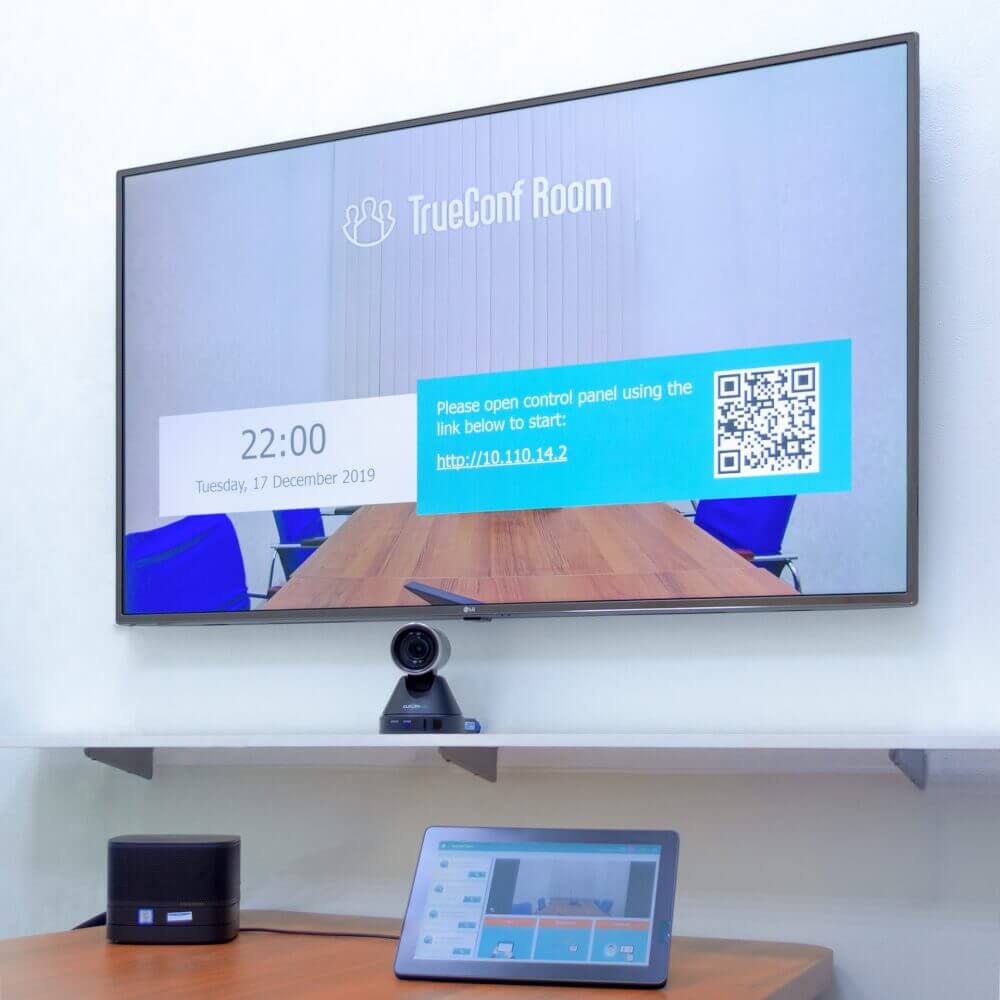
Read more about TrueConf Room features in our documentation.
Using TrueConf client application
In most cases, meeting rooms are equipped with a PC and a widescreen monitor. You can install the TrueConf client application for your PC and use high quality video conferencing. To open the client application in a full-screen mode, configure it to run with command line parameters. For example:
**TrueConf.exe -f -h 192.168.1.100:1234 -l maria -p 4839 -e**
You can configure the autostart of the application to simplify meeting room management. The client application will start automatically when you turn on your computer. Try using a wireless mouse and changing the system zoom so that the interface elements become larger – this will not affect the quality of video communication.
The advantages of this approach are compatibility with AV peripheral and the ability to capture content from the desktop. Besides, it is also possible to exchange messages and use any other software solutions for video conferencing from a PC. The main thing here is to choose the right speakerphone and camera.
Using second monitor and TrueConf software
If the meeting room is equipped with an extra widescreen monitor, you can connect a set of equipment, including a PTZ camera and a speakerphone, to a laptop with TrueConf software installed. During the conference, you can move the participant's image or content window to the second display and monitor the conference progress. This scenario is possible for both the TrueConf client application and TrueConf Room.
Disadvantages may include cable clatter and extra time to connect the laptop to the equipment.
Using TrueConf Group
If you are going to connect standards-based endpoints in a meeting room without TrueConf software solutions installed, you can try video conferencing endpoint TrueConf Group.
This solution operates stably even on low-bandwidth connections, supports SIP and H.323 protocols, as well as modern video codecs like H.264 SVC. Additionally, TrueConf Group provides Full HD quality communication at up to 60 fps.
If you are going to connect standards-based endpoints in a meeting room without TrueConf software solutions installed, you can try TrueConf Group, a video conferencing endpoint. TrueConf Group incorporates a built-in MCU (from 3 to 12 ports). To start communication, just unbox the endpoint and connect it to the network.
Use the online calculator to customize a set that perfectly fits your needs, budget, and the type of room you are using, or select a ready-made kit on our partners' website. You will receive everything you need to equip a meeting room directly from the supply package: a PTZ camera, speakerphone, remote control, and codec.