
Branding TrueConf Server сonferences
You’ve probably thought of how to add uniqueness to your conferences. If you are reading this article, you are on the right track. Here, we’ll explain how TrueConf conferences can be customized.

By default, the guest page and conference page are styled uniformly according to TrueConf guidelines; however, you can change the style of some elements without breaking the overall design. TrueConf Server enables you to customize the guest page in two ways: simple and complex.
If this article does meet your needs, you can:
- Contact our technical support for help.
- Enroll to the advanced course available on our platform. This course gives more detailed coverage of this topic.
- Contact your manager to purchase branding services that will be provided by our developers and will be tailored according to your requirements.
Simple way of branding
Changing the video area background in a client application
You can set a custom image used in a desktop client application for the background displayed during a conference or call. To do it, go to Settings → Appearance → Video area background.
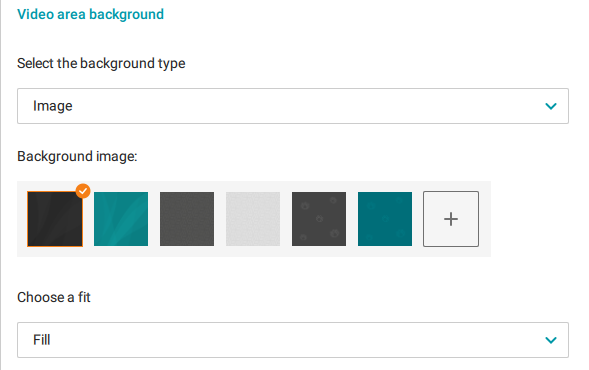
Here, you can upload two types of backgrounds: either an image or a solid-color background. To upload a file, click  and select it on your device.
Changing the company logo on server pages
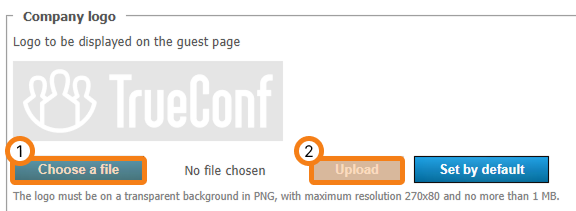
You can change the company logo displayed on web pages. To do it, go to the Web → Settings → Logo section of the control panel and upload a PNG image with the maximum resolution of 270×80 and the size of up to 1 MB. First, select a file on your device (1) and then click the Upload button (2).
Conference branding: background and watermark
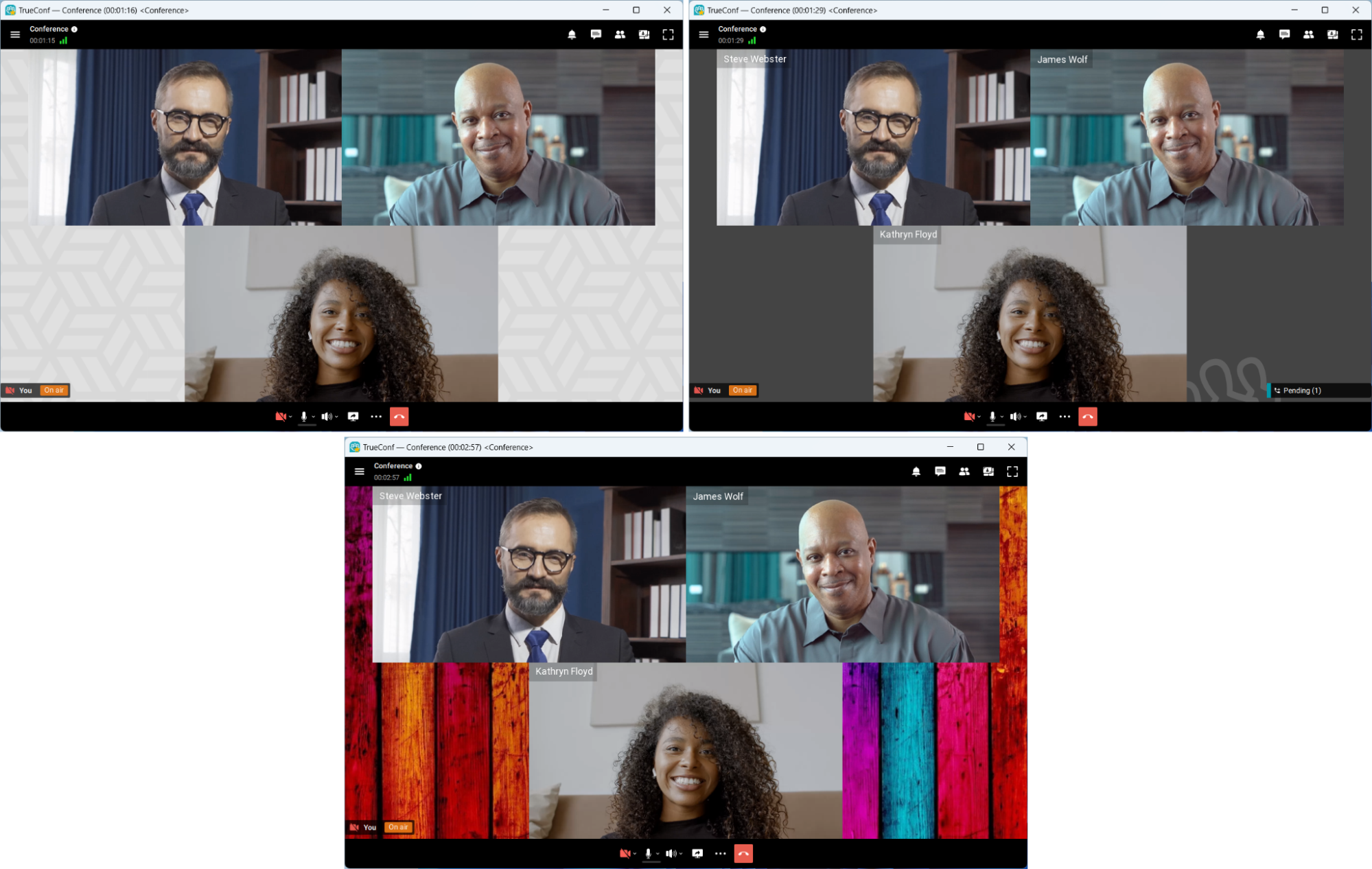
The video background is displayed only when there are speakers on the podium.
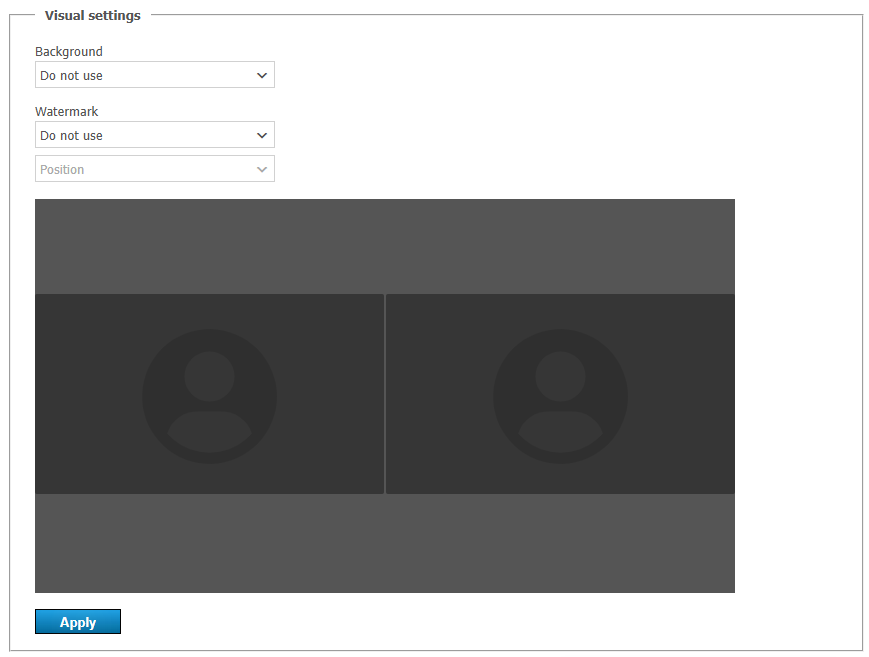
To brand conferences (WebRTC, SIP/H.323), video recordings saved on the server side, and streams, go to the Transcoding section in the server control panel. Here you can upload:
- Conference background – a PNG/JPEG image with an optimal resolution of 1920×1080 which is not larger than 400 KB
- Watermark – a PNG image with a maximum resolution of 400×100 and a size of up to 100 KB.
After uploading the files, don’t forget to click the Apply button.
Complex way – full-scale customization of web pages
Minimum knowledge of HTML and CSS is needed to follow the instructions in this section
So that you do not have to make immediate changes in the files of the video conferencing server deployed in production, we recommend using a browser extension which allows embedding user-defined styles; for example, you may try something like User JavaScript and CSS for Google Chrome.
Introduction
How to find the required element:
- Open the web page of your server.
- Right click on an element that you want to edit and select Inspect.
- You will open the developer tools where you can find the HTML code and the element you clicked will be automatically selected.
- Hover the mouse over an HTML tag and the corresponding section on the web page will be highlighted.
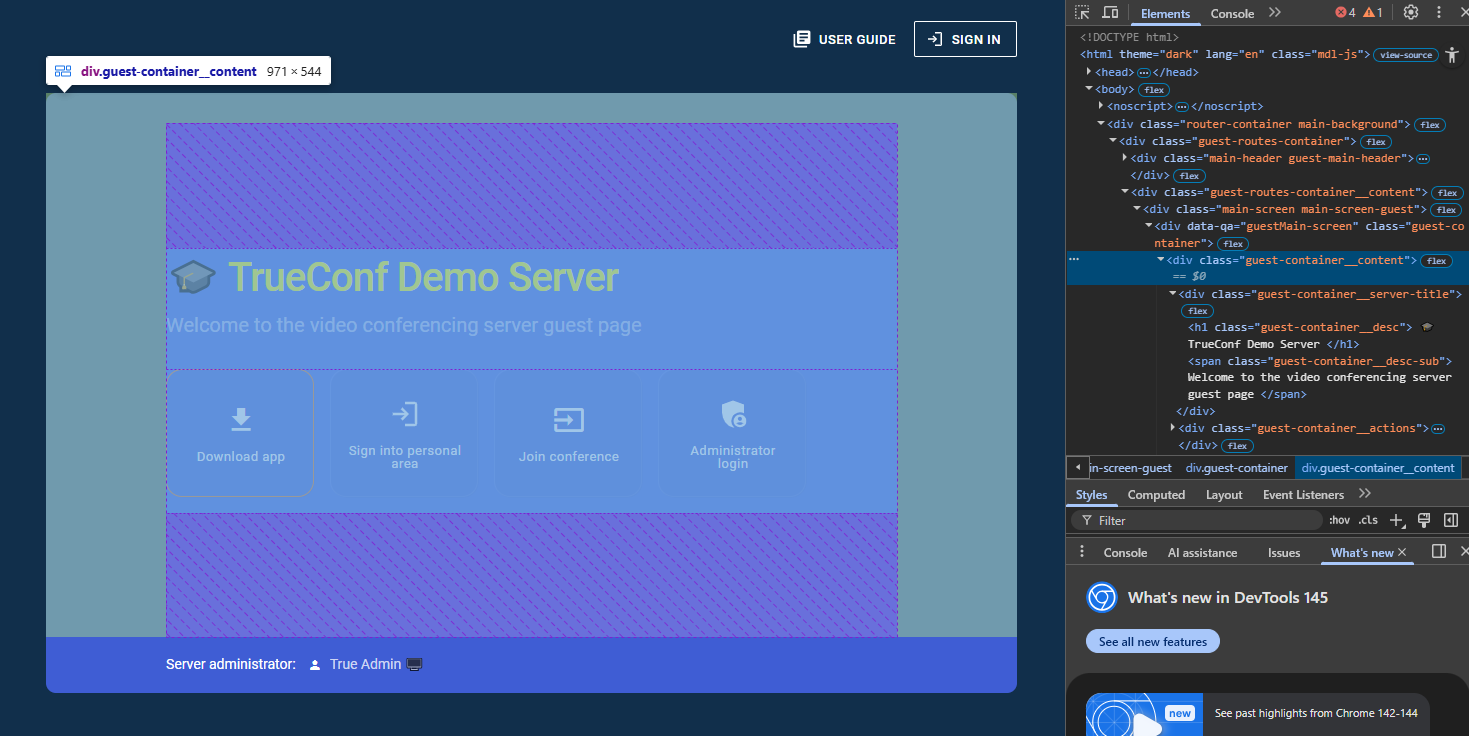
To edit an element, you will need to use the corresponding CSS selectors: class names, tags, and so forth. For example, the div tag which is highlighted on the picture above has a class named router-container main-background. Later, we will use this value to customize the page. To get a better idea of User JavaScript and CSS, let us take a look at a simple example like changing the text color for the greeting Welcome to the video conferencing server guest page.
- Open User JavaScript and CSS.
- Click the Add button.
- In the opened window, enter the rule name, for example, My new rule, and paste the code for SCSS (CSS):
- For version 5.5+:
- For versions prior to 5.5:
- Click the Save button.
- Go back to the server page and view changes.
|
1 2 3 |
.guest-container__desc { color:yellow; } |
|
1 2 |
.main-screen__header__desc{ color: yellow;} |
The text color will change to yellow:

Let us consider how other HTML tags can be changed.
Guest page and conference connection page
You can download the file with ready-made CSS templates via the following links:
Replacing the page background
To replace the page background, change the value of the property background-image for the CSS class main-background:
|
1 2 3 |
.main-background{ background-image: url([img-in-base64]); } |
where {img-in-base64} is an image encoded in the base64 format, for example, you can use the online converter jam.dev/utilities/image-to-base64. This approach speeds up page loading since it reduces the number of requests to the server. After converting the image in jam.dev/utilities/image-to-base64, click the Copy button in the section Use in CSS:
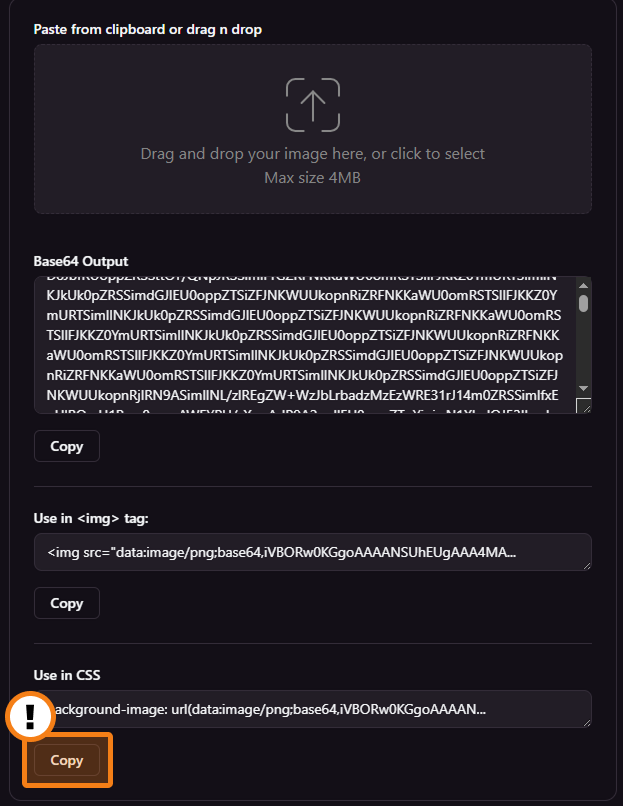
and insert the copied text instead of url{img-in-base64}:
|
1 2 |
.main-background{ background-image: url('data:image/jpeg;base64,/9j/4AAQSkZJRgABAQEARwBHAAD/4RG+RXhpZgAATU0AKgAAAAgACgEOAAIAAAAUAAAIkgE7AAIAAAAUAAAIpoKYAAIAAAAUAAAIuodpAAQAAAABAAAIzpybAAEAAAAoAAAQ7pycAAEAAAAoAAARFpydAAEAAAAoAAARPpyeAAEAAAAoAAARZpyfAAEAAAAoAAARjuocAAcAAAgMAAAAhgAAAAAc6gAAAAgAAAAA…/9k='); |
Hiding blocks
To conceal a section, add the rule visibility:hidden; to its CSS selector. In this case, this element will become fully transparent, however, the browser will still reserve the space for it. For example, to hide the footer completely, add a new rule in User JavaScript and CSS.
|
1 2 3 |
.conference-screen-footer{ visibility:hidden; } |

Disabling blocks
To disable a certain page section, specify the rule display:none; for its CSS selector. For example, to disable the footer, add a new rule in User JavaScript and CSS:
|
1 2 3 |
.conference-screen-footer{ display:none; } |
In this case, this section will no longer affect page rendering and no space will be reserved for it.
If you do not want to hide the entire footer, you can disable only one of its sub-sections. Since the lines in the footer have identical tags and classes, you can use the nth-child(n) selector where n is the ordinal number of the section. For example, to hide the version number, use the following rule:
|
1 2 3 |
.conference-screen-footer__desc:nth-child(2) { display: none; } |
Applying changes on the server
Important! If something goes wrong after you change the source page templates, you can install TrueConf Server over the current version in order to discard changes. If you are using an old version of the server and there is no access to the corresponding installer, we recommend making a backup copy of the files mentioned in this lecture.
Once you have tested CSS rules in User JavaScript and CSS, you will need to add them to HTML files used for rendering TrueConf Server web pages. We will use the method involving global CSS styles.
Please note that you will have to take these steps each time after the server update.
To add such styles:
- Create the file my-style.css.
- Copy the rules that you specified in User JavaScript and CSS and paste them in the file my-styles.css.
- Open the file with any text editor like Notepag++ or VS Code (depending on the OS where TrueConf Server is deployed):
- Windows
- Linux
- Add the following code at the end of the head tag
- Restart the service
- Windows:
- Linux:
C:\Program Files\TrueConf Server\httpconf\site\ui\user-area\dist\index.html
/opt/trueconf/server/srv/site/ui/user-area/dist/index.html
|
1 2 3 4 5 6 7 8 9 10 11 12 |
<link rel="stylesheet" href="/user-area/my-styles.css">: <head> <title>TrueConf Server Guest Page</title> <meta charset="utf-8"> <meta name="viewport" <link rel="manifest" href="/user-area/manifest.json" /> ... Some tags ... <link rel="stylesheet" href="/user-area/my-styles.css" /> </head> |
Please note that it is critical to add new styles at the very end of the head tag because the browser parses HTML files from top to button and lower tags have a higher priority. You can also use a special modifier called !important in your styles, which raises the priority of styles, forcing a browser to apply this rule and ignore other styles for the same property.
Restart-Service -Name "TrueConf Server Manager"
sudo systemctl restart trueconf-manager
In this way, you can fully customize the guest page and the conference join page:
Before:
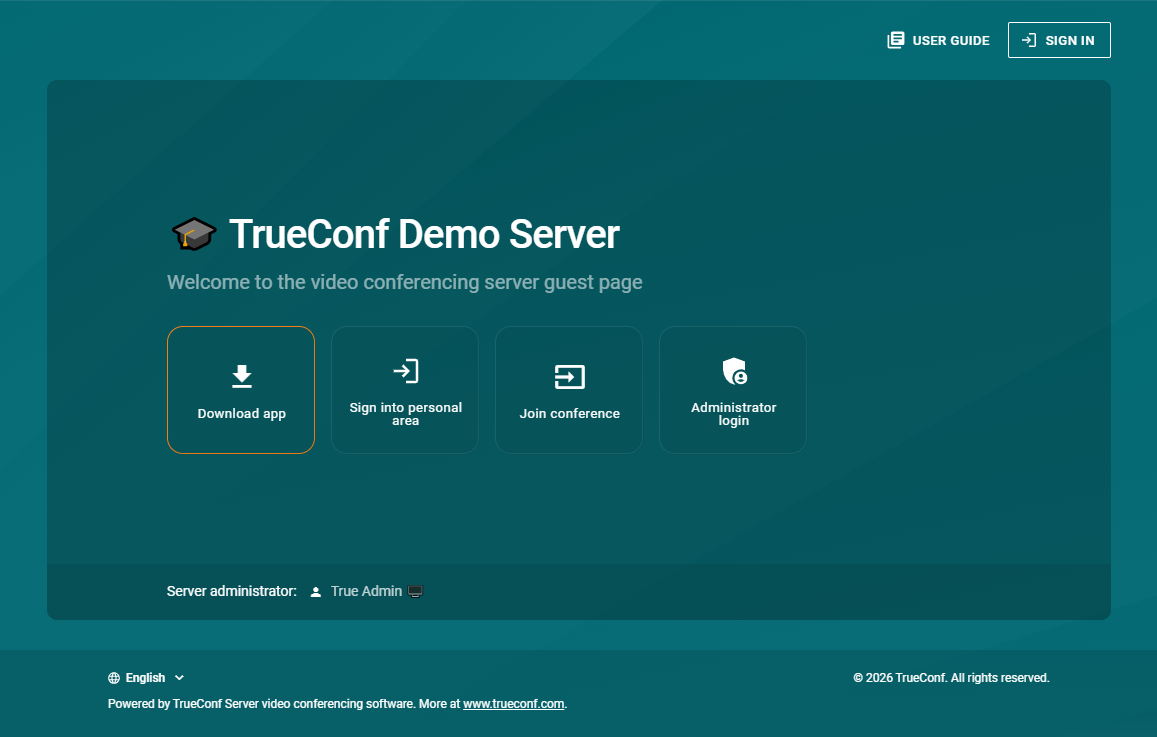
After:

Anthony Baadzhy
Date published: 10.08.2023