
Correct Configuration of a Static IP Address for the TrueConf MCU Server

To ensure a stable connection to the TrueConf MCU server, you should set a static IP address. This can be done in two ways:
In the web interface of the server control panel.
In the OS settings before installing the server.
Configuration via the web interface
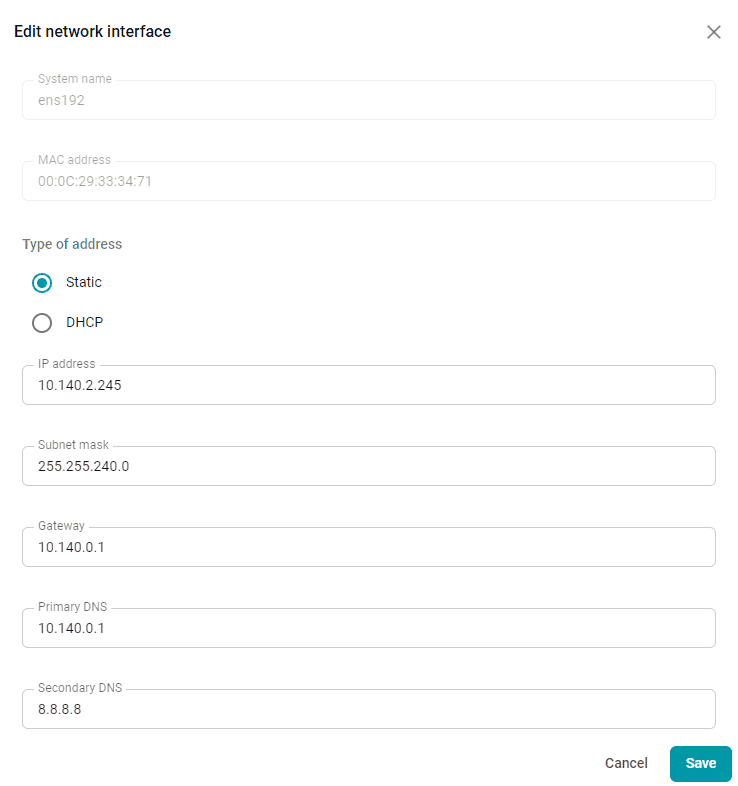
You can access network settings, including the option to set a static IP address, in the control panel after activating TrueConf MCU.
In the control panel, go to Administration → Network → Network interfaces, where you will have access to the settings:
Type of address
IP address
Subnet mask
Gateway
Primary DNS
Secondary DNS.
Setting Up on OS
As described above, you can configure network interfaces via the server control panel. TrueConf MCU uses the NetworkManager service to enable this network interface configuration feature.
NetworkManager conflicts with other services responsible for managing network settings. One of these services is networking.service, (which is built into Debian 10/11). Their parameters are set in the /etc/network/interfaces.d directory and the /etc/network/interfaces file. To avoid conflicts between services, the TrueConf MCU installer comments out this file.
In this case, if you configure the network using the interfaces file, the network interface won't start after a server reboot, and TrueConf MCU will become unavailable. This can happen at the most inconvenient time. For example, if an important meeting is taking place on the server and an unexpected reboot occurs (e.g., due to power issues), the conference won't be set up automatically.
To avoid this kind of problem, we recommend configuring the network interface using the nmtui pseudo-graphical utility.
Configuring the Network with nmtui
To execute commands, use the sudo program to run them with administrative privileges. Ensure that the current OS user is part of the sudo group; refer to the relevant online instructions for your operating system. Note that sudo may not be installed by default on your OS. To check if it’s installed, run the command: sudo -V.
In the terminal, execute the command with superuser rights:
sudo nmtuiIn the opened pseudo-graphical interface, select the Edit a connection option:
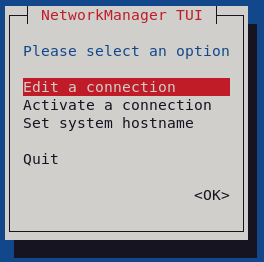
In the opened pseudo-graphical interface, select the Edit a connection option:
In the opened window, you can set the profile name. To set a static IP address, select Manual mode in the IPv4 Configuration section. Expand the configuration settings using the Show pseudo-button and specify:
Address
Gateway
DNS servers.
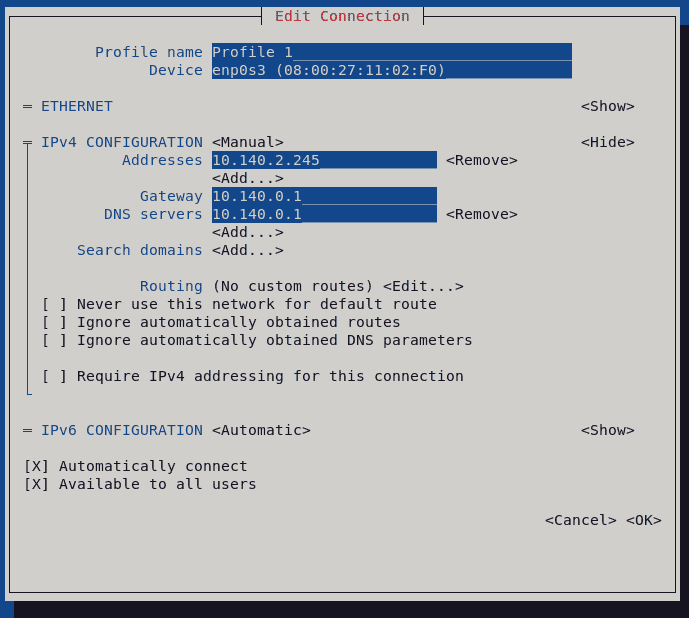
Save your network settings and return to the main menu of the utility.
To apply the new network settings, reboot the machine with the following command:
sudo reboot

Congratulations, you have configured a static IP address for TrueConf MCU!