
Usage
Using TrueConf Weathervane
The use of application goes through three stages:
Initial setup. Configuration of the connection with the conferencing system and TrueConf Room, general settings.
Presets configuration. Select cameras, matrix switchers, and their configurations that will be switched between.
Active usage. Switch between presets in response to various events.
Preliminary Settings
In the main window of the program, select Tools → Settings. The settings window will open.
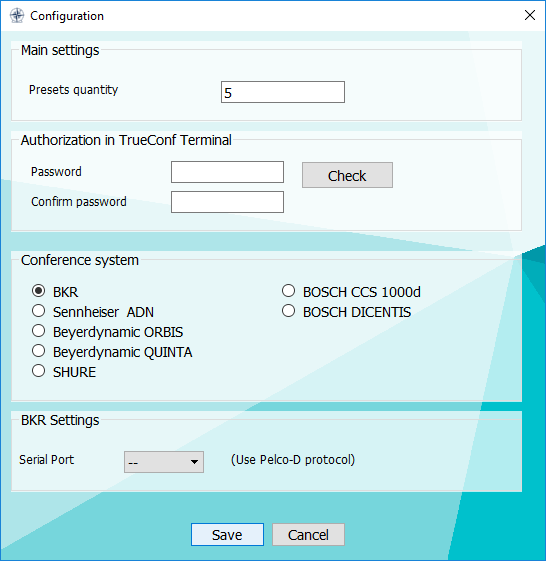
Enter field values:
- Presets quantity - the number of presets to switch between.
For your information
When a conference system is used, the number of presets should be one point greater than the number of microphones because the first preset is used when none of microphones is on, e.g. when you need to capture a general view or display a screensaver.
- Password and Confirm password is the password for authorization on TrueConf Room with the username admin (if its use is intended);
- Conference system – Select the model of the conferencing system to be used (if its use is anticipated).
The last settings block contains data for connecting to a digital discussion system. Depending on the model you’ve selected, you will have to fill certain fields. The list of such fields is provided below:
- BKR: Serial Port;

- Sennheiser ADN: IP;

- Beyerdynamic ORBIS: Serial port;

- Beyerdynamic QUINTA: IP или Serial port;

- SHURE: IP;

- BOSCH CCS 1000D: IP, User name and Password.

- BOSCH DICENTIS: User name and Password.

Table of Presets
The application main window features a table of presets to switch between.
Each preset includes:
matrix switch and its configuration (Matrix);
a camera for display on TrueConf Room and/or control (Camera);
We guarantee that the system runs flawlessly with up to 10 cameras being used simultaneously.
connection method to a PTZ camera (PTZ Control);
PTZ camera position (Position).
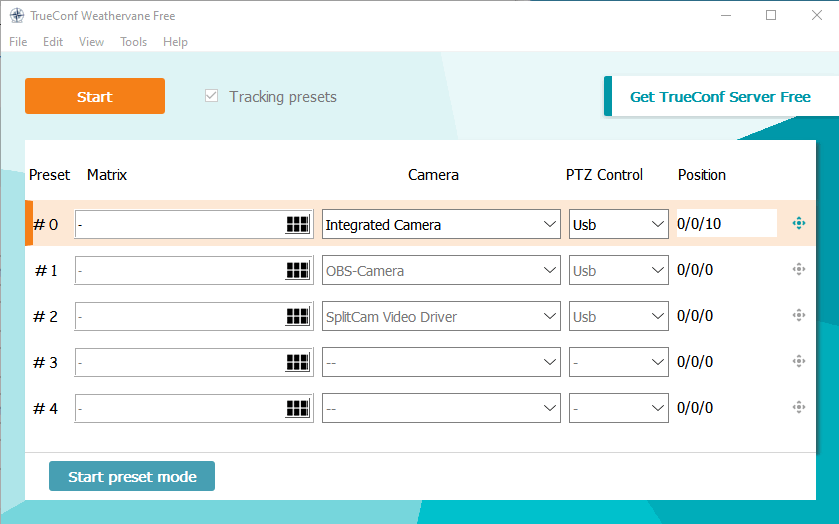
All fields are optional and compatible with each other, i.e. you can combine them in any way you like. For example:
If a non-PTZ camera is selected in field Camera, you can simply ignore fields PTZ Control and Position, and the application will function correctly with the selected camera.
If both a camera and a matrix switcher are selected in the preset, switching to the preset will apply both configurations—the selected camera will be displayed on screen TrueConf Room, and the connections of the matrix switcher's inputs and outputs will reconfigure to the selected position.
If you select a matrix switcher configuration in a preset and a PTZ camera connected to one of switcher inputs, then both configurations will be applied when you switch to this preset. The selected PTZ camera will be positioned according to the preset while matrix switcher inputs and outputs will be adjusted according to the selected position.
If the application is closed down correctly, any preset configurations that have been selected will be saved and restored when you run the app again.
Configuring Presets
How to Select the Positions of PTZ Cameras
When you click on the small crossed arrows icon, the PTZ camera control window opens. Here you can set the camera rotation, tilt, and zoom coordinates.
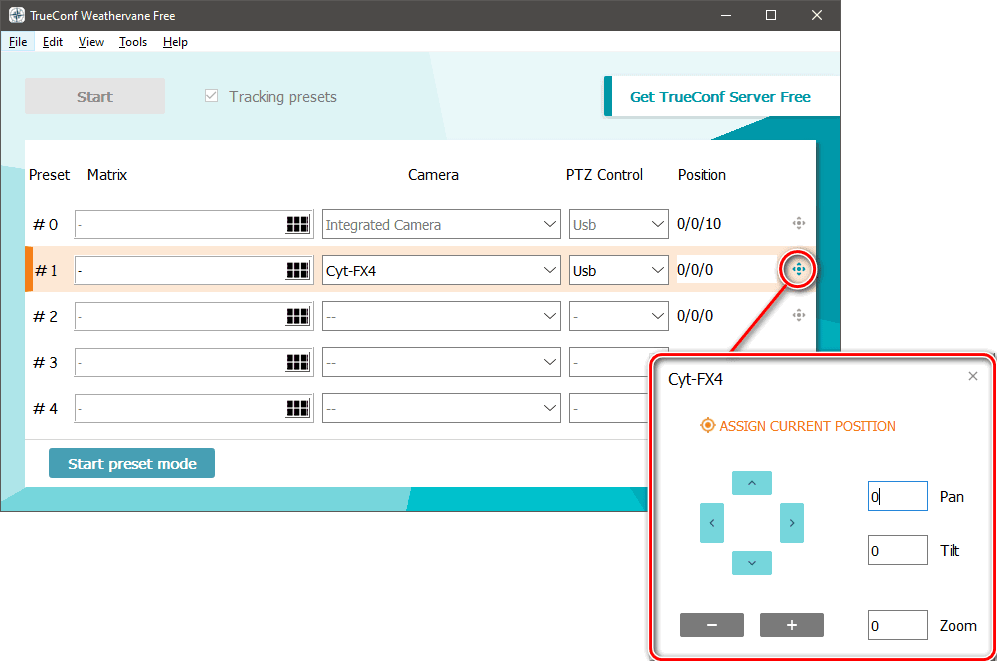
The fields Pan, Tilt, and Zoom will be set according to the current position of the camera.
Matrix Switcher Operation
To select a matrix switcher for a preset, click the button on the right side of the desired field Matrix. This will open the switcher configuration settings window.
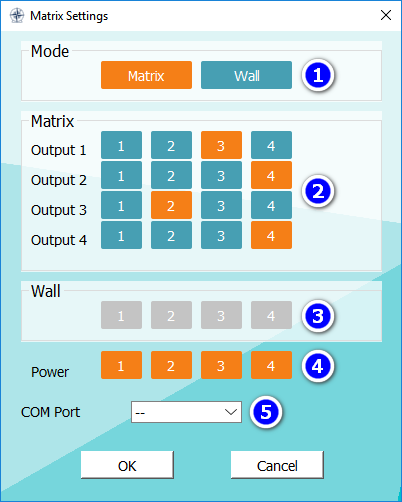
Select an output type of a matrix switcher
- Matrix - simultaneous use of multiple outputs with arbitrary rearrangement of input streams on them;
- Wall - Display one of the inputs on the entire video wall.
Setting which input will be directed to which output (only for mode Matrix from item 1). Outputs differ by rows, and inputs by columns. In the example provided, input #1 is not sent to any output, while input #4 is distributed to two outputs.
Selecting the input to be directed to the video wall (only for mode Wall from item 1).
Select active switcher outputs.
When selecting the Wall mode, it is recommended to keep all outputs enabled.
5. Switcher connection port (which lets the app detect a switcher). This port should be selected for each preset that involves the use of a switcher.
Preset Mode
When working with conferencing systems, the setup process can be further automated with the Preset mode mode.
Proceed as follows:
In the settings (Tools → Settings, see above for more details), select the required number of camera positions (number of microphones + 1) and connect to the conferencing system. If you plan to use TrueConf Room, connect it as well.
Select the cameras corresponding to each microphone (remember that microphones are numbered starting from one, and preset #0 is used when all microphones are turned off). If a matrix switcher without TrueConf Room is used, you also need to select the switcher configurations for each preset at this stage.
Click Start preset mode at the bottom of the screen and wait for the program to establish a connection with the conferencing system.
Activate the first microphone. In response, TrueConf Weathervane will highlight the row in the table corresponding to this microphone.
If a PTZ camera is selected for this microphone, set it to a desired position.
Turn off your microphone. When it is done, data about the current position of the camera will be automatically saved for a selected preset.
Repeat steps 4, 5, and 6 for each microphone.
After setting all the presets, click the Stop preset mode button.
Getting Started
- Launch TrueConf Weathervane.
When using TrueConf Room and PTZ cameras controlled via the VISCA protocol, it is essential that TrueConf Weathervane is started before TrueConf Room.
2. Start TrueConf Room and/or the matrix switcher.
3. Connect a digital discussion system if you are going to use it.
4. Configure presets following the previous examples.
Further steps may be different, depending on which control mode you would like to use.
This section will describe various control modes. They are compatible with each other, e.g. camera switching can be initiated by turning on/off the microphone of a digital discussion system, but the camera can also be switched by a timer through its own program.
Switch Cameras Manually
When you click on a preset in the main menu TrueConf Weathervane, the program will switch to the selected preset. This method can be used for testing camera connections and the overall system appearance, as well as for occasional adjustments during automatic operation.
Conference System Integration
Once connected to the conferencing system, the Start button in the upper left corner of the main menu TrueConf Weathervane becomes active. Pressing this button allows TrueConf Weathervane in monitoring the conferencing system.
When you turn on (activate) any microphones in this mode, the application will switch to a corresponding preset.
Check Tracking preset if you want the current active preset to be highlighted.
Program control
TrueConf Weathervane supports switching presets via command line parameters. The preset number is specified with the-p or -preset parameter (both parameters function identically). For example, the commandWeatherVane.exe -preset 1
activates preset #1.
Thanks to this feature, you can configure automated presets switching using a third-party program or a script.