
Connecting Beyerdynamic Conference Systems
Connecting Bosch conference system to Weathervane
Description of Beyerdynamic Discussion Systems
Beyerdynamic conference system is a set of audio equipment that consists of a central control unit and microphone units.
Beyerdynamic Orbis is a wired microphone system. The RS-232 interface is used to connect to a computer.
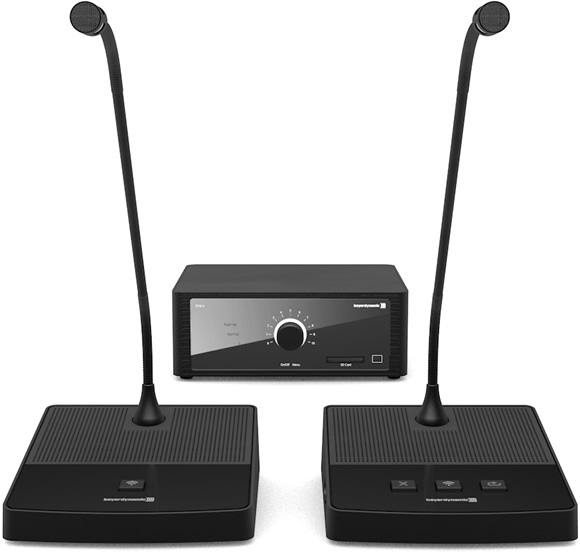
Beyerdynamic Quinta is a wireless microphone system. To connect to a computer, you can use both RS-232 interface and Ethernet connection.
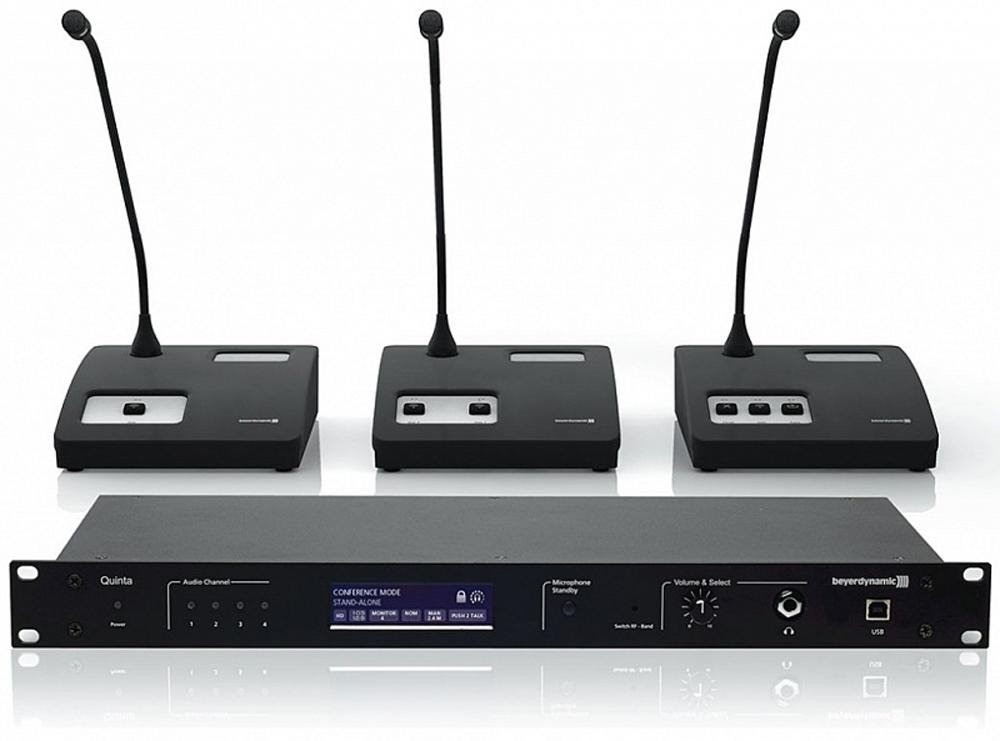
Central control unit is the primary device of the conference system, which is designed to configure the system and manage the conference.
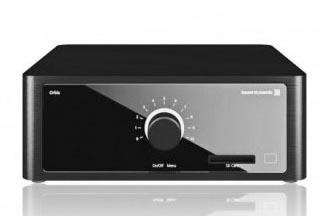
Beyerdynamic Orbis control unit:
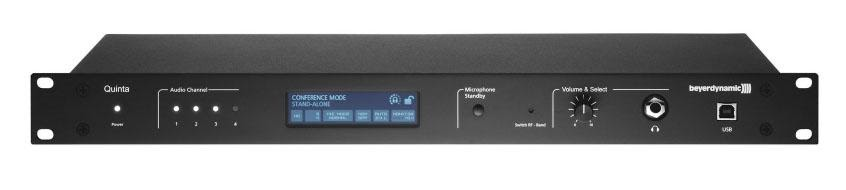
Beyerdynamic Quinta control unit:
Connecting and setting
Connecting the central control unit
Let's review the necessary operations for connecting the Beyerdynamic control unit to the system using software TrueConf Weathervane.
First of all, you need to create a channel for data transfer from the control unit to the computer which transmits information about active microphones. This allows you to activate necessary cameras and set their positions in order to ensure seamless video meetings.
The connection is established with a standard cable to a special connector on the back of the central unit. When using the RS-232 interface, connection to the computer is performed via special Serial port → USB adapter.
Setting the Beyerdynamic Orbis conference system
This conference system does not require special adjustment. It is ready for use once it is switched on.
Setting the Beyerdynamic Quinta conference system
This wireless microphone system does not always initially establish a connection with the wireless consoles. The central unit can be configured for different room types (Room Combining), designated as A, B, C, and D. If the settings in the central unit differ from those in the microphone consoles, the connection between the central unit and the microphone console will not be established.
Checking the Microphone
The procedure for checking and configuring microphones is as follows:
Turn on the power of the central unit using the tumbler on the rear panel.
Take one of the microphones and briefly press the activation button on the top
 .
.Make sure that the green LED on the back of the microphone is active, indicating that the battery is charged. If the lights are red, the microphone unit battery needs to be charged.
After pressing the activation button, it will blink red first (attempt to establish connection with the central control unit) and then white (connection established successfully).
If the activation button blinks white, turn off the microphone by pressing and holding the activation button and proceed to the next microphone (step 2).
If the activation button still flashes red (indicating that a connection with the central unit cannot be established), then adjust the settings of the central unit Room Combining required to establish the connection (see item 7).
Press and hold the volume knob on the central unit for 5 seconds. The main menu will be displayed on the central unit screen.
Rotate the knob to select Room Combining and press the knob. A submenu for selecting modes will appear; press the knob again. You will see a menu for selecting room types A, B, C, and D. Rotate the knob to change the current selection, which is highlighted in brackets. Press the knob to activate or deactivate the current option. Active options are marked with a checkmark:
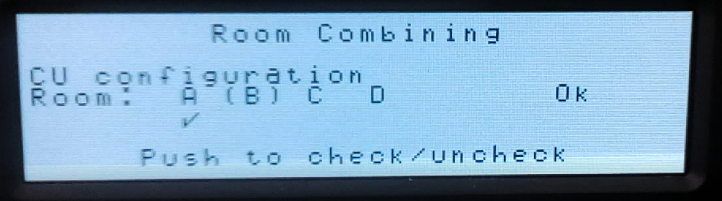
To deactivate current active positions, select the desired position by rotating the knob and deactivate it by pressing the knob. The position will be unchecked.
Activate and deactivate each possible position one by one. When a position is active, pay attention to the microphone unit. If its activation button is flashing red, it means the selected position on the central unit Room Combining does not match the unit's settings. A button flashing white indicates that the connection is established and the correct setting is found. If the button stops flashing altogether, the microphone unit has timed out and disconnected from the central unit. You need to turn it on again by pressing the activation button. Keep in mind that microphones can establish connections in several modes Room Combining. Therefore, you must check each one individually and record the potential settings Room Combining for each microphone.
Check all microphones in the same manner by going to step 2.
To complete the setup, in the central unit, select a position A, B, C, or D in Room Combining, where all microphones can be connected to the central unit.
Configuring the microphone modules
If, during the previous configuration, Room Combining determines that it's impossible to select a single position suitable for all microphones, then you need to adjust the Room Combining settings stored in the microphone modules. This is done as follows:
Press and hold the volume knob on the central unit for 5 seconds. The main menu will be displayed on the central unit screen.
Rotate the knob to select Room Combining and press the knob. A submenu for selecting modes will appear. Turn the knob to choose the module configuration mode, then press the knob again. You will see the configuration menu that allows you to select Room Combining settings and send them to the microphone unit.
Select the required position and send the settings to the microphone unit.
How to identify IP address
To access the central control unit of the Beyerdynamic Quinta via Ethernet, you need to identify the IP address assigned to the device. To do this:
Press and hold the volume knob on the central unit for 5 seconds. The main menu will be displayed on the central unit screen.
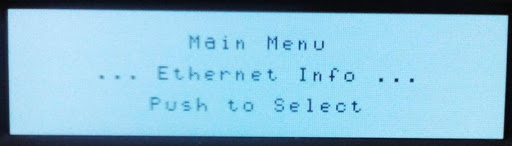
Rotate the knob to select item Ethernet Info and press the knob. Information with the parameters automatically assigned to the device will appear:
Setting TrueConf Weathervane software
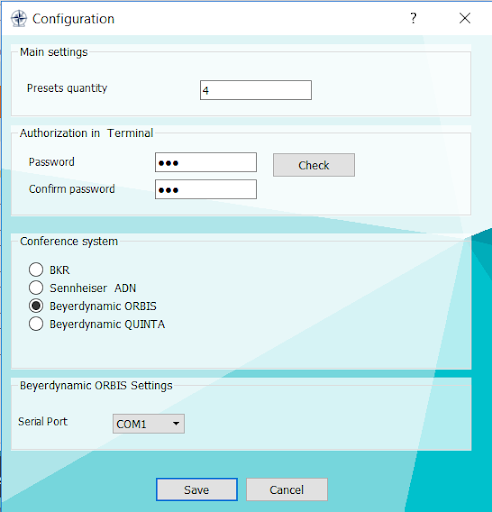
To configure the TrueConf Weathervane software, go to the Tools → Settings menu and select the desired conference system in the Conference system section.
For the Beyerdynamic Orbis conference system, please specify the Serial port through which data will be exchanged with the device in the settings window:
When selecting a Beyerdynamic Quinta conference system, please specify how you want to connect the device to your computer:
via COM port — in this case, select the appropriate port;
via Ethernet: enter the IP address assigned to the central unit of the conference system.
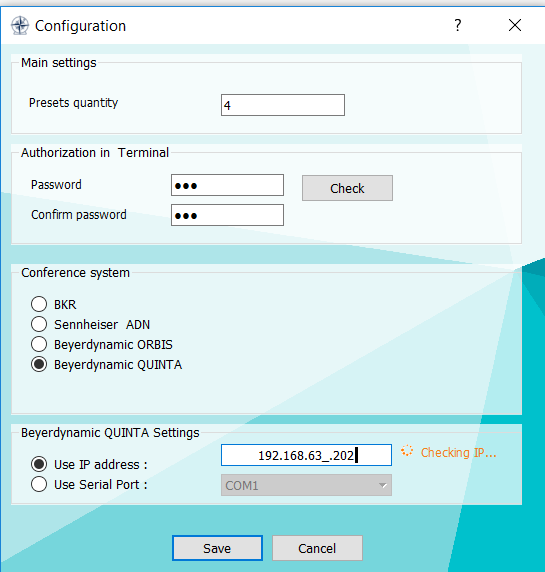
If you have entered an IP address, the program will check the connection to it and display the corresponding message:
- in case the check is successful:

- if there's a connection error:

After entering the required values, save them by clicking the Save button in the settings window.