
Connecting the BOSCH conferencing system
Connecting Bosch conference system to Weathervane
Introduction
The TrueConf Weathervane 4 application supports integration with the BOSCH CCS 1000 D conference system and enables automatic PTZ camera positioning on the speaker during conferences conducted with this system.
This guide describes the process of connecting a conference system to a computer and configuring its interaction with TrueConf Weathervane.
For comments regarding detailed setup of the conferencing system, please contact the manufacturer.
VCS structure
The BOSCH CCS 1000 D conference system comprises a control unit and microphone consoles, and also features a web interface for browser-based configuration after connection.
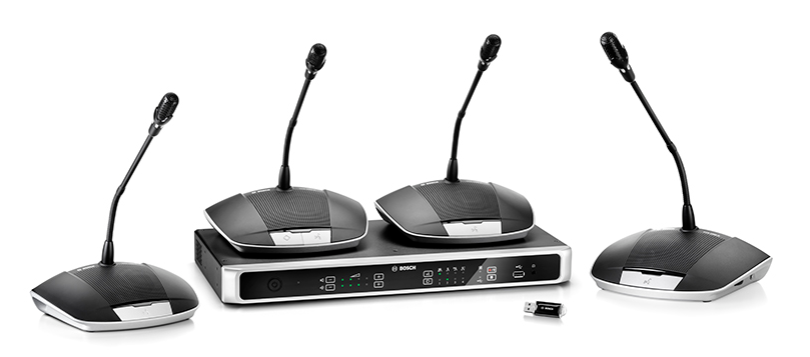
Control unit is the main device of VCS. You can connect to an Ethernet network, control the microphone settings and the progress of the conference with the help of this unit.
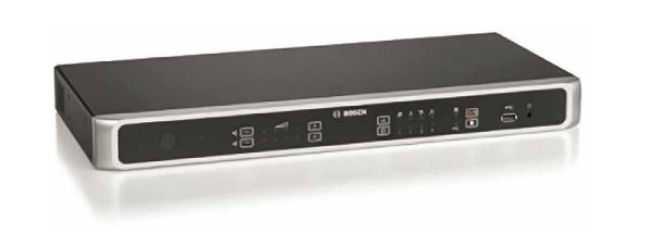
Connection BOSCH CCS 1000 D to PC
Connect BOSCH CCS 1000 D to Ethernet network via input on the back panel of control unit.
Connect the PC which will be used for controlling the VCS to the same network.
System detection by PC
Since a PC and BOSCH are connected to the network separately, in order to start, it needs to detect the IP address for connection to BOSCH by PC - so to speak, "find" the VCS in the network.
There are several ways to initiate the search.
Way 1
Use the BOSCH DNS-SD driver program. It is available for download on the official BOSCH website:
Find the lines started with Windows PC DNS-SD driver to discover CCSD-CU on hostname by following the link above and install the suitable to your OS version (x32 или x64).
After the installation, open console (press Win+R and runcmd) and enter the command:
ping ccs1000d.local
The information about system IP address appears below.
Way 2
Use the Advanced IP Scanner program.
Download the program, start the scan, and after the process is complete, look for BOSCH Security System BV among the devices. The required IP address will be displayed in column IP.
Way 3
Use a traffic analyzer program (e.g., Wireshark) to identify the IP address by recognizing the device through its MAC address.
MAC address of the VCS is mentioned on the back panel of control unit.
If you failed with previous methods, please, try to connect the VCS to the PC directly with the help of Ethernet-cable.
Setting the video conference system via browser
Once you have the IP address, you can access the conference system control panel. Simply enter the IP address into your browser's address bar.
Authorization page will appear. Enter admin login, that is set by default. Leave empty the password entry field.
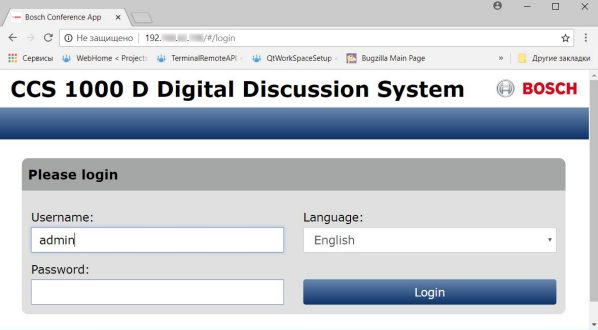
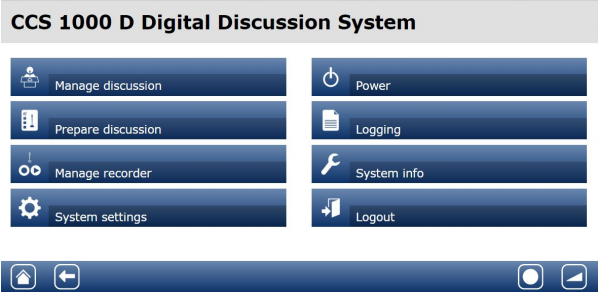
After authorization, the main menu appears . You can find the needed settings section here:
- Prepare discussion – to configure conference settings;
- System settings - to change the IP address;
etc.
Connection to TrueConf Weathervane
In the TrueConf Weathervane settings window (menu item Tools → Settings in the Conference system section), select BOSCH CCS 1000.
Below, the BOSCH parameters entry fields appear - the IP address of VCS and authorization data (in case you didn't change the login an the password during the web setting, you need to enter admin login and leave empty the password entry field).
Use the Check button below the IP input field to check if the application successfully connected to the conferencing system.
