Printing PDF documents
Printing PDF documents
In kiosk TrueConf Kiosk version 4.0 and above, the ability to print documents in PDF format is implemented.
During a video consultation with an operator, users can quickly receive necessary documents without needing to provide an email address or visit the company office. This feature will be useful when using TrueConf Kiosk in bank branches, insurance companies, and office centers, for instance, for printing contracts and certificates.
Document printing in the info kiosk is only available when TrueConf Kiosk is installed on Windows OS.
Print settings
To correctly print PDF documents using TrueConf Kiosk, you need to:
install the latest version of Adobe Acrobat Reader on the system where TrueConf Kiosk will be used;
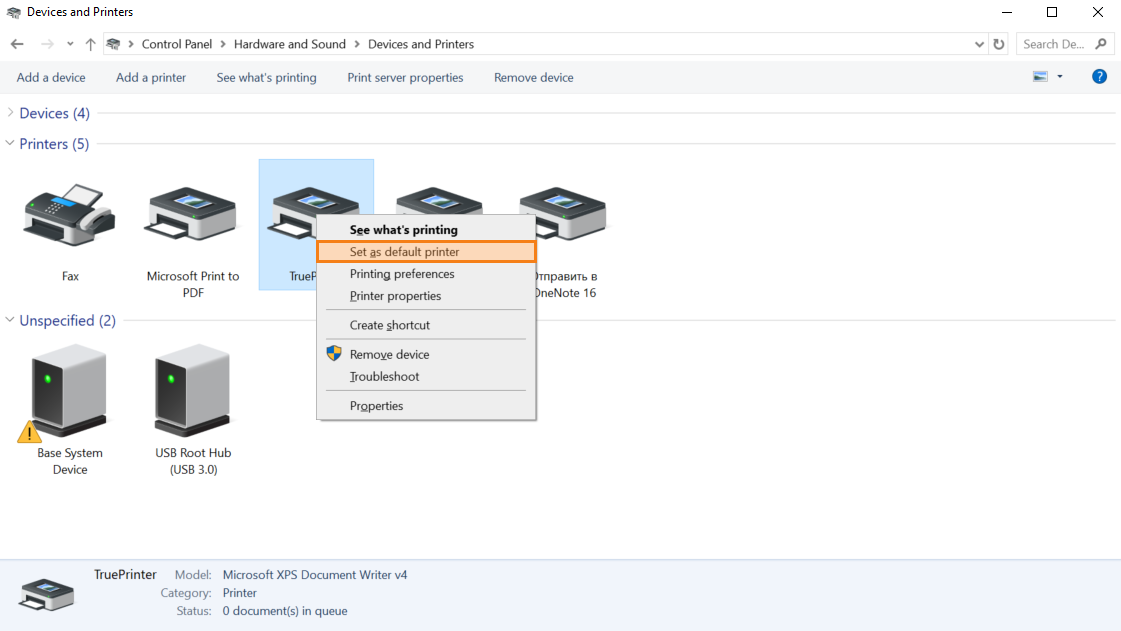
To select a printer for printing, go to the operating system settings menu, Start → Settings → Bluetooth & devices → More devices and printer settings, right-click on the desired device, and choose Set as default printer.
Printing
TrueConf Kiosk automatically sends all files to print under the following conditions:- TrueConf Kiosk is in a call or conference.
The format of the sent file is .pdf.
The file was received from one of the operators in a personal chat during a call or in the group chat of an ongoing conference.
After the file is successfully downloaded and before it is printed, the sender will receive the following chat message:
> `The file "NAME/INFO" is received and sent to the printer`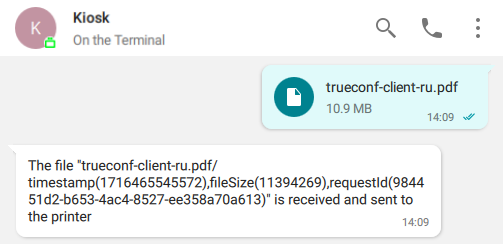
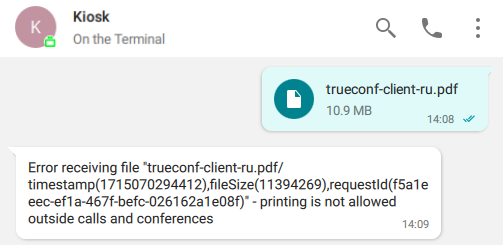
If the file is not received correctly, the corresponding message will be sent:
> `Error receiving file "NAME/INFO" - printing is not allowed outside calls and conferences`