Summarization settings
Summarization settings
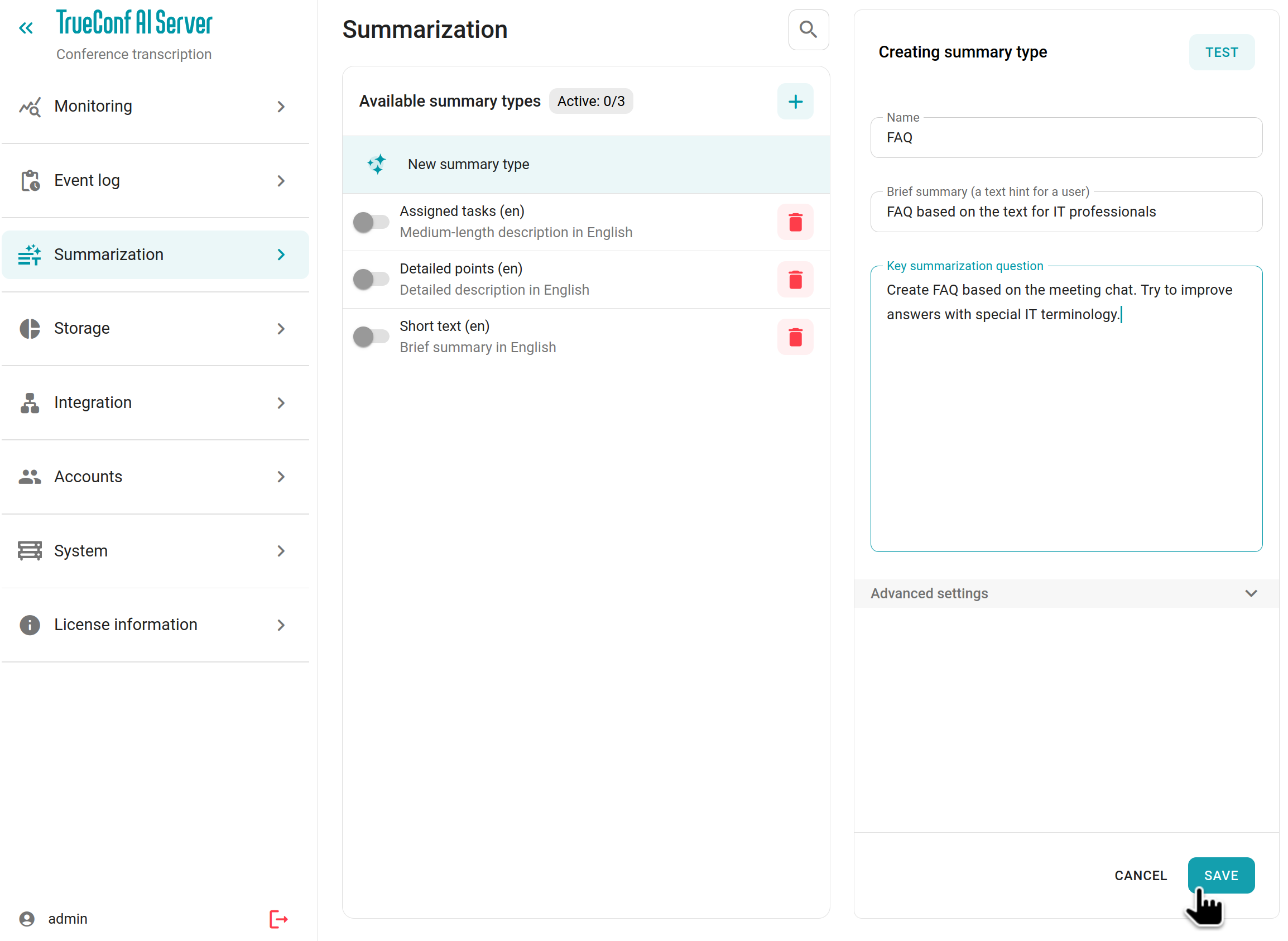
If the transcription module is activated for your TrueConf AI Server (see installation terms and description), you can configure the types of transcription available to users. To do this, go to the Summarization section of the control panel.
Selection and editing of the prompt (summarization type)
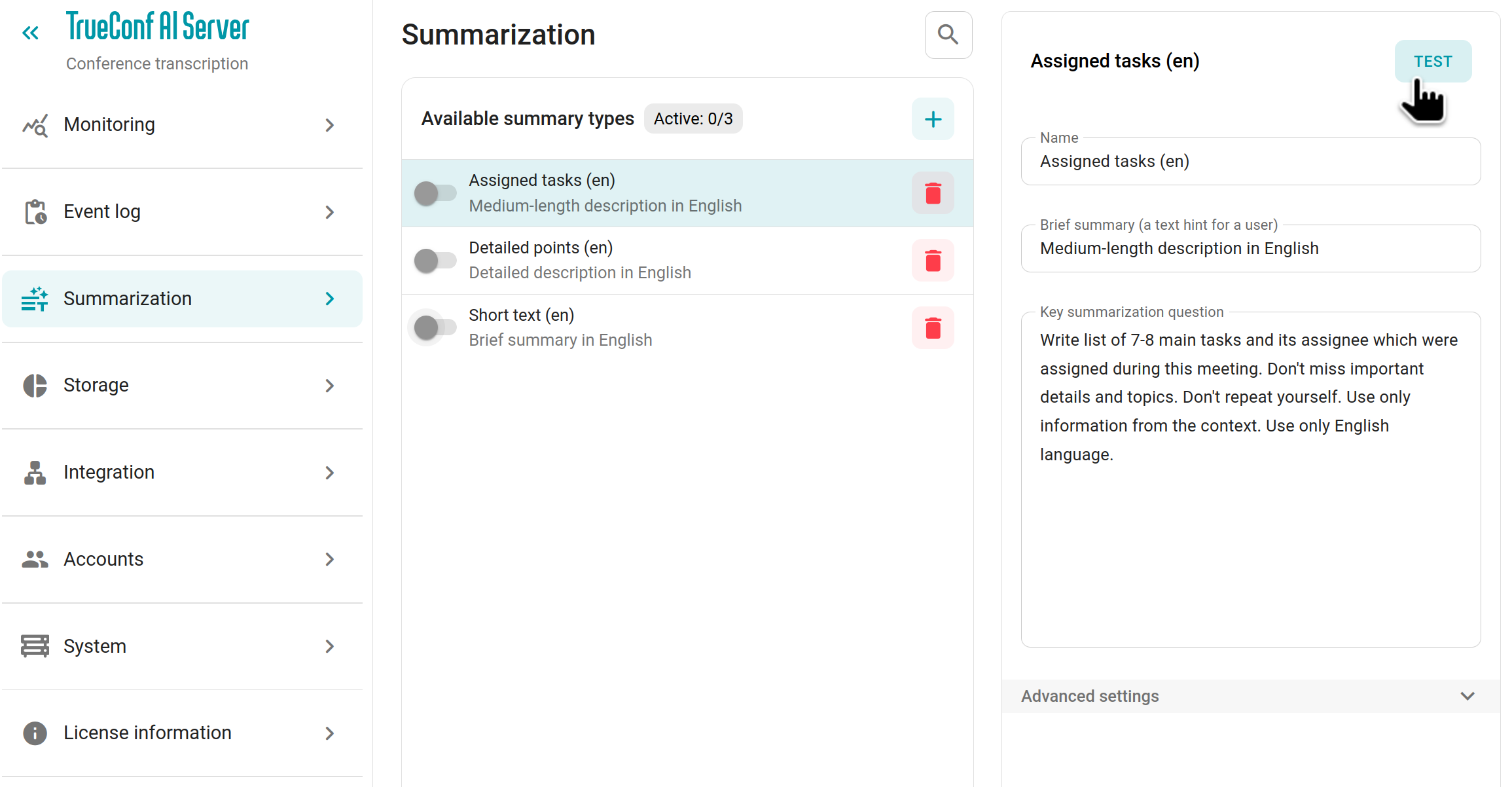
In the Summarization → Available summary types list, you will see the available prompts (types) to choose from. By default, several standard types are offered, and all of them are inactive, meaning they won't be available for users to select when creating a summary:
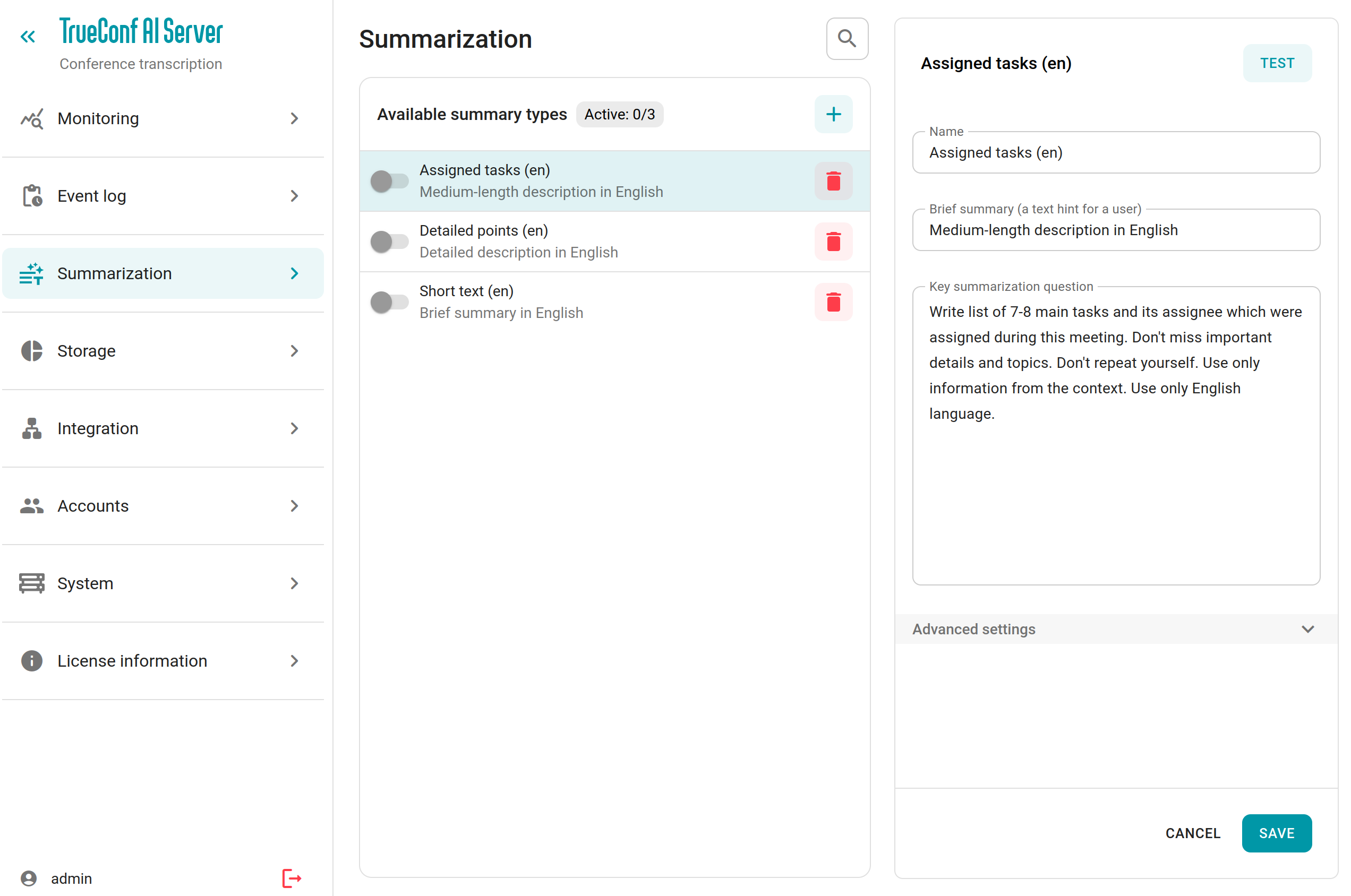
Click on any of the prompts to view its settings on the right side of the screen (an example is shown in the screenshot above) and edit them if necessary. You can change the prompt name, its brief description (which will be displayed to a user when starting event summarization), and the task text for the AI (summarization question). Based on the task text, the AI model will generate the summary of the full transcript.
You can modify the additional settings for drafting the summary by clicking on block Advanced settings:
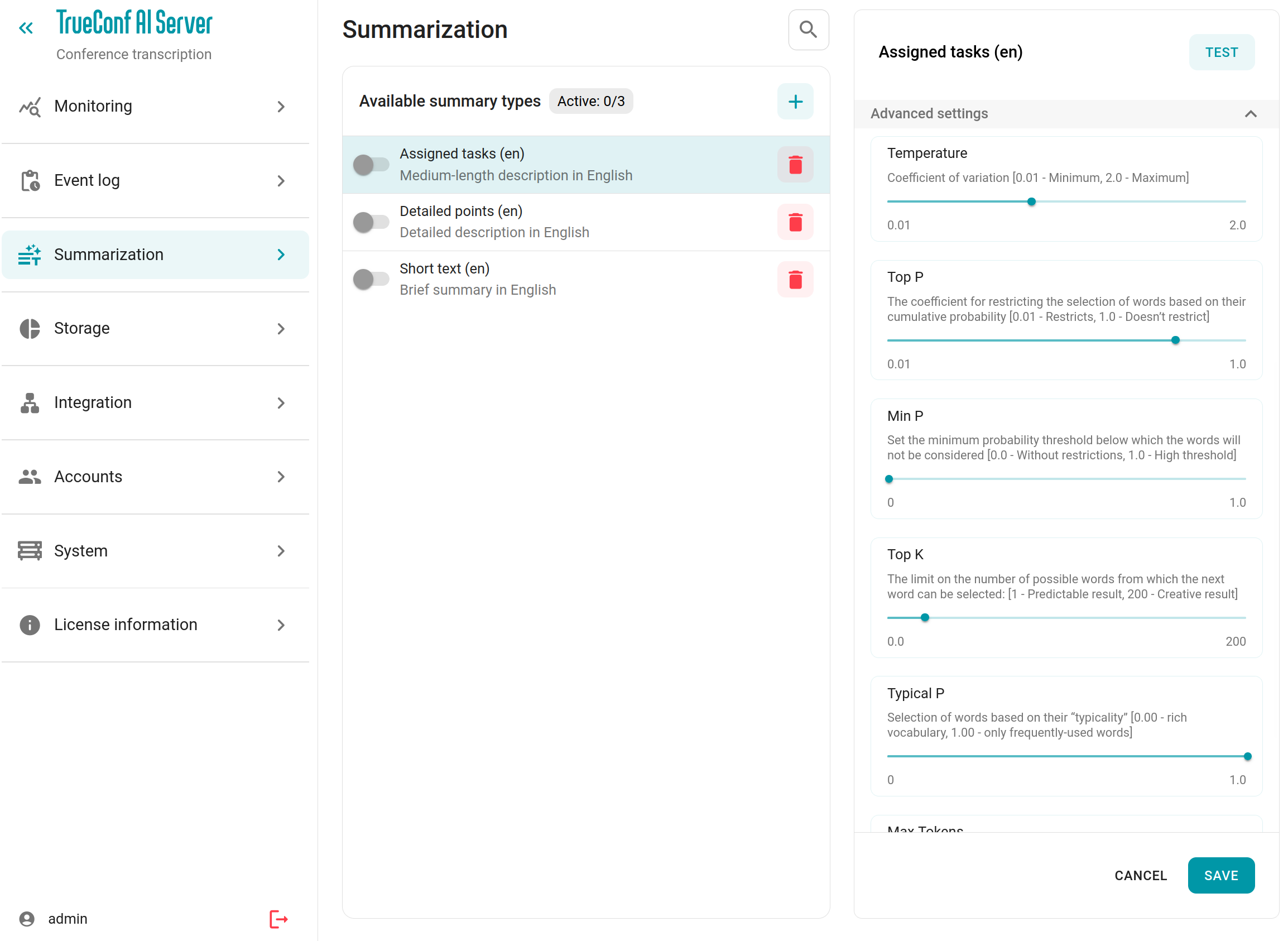
In this section you can adjust the variation of responses, the probability of selecting different words among synonyms, the response size in tokens (which is set automatically by default), and more. All parameters are labeled, and if you wish to apply them to existing or new prompts, we recommend selecting the appropriate values at first. Check the results by clicking the Test button: you will see a pop-up window where one can enter a text to be summarized (ideally, you can take a large transcript of a conference). When you are satisfied with the results, click the Save button to confirm your changes.
Without clicking Save, no results, including changes to advanced settings, will be saved!
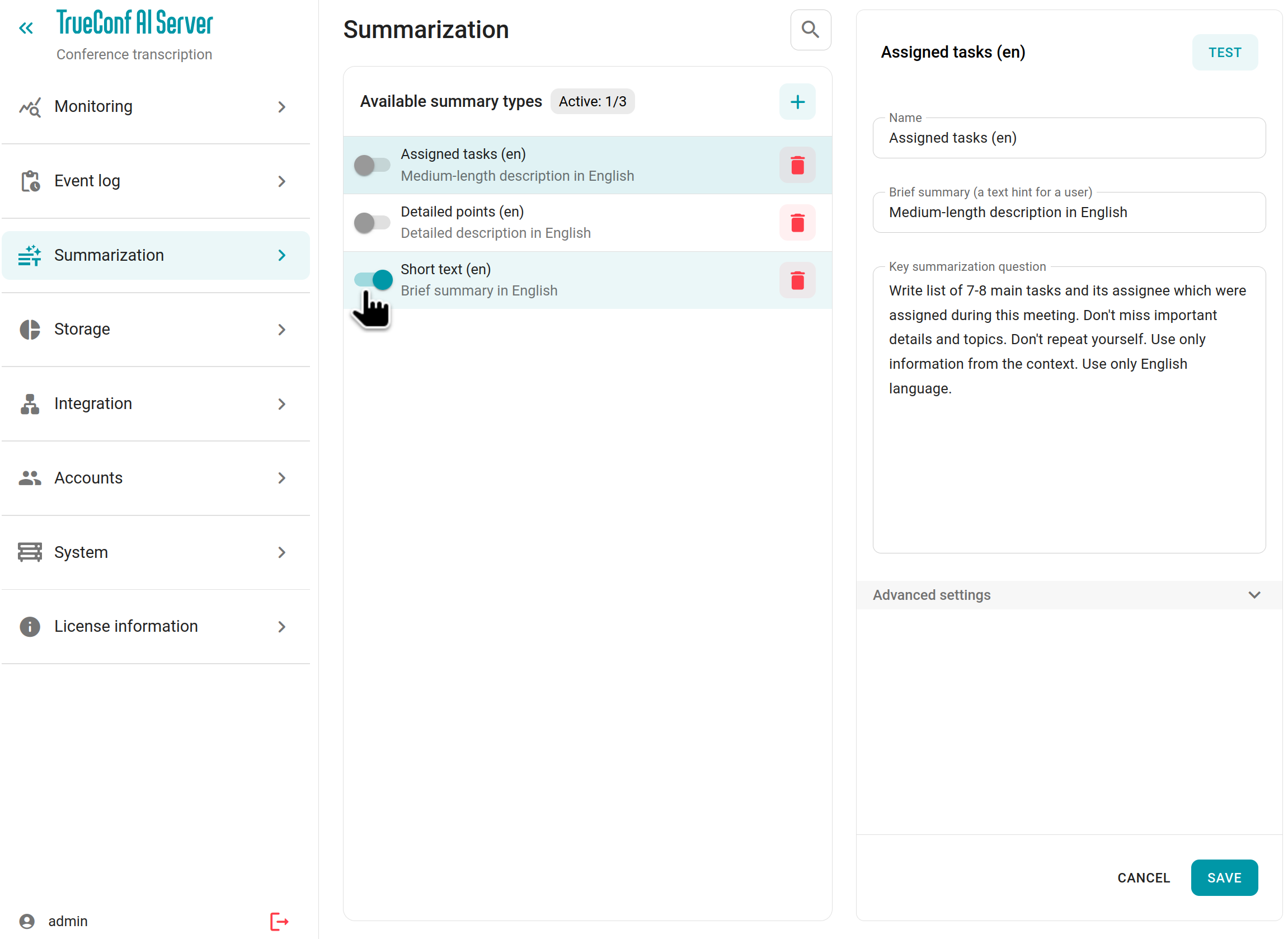
To activate the required type of summary after configuring all the settings, just switch the toggle next to the type name:
Testing the task (question)
There is a built-in testing tool in the control panel which makes it easier to assess summary types (prompts). To test a question and its advanced parameters, click the Test button:
In the opened window, you can enter your verification text for processing in the Source text field or click the Use template button to insert the prepared text.
If the result is satisfactory, you can set a convenient Name for the received prompt type, as well as Brief summary to assist users. Clear titles and content will help users quickly find the necessary prompt and use it for taking notes during conferences.
Adding a new type of summarization
To add a new prompt, click the  button and choose either an empty template or one of the existing ones.
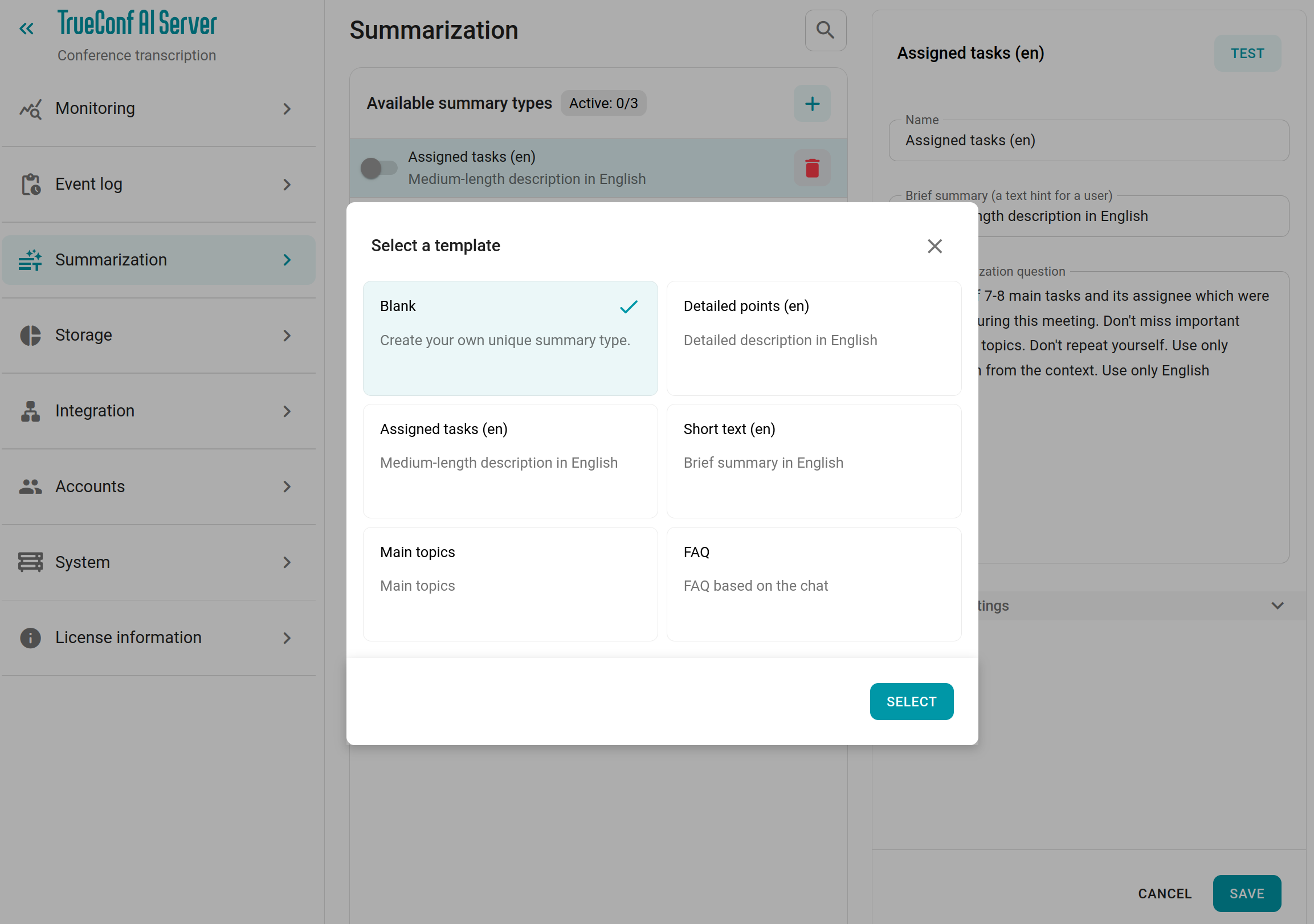
Set the necessary parameters for the prompt (just like when editing) and don't forget to click the Save button: