
Buttons
Starting from version 5.5.6, TrueConf Chatbot Connector supports inline buttons that appear directly below the message:
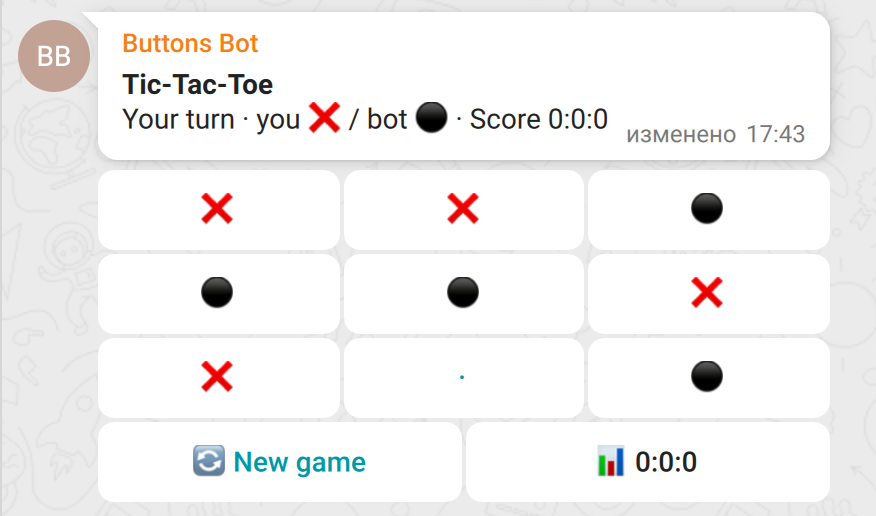
Inline buttons allow users to interact with the bot without typing text: execute a command, open a link, send a message, or copy data to the clipboard. The buttons are attached to messages of type 200 (PLAIN_MESSAGE) and can only be sent by chat bots. Changing the set of buttons for a sent message is done through editing it (editMessage).
The display of inline buttons in the chat depends on the version of the client application:
- Windows/Linux/macOS: 8.6.0+
- Android: 3.3.0+
- iOS: 4.2.0+
Button Styles
Different button styles are available:
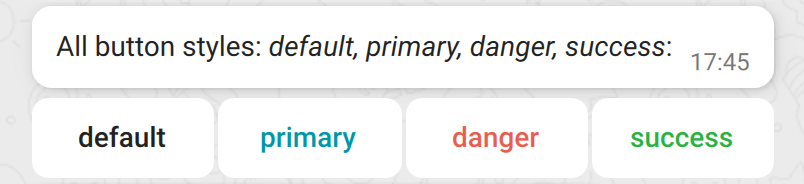
You can set the style using the optional style field. If the field is not specified, the default style is used.
| Style | The value of style | Description |
|---|---|---|
| By default | not specified | The default button design is used if the style field is not specified. |
| Accent | primary | The button is highlighted with the accent color of the client application. |
| Dangerous | danger | Style for "dangerous" actions |
| Positive | success | Style for "positive" actions |
Types of buttons
Currently, four types of buttons are supported. The type is specified using the mandatory type field within the button object.
| Type | The value of type | Purpose |
|---|---|---|
| Message | message | Sends a message in the chat on behalf of the user or inserts it as a draft. |
| Link | url | Opens an external link or TrueConf resource TrueConf |
| Copying | copy | Copies data to the clipboard |
| Team | command | Sends a command to the bot without posting a message in the chat |
Button "message"
The button sends a message to the chat, generated by the bot, on behalf of the user who clicked the button. If the parameter draft: true is specified, the message is not sent but is instead placed in the text input field of the client application as a draft.
| Field | Type | Mandatory | Description |
|---|---|---|---|
| type | string | Yes | Button type — string "message" |
| id | string | No | Unique button identifier, string. It can be used for additional identification of the pressed button. |
| метка | string | Yes | The string that will be displayed on the button in the client, with a maximum length of 32 Unicode characters. |
| style | string | No | Button display type: primary, danger, success |
| сообщение | string | Yes | The text of the message that will be sent upon clicking. All rules and restrictions applicable to standard sent messages apply. |
| черновик | boolean | No | If true, instead of sending, the message is placed in the client's text input field as a draft. If there was another draft in the field before, it will be overwritten. |
Button example:
{
    "type": "message",
    "label": "Compose a welcome message",
    "message": "Hello, colleagues!",
    "draft": false
}
Button "url"
The button opens a link. The protocols http://, https://, mailto:, and trueconf: are supported. If the button label is not set, the button displays the link value.
| Field | Type | Mandatory | Description |
|---|---|---|---|
| type | string | Yes | Button type — string "url" |
| id | string | No | Unique button identifier, string. It can be used for additional identification of the pressed button. |
| метка | string | No | The string that will be displayed on the button in the client, with a maximum length of 32 Unicode characters. If not provided, the name will be taken from the link. |
| style | string | No | Button display type: primary, danger, success |
| url | string | Yes | A link to the resource that needs to be opened. A string ranging from 8 to 8095 ASCII characters. Only the protocols http://, https://, mailto:, and trueconf: are supported. |
The behavior of the button depends on the link protocol:
http://andhttps://— the link opens in an external browser, and the button has a visual "external link" marker;mailto:— by default, an external email client opens, and the button has an "email" visual marker;trueconf:— opens the TrueConf resource:- TrueConf ID User's TrueConf ID in the format
trueconf:user@server.namewith an optionaldoparameter; - Conference ID in the format
trueconf:\c\cid@server.name#vcs; - Any optional parameters are allowed, but the client will always forcibly append (or override, if they were passed) the following parameters:
&templogin=1,&autoclose=0,&force=0.
- TrueConf ID User's TrueConf ID in the format
If a button does not have a specified label, its value is displayed on the button. If the value is a TrueConf ID without parameters in the format user@server.name, the network status and the user's display name from the client's address book are shown. If there is no such TrueConf ID in the address book, the full TrueConf ID in the format john_doe@video.example.com is displayed instead of the display name.
Button example:
{
    "type": "url",
    "label": "Open website",
    "url": "https://trueconf.com",
    "style": "primary"
}
The "copy" button
The button copies the text generated by the bot to the clipboard. When pressed, a localized notification briefly appears in the client application indicating that the data has been copied to the clipboard. The button is visually marked with "copy".
| Field | Type | Mandatory | Description |
|---|---|---|---|
| type | string | Yes | Button type — string "copy" |
| id | string | No | Unique button identifier, string. It can be used for additional identification of the pressed button. |
| метка | string | Yes | The string that will be displayed on the button in the client, with a maximum length of 32 Unicode characters. |
| style | string | No | Button display type: primary, danger, success |
| data | string | Yes | The text to be placed in the clipboard. A string from 1 to 4095 Unicode characters. |
Button example:
{
    "type": "copy",
    "label": "Copy promo code",
    "data": "PROMOCODE-12345",
    "style": "danger"
}
Button "command"
The button sends a command to the connected bot without posting a message in the chat. When the button is pressed, the connected bot receives a notification with the command method — see the "Notification on Press" section. If the button is set to waitReply: true, the bot must respond to the command using the answerCommand request.
| Field | Type | Mandatory | Description |
|---|---|---|---|
| type | string | Yes | Button type — string "command" |
| id | string | No | Unique button identifier, string. It can be used for additional identification of the pressed button. |
| метка | string | Yes | The string that will be displayed on the button in the client, with a maximum length of 32 Unicode characters. |
| style | string | No | Button display type: primary, danger, success |
| Ожидание ответа | boolean | No | Is an additional response expected after the bot processes the command? If true, the notification of the button press will include a commandId, to which the bot should respond. |
| command | string | Yes | A command string for the bot, from 1 to 255 ASCII characters |
| customData | string | No | A string with additional information about the command, from 1 to 4096 ASCII characters. It can contain, for example, a JSON object. |
| to | string | No | TrueConf ID The TrueConf ID of another bot to which this command should be redirected. |
Button example:
{
    "type": "command",
    "id": "button_98",
    "label": "Add product to cart",
    "command": "add_to_cart",
    "waitReply": true,
    "customData": "eyBwcm9kdWN0SWQgOiAiMHIyZmozamY5ajM5MyIgfQ=="
}
Limitations
When using the buttons, consider the following limitations:
- You can place up to 64 buttons under the message: no more than 8 rows with 8 buttons each.
- Icons may be hidden depending on the number of buttons in a row. For example, in the TrueConf for Windows, macOS, and Linux client applications, they are not displayed if the row contains more than 4 buttons.
- The button text is displayed in a single line. If the text does not fit within the available area, part of it is truncated with an ellipsis.
- The value of the
labelfield must not exceed 32 Unicode characters. Any Unicode characters, including emojis, are allowed. - HTML and Markdown markup within the button text is not processed and is displayed as regular text.
- Line break characters (
\n) are replaced with spaces. - An incorrectly configured button will not be displayed.
- Buttons can only be attached to messages of type 200 (PLAIN_MESSAGE). Only chat bots can send messages with buttons.
- To modify the set of buttons, for example, when implementing navigation, edit the message using the editMessage method.
How to send buttons
Buttons are passed in the buttons field of the content object in the sendMessage request. Buttons are grouped into rows, with each row represented by a separate array of button objects:
buttons
├── [ ... ]  ← first row
│   ├── { ... } ← button
│   ├── { ... } ← button
│   └── { ... } ← button
└── [ ... ]  ← second row
    ├── { ... } ← button
    └── { ... } ← button
Rows and the buttons within them are displayed in the client application in the same order as specified in buttons. You can place up to 8 rows with 8 buttons each below the message, totaling up to 64 buttons (see limitations).
Request:
{
    "method": "sendMessage",
    "id": 7,
    "type": 1,
    "payload": {
        "chatId": "187f82e38567242a0ff266e022ffe2fc5ad24e1e",
        "content": {
            "text": "Hello, colleague! I am a bot with buttons. Press any button to see how it works:",
            "parseMode": "text",
            "buttons": [
                [
                    {
                        "type": "command",
                        "to": "bot1@server.trueconf.name",
                        "label": "Send a command!",
                        "command": "my_awesome_command",
                        "waitReply": false
                    },
                    {
                        "type": "command",
                        "id": "button_98",
                        "label": "🛒 Add to cart",
                        "command": "add_to_cart",
                        "waitReply": true,
                        "customData": "eyBwcm9kdWN0SWQgOiAiMHIyZmozamY5ajM5MyIgfQ=="
                    },
                    {
                        "type": "url",
                        "label": "Open website",
                        "url": "https://trueconf.com",
                        "style": "primary"
                    }
                ],
                [
                    {
                        "type": "copy",
                        "label": "Copy promo code",
                        "data": "PROMO-12345",
                        "style": "danger"
                    },
                    {
                        "type": "message",
                        "label": "Send greeting",
                        "message": "Hello, colleagues!",
                        "draft": false
                    }
                ]
            ]
        }
    }
}
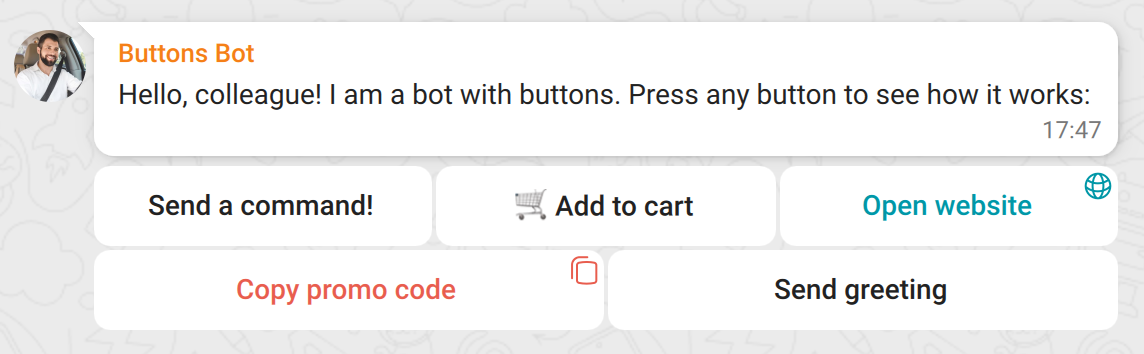
In this example, two rows of buttons are displayed below the message.
- The first row contains three buttons: "Send command to bot 1!", "Add item to cart", and "Open website".
- The second row contains two buttons: "Copy promo code" and "Write a greeting."
You can find an example of an Envelope object with buttons in the “Envelope Examples” section.
The response to the request is a standard sendMessage response.
In the event of an error, a message containing the errorCode parameter is returned. A list of possible values is available in the corresponding section of the documentation.
Click notification
When the user clicks a button of type command, a notification with the command method is sent to the connected bot:
Notification:
{
    "method": "command",
    "id": 12,
    "type": 1,
    "payload": {
        "commandId": "89cbb2d1-e173-4833-87d1-8da7d98fda34",
        "commandSource": {
            "type": "inlineKeyboard",
            "message": {
                "chat": {
                    "chatId": "187f82e38567242a0ff266e022ffe2fc5ad24e1e",
                    "chatTitle": "Chat",
                    "chatType": 2
                },
                "chatId": "187f82e38567242a0ff266e022ffe2fc5ad24e1e",
                "messageId": "d89e4aa7-767c-4962-9e08-35beb0a5f6cc",
                "timestamp": 1788360190573,
                "author": {
                    "id": "buttons_bot@server.trueconf.name",
                    "type": 1
                },
                "box": {
                    "id": 17,
                    "position": "0"
                },
                "type": 200,
                "content": {
                    "text": "message text",
                    "parseMode": "html"
                },
                "isEdited": false
            }
        },
        "commandPayload": {
            "type": "userCommand",
            "command": "add_to_cart",
            "customData": "eyBwcm9kdWN0SWQgOiAiMHIyZmozamY5ajM5MyIgfQ=="
        }
    }
}| Field | Type | Mandatory | Description |
|---|---|---|---|
| method | string | Yes | Method command |
| id | uint32 | Yes | Notification ID |
| type | uint32 | Yes | Message type (default is 1). Corresponds to MESSAGE_TYPE.REQUEST |
| commandId | string | No | Unique command identifier. Present if the button has the waitReply property set to true. Used to send a response to the command — see below |
| commandSource | object | Yes | Command source |
| commandSource.type | string | Yes | Source type. The string "inlineKeyboard" indicates that the command came from a button in the message. |
| commandSource.message | object | No | Present if commandSource.type = "inlineKeyboard". Contains the message object (format Envelope) to which the pressed button was attached. |
| commandPayload | object | Yes | These commands |
| commandPayload.type | string | Yes | Command data type. The string "userCommand" indicates that the command was sent from a button of type command. |
| commandPayload.command | string | No | Present if commandPayload.type = "userCommand". Contains the string from the command field of the button object. |
| commandPayload.customData | string | No | Present if commandPayload.type = "userCommand". Contains a string from the customData field of the button object. |
As with any other server notification, it requires a confirmation response (see the client response to the server request):
{
    "type": 2,
    "id": 123456
}
If the commandId field is missing in the incoming notification, the command does not expect an additional response.
Response to the command
If the command notification contains the commandId field, the bot must respond to the command. This is done by sending a request with the answerCommand method:
Request:
{
    "method": "answerCommand",
    "id": 13,
    "type": 1,
    "payload": {
        "commandId": "89cbb2d1-e173-4833-87d1-8da7d98fda34",
        "answerType": "complete",
        "message": {
            "status": "ok",
            "visibility": "alert",
            "level": "info",
            "text": "Hakuna Matata!"
        }
    }
}| Field | Type | Mandatory | Description |
|---|---|---|---|
| method | string | Yes | Method answerCommand |
| id | uint32 | Yes | Unique request identifier |
| type | uint32 | Yes | Message type (default is 1). Corresponds to MESSAGE_TYPE.REQUEST |
| commandId | string | Yes | Unique team identifier, matches the corresponding string from the incoming notification |
| answerType | string | Yes | Type of command response. It can take one of the following values: complete, timeout, cancel, message. |
| сообщение | object | No | Additional message for the user |
| message.status | string | No | Response status. It can take one of the following values: unknown, pending, running, ok, failed, canceled, timeout. |
| message.visibility | string | No | Response display method. It can take one of the following values: default, toast, sticky, alert. |
| message.level | string | No | The importance level of the response. It can take one of the following values: info, warning, error, critical. |
| сообщение.текст | string | Yes | Response text, length from 1 to 255 ASCII characters |
Displaying the response as a modal window (visibility: "alert") requires support from the client application side.
Response to the request is a standard type 2 response.
In the event of an error, a message containing the errorCode parameter is returned. A list of possible values is available in the corresponding section of the documentation.