# Summarization settings
If the summarization module is activated for your TrueConf AI Server, you can configure the types of summarization available to users. To do it, go to the Summarization section of the control panel.
# Selection and editing of the prompt (summarization type)
In the Summarization → Available summary types list, you will see the available prompts (types) to choose from. By default, several standard types are offered, and they are all inactive, which means that they will not be available to users:
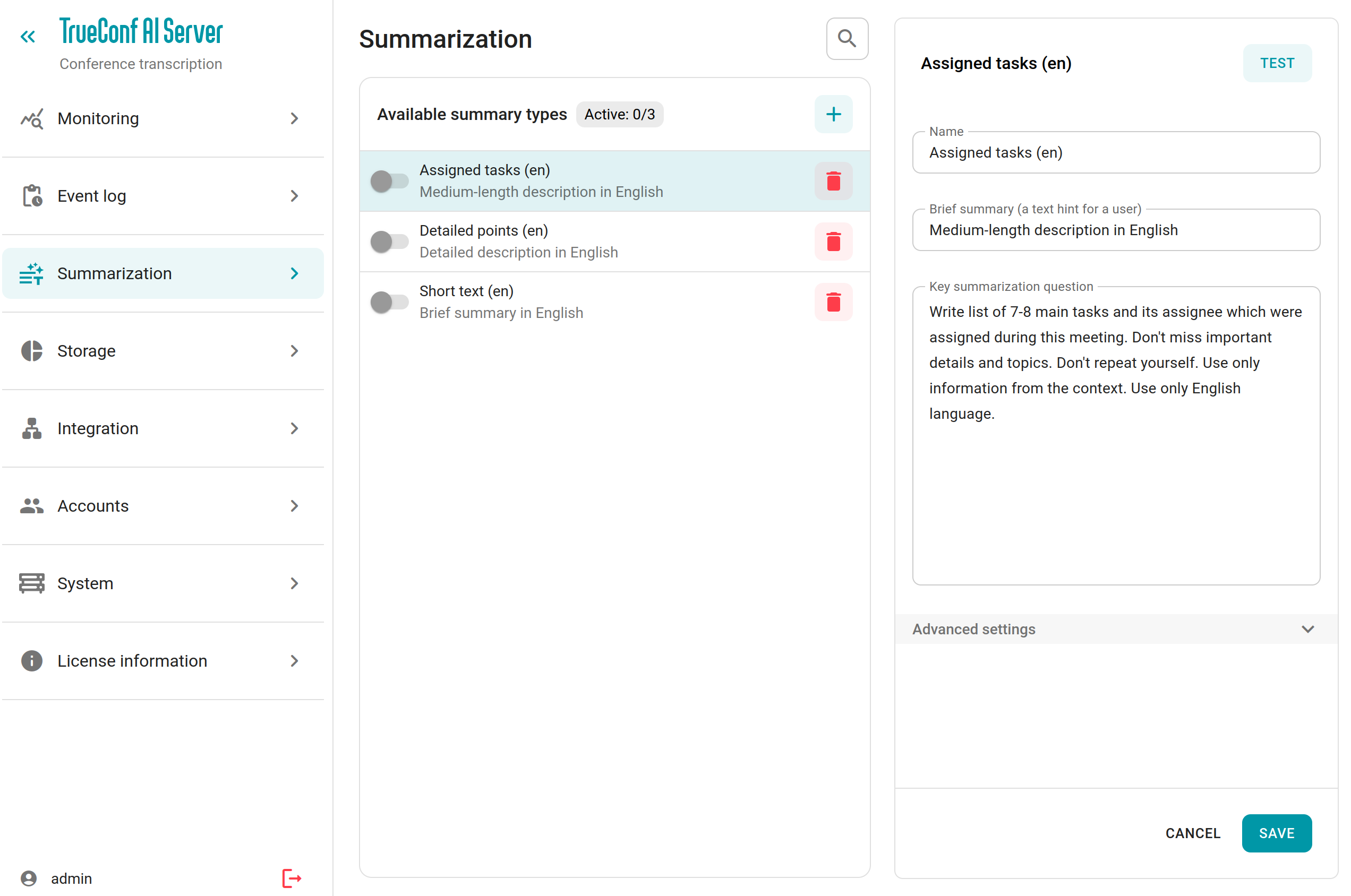
Click on any of the prompts to view its settings on the right side of the screen (an example is shown in the screenshot above) and edit them if necessary. You can change the prompt name, its brief description (which will be displayed to a user when starting event summarization), and the task text for the AI (summarization question). Based on the task text, the AI model will generate the summary of the full transcript.
You can change additional summary settings by clicking on the Advanced settings block:
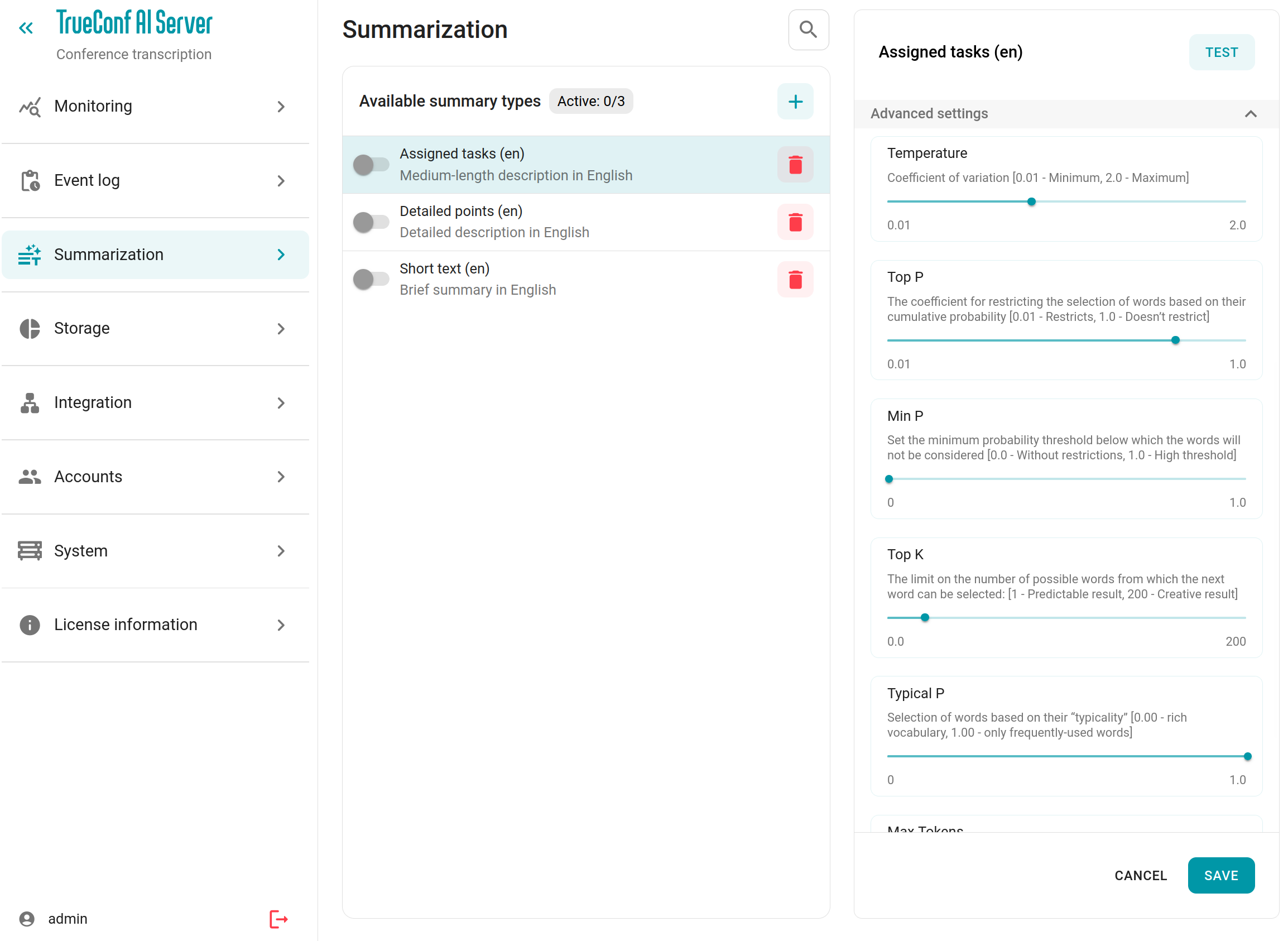
In this section you can adjust the variation of responses, the probability of selecting different words among synonyms, the response size in tokens (which is set automatically by default), and more. All parameters are labeled, and if you wish to apply them to existing or new prompts, we recommend selecting the appropriate values at first. Check the results by clicking the Test button: you will see a pop-up window where one can enter a text to be summarized (ideally, you can take a large transcript of a conference). When you are satisfied with the results, click the Save button to confirm your changes.
If you do not click Save, no results, including changes to advanced settings, will be saved!
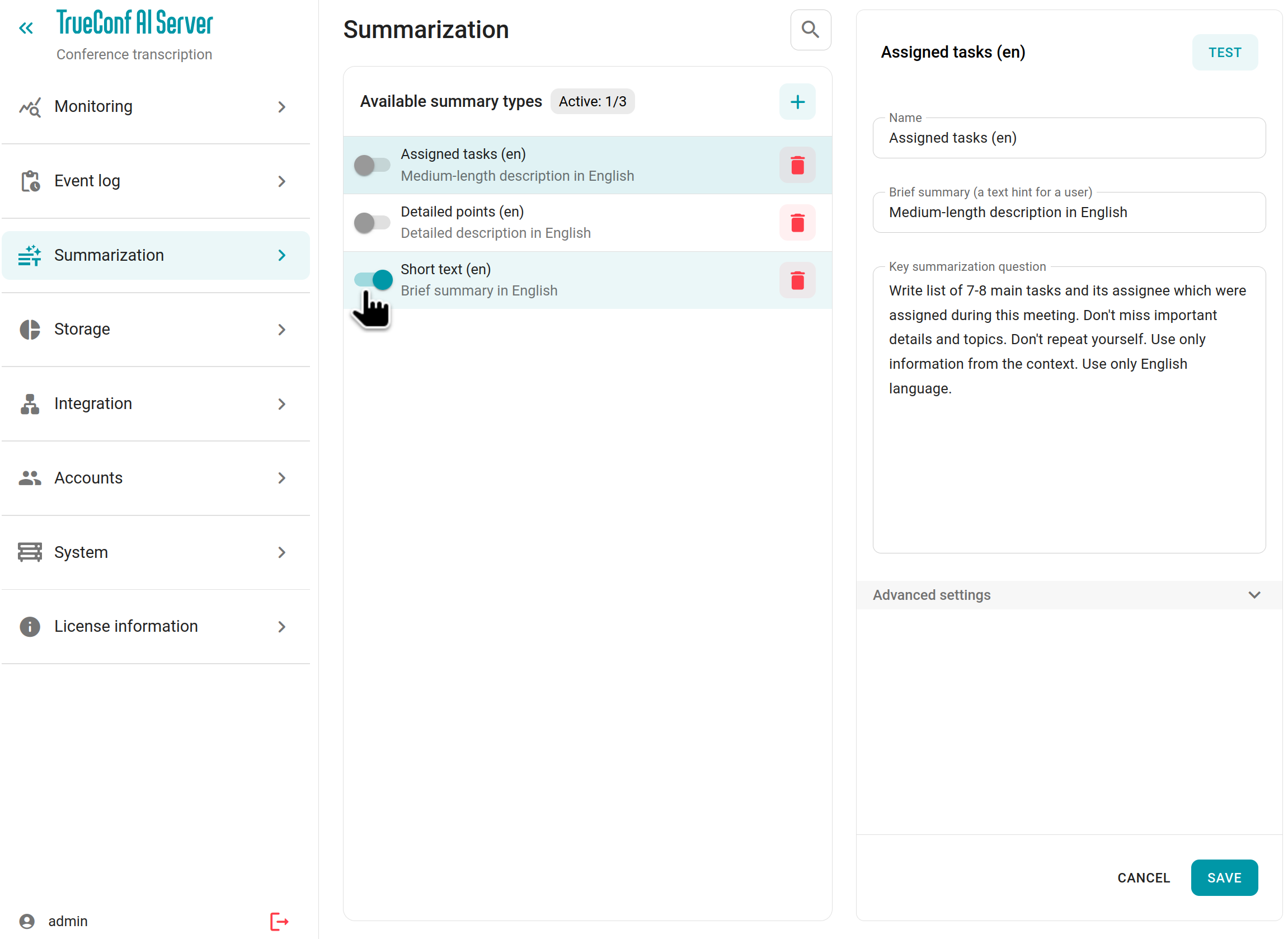
To activate the required type of summary after configuring all the settings, just switch the toggle next to the type name:
# Testing the task (question)
There is a built-in testing tool in the control panel which makes it easier to assess summary types (prompts). To test a question and its advanced parameters, click the Test button:
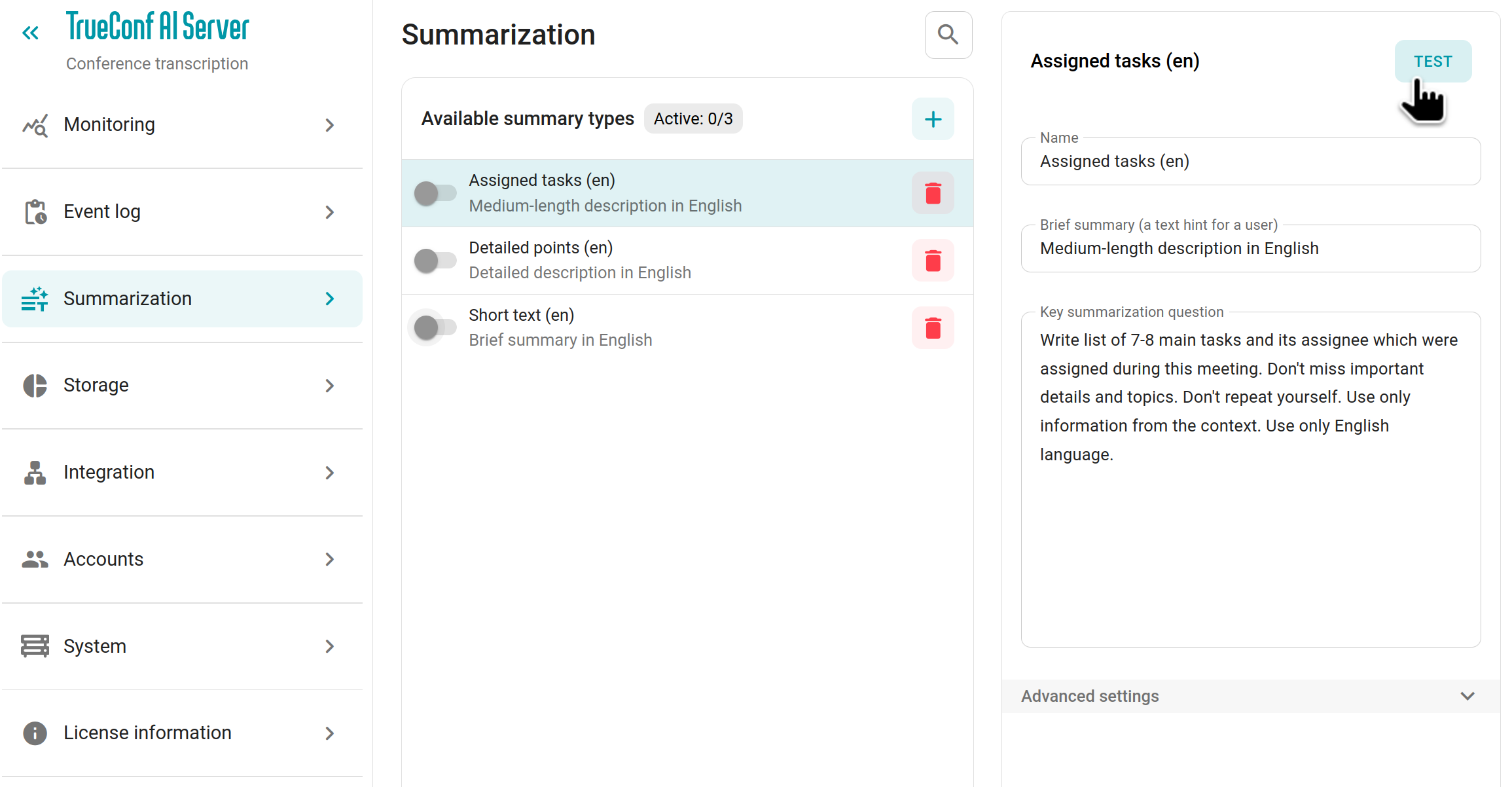
In the Source text field of the pop-up window, you can enter your test text that will be summarized or click the Use template button, if you want to insert a pre-written text:
If the result is satisfactory, you can specify a convenient Name for this question (prompt) and a Brief summary that will serve as a hint for users. A clear name and description will help users quickly find the required prompt and choose it for conference summarization.
# Adding a new type of summarization
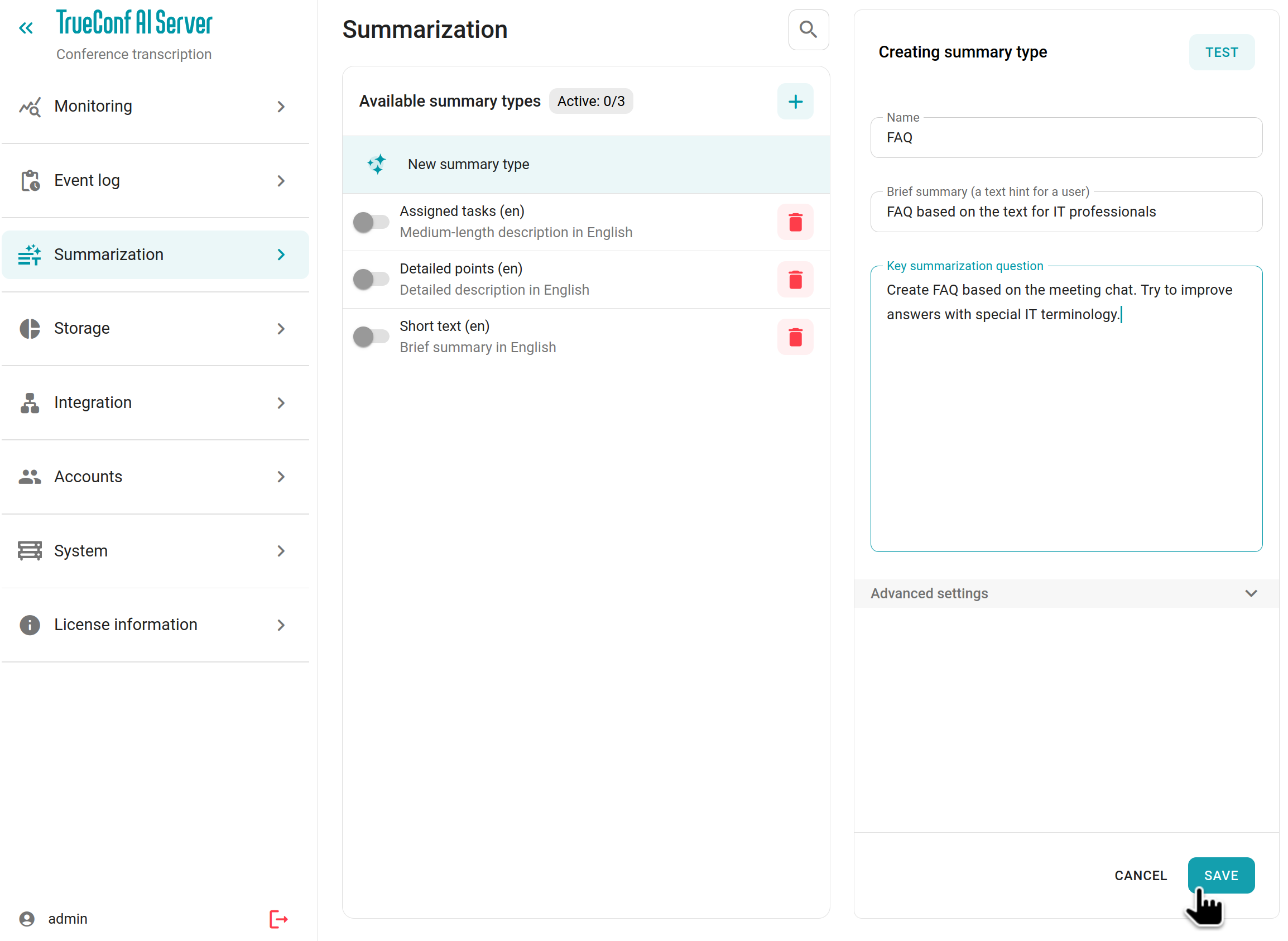
To add a new prompt, click the  button and select either an empty template or one of the existing ones:
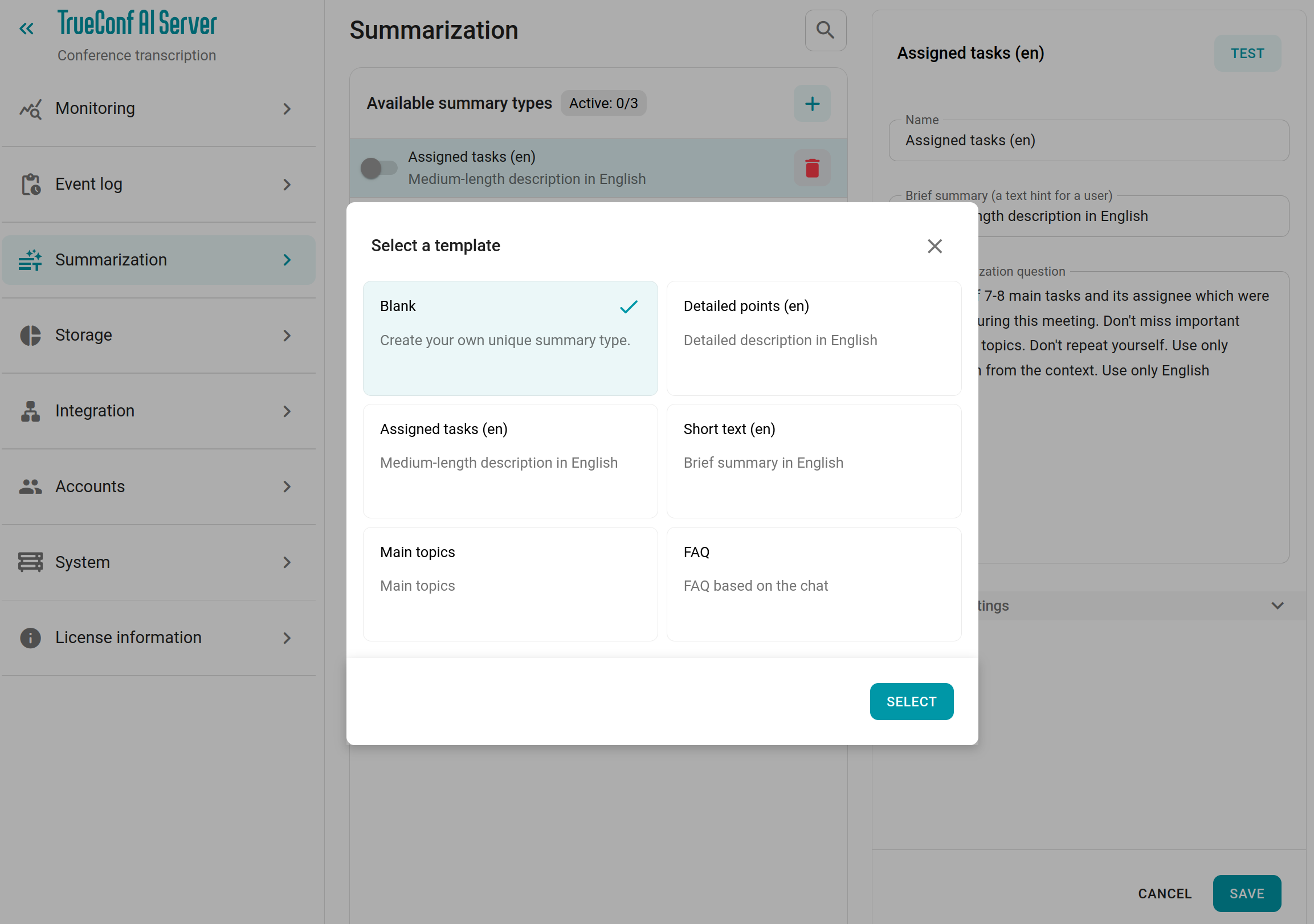
Set required parameters for the prompt (just like when editing) and don't forget to click the Save button: