# Preconfiguration of Microsoft Exchange
An impersonation account is a Microsoft Exchange service account given the ApplicationImpersonation role by the administrator. Impersonation allows the caller (in our case, TrueConf Calendar Connector) to act as a user account. This means that the caller can perform operations using the permissions associated with the impersonated account, instead of its own permissions. Such an account is used in scenarios where centralized mailbox management is needed, such as in support services or automated systems.
# Creation of an account on the Microsoft Exchange server
Before taking this step, make sure that:
Your Active Directory service is configured.
The Active Directory server is visible to the Microsoft Exchange server.
Refer to the official documentation on installation and configuration of this software.
Before continuing the configuration of TrueConf Calendar Connector, you need to create an account on the Exchange server and grant it impersonation rights. To do it:
Log in to the control panel of the Microsoft Exchange server at
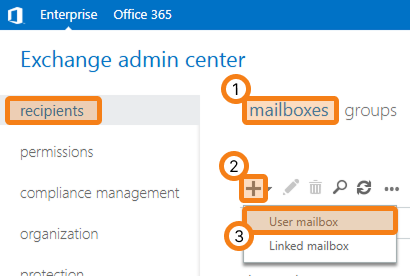
https://example.com/ecp/by using the administrator's login and password.Go to the Recipients → Mailboxes section.
Click
 .
.Select User mailbox in the pop-up window.
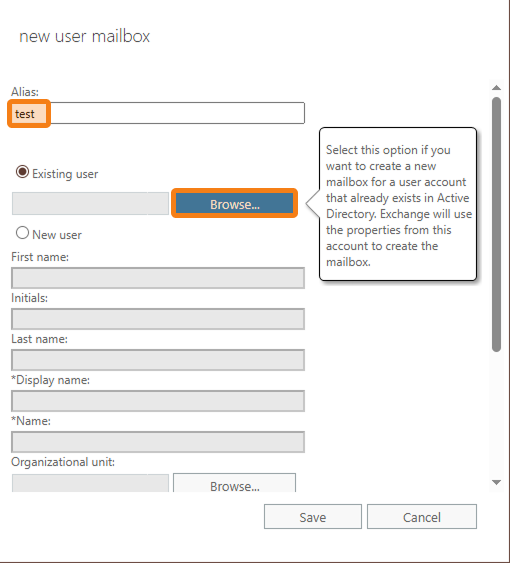
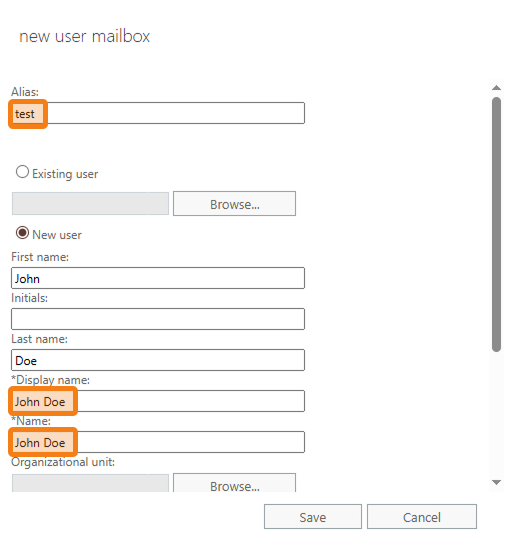
In the opened form, enter the name of the Exchange account in the Alias field. Next, take one of these steps:
Select an existing user from your Active Directory.
or
Manually enter the new account information. In this case, the account will also be created in Active Directory.
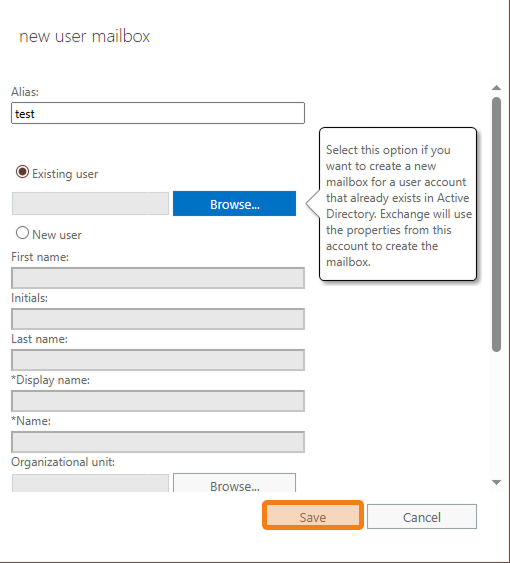
6. Next, click the Save button.
# Creation of an impersonation group
Before giving a user an impersonation role, create a group with these permissions (do not confuse with AD groups, this entity is used only within Exchange). To do it:
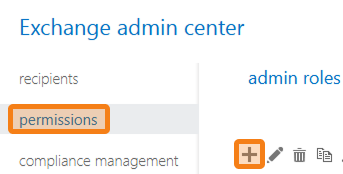
Go to the Permissions → Admin roles section.
Click
.
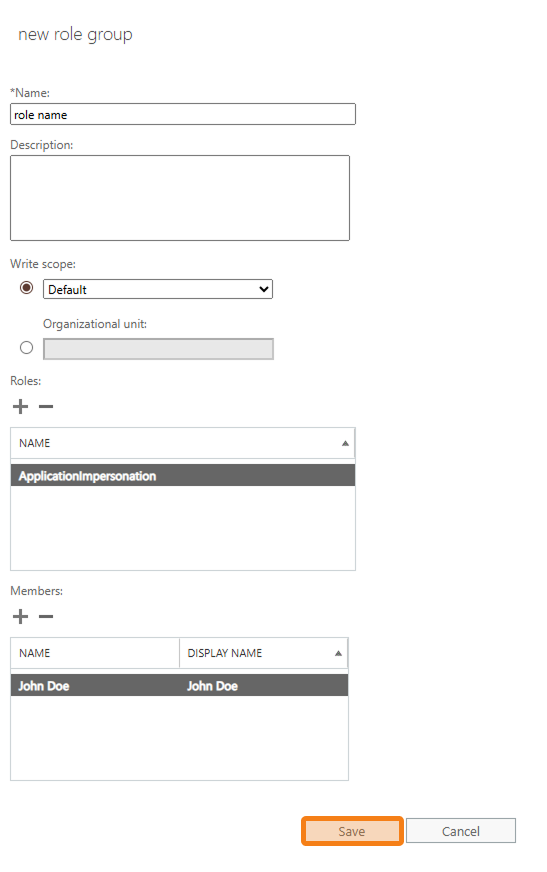
In the pop-up window, enter the name of the new role.
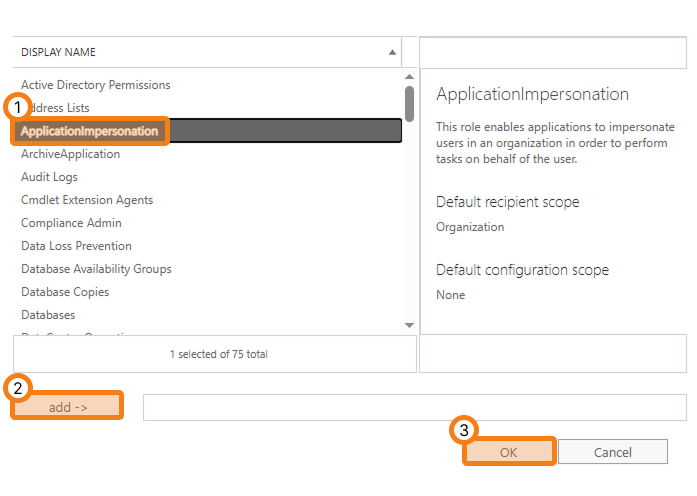
In the Roles section, click
.In the pop-up window, select ApplicationImpersonation and click Add → OK.
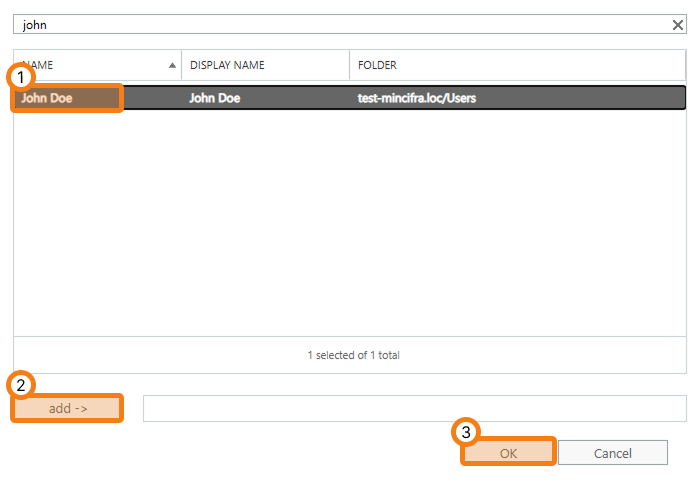
In the Members section, click
.Select the created user and click Add → OK.
Click the Save button.
# Encryption of impersonation account password
To continue configuration, you need to encrypt the impersonation account password. To do it:
# Windows:
Execute the command in the terminal:
C:\Program Files\TrueConf\Calendar\tc_calendar.exe --hash_pass <password>
Where password is the password for your impersonation account.
# Linux:
Run the command in the terminal:
sudo /opt/trueconf/calendar/bin/calendar/tc_calendar --hash_pass <password>
Where password is the password for your impersonation account.
Now you can start installation.