# Checking connection with the Exchange server
# In the console
To test the connection of TrueConf Calendar Connector with the Microsoft Exchange server, take these steps:
Go to the personal area of TrueConf Server and open the developer console in your browser (press F12). Here, Chrome is used as an example, but the logic is similar in other browsers.
Reload the page (press F5).
Open the Network → Socket → calendar/ → Messages tab and click on the line that contains the
getCalendarListmethod:
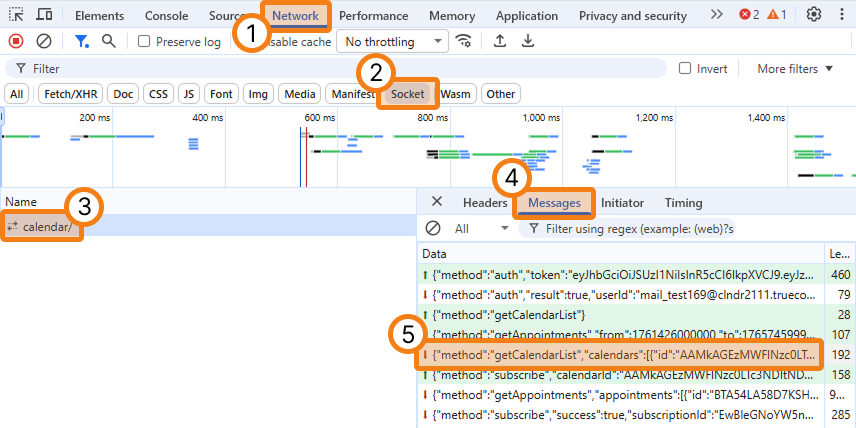
- Upon a successful connection, you will see the calendars field, which contains the id and title fields:
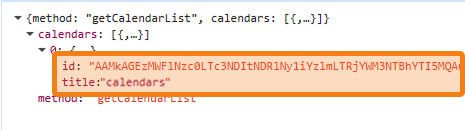
# In the log files
To check the connection with the server with the help of log files, take these steps:
Delete the contents of the following folder:
Windows:
%ProgramData%/Trueconf/Calendar/calendar_logLinux:
/opt/trueconf/calendar/var/log/calendar
Restart TrueConf Calendar Connector:
Windows:
1. Open the <interface ru="Диспетчер задач" en="Task Manager"/> (`Ctrl + Shift + Esc`).

1. Go to the <interface ru="Службы" en=""/> section.

1. Find the <interface all="TrueConf Calendar"/> service and restart it (or run this service if it was stopped).

- Linux:

        - Execute the command:

          ```bash
             sudo systemctl reset-failed trueconf-calendar.service
          ```
Access your TrueConf Server personal area
View files in the directory:
Windows:
%ProgramData%/Trueconf/Calendar/calendar_logLinux:
/opt/trueconf/calendar/var/log/calendar
The connection to the Exchange server can be considered successful if the following errors are absent:
Cant get free socket from poolfailed to getCalendarList